

Analytics for CMS
The Analytics dashboard for Content Management System (CMS) gives organization owners and admins a centralized view of how the CMS is used across their organization. It covers resource consumption, API activity, bandwidth, assets, entries, and device usage across all stacks.
Prerequisites
- Contentstack account
- Organization Owner or Admin permissions
What You Will Learn
How to access the CMS Analytics dashboard.
What each dashboard section shows and what metrics it includes.
How to apply filters and save custom views.
Access the CMS Analytics Dashboard
To access the Analytics dashboard, log in to your Contentstack account and perform the following steps:
Navigate to Analytics through the "App Switcher".
By default, the CMS analytics dashboard appears, which shows detailed metrics specific to your CMS usage.
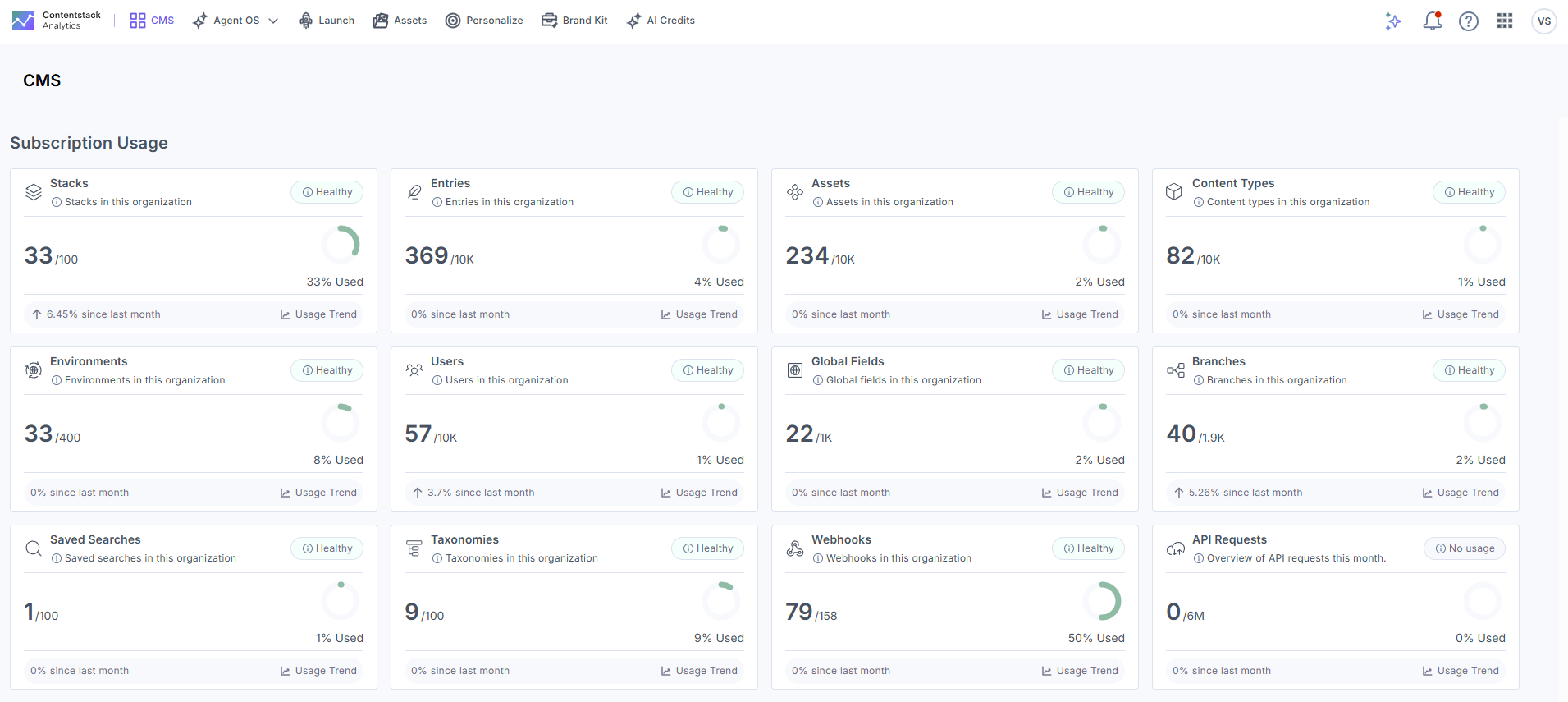
Note: Dashboard data updates every 24 hours. Data shown does not reflect real-time activity.
CMS Analytics Dashboard Sections
The Analytics dashboard is divided into several sections, each providing valuable insights into different aspects of your CMS usage. These sections help you monitor and optimize your performance, resource utilization, and overall efficiency.
Subscription Usage
This section shows your organization's current CMS resource consumption, including bandwidth, API requests, and the number of stacks, entries, assets, content types, and other resource metrics. It compares current usage against your subscription's allocated limits.
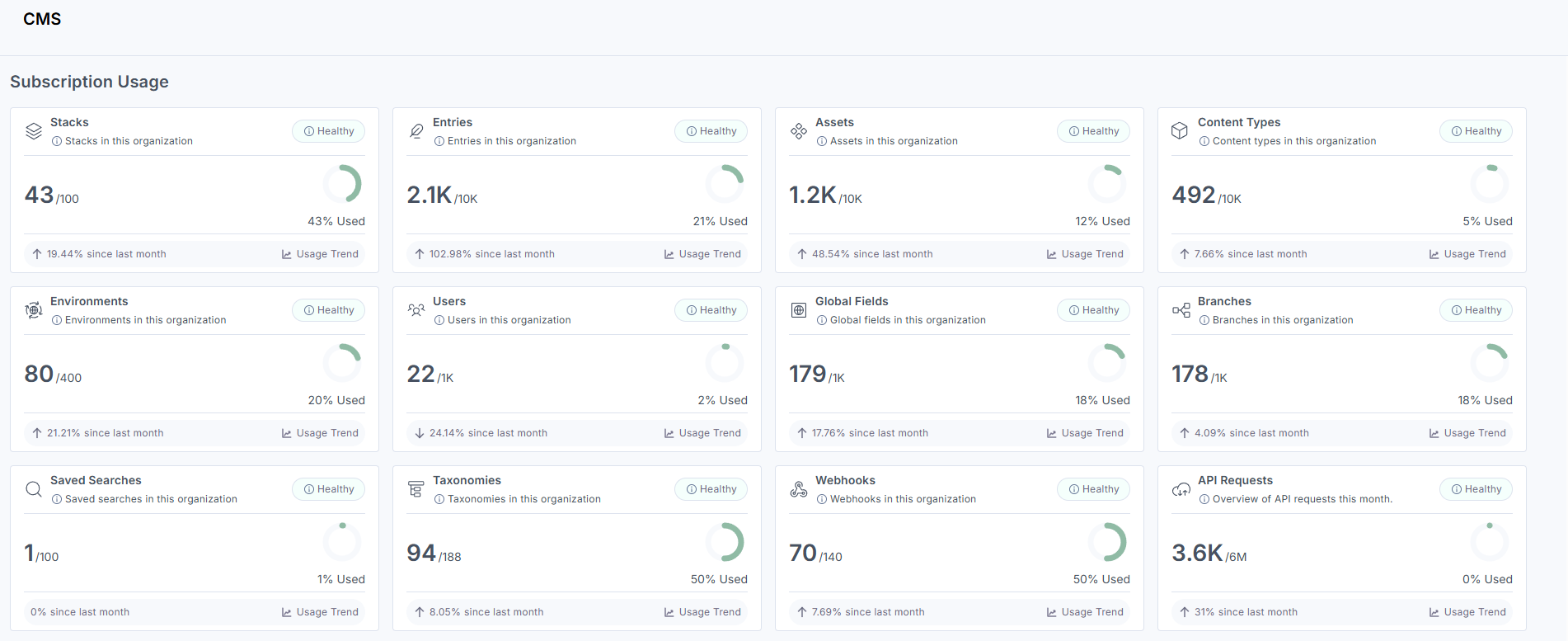
Note: The data displayed reflects usage from the last 30 days. For example, if viewed on February 20, the metrics cover the period from January 21 to February 20.
Usage by Stacks
This section offers detailed metrics for each stack, allowing you to monitor the performance and resource utilization of individual stacks within your CMS. This information helps in managing and optimizing your content infrastructure effectively.
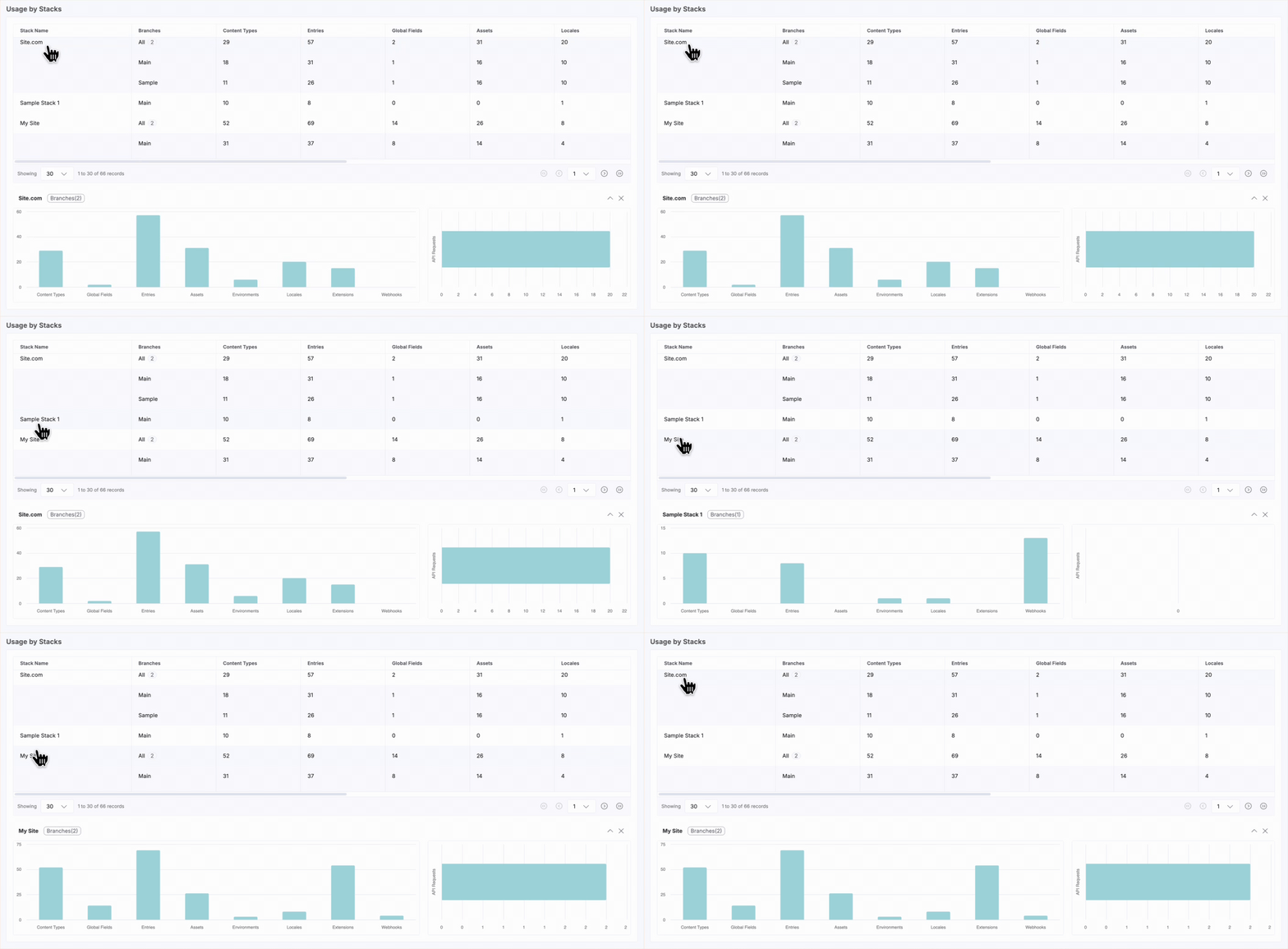
Metrics available for each stack:
Stack Name: Name of all stacks within your organization.
API Key: API keys of the listed stacks.
Owner: Email addresses of the owners of the listed stacks.
Content Types: Number of content types within the stacks.
Global Fields: Number of global fields within the stacks.
Entries: Number of entries created within the stacks.
Assets: Number of assets present within the stacks.
Environments: Number of environments created within the stacks.
Locales: Number of languages created within the stacks.
Extensions: Number of extensions created within the stacks.
Webhooks: Number of webhooks created within the stacks.
Custom Roles: Number of custom roles within the stacks.
Branches: Number of branches within the stacks.
Branch Aliases: Number of branch aliases within the stacks.
Note:Global Fields, Branches, and Branch Aliases are plan-based features. To enable these features for your organization, contact the support team.
API Usage
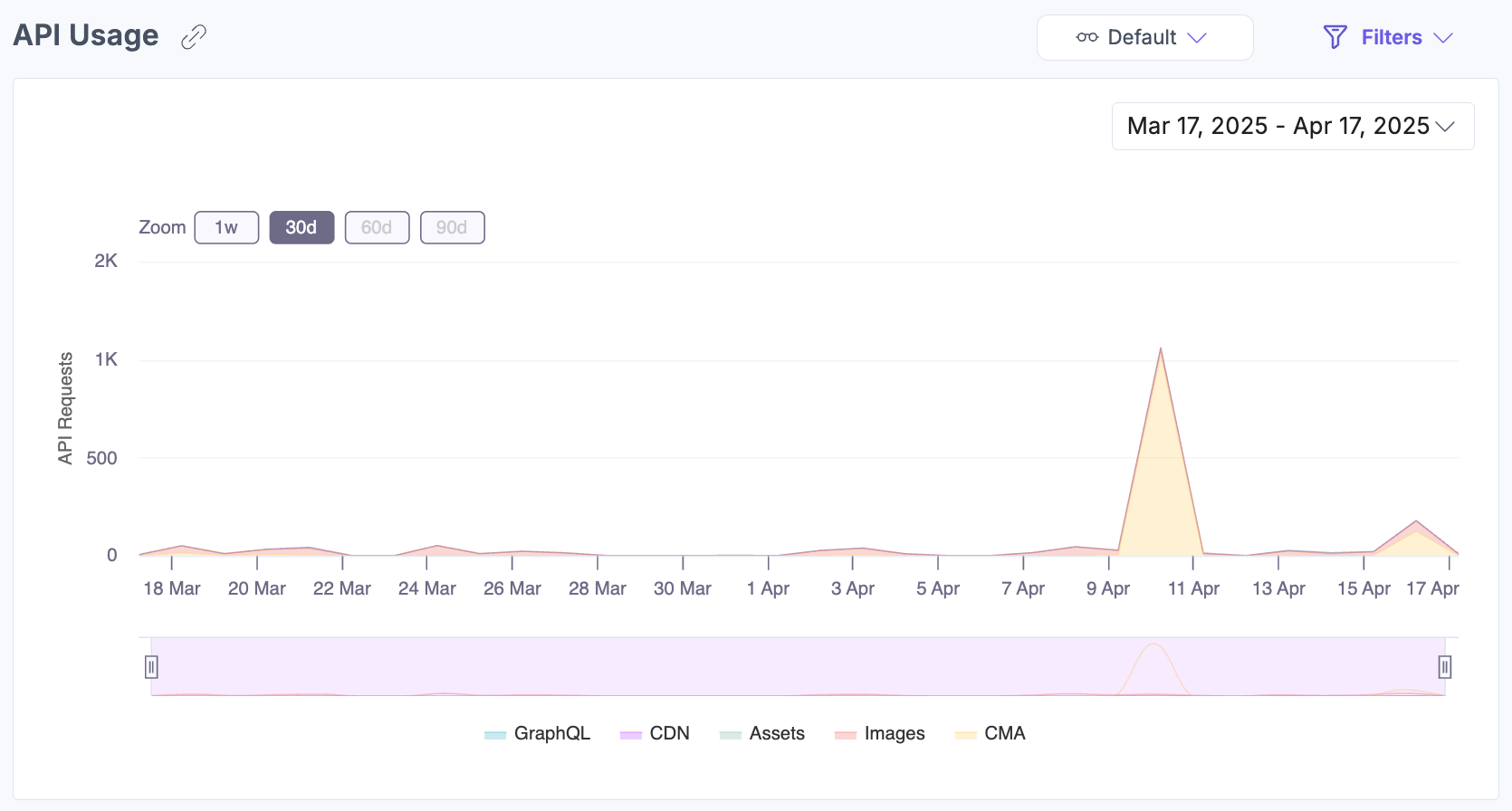
The API Usage section shows a visualization of API call volume over a selected time frame. Hover over the chart to see API utilization at a specific timestamp.
Bandwidth Usage
The Bandwidth Usage section shows bandwidth consumption over time, helping you track usage against your subscription limits. Hover over the chart to see bandwidth usage at a specific timestamp.

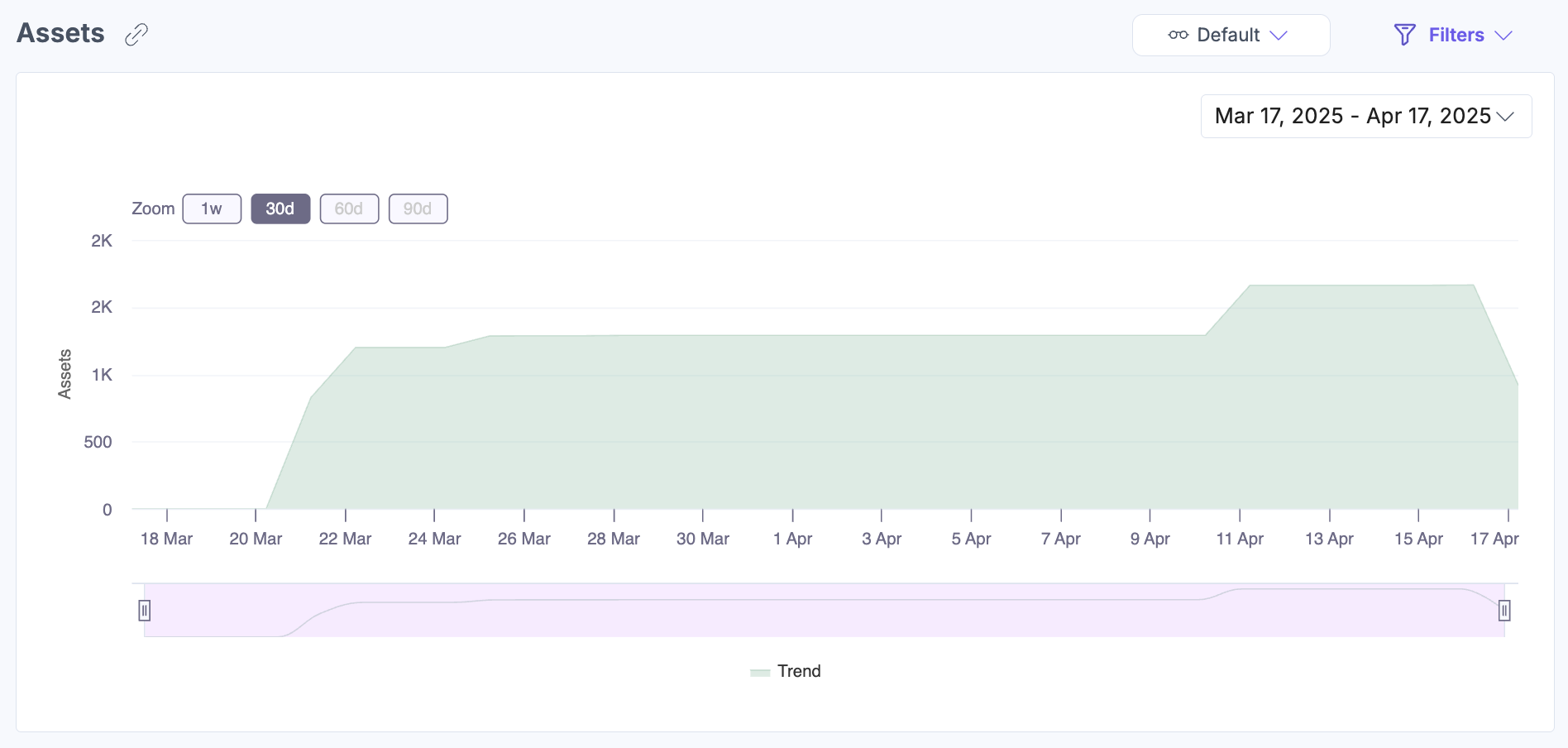
Assets
The Assets section shows the total number of assets available within your organization and tracks asset count trends over a selected time frame.
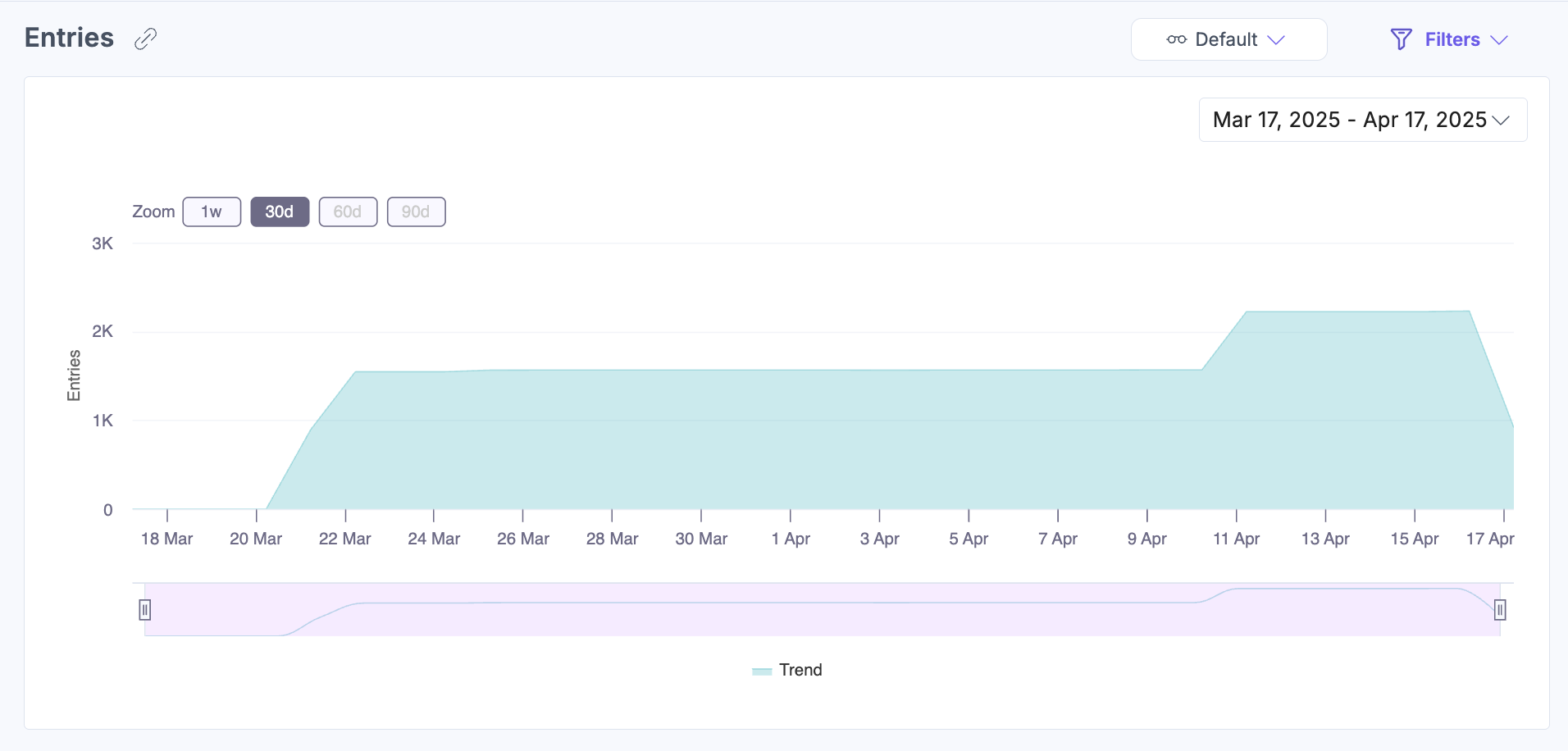
Entries
The Entries section shows the total number of entries available within your organization.
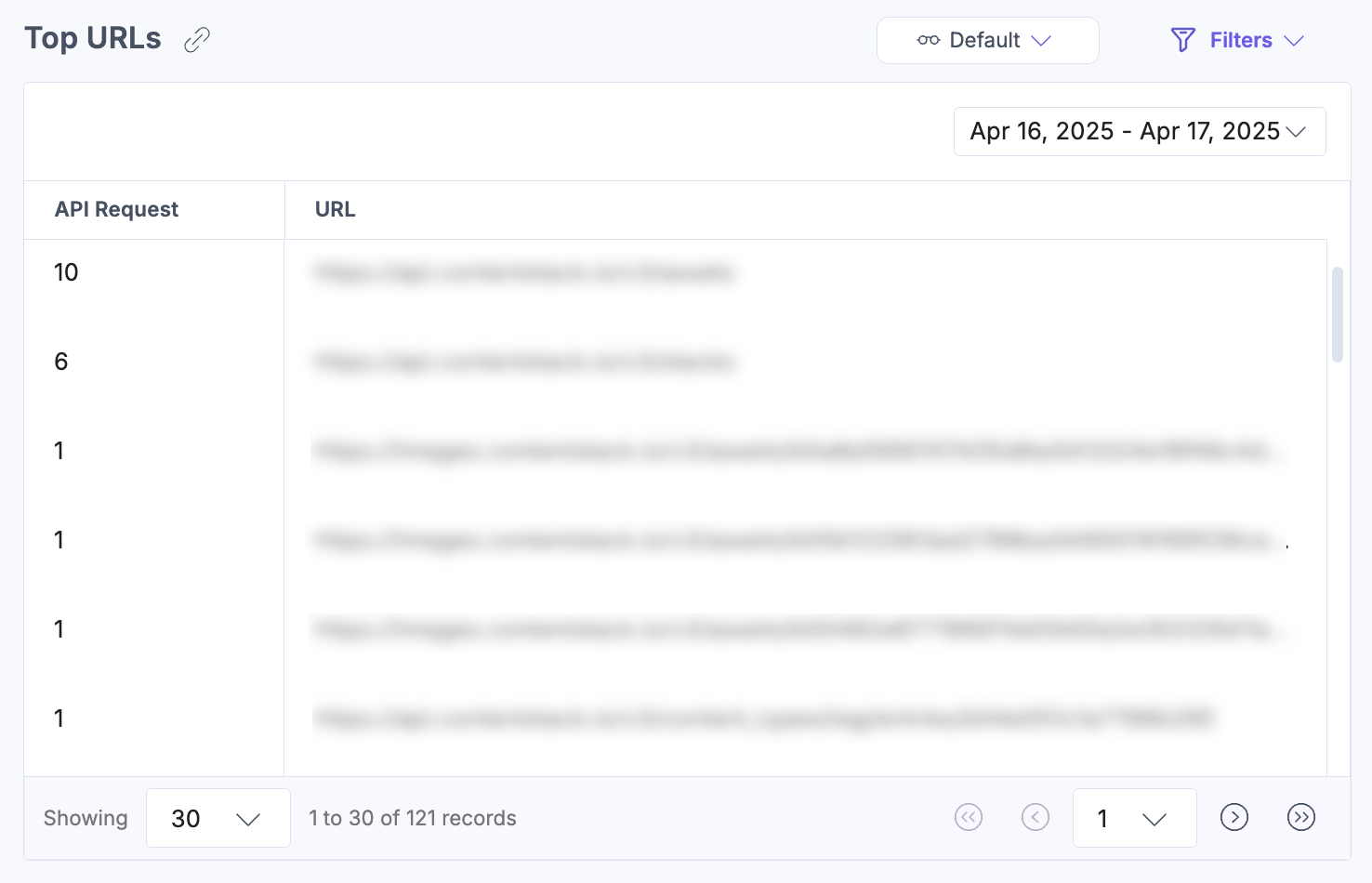
Top URLs
The Top URLs section shows the most frequently accessed API endpoints within your CMS, helping you understand usage patterns and identify opportunities to optimize performance.
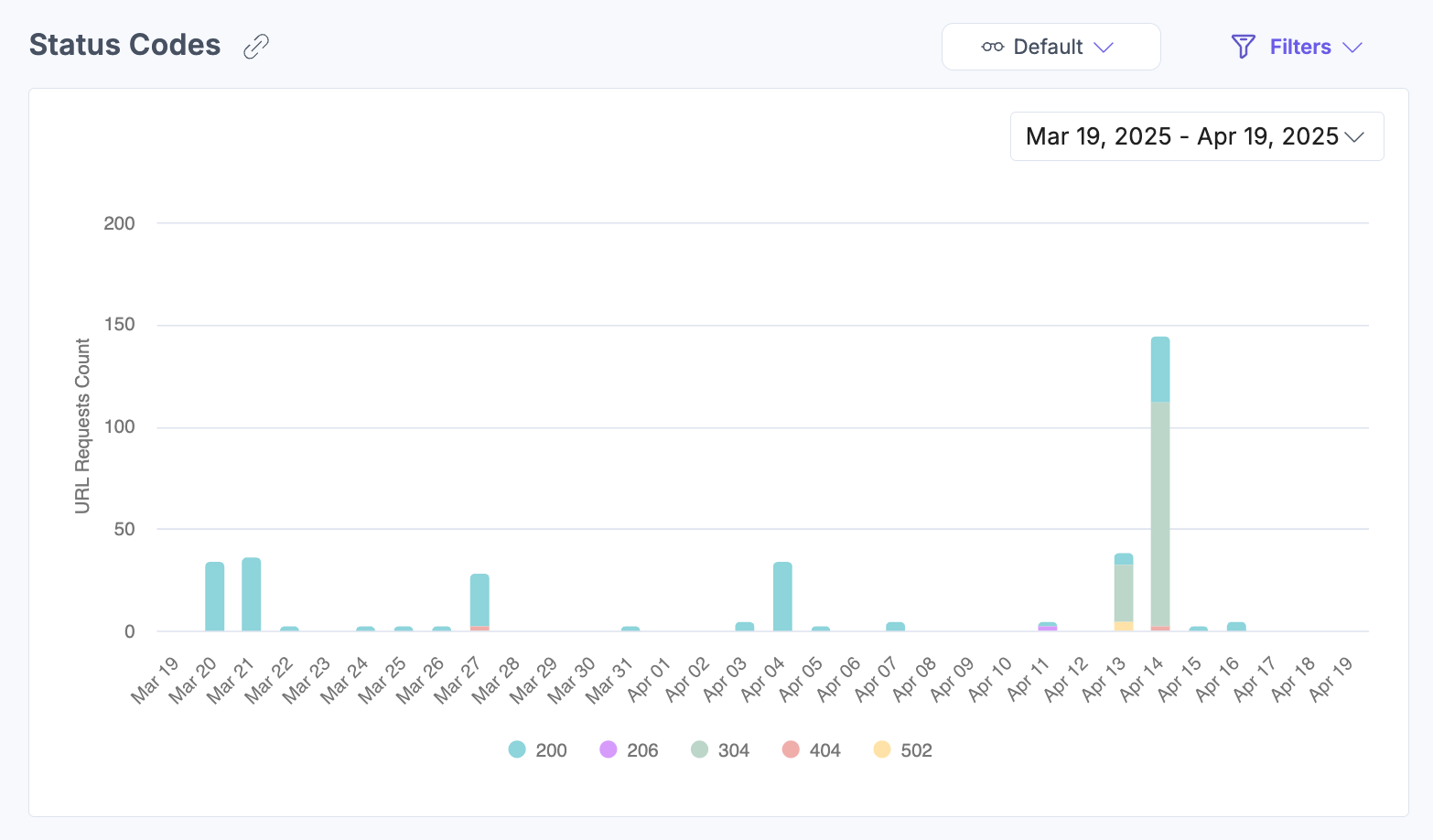
Status Codes
The Status Codes section shows the outcomes of API calls, including successful requests, errors, and unsupported requests, so you can identify and address issues quickly.
Cache Usage
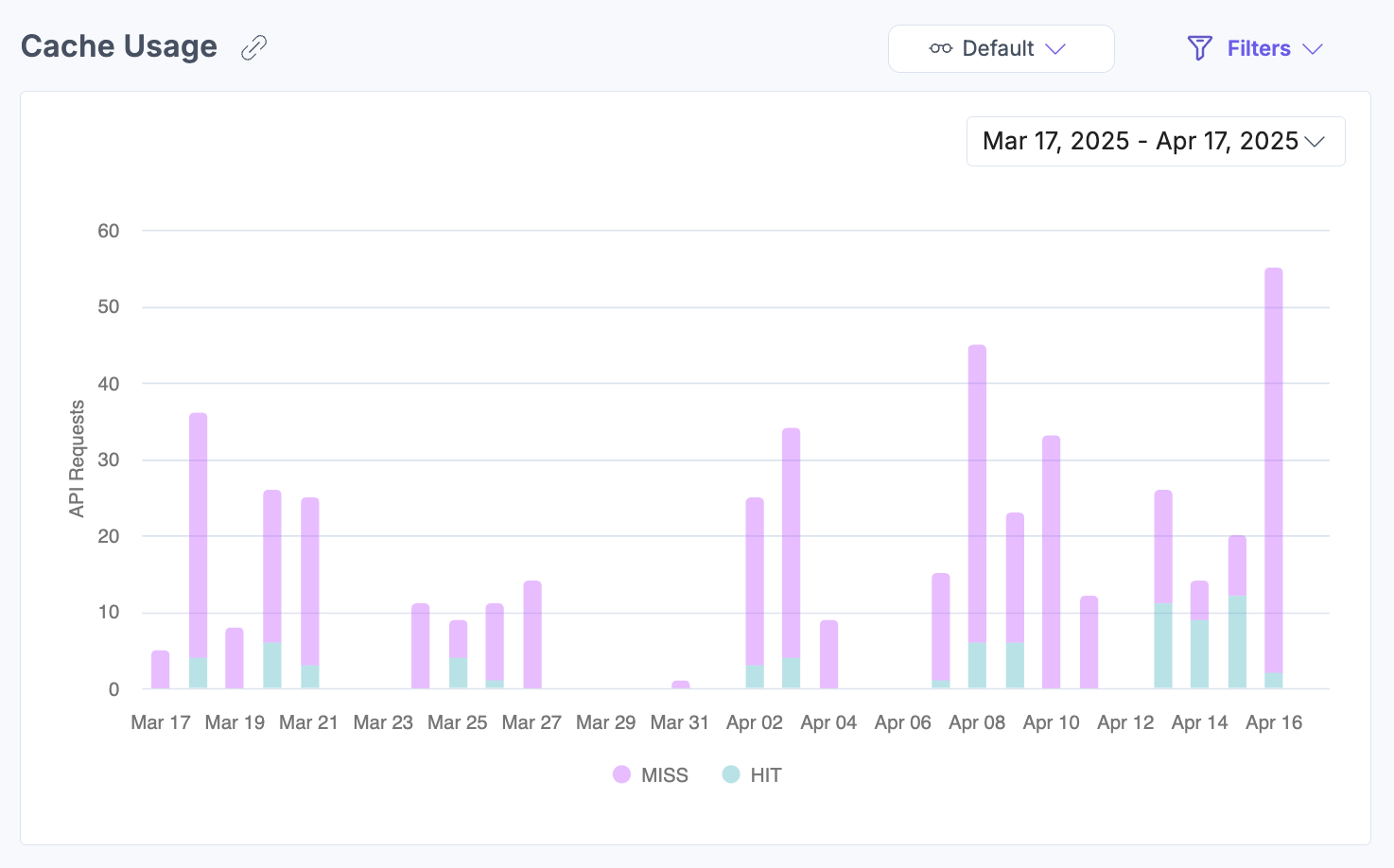
The Cache Usage section shows API call hit and miss ratios, helping you assess and optimize your cache configuration. You can filter the chart to display only HITs or MISSes.
SDK Usage
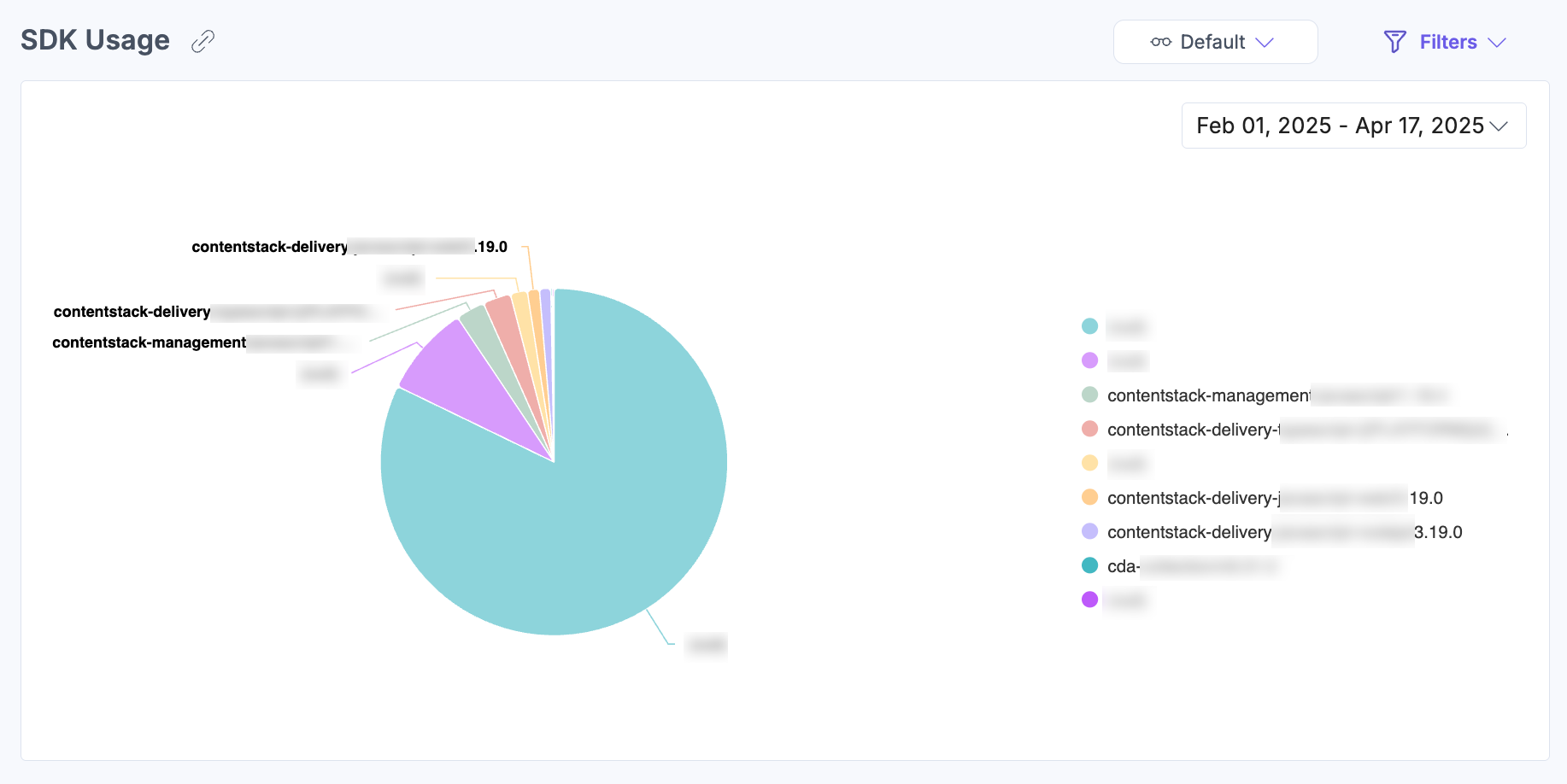
The SDK Usage section shows a pie chart of SDK consumption across your customers, helping you track the usage of individual SDKs.
Device Usage
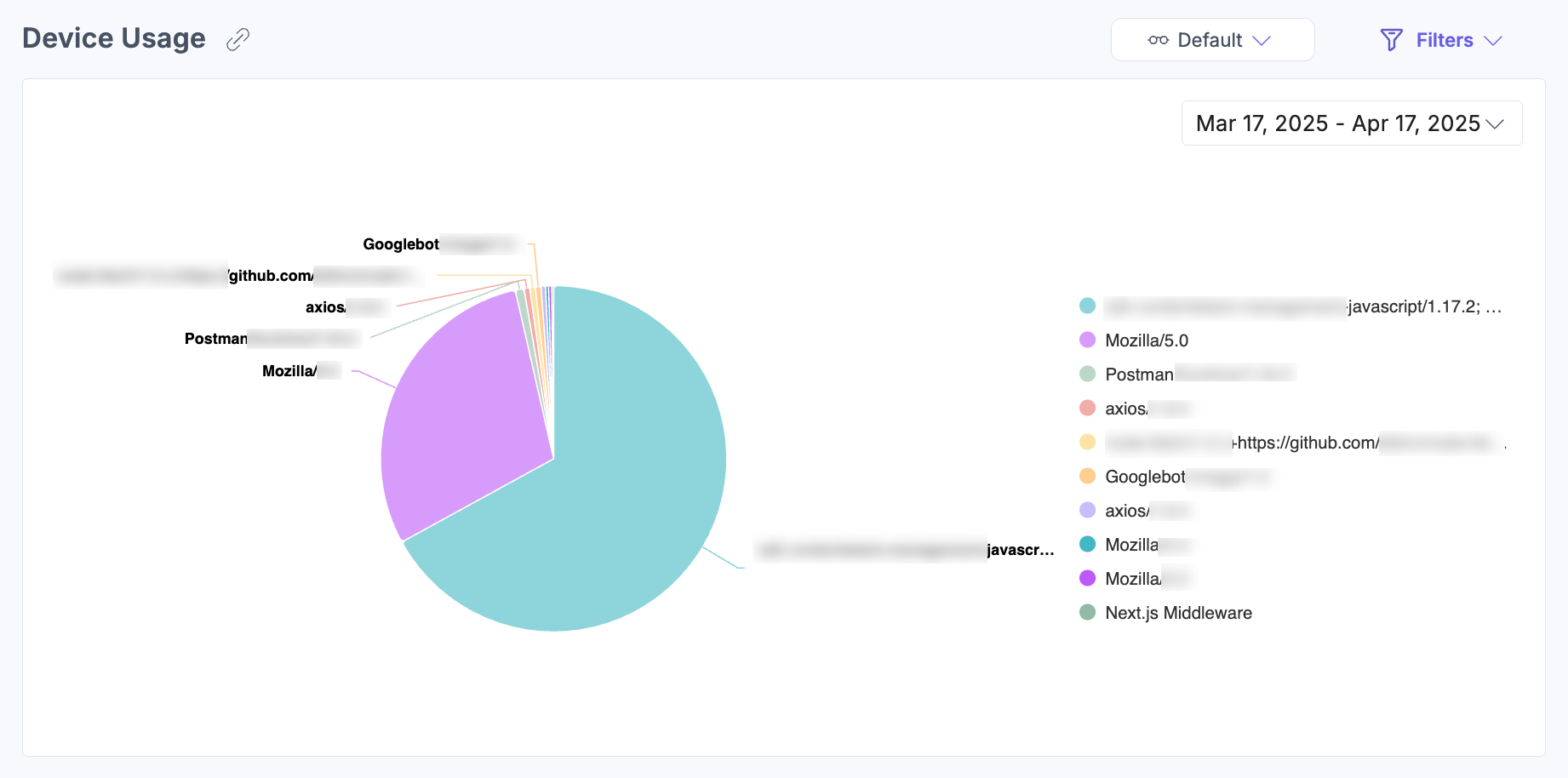
The Device Usage section shows a pie chart of the device types used to access your CMS. Use this data to understand how users access your content and optimize accordingly.
The analytics dashboard for CMS offers crucial insights into your resource usage.
Content Lifecycle
This section shows how content moves from creation to publication, including how many entries are still in progress and what percentage of created entries have been published. Each metric also shows the percentage change compared to the previous month.
Metrics available:
- Ready to Publish: Number of entries with every required field completed, waiting to be published.
- Publish Completion Rate: Percentage of created entries that have been published.
Entries Created, Published, and Deleted
This section shows entry creation, publishing, and deletion volumes over time. Hover over the chart to see the volume for a specific date.
Metrics available:
- Entries Created: Number of entries created during the selected time frame.
- Entries Published: Number of entries published during the selected time frame.
- Entries Deleted: Number of entries deleted during the selected time frame.
Workflow Coverage
This section shows how many entries are currently covered by workflows and publish rules, across all stacks in this organization.
Metrics available:
- Entries in a Workflow Stage: Entries currently assigned a workflow stage.
- Entries with No Workflow: Entries with no workflow stage assigned. These publish with no review step.
- Entries with Publish Rules: Entries covered by at least one active publish rule. Publish rules set conditions that must be met before an entry can be published or unpublished, such as approval from specific users or roles, or reaching a workflow stage.
Stalled Entries by Workflow Stage
This section shows the top 10 workflow stages with the most stalled entries, grouped by how long they have been waiting, along with the individual stalled entries listed below. An entry is stalled if it has not moved to a new workflow stage in 7 or more days.
The chart groups stalled entries into the following time ranges: 7-14 days, 15-29 days, 30-89 days, and 90+ days.
The table below the chart lists the following details for each stalled entry:
- Entry: Title of the stalled entry.
- Current Stage: Workflow stage the entry is currently in.
- Branch: Branch the entry belongs to.
- Locale: Language of the entry.
- Content Type: Content type of the entry.
- Stack: Stack the entry belongs to.
- Days in Stage: Number of days the entry has been in its current stage. Hover over this value to see the exact date the entry entered the stage.
- Entry Owner: User associated with the entry.
Team Activity
This section shows who created and published content in the last 90 days, and how active they are compared with the rest of your organization. Each metric also shows the percentage change since last month.
Metrics available:
- Active Users: Users who created or published at least one entry in the last 90 days.
- Inactive Users: Users who have not created or published an entry in the last 90 days.
- Active User Ratio: Share of users who created or published an entry in the last 90 days, shown as a percentage alongside the exact user counts, for example, 15 of 1,250 users.
- Entries Created: Entries created in the last 90 days, across all stacks in this organization.
- Average Entries per Author: Average entries created per author in the last 90 days. An author is a user who created at least one entry.
The table below lists the following details for each user:
- User: Name of the user.
- Last Activity: Time since the user last created or published an entry.
- Entries Created: Number of entries the user created in the selected period.
- Entries Published: Number of entries the user published in the selected period.
- Status: Whether the user is Active or Inactive. Active means the user created or published an entry in the last 90 days.
Apply Filters and Manage Views
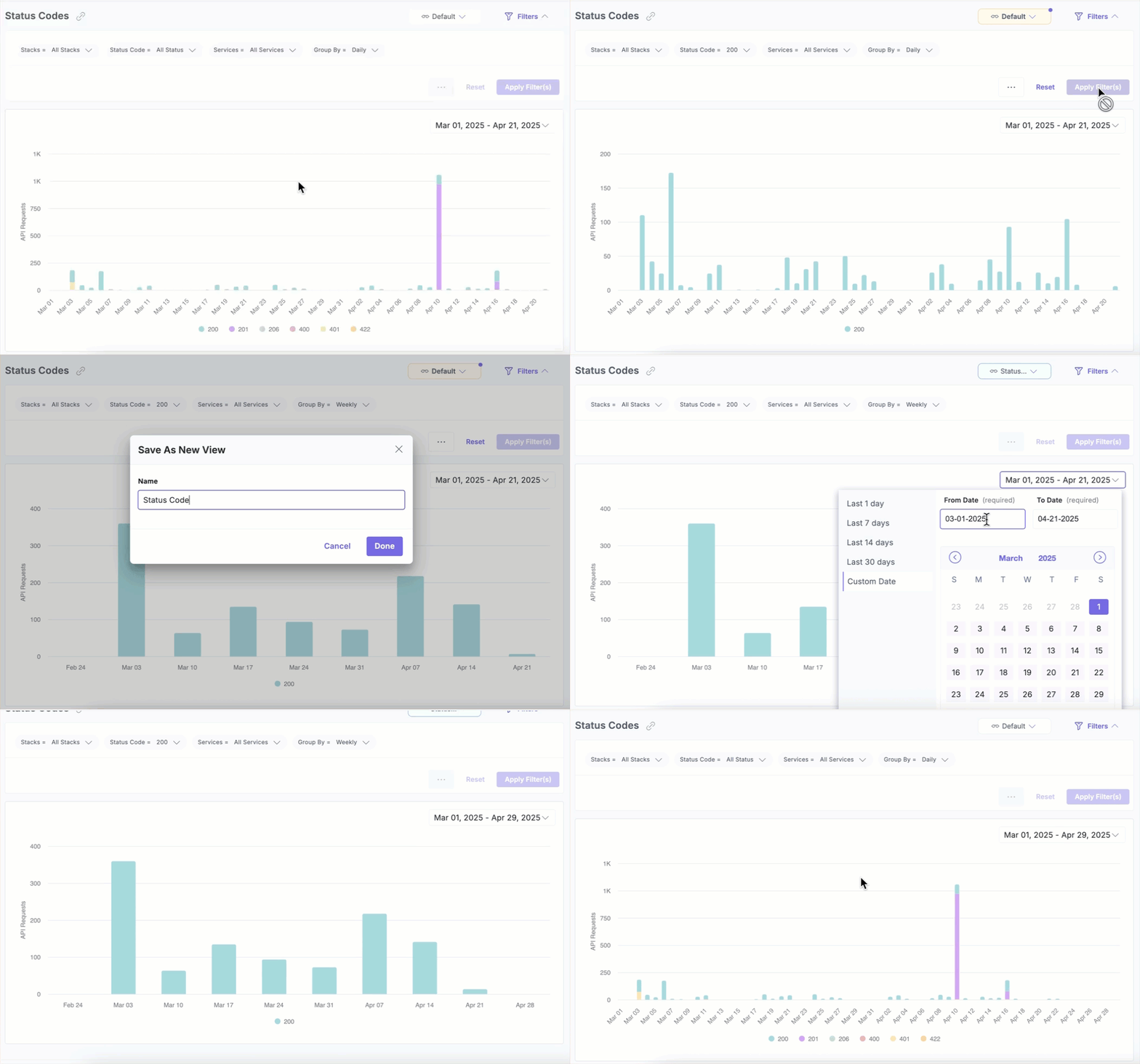
To apply filters, click Filters and then the Apply Filter(s) button after selecting your desired options.
You can refine dashboard data using the following filters:
Stacks: Select specific stacks or choose All Stacks for a consolidated view.
Services: Filter API requests by specific services or view all services together.
Status Code: Filter the chart to show only specific status codes.
Cache: Filter the chart to show only HITs or MISSes.
Group By: Organize data by daily, weekly, or monthly intervals.
Date Range: Choose from predefined time filters: 1 week, 30 days (default), 60 days, or 90 days. Some sections include a date selector below the graph to refine data for a custom period within the last 90 days.
Custom Date: Use the date dropdown to set a specific or custom range.
Note: The custom date range must not exceed 90 days.
To save a filter combination as a view, click the horizontal ellipsis (...) beside Reset and select Save As New View. Saved views are accessible from the dropdown without needing to reapply filters manually.
Related Resources
More articles in "Work with Analytics"
