

Analytics for Personalize
The Analytics dashboard for Personalize offers a comprehensive overview of how Contentstack's Personalize feature is utilized within your organization. This dashboard includes key metrics essential for managing and optimizing your personalization strategies effectively.
Note: Only organization Owner and Admin roles can access the Analytics feature.
To access the Analytics dashboard, log in to your Contentstack account and perform the following steps:
- From the dropdown in the header, select the organization for which you want to view analytics.
- Click the “Analytics” icon in the left panel to navigate to the Analytics dashboard.
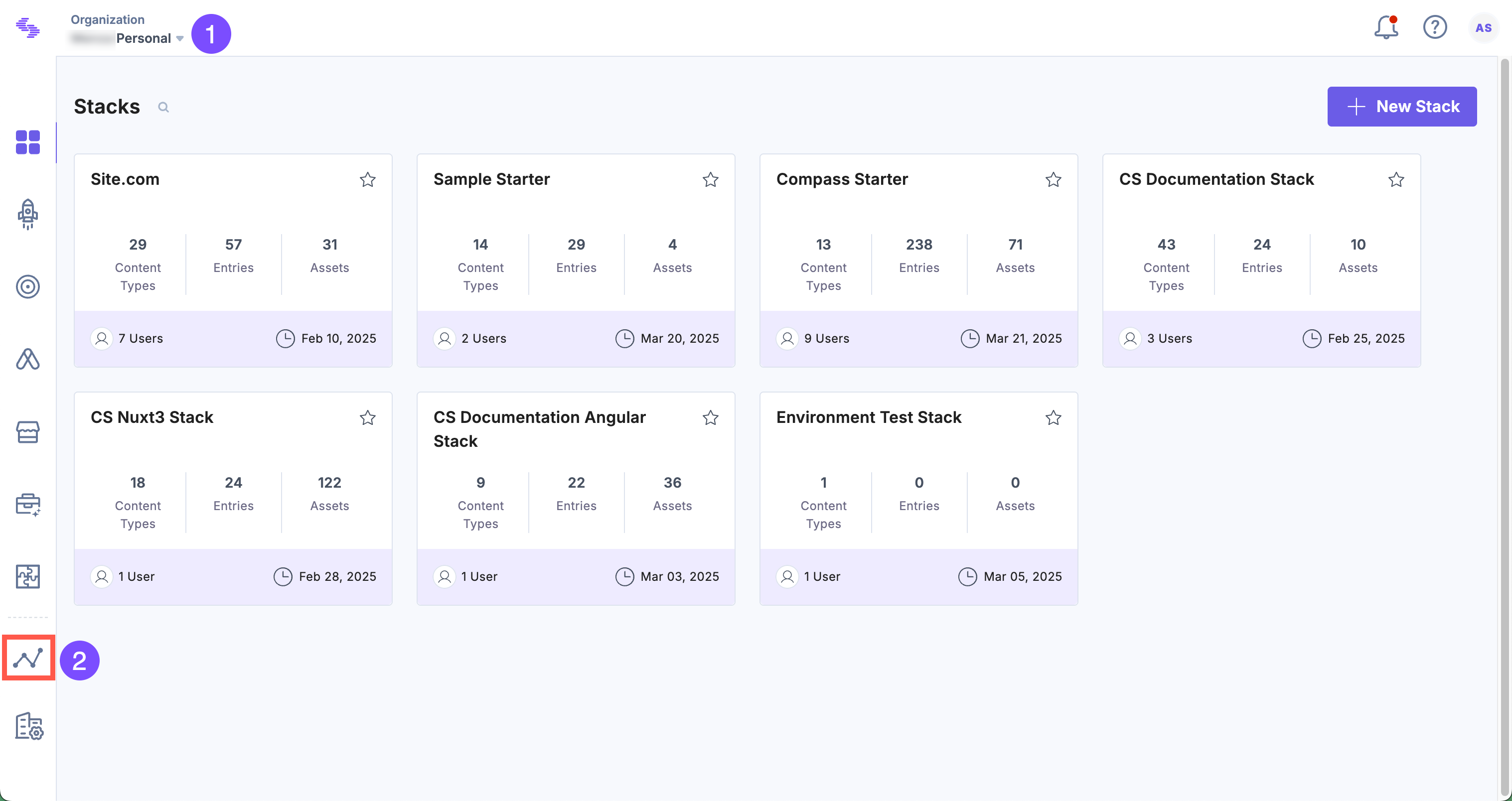
- By default, the CMS dashboard appears. Click Personalize to switch dashboards.

Note: The data in the Personalize dashboard is updated every 24 hours.
Key Sections of the Personalize Analytics Dashboard
The dashboard is divided into several key sections, each offering insights into different aspects of your Personalize usage to help optimize performance and resource utilization.
Subscription Usage
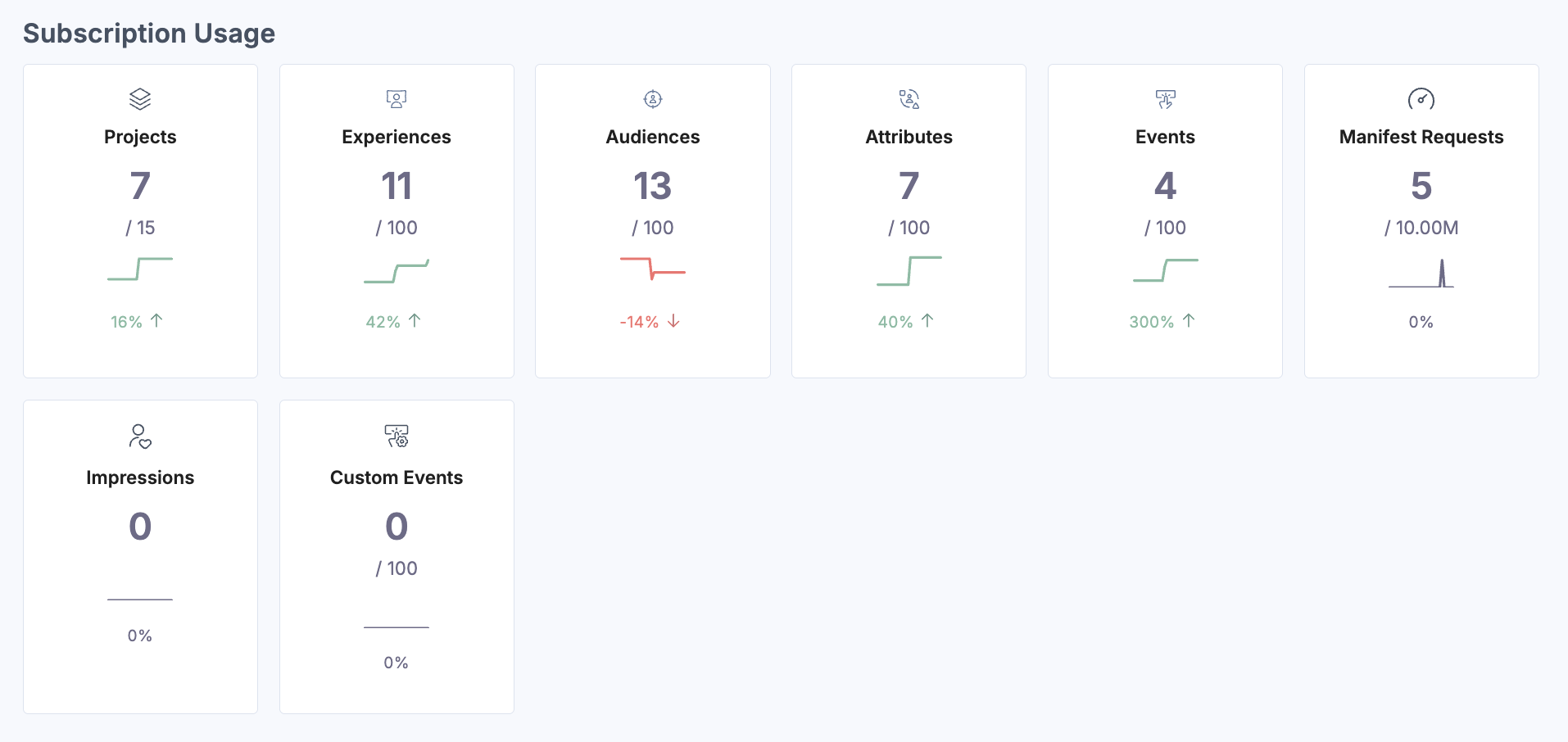
This section provides an overview of your Personalize resource consumption. It helps track usage against allocated limits across the following parameters:
- Projects: Number of projects created.
- Experiences: Total configured experiences.
- Audiences: Number of defined personalization audiences.
- Attributes: User attributes in use.
- Manifest Requests: Requests for retrieving personalized content.
- Events: Total events captured for personalization.
- Impressions: Count of personalized content displays.
- Custom Events: Number of tracked custom events.
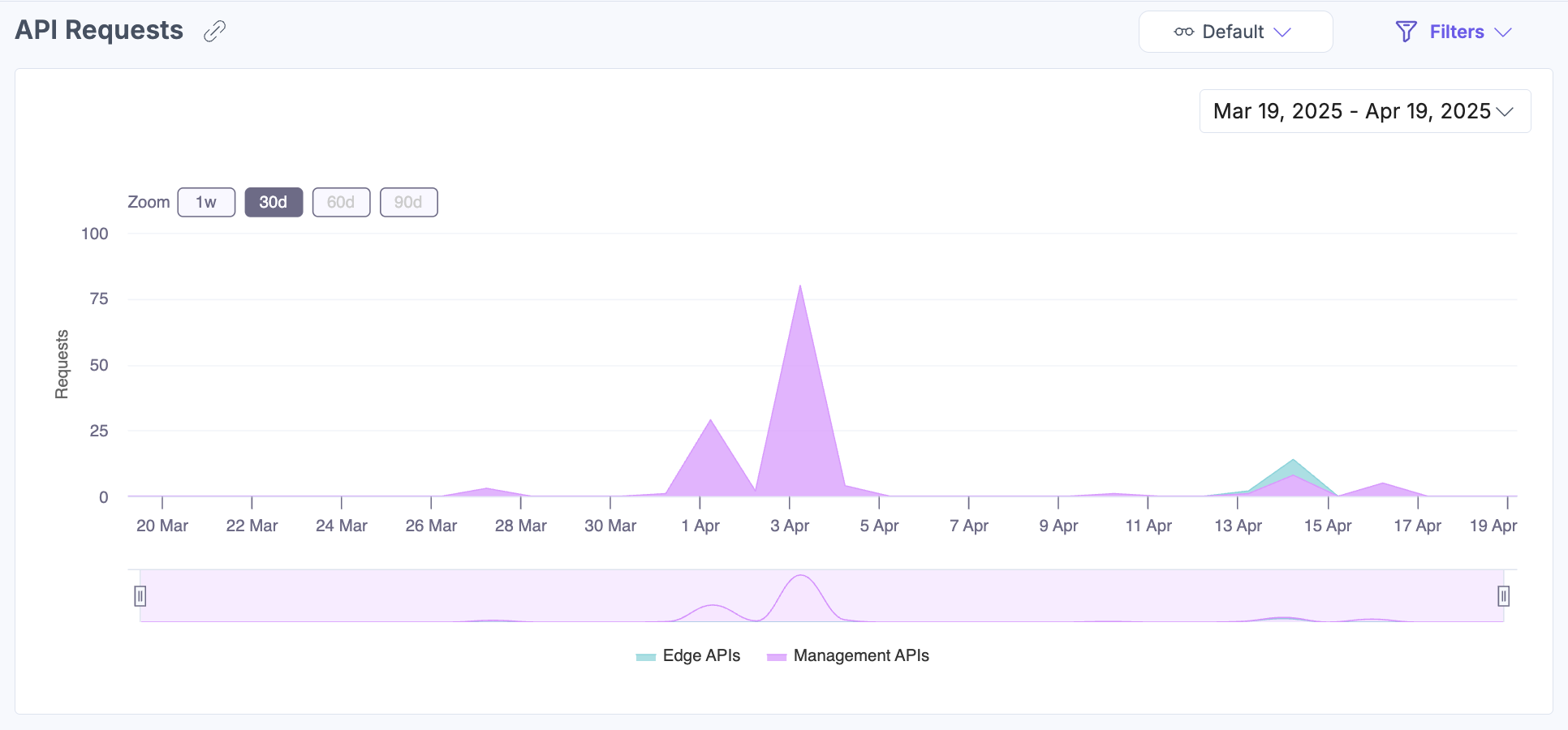
API Requests
Visualizes Personalize Edge and Management API usage over a selected time frame. Hover over the chart to view utilization at specific timestamps.
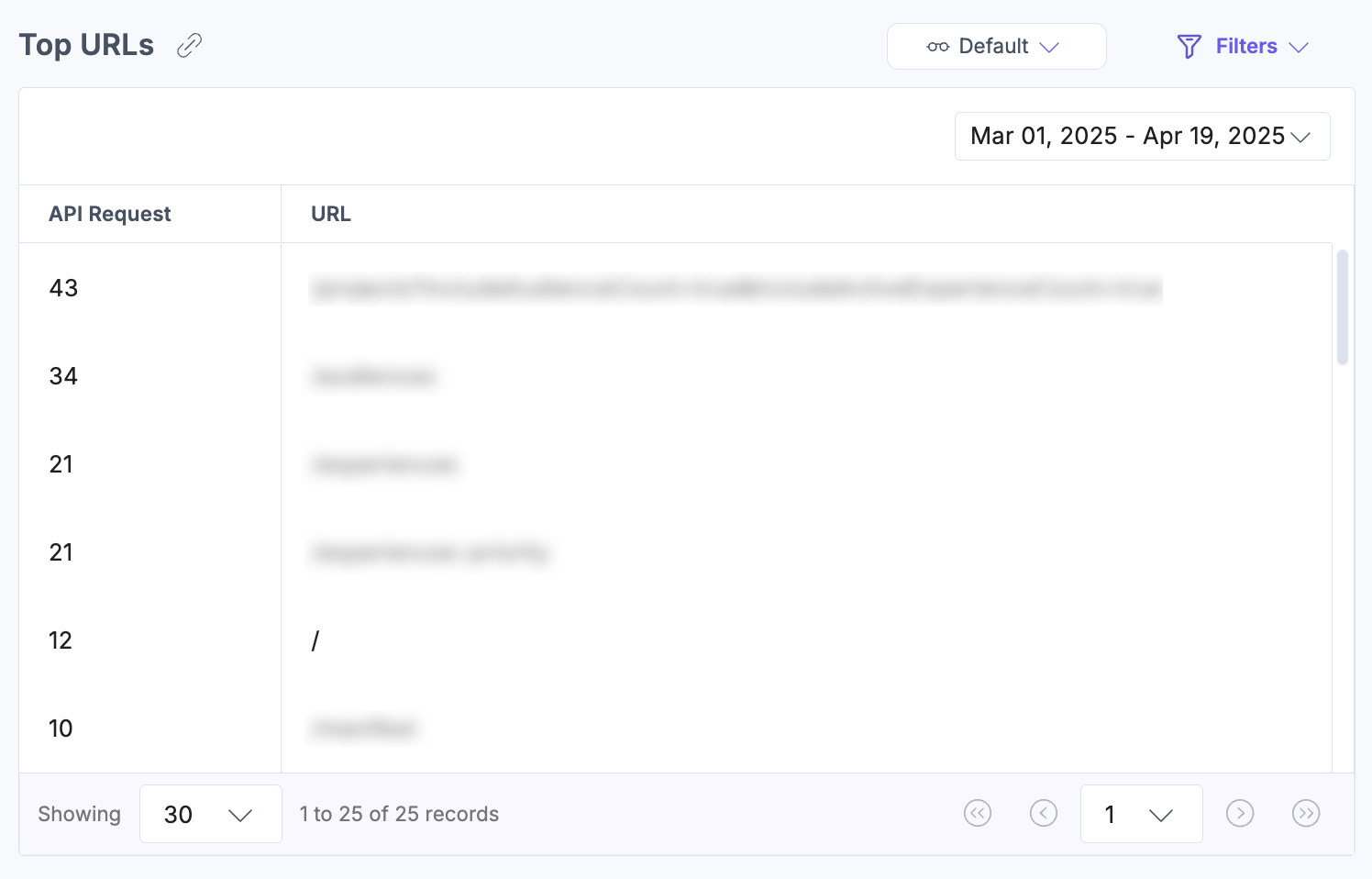
Top URLs
Displays the most frequently accessed Personalize API endpoints to help analyze usage trends and optimize performance.
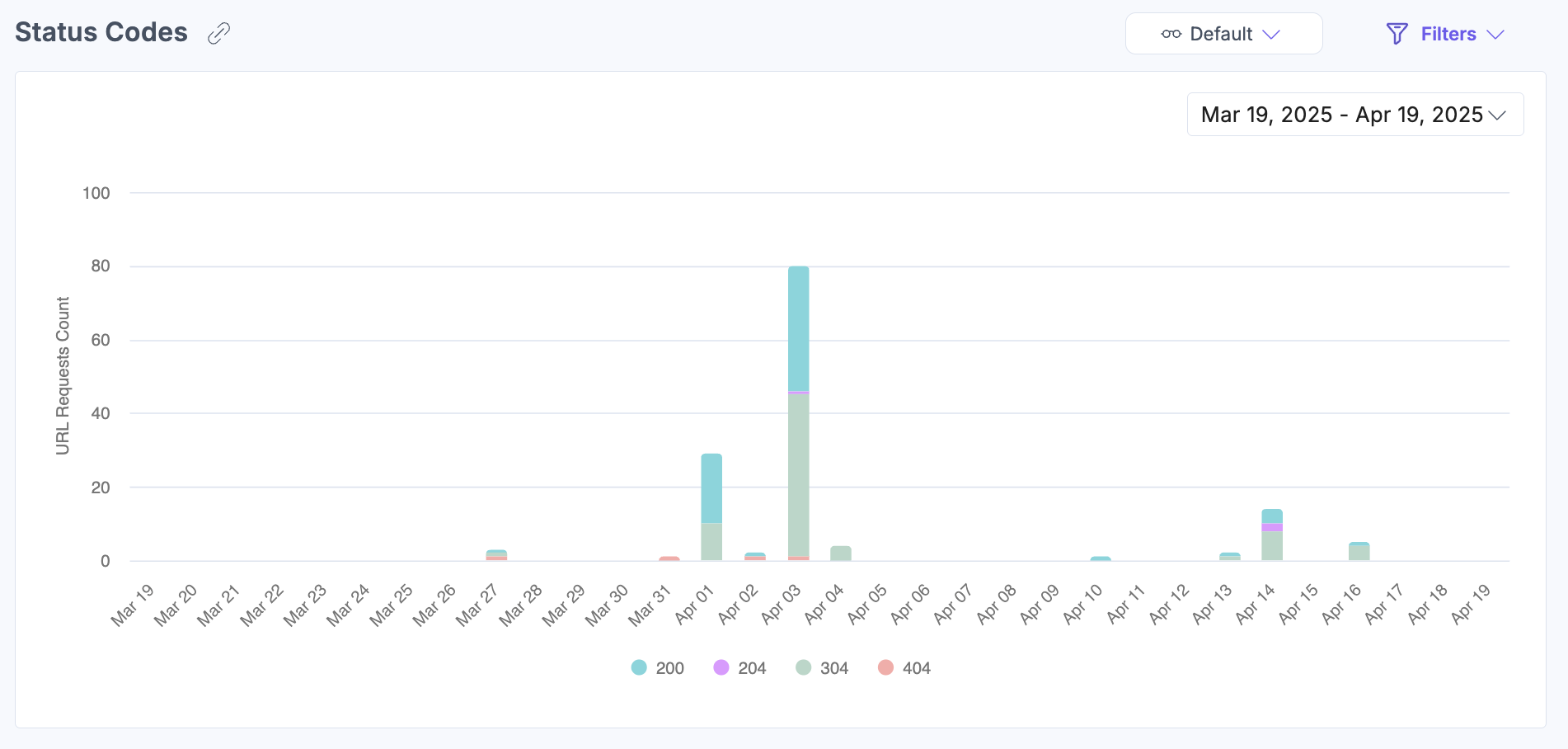
Status Codes
Breaks down API call results by status—success, error, or unsupported—for better diagnostics.
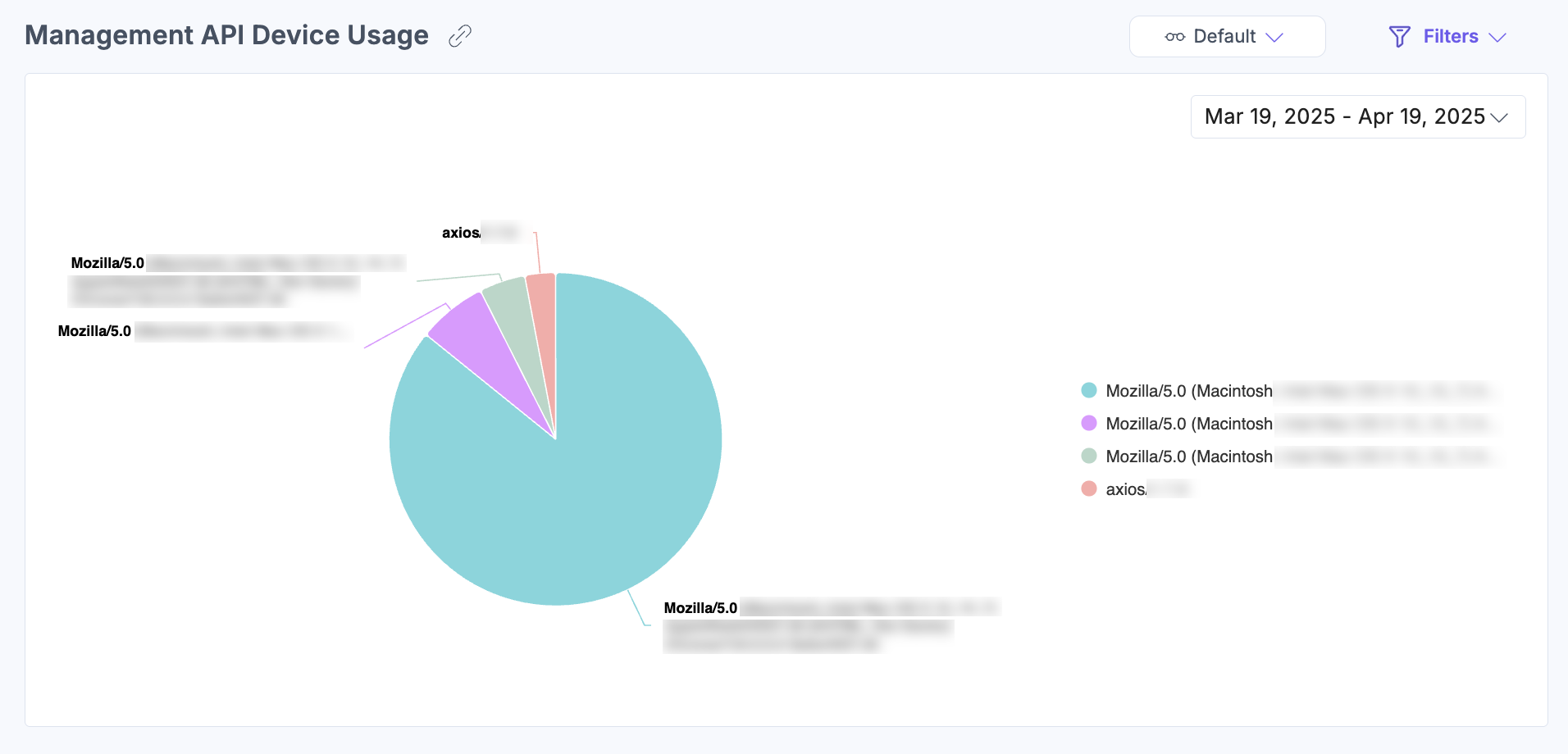
Management API Device Usage
Shows device types accessing the Personalize Management API to help understand user interaction environments.
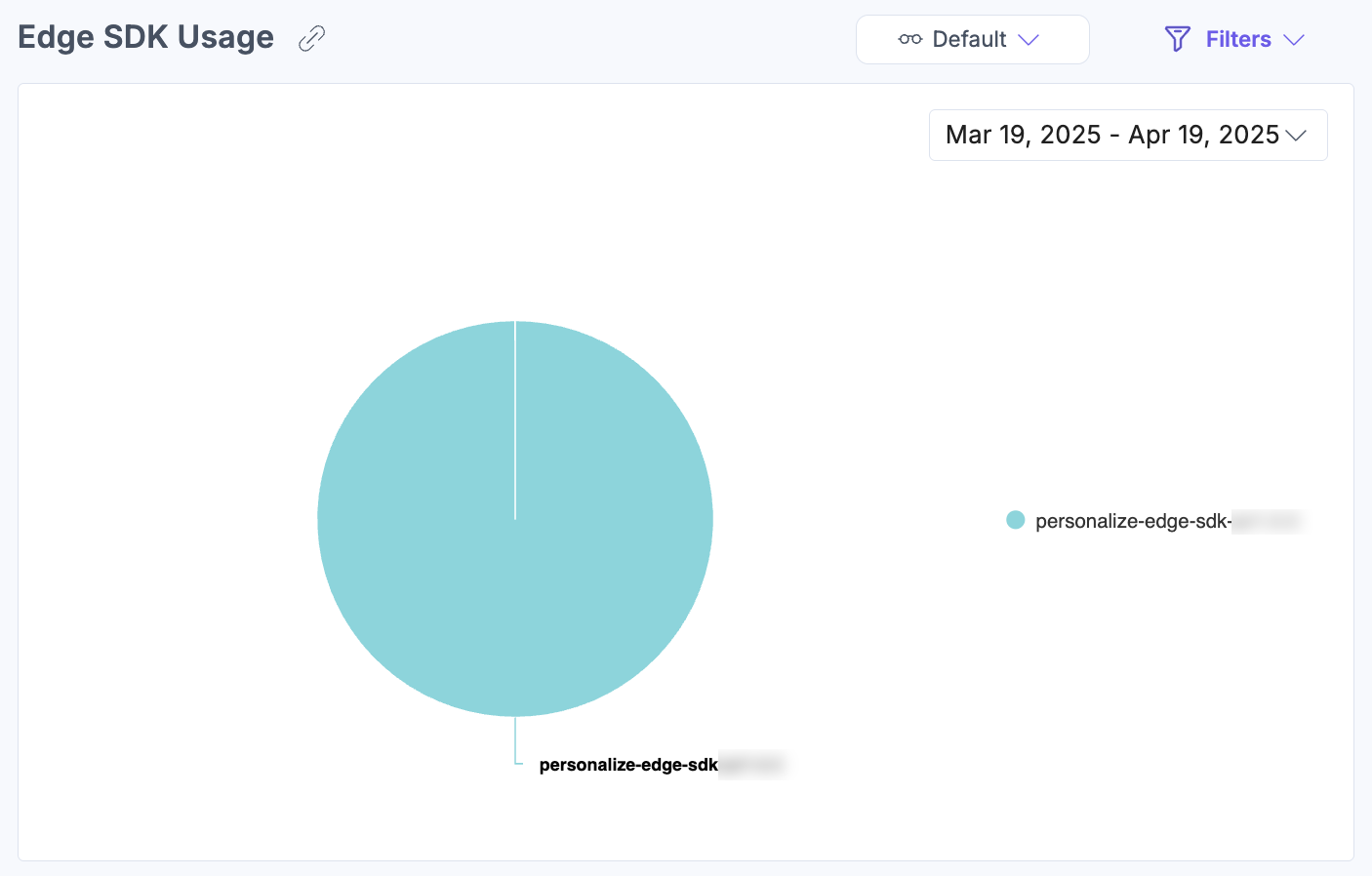
Edge SDK Usage
Provides a pie chart summarizing Edge SDK consumption across different implementations.
The analytics dashboard for Personalize offers crucial insights into your personalization efforts and helps improve decision-making across your strategies.
Apply Filters and Manage Views
To apply filters, click Filters and then click Apply Filter(s) after selecting your desired options.
You can refine data using the following filters:
- Projects: Filter by individual or all projects.
- Services: Filter API requests by all or specific services.
- Subtypes: Filter data by Events, Manifest, or User Attributes.
- Status Code: Show results for selected status codes.
- Group By: Display data grouped by day, week, or month.
- Date Range: Choose from predefined options (1 week, 30 days, 60 days, 90 days). Some graphs allow further range refinement.
- Custom Date: Set a custom range using the dropdown.
Note: The custom date range cannot exceed 90 days.
If you often use specific filter combinations, you can save them as a view. Click the horizontal ellipsis next to Reset and choose Save As New View.
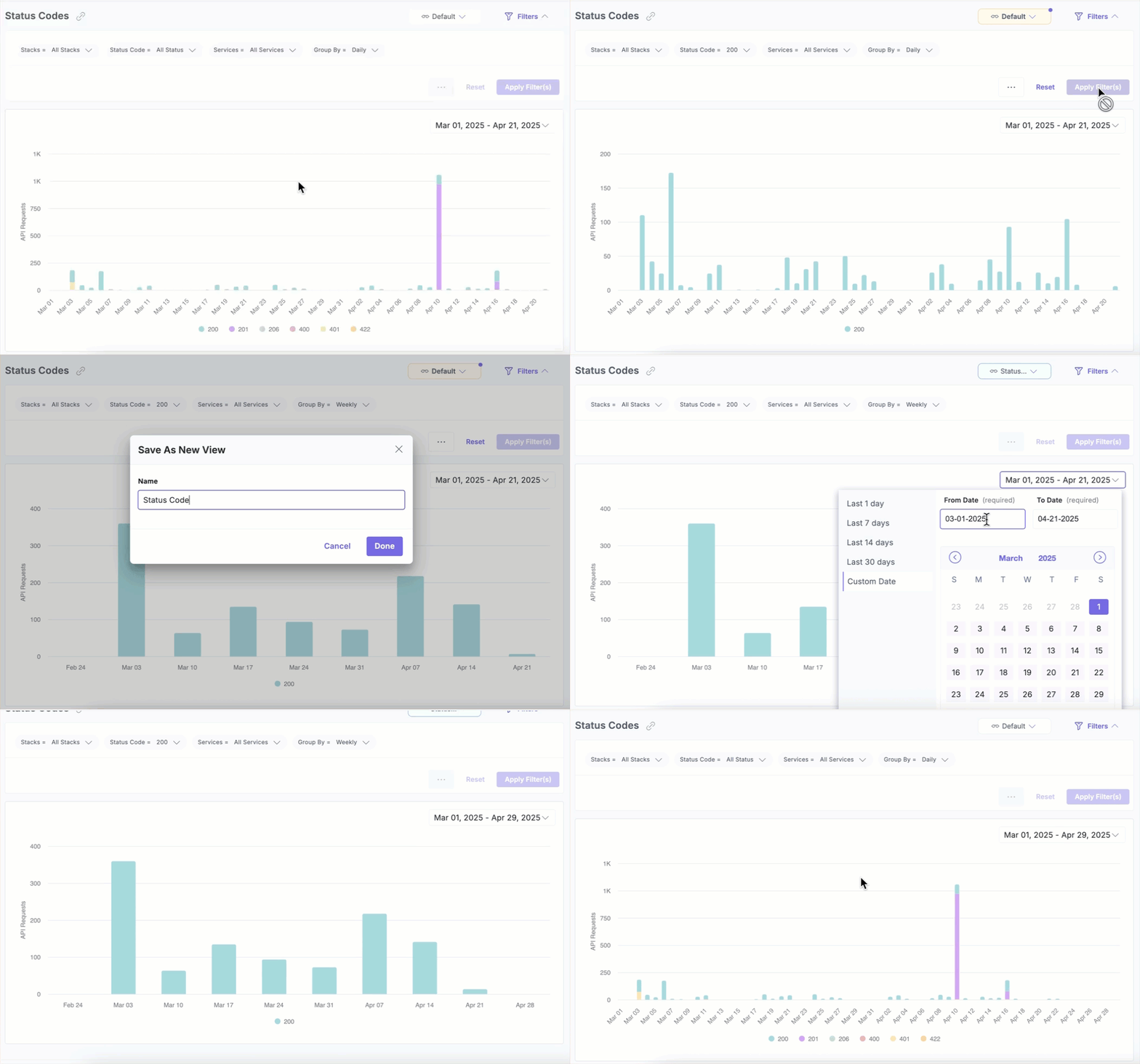
Once saved, you can easily access the view from the dropdown menu without reapplying filters manually.
More articles in "Work with Analytics"
