

Generative AI API
Introduction
Overview
Contentstack is a headless, API-first content management system (CMS) that provides everything you need to power your web or mobile properties. To learn more about Contentstack, visit our website or refer to our documentation site to understand what we do.
This documentation provides information on endpoints, operations, parameters, and responses for the Generative AI API. It includes processing of prompts using Gen AI.
The Generative AI API requests link your Vector database with a Large Language Model (LLM) processing prompts and returning relevant data.
Base URL
- AWS North America (AWS NA): https://ai.contentstack.com/brand-kits
- AWS Europe (AWS EU): https://eu-ai.contentstack.com/brand-kits
- AWS Australia (AWS AU): https://au-ai.contentstack.com/brand-kits
- Azure North America (Azure NA): https://azure-na-ai.contentstack.com/brand-kits
- Azure Europe (Azure EU): https://azure-eu-ai.contentstack.com/brand-kits
- GCP North America (GCP NA): https://gcp-na-ai.contentstack.com/brand-kits
- GCP Europe (GCP EU): https://gcp-eu-ai.contentstack.com/brand-kits
Authentication
Generative AI uses token-based authentication. You can use the Authtoken along with the Organization UID to make API requests. Read more about the different types of tokens.
For Authtoken-based authentication
- Pass the user Authtoken against the authtoken parameter as header.
- Pass the OAuth Token value against the authorization parameter as header.
- Pass the Brand Kit UID against the brand_kit_uid parameter as header.
How to Get Authtoken
To retrieve the authtoken, log in to your Contentstack account by using the Log into your account request under User Session. This request will return the authtoken in the response body.
You can generate multiple authtokens by executing the Log into your account request multiple times. These tokens do not have an expiration time limit. However, currently, there is a maximum limit of 20 valid tokens that a user can use per account at a time, to execute CMA requests.
Note: If you already have valid 20 tokens, creating a new authtoken will automatically cause the oldest authtoken to expire without warning.
For SSO-enabled organizations, the Log into your account request will not return the user authtoken for users who access the organization through Identity Provider login credentials. Consequently, any requests that require a user authtoken will not work. Only the owner of the organization and users with permission to access the Organization without SSO can use these APIs. Learn more about REST API Usage.
Rate Limiting
Rate limit is the maximum number of requests you can make using the Contentstack’s APIs in a given time period.
By default, the Generative AI API enforces the following rate limits:
| API Request | Rate Limit |
|---|---|
GenAI Write (POST) requests | 10 requests per second per organization |
Your application will receive the HTTP 429 response code if the requests for a given time period exceed the defined rate limits.
The aforementioned limits are configurable depending on your plan. For more information, contact our Support team.
API Conventions
- The base URL for Generative AI API for different regions can be found in the Base URL section.
- The API version can be found in the URL, e.g. brand-kits-api.contentstack.com/v1/brand-kits
- Generative AI API supports GET verbs or methods.
- URL paths are written in lower case.
- Query parameters and JSON fields use lower case, with underscores (_) separating words.
- The success/failure status of an operation is determined by the HTTP status it returns. Additional information is included in the HTTP response body.
- The JSON number type is bounded to a signed 32-bit integer.
Errors
If there is something wrong with the API request, Contentstack returns an error.
Generative AI uses conventional, standard HTTP status codes for errors, and returns a JSON body containing details about the error. In general, codes in the 2xx range signify success. The codes in the 4xx range indicate error, mainly due to information provided (for example, a required parameter or field was omitted). Lastly, codes in the 5xx range mean that there is something wrong with our servers; it is very rare though.
Let’s look at the error code and their meanings.
| HTTP status code | Description |
|---|---|
| 400 Bad Request | The request was incorrect or corrupted. |
| 401 Unauthorized User | The user is not authorized. |
| 403 Forbidden Error | The page or resource that is being accessed is forbidden. |
| 500 Internal Server Error | The server is malfunctioning and is not specific on what the problem is. |
| 502 Bad Gateway Error | A server received an invalid response from another server. |
| 504 Gateway Timeout Error | A server did not receive a timely response from another server that it was accessing while attempting to load the web page or fill another request by the browser. |
Using Postman Collection
Contentstack offers you a Postman Collection that helps you try out our Generative AI API. You can download this collection, connect to your Contentstack account, and try out the Generative AI API with ease.
Learn more about how to get started with using the Postman Collection for Generative AI API.
API Reference
Generative AI
The Generate AI works as a communication channel between your Vector database and Large Language Model (LLM). It carries your prompt/action to the vector database, retrieves a chunk of data based on the prompt/command, forwards it to the LLM for it to process, and finally returns the processed data back to the field.
GenAI
The GenAI request carries prompts, processes them, retrieves relevant data, and returns the processed data.
To configure the permissions for your application via OAuth, include the brand-kits:read scope.
Here’s an example of the Request Body for using GenAI request:
{
  "prompt": "Enter your prompt",
  "knowledge_vault": true,
  "voice_profile_uid":"cs************d"
 }
Postman Collection
About Generative AI Postman Collection
The Generative AI Postman collection is a set of preconfigured REST API requests that will make it easy for you to get started with the Contentstack APIs and try out our API requests through the popular Postman REST client.
Install Postman
To use the Generative AI Postman collection you will need to have the Postman. You can either download the Desktop app or use Postman for Web.
Note: If you have already installed Postman for your device, go to the Download Latest Postman Collection for Generative AI section.
Postman is available for Windows (x64), Mac (Intel Chip / Apple Chip), and Linux environments.
Download Latest Collection
Once you have installed Postman on your device, click the Run in Postman button to start working with the Generative AI API endpoints for Contentstack.
Note: The Generative AI Postman collection does not support the now deprecated Postman Chrome extension. Make sure you have installed the latest version of the Postman desktop app.
This opens the Fork collection into your workspace modal from where you can proceed to download/work with the Generative AI Postman collection in the following three ways:
- View the Collection
- Import a Copy of the Collection
- Fork the Collection
- Download Collection from GitHub Page
Let’s look at each of the above methods in detail.
View the Collection
This option allows you to just view (and not try out) the API requests of the Postman collection.
Perform the following steps to view the Generative AI API Postman collection:
- Click the View collection link in the Fork collection into your workspace modal.
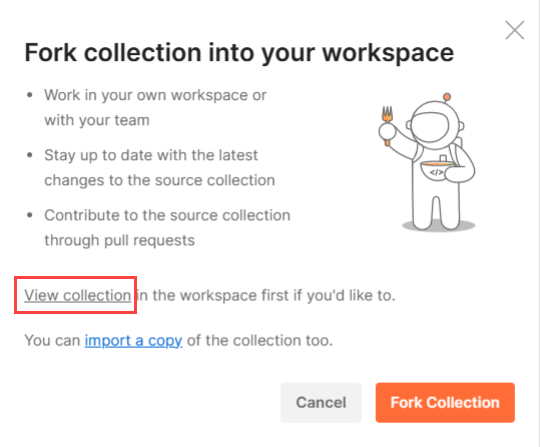
A new tab opens up in your browser where you should see the latest collection preloaded in the left navigation.
Note: If you want to try out the API requests, you can either import a copy of the collection or fork the collection.
Import a Copy of the Collection
This option allows you to import a copy of the collection into your workspace.
To import the Generative AI API collection, perform the following steps:
- Click the import a copy link in the Fork collection into your workspace modal.
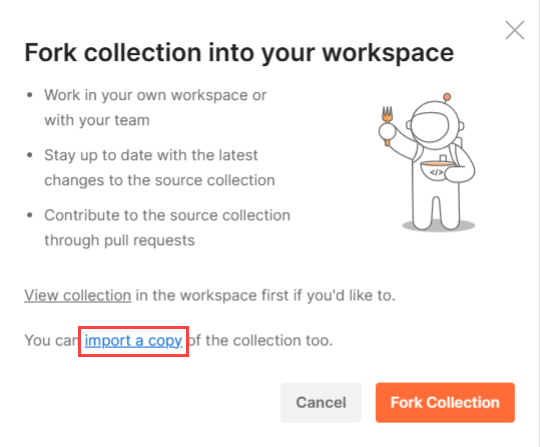
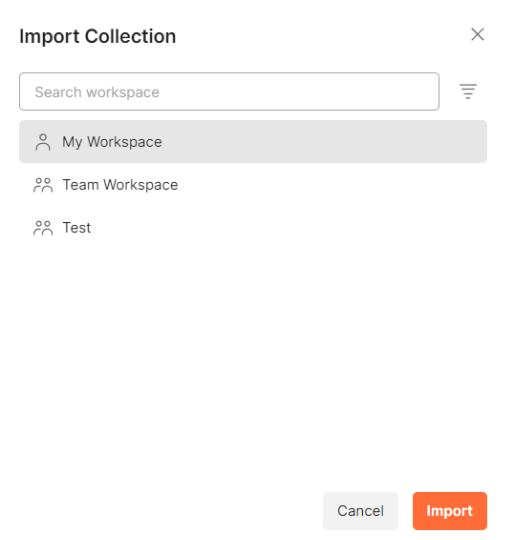
- In the resulting Import Collection modal within the Postman app, select a workspace and click Import to import the latest Postman collection into your selected workspace.
-
You will see a copy of the latest Postman collection in the left navigation panel.
Fork the Collection
This option allows you to fork, or create a copy of the collection, and perform changes to the collection without affecting the original.
To fork the Generative AI API collection, perform the following steps:
- Click the Fork Collection button in the Fork collection into your workspace modal.
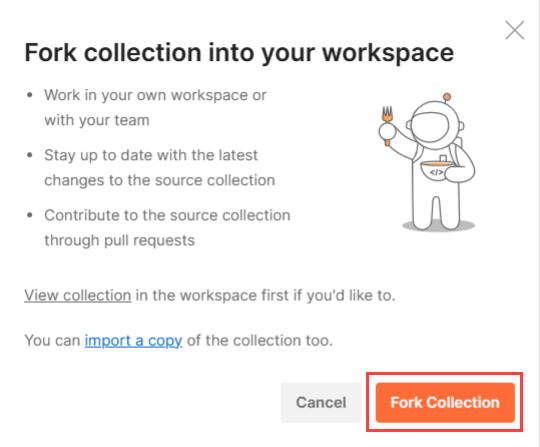
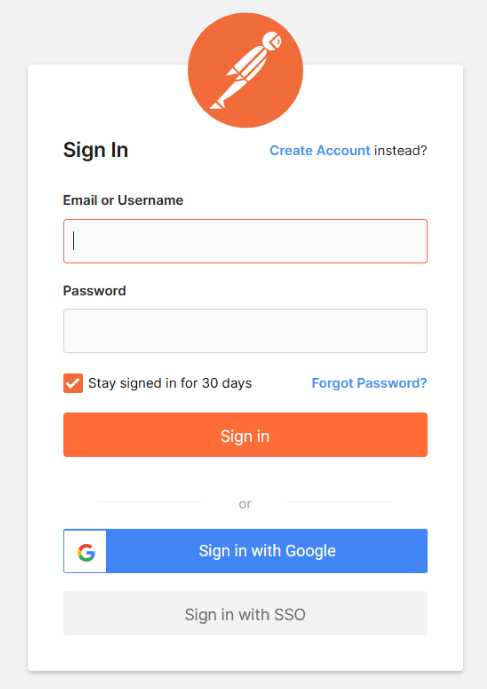
- This opens the Sign In page. You can either enter your login credentials and click Sign in, or sign in using your Google account or via SSO.
- In the resulting Fork collection modal, if needed, enter a Fork label that lets you uniquely identify your collection and select a Workspace.
-
Under Notifications, check Watch original collection to get notified of any changes that are made to the original collection.
-
Once done, click Fork Collection to fork the Postman collection into your selected workspace.
Download Collection from GitHub Page
We have also hosted our Postman collection on GitHub. You can follow the steps mentioned in the Readme file to download and start using it.
You can also choose to watch the latest Postman collection to get notifications of new releases or updates.
To do so, click the following Watch button and select Watching.
Configure Environment Variables
When you download and install the latest version of the Generative AI API Postman Collection, you also download and import the respective environment along with the environment variables.
Once your Environment is imported, next you need to set your Generative AI account specific values.
Note: As these environment variables are referenced across multiple API requests, once you set the variables, it becomes a lot more convenient to make repeated use of the Postman Collection.
Some of the important variables that you need to set are as follows:
| Environment Variable | Value |
|---|---|
| base_url | https://ai.contentstack.com/brand-kits |
| brand_kit_uid | your_brand_kit_uid |
| authtoken | your_authtoken |
Note: The Generative AI Postman Collection will require a valid Authtoken to make API calls. Check out the Authentication section for more details.
If you want to add your own environment variables, you can follow the procedure in the next section.
Add Other Environment Variables
To add any new environment variables for your Postman collection, perform the following steps:
- Identify the environment variables that you want to define.
- In the top right corner of Postman, click on the environment's dropdown and select Generative AI API - Environment.
- Click the "eye" icon present in the top right corner of Postman. It opens up in the environment variables modal. Click Edit to make changes in the variables.
- In the VARIABLE field, enter the name of the environment variable. In the INITIAL VALUE field, enter your Generative AI-account-specific value that will replace the variable when the call is made.
- Once you have defined your variables, click Save.
Update Environment Variables
With every new API request added, we update our environment file. So, to get the latest environment variables, you need to download the collection along with the updated environment file again, compare your existing environment with the latest environment, identify and add the new variables to your existing environment.
Next, let’s see how you can run API Requests from your Generative AI Postman collection using your environment.
Make an API Request
With the Generative AI Postman Collection loaded into the Postman app (on the left panel) and the environment created, you can now make API requests to the Generative AI API via Postman.
To make an API request, perform the following steps:
- Select the respective environment, Generative AI API - Environment, from the dropdown.
- Select an API Request from the Generative AI Postman Collection. In this example, we will use the Get all projects request which is a part of the Projects folder.
Note: If you want to make changes to your parameters or want to add parameters of your own, you can do it here.
- Next, click Send at the top right to make the API request.
The API call should return with a response under the Body tab in the bottom half of the screen.
Secure Organization UID and Tokens
We strongly advise against storing your Organization UID and authtokens in your collection permanently. If you or someone else shares the collection by mistake, other users will be able to export it along with these keys.
We recommend that you provide your Generative AI account-specific Organization UID and tokens in your environment or directly to the sample requests.
Users using Authtoken
For users who use authtoken to authenticate their calls, when you make the Log in to your account API Request, your authtoken will be saved in cookies.
If you want to prevent this action, perform the steps given below:
- Click Cookies on the far right corner.
- In the Cookies modal under the Manage Cookies tab, click the Domains Allowlist at the bottom left.
- Add ai.contentstack.com/brand-kits and click Add.
This will allow you to access cookies of this domain in scripts programmatically.
Note: To avoid this situation, we recommend you to use the Brand Kit UID along with the Authtoken to make valid Generative AI API requests. For more information, refer to Authentication.
Postman Collection Updates
We keep our Postman Collection updated. To get the latest version of our Postman Collection, all you need to do is to download the Postman Collection along with the updated environment again and you are good to go.
You can also choose to watch for the latest Postman Collection updates on our GitHub repository and get notifications of new releases or updates to the repository. The GitHub Readme doc will help you with the steps that you need to follow.
