

Quickstart in 5 mins
This guide walks you through creating a basic webpage in Contentstack in less than five minutes. Follow these step-by-step instructions to efficiently set up, publish, and retrieve content.
By completing this guide, you will:
- Understand Contentstack’s core functionalities.
- Build a webpage and structure its content.
- Manage and retrieve content seamlessly.
Tip: To speed up the project setup, use the Bootstrap plugin in the Contentstack CLI.
Steps to Get Started
Through this guide, you will learn how to:
- Create a Stack
- Create a Content Type
- Add an Environment
- Create Content (Entries and/or Assets)
- Publish Content
- Build Your Web Page
- Retrieve Your Content
Let’s dive into each step.
Create a Stack
A Stack is a container for all your project’s content, including content types, entries, assets, etc.
Note: If you are using a trial account with a sample stack, select the existing stack and proceed to the next step.
To create a new stack, log in to your Contentstack account and perform the following steps:
- Click + New Stack in the top right corner and click Create New to create a new stack.
Note: Alternatively, for the Use Prebuilt option, refer to the import a prebuilt stack document.
- In the Create New Stack modal, enter the following details:
- Enter a Name (e.g., My Website).
- [Optional] Add a Description (e.g., Content for my website).
- Set Master Language (e.g., English - United States).
- Click Create.
For more details, refer to the Stacks documentation.
Next, let’s create the structure of the web pages by creating content types.
Create a Content Type
A Content Type defines the structure of your webpage.
To create an About Us content type, perform the following steps:
- Click the “Content Models” icon in the left navigation panel.
- Click + New Content Type button and from the dropdown, select Create New to create a new content type.
Note: Alternatively, for the Use Prebuilt option, refer to the import a prebuilt content model document.
- In the Create New Content Type modal, perform the following steps:
- Enter a Name (e.g., About Us).
- The UID (Unique ID) is auto-generated, however, you can make changes if needed.
Note: The UID cannot be modified once the content type is saved.
- [Optional] Add a Description (e.g., Organizational details).
- Under Type, choose either Single (for a single entry) or Multiple (for multiple entries).
- Click Save and proceed.
In the “Content Type Builder” page, select the fields you want by clicking the “Insert a field” (+ icon) to add fields. Customize fields by modifying their Properties icon.
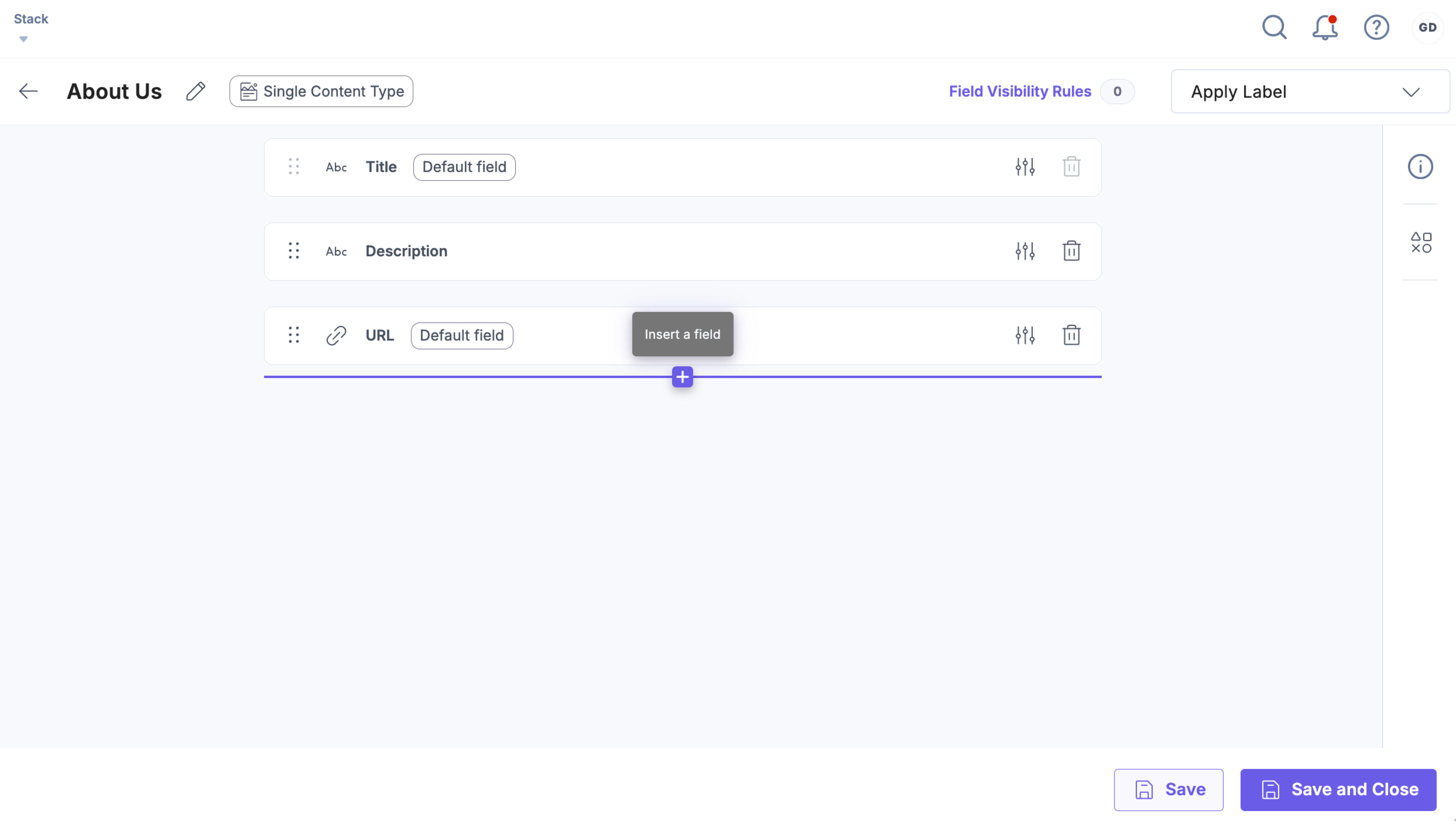
- Click Save or Save and Close to save your content type.
Tip: You can use Contentstack Automate to streamline content modeling and reduce manual effort.
For more details, refer to the Content Modeling and Create a Content Type documentation.
Add an Environment
An Environment is the space to publish your content.
To create an environment, perform the following steps:
- Navigate to the “Settings” icon (press “S”) in the left navigation panel, and select Environments.
- Click + New Environment.
- In the Create Environment modal, enter the following details:
- Enter a Name (e.g., production).
- Choose an Environment Label Color from the color picker.
- Specify the Base URL (e.g., http://localhost:8000).
- Select a Language (e.g., English - United States).
- Click Create.
For more details, refer to the About Environments document.
Create Content
Your content comprises entries and/or assets.
To create an entry in the “About Us” content type, perform the following steps:
- Click the “Entries” icon in the left navigation panel.
- Click + New Entry.
- In the Select Content Type modal, select “About Us” and click Proceed.
- Enter a Title (e.g., Contentstack) and a relative URL (e.g., /about).
- [Optional] Add Page Components as needed and Tags for easier search and filtering (e.g., Org).
- Click Save.
Tip: You can use Contentstack Workflows to streamline content approvals and collaboration.
Publish Content
To publish an entry, perform the following steps:
- At the bottom of the entry editor, click Publish.
- In the Publish Entry modal:
- Select the production environment.
- Select the Language (e.g., English - United States).
- Under Publish, choose Now (immediate) or Later (schedule for later).
- Click Send.
For more details, refer to the Publish an Entry document.
Tip: Use Contentstack Automate to create and optimize workflows for efficiently managing and publishing content.
Build Your Web Page
Now that your content is ready, you can use the following tools to further enhance the structure of your web page:
- HTML: Improve the structure of your webpage.
- CSS: Control the visual styling and layout.
- JavaScript (or jQuery): Add interactivity and dynamic functionality.
Once your page is ready, you can host it using a platform such as Contentstack Launch that will help deploy and manage your environments effortlessly with enterprise-grade security.
A sample demo of a web page is available on CodeSandbox.
You can also check out Contentstack's guide on Building Your Website for detailed instructions and best practices for creating your web pages.
Retrieve Your Content
You can fetch published content using the Content Delivery API. Use this request with a REST API client (e.g., Postman):
https://cdn.contentstack.io/v3/content_types/{content_type_uid}/entries/{entry_uid}?environment={environment_name}To locate the required content_type_uid and entry_uid:
- Open your entry.
- Click the Entry Information icon (“i”).
- Copy the Entry UID and Content Type UID.
Note: Make sure to pass the Stack’s API key and environment-specific delivery token in your client.
For more details, refer to the Authentication and Content Delivery API documentation.
What’s Next?
Enhance your Contentstack experience:
- Contentstack Live Preview: Instantly see how your content changes appear on your website without publishing.
- Visual Builder: Use Visual Builder to design and configure your webpages effortlessly with a drag-and-drop interface.
- Marketplace: Explore integrations and extensions to enhance Contentstack’s capabilities with additional features such as translation, personalization, and automation tools.
- GraphQL API: Learn how to fetch structured data efficiently using GraphQL, enabling optimized querying for large-scale projects.
- SDKs: Utilize Contentstack's SDKs to streamline development across various programming languages and platforms.
Additional Resource: Explore Contentstack Academy, where you can find courses, tutorials, and certification programs to deepen your understanding of Contentstack’s features and best practices.
More articles
