

Content Delivery API
[API VERSION : 3.0.0]Introduction
Base URL
- AWS North America (AWS NA): https://cdn.contentstack.io
- AWS Europe (AWS EU): https://eu-cdn.contentstack.com
- AWS Australia (AWS AU): https://au-cdn.contentstack.com
- Azure North America (AZURE NA): https://azure-na-cdn.contentstack.com
- Azure Europe (Azure EU): https://azure-eu-cdn.contentstack.com
- GCP North America (GCP NA): https://gcp-na-cdn.contentstack.com
- GCP Europe (GCP EU): https://gcp-eu-cdn.contentstack.com
Overview
This document is a detailed reference to Contentstack’s Content Delivery API.
The Content Delivery API is used to retrieve content from your Contentstack account and deliver it to your web or mobile properties. If you are looking for APIs to manage content, you should use the Content Management API.
Our APIs serve content via a powerful and robust content delivery network (CDN). Multiple datacenters around the world store a cached copy of your content. When a page request is made, the content is delivered to the user from the nearest server. This greatly accelerates content delivery and reduces latency.
Warning: The Content Delivery API (CDA), available at cdn.contentstack.io, should be used to only fetch content from Contentstack. We recommend users to NOT use this endpoint for any other content management activities, because all content management activities using this endpoint will be blocked soon.
The CDN includes many points of presence (POPs) located in high-density internet exchange regions around the world. These POPs are continually expanding to ensure faster and more reliable content delivery.
Warning: We only support version 3 on the CDN. If you're still using version 2 (which we recommend you should not), switch to the CDN version for even faster loading. And, we have a URL size limitation of 8KB on API Requests that hit our CDN services. Any Request URL that goes above this size limit will receive the 414 - URI Too Long error response. Please make sure you limit the size of your API Requests.
Content Delivery SDKs
Contentstack provides SDKs, API references, getting started guides, and sample apps for popular programming languages and platforms. These resources help you build applications and fetch content efficiently using the Content Delivery API.
The SDKs are read-only and are designed to retrieve published content from the nearest server via the global CDN.
You will find a list of all the available SDKs under the Development Resources and SDKs section.
We provide SDKs for the following platforms:
The process for building sample apps and working with the SDKs differ based on the platform. We have covered them in detail in their respective sections.
Authentication
Since the Content Delivery APIs (CDAs) are private APIs, you will need to pass the following as HTTP headers to make authorized CDA requests:
- The Delivery Token of the concerned environment (against the access_token key)
- The stack API Key
The API Key is a unique key assigned to each stack. The Delivery Token is a read-only credential that you can create for different environments of your stack.
While Content Delivery API requests may work with Access Token (instead of Delivery Token), we strongly recommend that you not use it, since we have already deprecated Access Token for new stacks.
Note: The nomenclature for the use of delivery tokens in CDA requests will remain the same, i.e. you need to pass the value of the delivery token against the access_token key.
- Users will not be able to use Authtoken or Management Token to run Content Delivery API (CDA) requests. To make authorized CDA requests, use the value of the delivery token against the access_token key.
- Users will not be able to use authentication parameters such as api_key (Stack API key), access_token (access token of the stack), authtoken (user generated authtoken), and authorization (management token of the stack) as query parameters for any stack-specific API requests. You must pass them as headers only, do not include them as query parameters in your API requests.
Note: We have deprecated the usage of Access Tokens for all stacks. We strongly recommend that you use Delivery Tokens for fetching published content via the Content Delivery API and Management Tokens for fetching draft content via the Content Management API.
How to Get API Key and Delivery Token
To retrieve the stack API key and the delivery token of a specific publishing environment of your stack, perform the steps given below after logging into your Contentstack account:
- Go to your stack.
- Navigate to Settings > Tokens > Delivery Tokens.
- From the list of existing delivery tokens, click on the Delivery Token that applies to the publishing environment of your choice.
- At the bottom of the resulting page, you will see the API Key and Delivery Token of your stack.
Additional Resource: Read more about how you can create a new delivery token.
Note: Only the stack owners, developers, and admin can create delivery tokens.
Rate Limiting
Rate limiting defines the maximum number of API requests your organization can make within a specific timeframe.
- CDN Requests: Contentstack’s CDN serves cached data, and these requests are not subject to rate limits.
- Origin Server Requests: Uncached requests that go directly to the origin server are subject to rate limits.
By default, the rate limit for origin server requests is 100 requests per second per organization. Rate limit depends on your plan, and you can request an increase if needed.
Note: While CDN requests do not count toward rate limiting, all API requests—whether to the CDN or the origin server—count toward your organization’s overall API usage.
API conventions
- The base URL for Content Delivery API for different regions can be found in the Base URL section.
- The API version (in our case, 'v3') can be found in the URL, e.g. cdn.contentstack.io/v3/endpoint.
- Only GET verb or methods are recommended on cdn.contentstack.io.
- URL paths use lower case and all the operations are specified in URL query parameters such as count, include_count, and query.
- Query parameters are case sensitive and uses lower case, underscore (_) separated words.
- The success/failure status of an operation is determined by the HTTP status it returns. Additional information is included in the HTTP response body. Read more about it in the HTTP Headers section.
HTTP Headers
HTTP headers let the client and the server pass additional information with an HTTP request or response. An HTTP header consists of its case-insensitive name followed by a colon (:), then by its value.
Here’s what an HTTP response body looks like:
< x-served-by: cache-lax8631-LAX, cache-bur17525-BUR
< x-cache: MISS, HIT
< x-cache-hits: 0, 1
< x-runtime: 27ms
< age: 5182
< x-timer: S1557441707.643683,VS0,VE0
Let’s understand what the above HTTP Header means:
-
Two cache-nodes in X-Served-By show that shielding is turned on, with cache-lax8631-LAX serving as the delivering cache node at the "shield" datacenter and cache-bur17525-BUR serving as the delivering cache node at the "local" datacenter.
x-served-by: cache-lax8631-LAX, cache-bur17525-BUR -
The X-Cache: MISS, HIT indicates that the requested object was not in the shield cache (a MISS) but was in the local delivering node (a HIT). For more details, refer Understanding cache HIT and MISS headers with shielded services.
< x-cache: MISS, HIT -
The X-Cache-Hits reflects that same “MISS, HIT” information in numeric format as 0, 1.
< x-cache-hits: 0, 1 -
The X-Runtime HTTP response header provides the time (in milliseconds) an application takes to process a request.
< x-runtime: 27ms -
Age denotes a non-negative integer that represents the time in seconds the object has been in a proxy cache.
< age: 5182 -
The X-Timer header provides the timing information about the journey of a request from end to end.
< x-timer: S1557441707.643683,VS0,VE0
The above header can be broken down into three parts, each separated by commas:- S1557441707.643683: The first section of the header (starting with S) represents a Unix timestamp of the start of the request on our edges.
- VS0: The next section, VS or "varnish start," represents the start of the varnish part of the request's journey and will always be 0.
- VE0: The last section, VE or "varnish end," represents the sum of the length of the trip. For cache HITs, the length of the trip will nearly always be 0 (not actually zero, but less than a millisecond is rounded down).
For cache MISSs, this number represents the number of milliseconds it took to retrieve the data from your origin server and send the response back to the requester.
For more information, you can refer to the Understanding the X-Timer header guide.
Errors
If there is something wrong with the API request, Contentstack returns an error.
Contentstack uses conventional, standard HTTP status codes for errors, and returns a JSON body containing details about the error. In general, codes in the 2xx range signify success. The codes in the 4xx range indicate error, mainly due to information provided (for example, a required parameter or field was omitted). Lastly, codes in the 5xx range mean that there is something wrong with Contentstack’s servers; it is very rare though.
Let’s look at the error codes and their meanings.
| HTTP status code | Description |
|---|---|
| 400 Bad Request | The request was incorrect or corrupted. |
| 401 Access Denied | The login credentials are invalid. |
| 403 Forbidden Error | The page or resource that is being accessed is forbidden. |
| 404 Not Found | The requested page or resource could not be found. |
| 412 Pre Condition Failed | The entered API key is invalid. |
| 422* Unprocessable Entity (also includes Validation Error and Unknown Field) | The request is syntactically correct but contains semantic errors |
| 429** Rate Limit Exceeded | The number of requests exceeds the allowed limit for the given time period. |
| 500 Internal Server Error | The server is malfunctioning and is not specific on what the problem is. |
| 502 Bad Gateway Error | A server received an invalid response from another server. |
| 504 Gateway Timeout Error | A server did not receive a timely response from another server that it was accessing while attempting to load the web page or fill another request by the browser. |
* Contentstack returns the 422 HTTP status code for an error along with the "UID is not valid" message in the response body either when an entry doesn’t exist within the stack, has been deleted from the content type, or exists within a different content type. As the entry has been deleted or unpublished, the Content Delivery Network (CDN) cannot identify the specified entry UID through the cache servers. To check whether the entry has been deleted, try retrieving the entry from CDN first. If the API request fails to retrieve the entry from CDN, then make an API request to the Origin server to check whether the entry exists.
Also, if the content type doesn't exist within the stack, Contentstack returns the 422 HTTP status code for an error along with the "UID is not valid" message in the response body.
** Here are a few use cases where you might get a 429 error:
- Fetching published uncached entries: When making requests to fetch published but uncached entries, the initial request goes to the origin, and subsequent requests are cached. There might be a chance that after publishing a large set of entries, you may get a 429 error for a few requests. But this should be resolved in some time as requests get cached based on the rate limit.
- Fetching unpublished entries / Passing requests with semantic errors: Fetching unpublished entries or passing incorrect parameters in the request URL can result in 422 errors as the server may be unable to process these requests correctly. For example, if a user makes 200 incorrect requests to https://www.cdn.contentstack.io/. The initial 100 requests will give the 422 error because the requests are uncached, also since all the requests are incorrect and going to the origin, the other 100 requests will return 429 errors.
Note: For uncached requests, the common rate limit is 100 requests per second per organization.
Using Postman Collection
Contentstack offers you a Postman Collection that helps you try out our Content Delivery API. You can download this collection, connect to your Contentstack account, and try out the Content Delivery API with ease.
Learn more about how to get started with using the Postman Collection for Contenstack Content Delivery API.
Using OpenAPI Files
Contentstack provides the OpenAPI files of the Contentstack’s Content Delivery APIs (CDA) that you can use to try out Contentstack APIs on any OpenAPI platform such as Swagger. You can download the OpenAPI JSON file of the Content Delivery API and open it on Swagger Editor to start using it.
Learn more about how to get started with using the OpenAPI files for Contenstack Content Delivery API.
API Reference
Content Types
Content type defines the structure or schema of a page or a section of your web or mobile property. To create content for your application, you are required to first create a content type, and then create entries using the content type.
Additional Resource: To get an idea of building your content type as per webpage’s layout, we recommend you to check out our Content Modeling guide.
You can now pass the branch header in the API request to fetch or manage modules located within specific branches of the stack.
Note: Branches is a plan-based feature that is available only in the new Contentstack interface.
Additionally, you can also set the include_branch query parameter to true to include the _branch top-level key in the response. This key specifies the unique ID of the branch where the concerned Contentstack module resides.
All Content Types
The Get all content types call returns comprehensive information of all the content types available in a particular stack in your account.
When executing the API call, you can add queries to extend the functionality of this API call.
Tip: If any of your content types contains a Global field and you wish to fetch the content schema of the Global field, then you need to pass theinclude_global_field_schema:true parameter. This parameter helps return the Global field's schema along with the content type schema.
To query your content types, under the Query Parameters section, insert a parameter named query and provide the query in JSON format as the value. To learn more about the queries, refer to the Queries section of the Content Delivery API doc.
Note: This API request will return a maximum of 100 content types. To retrieve the next batch of content types, make use of the skip parameter (or refer Pagination for more details).
Single Content Type
This call returns information of a specific content type. It returns the content type schema, but does not include its entries.
Global Fields
A Global field is a reusable field (or group of fields) that you can define once and reuse across multiple content types within your stack. This eliminates the need to recreate the same set of fields multiple times, saving effort and ensuring consistency.
You can pass the branch header in API requests to fetch or manage modules within specific branches of the stack. Additionally, setting the include_branch query parameter to true includes the _branch key in the response, specifying the unique ID of the branch where the module resides.
Additional Resource: You can create dynamic and flexible Global Fields by nesting Global fields within a Modular Block, Global, or a Group fields.
All Global Fields
The Get all global fields request returns comprehensive information of all the global fields available in a particular stack in your organization. If you have nested global fields, it appears in the response.
- Information about Global fields can be retrieved by all users, regardless of their role or access level.
- If your Global field contains nested Global fields, they will appear as part of the schema in the API response.
Single Global Field
The Get a single global field request allows you to fetch comprehensive details of a specific global field.
When executing the API call, in the 'URL Parameters' section, provide the unique ID of your global field.
- Information about Global fields can be retrieved by all users, regardless of their role or access level.
- If your Global field contains nested Global fields, they will appear as part of the schema in the API response.
Entries
An entry is the actual piece of content created using one of the defined content types.
You can now pass the branch header in the API request to fetch or manage modules located within specific branches of the stack.
Note: Branches is a plan-based feature that is available only in the new Contentstack interface.
Additionally, you can also set the include_branch query parameter to true to include the _branch top-level key in the response. This key specifies the unique ID of the branch where the concerned Contentstack module resides.
All Entries
The Get all entries request fetches the list of all the entries of a particular content type. It returns the content of each entry in JSON format.
Additionally, if you wish to fetch the metadata attached to each entry, then you need to pass include_metadata as a query parameter. Set this parameter to true to include the entry metadata along with all entries in the response body.
You will find the entry metadata under the _metadata key in the response. It will be associated with a specific extension UID as follows:
"_metadata": {
    "extensions": {
        "{extension_uid}": [{
            "image_copyrights": "Contentstack Branding",
            "scope": "local"
        }]
    }
}
If an entry is not published in a specific locale, make use of the “include_fallback=true” query parameter to fetch the published content from its fallback locale.
Note: If the fallback language of the specified locale is the master language itself, this parameter won't be applicable.
To include the publish details in the response, make use of the include_publish_details=true parameter. This will return the publishing details of the entry in every environment along with the version number that is published in each of the environments.
You can add other Queries to extend the functionality of this API call. Add a query parameter named query and provide your query (in JSON format) as the value.
When using Delivery Tokens
- Fetches ONLY published content
Passing the environment as a query parameter is optional but recommended to ensure that the CDN delivers the most recent content
- Locale is optional
- If no locale is specified, it returns the entry from the master locale
- If you specify a locale in the query, it returns the latest published version of the localized entry/entries
- If an entry is not localized, make use of the include_fallback=true query parameter to fetch the published content from its fallback locale
Tip: This request returns only the first 100 entries of the specified content type. Refer to the Pagination section to retrieve the rest of your entries in a paginated form.
Single Entry
The Get a single entry request fetches a particular entry of a content type.
Tip: To get a specific version, refer to the Get a Single Entry management API. This request returns only the latest version.
Additionally, if you wish to fetch the metadata attached to each entry, then you need to pass include_metadata as a query parameter. Set this parameter to true to include the entry metadata along with all entries in the response body.
You will find the entry metadata under the _metadata key in the response. It will be associated with a specific extension UID as follows:
"_metadata": {
    "extensions": {
        "{extension_uid}": [{
            "image_copyrights": "Contentstack Branding",
            "scope": "local"
        }]
    }
}
If an entry is not published in a specific locale, make use of the “include_fallback=true” query parameter to fetch the published content from its fallback locale.
Note: If the fallback language of the specified locale is the master language itself, this parameter won't be applicable.
To include the publish details in the response, make use of the include_publish_details=true parameter. This will return the publishing details of the entry in every environment along with the version number that is published in each of the environments.
Note: To retrieve an entry from a particular branch, provide the branch_uid under the branch header.
You can add other Queries to extend the functionality of this API call. Add a query parameter named query and provide your query (in JSON format) as the value.
When using Delivery Tokens
- Fetches ONLY published content
Passing the environment as a query parameter is optional but recommended to ensure that the CDN delivers the most recent content
- Locale is optional
- If no locale is specified, it returns the entry from the master locale
- If you specify a locale in the query, it returns the latest published version of the localized entry/entries
- If an entry is not localized, make use of the include_fallback=true query parameter to fetch the published content from its fallback locale
Get information on embedded RTE objects
The Get information on embedded RTE objects request returns comprehensive information on all entries and/or assets embedded within the Rich Text Editor field.
If your entry contains a Rich Text Editor field and you wish to fetch the content schema of the items embedded inside the rich text, then you need to pass the include_embedded_items[]=BASE query parameter.
You can view information about the embedded objects under the _embedded_items parameter in the JSON response body.
Note: Contentstack’s Content Delivery SDKs help consume the embedded entries and assets returned in the API response. You can then render the embedded objects on the front end however required.
Get all entries with defined taxonomiesNEW
The Get all entries with defined taxonomies request returns comprehensive information of all the entries that contain taxonomy(ies) available in a particular stack in your organization.
To retrieve entries that match only taxonomy and term UID and belong to a specific content type.
query={
  "taxonomies.taxonomy_uid" : "term_uid",
  "_content_type_uid": "_content_type_uid"
}Example: If you wish to match entries with the term red from the products content type.
query={
  "taxonomies.color" : "red",
  "_content_type_uid": "products"
}
To retrieve entries that match only taxonomy and term UID and belong to multiple content types.
query={
  "taxonomies.taxonomy_uid" : "term_uid",
  "_content_type_uid": { "$in" : ["_content_type_uid1", "_content_type_uid2"] }
}Example: If you wish to match entries with the term red from the products or blogs content types.
query={
  "taxonomies.color" : "red",
  "_content_type_uid": { "$in" : ["products", "blogs"] }
}Note: Refer to the Taxonomy section in Queries for more query filters.
Entry VariantsNEW
Entry Variants allows you to create content variations for different audiences, languages, and marketing experiments. The key concepts include Base Entry, Entry Variant, and Variant Group. This feature streamlines personalized content management, improves consistency, and simplifies updates.
Note: The Entry Variants feature is currently available as part of an Early Access Program and may not be available to all users. For more information, you can reach out to our support team.
Get All Entry Variants
The Get all entry variants retrieves all variants of a given entry and their customizations.
Pass your variant UID(s) or aliases in the x-cs-variant-uid header to get all the variants applied to the entries.
Note: By default you can add up to 3 variant UIDs or aliases (comma-separated) simultaneously. The limit can vary based on your organization plan. The variant UID or alias added first takes priority and will be applied to the base entry fields. For example, if you pass UIDs for Red, Green, and Blue variants in that order, the Red variant will have the highest priority. Sample header request, x-cs-variant-uid: cs6c42daef493fb432, cs7697ce80c9bbcc3e, cs8697ce80c9bbcc4f or x-cs-variant-uid: cs_personalize_0_0, cs_personalize_0_1, cs_personalize_0_2.
You can add other queries to extend the functionality of this API call.
- The API timeout for entry variants is capped at 10 seconds
- The maximum response document size for all entry variants is 10 MB
When using Delivery Tokens
- Fetches ONLY published content
- Passing the environment as a query parameter is optional but recommended to ensure that the CDN delivers the most recent content
- Locale is optional
- If no locale is specified, it returns the entry from the master locale
- If you specify a locale in the query, it returns the latest published version of the localized entry/entries
- If an entry is not localized, make use of the include_fallback=true query parameter to fetch the published content from its fallback locale
Tip: This request returns only the first 100 entries of the specified content type. Refer to the Pagination section to retrieve the rest of your entries in a paginated form.
Error Handling
If the number of variants exceeds the configured limit:
- The API processes only up to the allowed limit.
- Pass the show_errors=true query parameter to include an errors array describing the truncation.
- If show_errors is false or not set, the errors key is omitted.
Sample response when the show_errors=true query parameter is passed and allowed variant limit is exceeded:
{
  "entries": [ ... ],
  "errors": [
    {
      "code": "VARIANT_LIMIT_EXCEEDED",
      "message": "x-cs-variant-uid should not be greater than {{your_set_limit}}",
      "details": {
        "provided_count": 7,
        "limit": {{your_set_limit}},
        "applied_count": {{your_set_limit}}
      }
    }
  ]
}
Get Single Entry Variant
The Get single entry variant request retrieves a single variant entry of a given base entry.
Pass your variant UID(s) or aliases in the x-cs-variant-uid header to get all the variants applied to the entries.
Note: By default you can add up to 3 variant UIDs or aliases (comma-separated) simultaneously. The limit can vary based on your organization plan. The variant UID or alias added first takes priority and will be applied to the base entry fields. For example, if you pass UIDs for Red, Green, and Blue variants in that order, the Red variant will have the highest priority. Sample header request, x-cs-variant-uid: cs6c42daef493fb432, cs7697ce80c9bbcc3e, cs8697ce80c9bbcc4f or x-cs-variant-uid: cs_personalize_0_0, cs_personalize_0_1, cs_personalize_0_2.
You can add other queries to extend the functionality of this API call.
- The API timeout for entry variants is capped at 10 seconds
- The maximum response document size for all entry variants is 10 MB
When using Delivery Tokens
- Fetches ONLY published content
- Passing the environment as a query parameter is optional but recommended to ensure that the CDN delivers the most recent content
- Locale is optional
- If no locale is specified, it returns the entry from the master locale
- If you specify a locale in the query, it returns the latest published version of the localized entry/entries
- If an entry is not localized, make use of the include_fallback=true query parameter to fetch the published content from its fallback locale
Tip: This request returns only the first 100 entries of the specified content type. Refer to the Pagination section to retrieve the rest of your entries in a paginated form.
Error Handling
If the number of variants exceeds the configured limit:
- The API processes only up to the allowed limit.
- Pass the show_errors=true query parameter to include an errors array describing the truncation.
- If show_errors is false or not set, the errors key is omitted.
Sample response when the show_errors=true query parameter is passed and allowed variant limit is exceeded:
{
  "entries": [ ... ],
  "errors": [
    {
      "code": "VARIANT_LIMIT_EXCEEDED",
      "message": "x-cs-variant-uid should not be greater than {{your_set_limit}}",
      "details": {
        "provided_count": 7,
        "limit": {{your_set_limit}},
        "applied_count": {{your_set_limit}}
      }
    }
  ]
}
Assets
Assets refer to all the media files (images, videos, PDFs, audio files, and so on) uploaded in your Contentstack repository for future use. These files can be attached and used in multiple entries.
You can now pass the branch header in the API request to fetch or manage modules located within specific branches of the stack.
Note: Branches is a plan-based feature that is available only in the new Contentstack interface.
Additionally, you can also set the include_branch query parameter to true to include the _branch top-level key in the response. This key specifies the unique ID of the branch where the concerned Contentstack module resides.
All Assets
The Get all assets request fetches the list of all the assets of a particular stack. It returns the content of each asset in JSON format. You can also specify the environment of which you want to get the assets.
Additionally, if you wish to fetch the metadata attached to each asset, then you need to pass include_metadata as a query parameter. Set this parameter to true to include the asset metadata along with all assets in the response body.
You will find the entry metadata under the _metadata key in the response. It will be associated with a specific extension UID as follows:
"_metadata": {
    "extensions": {
        "{extension_uid}": [{
            "image_copyrights": "Contentstack Branding",
            "scope": "local"
        }]
    }
}
If an asset is not published in a specific locale, make use of the include_fallback=true query parameter to fetch the published version from the fallback locale.
You can apply Queries to filter assets/entries. Add a query parameter named query and provide your query (in JSON format) as the value.
When using Delivery Tokens
- Fetches ONLY published assets
- Environment is mandatory to fetch assets published on the specified environment
- Version is optional
- If no version is specified, it fetches the latest published version
- If a version is specified and if it is not the latest published version, it will not return any result
- Locale is optional
- If no locale is specified, it returns the asset from the master locale
- If you specify a locale in the query, it returns the latest published version of the localized asset/assets
- If an asset is not localized, make use of the include_fallback=true query parameter to fetch the published asset from its fallback locale
Single Asset
The Get a single asset request fetches the latest version of a specific asset of a particular stack.
Tip: If no version is mentioned, the request will retrieve the latest published version of the asset. To get a specific version of an asset, refer to the Get a Single Asset management API.
Additionally, if you wish to fetch the metadata attached to each asset, then you need to pass include_metadata as a query parameter. Set this parameter to true to include the asset metadata along with all assets in the response body.
You will find the entry metadata under the _metadata key in the response. It will be associated with a specific extension UID as follows:
"_metadata": {
    "extensions": {
        "{extension_uid}": [{
            "image_copyrights": "Contentstack Branding",
            "scope": "local"
        }]
    }
}
If an asset is not published in a specific locale, make use of the include_fallback=true query parameter to fetch the published version from the fallback locale.
When using Delivery Tokens
- Fetches ONLY published asset
- Environment is mandatory to fetch an asset published on the specified environment
- Version is optional
- If no version is specified, it fetches the latest published version
- If a version is specified and if it is not the latest published version, it will not return any result
- Locale is optional
- If no locale is specified, it returns the asset from the master locale
- If you specify a locale in the query, it returns the latest published version of the localized asset
- If an asset is not localized, make use of the include_fallback=true query parameter to fetch the published asset from its fallback locale
Synchronization
The Sync API takes care of syncing your Contentstack data with your app and ensures that the data is always up-to-date by providing delta updates.
Note: When executing the following synchronization API Requests, you need to pass the Delivery Token as the value to the access_token parameter.
Initial Synchronization
The Initial Sync request syncs the entries and assets of a stack, published on a specific environment.
Set init to ‘true’ if you want to sync all the published entries and assets. This is usually used when the app does not have any content and you want to get all the content for the first time.
Note: When executing the API request, pass the Delivery Token as the value to the access_token parameter.
Applicable parameters:
| Parameter | Values |
| content_type_uid | Enter content type UID. e.g., products This retrieves published entries of specified content type. |
| locale | Enter locale code. e.g., en-us This retrieves published entries of specific locale. |
| start_from | Enter the start date. e.g., 2018-08-14T00:00:00.000Z This retrieves published entries starting from a specific date. |
| type | Applicable values are:
If you do not specify any value, it will bring all published entries and published assets. You can pass multiple types as comma-separated values, for example, entry_published,entry_unpublished,asset_published. |
Note: If you specify any value for content_type_uid, locale, start_from, or type, the values for these parameters will remain unchanged for all subsequent sync requests.
Once you perform an initial sync, you will either get a sync_token or a pagination_token in response. These tokens don't have an expiry time.
You can use the sync_token later to perform subsequent sync, which fetches only new changes through delta updates.
If there are more than 100 records, you get a pagination_token in response. This token can be used to fetch the next batch of data. Read Sync using pagination token for more details.
Sync using pagination token
When running the Initial Synchronization or the Subsequent Sync request, if the result of the sync (initial or subsequent) request exceeds 100 records you will get a pagination_token.
The Sync using pagination token request uses the pagination_token to retrieve the next batch of data (100 records) while performing the sync. You can reiterate the process until you get a sync_token.
Note: When executing the API request, pass the Delivery Token as the value to the access_token parameter.
Subsequent Sync
The Subsequent Sync request is used to retrieve the updated content (i.e., published or unpublished content, or any published content that has been deleted) since the last performed complete Sync.
In this API request, you need to provide the sync_token that you received in the last complete sync process. If there are more than 100 records, you will get a pagination_token instead. This token can be used to fetch the next batch of data. Refer the Sync using pagination token section for more details.
Tip: Once you have performed the Initial Sync process, you do not need to perform it again. For retrieving the subsequent delta changes, use the sync_token received either in the Initial Sync process or the previous Subsequent Sync requests to sync new changes. Also, when executing the API request, pass the Delivery Token as the value to the access_token parameter.
Queries
Contentstack provides certain queries that you can use to fetch filtered results. Queries can be used across all CDA API requests.
You can now pass the branch header in the API request to fetch or manage modules located within specific branches of the stack.
Note: Branches is a plan-based feature that is available only in the new Contentstack interface.
Additionally, you can also set the include_branch query parameter to true to include the _branch top-level key in the response. This key specifies the unique ID of the branch where the concerned Contentstack module resides
Taxonomy
Taxonomy, simplifies the process of organizing content in your system, making it effortless to find and retrieve information.
You can retrieve filtered entries using taxonomy through two different endpoints:
- /taxonomies/entries?query
- /content_types/{content_type_uid}/entries?query
- Sorting is supported only on title, created_at, updated_at, published_at, and url fields.
- Custom filters may time out for large datasets.
IN Operator
Get all entries for a specific taxonomy that satisfy the given conditions provided in the "$in" query.
Your query should be as follows:
query={"taxonomies.taxonomy_uid" : { "$in" : ["term_uid1" , "term_uid2" ] }}Example: If you want to retrieve entries with the color taxonomy applied and linked to the term red and/or yellow.
query={"taxonomies.color" : { "$in" : ["red" , "yellow" ] }}OR Operator [Taxonomy]
Get all entries for a specific taxonomy that satisfy at least one of the given conditions provided in the “$or” query.
Your query should be as follows:
query={
  "$or": [
    { "taxonomies.taxonomy_uid_1" : "term_uid1" },
    { "taxonomies.taxonomy_uid_2" : "term_uid2" }
  ]
}Example: If you want to retrieve entries with either the color or size taxonomy applied and linked to the terms black and small, respectively.
query={
  "$or": [
      { "taxonomies.color" : "black" },
      { "taxonomies.size" : "small" }
    ]
}
AND Operator [Taxonomy]
Get all entries for a specific taxonomy that satisfy all the conditions provided in the “$and” query.
Your query should be as follows:
query={
  "$and": [
    { "taxonomies.taxonomy_uid_1" : "term_uid1" },
    { "taxonomies.taxonomy_uid_2" : "term_uid2" }
  ]
}Example: If you want to retrieve entries with the color and category taxonomies applied and linked to the terms black and mobile, respectively.
query={
  "$and": [
      { "taxonomies.color" : "black" },
      { "taxonomies.category" : "mobile" }
    ]
}
Exists Operator
Get all entries for a specific taxonomy that if the value of the field, mentioned in the condition, exists.
Your query should be as follows:
query={"taxonomies.taxonomy_uid" : { "$exists": true }}Example: If you want to retrieve entries with the color taxonomy applied.
query={"taxonomies.color" : { "$exists": true }}Equal and Below Operator
Get all entries for a specific taxonomy that match a specific term and all its descendant terms, requiring only the target term and a specified level.
Note: If you don't specify the level, the default behavior is to retrieve terms up to level 10.
query={
  "taxonomies.taxonomy_uid" : { "$eq_below": "term_uid", "levels" : 2}
}Example: If you want to retrieve all entries with terms nested under blue, such as navy blue and sky blue, while also matching entries with the target term blue.
query={
  "taxonomies.color" : { "$eq_below": "blue" }
}
Below Operator
Get all entries for a specific taxonomy that match all of their descendant terms by specifying only the target term and a specific level.
Note: If you don't specify the level, the default behavior is to retrieve terms up to level 10.
query={
  "taxonomies.taxonomy_uid" : { "$below": "term_uid", "levels" : 2}
}Example: If you want to retrieve all entries containing terms nested under blue, such as navy blue and sky blue, but exclude entries that solely have the target term blue.
query={
  "taxonomies.color" : { "$below": "blue" }
}
Equal and Above Operator
Get all entries for a specific taxonomy that match a specific term and all its ancestor terms, requiring only the target term and a specified level.
Note: If you don't specify the level, the default behavior is to retrieve terms up to level 10.
query = {
  "taxonomies.taxonomy_uid": { "$eq_above": "term_uid", "levels": 2 }
}Example: If you want to obtain all entries that include the term navy_blue and its parent term blue.
query = {
  "taxonomies.color": { "$eq_above": "navy_blue"}
}
Above Operator
Get all entries for a specific taxonomy that match only the parent term(s) of a specified target term, excluding the target term itself. You can also specify a specific level.
Note: If you don't specify the level, the default behavior is to retrieve terms up to level 10.
query = {
  "taxonomies.taxonomy_uid": { "$above": "term_uid", "levels": 2 }
}Example: If you wish to match entries with all the terms above the target term navy_blue, excluding navy_blue itself.
query = {
  "taxonomies.color": { "$above": "navy_blue" }
}
Equals Operator
Get entries containing the field values matching the condition in the query.
This query will work for both entries as well as assets.
Example: In the Products content type, you have a field named Title ("uid":"title") field. If, for instance, you want to retrieve all the entries in which the value for the Title field is 'Redmi 3S', you can set the parameters as:
{"title": "Redmi 3S"}
Let’s consider another example. You want to retrieve all the entries that have their start date as 8th December, 2017. Now, you need to set this parameter with the date in the ISO Date format as below:
{ "start_date": "2017-12-08T00:00:00.000Z" }
This will give you all the entries where the start date is 8th December, 2017.
Equals Operator Within Group
Get entries where the value of a field within a Group field matches the condition in the query. This query is specifically for fields that are part of the Group field.
This query will work for entries only.
Example: In the Products content type, we have a Group field named Bank Offers ("uid":"bank_offers"). And, within this Group field, we have a subfield named Card Type ("uid":"card_type"). If, for instance, you want to retrieve the entries in which the value for the Card Type field is 'Debit Card', you can use the following value in the ‘query’ parameter:
{"bank_offers.card_type": "Debit Card"}
Equals Operator Within Modular Blocks
Get entries where the value of a field within a Modular Blocks field matches the condition in the query. This query is specifically for fields that are part of the Modular Blocks field.
This query will work for entries only.
Example: In the Products content type, we have a Modular Blocks field named Additional Info ("uid":"additional_info") that contains the Deals ("uid":"deals") block. And, within this Deals block, we have a field named Deal Name ("uid":"deal_name"). If, for instance, you want to retrieve the entries in which the value for the Deal Name field is 'Christmas Deal', you can use the following value in the query parameter:
{"additional_info.deals.deal_name": "Christmas Deal"}
Not-equals Operator
Get all the entries in which the value of a field does not match the value provided in the condition.
This query will work for both entries as well as assets.
Example: In the Product content type, you have a field named Price in USD. Now, you need to retrieve all entries where the value of this field not equal to '146' for this field. The parameter can be used as:
{ "price_in_usd": { "$ne": 146 } }
This will give you all the entries that have the value for Price in USD not set to '146'.
Let’s consider another example. You want to retrieve all the entries except the ones that have their start date as 8th December, 2017. Now, you need to set this parameter with the date in the ISO Date format as below:
{ "start_date": { "$ne": "2017-12-08T00:00:00.000Z" } }
This will give you all the entries where the start date is not 8th December, 2017.
Not-equals Operator Within Group
Get entries where the value of a field does not match the value provided in the condition. This query is specifically for fields that are part of the Group field.
This query will work for entries only.
Example: In the Products content type, we have a Group field named Bank Offers ("uid":"bank_offers"). And, within this Group field, we have a subfield named Card Type ("uid":"card_type"). If, for instance, you want to retrieve the entries in which the value for the Card Type field is NOT 'Debit Card', use the following value in the query parameter:
{"bank_offers.card_type": {"$ne": "Debit Card"}}
Not-equals Operator Within Modular Blocks
Get entries where the value of a field within the Modular Blocks field does not match the condition in the query. This query is specifically for fields that are part of any block within a Modular Block field.
This query will work for entries only.
Example: In the Products content type, we have a Modular Group field named Additional Info ("uid":"additional_info") that contains the Deals ("uid":"deals") block. And, within this Deals block, we have a field named Deal Name ("uid":"deal_name"). If, for instance, you want to retrieve the entries in which the value for the Deal Name field is NOT 'Christmas Deal', use the following value in the query parameter:
{"additional_info.deals.deal_name": {"$ne": "Christmas Deal"}}
Array Equals Operator
Get entries in which the value of a field matches to any of the given values. This parameter will compare field values of entries to that of the values provided in the condition.
This query will work for entries only.
Example: In the Product content type, you have a field named Price in USD. Now, you need to retrieve all the entries where value of this field is one among the given set of values. The query fired using the '$in' parameter is given below:
{ "price_in_usd": { "$in": [ 101, 749 ] } }
This will retrieve all the entries that have the value of Price in USD field set to '101' or 749'.
Array Equals Operator Within Group
Get entries where the value of a field, within a Group field, matches any of the given values. This parameter will compare field values of entries to that of the values provided in the condition. This query is specifically for fields that are part of the Group field.
This query will work for entries only.
Example: In the Products content type, we have a Group field named Bank Offers ("uid":"bank_offers"). And, within this Group field, we have a subfield named Card Type ("uid":"card_type"). If, for instance, you want to retrieve the entries in which the values for the Card Type field are ‘Credit Card’ and 'Debit Card', use the following value in the query parameter:
{"bank_offers.card_type": {"$in": ["Credit Card", "Debit Card"]}}
Array Equals Operator Within Modular Blocks
Get entries where the value of a field within Modular Blocks matches to any of the given values. This query is specifically for fields that are part of any block within a Modular Block field.
This query will work for entries only.
Example: In the Products content type, we have a Modular Group field named Additional Info ("uid":"additional_info") that contains the Deals ("uid":"deals") block. And, within this Deals block, we have a field named Deal Name ("uid":"deal_name"). If, for instance, you want to retrieve the entries in which the values for the Deal Name field are 'Christmas Deal’ and ‘Summer Deal', use the following value in the query parameter:
{"additional_info.deals.deal_name": {"$in": ["Christmas Deal", "Summer Deal"]}}
Array Not-equals Operator
Get all entries in which the value of a field does not match to any of the given values. This parameter will compare field values of entries to that of the values provided in the condition, and the query will retrieve entries that have field values that does not match to any of the values provided.
This query will work for entries only.
Example: In the Product content type, you have a field named Price in USD. Now, you need to retrieve the entries where the field value does not fall in the given set. You can send the parameter as:
{ "price_in_usd": { "$nin": [ 101, 749 ] } }
This will give you all the entries that do not have the value for Price in USD set to '101' or '749'.
Array Not-equals Operator Within Group
Get entries in which the value of a field does not match any of the values provided in the condition. This query is specifically for fields that are part of the Group field.
This query will work for entries only.
Example: In the Products content type, we have a Group field named Bank Offers ("uid":"bank_offers"). And, within this Group field, we have a subfield named Card Type ("uid":"card_type"). If, for instance, you want to retrieve the entries in which the values for the Card Type field are NOT 'Debit Card', use the following value in the query parameter:
{"bank_offers.card_type": {"$nin": ["Debit Card"]}}
Array Not-equals Operator Within Modular Blocks
Get entries where the values of the fields within Modular Blocks does not match the condition in the query. This query is specifically for fields that are part of any block within a Modular Block field.
This query will work for entries only.
Example: In the Products content type, we have a Modular Group field named Additional Info ("uid":"additional_info") that contains the Deals ("uid":"deals") block. And, within this Deals block, we have a field named Deal Name ("uid":"deal_name"). If, for instance, you want to retrieve the entries in which the values for the Deal Name field are NOT 'Christmas Deal’ and ‘Summer Deal', use the following value in the query parameter:
{ "additional_info.deals.deal_name": { "$nin": [ "Christmas Deal", "Summer Deal" ] } }
Include Reference
When fetching an entry, the content of referred entries that are part of the parent entry is NOT included in the Response body; you only get their UIDs. To include the content of the referred entries in your response, you need to use the include[] parameter and specify the UID of the reference field as value.The API request should be as follows: https://cdn.contentstack.io/v3/content_types/product/entries?include[]={reference_field_UID. This query will work for entries only.
Example: In the Product content type, there is a reference field called Categories, which refers entries of another content type. Let’s assume that you had created an entry for the Product content type, and the value selected in the Categories field was ‘Mobiles’. If you fetch the entry using the Get a Single Entry API request, you would get all the details of the entry in the response, but the value against the Categories field would be UID of the referenced entry (i.e., UID of the ‘Mobiles’ entry in this case).
In order to fetch the details of the entry used in the Categories reference field, you need to use the include[] parameter in the following manner:
https://cdn.contentstack.io/v3/content_types/product/entries?include[]=categories
In case you wish to fetch the data of the entries of multiple reference fields, use the include[] parameter in the following manner:
https://cdn.contentstack.io/v3/content_types/product/entries?include[]=categories&include[]=brands
- The maximum reference depth limit to which a multiple content type referencing Reference field works is 3 levels deep.
- A maximum of 100 reference paths can be queried in a single request using the include[] parameter.
Include Reference Within Group
If the reference field is part of a Group field, you need to use the Group field UID as well as the reference field UID using a dot operator.
This query will work for entries only.
Example: In the Products content type, we have a Group field named Bank Offers ("uid":"bank_offers"). And, within this Group field, we have a Reference field named Bank ("uid":"bank"). If, for instance, you want to retrieve entries and include the data of the reference field as well, you need to use the include[] parameter in the following manner:
https://cda.contentstack.io/v3/content_types/product/entries?include[]=bank_offers.bank
Include Reference for Nested Referenced Field
In case the referenced entry further has reference to another entry (nested referencing), you can use the dot operator to fetch the content of the nested references as well.
This query will work for entries only.
Example: Consider that you have a content type named ‘Blogs’ which has two reference fields (‘Authors’ and ‘Related Articles’) referring to the ‘Authors’ and ‘Blogs’ content types (self-referencing), respectively. So, we have the following reference relationships between the content types:
- ‘Blogs’ refers to ‘Author’ content type
- ‘Blogs’ refers to ‘Blogs’ content type (self-referencing)
Now, consider that you want to retrieve an entry of the ‘Blogs’ content type along with the data of the author (details from the ‘Author’ content type) who authored the entry. You also want to fetch the data of the authors who wrote the ‘Related Articles’ as well that are referenced in this entry, (details from the ‘Blogs’ content type).
In this case, you need to use related_articles.authors in the include[] parameter as follows:
https://cdn.contentstack.io/v3/content_types/content_type_uid/entries?include[]=authors&include[]=related_articles.authors
Include Reference Within Modular Blocks
If the reference field is part of a Modular Blocks field, you need to use the Modular Blocks UID, Block UID, as well as the reference field UID using a dot operator.
This query will work for entries only.
Example: In the Products’ content type, we have a Modular Group field named Additional Info ("uid":"additional_info") that contains the Related Products ("uid":"related_products") block. And, within this Block field, we have a field named Products ("uid":"products"). If, for instance, you want to retrieve entries and include the data of the reference field, you need to use the include[] parameter in the following manner:
https://cda.contentstack.io/v3/content_types/product/entries?include[]=additional_info.related_products.products
Include All ReferencesNEW
When fetching an entry or a list of entries, the referenced entries are not included in the response by default—you only get their UIDs.
To retrieve the content of referenced entries (up to depth 1), use the include_all=true parameter. To fetch deeper references, use the include_all_depth parameter to specify the depth (up to 5 levels).
Each level reflects a reference chain—for example, an entry referencing a blog (level 1), which references articles (level 2), and further, articles linking to authors (level 3).
- The maximum allowed depth of 5 is applicable throughout your organization; exceeding this limit will result in an error.
- The maximum number of reference paths that can be retrieved in a single request is 100, regardless of the depth specified. If the number of reference paths exceeds 100, the API returns an error. To avoid this, reduce the value of the include_all_depth parameter and try again.
- The include_all parameter functions only with a delivery token.
Example API Request:
https://cdn.contentstack.io/v3/content_types/home/entries/?include_all=true&include_all_depth=3Reference Search Equals
Get entries having values based on referenced fields. This query retrieves all entries that satisfy the query conditions made on referenced fields.
This query will work for entries only.
Example: In the Product content type, if you wish to retrieve all entries that have their brand (Reference field) title set to Apple Inc. So, the query that needs to be run is given below:
{"brand": { "$in_query": { "title": "Apple Inc."}}}
If you have enabled multiple content type referencing, you need to mention the content type UID of the parent content type as follows:
{"brand":{"$in_query":{"title":"Apple Inc.", "_content_type_uid":"brand"}, "_content_type_uid":"product"}}
You can use queries within this query (nested querying) in order to query on the referred entries. In this case, the syntax of the query will be as follows:
- General query: {"reference_field_uid":{"$in_query":{"referred_content_type's_field_uid":{"query_to_be_applied"}}}}
- Multiple content type reference query: {"reference_field_uid":{"$in_query":{"referred_content_type's_field_uid":{"query_to_be_applied"}}}, "_content_type_uid":"UID_of_referred_content_type"}
Additionally, to retrieve entries that also include references to entries of multiple content types, you need to specify the content type UIDs of all the referred entries when querying.
For example, “Parent Reference” has a Reference field that points to “Reference content type 1” and “Reference content type 1” has a Reference field that points to both “Reference content type 2” and “Reference content type 3”.
So, to retrieve an entry in “Parent Reference” that has referred to an entry of “Reference content type 1” whose Reference field has referred an entry titled “Sample” of “Reference content type 2”. The query format is as follows:
- General query: {"referred_parent_content_type_field_uid": {"$in_query": {"referred_content_type_2_field_uid": { "$in_query": {"title": "Sample"}}}}}
- Multiple content type reference query: {"referred_parent_content_type_field_uid": {"$in_query": {"referred_content_type_2_field_uid": { "$in_query": {"title": "Sample", "_content_type_uid": "referred_content_type_3_uid"} }, "_content_type_uid": "referred_content_type_2_uid"}, "_content_type_uid": "referred_parent_content_type_uid"}}
Reference Search Equals for Nested Querying
You can use queries within this query (nested querying) in order to query on the referred entries.This query will work for entries only.
The syntax of the query will be as follows:
- General query: {"reference_field_uid": { "$in_query": { "referred_fieldname": {"query_to_be_applied"}}}}
- Multiple content type referencing query: {"reference_field_uid": { "$in_query": { "referred_fieldname": {"query_to_be_applied"}}, "_content_type_uid ":"UID_of_parent_content_type"}}
Example: If you want to retrieve all entries that have referenced entries with title that starts with ‘S’ within the frequently_bought_together field, you need to run the query given below:
- General query: {"frequently_bought_together": {"$in_query": {"title": {"$regex": "^s", "$options": "i"}}}}
- Multiple content type referencing query: {"frequently_bought_together": {"$in_query": {"title": {"$regex": "^a", "$options": "i"}, "_content_type_uid": "electronics"}, "_content_type_uid": "kitchen_appliances"}}
In the above query, ‘Search by Regex’ query has been applied on the referred field. Other queries that can be applied are: Equals Operator, Equals Within Group Operator, Not-equals Operator, Array Equals Operator, Array Not-equals Operator, AND Operator, OR Operator, Less Than, Less Than Or Equal To, Greater Than, Greater Than Or Equal To, and Exists.
Reference Search Equals Within Group
Get entries having values based on referenced fields. This query retrieves all entries that satisfy query conditions made on referenced fields.
If the reference field is part of a Group field, you need to mention the Group field UID as well as the reference field UID using a dot operator, as given below.
Example: In the Products content type, we have a Group field named Bank Offers ("uid":"bank_offers"). And, within this Group field, we have a Reference field named Bank ("uid":"bank"). If, for instance, you want to retrieve the entries in which the value for the Bank field is ‘Citigroup,’ use the following value in the query parameter:
- General query: {"bank_offers.bank": {"$in_query": { "title": "Citigroup"}}}
- Multiple content type referencing query: {"bank_offers.bank":{"$in_query":{"title":"Wells Fargo", "_content_type_uid": "bank"} , "_content_type_uid": "blog"}}
Reference Search Equals Within Modular Blocks
Get entries having values based on referenced fields. This query retrieves all entries that satisfy query conditions made on referenced fields.If the reference is part of a Modular Blocks field, you need to mention the Modular Blocks UID, Block UID, as well as the reference field UID using a dot operatorNote that this query will work for entries only.
Example: In the Products content type, we have a Modular Group field named Additional Info ("uid":"additional_info") that contains the Related Products ("uid":"related_products") block. And, within this Related Products block, we have a field named Products ("uid":"products"). If, for instance, you want to retrieve the entries in which the values for the Title field is iPhone 7 128GB, use the following value in the ‘query’ parameter:
- General query: {"additional_info.related_products.products": {"$in_query": { "title": "iPhone 7 128GB"}}}
- Multiple content type referencing query: {"additional_info.related_products.products":{"$in_query":{"title":"iPhone 7 128GB", "_content_type_uid": "product"}, "_content_type_uid": "electronics"}}
Reference Search Not-equals
Get entries having values based on referenced fields. This query works the opposite of $in_query and retrieves all entries that does not satisfy query conditions made on referenced fields.
Note that this query will work for entries only.
Example: Let’s say you wish to retrieve all entries that have brand names other than Apple Inc. So, the query that needs to be made is given below:
- General query: {"brand": {"$nin_query": {"title": "Apple Inc."}}}
- Multiple content type referencing query: { "brand": {"$nin_query": {"title": "Apple Inc.", "_content_type_uid": "UID_of_referred_content_type"}, "_content_type_uid": "UID_of_parent_content_type"}}
Note: When querying on Reference field, users need to specify the Content Type UID (using the_content_type_uid parameter) of entry to which the Reference field belongs to.
Reference Search Not-equals Within Group
Get entries having values based on referenced fields. This query works the opposite of $in_query and retrieves all entries that does not satisfy query conditions made on referenced fields.Note that this query will work for entries only.If the reference is part of a Group field, you need to use the Group field UID as well as the reference field UID using a dot operator.
Example: In the Products content type, we have a Group field named Bank Offers ("uid":"bank_offers"). And, within this Group field, we have a Reference field named Bank ("uid":"bank"). If, for instance, you want to retrieve the entries in which the value for the Bank field is NOT ‘Citigroup', use the following query:
- General query: {"bank_offers.bank": {"$nin_query": {"title": "Citigroup"}}}
- Multiple content type query: {"bank_offers.bank": {"$nin_query": {"title": "Citigroup", "_content_type_uid": "UID_of_referred_content_type"}, "_content_type_uid": "UID_of_parent_content_type"}}
Reference Search Not-equals Within Modular Blocks
Get entries having values based on referenced fields. This query works the opposite of $in_query and retrieves all entries that does not satisfy query conditions made on referenced fields.
Note: This query will work for entries only.
If the reference is part of a Modular Blocks field, you need to use the Modular Blocks UID, Block UID, as well as the reference field UID using a dot operator.
Example: In the Products content type, we have a Modular Group field named Additional Info ("uid":"additional_info") that contains the Related Products ("uid":"related_products") block. And, within this Block field, we have a field named Products ("uid":"products"). If, for instance, you want to retrieve the entries in which the value for the Title field is NOT ‘iPhone 7 128GB', use the following query:
- General query: { "additional_info.related_products.products": {"$nin_query": {"title": "iPhone 7 128GB"}}}
- Multiple content type referencing query: { "additional_info.related_products.products": {"$nin_query": {"title": "iPhone 7 128GB", "_content_type_uid": "UID_of_referred_content_type"}, "_content_type_uid": "UID_of_parent_content_type"}}
Search by Regex
Get entries by using regular expressions to query fields of a content type. These regex queries will help to retrieve all the entries of a content type that have field values matching the condition provided in the query parameter.This query will work for both entries as well as assets.
Example: In the Product content type, you have a field named Color ("uid":"color") in your content type, and you want to retrieve all the entries within this content type that have values for this field starting with 'Bl'. You can use the parameter as:
{ "color": { "$regex": "^Bl" } }.
Now, in order to perform a case-insensitive search, you can use the $options key to specify any regular expressions options:
{ "color": { "$regex": "^bl", "$options": "i" } }.
Tip: Some useful values for $options are m for making dot match newlines and x for ignoring whitespace in regex.
Search by Regex Within Group
Get entries by using regular expressions to query fields of a Group field. These regex queries will help to retrieve all the entries of a content type that have field values matching the condition provided in the query parameter.
Note: This query is specifically for fields that are part of the Group field.
Example: In the Products content type, we have a Group field named Bank Offers ("uid":"bank_offers"). And, within this Group field, we have a Reference field named Bank ("uid":"bank"). If, for instance, you want to retrieve the entries in which the value for the Card Type starts with “Credit Card,” use the following value in the query parameter:
{ "bank_offers.card_type": { "$regex": "^Credit Card" } }
Search by Regex Within Modular Blocks
Get entries by using regular expressions to query fields of a Modular Block. These Regex queries will help to retrieve all the entries of a content type that have field values matching the condition provided in the query parameter.
This query will work for entries only and works specifically for fields that are part of any block within a Modular Block field.
Example: In the Products content type, we have a Modular Group field named Additional Info ("uid":"additional_info") that contains the Deals ("uid":"deals") block. And, within this Deals block, we have a field named Deal Name ("uid":"deal_name"). If, for instance, you want to retrieve the entries where Deal Name starts with “Christmas Deal,” use the following value in the query parameter:
{ "additional_info.deals.deal_name": { "$regex": "^Christmas Deal" }}
AND Operator
Get entries that satisfy all the conditions provided in the '$and' query.This query will work for both entries as well as assets.
Example: Let’s say you want to retrieve entries in which the Title field is set to 'Redmi Note 3' and the Color field is 'Gold'. The query to be used for such a case would be:
{"$and":[{"title": "Redmi Note 3"},{"color": "Gold"}]}
The response will contain the entries where the values for Title is 'Redmi Note 3' and Color is 'Gold'.
AND Operator Within Group
Get entries that satisfy all the conditions provided in the $and query.This query is specifically for entries and works on fields that are part of the Group field.
Example: In the Products content type, we have a Group field named Bank Offers ("uid":"bank_offers"). And, within this Group field, we have fields named Card Type ("uid":"card_type") and Discount in Percentage ("uid":"discount_in_percentage"). If, for instance, you want to retrieve the entries in where the value for Card Type is ‘Credit Card’ and ‘Discount in Percentage’ is '12', use the following value in the query parameter:
{"$and":[{"bank_offers.card_type": "Credit Card"},{"bank_offers.discount_in_percentage": 12}]}
AND Operator Within Modular Blocks
Get entries that satisfy all the conditions provided in the $and query.This query is specifically for entries and works on fields that are part of any block within a Modular Block field.
Example: In the Products content type, we have a Modular Group field named Additional Info ("uid":"additional_info") that contains the Deals ("uid":"deals") and Rating ("uid":"rating") blocks. And, within the Deals and Rating blocks, we have the Deal Name ("uid":"deal_name") and Stars ("uid":"stars") fields, respectively. If, for instance, you want to retrieve the entries in where the values for Deals and Ratings fields are ‘Christmas Deal’ and '2', respectively, use the following value in the query parameter:
{"$and":[{"additional_info.deals.deal_name": "Christmas Deal"},{"additional_info.rating.stars": 2}]}
OR Operator
Get all entries that satisfy at least one of the given conditions provided in the '$or' query.
This query will work for both entries as well as assets.
Example: Let’s say you want to retrieve entries in which either the value for the Color field is 'Gold' or 'Black'. The query to be used for such a case would be:
{ "$or": [{ "color": "Gold" }, { "color": "Black" }] }
The response will contain the entries that have their Color fields set to either 'Gold' or 'Black'.
OR Operator Within Group
Get all entries that satisfy at least one of the given conditions provided in the $or query.
This query is specifically for entries and works for fields that are part of the Group field.
Example: In the Products content type, we have a Group field named Bank Offers ("uid":"bank_offers"). And, within this Group field, we have fields named Card Type ("uid":"card_type") and Discount in Percentage ("uid":"discount_in_percentage"). If, for instance, you want to retrieve the entries where either the value for Card Type is ‘Debit Card’ or the value for Discount in Percentage is '12', use the following value in the query parameter:
{ "$or": [{ "bank_offers.card_type": "Debit Card" }, { "bank_offers.discount_in_percentage": 12}]}
OR Operator Within Modular Blocks
Get all entries that satisfy at least one of the given conditions provided in the '$or' query.
This query is specifically for entries and works on fields that are part of any block within a Modular Block field.
Example: In the ‘Products’ content type, we have a Modular Group field named ‘Additional Info’ ("uid":"additional_info") that contains the Deals ("uid":"deals") and Rating ("uid":"rating") blocks. And, within the Deals and Rating blocks, we have the Deal Name ("uid":"deal_name") and Stars ("uid":"stars") fields, respectively. If, for instance, you want to retrieve the entries where either the value for Deal Name is ‘Christmas Deal’ or the value for Stars is '2', respectively, use the following value in the query parameter:
{"$or":[{"additional_info.deals.deal_name": "Christmas Deal"},{"additional_info.rating.stars": 2}]}
Less Than
Get entries in which the value of a field is lesser than the value provided in the condition.
This query will work for both entries as well as assets.
Example: Let’s say you want to retrieve all the entries that have value of the Price in USD field set to a value that is less than but not equal to 600. You can send the parameter as:
{ "price_in_usd": { "$lt": 600 } }
This will give you all the entries of mobile phones costing less than but not equal to $600.
Let’s consider another example. You want to retrieve all the entries that have their start date before 8th December, 2017. Now, you need to set this parameter with the date in the ISO Date format as below:
{ "start_date": { "$lt": "2017-12-08T00:00:00.000Z" } }
This will give you all the entries where the start date is before 8th December, 2017, but you will not get the entries of the same date.
Note: Avoid using seconds and milliseconds in date/time queries. We recommend to round off to the nearest minute (at most 5 minutes).
Less Than Operator Within Group
Get entries in which the value of a field is lesser than the value provided in the condition.
This query is specifically for fields that are part of the Group field.
Example: In the Products content type, we have a Group field named Bank Offers ("uid":"bank_offers"). And, within this Group field, we have a subfield named Discount in Percentage ("uid":"discount_in_percentage"). If, for instance, you want to retrieve the entries in which the values for the Discount in Percentage field is less than ‘25’, use the following value in the query parameter:
{ "bank_offers.discount_in_percentage": { "$lt": 25 } }
Note: Avoid using seconds and milliseconds in date/time queries. We recommend to round off to the nearest minute (at most 5 minutes).
Less Than Operator Within Modular Blocks
Get entries in which the value of a field is lesser than the value provided in the condition.
This query is specifically for fields that are part of any block within a Modular Block field.
Example: In the Products content type, we have a Modular Group field named Additional Info ("uid":"additional_info") that contains the Rating ("uid":"rating") block. And, within this Block field, we have a field named Stars ("uid":"stars"). If, for instance, you want to retrieve the entries in which the values for the Stars field is less than ‘3’, use the following value in the query parameter:
{ "additional_info.rating.stars": { "$lt": 3 } }
Note: Avoid using seconds and milliseconds in date/time queries. We recommend to round off to the nearest minute (at most 5 minutes).
Less Than Or Equal To
Get entries in which the value of a field is lesser than or equal to the value provided in the condition.This query will work for both entries as well as assets.
Example: Let’s say you want to retrieve all the entries that have value of the Price in USD field set to a value that is less than or equal to 146. To achieve this, send the parameter as:
{ "price_in_usd": { "$lte": 146 } }
This will give you all the entries of mobile phones costing less than and equal to $146.
Let’s consider another example. If you want to retrieve all the entries that have their start date before and on 8th December, 2017. Now, you need to set this parameter with the date in the ISO Date format as below:
{ "start_date": { "$lte": "2017-11-08T00:00:00.000Z" } }
This will give you all the entries before 8th December, 2017, along with the entries of 8th December, 2017.
Note: Avoid using seconds and milliseconds in date/time queries. We recommend to round off to the nearest minute (at most 5 minutes).
Less Than Or Equal To Operator Within Group
Get entries in which the value of a field is lesser than or equal to the value provided in the condition.This query is specifically for fields that are part of the Group field.
Example: In the Products content type, we have a Group field named Bank Offers ("uid":"bank_offers"). And, within this Group field, we have a subfield named Discount in Percentage ("uid":"discount_in_percentage"). If, for instance, you want to retrieve the entries in which the values for the Discount in Percentage field is less than or equal to ‘24’, use the following value in the query parameter:
{ "bank_offers.discount_in_percentage": { "$lte": 27 } }
Note: Avoid using seconds and milliseconds in date/time queries. We recommend to round off to the nearest minute (at most 5 minutes).
Less Than Or Equal To Operator Within Modular Blocks
Get entries in which the value of a field is lesser than or equal to the value provided in the condition.This query is specifically for entries and works on fields that are part of any block within a Modular Block field.
Example: In the Products content type, we have a Modular Group field named Additional Info ("uid":"additional_info") that contains the Rating ("uid":"rating") block. And, within this Rating block, we have a field named Stars ("uid":"stars"). If, for instance, you want to retrieve the entries in which the values for the Stars field is less than or equal to ‘3’, use the following value in the query parameter:
{ "additional_info.rating.stars": { "$lte": 3 } }
Note: Avoid using seconds and milliseconds in date/time queries. We recommend to round off to the nearest minute (at most 5 minutes).
Greater Than
Get entries in which the value for a field is greater than the value provided in the condition.This query will work for both entries as well as assets.
Example: Let’s say you want to retrieve all the entries that have value of the Price in USD field set to a value that is greater than but not equal to 146. You can send the parameter as:
{ "price_in_usd": { "$gt": 146 } }
This will give you all the entries of mobile phones costing greater than and not equal to $146.
Let’s consider another example. If you want to retrieve all the entries that have their start date later than 8th December, 2017. Now, you need to set this parameter with the date in the ISO Date format as below:
{ "start_date": { "$gt": "2017-11-08T00:00:00.000Z" } }
This will give you all the entries after 8th December, 2017.
Note: Avoid using seconds and milliseconds in date/time queries. We recommend to round off to the nearest minute (at most 5 minutes).
Greater Than Operator Within Group
Get entries in which the value for a field is greater than the value provided in the condition.This query is specifically for entries and works on fields that are part of the Group field.
Example: In the Products content type, we have a Group field named Bank Offers ("uid":"bank_offers"). And, within this Group field, we have a subfield named Discount in Percentage ("uid":"discount_in_percentage"). If, for instance, you want to retrieve the entries in which the values for the Discount in Percentage field is greater than ‘20’, use the following value in the query parameter:
{ "bank_offers.discount_in_percentage": { "$gt": 20 } }
Note: Avoid using seconds and milliseconds in date/time queries. We recommend to round off to the nearest minute (at most 5 minutes).
Greater Than Operator Within Modular Blocks
Get entries in which the value for a field is greater than the value provided in the condition.This query is specifically for entries and works on fields that are part of any block within a Modular Block field.
Example: In the Products content type, we have a Modular Group field named Additional Info ("uid":"additional_info") that contains the Rating ("uid":"rating") block. And, within this Block field, we have a field named Stars ("uid":"stars"). If, for instance, you want to retrieve the entries in which the values for the Stars field is greater than ‘3’, use the following value in the query parameter:
{"additional_info.rating.stars": {"$gt": 3}}
Note: Avoid using seconds and milliseconds in date/time queries. We recommend to round off to the nearest minute (at most 5 minutes).
Greater Than Or Equal To
Get entries in which the value of a field is greater than or equal to the value provided in the condition.
This query will work for both entries as well as assets.
Example: Let’s say you want to retrieve all the entries that have value of the Price in USD field set to a value that is greater than or equal to 146. You can send the parameter as:
{ "price_in_usd": { "$gte": 146 } }
This will give you all the entries of mobile phones costing greater than and equal to $146.
Let’s consider another example. You want to retrieve all the entries that have their start date 8th December, 2017, and later. Now, you need to set this parameter with the date in the ISO Date format as below:
{ "start_date": { "$gte": "2017-11-08T00:00:00.000Z" } }
This will give you all the entries where the start date falls after 8th December, 2017, along with the entries of the same date.
Note: Avoid using seconds and milliseconds in date/time queries. We recommend to round off to the nearest minute (at most 5 minutes).
Greater Than Or Equal To Operator Within Group
Get entries in which the value of a field is greater than or equal to the value provided in the condition.This query is specifically for fields that are part of the Group field.
Example: In the Products content type, we have a Group field named Bank Offers ("uid":"bank_offers"). And, within this Group field, we have a subfield named Discount in Percentage ("uid":"discount_in_percentage"). If, for instance, you want to retrieve the entries in which the values for the Discount in Percentage field is greater than or equal to ‘20’, use the following value in the query parameter:
{ "bank_offers.discount_in_percentage": { "$gte": 20 } }
Note: Avoid using seconds and milliseconds in date/time queries. We recommend to round off to the nearest minute (at most 5 minutes).
Greater Than Or Equal To Operator Within Modular Blocks
Get entries in which the value of a field is greater than or equal to the value provided in the condition.
This query is specifically for fields that are part of any block within a Modular Block field.
Example: In the Products content type, we have a Modular Group field named Additional Info ("uid":"additional_info") that contains the Rating ("uid":"rating") block. And, within this Rating block, we have a field named Stars' ("uid":"stars"). If, for instance, you want to retrieve the entries in which the values for the Stars field is greater than or equal to ‘3’, use the following value in the query parameter:
{"additional_info.rating.stars": {"$gte": 3}
Note: Avoid using seconds and milliseconds in date/time queries. We recommend to round off to the nearest minute (at most 5 minutes).
Limit
The limit parameter will return a specific number of entries in the output. So for example, if the content type contains more than 100 entries and you wish to fetch only the first 2 entries, you need to specify '2' as value in this parameter.
This query will work for both entries as well as assets.
Example:
https://cdn.contentstack.io/v3/content_types/product/entries?environment=production&limit=2
Note: By default, the limit for response details per request is 100.
Skip
The skip parameter will skip a specific number of entries in the output. So, for example, if the content type contains around 12 entries and you want to skip the first 2 entries to get only the last 10 in the response body, you need to specify ‘2’ here.This query will work for both entries as well as assets.
Example:
https://cdn.contentstack.io/v3/content_types/product/entries?environment=production&skip=2
Order by asc
When fetching entries, you can sort them in the ascending order with respect to the value of a specific field in the response body.
This query will work for both entries as well as assets.
Example: In the Product content type, if you wish to sort the entries with respect to their prices, the parameter can be used as:
https://cdn.contentstack.io/v3/content_types/product/entries?environment=production&asc=price_in_usd
This will give you all the entries sorted in the ascending order with respect to the Price in USD field.
Note: In situations where identical or empty/null values are present in the field selected for sorting, the sorting process may not yield accurate results, potentially leading to duplicate results in the output. To avoid this, consider utilizing fields without duplicate values, or fields that are indexed (for e.g., updated_at), to effectively sort your data. Alternatively, if you must use the non-indexed fields for sorting, please contact our Support team for assistance in adding indexes to the field and ensuring the correct sorting of your data within the query results. Please note that a maximum of 5 fields can be indexed per Organization.
Order by asc Operator Within Group
Sort your fetched entries in the ascending order with respect to the value of a specific field in the response body.This query is specifically for entries and works on fields that are part of the Group field.
Example: In the Products content type, we have a Group field named Bank Offers ("uid":"bank_offers"). And, within this Group field, we have a subfield named Discount in Percentage ("uid":"discount_in_percentage"). If, for instance, you want to retrieve entries in the ascending order with respect to the Discount in Percentage field, use the following URL:
https://cdn.contentstack.io/v3/content_types/product/entries?environment=production&asc=bank_offers.discount_in_percentage
Order by asc Operator within Modular Blocks
When fetching entries, you can sort your fetched entries in the ascending order with respect to the values of any block within a Modular Block field.
This query is specifically for entries and works on fields that are part of any block within a Modular Block field.
Note: Currently, this query is not applicable for Reference fields within Modular Blocks.
Example: In the Products content type, we have a Modular Block field named Additional Info ("uid":"additional_info") that contains the Rating ("uid":"rating") block. And, within this Rating block, we have a field named Stars ("uid":"stars"). Use the following URL to retrieve entries in ascending order based on the values of the Stars field:
https://cdn.contentstack.io/v3/content_types/product/entries?environment=production&asc=additional_info.rating.stars
Order by desc
When fetching entries, you can sort them in the descending order with respect to the value of a specific field in the response body.
This query will work for both entries as well as assets.
Example: In the Product content type, if you wish to sort the entries with respect to their prices, the parameter can be used as:
https://cdn.contentstack.io/v3/content_types/product/entries?environment=production&desc=price_in_usd
This will give you all the entries sorted in the descending order with respect to the Price in USD field.
Note: In situations where identical or empty/null values are present in the field selected for sorting, the sorting process may not yield accurate results, potentially leading to duplicate results in the output. To avoid this, consider utilizing fields without duplicate values, or fields that are indexed (for e.g., updated_at), to effectively sort your data. Alternatively, if you must use the non-indexed fields for sorting, please contact our Support team for assistance in adding indexes to the field and ensuring the correct sorting of your data within the query results. Please note that a maximum of 5 fields can be indexed per Organization.
Order by desc Operator Within Group
Sort your fetched entries in the descending order with respect to the value of a specific field in the response body.This query is specifically for entries and works on fields that are part of the Group field.
Example: In the Products content type, we have a Group field named Bank Offers ("uid":"bank_offers"). And, within this Group field, we have a subfield named Discount in Percentage ("uid":"discount_in_percentage"). If, for instance, you want to retrieve entries in the descending order with respect to the values of the Discount in Percentage field, use the following URL:
https://cdn.contentstack.io/v3/content_types/product/entries?environment=production&desc=bank_offers.discount_in_percentage
Order by desc Operator Within Modular Blocks
Sort your fetched entries in the descending order with respect to the value of a specific field in the response body.This query is specifically for entries and works on fields that are part of any block within a Modular Block field.
Note: Currently, this query is not applicable for Reference fields within Modular Blocks.
Example: In the Products content type, we have a Modular Group field named Additional Info ("uid":"additional_info") that contains the Rating ("uid":"rating") block. And, within this Rating block, we have a field named Stars ("uid":"stars"). If, for instance, you want to retrieve entries in the descending order with respect to the values of the Stars field, use the following URL:
https://cdn.contentstack.io/v3/content_types/product/entries?environment=production&desc=additional_info.rating.stars
Exists
Get entries if value of the field, mentioned in the condition, exists.This query will work for entries only.
Example: In the Product content type, we have a field named Price in USD. Now, you want to retrieve all the entries in the content type in which the field exists. You can send the parameter as:
{ "price_in_usd": { "$exists": true } }.
Exists Operator Within Group
Get entries if value of the field, mentioned in the condition, exists.This query is specifically for entries and work on fields that are part of the Group field.
Example: In the Products content type, we have a Group field named Bank Offers ("uid":"bank_offers"). And, within this Group field, we have a subfield named Card Type ("uid":"card_type"). If, for instance, you want to retrieve the entries in which the values for the Discount in Percentage field exists, use the following value in the query parameter:
{"bank_offers.discount_in_percentage": { "$exists": true }}
Exists Operator Within Modular Blocks
Get entries if value of the field, mentioned in the condition, exists.This query is specifically for entries and works on fields that are part of any block within a Modular Block field.
Example: In the Products content type, we have a Modular Group field named Additional Info ("uid":"additional_info") that contains the Deals ("uid":"deals") block. And, within this Block field, we have a field named Deal Name ("uid":"deal_name"). If, for instance, you want to retrieve the entries in which the values for the Stars field exists, use the following value in the query parameter:
{"additional_info.rating.stars": {"$exists": true }}
Only Operator
The only[][] parameter will include the data of only the specified fields for each entry and exclude the data of all other fields. There are two approaches to this parameter. Firstly, we have the only[BASE][] parameter, where 'BASE' is the default value and refers to the top-level fields of the schema. Secondly, we have the only[Reference_field_uid][] parameter, where you need to enter the UID of the reference field in place of "Reference_field_uid".This query will work for entries only.
Example: In the Product content type, if we need to retrieve the data of only the Price in USD parameter of all the entries, you can send the parameter as:
https://cdn.contentstack.io/v3/content_types/author/entries?environment=production&only[BASE][]=price_in_usd
https://cdn.contentstack.io/v3/content_types/author/entries?environment=production&only[BASE][]=price_in_usd&only[BASE][]=color
Only Operator Within Group
Get entries in which the data of a specific field is included in the response JSON.This query is specifically for entries and works on fields that are part of the Group field.
Example: In the Products’ content type, we have a Group field named Bank Offers ("uid":"bank_offers"). And, within this Group field, we have a subfield named Discount in Percentage ("uid":"discount_in_percentage"). If, for instance, you want to retrieve only the values of the Discount in Percentage field of all the entries, you can send the parameters as:
https://cdn.contentstack.io/v3/content_types/product/entries?environment=production&only[BASE][]=bank_offers.discount_in_percentage
Only Operator Within Modular Blocks
Get entries in which the data of a specific field is included in the response JSON.This query is specifically for fields that are part of any block within a Modular Block field.
Example: In the Products content type, we have a Modular Group field named Additional Info ("uid":"additional_info") that contains the Rating ("uid":"rating") block. And, within this Rating block, we have a field named Stars ("uid":"stars"). If, for instance, you want to retrieve the values of all the Stars field from all the entries, you can send the parameters as:
https://cdn.contentstack.io/v3/content_types/product/entries?environment=production&only[BASE][]=additional_info.rating.stars
Exclude Operator
The except[][] parameter will exclude the data of the specified fields for each entry and will include the data of the rest of the fields. There are two approaches to this parameter. Firstly, we have the except[BASE][] parameter, where 'BASE' is the default value and refers to the top-level fields of the schema. Secondly, we have the except[Reference_field_uid][] parameter, where you need to enter the UID of the reference field in place of Reference_field_uid.This query will work for entries only.
Example: In the Product content type, if we need to retrieve the data of entries of all the other fields except the Price in USD parameter, you can send the parameter as:
https://cdn.contentstack.io/v3/content_types/product/entries?environment=production&except[BASE][]=price_in_usd
https://cdn.contentstack.io/v3/content_types/author/entries?environment=production&except[BASE][]=price_in_usd&except[BASE][]=color
Exclude Operator Within Group
Get entries in which the data of a specific field is excluded from the response JSON, but the data of the rest of the fields are included.This query is specifically for entries and works with fields that are part of the Group field.
Example: In the Products content type, we have a Group field named Bank Offers ("uid":"bank_offers"). And, within this Group field, we have a subfield named Discount in Percentage ("uid":"discount_in_percentage"). If, for instance, you want to retrieve all the entries of a content type, but exclude the data for the Discount in Percentage field in the JSON response, you can send the parameters as:
https://cdn.contentstack.io/v3/content_types/product/entries?environment=production&except[BASE][]=bank_offers.discount_in_percentage
Exclude Operator Within Modular Blocks
Get entries in which the data of a specific field is excluded from the response JSON, but the data of the rest of the fields are included.This query is specifically for entries and works with fields that are part of any block within a Modular Block field.
Example: In the Products content type, we have a Modular Group field named Additional Info ("uid":"additional_info") that contains the Rating ("uid":"rating") block. And, within this Block field, we have a field named Stars ("uid":"stars"). If, for instance, you want to retrieve all the entries of a content type, but exclude the data for the Stars field in the JSON response, you can send the parameters as:
https://cdn.contentstack.io/v3/content_types/product/entries?environment=production&except[BASE][]=additional_info.rating.stars
Count
To retrieve the count of entries, we have two parameters: include_count (retrieves entries' details and their count) and count (retrieves only the count of entries).This query will work for both entries as well as assets.
Example: If you wish to know the total number of entries in the Product content type and also retrieve all the data, you need to run the following API request:
https://cdn.contentstack.io/v3/content_types/product/entries?environment={environment}&include_count=trueTo get only the count, run the following API request:
https://cdn.contentstack.io/v3/content_types/product/entries?environment={environment}&count=truePagination
The 'Get all entries' API request returns only the first 100 entries of the specified content type. Similarly, the 'Get all assets' request fetches the first 100 assets of a particular stack.
In both requests, first, use the include_count parameter to get the total count of the items (entries/assets). Learn more about the Count parameter.
Since only 100 items are returned at a time in your response (in case of both requests), you can get the rest of the items in batches using the skip parameter in subsequent requests. Learn more about the Skip parameter.
You can paginate the output of a request by using the limit parameter. For example, if you have 200 entries and/or assets and you want to retrieve them all but display only 10 items at a time. Use the limit=10 and skip=10 parameters, to get them all but display only 10 items per page.
The syntax of the pagination request will look like the following:
- For entries: https://cdn.contentstack.io/v3/content_types/product/entries?environment={environment}&locale={locale}&include_count=true&skip={skip_value}&limit={limit_value}
- For assets: https://cdn.contentstack.io/v3/assets?environment={environment_name}&include_dimension={boolean_value}&include_count=true&skip={skip_value}&limit={limit_value}
All Query Parameters
The table below contains the list of all query parameters used in the Content Delivery APIs. Each query parameter within the table has a corresponding description, the API requests it is used in, and a relevant example. Use it as a cheat sheet or quick reference to search API requests by query parameters.
Postman Collection
About Contentstack Postman Collection
The Contentstack Postman collection is a set of preconfigured REST API requests that will make it easy for you to get started with the Contentstack APIs and try out our API requests through the popular Postman REST client.
Install Postman
To use the Contentstack Postman collection you will need to have the Postman. You can either download the Desktop app or use Postman for Web.
Note: If you have already installed Postman for your device, go to the Download Latest Postman Collection for Contentstack section.
Postman is available for Windows (x64), Mac (Intel Chip / Apple Chip), and Linux environments.
Download Latest Collection
Once you have installed Postman on your device, click the Run in Postman button to start working with the Content Delivery API endpoints for Contentstack.
Note: The Contentstack Postman collection does not support the now deprecated Postman Chrome extension. Make sure you have installed the latest version of the Postman desktop app.
This opens the Fork collection into your workspace modal from where you can proceed to download/work with the Contentstack Postman collection in the following three ways:
- View the Collection
- Import a Copy of the Collection
- Fork the Collection
Let’s look at each of the above methods in detail.
View the Collection
This option allows you to just view (and not try out) the API requests of the Postman collection.
Perform the following steps to view the Content Delivery API Postman collection:
- Click the View collection link in the Fork collection into your workspace modal.
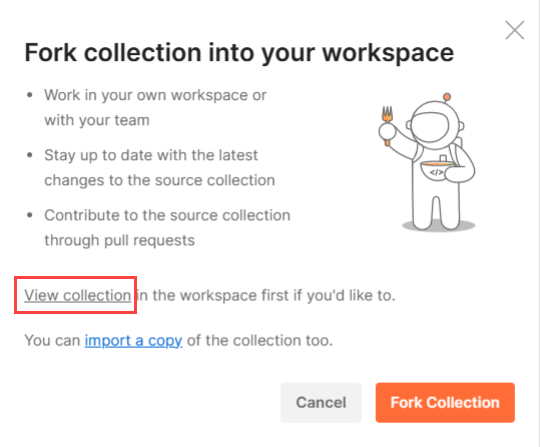
A new tab opens up in your browser where you should see the latest collection preloaded in the left navigation.
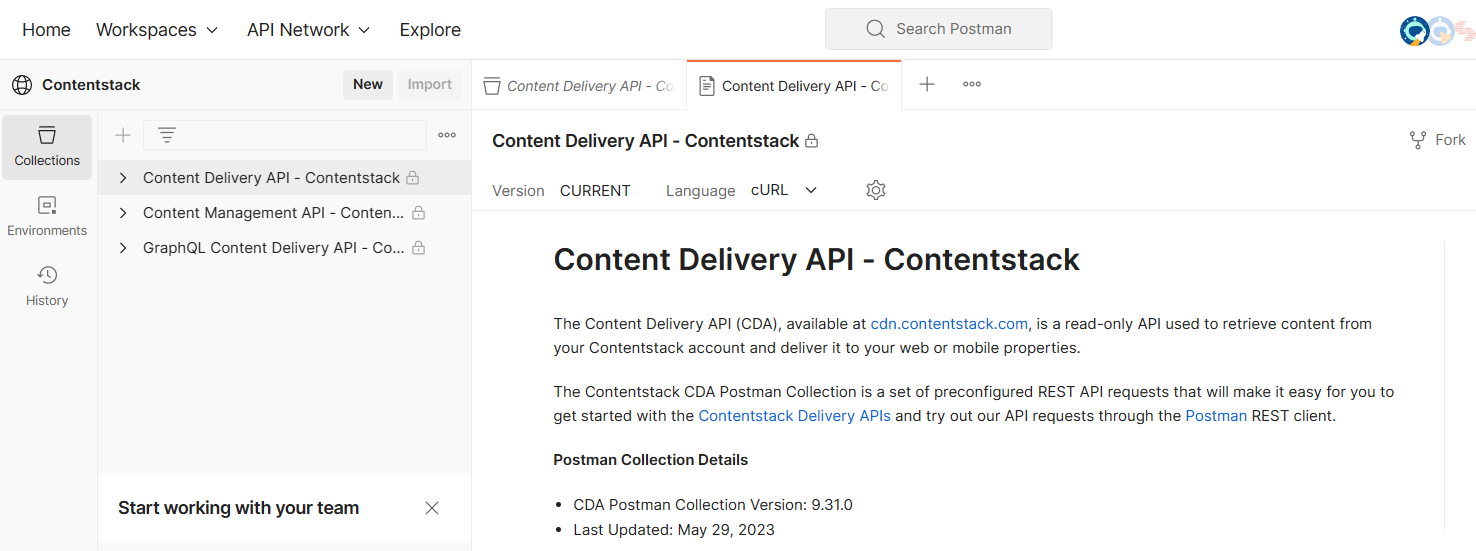
Note: If you want to try out the API requests, you can either import a copy of the collection or fork the collection.
Import a Copy of the Collection
This option allows you to import a copy of the collection into your workspace.
To import the Content Delivery API collection, perform the following steps:
- Click the import a copy link in the Fork collection into your workspace modal.
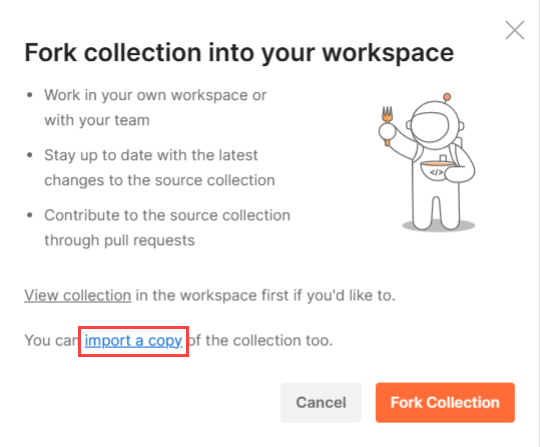
- In the resulting Import Collection modal within the Postman app, select a workspace and click Import to import the latest Postman collection into your selected workspace.
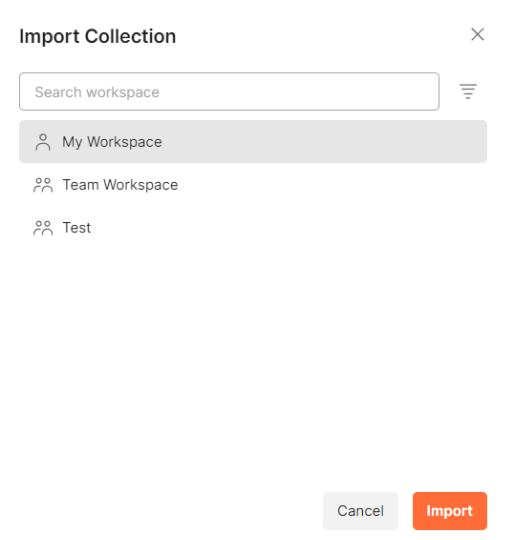
You will see a copy of the latest Postman collection in the left navigation panel.
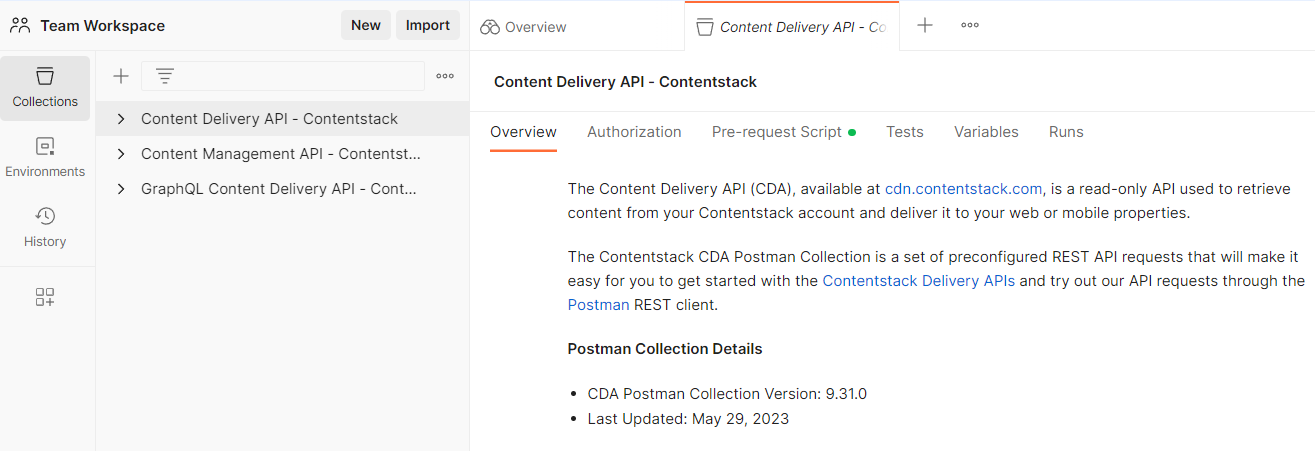
Fork the Collection
This option allows you to fork, or create a copy of the collection, and perform changes to the collection without affecting the original.
To fork the Content Delivery API collection, perform the following steps:
- Click the Fork Collection button in the Fork collection into your workspace modal.
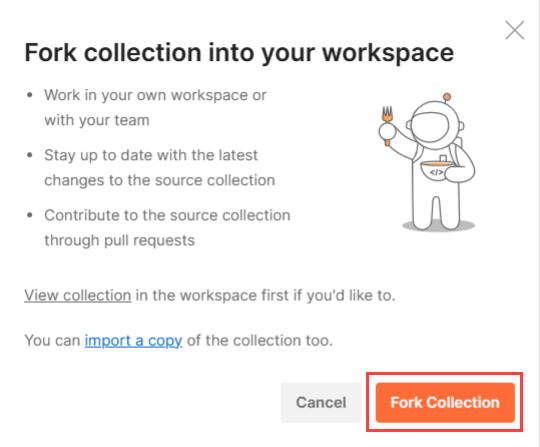
- This opens the Sign In page. You can either enter your login credentials and click Sign in, or sign in using your Google account or via SSO.
- In the resulting Fork collection modal, if needed, enter a Fork label that lets you uniquely identify your collection and select a Workspace.
- Once done, click Fork Collection to fork the Postman collection into your selected workspace.
Under Notifications, check Watch original collection to get notified of any changes that are made to the original collection.
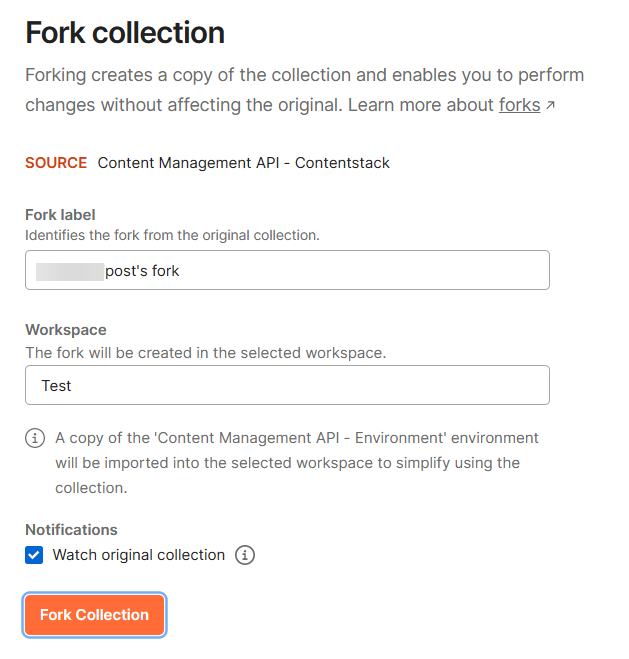
Download Collection from GitHub Page
We have also hosted our Postman collection on GitHub. You can follow the steps mentioned in the Readme file to download and start using it.
You can also choose to watch the latest Postman collection to get notifications of new releases or updates.
To do so, click on the following Watch button and select Watching.
Configure Environment Variables
When you download and install the latest version of the Content Delivery API (CDA) Postman collection, you also download and import the respective environment along with the environment variables.
Once your environment is imported, next you need to set your Contentstack account specific values.
Note: As these environment variables are referenced across multiple API requests, once you set the variables, it becomes a lot more convenient to make repeated use of the Postman collection.
Some of the important variables that you need to set are as follows:
| Environment Variable | Value |
|---|---|
| base_url | cdn.contentstack.io |
| api_key | your_stack_api_key |
| access_token | your_environment-specific_delivery_token |
Note: The Contentstack Postman collection will require a valid environment-specific Delivery token to make API calls. Check out the Authentication section for more details.
If you want to add your own environment variables, you can follow the procedure in the next section.
Add Other Environment Variables
To add any new environment variables for your Postman collection, perform the following steps:
- Identify the environment variables that you want to define.
- In the top right corner of Postman, click on the environment's dropdown and select Content Delivery API - Environment.
. - Click the "eye" icon present in the top right corner of Postman. It opens up in the environment variables modal. Click Edit to make changes in the variables.
- In the VARIABLE field, enter the name of the environment variable.
In the INITIAL VALUE field, enter your Contentstack-account-specific value that will replace the variable when the call is made. - Once you have defined your variables, click Save.
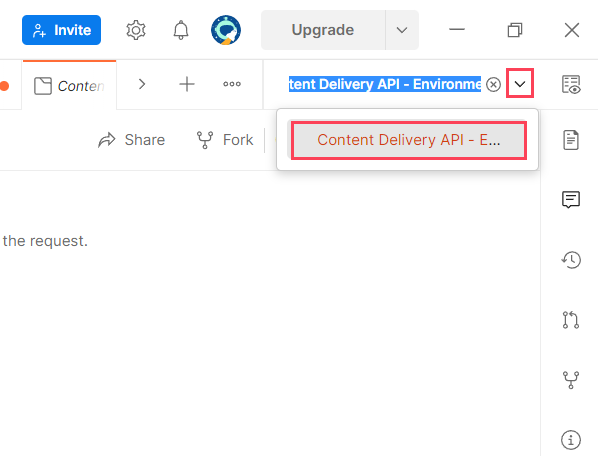
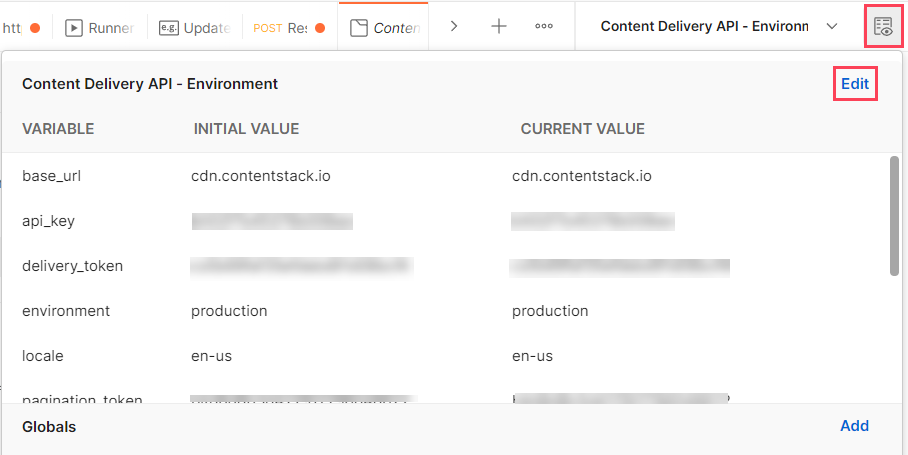
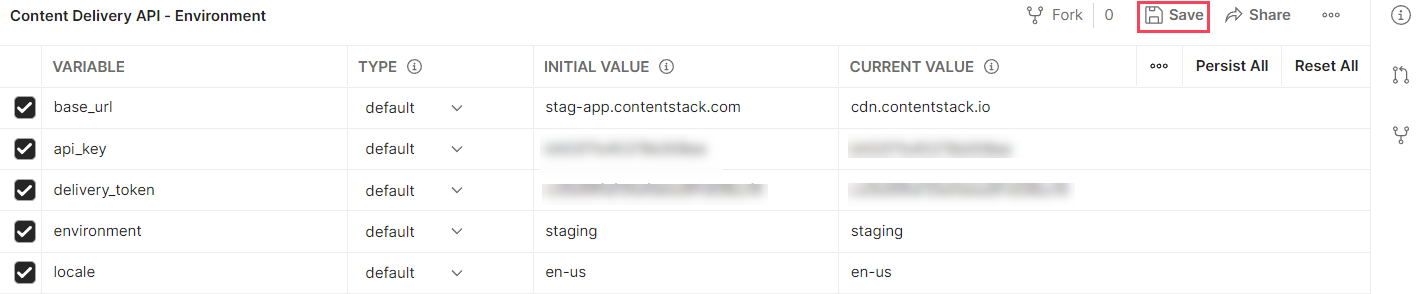
Update Environment Variables
With every new API request added, we update our environment file. So, to get the latest environment variables, you need to download the collection along with the updated environment file again, compare your existing environment with the latest environment, identify and add the new variables to your existing environment.
Next, let’s see how you can run API Requests from your Contentstack Postman collection using your environment.
Make an API Request
With the Contentstack Postman Collection loaded into the Postman app (on the left pane) and the environment created, you can now make API requests to the Contentstack API via Postman.
To make an API request, perform the following steps:
- Select the respective environment, Content Delivery API-Environment, from the dropdown.
- Select an API Request from the Contentstack Postman Collection. In this example, we will use the Get all content types request which is a part of the Content types folder.
Note: If you want to make changes to your parameters or want to add parameters of your own, you can do it here.
- Next, click on Send at the top right to make the API request.
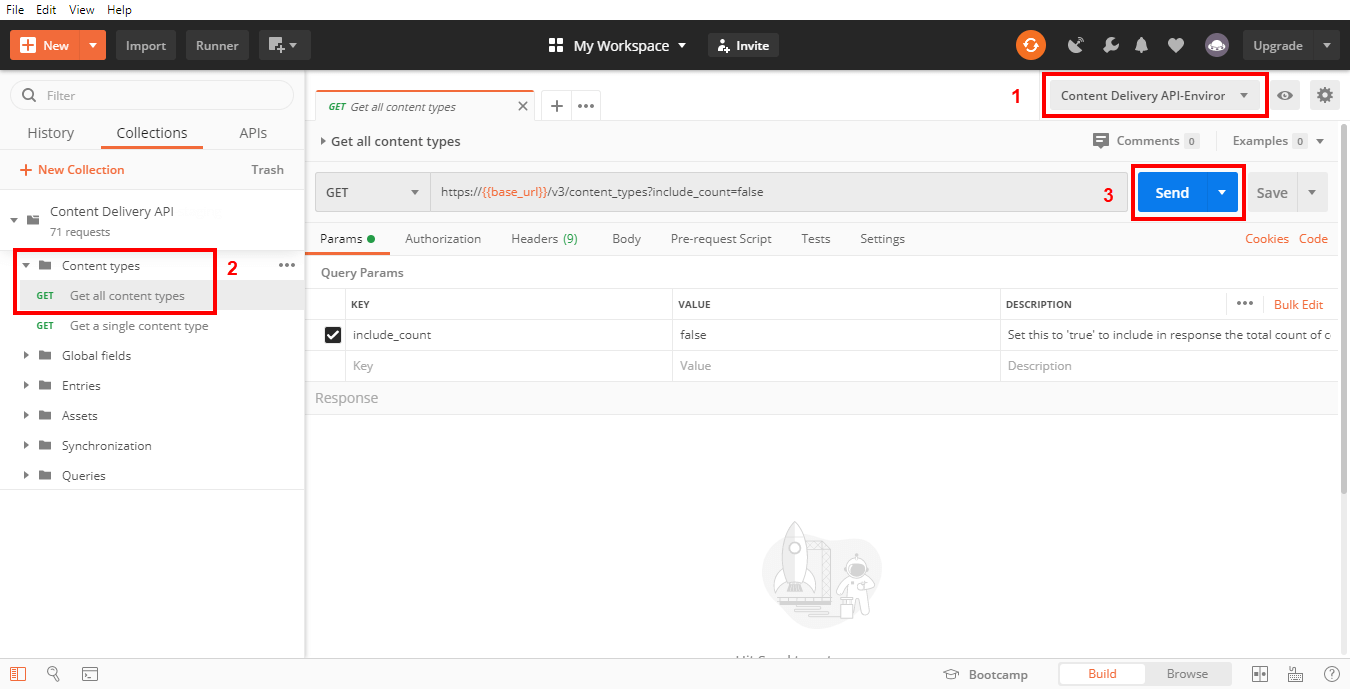
The API call should return with a response under the Body tab in the bottom half of the screen.
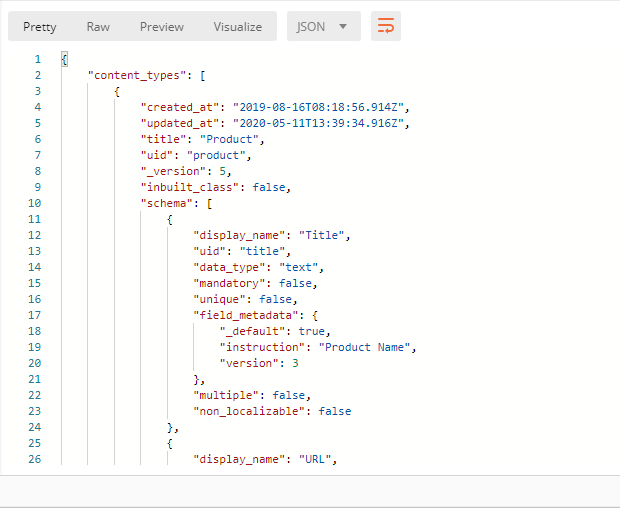
Working with Queries
Contentstack provides certain queries that you can use to fetch filtered results. You can use queries for Entries and Assets API requests.
Querying Entries
You can add queries to extend the functionality of an entry-specific API call. To add a query, you can either append the query parameter directly to the entry URL or append the query parameter along with your conditional query (in JSON format) to the entry URL.
Case 1: Append the query parameter
If you want to return a specific number of entries in your response output, you can use the limit query parameter. For example, if you want to retrieve only the first 2 entries of a content type, pass '2' as the value for the limit parameter.
https://cdn.contentstack.io/v3/content_types/{{content_type_uid}}/entries?limit=2Case 2: Append the conditional query
If you want to retrieve all the entries of a content type in which the value for the Title ("uid":"title") field is “ABC”, you can append the query parameters to the entry URL as follows:
https://cdn.contentstack.io/v3/content_types/{{content_type_uid}}/entries?query={"title": "ABC"}Let’s say you want to retrieve all the entries that have their start date as 8th December 2017. Now, you need to append the query with the start date in the ISO Date format as below:
https://cdn.contentstack.io/v3/content_types/{{content_type_uid}}/entries?query={ "start_date": "2017-12-08T00:00:00.000Z" }You can append multiple queries in a single API Request as follows:
{{entry_URL}}?environment={{environment}}&locale={{locale}}&include_count=true&skip={skip_value}&limit={limit_value}Querying Assets
You can use Image Delivery APIs by appending queries to the image URL:
{{image_url}}?query_parameterFor example, to resize the width of an image to 100px, you need to append ?width={100} to the image URL. So, the API request would be:
https://images.contentstack.io/v3/assets/blteae40eb499811073/bltc5064f36b5855343/59e0c41ac0eddd140d5a8e3e/image_name?width=100.You can also use multiple queries in a single API request as follows:
{{image_url}}?width={width_value}&height={height_value}&resize-filter={resize-filter_value}Secure API Keys and Tokens
We strongly advise against storing your API keys and tokens in your collection permanently. If you or someone else shares the collection by mistake, other users will be able to export it along with these keys.
We recommend that you provide your Contentstack account-specific API keys and tokens in your environment or directly to the sample requests.
Postman Collection Updates
We keep our Postman Collection updated. To get the latest version of our Postman Collection, all you need to do is to download the Postman Collection along with the updated environment again and you are good to go.
You can also choose to watch for the latest Postman Collection updates on our GitHub repository and get notifications of new releases or updates to the repository. The GitHub Readme doc will help you with the steps that you need to follow.
API Best Practices
Best Practices for GET API calls
When trying out Contentstack Get Entry or Get All Entries API requests, Contentstack recommends certain optimization measures that will help you achieve fair limits on your API usage.
Here are some important points that you need to consider:
- Limit Response Payload: GET calls usually return a lot of unwanted parameters. If the APIs are used excessively, the default API response not only increases infrastructure load but also starts impacting the performance of your app. It's important to validate data and filter out anything that shouldn't be there.
Ideally, the best practice is to limit your response payload to 5 MB. - Keep the total number of “includes” and “level depth” to the minimum: When retrieving data, always make sure you decide logically what you need to extract and avoid retrieving unnecessarily large data.
It is recommended to keep the number of includes (when referencing other entries) and the depth levels as low as possible. The best practice is to restrict your total include to not exceed 10. However it depends on the user’s requirement (and their final response payload size, which should be restricted to the ideal response size mentioned above). - Make use of projection queries: To restrict the size returned in your response payload, make sure to use projection queries such as only, except, etc. These projection queries allow you to retrieve/exclude specific field data for each entry.
- Make use of pagination: If you think that your response payload can be overwhelming, you can use skip and limit parameters to paginate your response.
- Use “Lazy loading”: This factor totally depends on the user and also on the framework that they use. If the website data is pulled in from multiple content types, lazy loading is a good approach that will let them load the important sections of their website first before loading the others.
Exceptional Use Case
So what do you do if you might hit the limits even after following the above precautionary measures?
In this scenario, you can make use of filtering or pagination. What does this mean? Let’s look at the steps involved:
- First, you can divide your includes into multiple calls, say you need to add 10 includes. You can split them into groups of, maybe, two.
- You can append projection queries such as only, except, etc. to these batches to retrieve restricted response.
- [Optional, but recommended] Now, if you feel your response can be overwhelming, you can use skip and limit parameters to paginate your response.
- Finally, you can merge the results of all the batches together to get your final response.
API Usage Recommendations
In order to attain and maintain optimum performance and ensure that infrastructure resources are used in an efficient manner, Contentstack recommends certain best practices.
By following the recommendations discussed in this guide, you can maintain reasonable API usage while making calls or querying for data by minimizing the number of includes in your call.
Optimize Your Code
Optimize your code to eliminate any redundancies or duplicates from the includes, unwanted includes, or references from our code.
We may get faster responses, however, it can result in retrieving stuff in the response that we don't really need. Before making a call, check for queries in the code that will fetch data items that aren’t used in your application, check whether the fetched data is being put back with no changes made to them, and so on. Also, you can avoid making queries unique by putting in a random number or timestamp.
Cache Frequently-used Data
Once you have optimized your code, cache data items that you use more frequently. Your cache management system can be programmed to help you retrieve most frequently used data through the cache instead of the server.
For example, in a user management application where you update various user details such as user groups, titles, and so on. In such a case, you can think of keeping these details on the application side rather than retrieving them through calls every time the user opens the form.
Opt for Data Caching When Needed
If you possess content pieces that do not change often, they can be cached in your app's cache management system to avoid fetching them every now and then.
For example, if your app is customer facing and there is an FAQ section in your app, you can prefer keeping answers to these FAQs on the application cache rather than fetching it every time where there is a requirement.
Use Contentstack Webhooks for Tracking Changes
Contentstack webhooks can be used to keep track of changes. You can set webhooks when any changes are made to content or code and then react as required.
The webhook notifications allow App to fetch details as desired instead of waiting for the app's API instance to check for job status periodically and then fetch the data. Webhooks can help you in such situations by notifying you as and when the job gets completed.
This reduces the number of includes in the call that may otherwise be high if the checking period has considerable time in between.
Implement Lazy Loading
Lazy loading, or "On-demand loading," is an online content optimization technique for web apps and websites. It involves loading the most important section of the page first followed by the remaining sections, instead of loading and rendering the complete page in one go. This totally depends on the user requirement.
This approach can be useful in reducing the number of includes involved in making a call and rendering the content to the user. This is not only cost-effective but also resource effective as well.
Avoid Retrieving Multiple Levels in Referencing
Referencing is a powerful Contentstack feature that allows you to create references. However, if not needed, we encourage you to avoid fetching unnecessary references in the response.
The number of includes in case of referencing is one thing, but the depth of a single include is also more resource costly than a shallower include. So you should always decide logically when retrieving data in a single call and avoid retrieving them unnecessarily for optimum resource utilization.
Use Modular Blocks
When making use of multiple content type references, and fetching the schema of all these content types can be exhausting. This also increases the number of includes in a call.
This case can be handled efficiently by using Modular Blocks. They can be used with other modules to construct a complete webpage. You can create multiple blocks (let's say, B1, B2, B3, and so on with each block with a different schema) within a modular block while creating a content type.
While creating an entry in this content type, you can add data to any of the blocks (B1, B2, B3) and keep other blocks empty. And now when you make a call, you don't have to include the referenced content types in your call. This is another way of minimizing the includes in your call or queries.
