

Navigating Your Website in Visual Editor
Use Visual Editor to visually edit and manage your website’s structure and content in real time.
Note: To use Visual Editor, ensure that the Live Preview feature is enabled in your stack settings. For setup instructions, refer to the Set Up Visual Editor for Your Website guide.
To navigate through your website, log in to your Contentstack account, and perform the following steps:
- Navigate to your stack and select Visual Experience.
- Click Editor in the bottom pill menu.
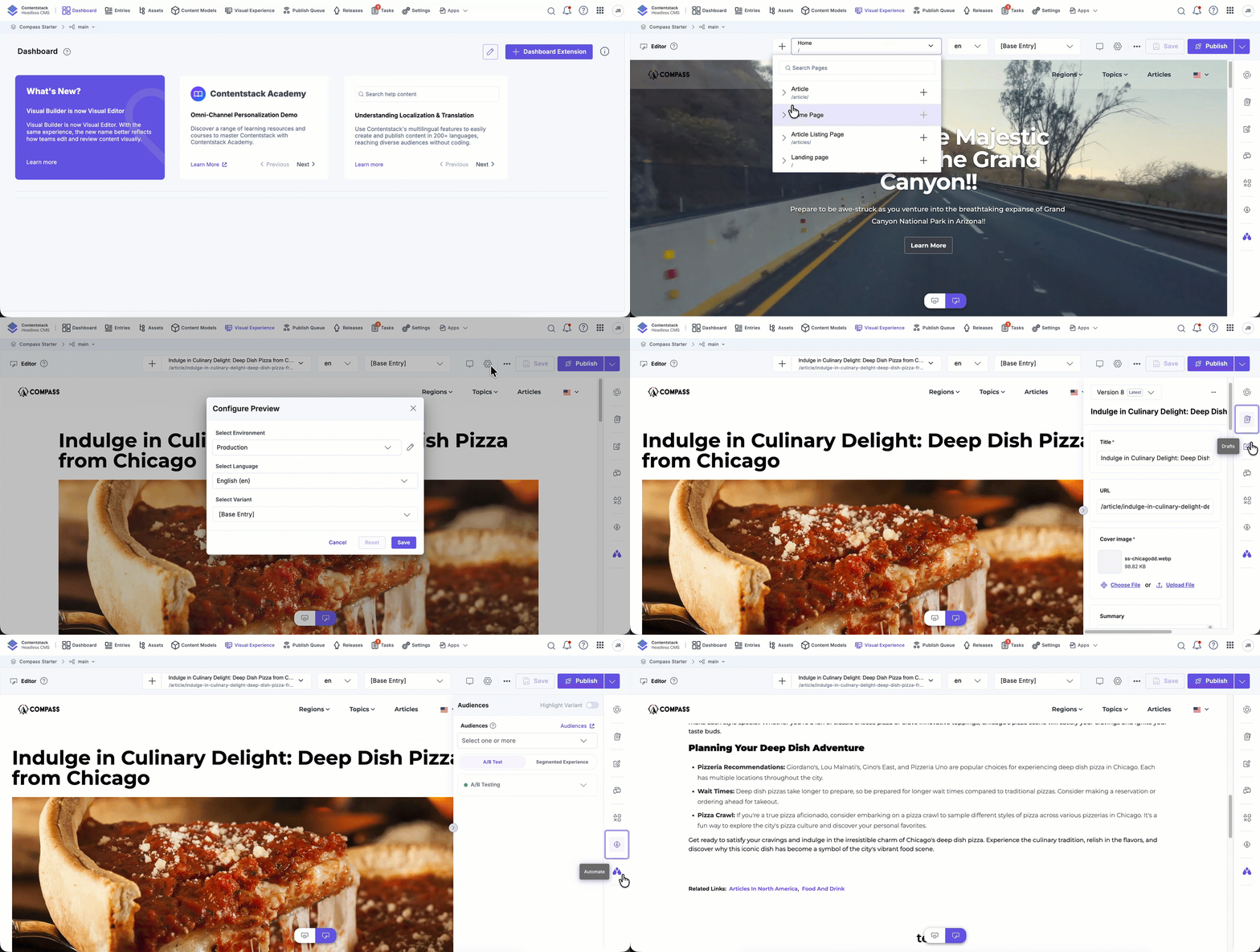
- The Visual Editor interface includes five key areas to help you navigate and manage your website efficiently:
- URL Bar: Displays a list of all available web pages, including entries from content types defined in your custom URL configuration. It helps you understand the structure of your site and switch between pages for editing.
- Canvas: Serves as the main workspace where you can preview your site and make visual edits directly. It reflects real-time changes and simulates the live appearance of the page.
- Toolbar: Appears over page components and provides contextual tools to move elements, add comments, apply field modifiers, and view detailed field information such as the field name and its associated content type.
- Right Panel: Gives you access to the following tools:
- Status to view the current entry’s state along with all linked or referenced entries on the page.
- Form to perform inline editing with real-time preview and breadcrumb navigation.
- Drafts to review and manage unsaved changes.
- Discussions to collaborate through field-level feedback.
- Widgets to add features like SEO optimization or translation.
- Audiences to tailor content for specific user segments or regions.
- Automate to automate workflows and trigger custom actions.
- Publish Panel:
- Displays all entries updated during a session, helping you track changes and organize updates.
- You can assign workflows, fix validation errors, and choose between quick publishing for fast deployment or advanced publishing for more control.
View Pages From Custom URL Content Types
The URL Bar lists two kinds of content:
- Page content types: Content types that include a URL field.
- Custom URL content types: Content types defined in your stack’s custom URL configuration, even if they have no URL field.
For each entry, Visual Editor shows the resolved URL, which combines the static path prefix from your configuration combined with the entry’s dynamic values, such as the entry slug and the slugs of any referenced entries.
Note: Visual Editor resolves the full URL for an entry when you expand its content type group in the list. The first time you expand a group, resolution may take a moment.
Create a Page for a Custom URL Content Type
When you create a page from a content type that uses a custom URL pattern, Visual Editor does not display the URL field, because the URL is generated from the pattern rather than entered in a single field. Enter the field values the pattern requires, for example, the entry slug and any referenced entries, and then save the entry.
Resolve Missing Fields for a Preview
If an entry is missing a value that its custom URL pattern requires, Visual Editor cannot build the preview URL. It shows a screen that lists the unresolved patterns and the fields that need values. Select a listed field to open it in the form, enter the required value, and return to preview the entry.
Triggering Interactions within the Canvas
To test interactive elements (e.g., dropdowns, sliders, modals) wrapped in data-cslp tags:
- Hold Alt (Windows) or Option (macOS) while clicking the element in the canvas.
- This action temporarily bypasses the editor's editing mode and lets you interact with the element as it behaves on your live site.
For example, pressing Alt or Option while clicking a dropdown menu opens the menu instead of the editing toolbar.
Note:
- This support is available only from version 3.1.3 and above of the Live Preview SDK.
- Page navigation is disabled within the canvas. Clicking links does not redirect to another page. Use the URL Bar to navigate within the editor, or open your site in a new browser tab for full interactivity.
These techniques help you efficiently manage and preview content within Visual Editor.
