

Build an Android news app using Contentstack’s Android SDK
This demo Android news app is built using this Contentstack’s Android SDK. It uses Contentstack to store and deliver the content of the news app.
Screenshots
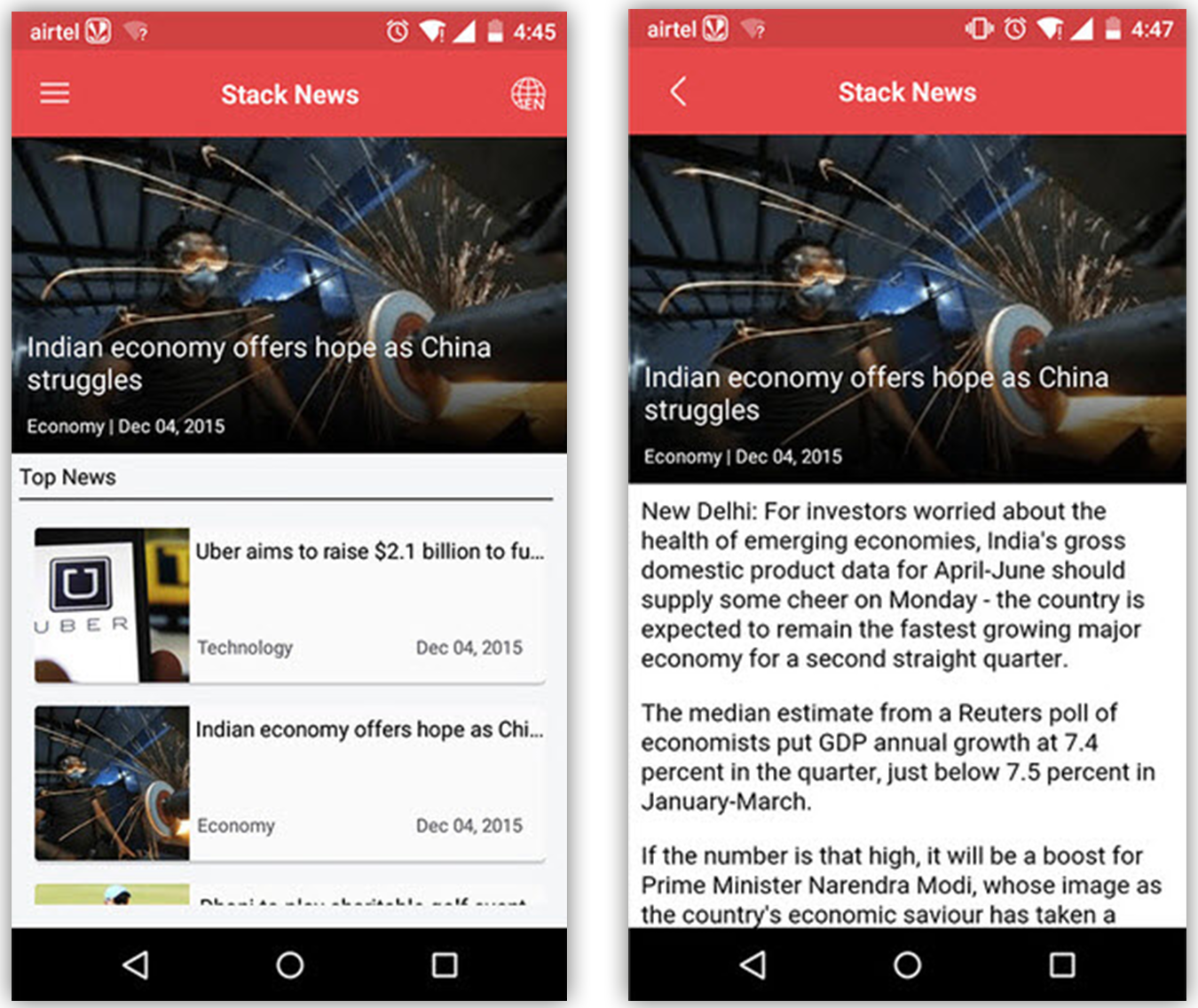
Warning: This sample app is no longer maintained. It remains available for reference. If you have questions regarding this, please reach out to our support team and we will do our best to help!
Quickstart
Here’s a quick guide on how to create an Android news app using Contentstack’s Android SDK.
Prerequisites
- Android Studio account
- Contentstack Account
- Contentstack CLI: npm install -g @contentstack/cli
Note: For this tutorial, we assume that you are familiar with Contentstack and Android. If not, then please refer to the Contentstack docs for more details.
In this tutorial, let's go through the steps involved in configuring Contentstack, and then look at the steps required to customize and use the presentation layer.
Set Up Your App
Here is an overview of the steps involved in creating our app:
- Create a Stack
- Add a Publishing Environment
- Import Content Types
- Adding Content
- Set up Android Studio and Initialize Android SDK
- Clone and Configure the Application
- Build and run your news app
Create a stack
A stack holds all the data (entries and assets) that you would need to create a website. Log in to your Contentstack account, and create a new stack.
Add a publishing environment
Follow the steps below to add an environment in Contentstack:
- Navigate to Settings -> Environments
- Click the + New Environment button.
- Provide a suitable name for your environment, for example, staging.
- Specify the base URL (e.g., ‘http://YourDomainName.com’), and select the language (e.g., English - United States).
- Click the + Add button.
Additional Resource: Read more about environments.
Set the Region
To use the North America, Europe, Azure North America, or Azure Europe endpoint, run the following command in your terminal (command prompt):
csdx config:set:region <<region>>Note: - For North American users, set the region as NA.
- For European users, set the region as EU.
- For Azure North American users, set the region as AZURE-NA.
- For Azure European users, set the region as AZURE-EU.Login to your Account
To import content to your stack, first, you’ll need to log in to your Contentstack account via CLI by running the following command in your terminal:
csdx auth:loginThis command will ask you to provide your Contentstack’s account credentials (email and password).
Import Content
The seed command lets you import content to your stack in a few steps. To do so, run the following command in your terminal:
csdx cm:stacks:seed --repo "contentstack/stack-starter-app"This command prompts the following options:
- Organization name: You will get a list of organizations to which you have access. Select the one from the list where your source stack is located or where you want to create a new stack.
Note: Choose an organization where you are an owner or admin.
- Stack preference: Next, you will get an option to create a new stack or use an existing stack.
- If you select New, you must enter the stack name, and the stack creation process will start.
- If you select Existing, you will get a list of stacks to which you have access in the organization. Choose the destination stack where you want to import the content. If the existing stack has some content, it will ask for a confirmation to continue with the same stack.
Additional resource: Refer to the Stack Roles documentation to learn more about permissions.
Tip: To avoid the chances of any error, we recommend that you select the option of creating a new destination stack. If you import content to an existing stack, ensure that the stack is empty.
Finally, you will get the content imported to your stack.
- Organization name: You will get a list of organizations to which you have access. Select the one from the list where your source stack is located or where you want to create a new stack.
Create Delivery token
A delivery token lets you fetch published content of an environment.
You can create a delivery token for the “development” environment for running the website on localhost. Later, while deploying your site, you can create tokens for other environments.
Set up Android Studio and initialize Android SDK
To set up Android Studio and initialize Android SDK, refer to our Get Started with Android SDK documentation.
Clone and configure the application
To get your app up and running quickly, we have created a sample Android app for this project. You need to download it and change the configuration. Download the app using the command given below:
$ git clone https://github.com/contentstack/contentstack-android-news-appOnce you have downloaded the project, add your Contentstack API Key, Delivery Token, and Environment to the project during the SDK initialization step. (Learn how to find your Stack's API Key and Delivery Token. Read more about Environments.)
Stack stack = Contentstack.stack(context, "API_KEY","DELIVERY_TOKEN","ENVIRONMENT_NAME");This will initiate your project
Build and run your news app
Now that we have a working project, you can build and run it.
More resources
