

Gatsby Starter
Note Contentstack no longer supports Starters. We recommend using Kickstarts which are pre-built, minimal code templates designed to help you quickly integrate your project with Contentstack.
Gatsby is a framework to build static websites. This Gatsby starter website guide will help you to build a website using Gatsby and power its content from Contentstack.
The contentstack-gatsby plugin will ease the process of storing and delivering content to the Gatsby starter website from Contentstack.
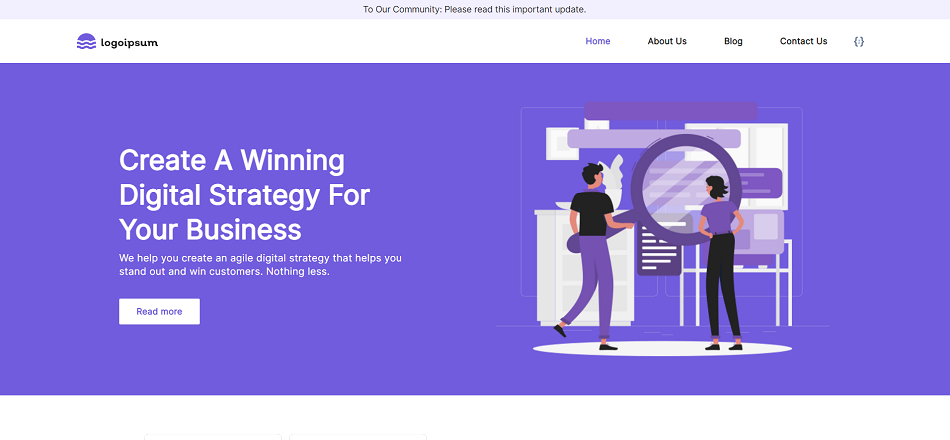
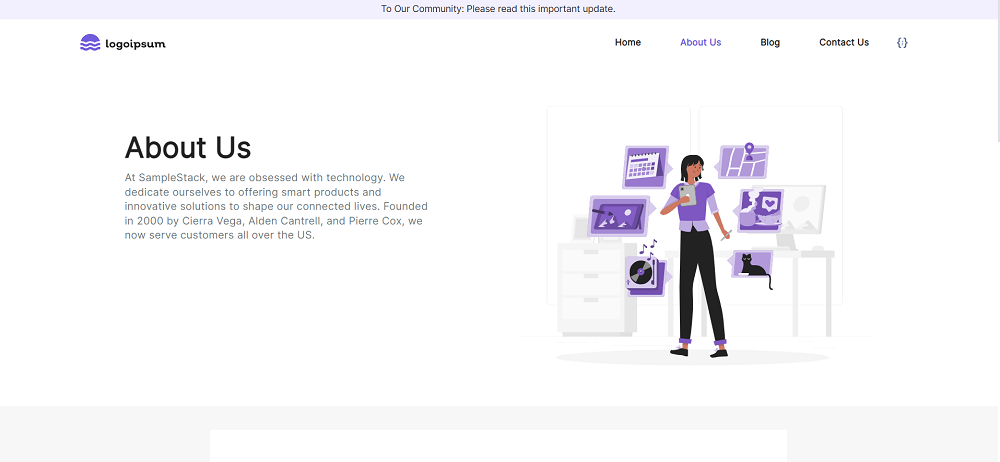
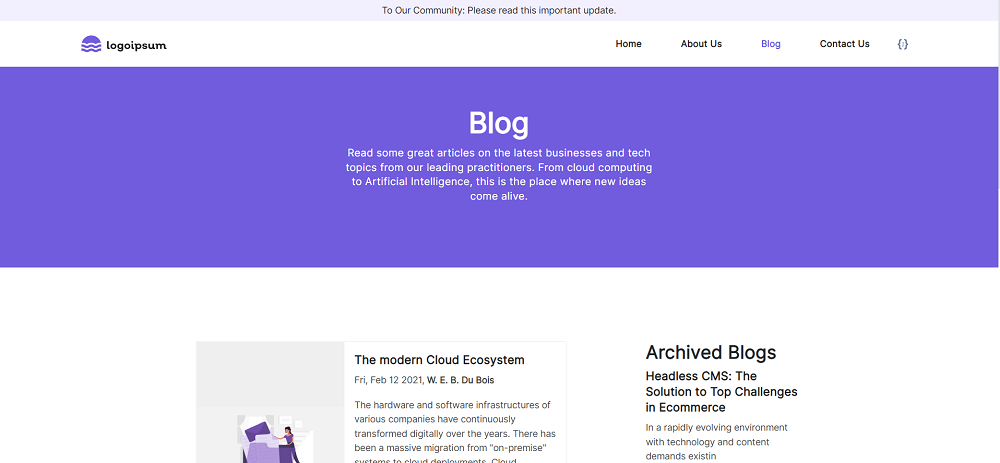
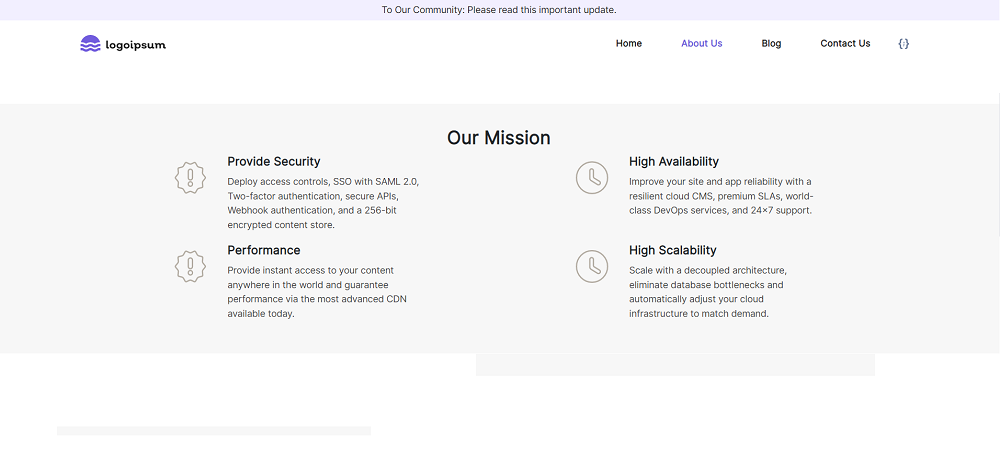
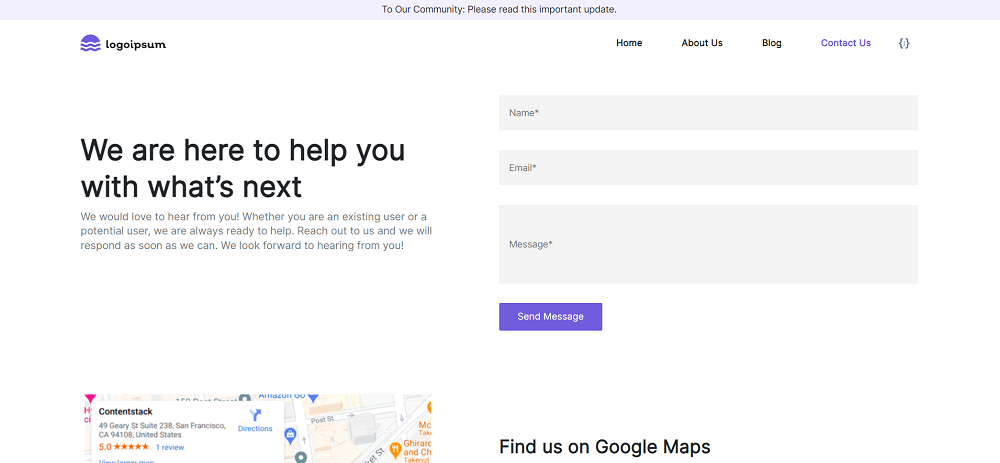
Screenshots
Prerequisites
- Contentstack account
- Node.js version 20 or above
- React version 18 or above
- Gatsby CLI: npm install -g gatsby-cli
- Contentstack CLI: npm install -g @contentstack/cli
- Enable Live Preview for your organization
Note: For this tutorial, you must be familiar with Contentstack and Gatsby. To learn more, refer to the Contentstack and Gatsby documentation.
Make sure to use Gatsby version 5 or above.
Supported Features
- Launch Hosting: Seamlessly deploy your website using our Launch hosting platform. Refer to the Launch documentation to learn more about hosting on Launch.
- Live Preview: Utilize Contentstack's Live Preview feature to see real-time updates of your content changes reflected on your site before publishing.
- Branches: Leverage the Branches feature to manage different versions of your content within Contentstack, allowing for organized development and deployment.
Set Up Your App Using Marketplace
To import this starter, log in to your Contentstack account and follow the steps below:
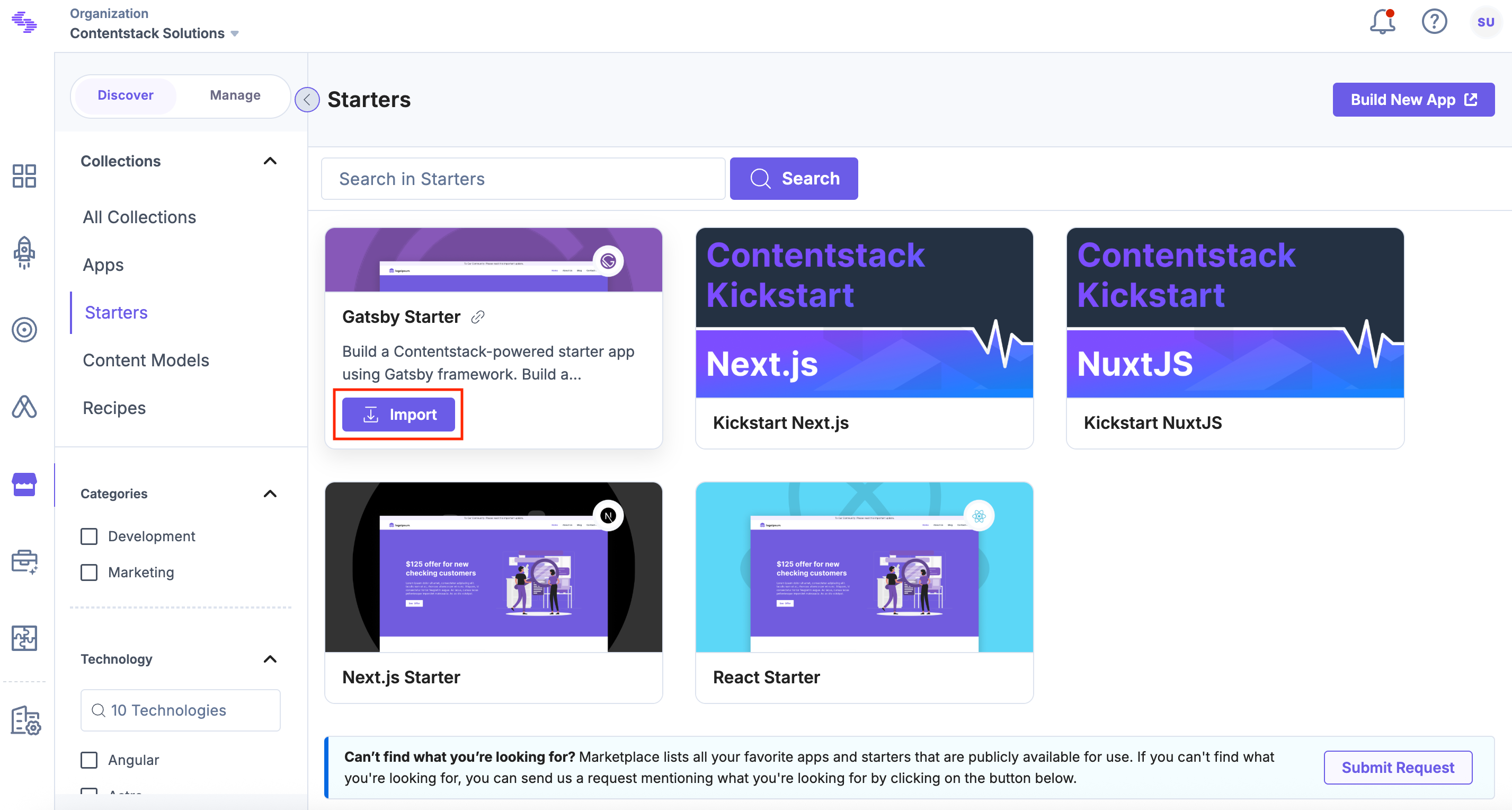
- Navigate to Marketplace from the left-hand side primary navigation, and click Starters.
- You can see the available starters. Hover over the Gatsby starter and click Import.
Additional Resource: For more details, refer to the Importing a Starter documentation.
Set Up Your App Using CLI
Here is an overview of the steps involved in setting up the Gatsby starter app:
- Set the Region
- Log in to your Account
- Import Content
- Create Delivery Token
- Build and Configure the Website
- Deploy the Website
Set the Region
To specify your region (AWS North America, AWS Europe, AWS Australia, Azure North America, Azure Europe, Google North America, or Google Europe), run the following command in your terminal (command prompt):
csdx config:set:region <<region>>Note:- AWS North America: Set the region as AWS-NA.
- AWS Europe: Set the region as AWS-EU.
- AWS Australia: Set the region as AWS-AU.
- Azure North America: Set the region as AZURE-NA.
- Azure Europe: Set the region as AZURE-EU.
- Google Cloud Platform North America: Set the region as GCP-NA.
- Google Cloud Platform Europe: Set the region as GCP-EU.
Note: For more details on setting the region, refer to Configure Regions in the CLI.
Log in to your Account
To import the prebuilt content to your stack, you need to log in to your Contentstack account via CLI by running the following command in your terminal:
csdx auth:loginThis command requests you to provide your Contentstack’s account credentials (email and password).
Note: Currently, Contentstack does not support strict SSO for CLI authentication. To access CLI from strict SSO-enabled organizations, go to the Organization Settings and change the SSO strict mode to a user-by-user basis. Once done, you can enable it for certain developers or create a developer account that you can share with developers to access the CLI. For more login details, refer to CLI Authentication and Adding Tokens.
Import Content
The seed command lets you import content to your stack in a few steps. To do so, run the following command in your terminal:
csdx cm:stacks:seed --repo "contentstack/stack-starter-app"This command prompts the following options:
- Organization name: You will see a list of organizations you have access to. Select the one that contains your source stack, or where you want to create a new stack.
Note: Select an organization where you have Owner or Admin permissions.
- Stack preference: Next, you will get an option to create a new stack or use an existing one:
- If you select New, you must enter the stack name, and the stack creation process will start.
- If you select Existing, you will see a list of stacks you have access to in the organization. Choose the destination stack where you want to import the content. If the existing stack has some content, it will ask for a confirmation to continue with the same stack.
Additional Resource: Refer to the Stack Roles documentation to learn more about permissions.
Tip: To avoid the chances of any error, we recommend that you select the option of creating a new destination stack. If you import content to an existing stack, ensure that the stack is empty.
Finally, you will get the content imported to your stack.
- Organization name: You will see a list of organizations you have access to. Select the one that contains your source stack, or where you want to create a new stack.
Create Delivery token
Delivery tokens are used to fetch published content from a specific environment.
You can create a delivery token for the development environment for running the website on localhost. Later, while deploying your site, you can create tokens for other environments.
Build and Configure the Website
Fire up your terminal, navigate to your project folder, and run the following command to create a configuration file named .env.development.
cp .env.sample .env.developmentNote: If you are a Windows user, replace cp with copy in the command given above.
The .env.development file contains all the necessary config parameters. Open it in any code editor or IDE of your choice, provide your stack credentials, and save the file.
Note: The below code is for AWS North America region users only. Refer the configuration code for AWS Europe region, Azure North America region, Azure Europe region, Google North America, and Google Europe region on the regions configuration page.
CONTENTSTACK_API_KEY = <api_key_of_your_stack>
CONTENTSTACK_DELIVERY_TOKEN = <delivery_token_of_the_environment>
CONTENTSTACK_ENVIRONMENT = <environment_name>
CONTENTSTACK_API_HOST = api.contentstack.io

# By default branch=main, if a branch is not provided
CONTENTSTACK_BRANCH = <your_branch_name>

# By default region=us, if a region is not provided
CONTENTSTACK_REGION = <your_region_name>
Mandatory configuration parameters to enable Live Preview
CONTENTSTACK_PREVIEW_TOKEN=<preview_token_linked_with_delivery_token>
CONTENTSTACK_PREVIEW_HOST=rest-preview.contentstack.com
CONTENTSTACK_APP_HOST = app.contentstack.com
CONTENTSTACK_LIVE_PREVIEW = true
#By default the live preview feature is enabled for this project. To disable it, set "CONTENTSTACK_LIVE_PREVIEW= false".
CONTENTSTACK_LIVE_EDIT_TAGS = false
#By default live editing tags are disabled for this project. To enable it, set “CONTENTSTACK_LIVE_EDIT_TAGS= true”.
Additional Resource: Go to our Live Preview documentation to learn more about the Live Preview feature in Contentstack.
Run the following commands in your terminal:
npm install --legacy-peer-deps
npm run develop
That’s it!
You can now view the website at http://localhost:3000. And you also have the stack that has all the content and resources for the website. Try experimenting by creating new entries and publishing on the “development” environment. You should be able to see the changes on the website at the localhost.
Set up Live Preview (Optional)
Note: In order to use Live Preview, your plan must include this feature. Check our pricing page for more details.
The next step is to set up and enable live preview for your website. Follow the steps below to set up live preview feature for your website:
- Navigate to the Live Preview section in your stack's “Settings”.
- Select the Enable Live Preview checkbox.
- Now, select a Default Preview Environment for previewing the live content of your website. Finally, Save your settings.
This completes your live preview set up. Now, you can deploy the website using Vercel.
Deploy the Website
The easiest way to deploy a Gatsby starter website to production is by using Contentstack Launch, Contentstack’s web hosting platform. For more details, refer to the Contentstack Launch documentation.
Alternatively, you can use Vercel to host your website. To do so, you need a Vercel account before deploying.Note: When deploying the starter website, enable or disable the Live Preview environment variable as needed.
Tip: You can also automate the process of setting up the Gatsby starter with the CLI Bootstrap command.
