

Shopify App Installation Guide
Shopify is a leading ecommerce platform for businesses of all sizes. It allows you to set up an online store to sell your products.
With the Contentstack Marketplace Shopify app, you can use and refer to the products from your Shopify account within your Contentstack entries.
Prerequisites
- Shopify account
- Shopify store
- Contentstack account
- Access to the Contentstack Organization/Stack as the Owner/Admin
Let's follow this step-by-step guide to install and configure Shopify within your stack.
Steps for Execution
- Get your Storefront API Access Token from Shopify
- Install and Configure Shopify in Contentstack Marketplace
- Use Shopify within your Stack
-
Get your Storefront API access token from Shopify
To get your configuration details for Shopify, follow the steps given below:
- Log in to your Shopify account.
- On the Admin portal, click Apps in the left navigation menu and then select App and sales channel settings from the dropdown.
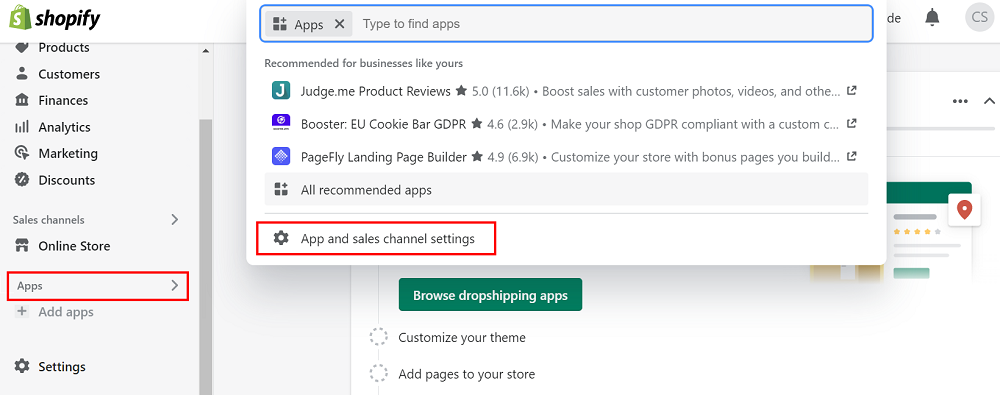
- Click the Develop apps button.
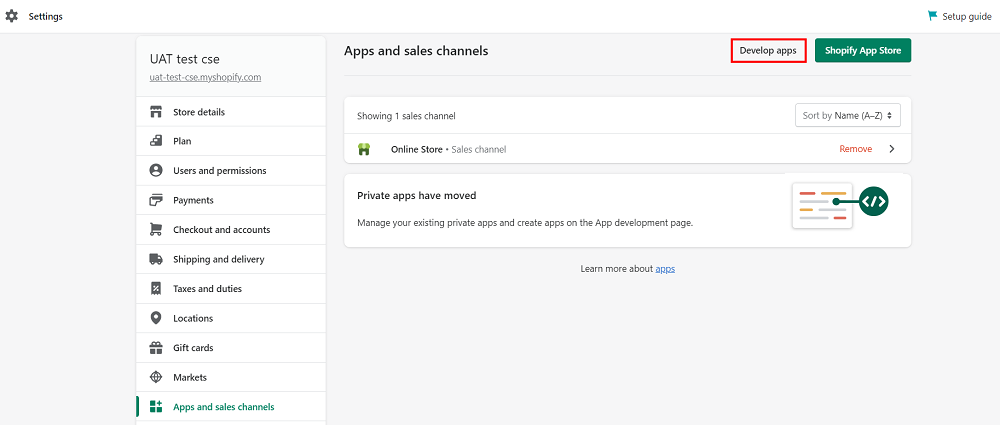
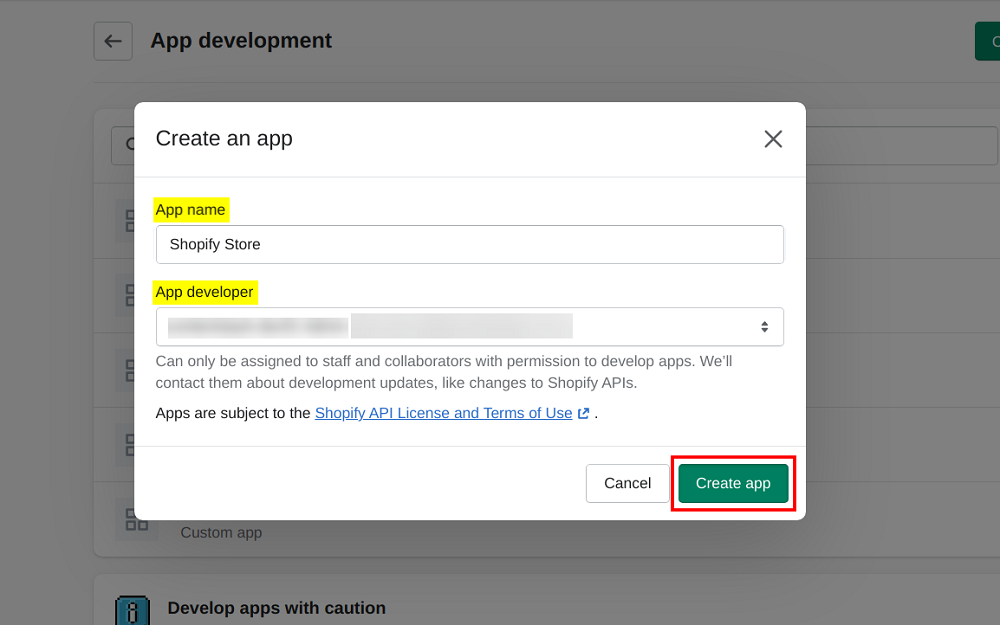
- On the App development page, click Create an app. Mention the App name and select the App developer of your app, and then click the Create app button.
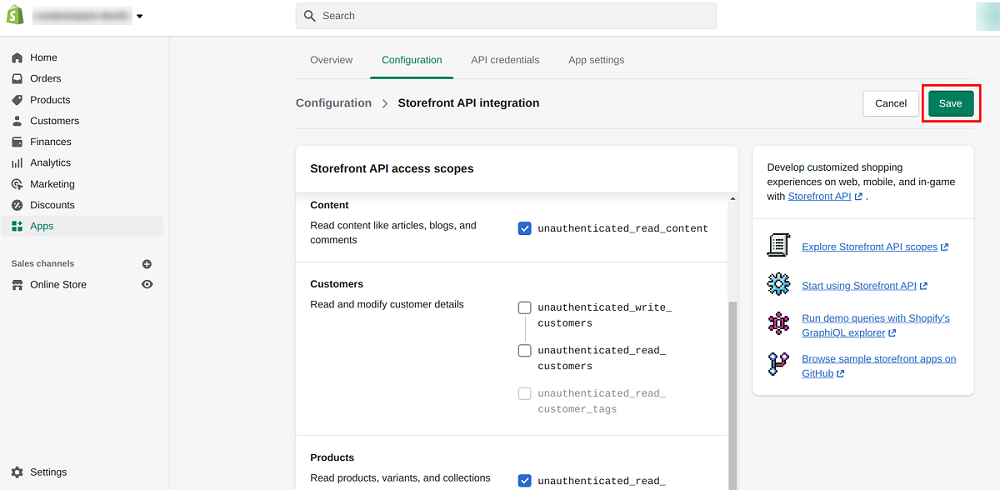
- On the next screen, navigate to the Configuration section and configure the Storefront API integration for your app.
- Select the access scopes for your Storefront API and Save your configuration.
- Finally, under the API credentials section, click the Install app button, confirm your installation, and proceed to get the Storefront API access token.
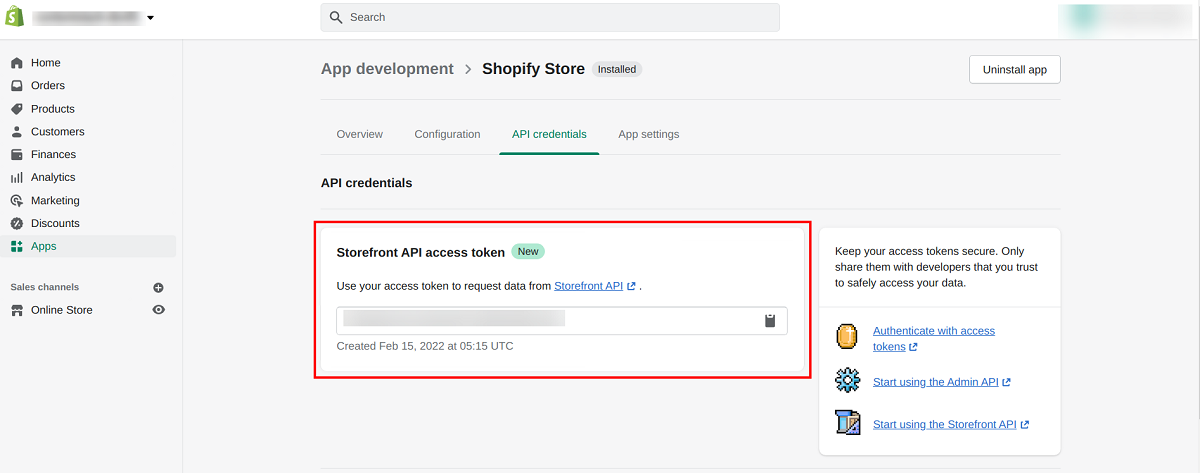
Note: The Storefront API access token is required to connect your store with Contentstack. Make a note of this access token to be used in the next step.
-
Install and Configure Shopify in Contentstack Marketplace
Follow the steps to install the app in Contentstack.
- Log in to your Contentstack account.
- In the left-hand side primary navigation, click the Marketplace icon to go to the Marketplace.
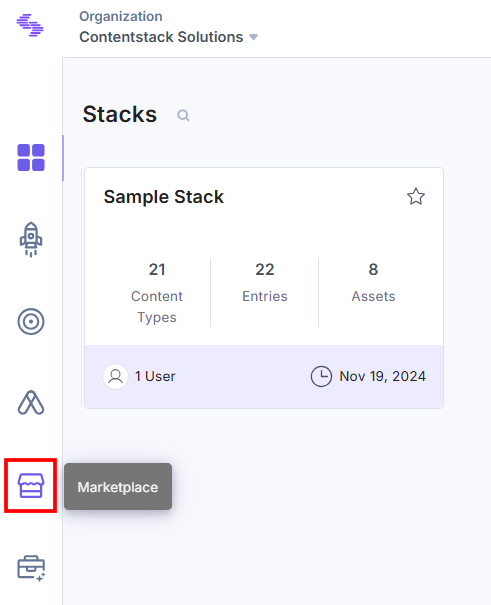
- Click Apps in the left panel.
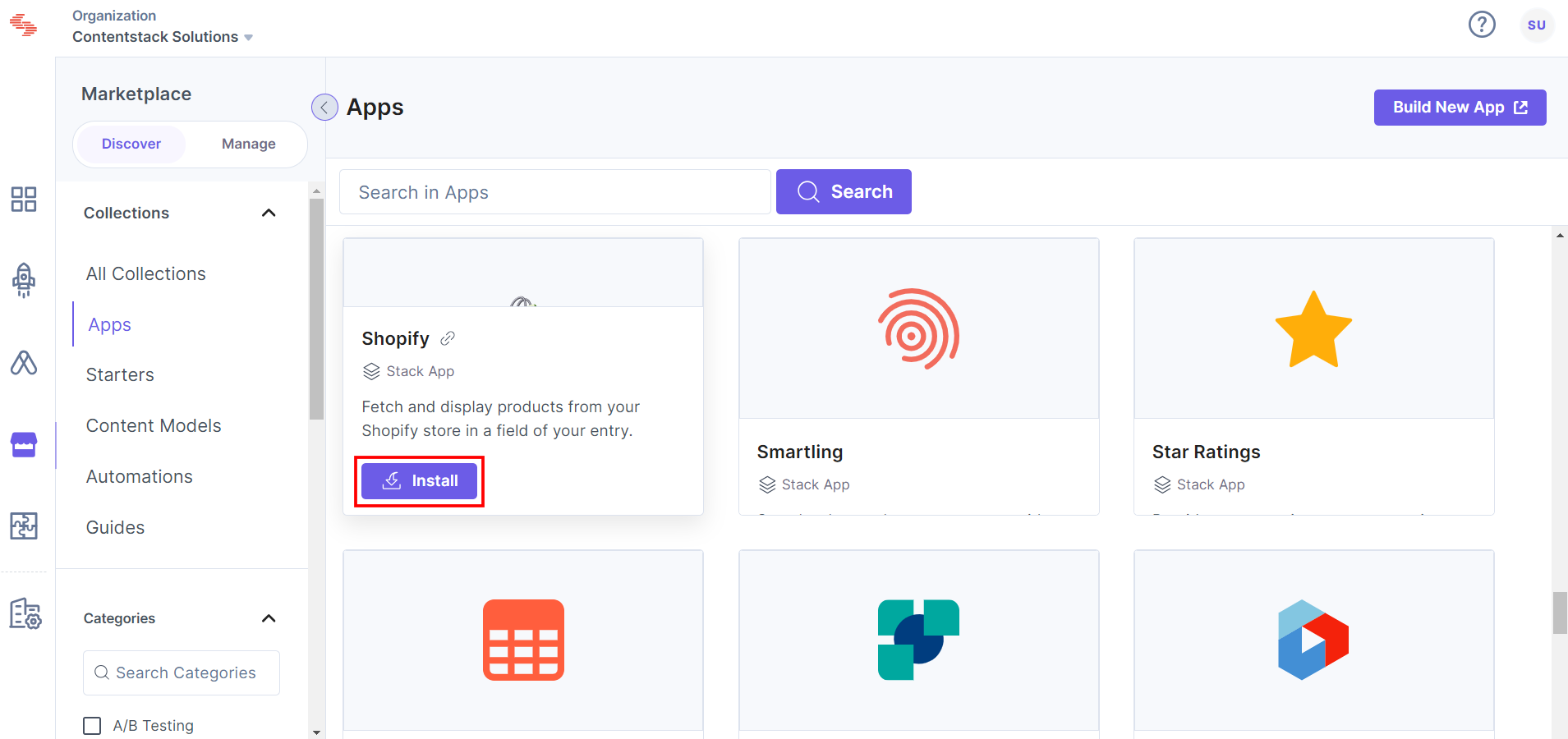
- Within the Marketplace, you can see all the available apps. Hover over the Shopify app and click Install.
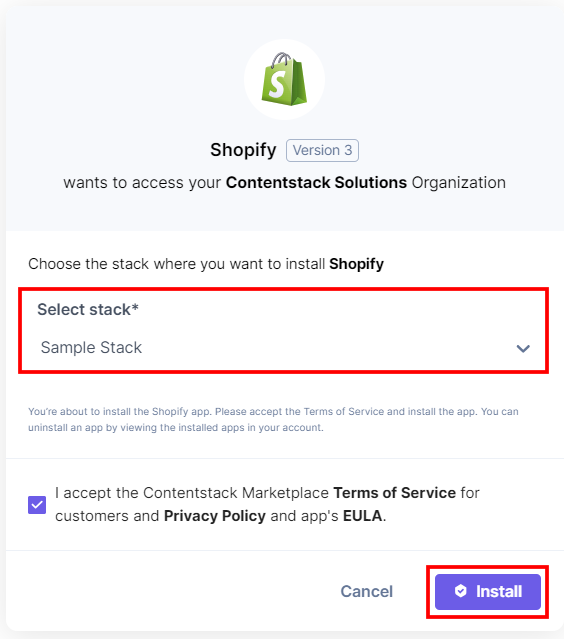
- In the pop-up window, select the stack where you want to install the Shopify app, accept the terms of service, and click the Install button.
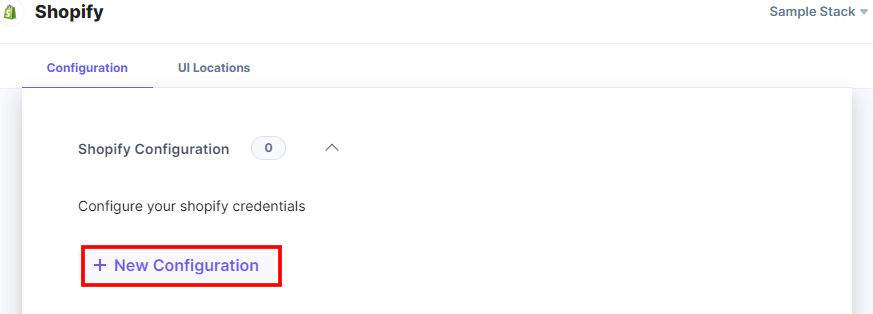
- On the Configuration screen, you can add multiple configurations for Shopify stores. To do this, follow the steps given below:
- Click the + New Configuration button to add new configuration details.
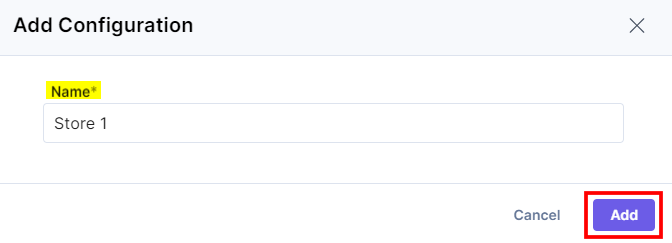
- In the Add Configuration modal, enter the configuration Name and click Add.
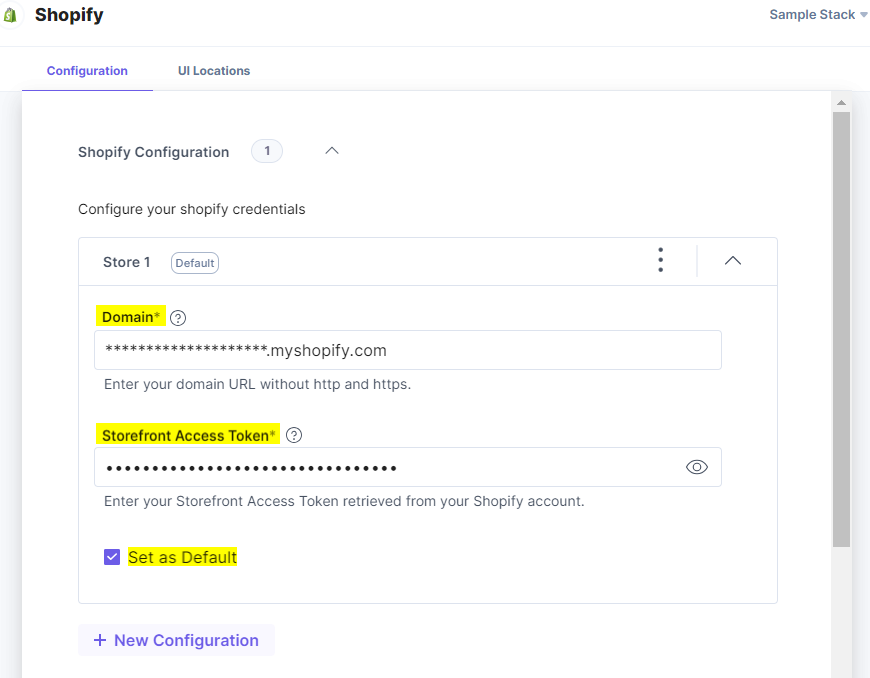
- After adding the configuration, enter the following details:
- Domain: Enter the Store domain name retrieved from your Shopify Console in step 1.
Note: Please enter the URL without the http:// and https:// prefixes.
- Storefront Access Token: Enter the Storefront API access token retrieved from your Shopify account in step 1.
- Set As Default: To set this configuration as the default, click this checkbox.
Alternatively, you can set a configuration as the default by clicking three dots on the top-right side of the configuration section and then selecting Set As Default.
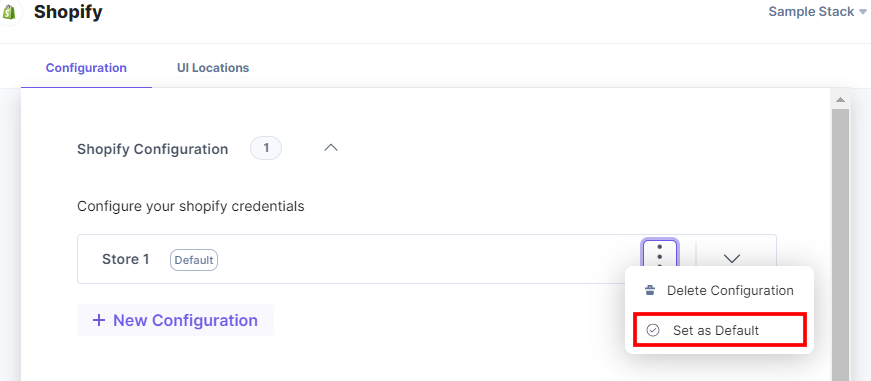
Note: At least one store configuration should be selected as the default.
- Domain: Enter the Store domain name retrieved from your Shopify Console in step 1.
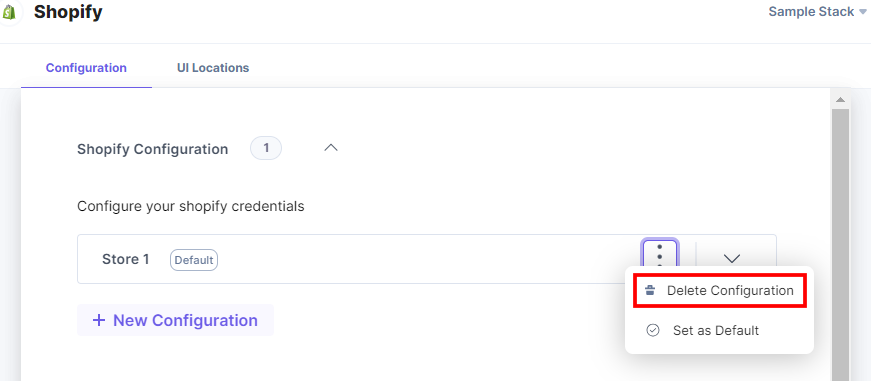
- To delete the configuration, click the three dots and select Delete Configuration.
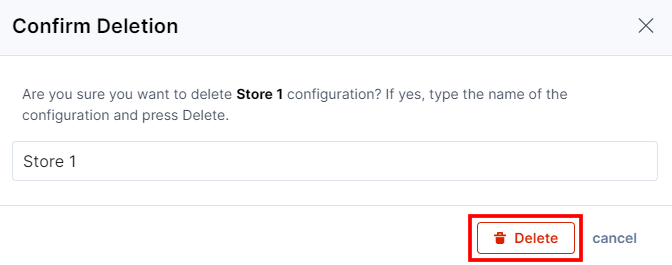
In the Confirm Deletion modal, add the configuration name and click Delete.
Similarly, you can add multiple configurations by following the steps discussed above.
- Choose the Shopify Keys to Save In Entry: Choose how you want to save your data in Contentstack entries.
- If you select the All Fieldsoption, you can select only a limited number of products in the entry.
- For Custom Fields, you should search and add specific Shopify Keys you want to fetch.
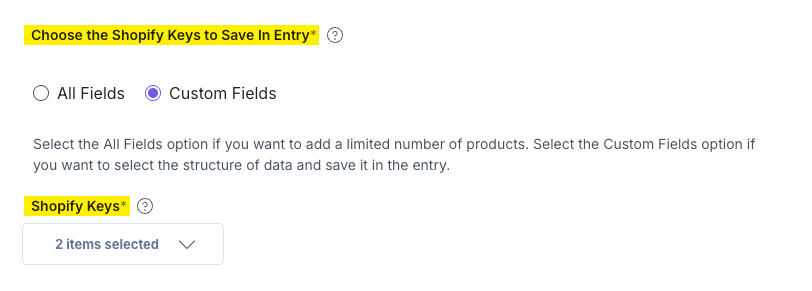
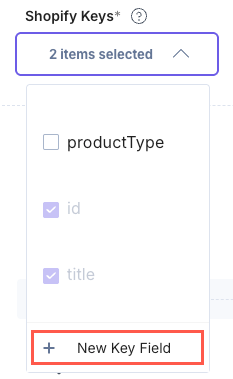
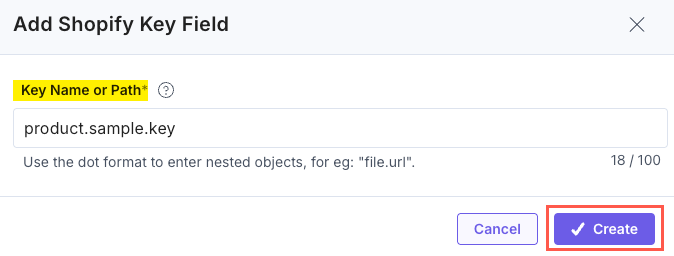
If you select Custom Fields then the Shopify Keys drop-down appears. By default, the id and title keys are already selected inside the dropdown.If you want to create a new key, click the + New Key Field option.
In the Add Shopify Key Field modal, enter the Key Name or Path and click the Create button to create a new key.
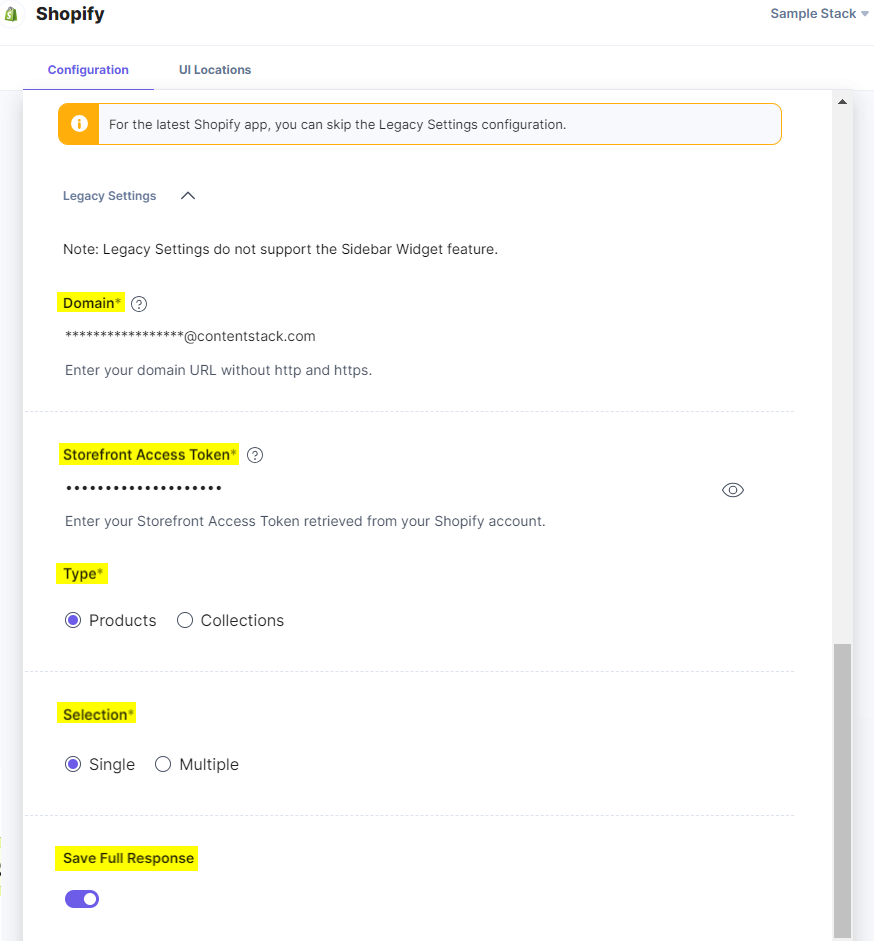
- Legacy Settings: If you want to use the old version of the Shopify app, enter the configuration details in this section.
- Enter the Store Domain name retrieved from your Shopify Console in step 1.
Note: Please enter the URL without the http:// and https:// prefixes.
- Enter the Storefront Access Token retrieved from your Shopify account in step 1.
- Select the Type and Selection.
- Enable the Save Full Response toggle button to save all fields data in the entry.
- Enter the Store Domain name retrieved from your Shopify Console in step 1.
Note:- If you have installed the app previously, you will have the app pre-populated with the old configuration values.
- The legacy version of the Shopify app has the following limitations:
- The app does not support the Sidebar Widget feature.
- You can only select either product or collection in the same entry.
- You cannot select products based on the collection.
- The app does not support multiple configurations.
- Click the + New Configuration button to add new configuration details.
- Click the Save button.
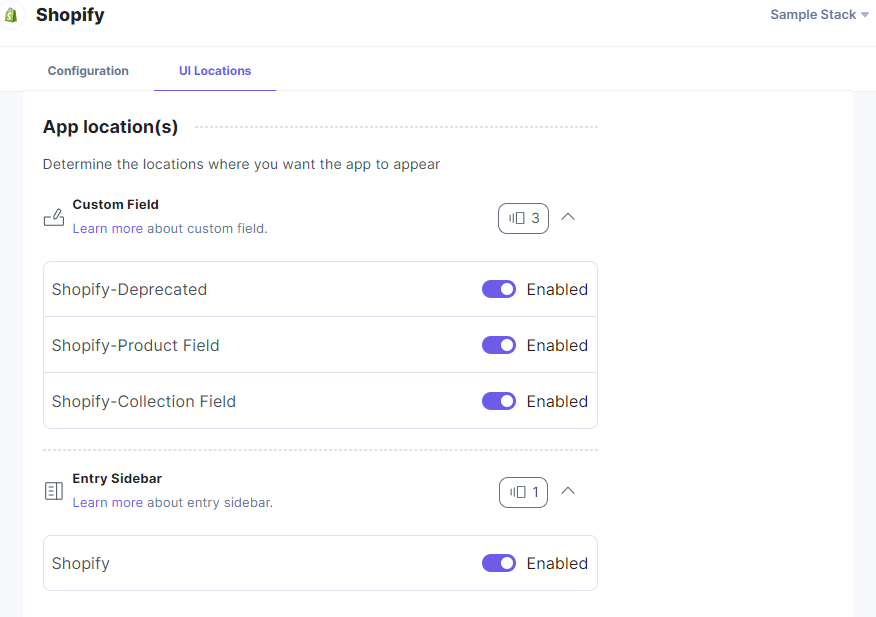
- On the UI Locations tab, you can see the predefined app locations. You can use the toggle button corresponding to each UI location to enable or disable it based on your requirements.
Additional Resource: For more information on UI locations, please refer to the Installed Apps guide.
- Click Open Stack to start using the Shopify app.
-
Use Shopify within your Stack
To use the Shopify app within an entry of your stack, follow the steps given below:
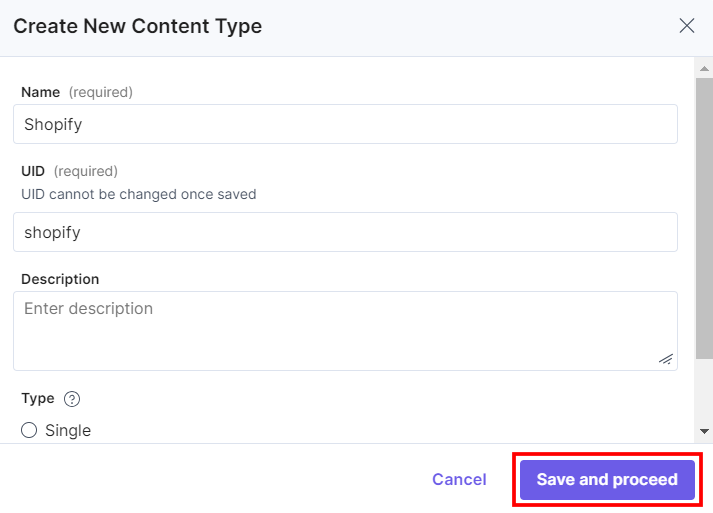
- Go to your stack, click the Content Models icon in the left navigation panel, and click the + New Content Type button.
- Create a content type by adding relevant details as displayed below:
- In the Content Type Builder page, add a Custom field for product in your content type by clicking the Insert a field link represented by a + sign.
- Under Select Extension or App, select Shopify-Product Field and click the Proceed button.
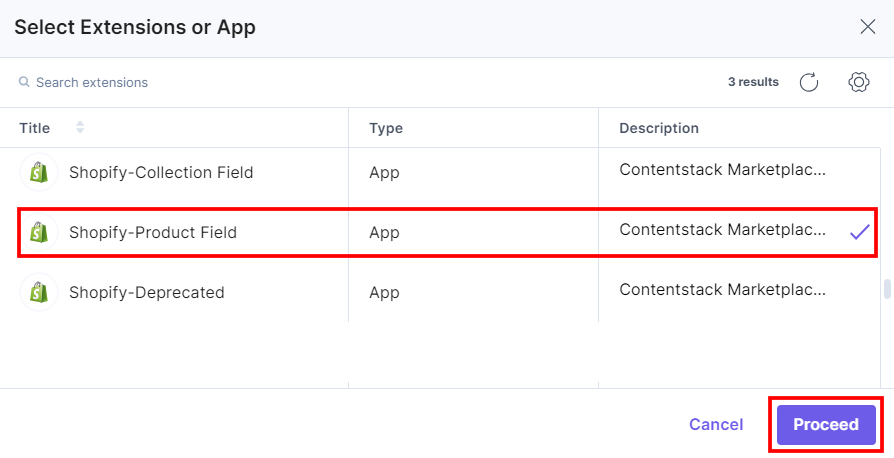
This adds Shopify-Product Field in the custom field.
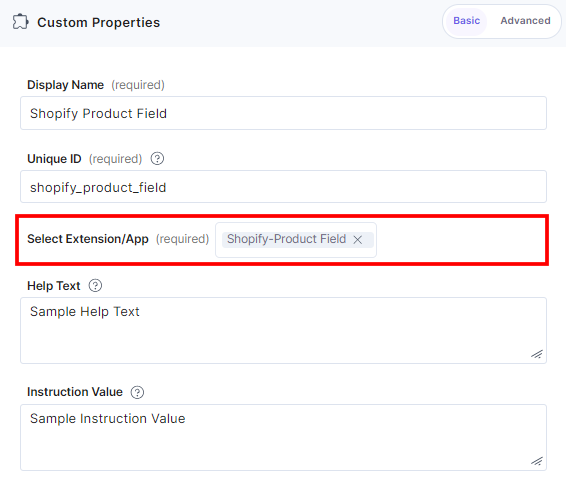
- Add another Custom field for collection in your content type by clicking the Insert a field link represented by a + sign.
- Under Select Extension or App, select Shopify-Collection Field and click the Proceed button.
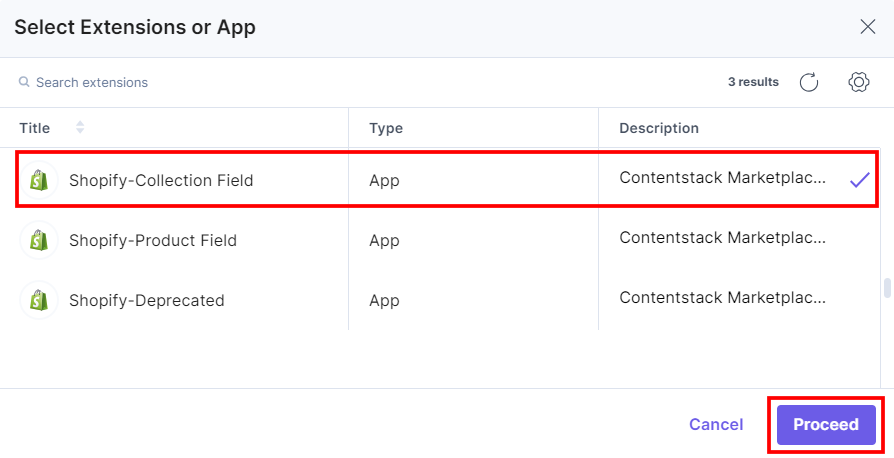
This adds Shopify-Collection Field in the custom field.
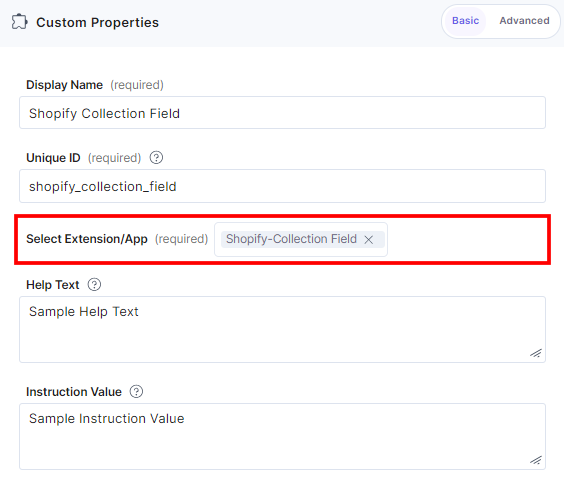
- To add a deprecated version of the Shopify app to your entry, add yet another Custom field in your content type by clicking the Insert a field link represented by a + sign.
- Under Select Extension or App, select Shopify-Deprecated and click the Proceed button.
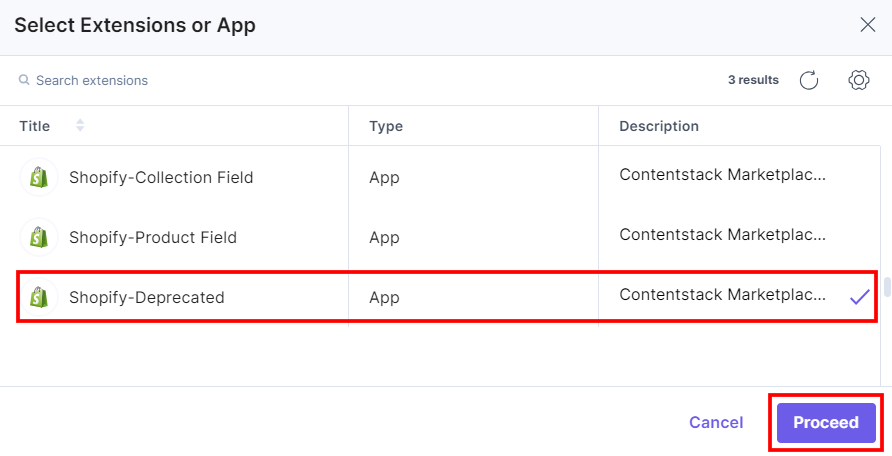
This adds Shopify-Deprecated in the custom field.
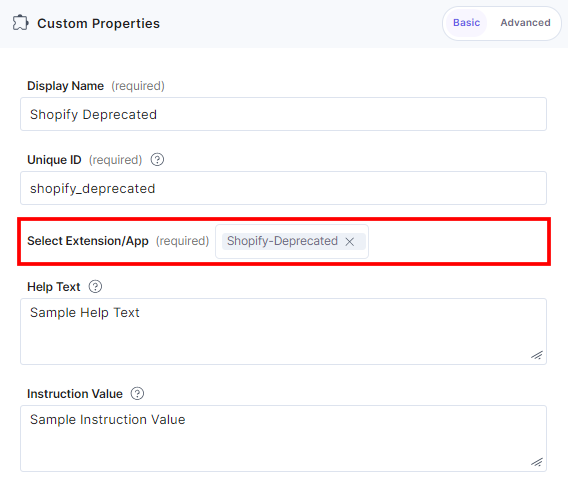
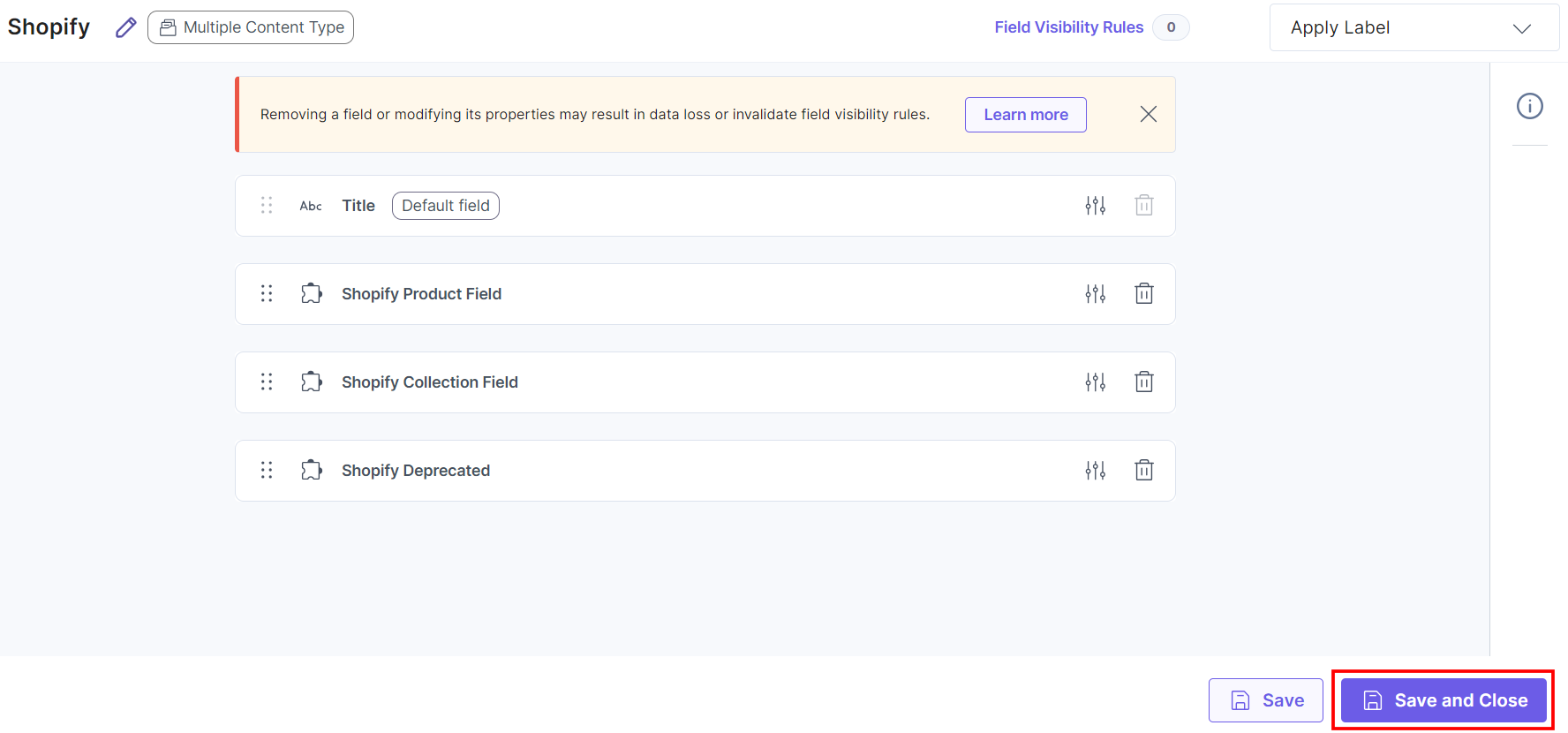
- After adding the app, click Save or Save and Close to save your changes.
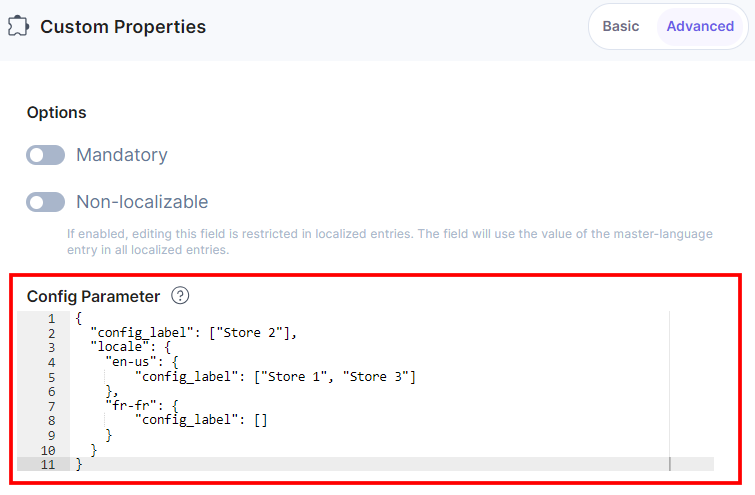
- Under Advanced properties, you also have the option to set the Config Parameter for all entries of a particular content type. This will override the default app configuration which you set at the time of app installation on the Configuration screen.
The key:value passed in the configuration object overrides the default app configuration settings.
In case you want to use a different Shopify account(s) for any custom field within the same stack, you need to specify the Shopify store name in the Config Parameter.
Configuration Object:
        {
          "config_label": ["Store 2"],
        }
Adding locale based configuration::
To add a locale based configuration, add a locale parameter to the additional configuration object which specifies the locale value (for example: en-us) as the object key and the configuration object as the value to the locale.
localeConfiguration Object:
        {
          "config_label": ["Store 2"],
          "locale": {
              "en-us": {
                  "config_label": ["Store 1", "Store 3"]
              },
              "fr-fr": {
                  "config_label": []
              }
           }
        }
Note: If any configuration value is not added, or if all the values are empty in the Config Parameter properties settings, the Shopify app uses the default configuration which was set up in step 2.
- In the left navigation panel, navigate to the Entries page and click + New Entry to create a new entry for the above content type. Click Proceed.
You will see the Shopify custom fields on your entry page as shown below: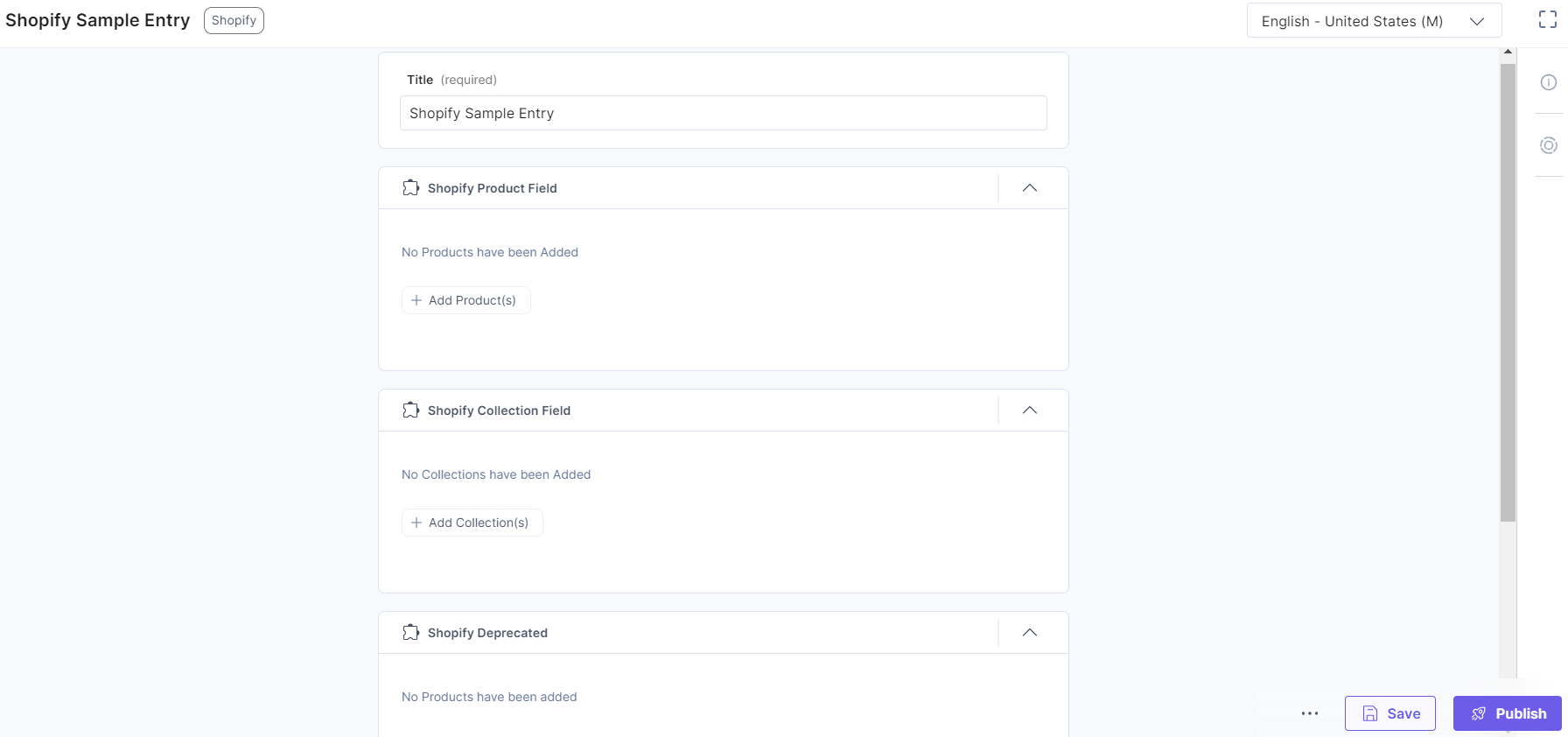
Note: In the new version of Shopify, you can select both products and collections in the same entry.
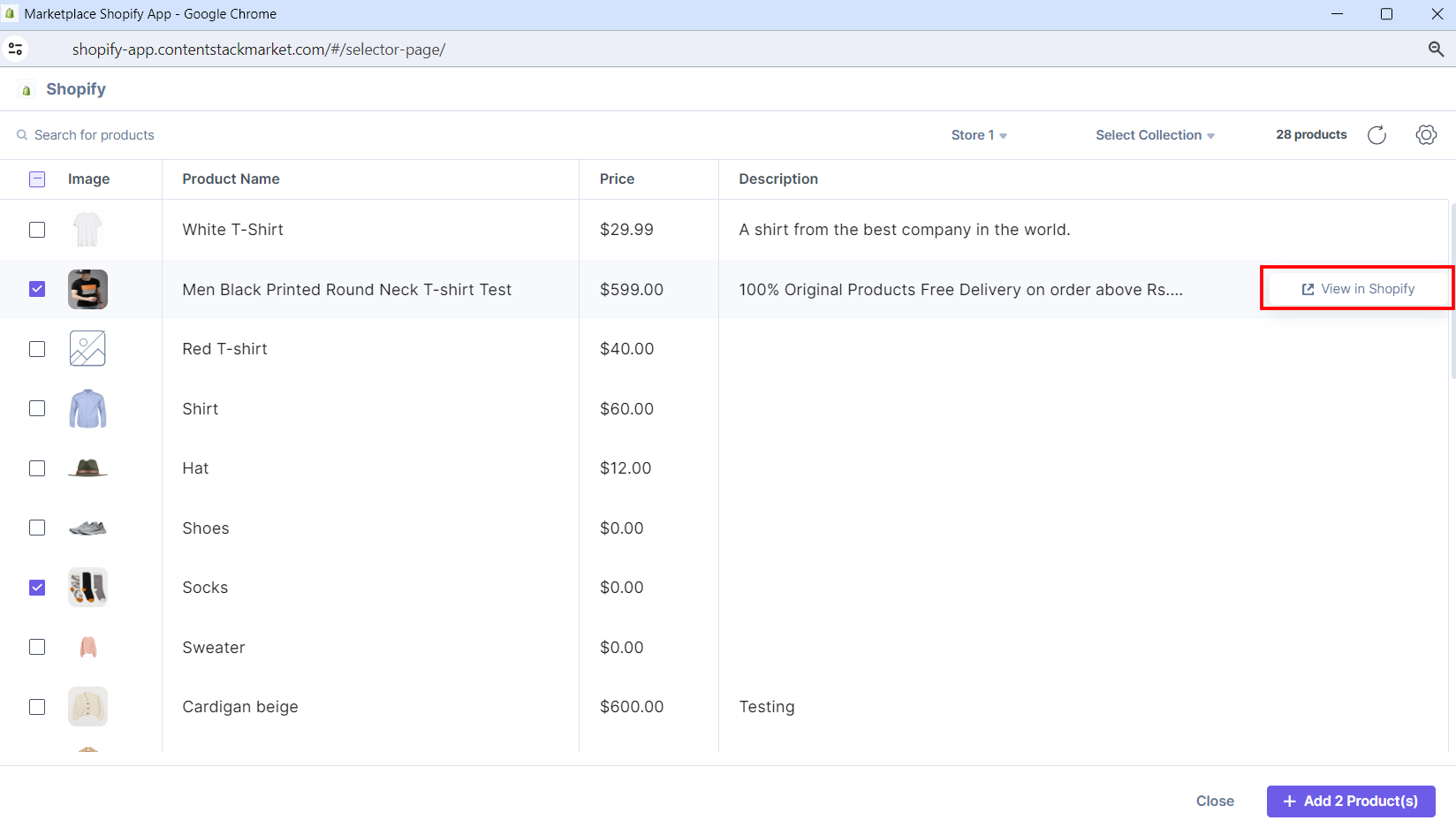
- Click the Add Product(s) button, select the products from your Shopify selector page, and add them to your entry.
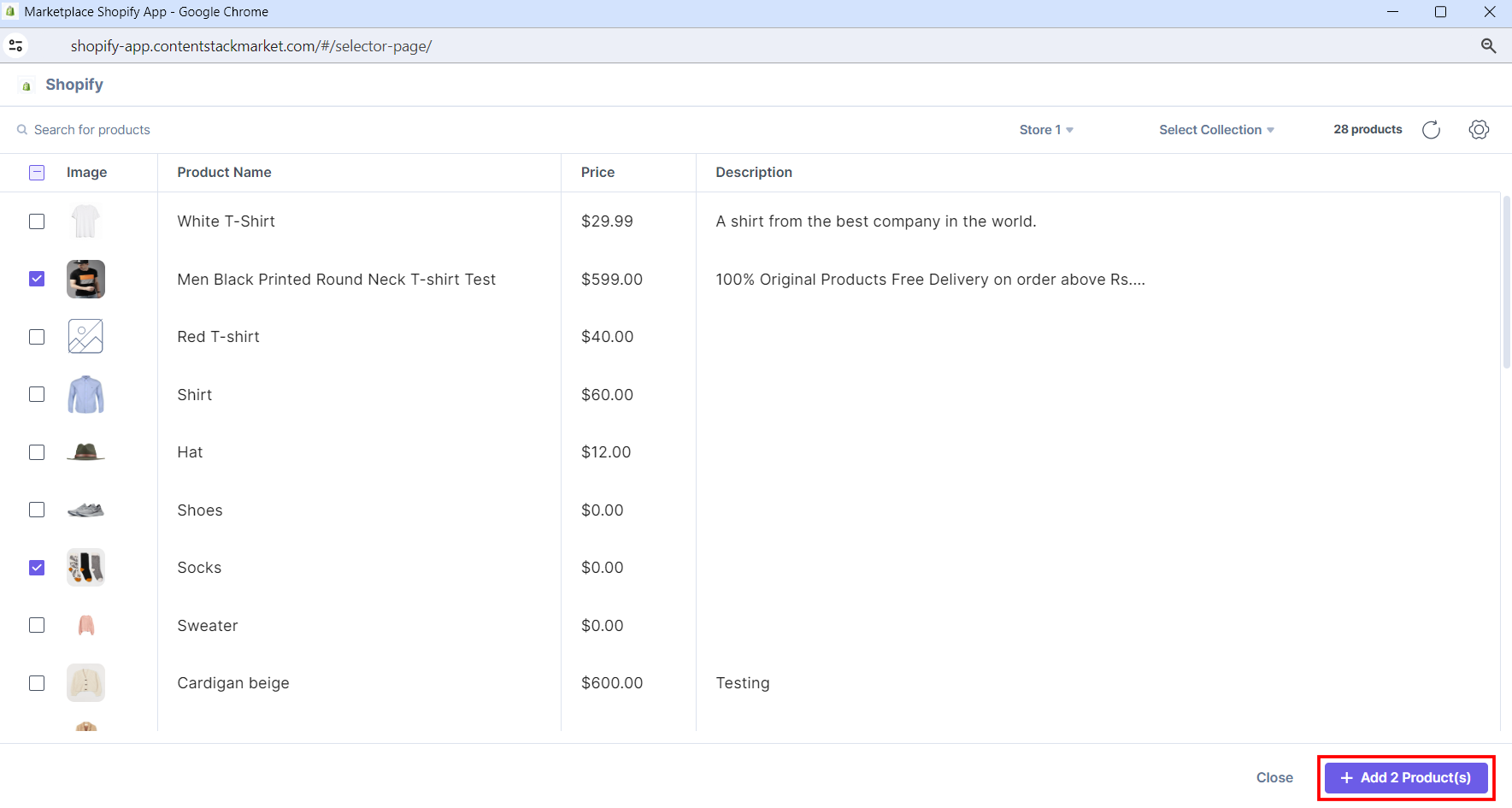
You can filter products based on your stores. By default, the store configured at the time of installation in step 2 is selected.
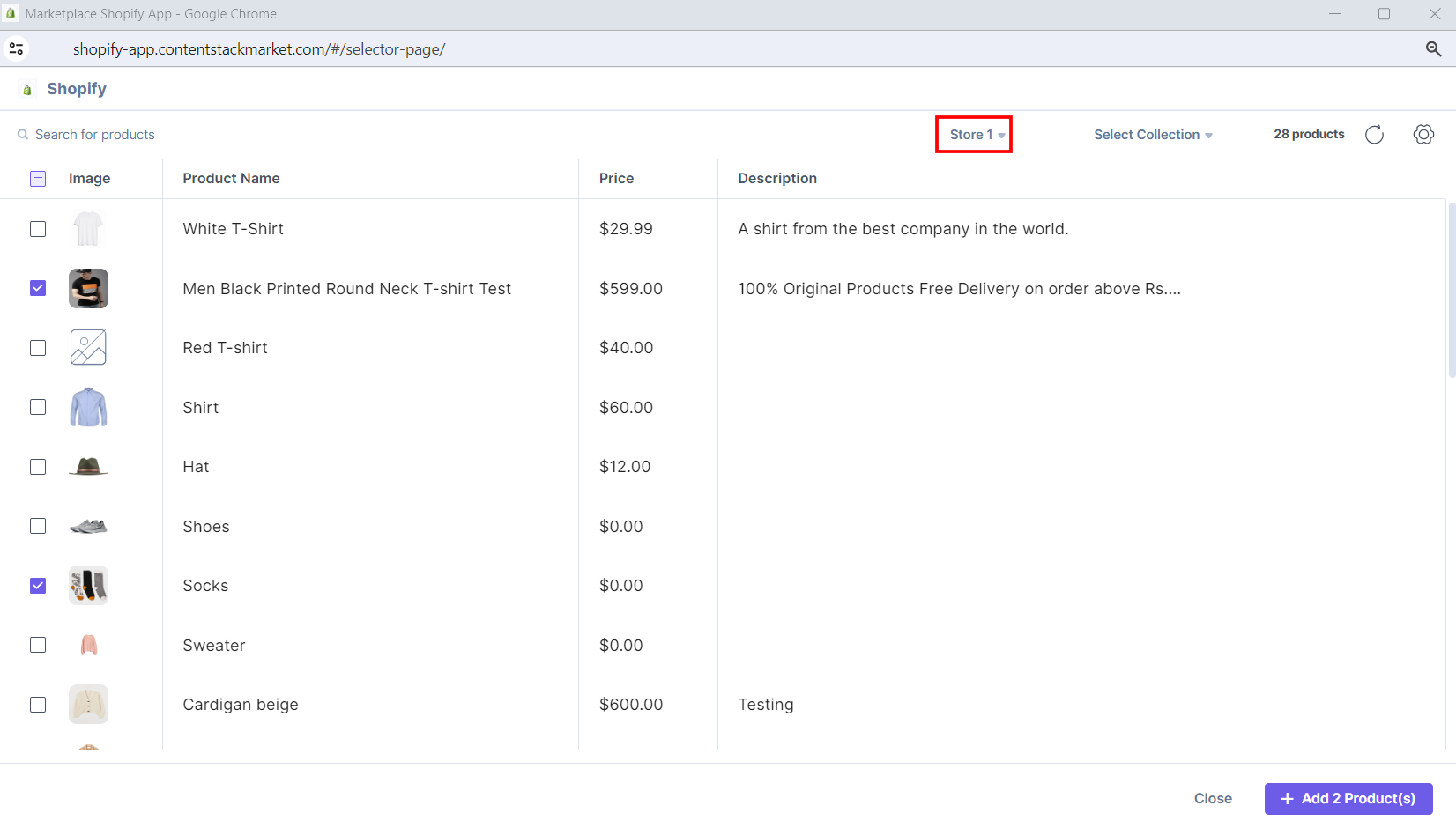
You can filter products based on your collections. Click the Select Collection drop-down and choose the collection to filter the products.
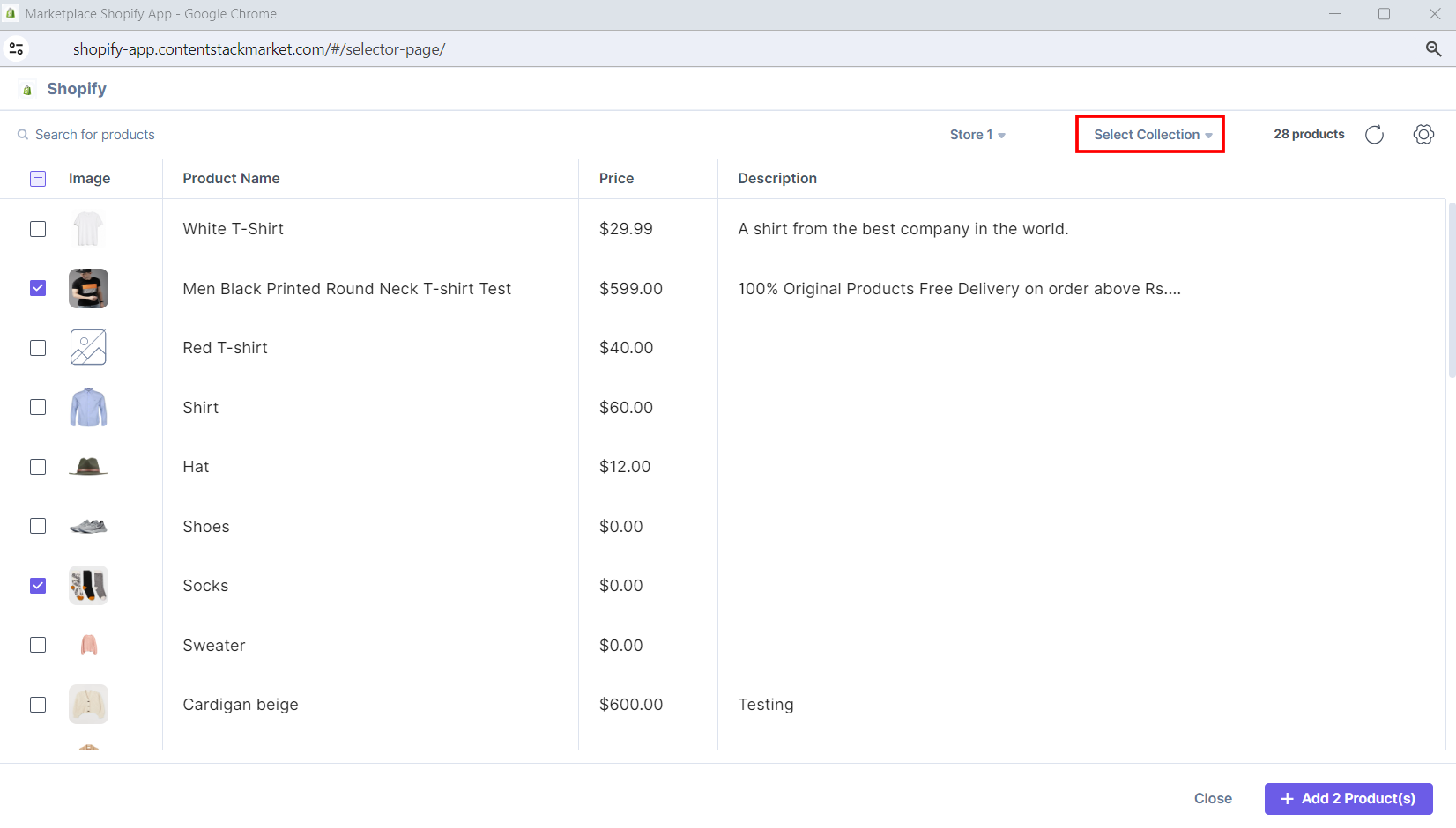
You can also search and filter products in the Shopify selector page.
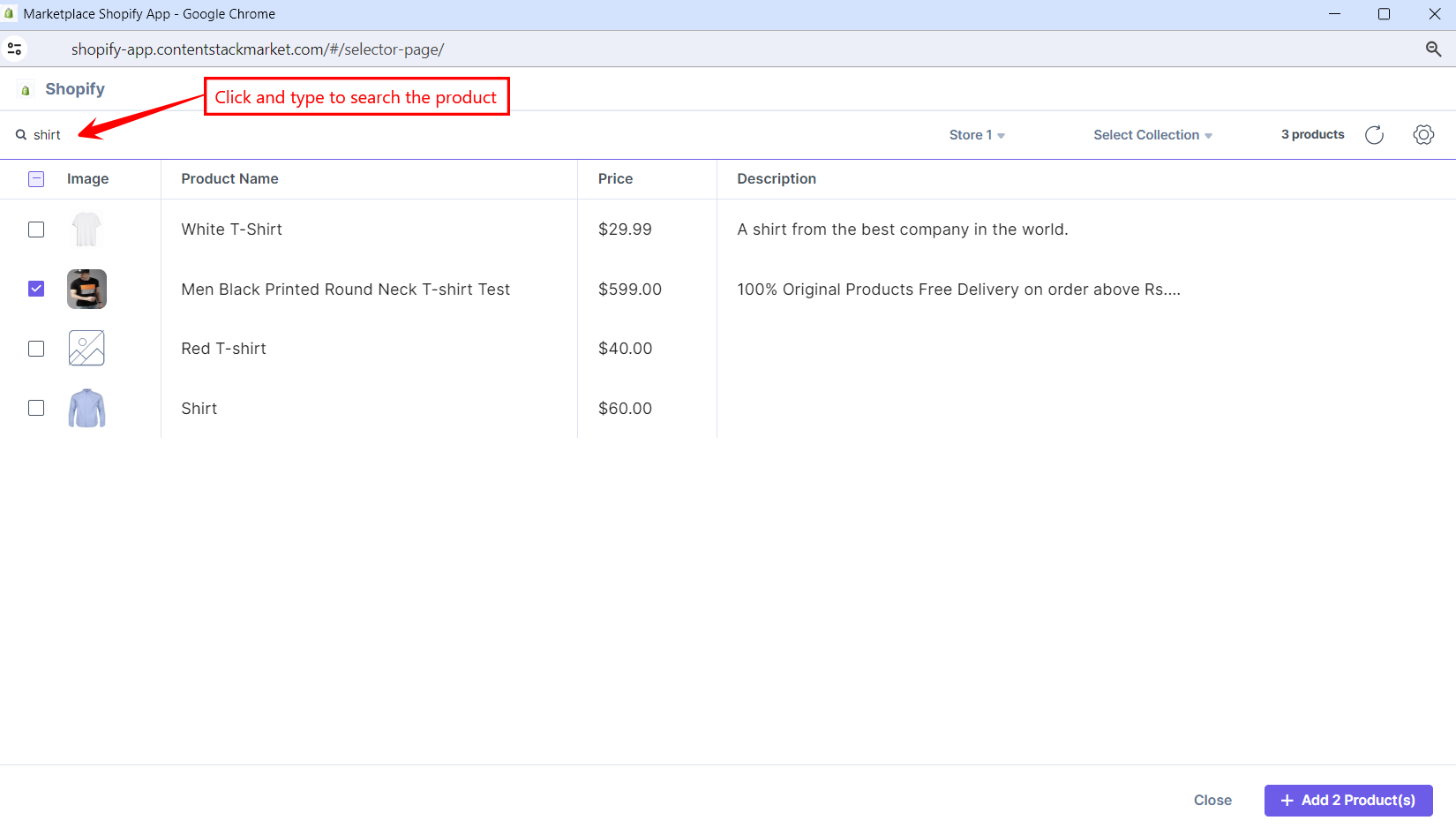
Hover over the product on the Shopify selector page, and you can see the View in Shopify option to go directly to the Shopify platform.
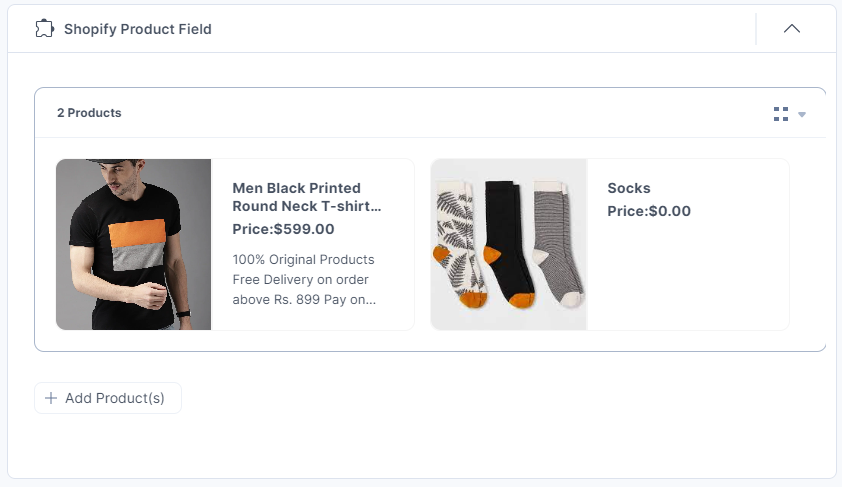
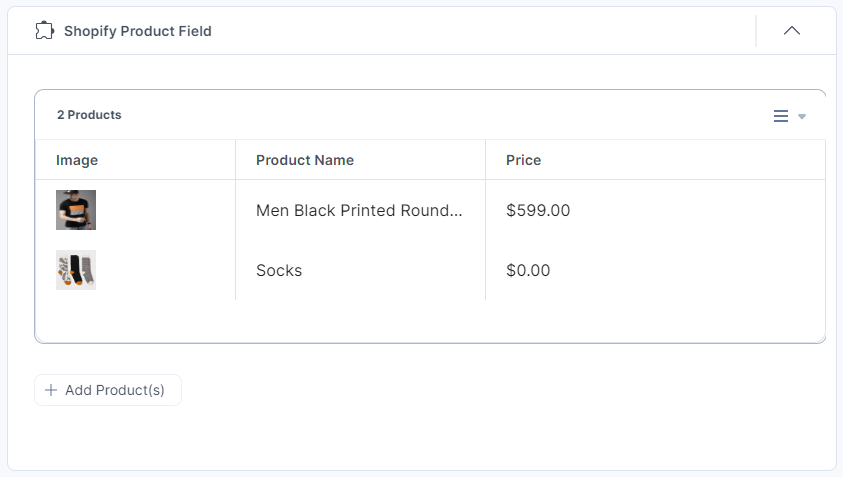
The products you selected are referenced within your entry in the thumbnail view.
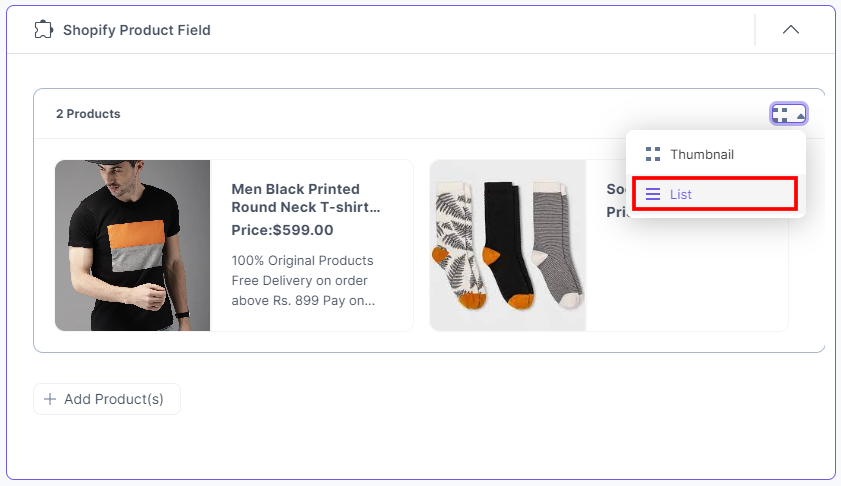
To view the products in list view, select the List view option from the dropdown.
The products you selected are referenced within your entry in a list.
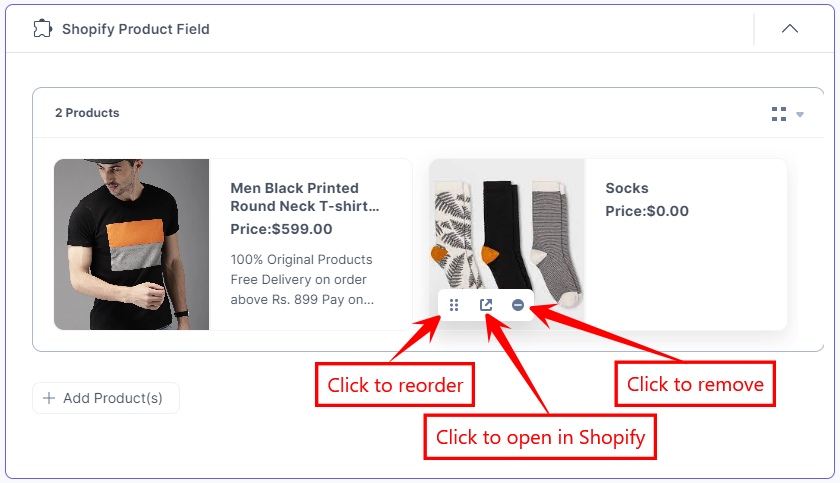
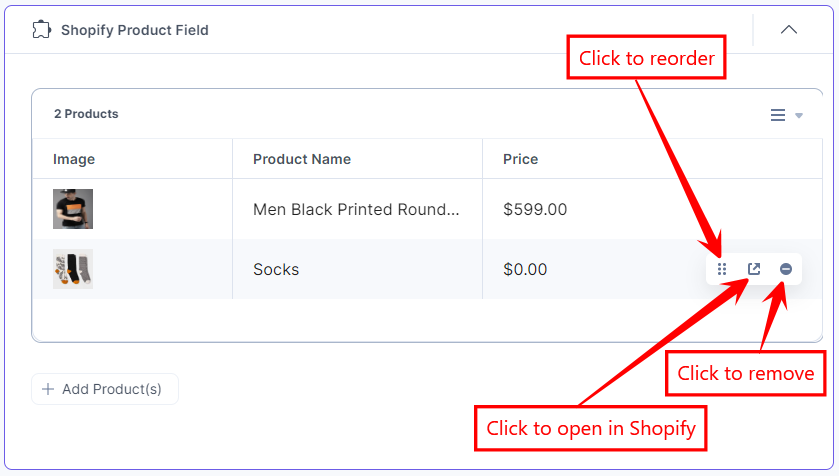
- To reorder, open in Shopify, or remove the selected product, hover over the product to get the available options, then perform the following:
- Click the Reorder icon to drag and reorder the product.
- Click the Open in Shopify icon to open the image in the Shopify app.
- Click the Remove icon to delete the product.
Thumbnail View
List View
- Click the Save button to save your entry.
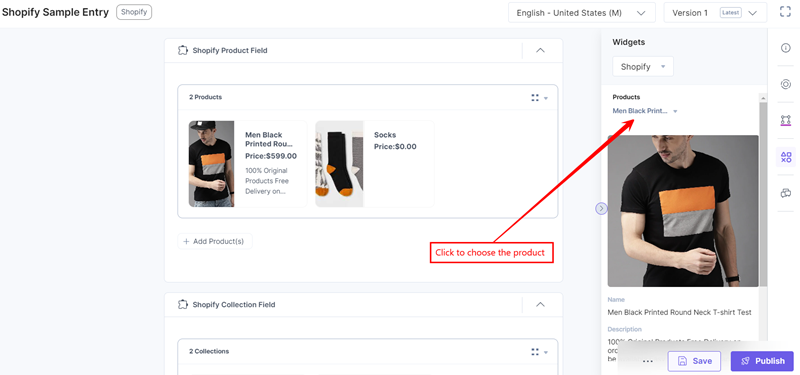
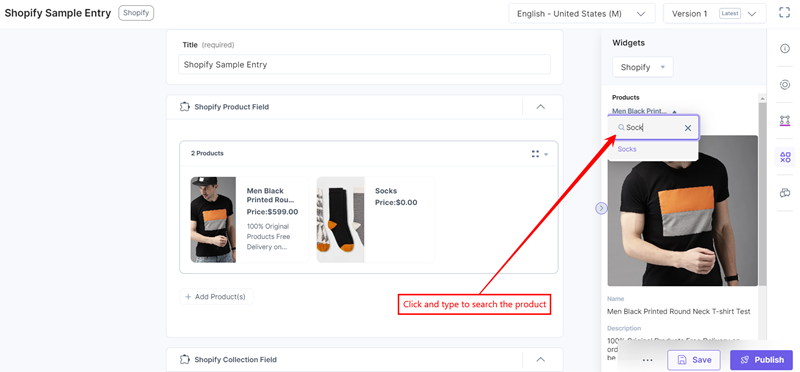
You can view more product details in the Sidebar Widget.Note: You must save your entry to get the product details in the Sidebar Widget.
- In the right navigation panel, select Widgets, and then select Shopify to view the product details.
 Note:
Note:- Deprecated version of the Shopify app does not support the Sidebar Widget.
- When a product, which is referenced in the entry, gets deleted from the store, an error message is displayed in the Custom field and Sidebar widget.
You can also search and view the product details.
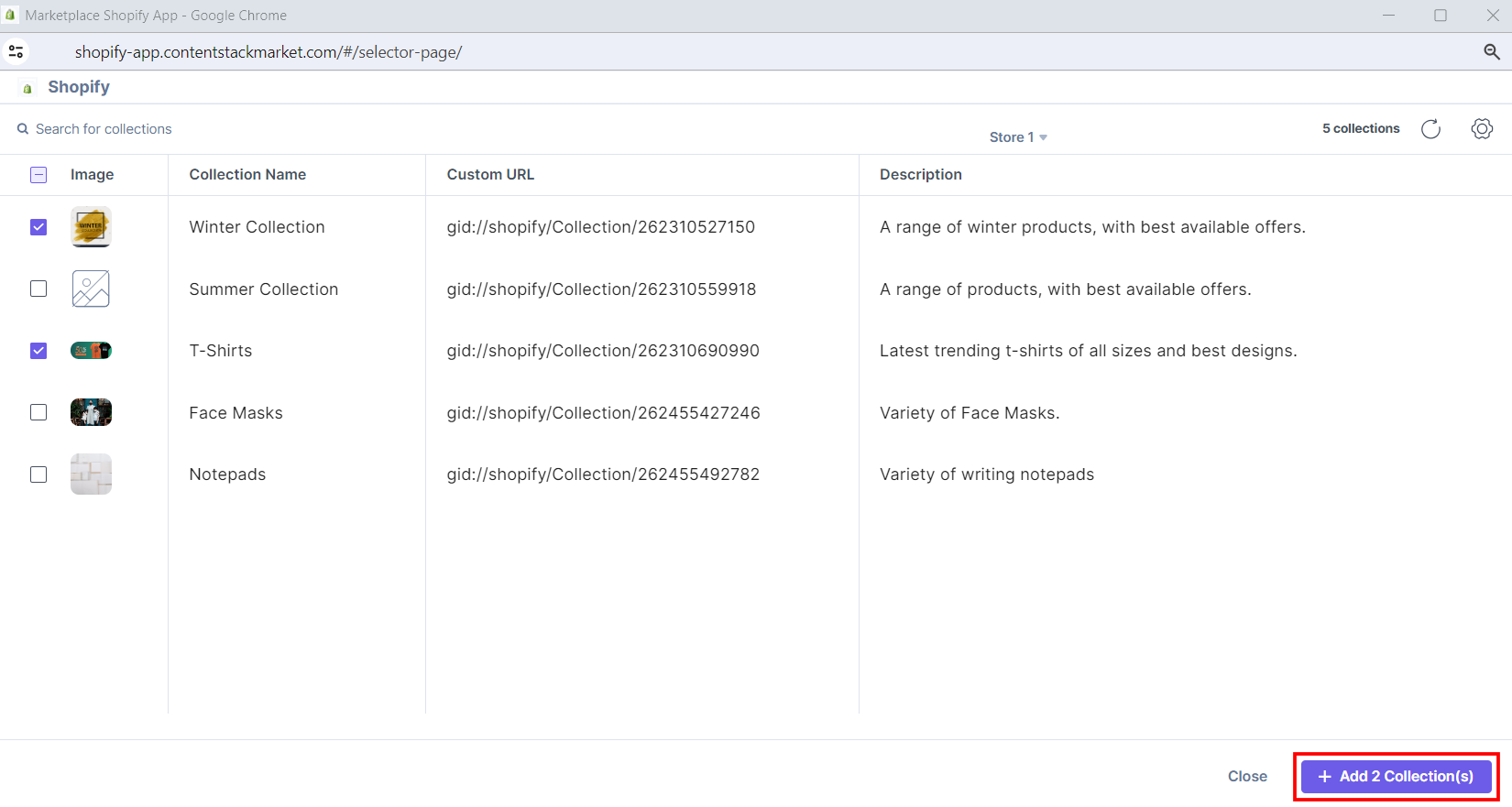
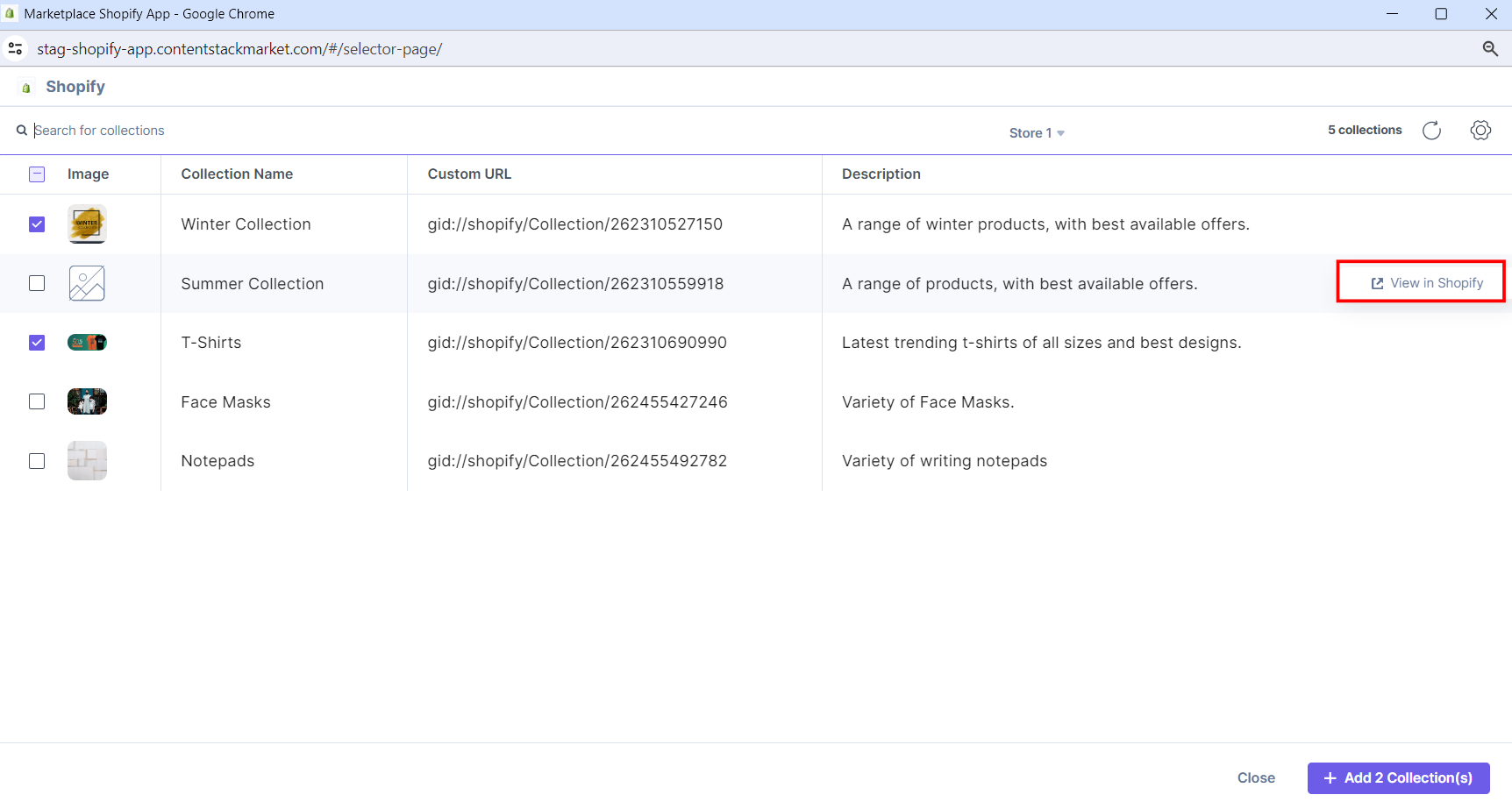
- Click the Add Collection(s) button, select the collections from your Shopify selector page, and add them to your entry.
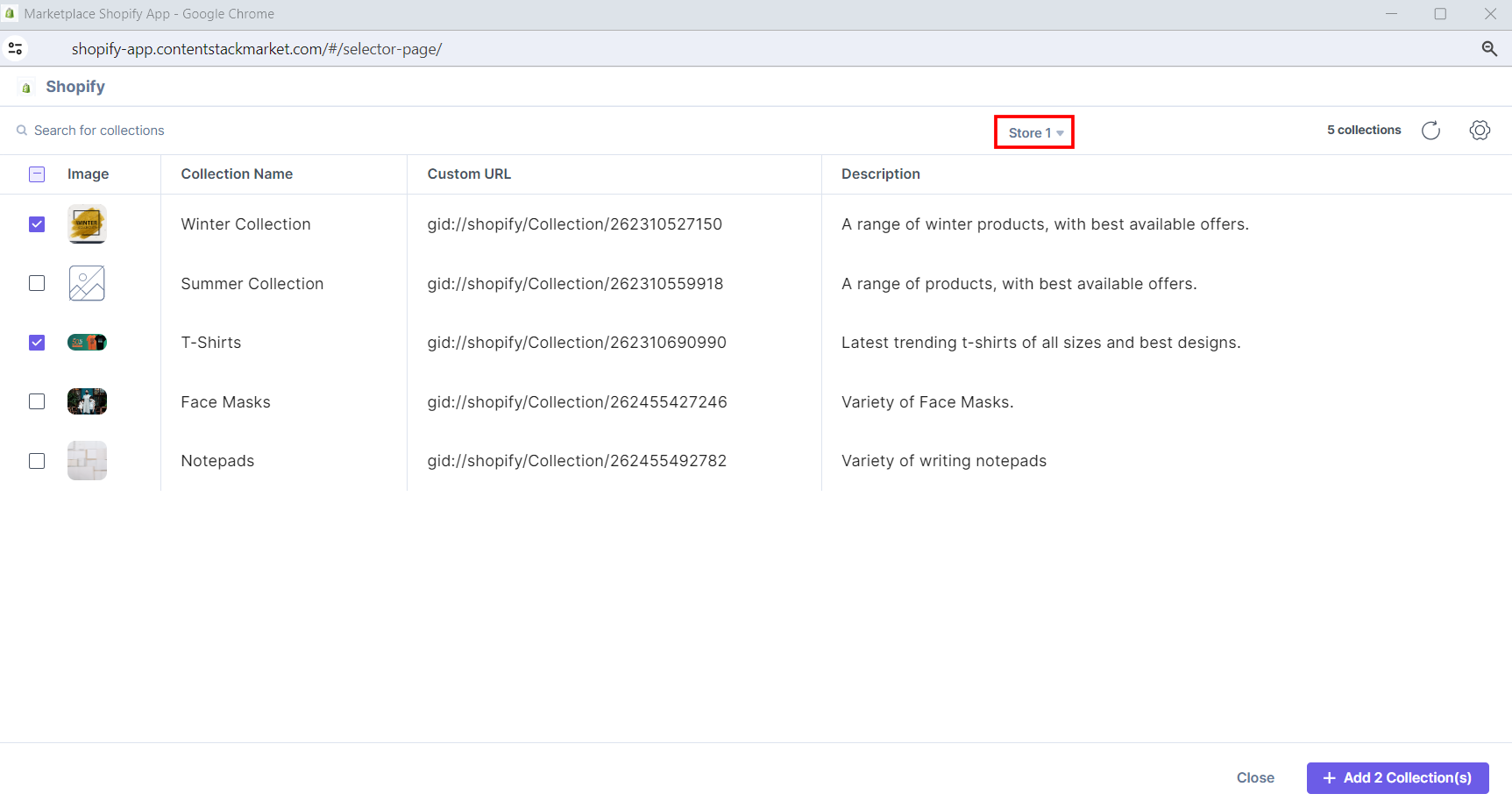
You can filter collections based on your stores. By default, the store configured at the time of installation in step 2 is selected.
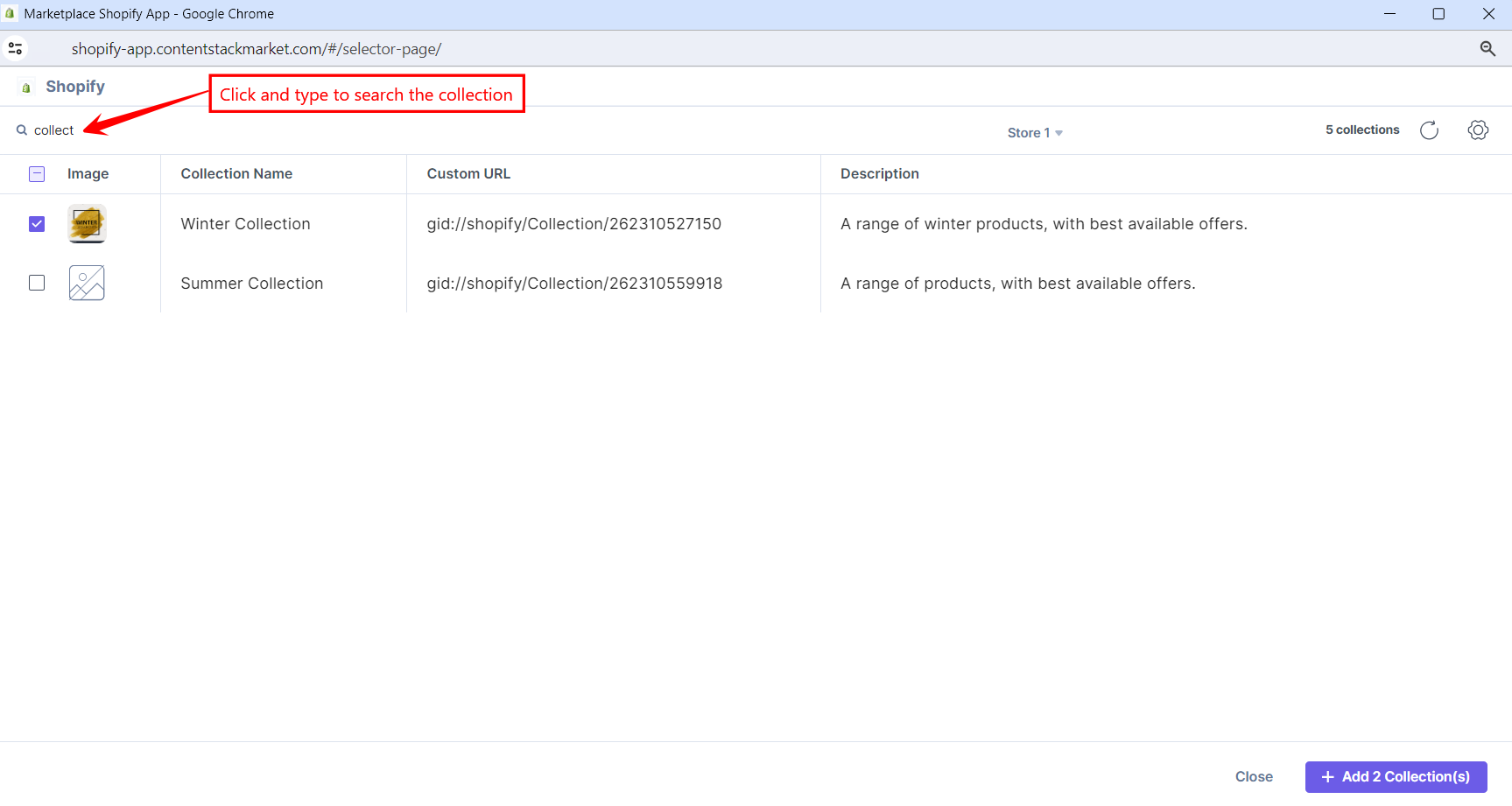
You can also search and filter collections in the Shopify selector page.
Hover over the collection on the Shopify selector page, and you can see the View in Shopify option to go directly to the Shopify platform.
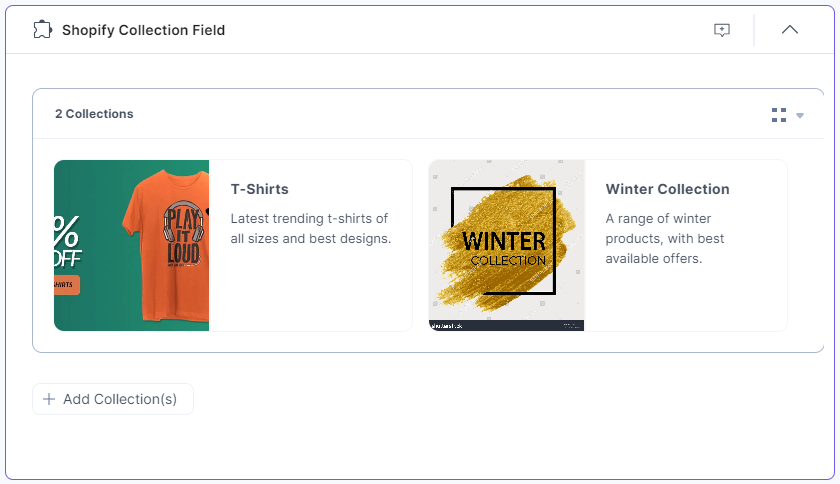
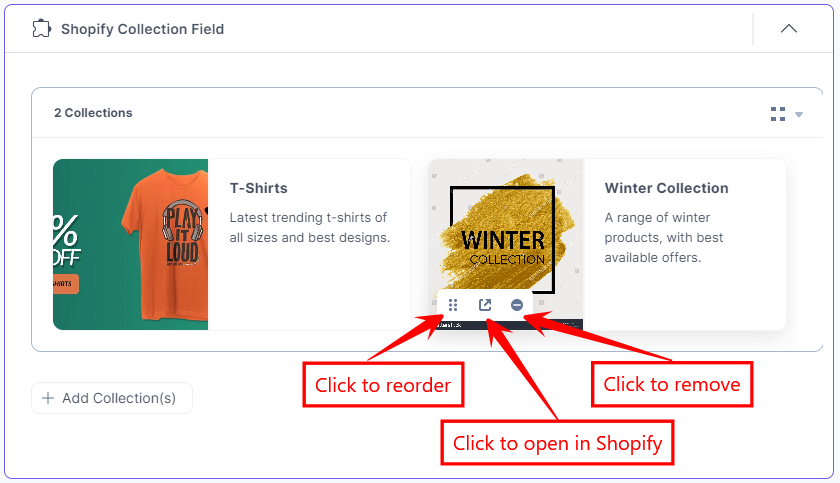
The collections you selected are referenced within your entry.
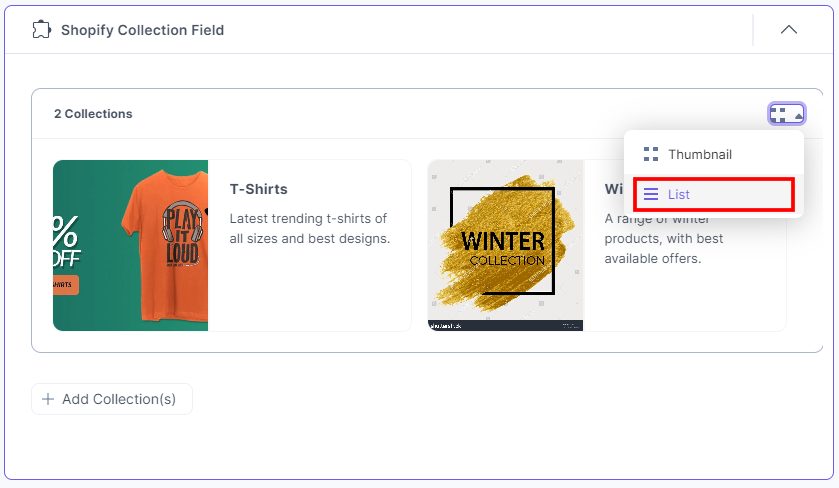
To view the collections in list view, select the List view option from the dropdown.
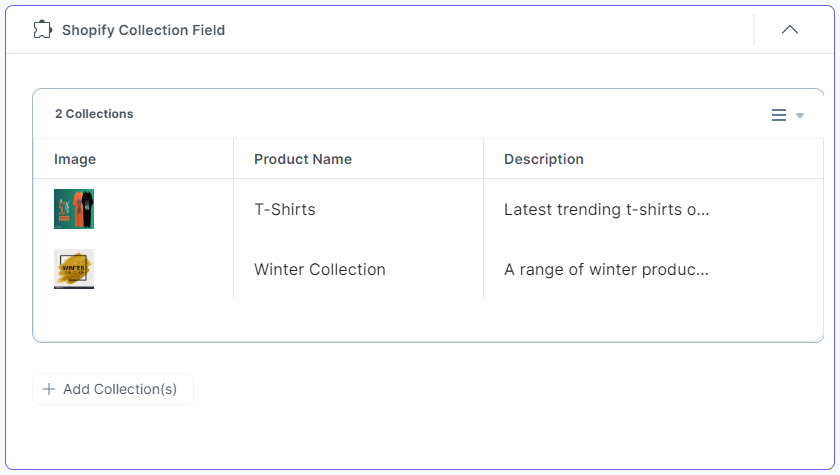
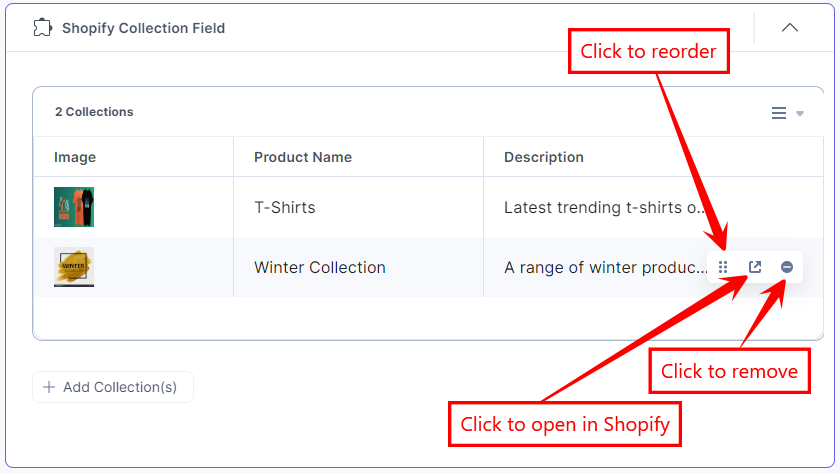
The collections you selected are referenced within your entry in a list.
- To reorder, open in Shopify, or remove the selected collection, hover over the product to get the available options, and then perform the following:
- Click the Reorder icon to drag and reorder the collection.
- Click the Open in Shopify icon to open the collection in the Shopify app.
- Click the Remove icon to delete the collection.
Thumbnail View
List View
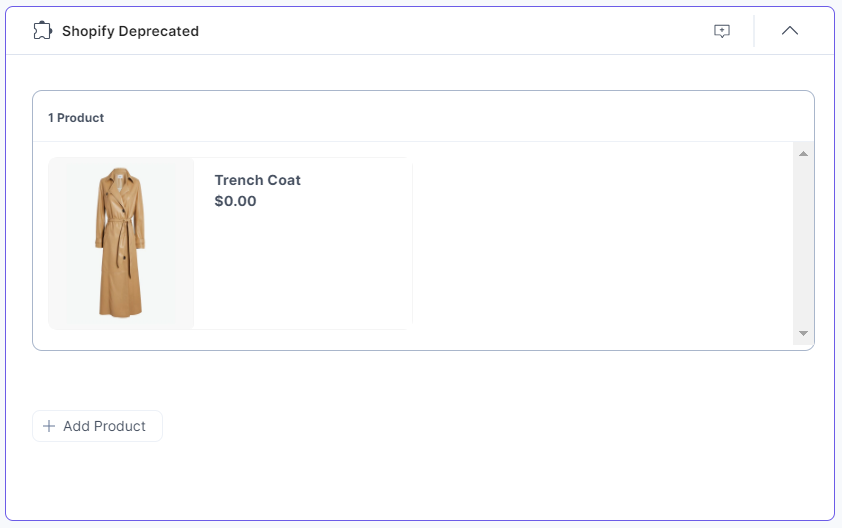
- You can continue to use the old version of the Shopify app in the current version by adding products(or collections) using the Shopify Deprecated custom field.
- Click the Save button to save your entry.
More articles in "Commerce"
