

Salesforce Commerce App Installation Guide
Salesforce Commerce is a seamless cloud-based eCommerce platform that can help deliver a personalized and cohesive commerce experience. With its robust online store management features, you can set up an online store, create AI-powered shopping experiences and grow your online businesses.
Contentstack Marketplace allows you to easily install the Salesforce Commerce app and use it within your stack to add products and categories from the Salesforce Commerce store within your entries.
Prerequisites
- Salesforce Commerce account
- Contentstack account
- Access to the Contentstack Organization/Stack as the Owner/Admin
Follow this step-by-step guide to install and configure the Salesforce Commerce app.
Steps for Execution
- Retrieve your client credentials from Salesforce Commerce
- Install and Configure the Salesforce Commerce app in Marketplace
- Use the Salesforce Commerce app within your Stack
Retrieve your Client Credentials from Salesforce Commerce
Note: Ensure you have a working Salesforce account. If not, visit the official website.
Get API Client ID
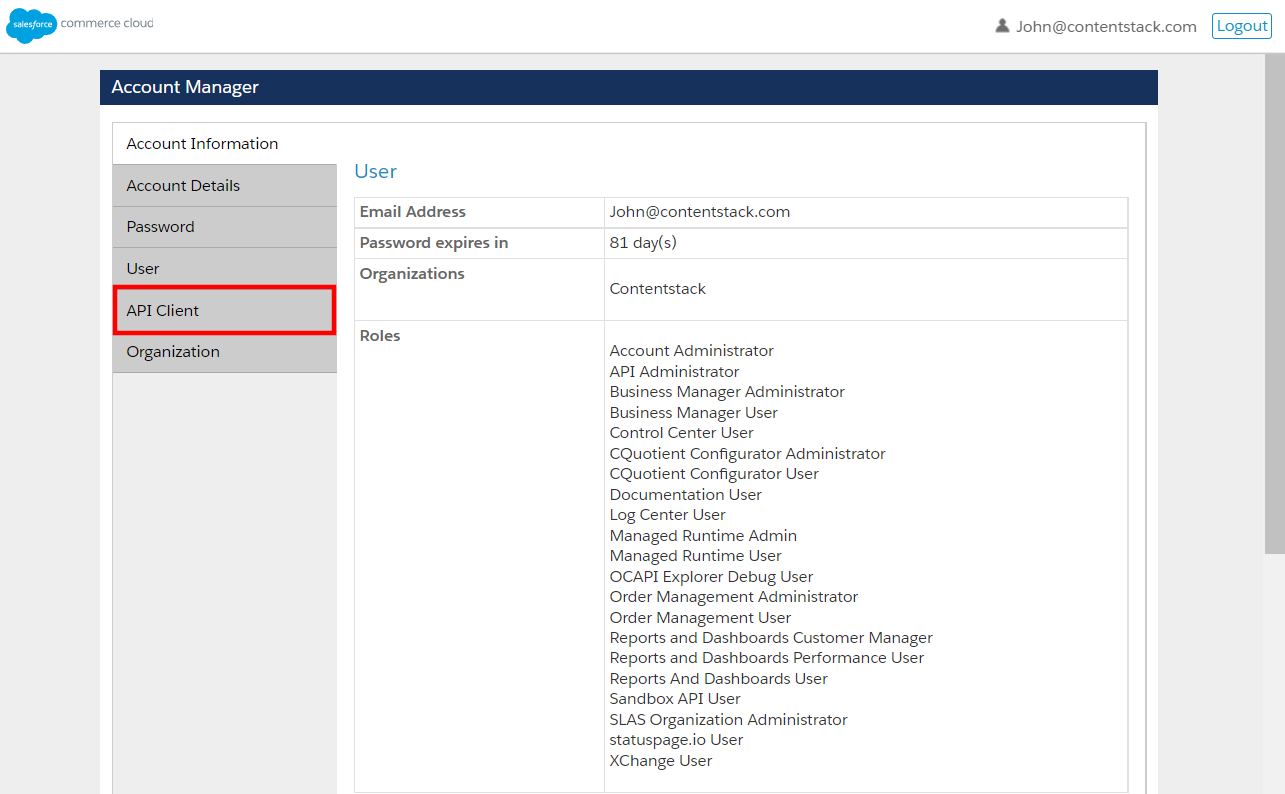
To retrieve the API client ID, login in to Commerce Cloud Account Manager, and follow the steps given below:
- Click API Client from the menu.
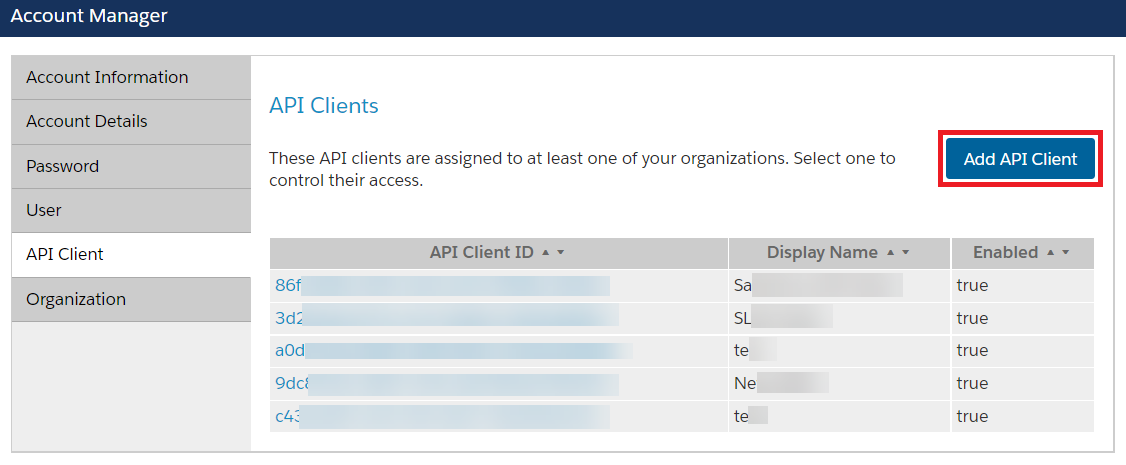
- Click the Add API Client button.
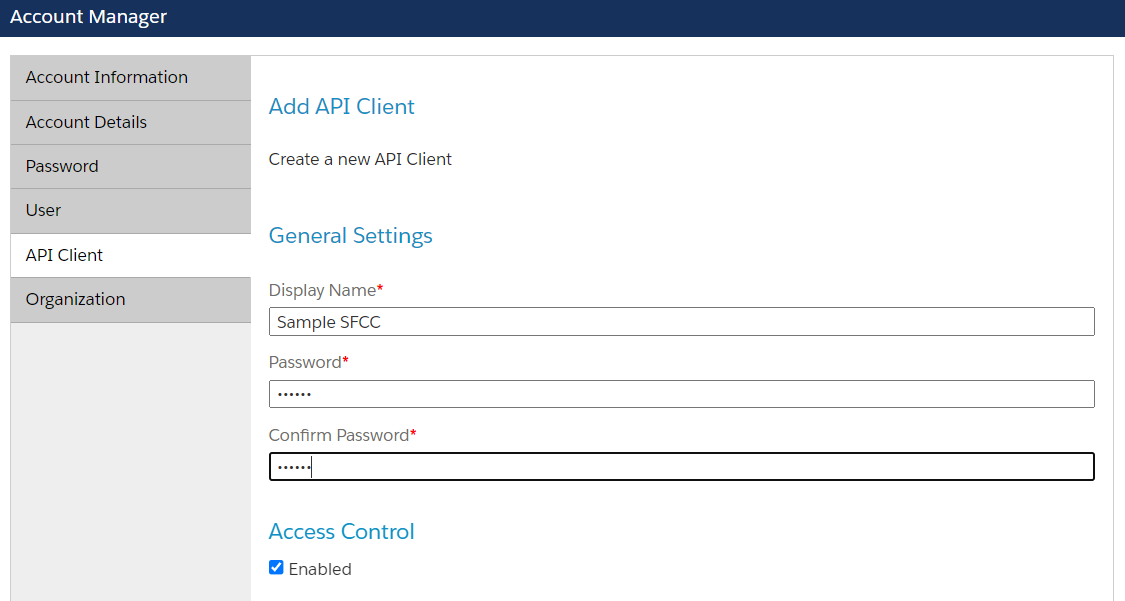
- Provide the following details for the new API client:
- Enter a Display Name and set a Password.
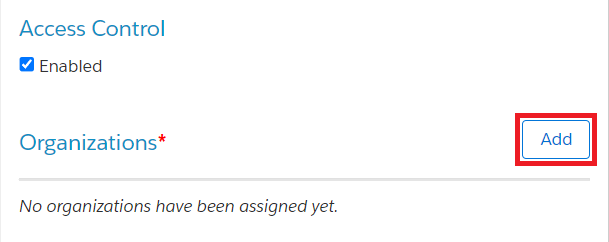
- Add an organization.
- Click the Add button for Organizations.
- Select your organization and click the Add button.
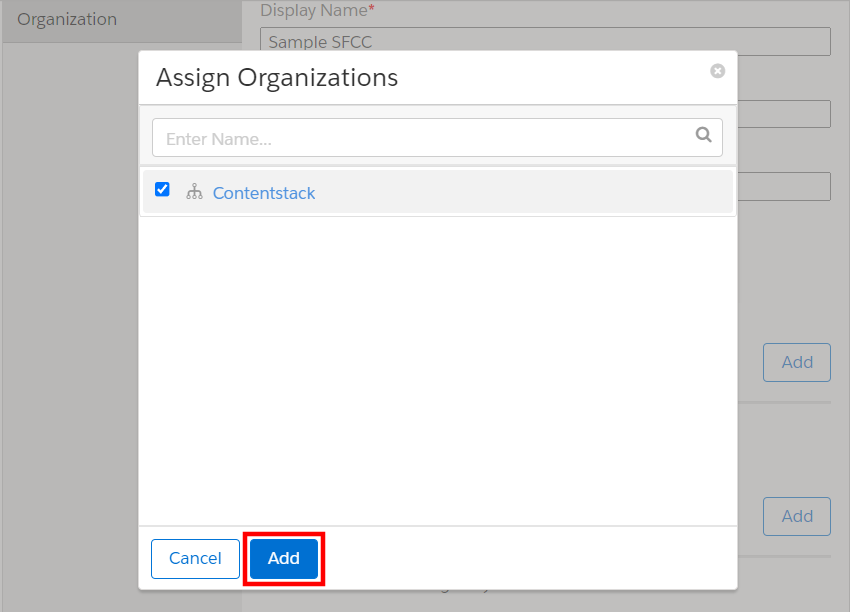
- Click the Add button for Organizations.
- Add roles.
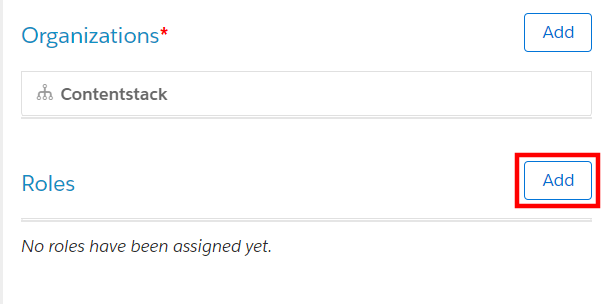
- Click the Add button for Roles.
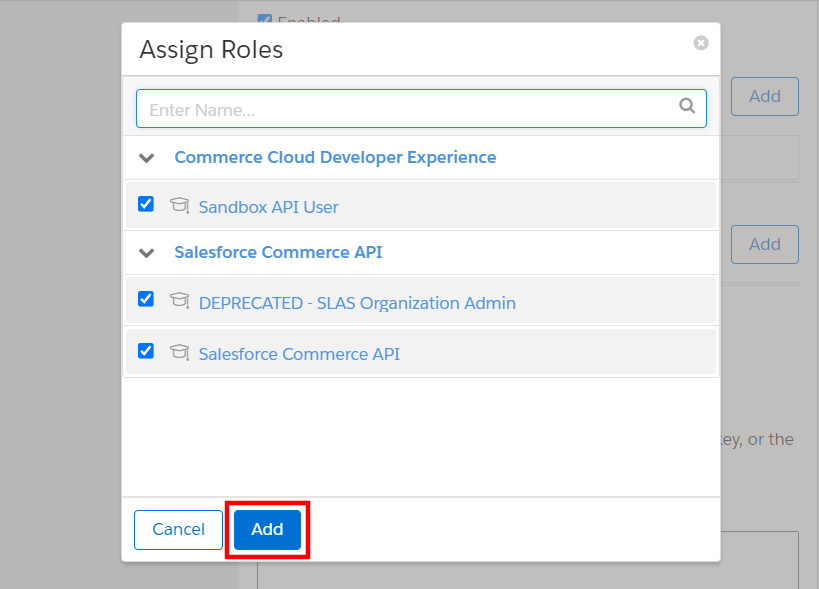
- Select the required roles and click the Add button.
- Click the Add button for Roles.
- Add scopes under OpenID Connect.
Enter the following scopes in Default Scopes:
mail
roles
tenantFilter
profile
openId
Enter the following scopes in Allowed Scopes:
sfcc.shopper-baskets-orders.rw
sfcc.shopper-promotions
sfcc.shopper-gift-certificates
sfcc.shopper-categories
sfcc.shopper-product-search
sfcc.shopper.stores
sfcc.shopper-customers.register
sfcc.shopper-customers.login
sfcc.shopper-myaccount.rw
sfcc.shopper-myaccount.addresses.rw
sfcc.shopper-myaccount.baskets
sfcc.shopper-myaccount.orders
sfcc.shopper-myaccount.paymentinstruments.rw
sfcc.shopper-myaccount.productlists.rw
sfcc.products.rw
sfcc.catalogs.rw
sfcc.shopper-products
sfcc.shopper-productlists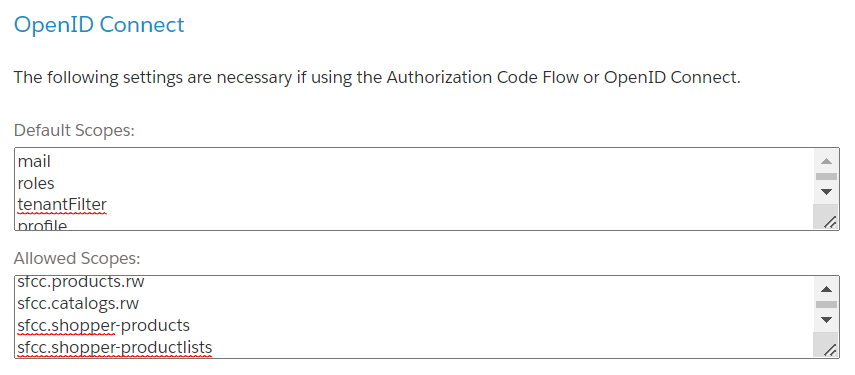
Note: By default, you will see the scope mail in the Default Scopes.
- Select client_secret_post as the Token Endpoint Auth Method.

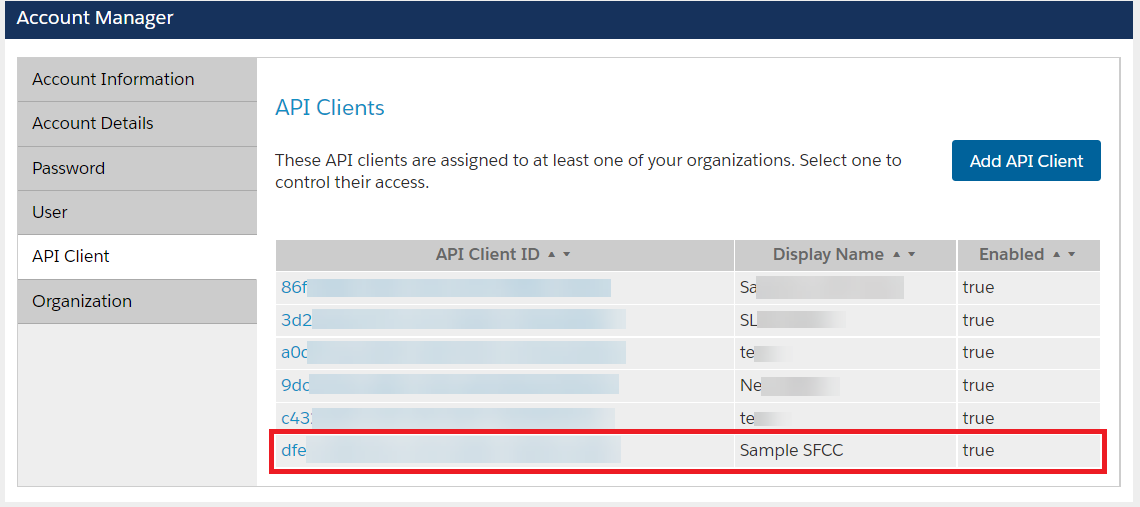
- Click the Save button. You can see your API client ID in the Account Manager screen.
- Copy the API client ID to use in the Client ID field during app configuration in step 2.
- Enter a Display Name and set a Password.
Get Short Code, Organization ID, and Site ID
To get the Short Code, Organization ID, and Site ID, follow the steps given below:
- Log in to Business Manager using the Account Manager credentials.
Note: Contact the Salesforce support team to get the Business Manager account link.
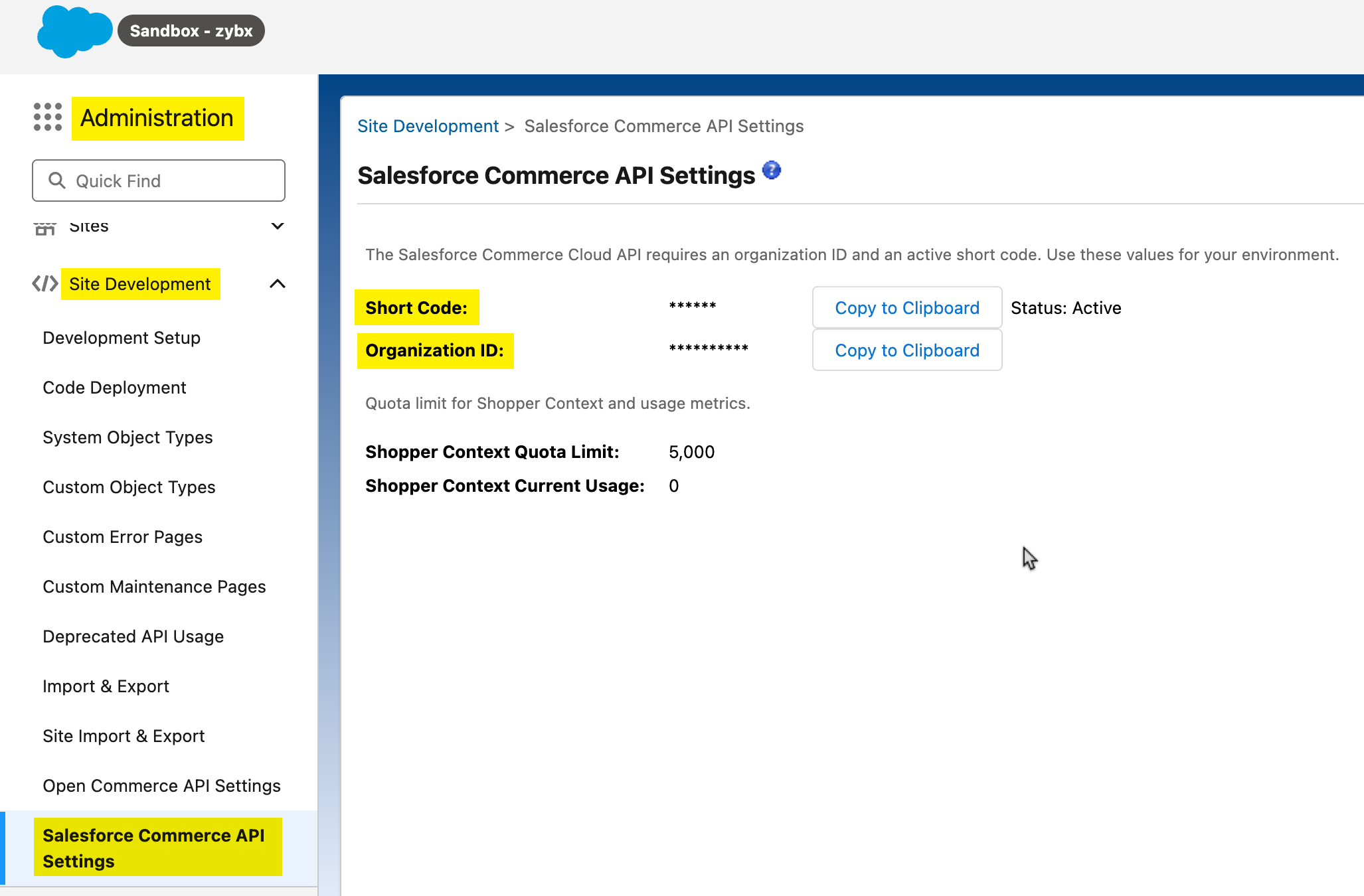
- Navigate to Administration, go to Site Development, and click Salesforce Commerce API Settings. You can copy the Short Code and Organization ID to use in app configuration in step 2.
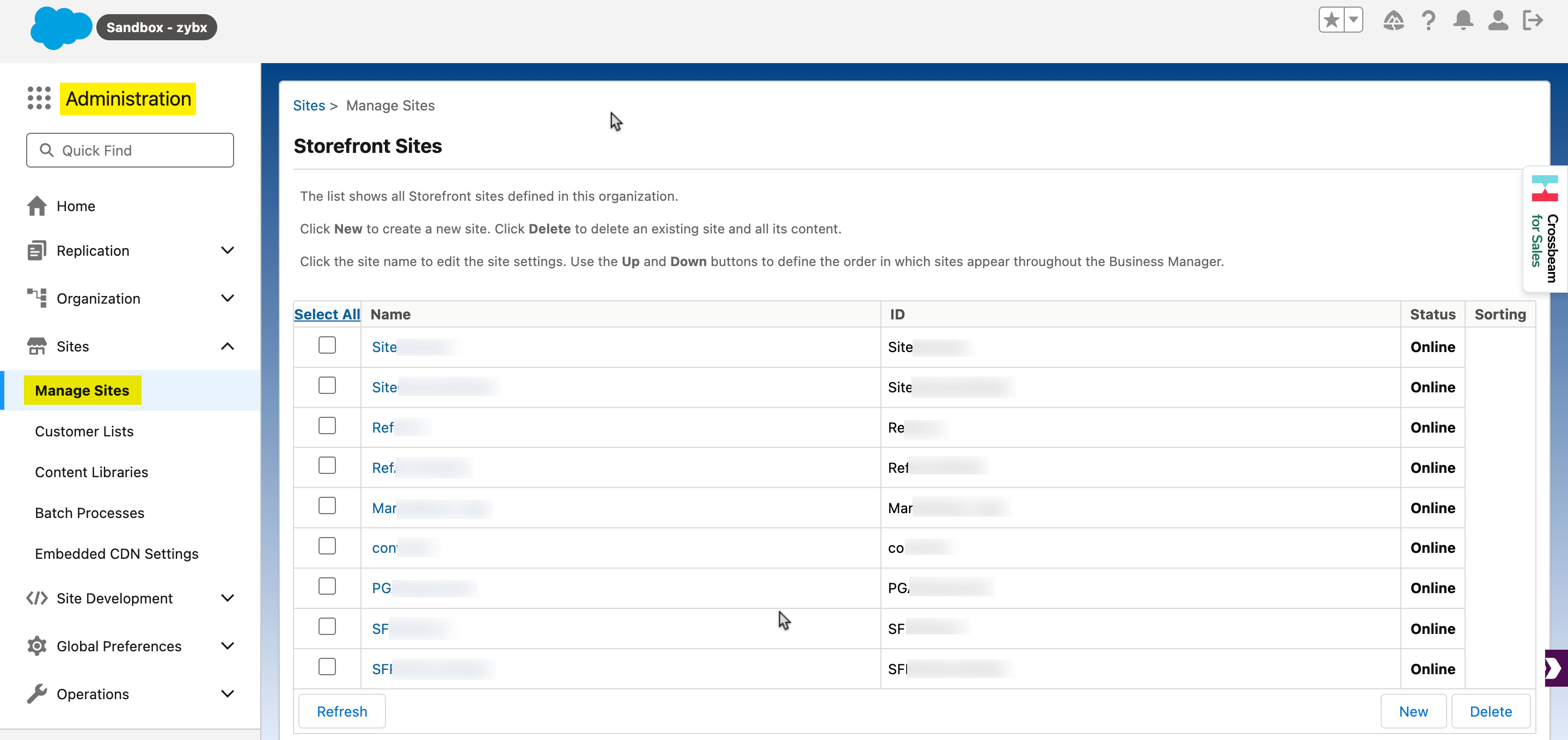
- Navigate to Administration and click Manage Sites. Note down the required Site ID from the list or create a new one to use during app configuration in step 2.
Note: Before retrieving the Client Secret, go to the Authorization for Shopper APIs guide and follow the steps listed in the Set Up User Roles and Filters section to set the SLAS Organization Administrator roles.
Get Client Secret
To get the Client Secret, follow the steps given below:
- Use the following URL to open the SLAS User Login page:
https://{{short-code}}.api.commercecloud.salesforce.com/shopper/auth-admin/v1/ui/Note: Replace the {{short-code}} in the URL with the Short Code retrieved in the previous step.
- Log in to SLAS Admin UI using the Account Manager credentials.
- Navigate to Clients and click the Add Client button.

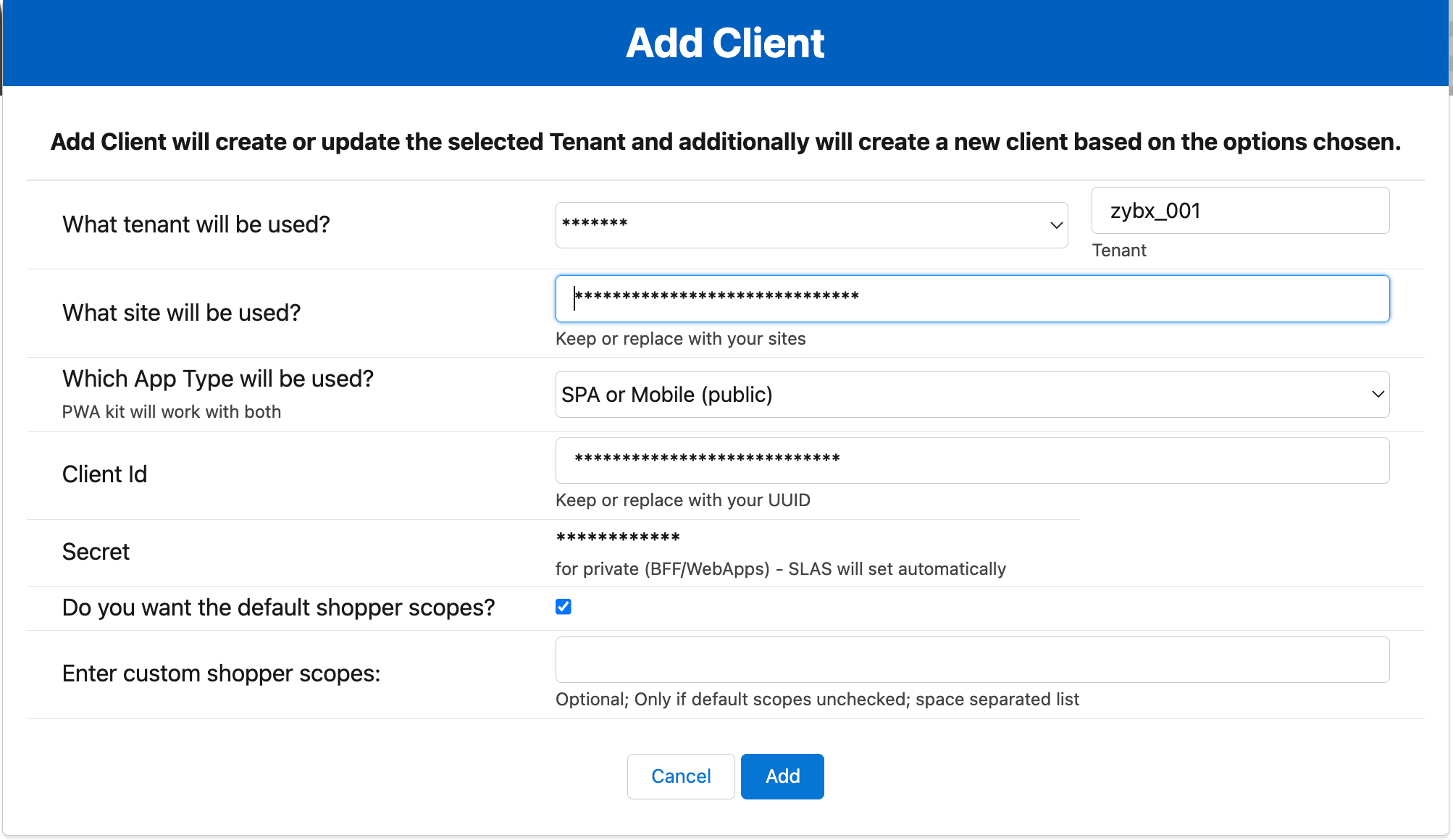
- On the next screen that appears, provide the following details:
- From the What tenant will be used? drop-down, select your tenant ID.
Note: The tenant ID will be the same as the last portion of your organization ID. For example, if the organization ID is abc_zybz_001, the tenant ID will be zybz_001.
- From the What site will be used? drop-down, enter the site name if the site is not already populated.
- Enter the API client ID retrieved in the previous steps in the Client Id field.
- From the What tenant will be used? drop-down, select your tenant ID.
- Click the Add button. You can view the Client Secret generated at the top. Copy and save the Client Secret to use in app configuration in step 2.
Note: Your app, by default, is Public.
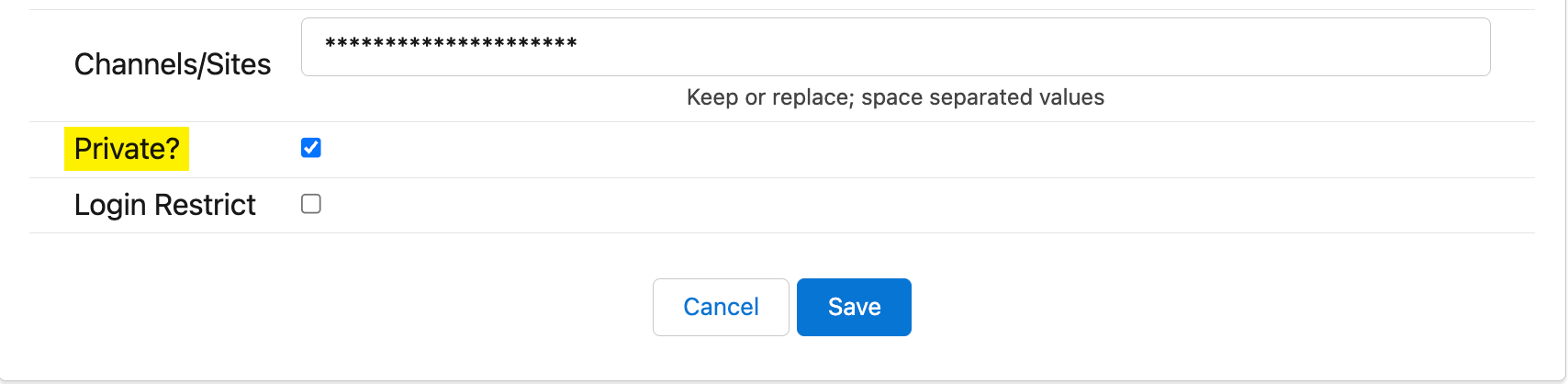
- To make your app private, go to Clients from the top menu, click Edit for your Client ID, select the Private? checkbox, and click Save.
- Click API Client from the menu.
Install and Configure the Salesforce Commerce App in Marketplace
To install the app in Contentstack, log in to your Contentstack account and follow the steps below:
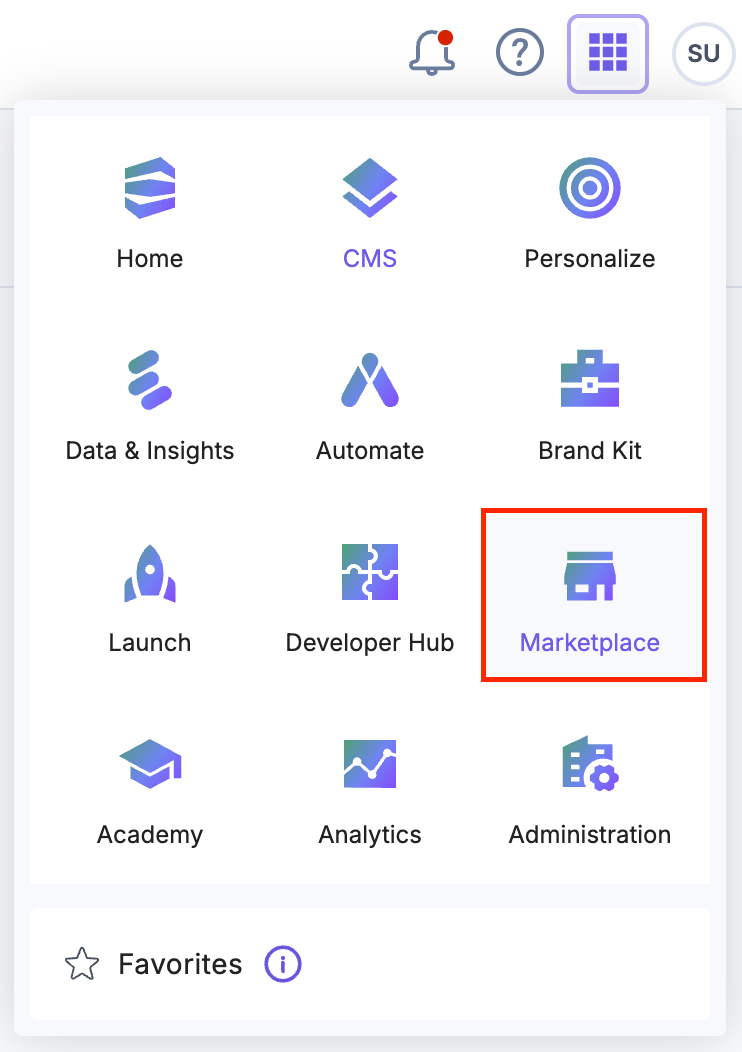
- Navigate to the “App Switcher” icon in the top-right corner and click Marketplace.
- Click Apps from the left panel.
- Within the Marketplace, you can see the available apps. Hover over the Salesforce Commerce app and click the Install button.
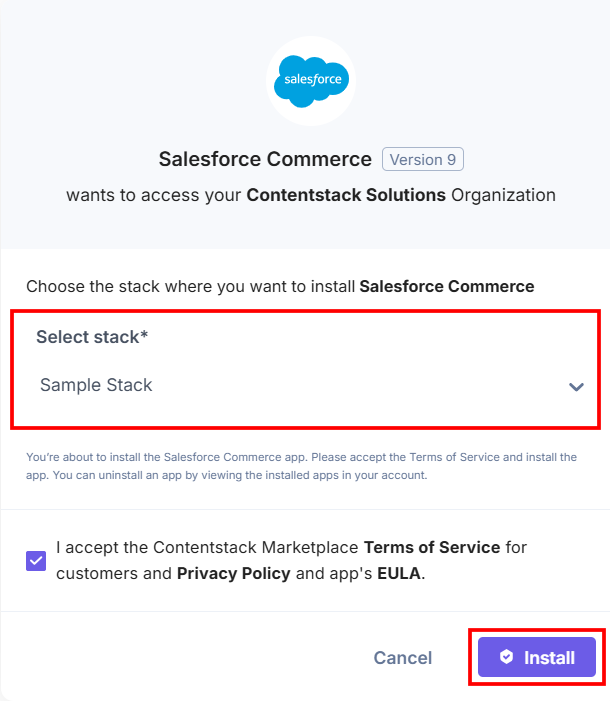
- In the pop-up window, select the stack where you want to install the Salesforce Commerce app, accept the Terms of Service, and click Install.
- On the Configuration screen, you can add multiple configurations for Salesforce Commerce. To do this, follow the steps given below:
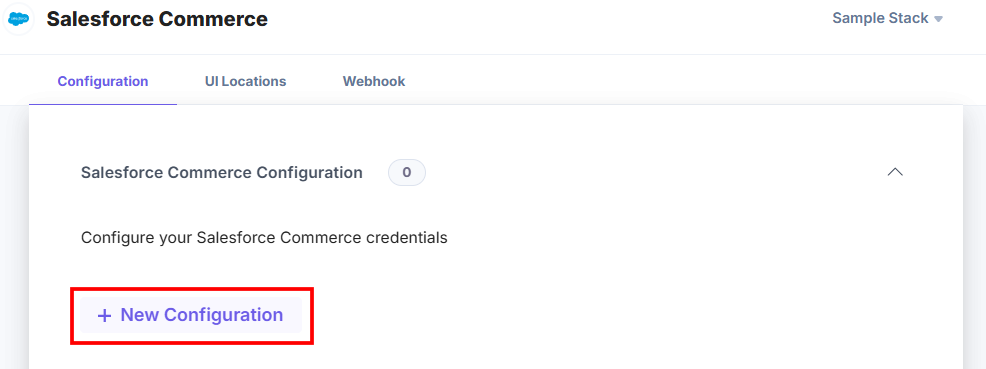
- Click the + New Configuration button to add new configuration details.
- In the Add Configuration modal, enter the configuration Name and click Add.
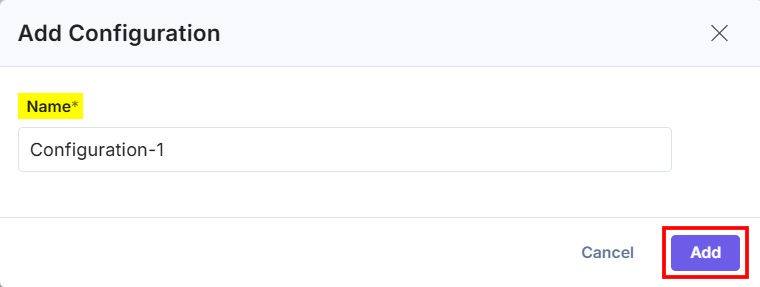
- After adding the configuration, enter the following details:
- Enter the Client ID (API client ID), Client Secret, Organization ID, Short Code, and Site ID retrieved from your Salesforce Commerce account in step 1.
- Category Levels: This represents the nesting of product categories on the selector page.
Note: If you do not specify any value, the default value sets to 1.
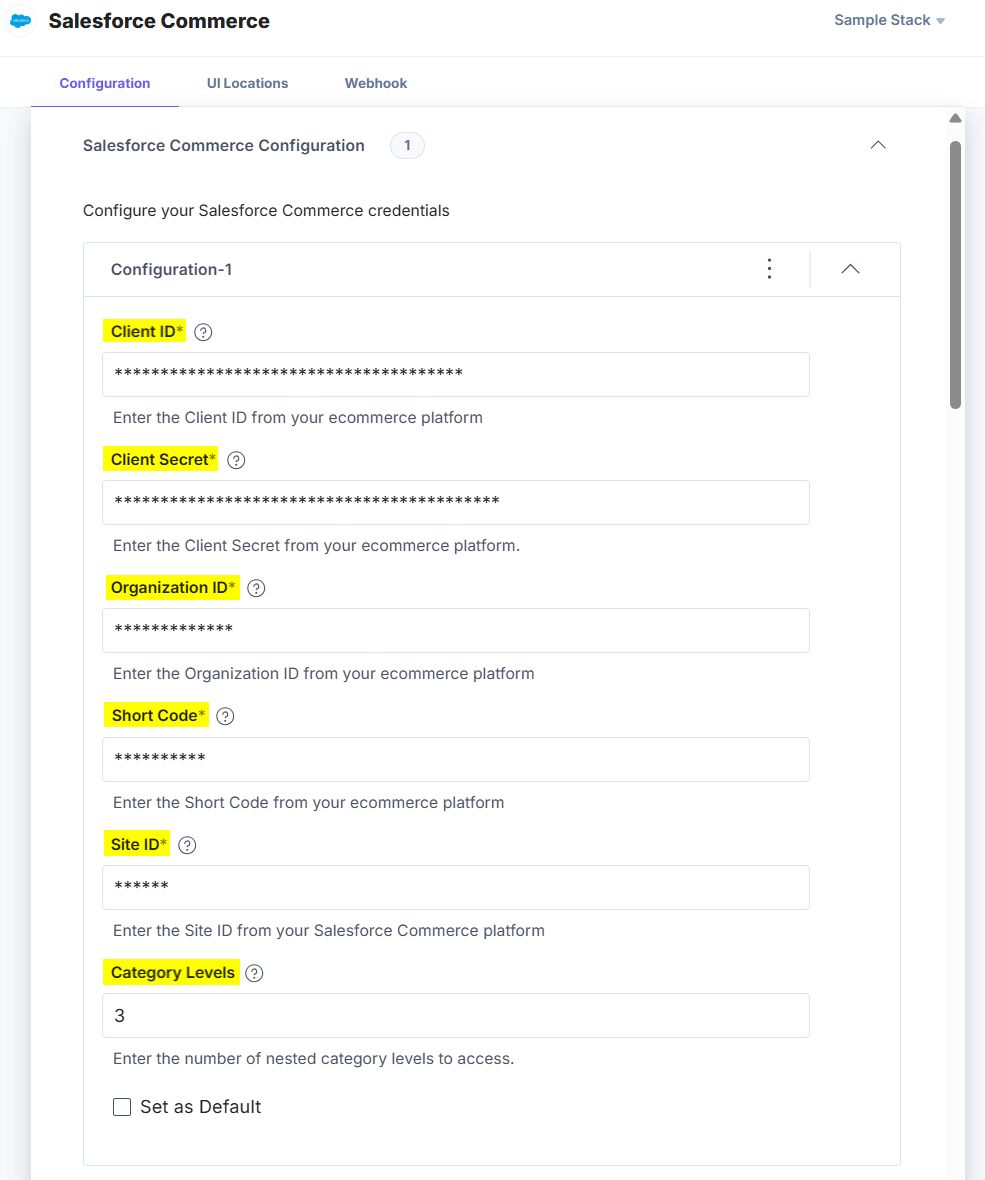
- Set as Default: To set this configuration as the default, click this checkbox.
Alternatively, you can set a configuration as the default by clicking the three dots on the top-right side of the configuration section and then selecting Set as Default.
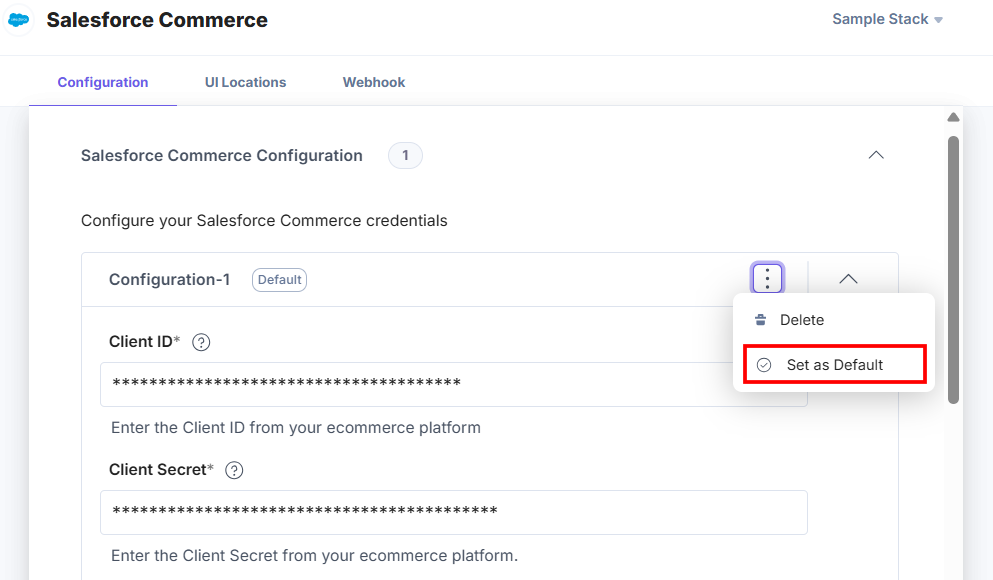
Note: At least one app configuration should be selected as the default.
Similarly, you can add multiple configurations by following the steps discussed above.
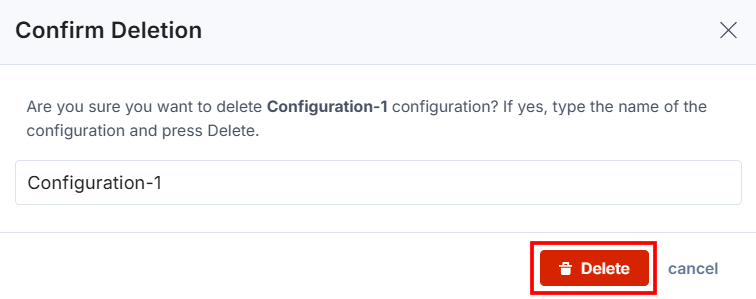
- To delete the configuration, click the three dots and select Delete.
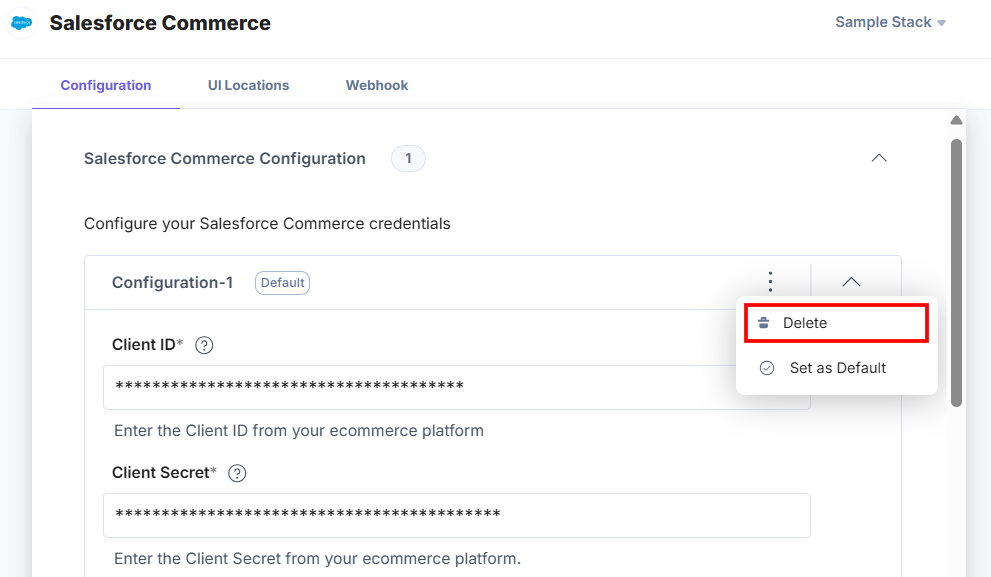
In the Confirm Deletion modal, add the configuration name and click Delete.
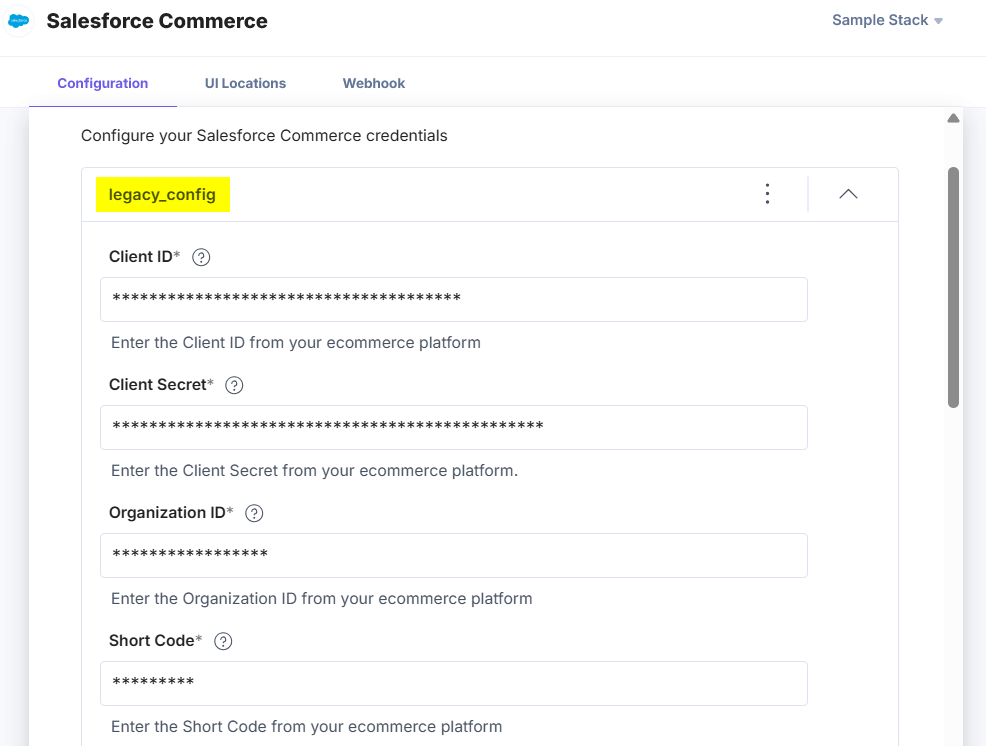
- For an existing user, the credentials will be added as the default configuration, and named as legacy_config.
Warning:
- legacy_config is a reserved keyword and you cannot use it in adding new configurations.
- If you delete the legacy_config configuration, data loss may occur and you will not be able to access the products and categories from the related accounts.
- Advanced Settings: Enable Advanced Settings to support two features – Locale Support and URL Auto Populate.
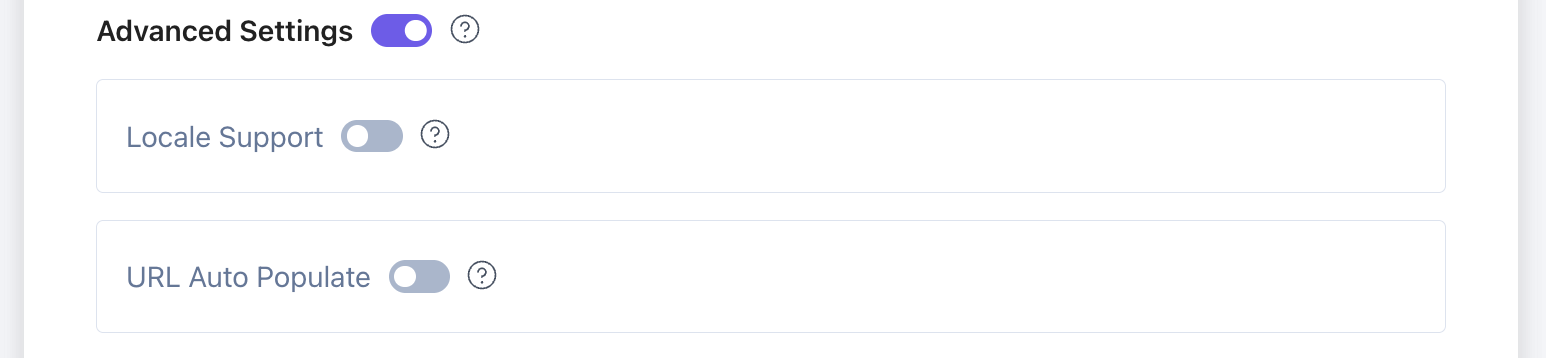
Note: When you disable the Advanced Settings, all the saved configurations will be cleared.
- Locale Support: The Locale Support feature allows you to map Contentstack locales with corresponding Salesforce Commerce locale codes to ensure consistent localization across products and categories.
Enable the Locale Support toggle to add localized products and categories based on the selected locale in your entry.
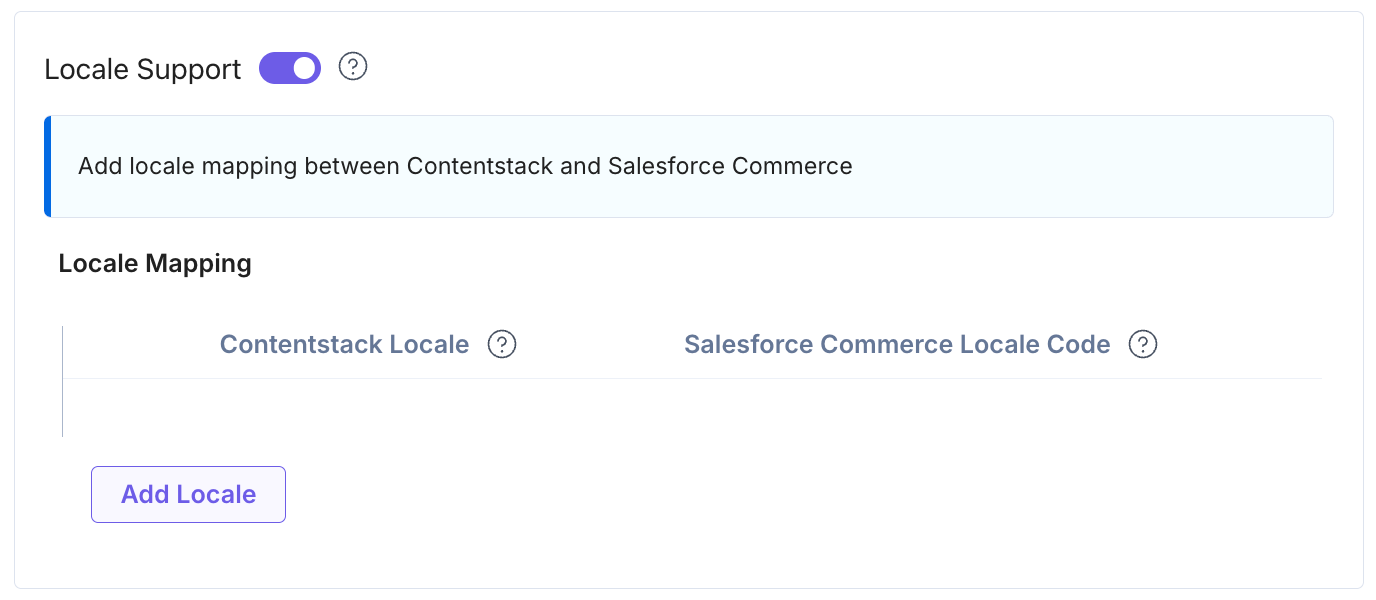
Locale Support and Mapping Locales: Use the Locale Mapping section to define mappings between your Contentstack locales and Salesforce Commerce locale codes.
Click Add Locale to create a new mapping. Each mapping ensures that when you switch locales in Contentstack, the corresponding Salesforce Commerce data loads automatically in the selector page.
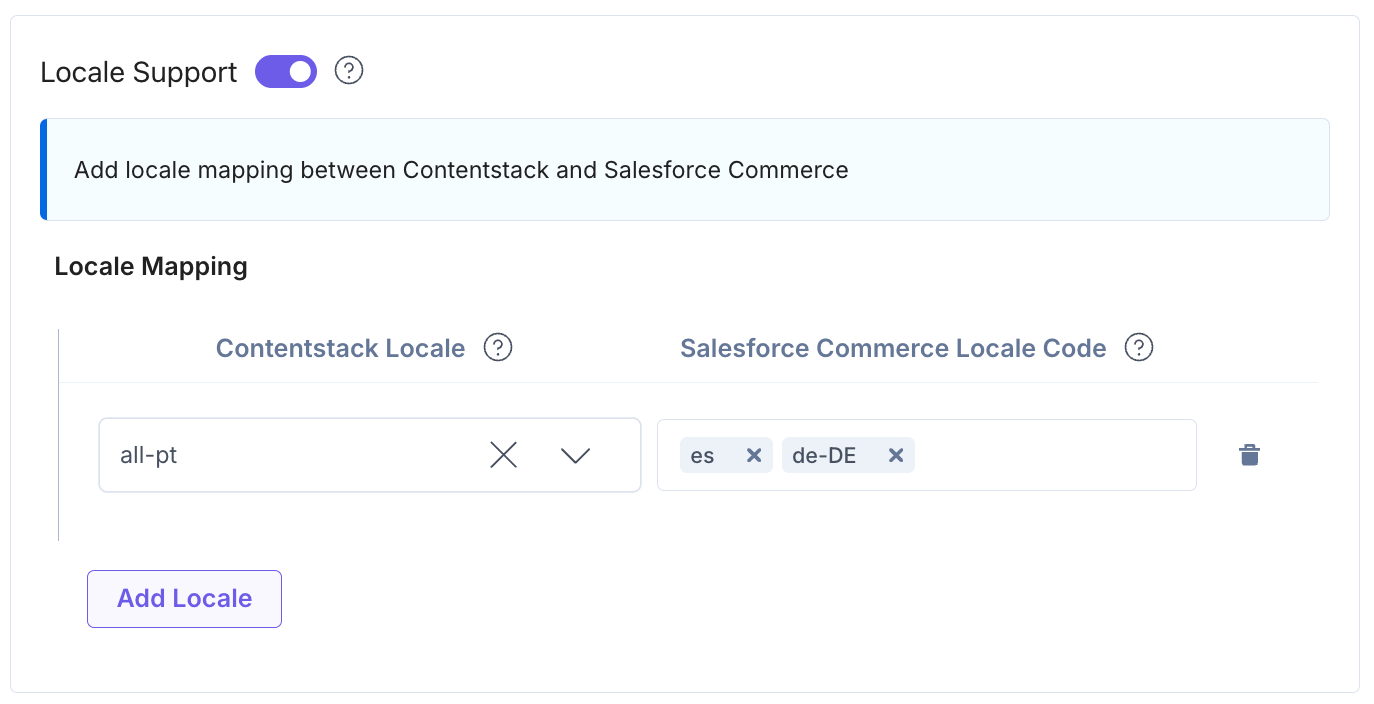
Note: This is a one-to-many mapping, allowing all Salesforce Commerce locales to be easily mapped to a Contentstack locale.
Locale Fallback Configuration
For reliable product retrieval across all languages, you must ensure your Salesforce Commerce locale fallback is correctly configured in the Business Manager.
Navigate to Merchant Tools > Site Preferences > Locales. For each active locale, verify the Fallback Locale setting.
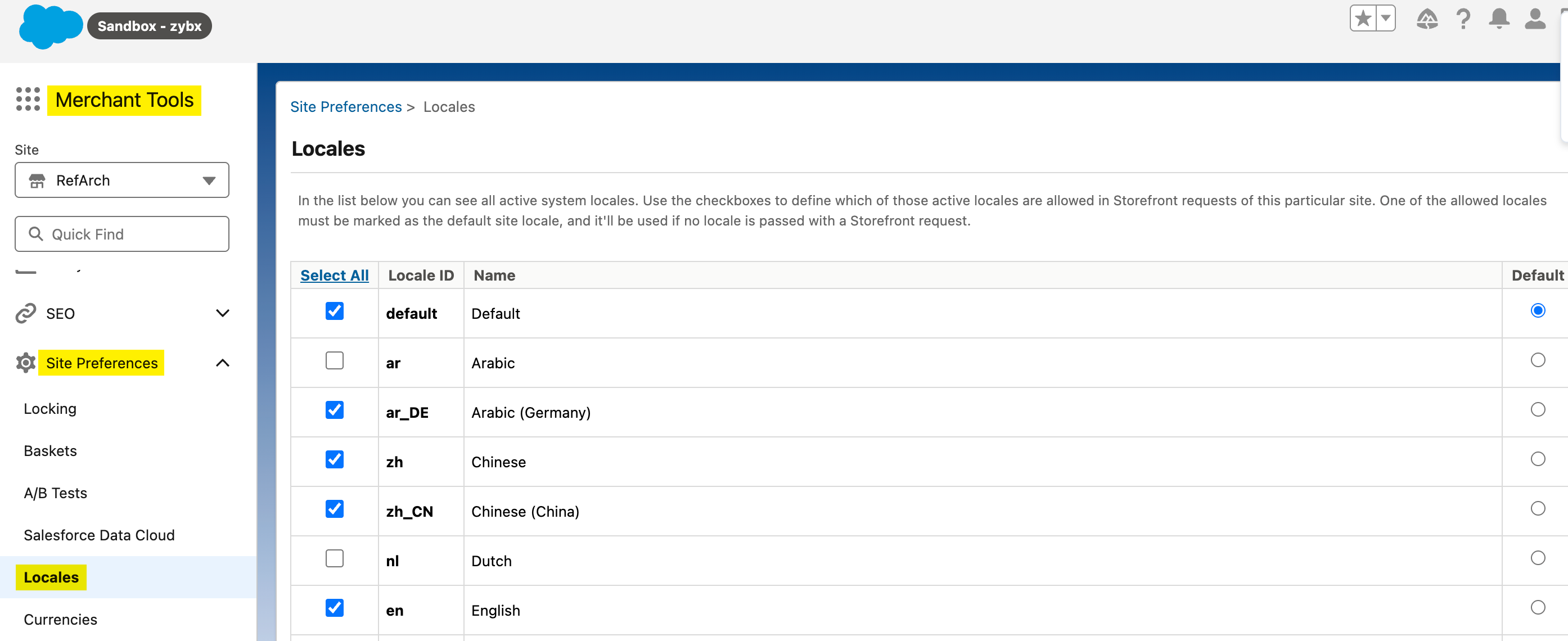
Tip: To ensure maximum content availability, set the Fallback Locale ID to Default. This ensures that if content is unavailable in a specific language, Salesforce Commerce will automatically retrieve the content from the universally configured Default Locale.
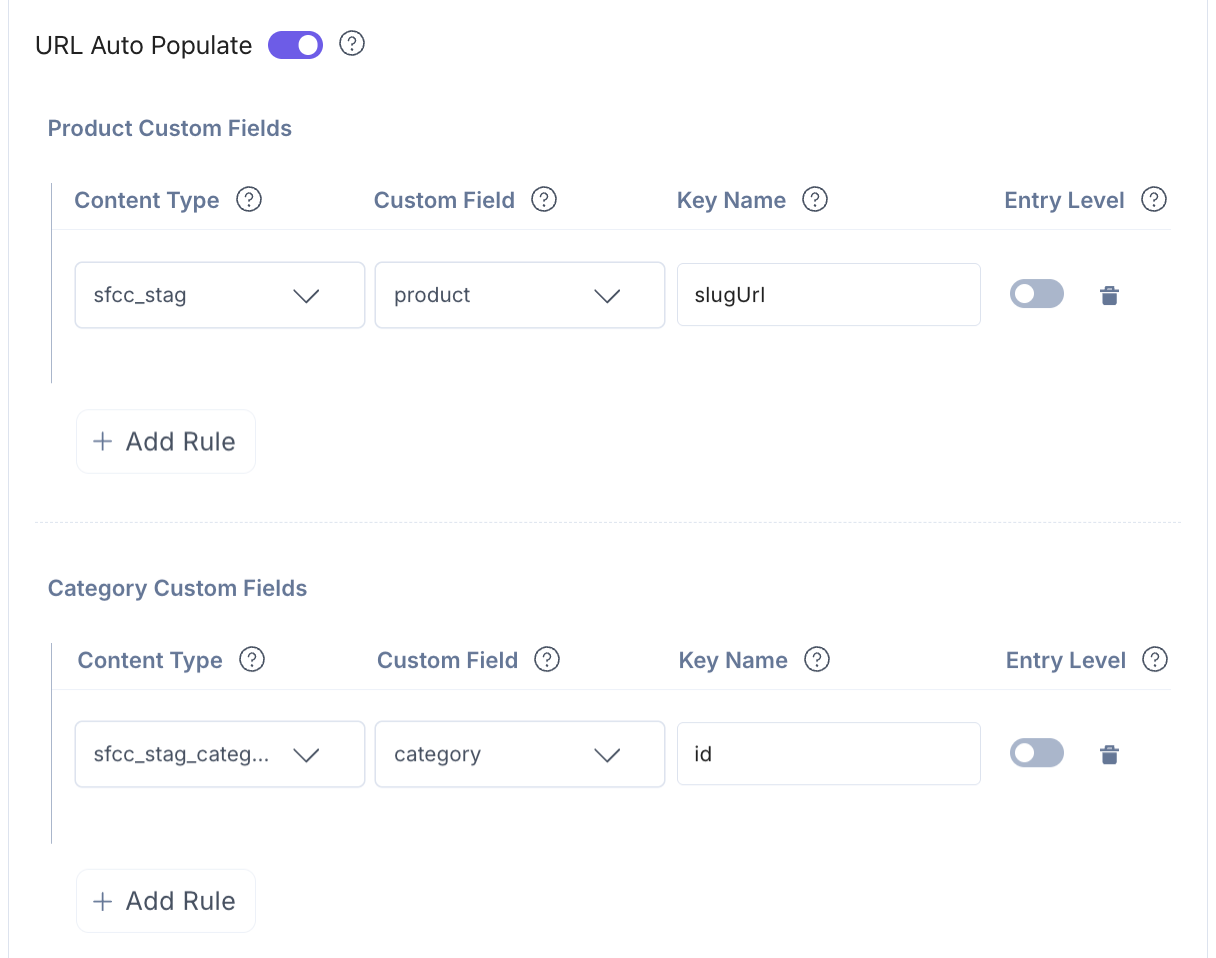
- URL Auto Populate: The URL Auto Populate feature automatically fills in product and category URLs within entries. Enable the URL Auto Populate toggle button to define the rules under Product Custom Fields and Category Custom Fields to determine where URLs should be auto-populated.
Each rule requires the following details:
- Content Type: Select the content type in which the URL will appear.
- Custom Field: Choose the custom field whose URL should be automatically populated in the URL field.
- Key Name: Specify the field key that stores the populated URL.
- Entry Level: Enable the Entry Level toggle button to decide whether you can turn the functionality on or off at the entry level.
- Toggle ON: You will see a corresponding toggle in the entry, allowing users to turn the automation OFF for that individual entry.
- Toggle OFF (Default): The rule is enforced, and you cannot disable the automation at the entry level.
Once configured, when you select a product or category in the specified content type, the URL automatically populates in the mapped field.
- Locale Support: The Locale Support feature allows you to map Contentstack locales with corresponding Salesforce Commerce locale codes to ensure consistent localization across products and categories.
- Choose the Salesforce Commerce Keys to Save in Entry: Choose how to save the data fetched from the Salesforce Commerce account in Contentstack entries.
- If you select the All Fields option, you can select only a limited number of products in the entry
- For Custom Fields, you can search and add specific Salesforce Commerce Fields you want to save in entries.
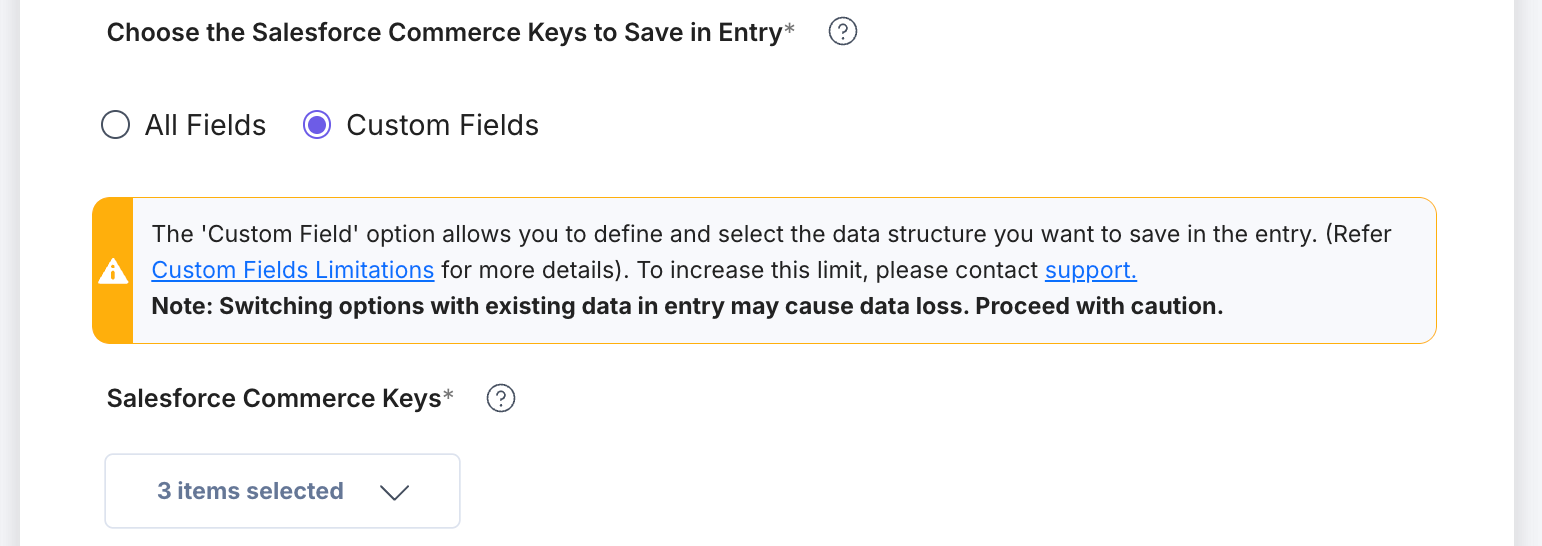
If you select Custom Fields then the Salesforce Commerce Keys drop-down appears. By default, id and name keys are already selected.
Note: To view the variants of products in the selector page and custom field within the entry, select the variants key.
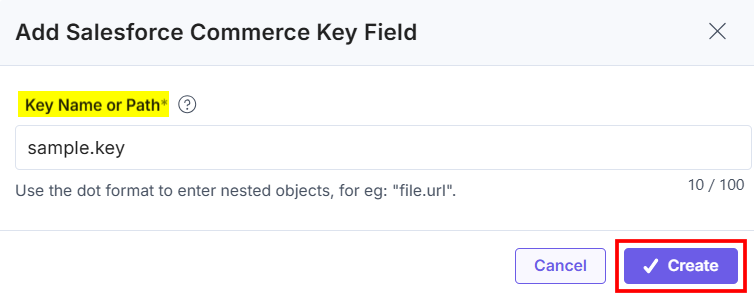
If you want to create a new key, click the + New Key Field option.
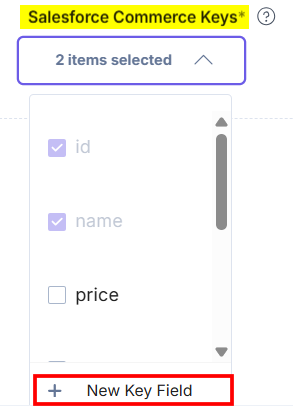
In the Add Salesforce Commerce Key Field modal, enter the Key Name or Path and click the Create button to create a new key.
- Customize List View Options: The Customizable List View Columns feature lets you choose which fields appear in the product and category list views within your entries.
- Product List View Columns: Choose and display specific product fields in the product list view within entries. By default, name, image, and price columns are selected.
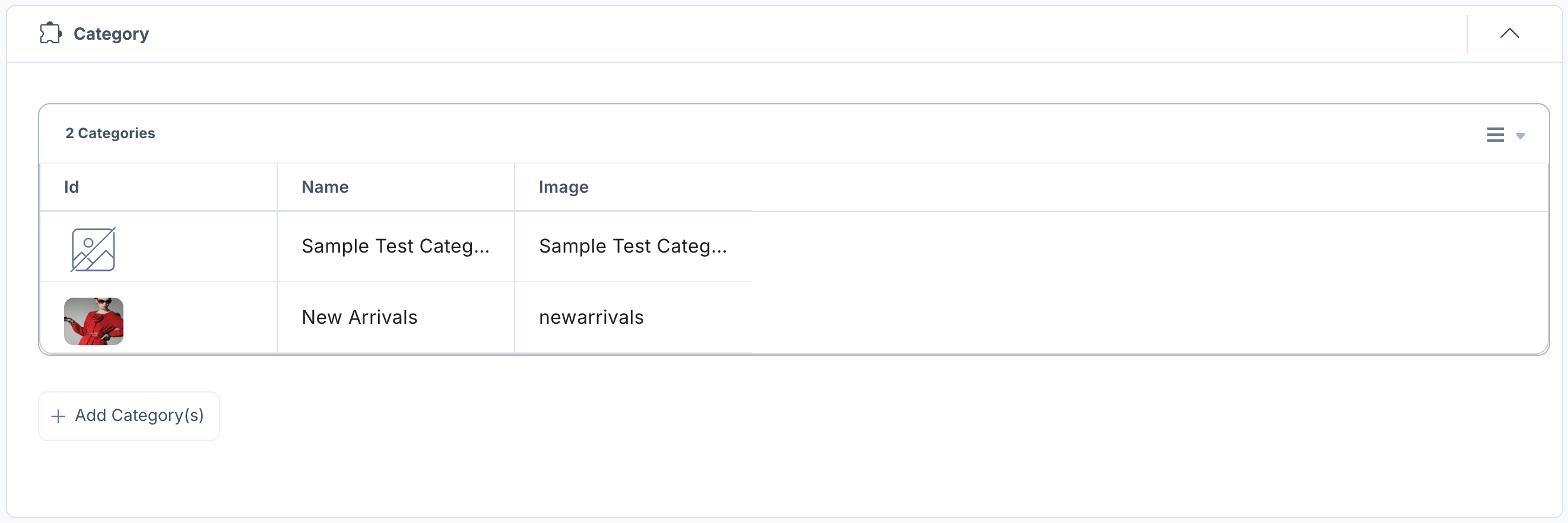
- Category List View Columns: Select and show specific category fields in the category list view within entries. By default, id, name, and image columns are selected.
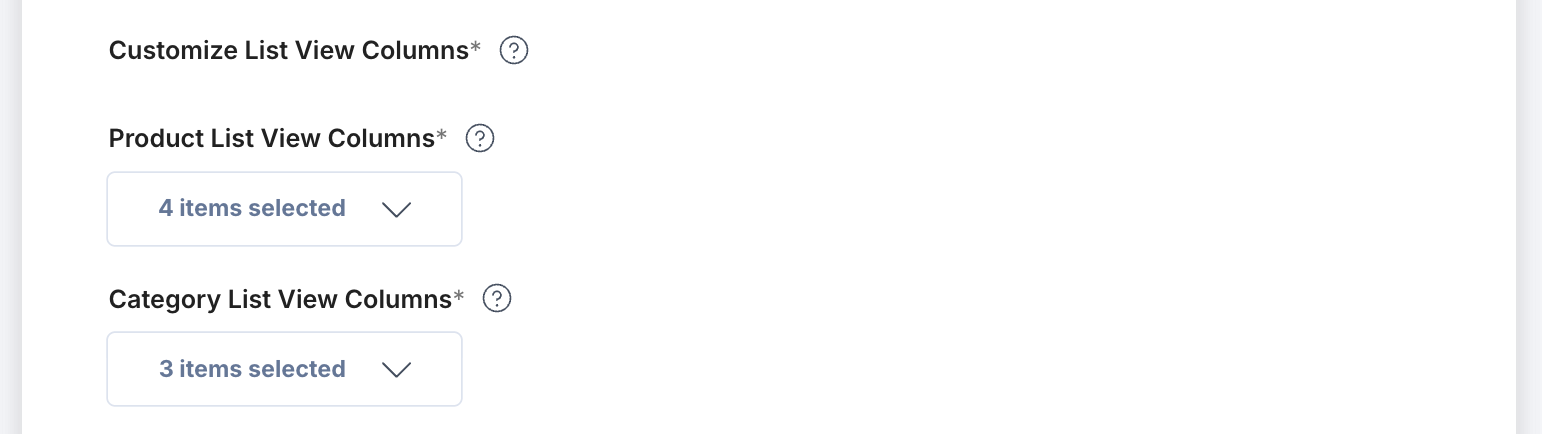
Once you save your configuration, the selected columns appear in the custom field’s list view on the entry page. You can also update or remove columns at any time to refine the view.
- Click the + New Configuration button to add new configuration details.
- After adding the configuration details, click the Save button.
- On the UI Locations tab, you can see the predefined app locations. You can use the toggle button corresponding to each UI location to enable or disable it based on your requirements.
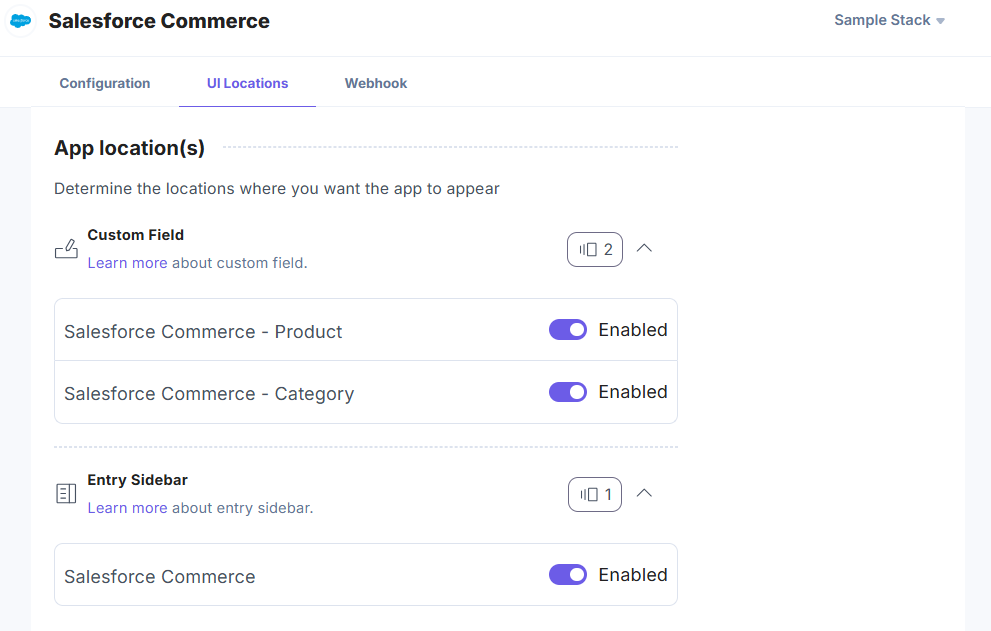
Note: The app requires at least one UI location to be enabled, otherwise you will not be able to save your app configuration settings.
- If the webhook is enabled for your app, you can view the webhook logs under the Webhook tab.
Additional Resource: For more information on UI location and webhooks, please refer to the Installed Apps guide.
- Click Open Stack to start using the Salesforce Commerce app.
- Navigate to the “App Switcher” icon in the top-right corner and click Marketplace.
Use the Salesforce Commerce App within your Stack
To use the Salesforce Commerce app within an entry of your stack, follow the steps given below:
- Navigate to the stack dashboard, click Content Models in the header, then New Content Type. From the dropdown, select Create New.
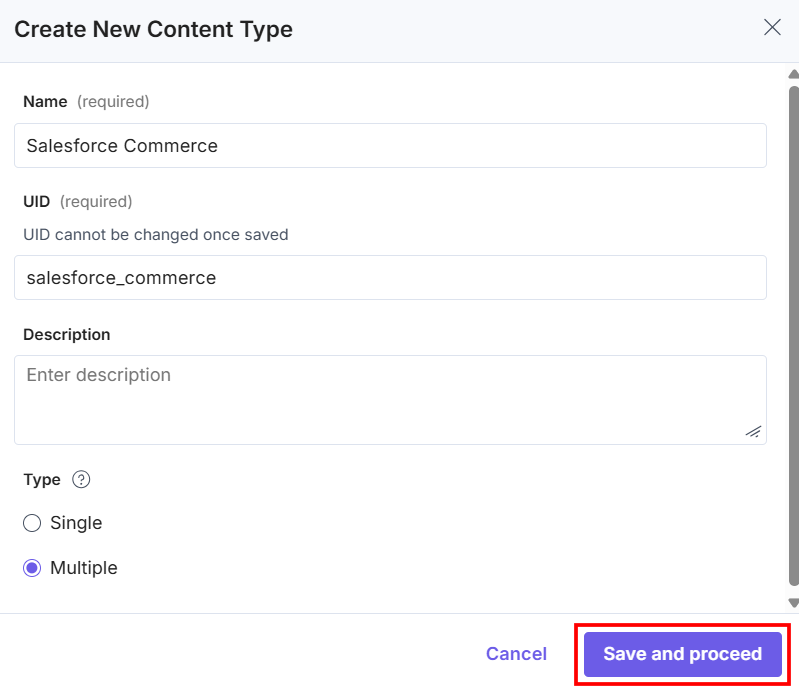
- Create a content type by entering relevant details as given below:
- In the Content Type Builder page, add a Custom field for product in your content type by clicking the Insert a field link represented by a + sign.
- Under Select Extension or App, select Salesforce Commerce - Product and click the Proceed button.
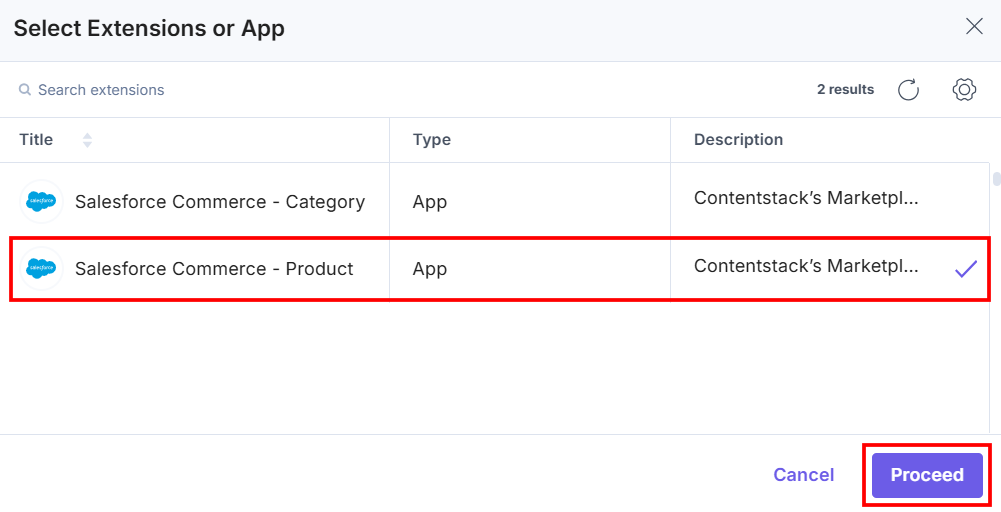
This adds Salesforce Commerce - Product in the custom field.
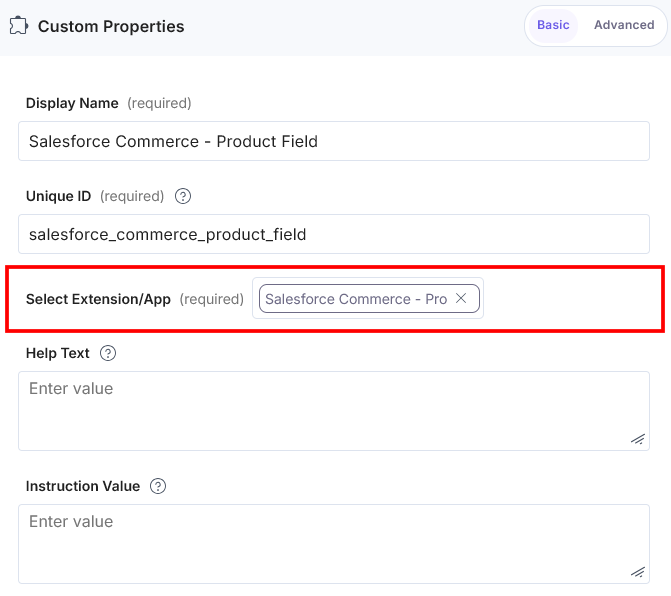
- Add another Custom field for category in your content type by clicking the Insert a field link represented by a + sign.
- Under Select Extension or App, select Salesforce Commerce - Category and click the Proceed button.
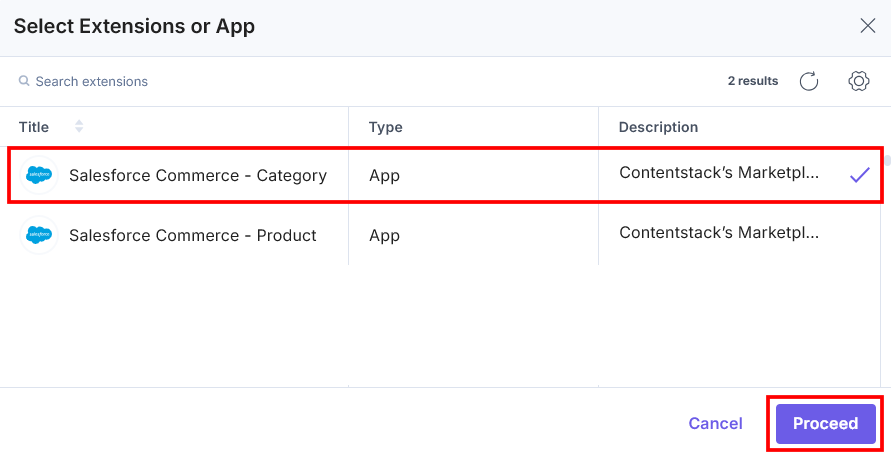
This adds Salesforce Commerce - Category in the custom field.
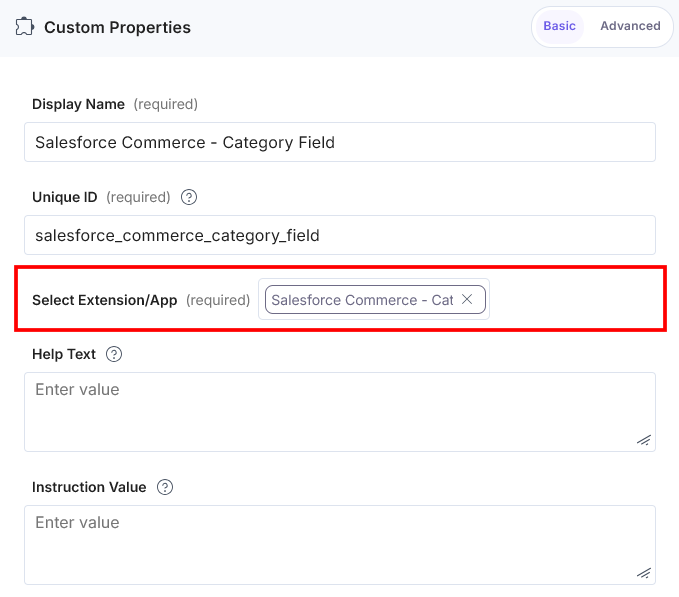
- Under Advanced properties, you have the option to set the Config Parameter for all entries of a particular content type. If you do so, it overrides the default app configuration you set at the time of app installation on the Configuration screen.
The key:value passed in the configuration object overrides the default app configuration settings.
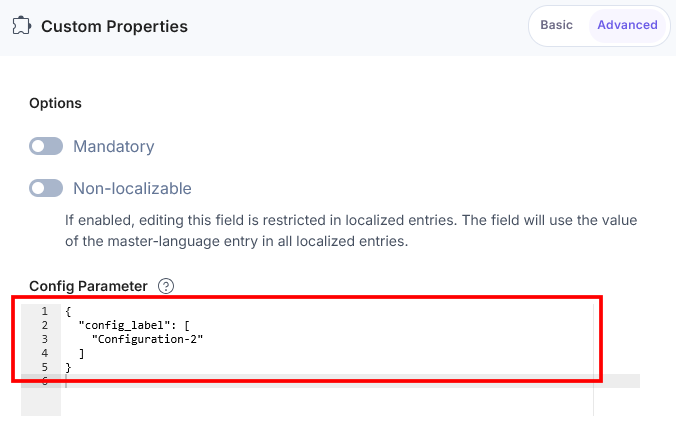
If you want to use a different Salesforce Commerce configuration for any custom field within the same stack, you need to specify the configuration name in the Config Parameter as follows:
Configuration Object:
{
  "config_label": [
    "Configuration-2"
  ]
}
Locale Based Configuration Object: To add a locale-based configuration, add a locale parameter to the additional configuration object which specifies the locale value (for example: en-us) as the object key and the configuration object as the value to the locale.
Locale Configuration Object:
{
  "config_label": [
 	   "Configuration-1",
 	   "Configuration-2"
  ],
  "locale": {
    	"en-us": {
     	 "config_label": []
   	 },
  	  "en-ZA": {
  	    "config_label": []
  	  }
      }
}
Max Limit: You can set the maximum number of assets that can be added in the Custom field. In our example, it is 4.
{
	"advanced": {
		"max_limit":4
	}
}
Note: If any configuration value is not added, or if all the values are empty in the Config Parameter properties settings, the Salesforce Commerce app uses the default credentials configured in the installation in step 2.
- After adding the custom fields for the app, click Save or Save and Close to save your changes.
- To use the Salesforce Commerce app, create an entry for this content type. In the left navigation panel, navigate to the Entries page, click + New Entry to create a new entry for the above content type, and then click Proceed.
You can see the Salesforce Commerce app’s custom fields on your entry page as shown below:
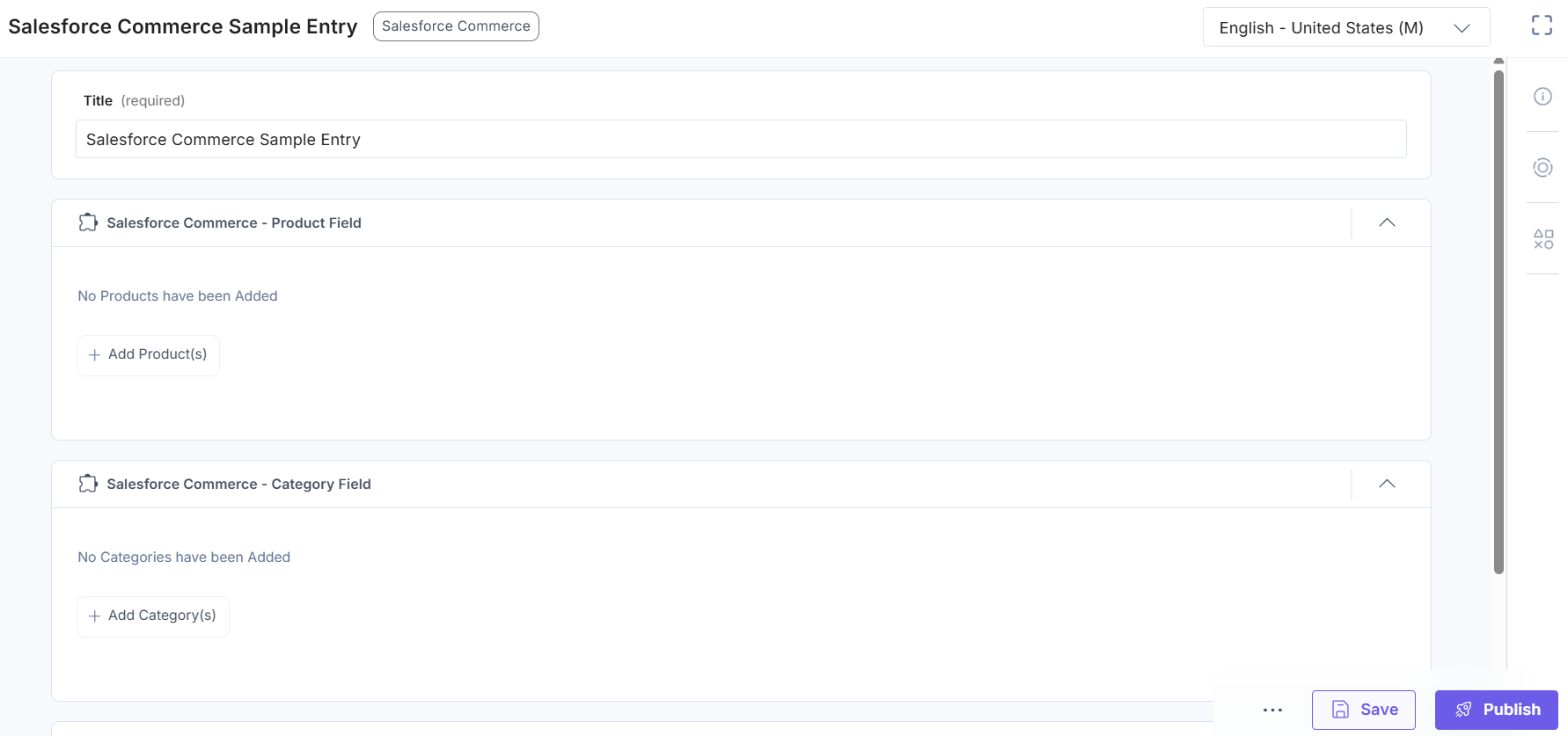
- Click the + Add Product(s) button to choose the product(s).
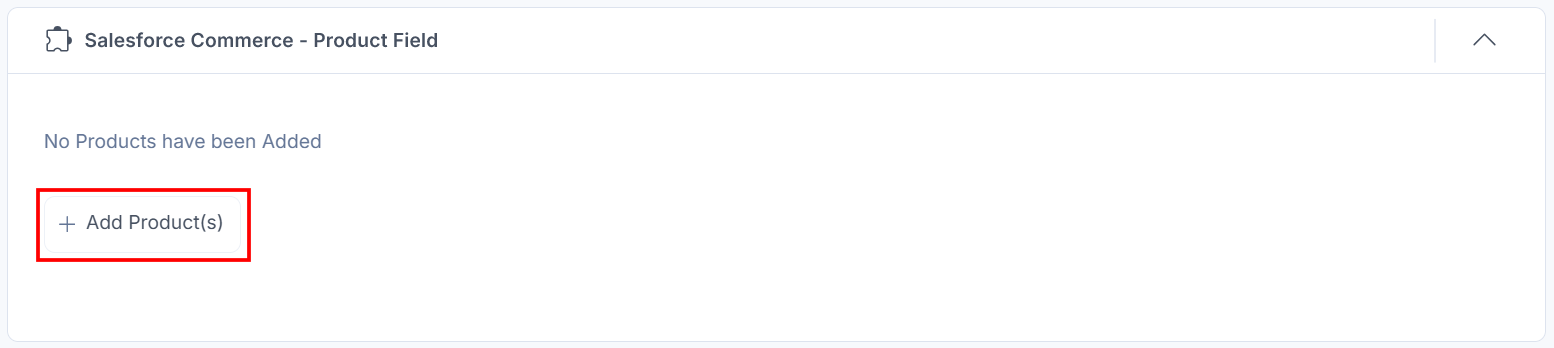
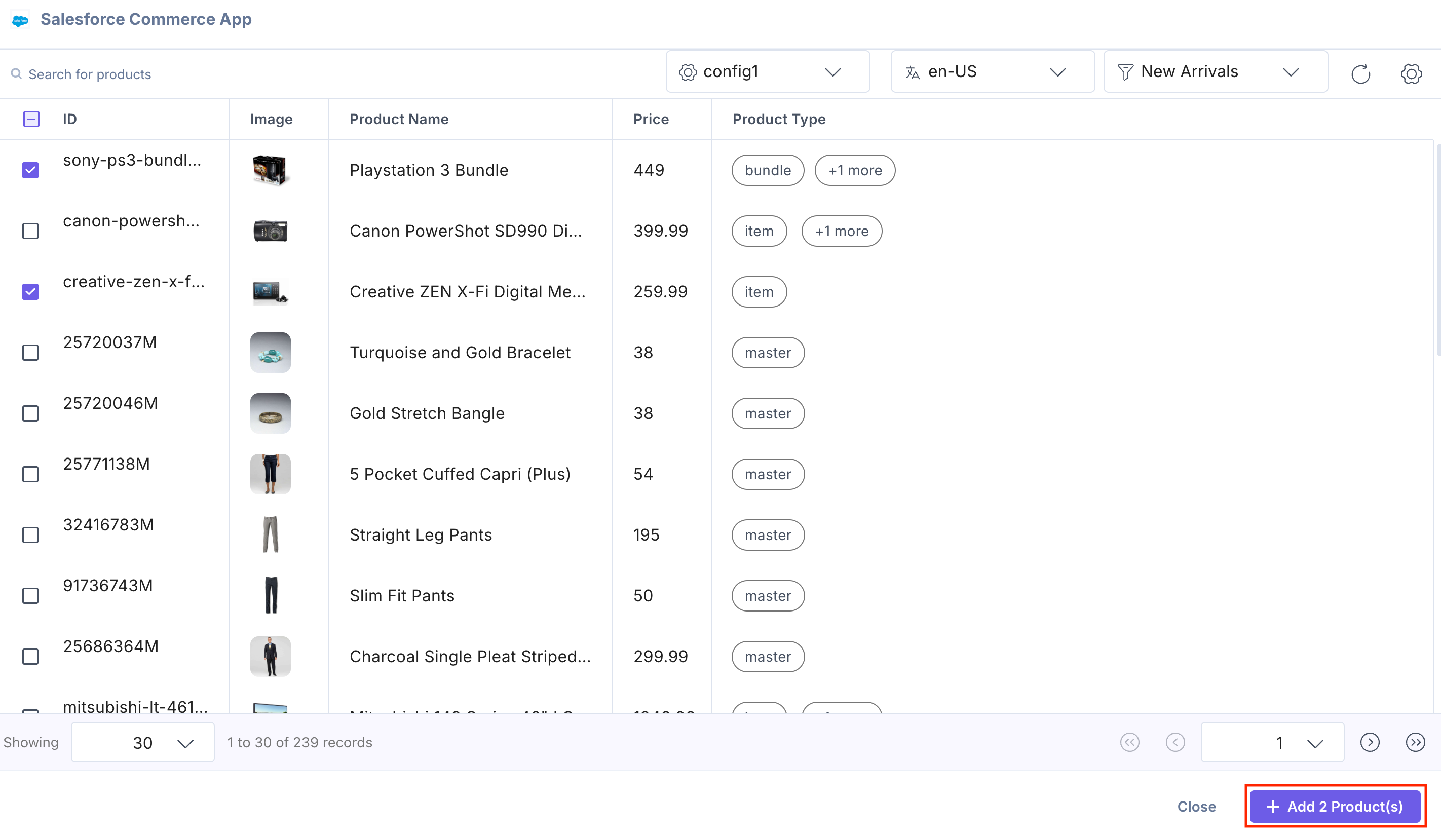
- Select the products from your Salesforce Commerce store and click the + Add Product(s) button to add them to your entry.
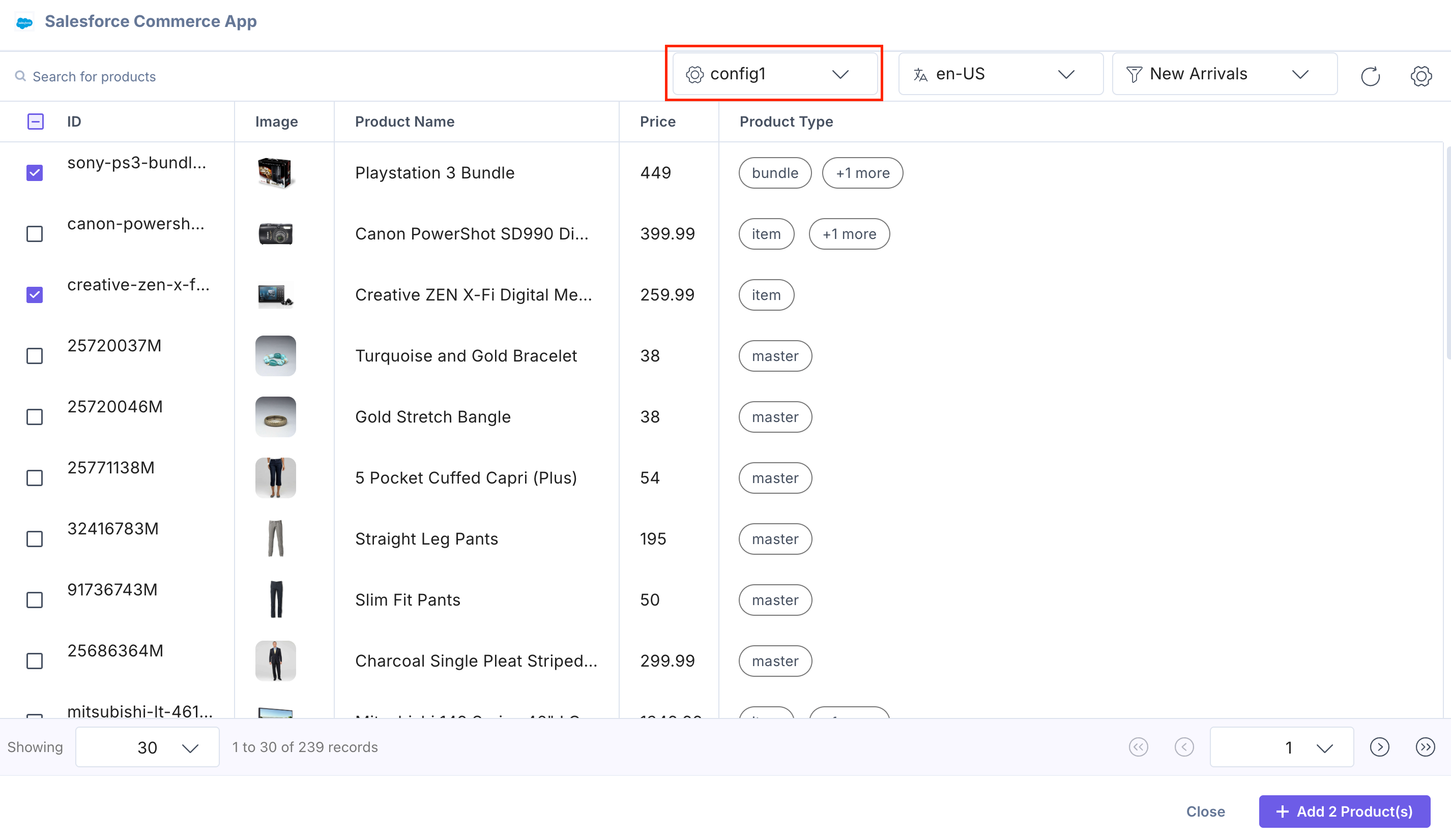
You can select the products from multiple configurations at once using the Configuration drop-down.
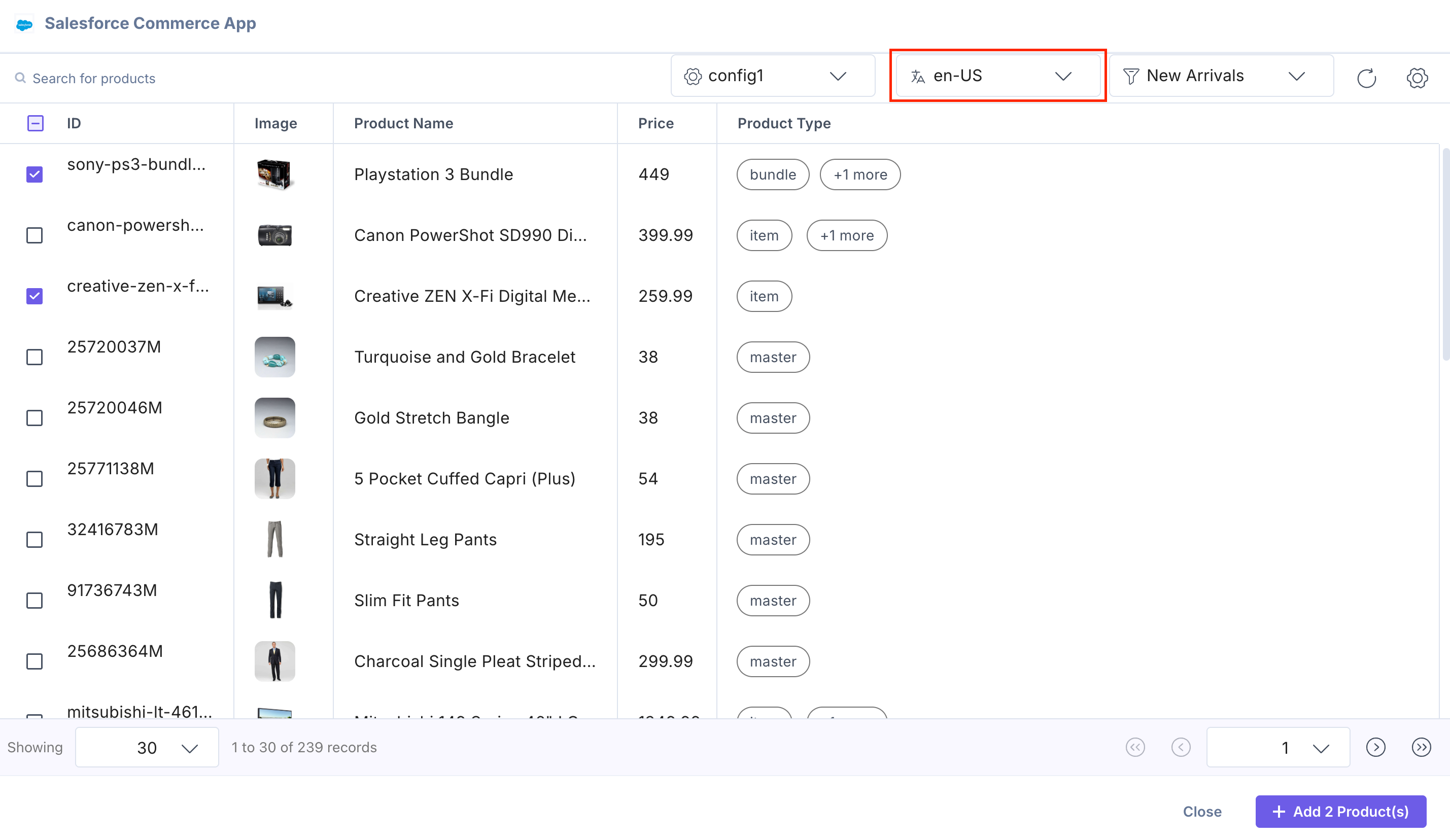
When the Locale Support is enabled during the app configuration in step 2, you can select the locale-based products using the Locale drop-down in the selector page.
Note:
- If the locale is Unlocalized, both the Master and Current locale options will appear in the selector page. Ensure that the nesting fallback locales are properly configured in both Salesforce Commerce and Contentstack for consistent product visibility.
- For existing users, all the products are added in the default locale to view all the already selected products in the selector page.
You can also search for products in the Salesforce Commerce selector page based on the product name.
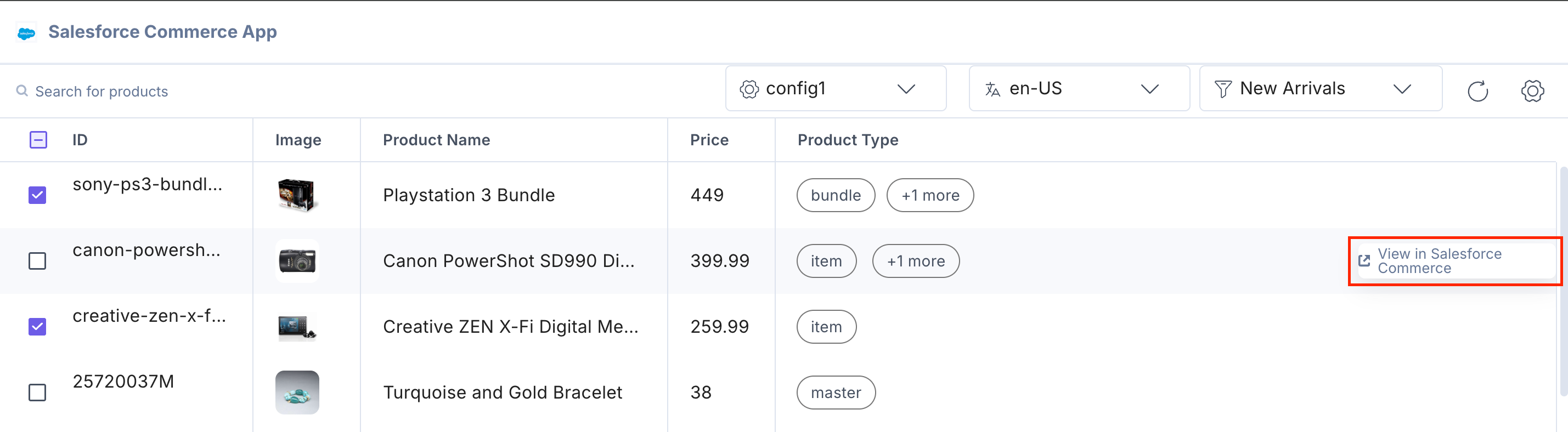
Hover over the product on the Salesforce Commerce selector page, and you can see the View in Salesforce Commerce option to go directly to the Salesforce Commerce platform.
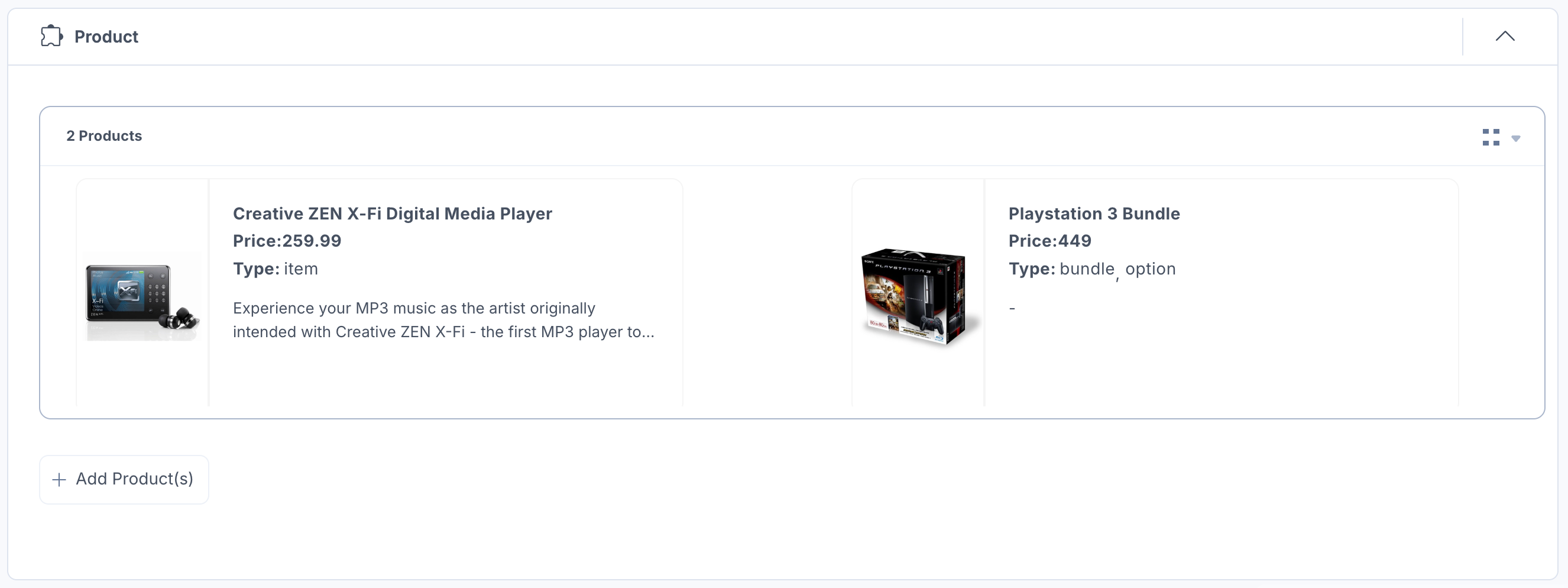
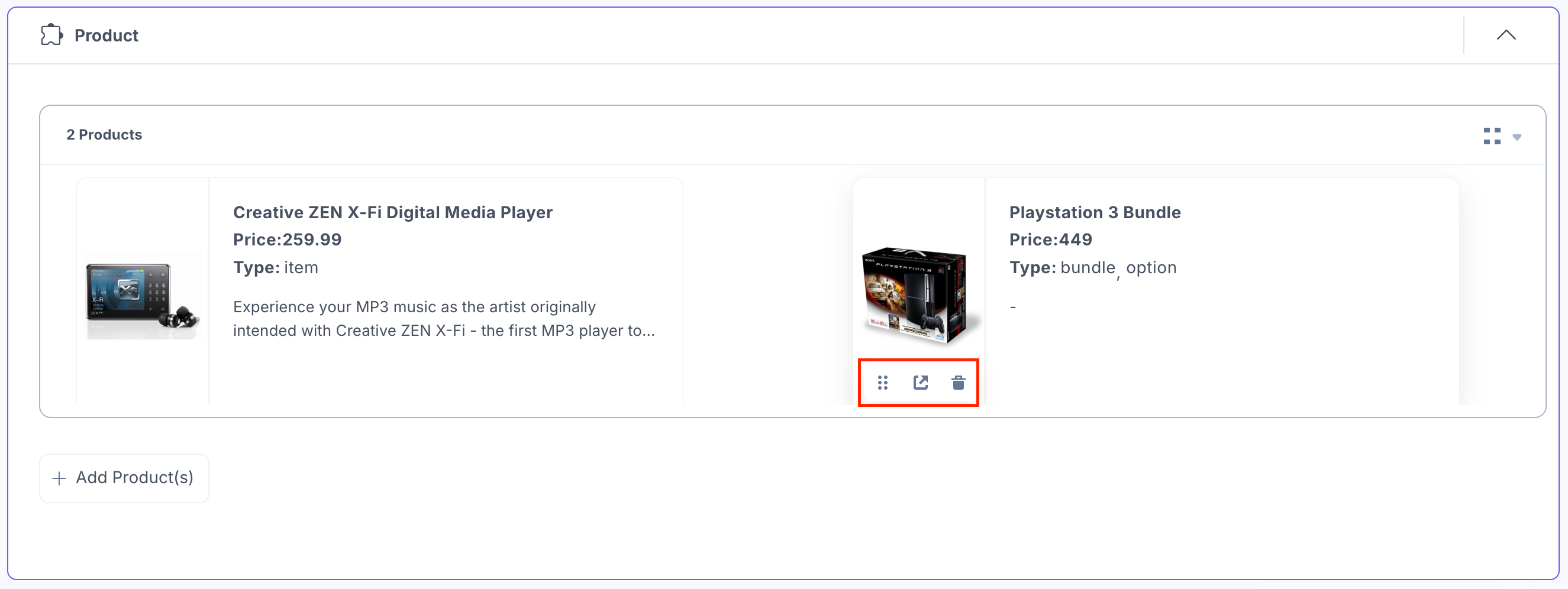
The products you selected get referenced within your entry in the thumbnail view.
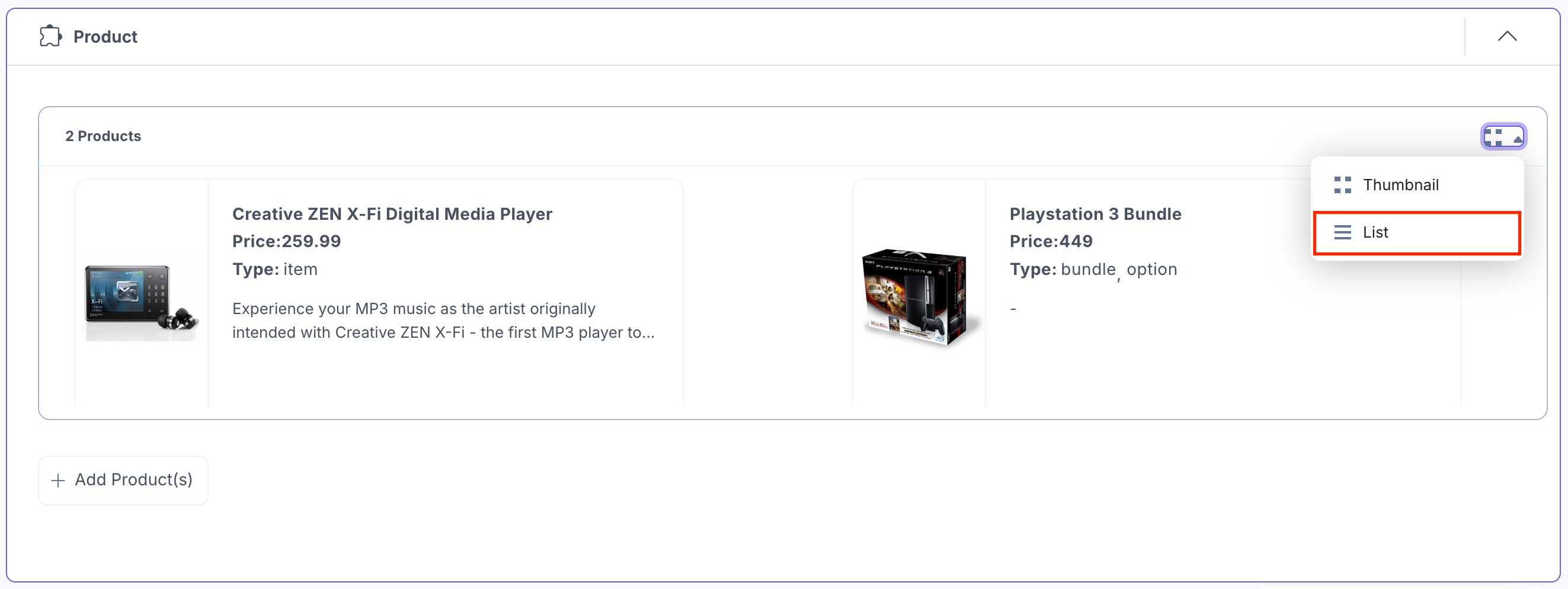
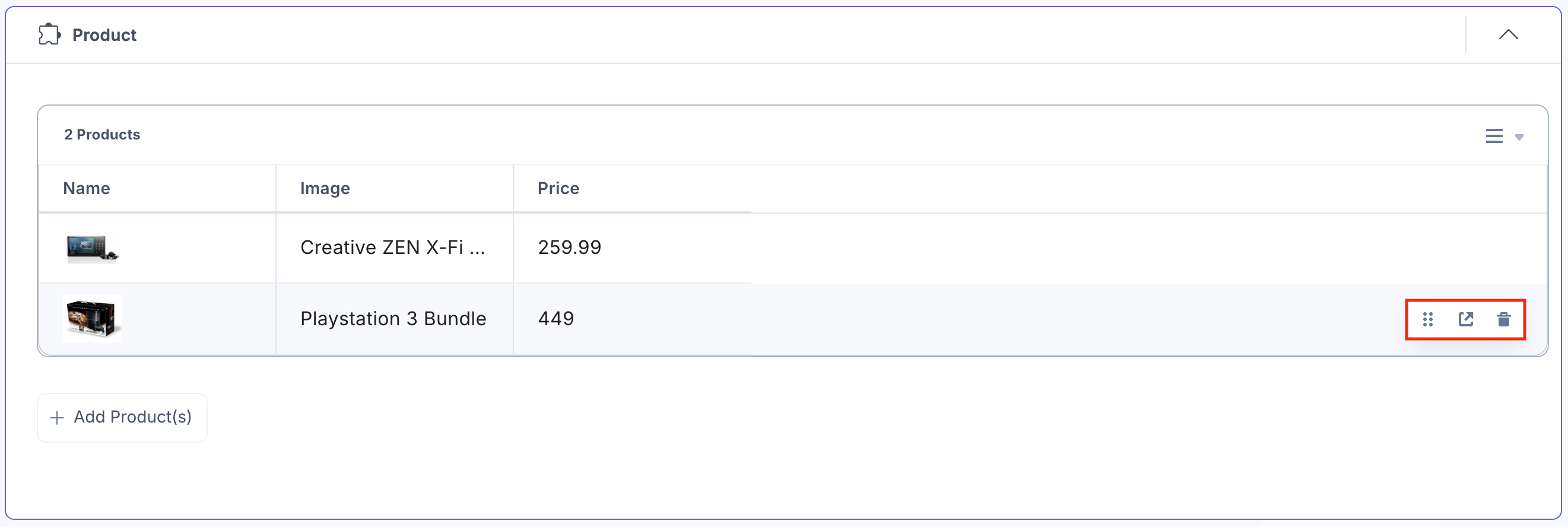
Select the list view option from the dropdown to view the products in the list view.
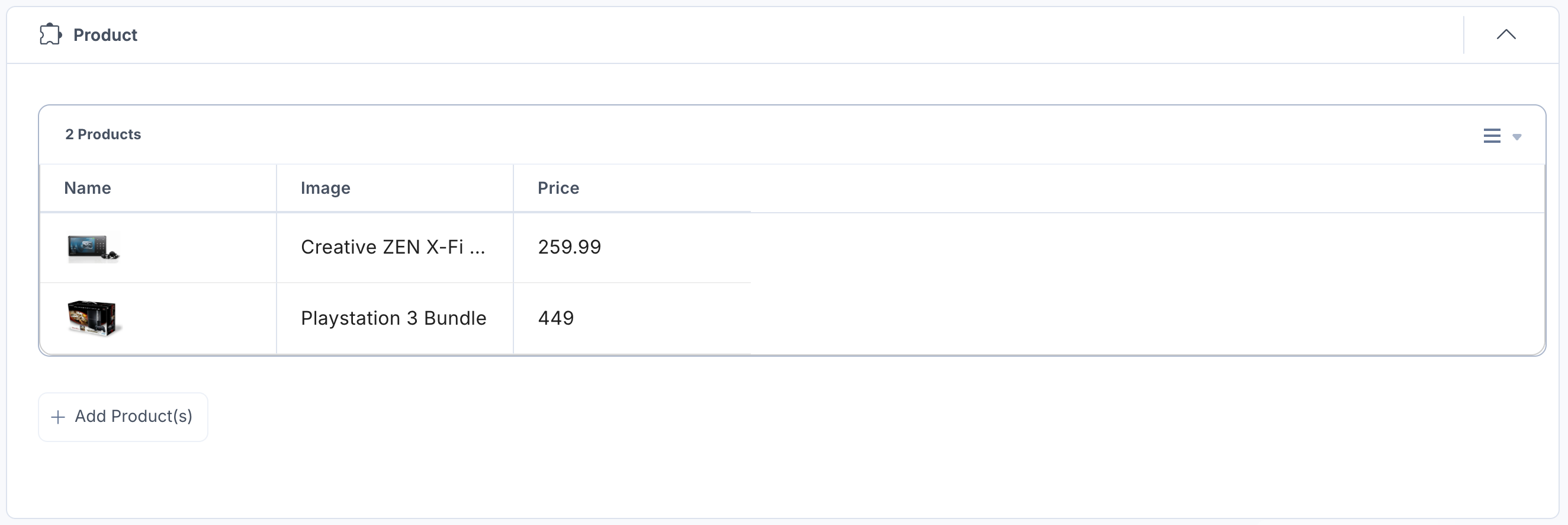
The products you selected get referenced within your entry in the list view.
Variants in Products
If you select All Fields to save in the entry or add the Variants key in the Custom Fields option during app configuration in step 2, you can add and view the Variants of the products directly within the entry.
While adding products in the entry, you can view the variants corresponding to a product in the selector page. Select the product and respective variants, and then click the Add Products button.
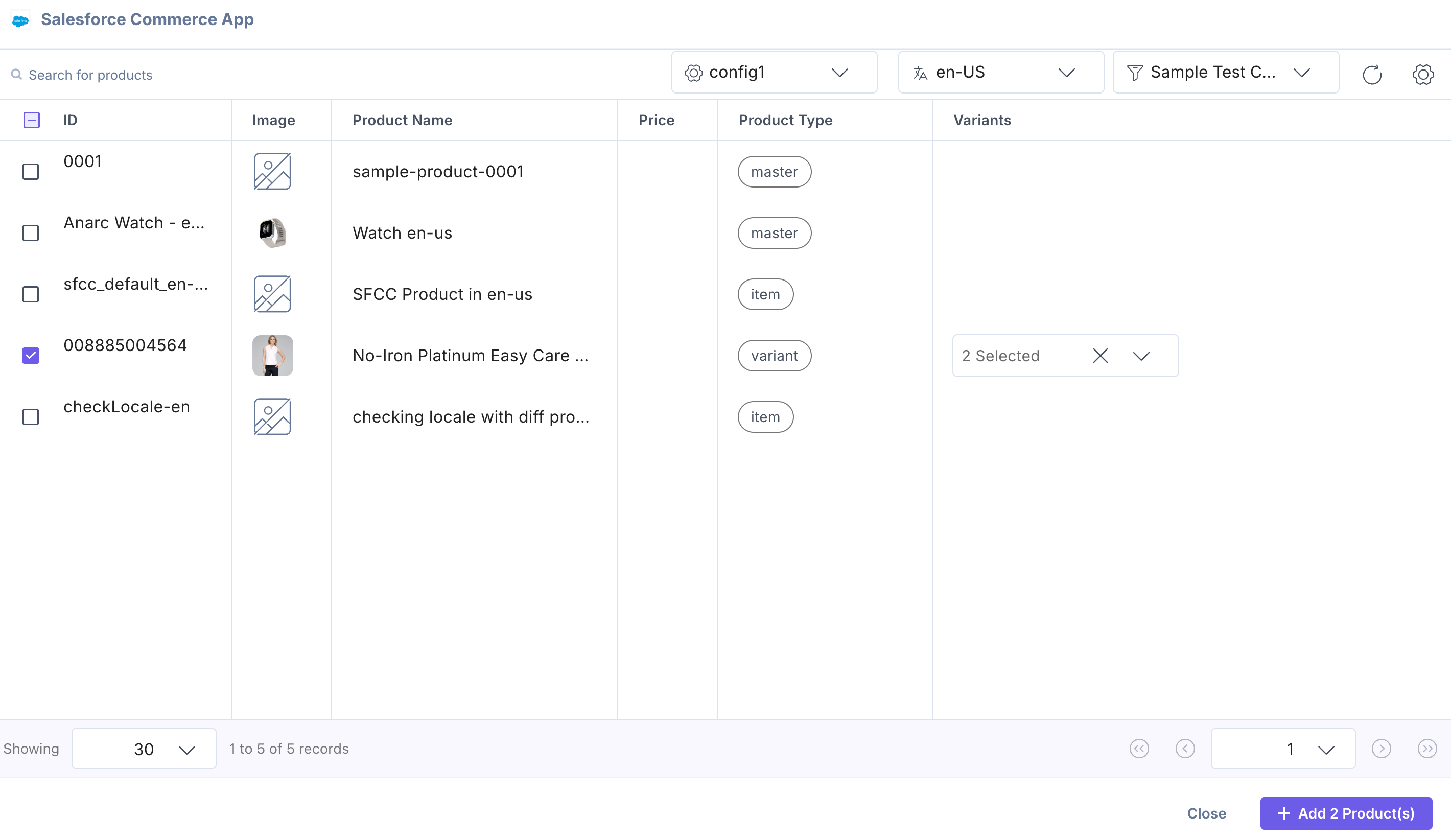
You can view the product in the entry along with the variants at the bottom within each product card.

To view the variants in Product List view, you need to select the variant checkbox under the Customize List View Options during app configuration in step 2.
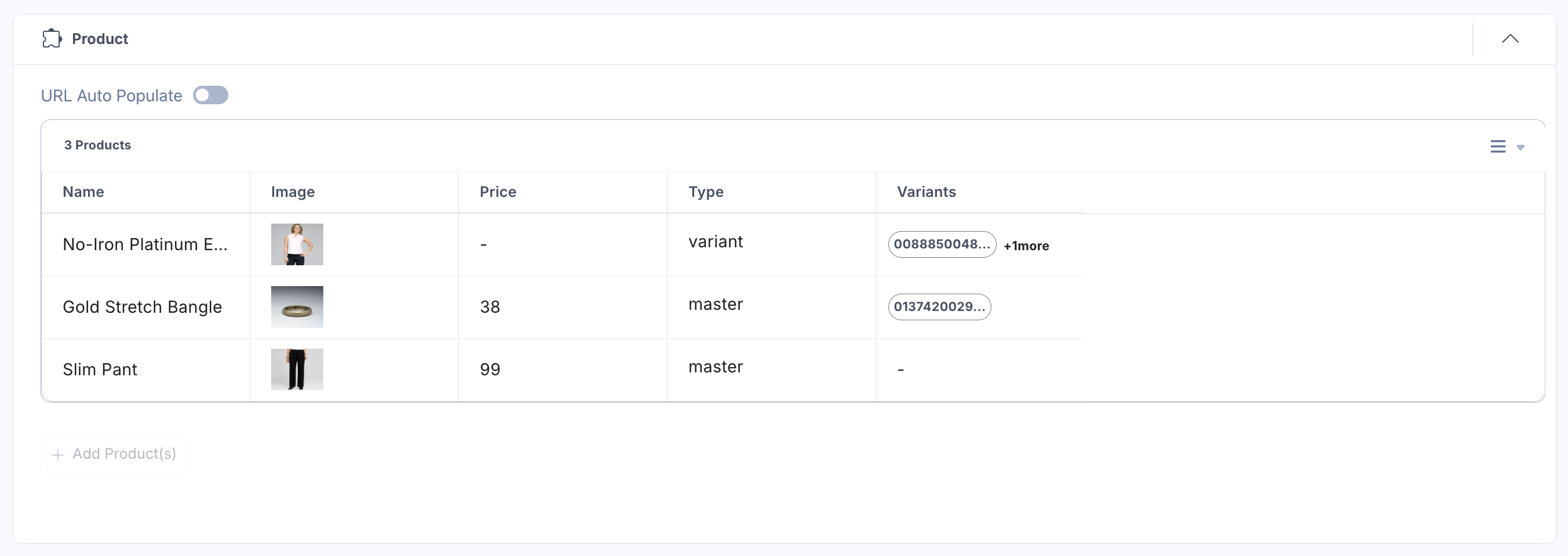
- To reorder, open in Salesforce Commerce, or delete the selected product, hover over the product to get the available options, then perform the following:
- Click the Drag icon to drag and reorder the product.
- Click the Open in Salesforce Commerce icon to open the product in the Salesforce Commerce app.
- Click the Remove icon to delete the product.
Thumbnail View
List View
- Click the Save button to save your entry.
- You can view more product details in the Sidebar Widget.
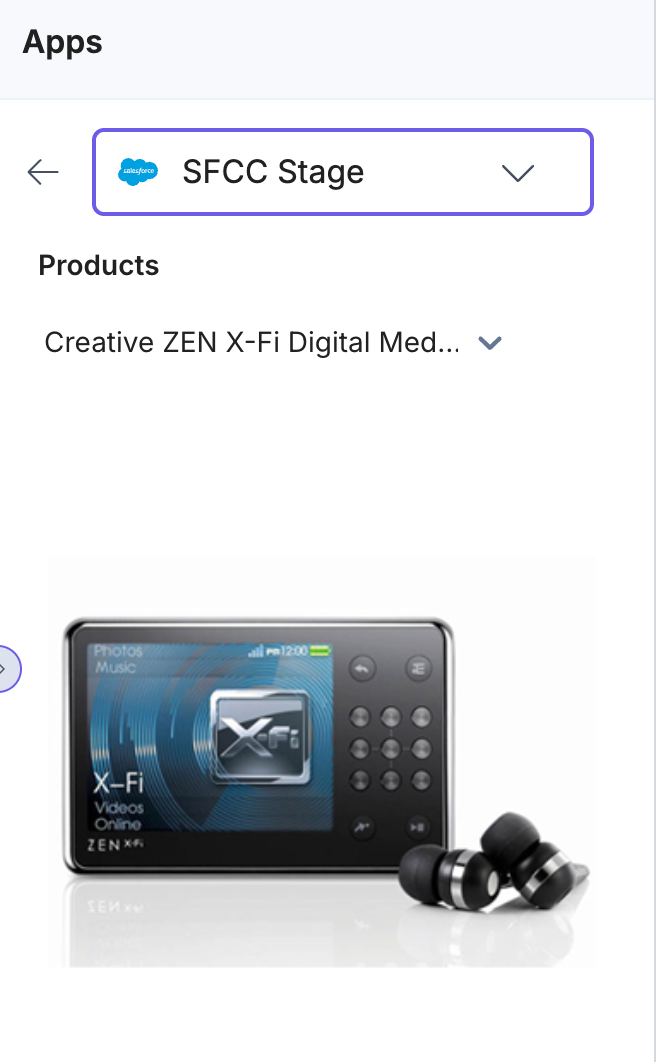
Note: You must save your entry to get the product details in the Sidebar Widget.
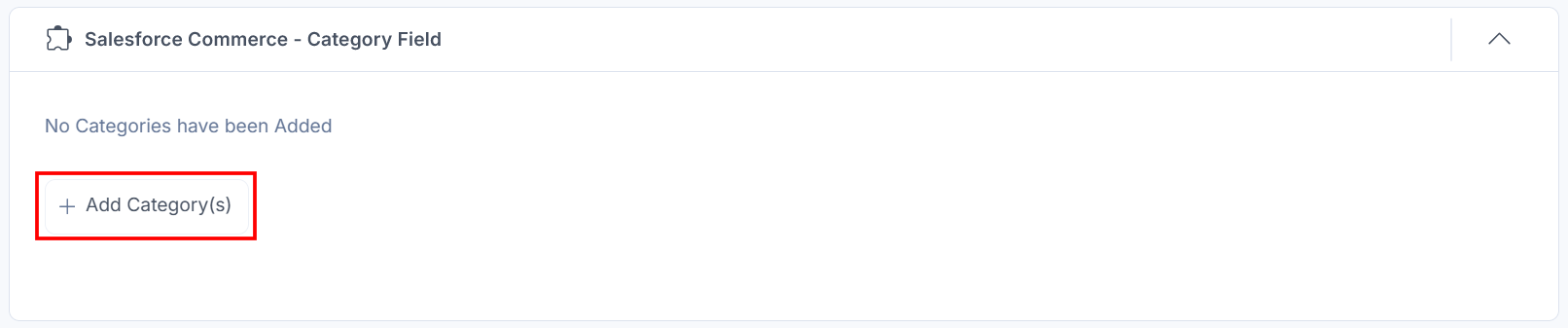
- Click the + Add Category(s) button to choose the category(s).
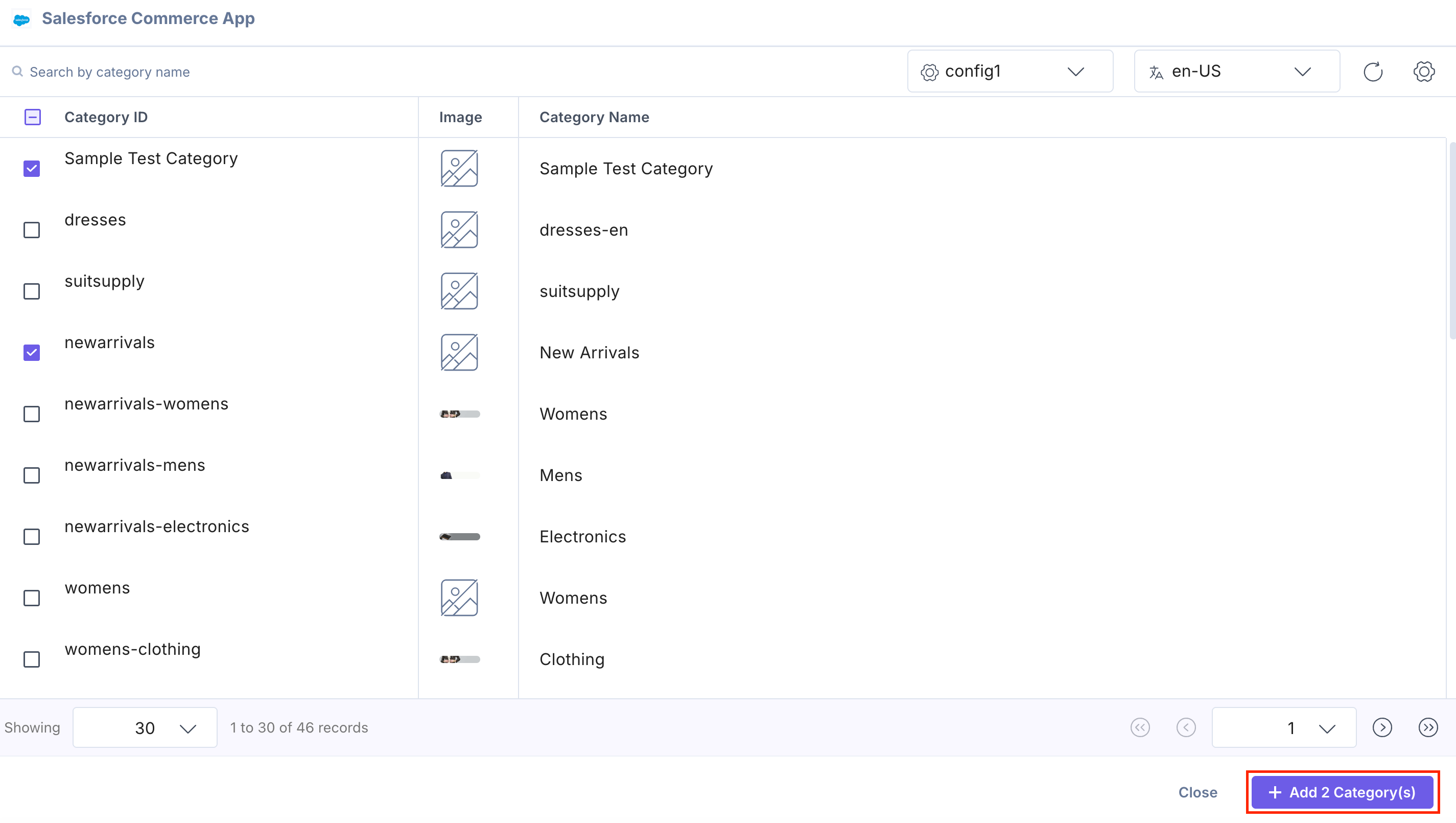
- Select the categories from your Salesforce Commerce selector page and click the + Add Category(s) button to add them to your entry.
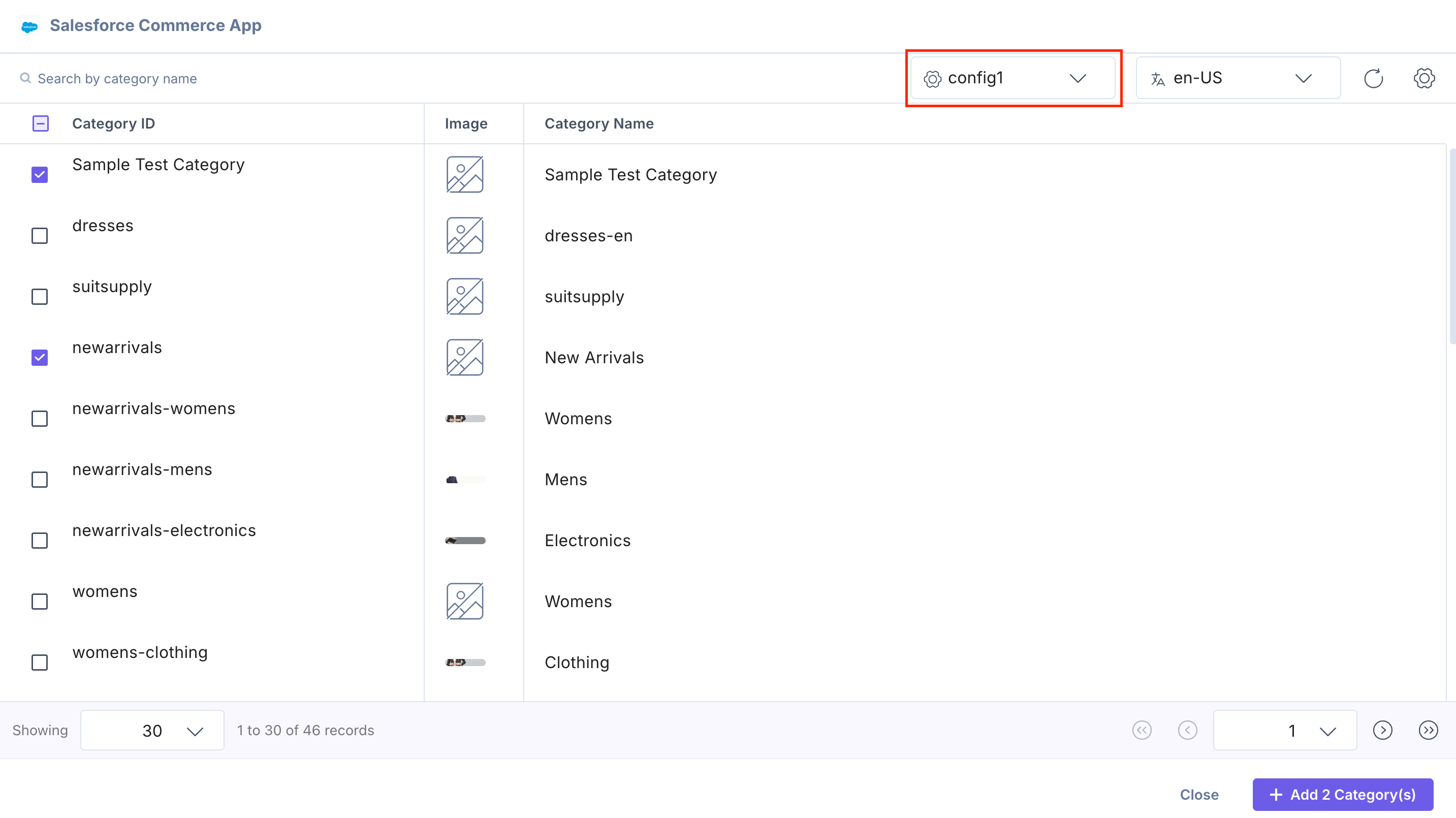
You can select the categories from multiple configurations at once using the Configuration drop-down.
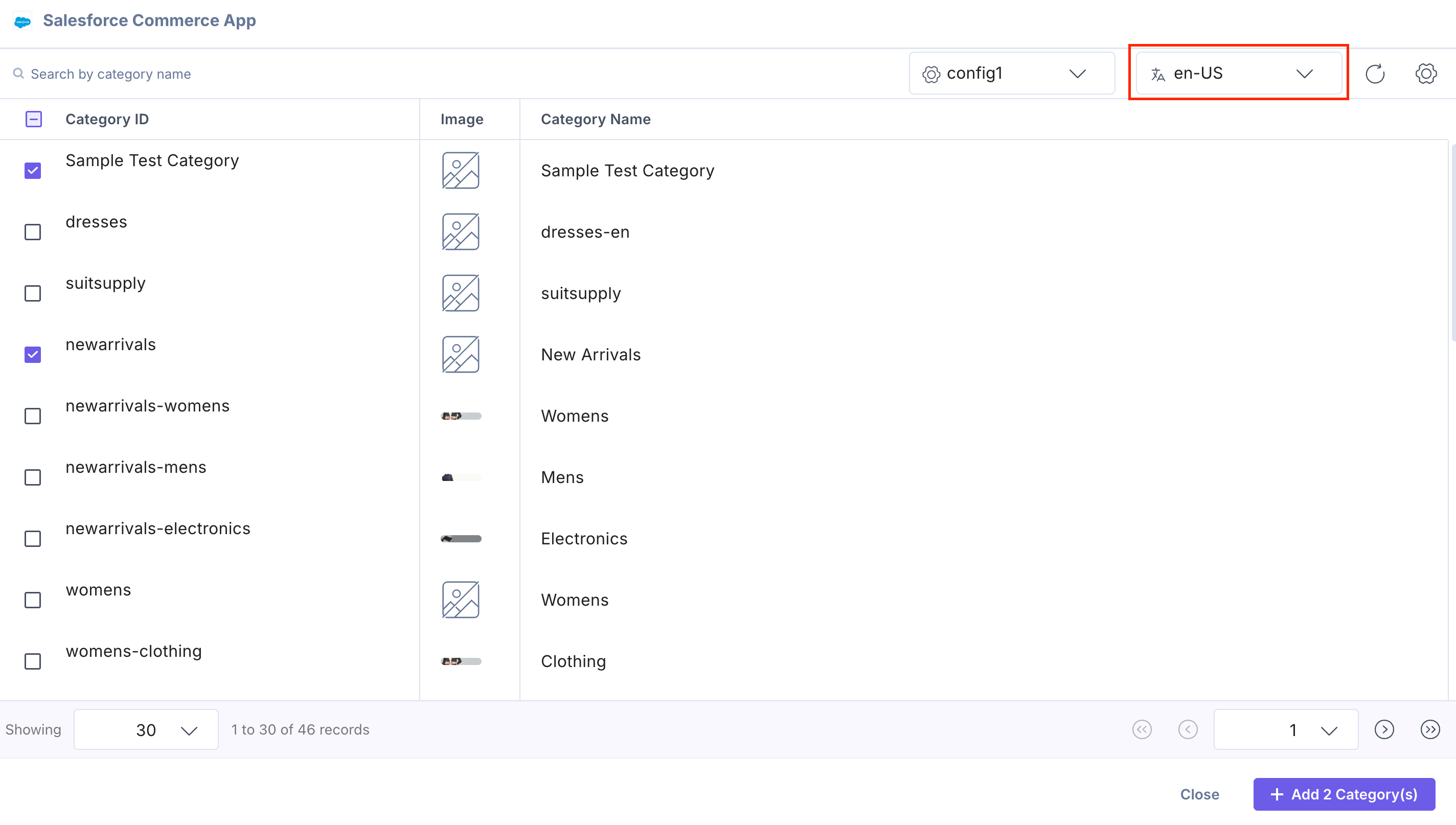
When the Locale Support is enabled during the app configuration in step 2, you can select the locale-based categories using the Locale drop-down in the selector page.
Note:
- If the locale is Unlocalized, both the Master and Current locale options will appear in the selector page. Ensure that the nesting fallback locales are properly configured in both Salesforce Commerce and Contentstack for consistent product visibility.
- For existing users, all the categories are added in the default locale to view all the already selected categories in the selector page.
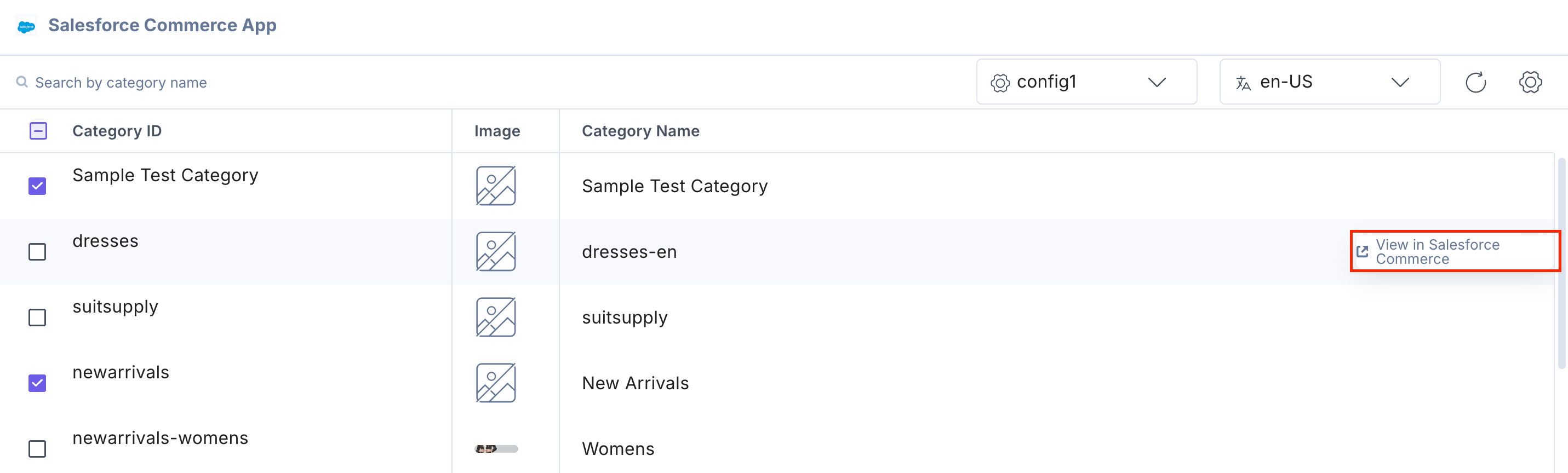
You can also search for categories in the Salesforce Commerce selector page using the Category Name.
Hover over the category on the Salesforce Commerce selector page, and you can see the View in Salesforce Commerce option to go directly to the Salesforce Commerce platform.
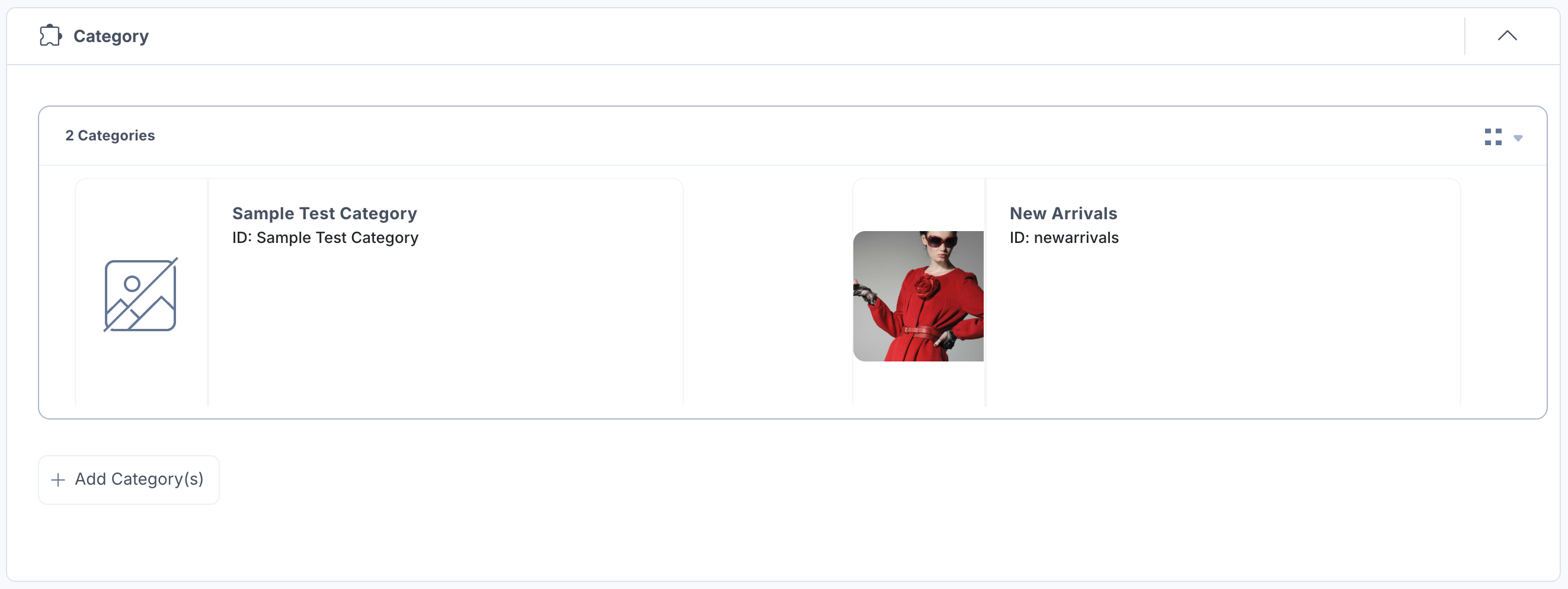
The categories you selected get referenced within your entry in the thumbnail view.
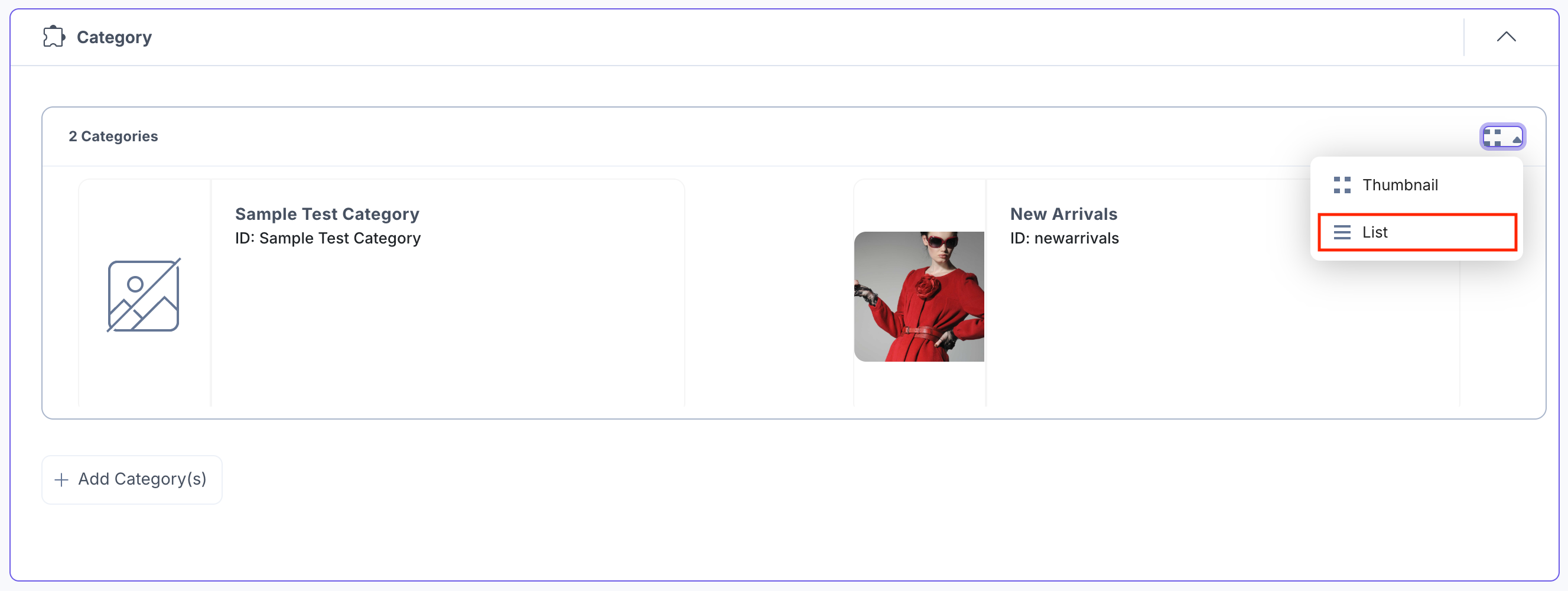
Select the list view option from the dropdown to view the categories in the list view.
The categories you selected get referenced within your entry in the list view.
- To reorder, open in Salesforce Commerce, or delete the selected category, hover over the category to get the options available, then perform the following:
- Click the Drag icon to drag and reorder the category.
- Click the Open in Salesforce Commerce icon to open the category in the Salesforce Commerce app.
- Click the Remove icon to delete the category.
Thumbnail View

List View

- Click the Save button to save your entry.
URL Auto Populate in Entry
When you have enabled the URL Auto Populate feature and configured Rules during app configuration in step 2, it activates automatically when you start working with an entry.
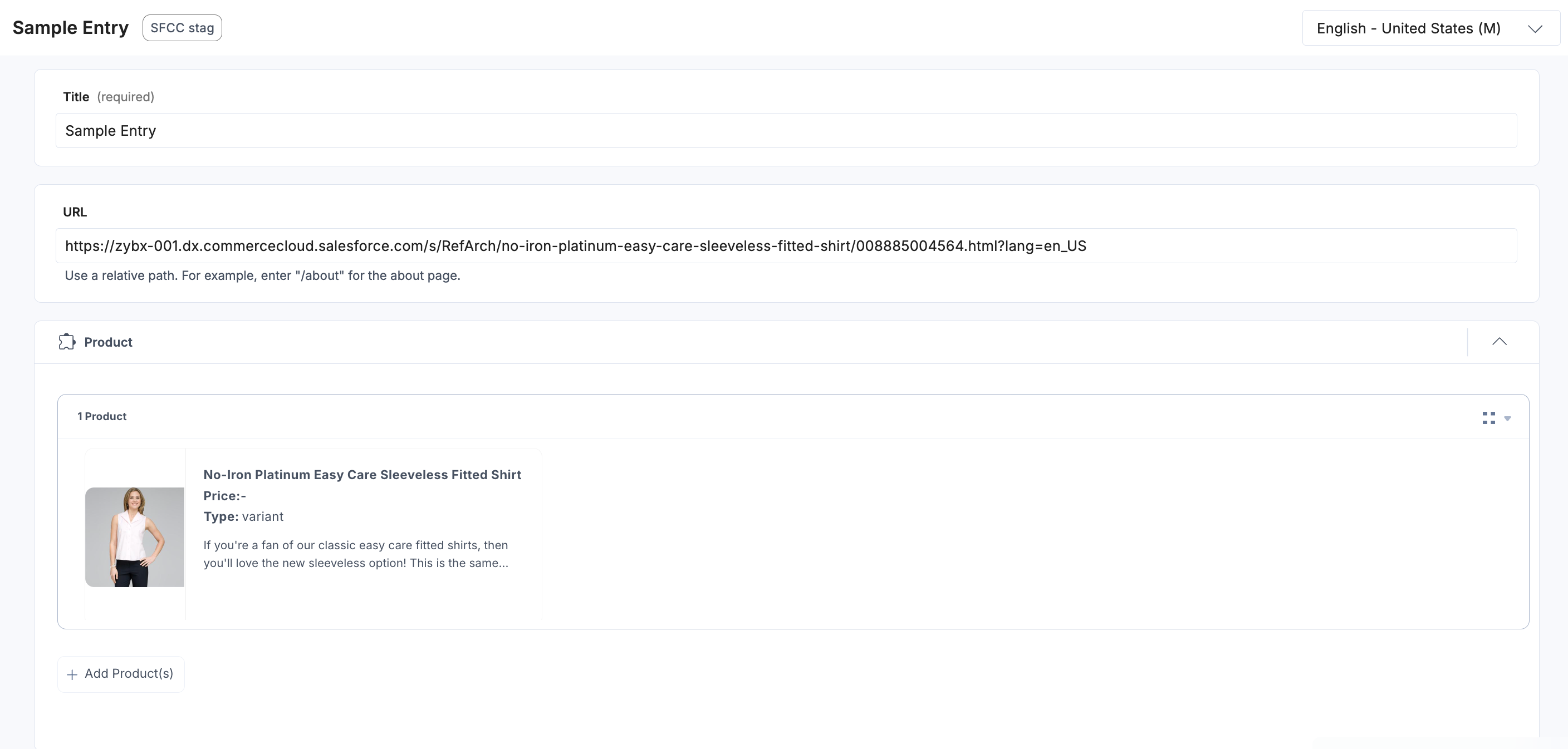
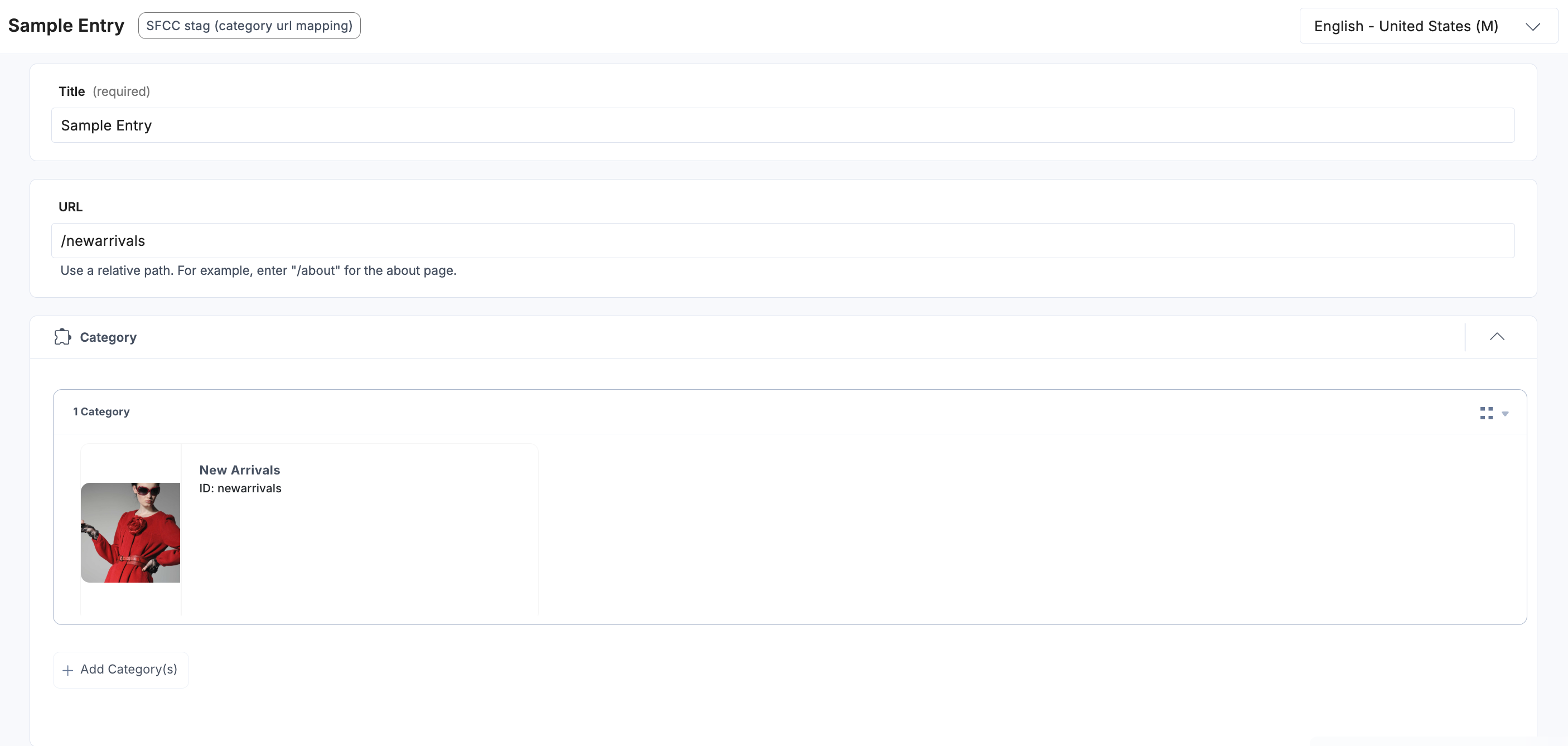
When you open an entry for the configured Content Type and select a product or category via the Custom Field, the app instantly fetches the corresponding data from Salesforce Commerce, extracts the value from the defined Key Name, and updates the Contentstack entry's main URL field.
For Product Custom Field, the slugURL is appended to the URL field.
For Category Custom Field, the id is appended to the URL field.
Note: If the custom field allows multiple selections, the URL Auto Populate feature will always use the URL of the first product or category added to the field.
While defining the rule in the app configuration in step 2, if the Entry Level toggle was set to ON, then you see the URL Auto Populate toggle button within the custom field.

By default, the URL Auto Populate toggle is disabled within the entry. You need to enable the toggle button to add the unique URL automatically in the entry.

Note:
- Add the URL field to the content type for the auto-populate functionality to work.
- A content type can be linked to only one rule. Once assigned, it cannot be reused for another rule.
- You can select only one custom field from a content type per rule.
- For product custom fields, configure the rule under the Product Custom Fields section on the Configuration page.
- Similarly, for category custom fields, configure the rule under the Category Custom Fields section. Rules added under the wrong section will not work.
- To restore the original product or category URL, disable and re-enable the URL Auto Populate toggle within the custom field. It acts as a quick refresh for the URL field.
Tip: Recommended to use the max-limit functionality to restrict the number of products or categories that can be added to a custom field. For URL Auto Populate, set the limit to 1 to ensure only a single product or category is selected per rule for accurate URL mapping.
More articles in "Commerce"
