

Deployments
During the deployment phase, your project is built and made available through a unique URL once it is deployed successfully.
A deployment is an environment in action. There can be multiple deployments in a single environment, out of which the active deployment uses the latest environment configuration to build the website.
This document details the following in your Deployments screen:
- Deployment Information
- Deployment Statuses
- Logs
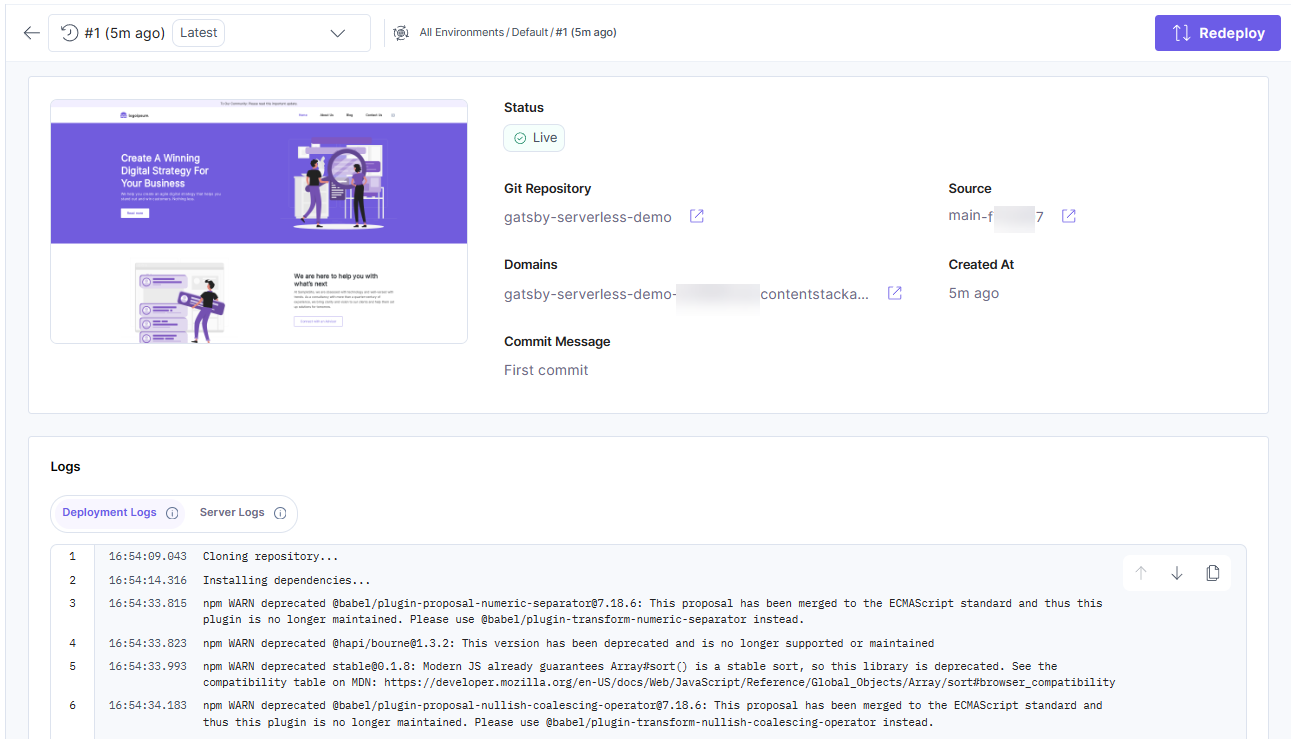
When you import a project from a Git repository:
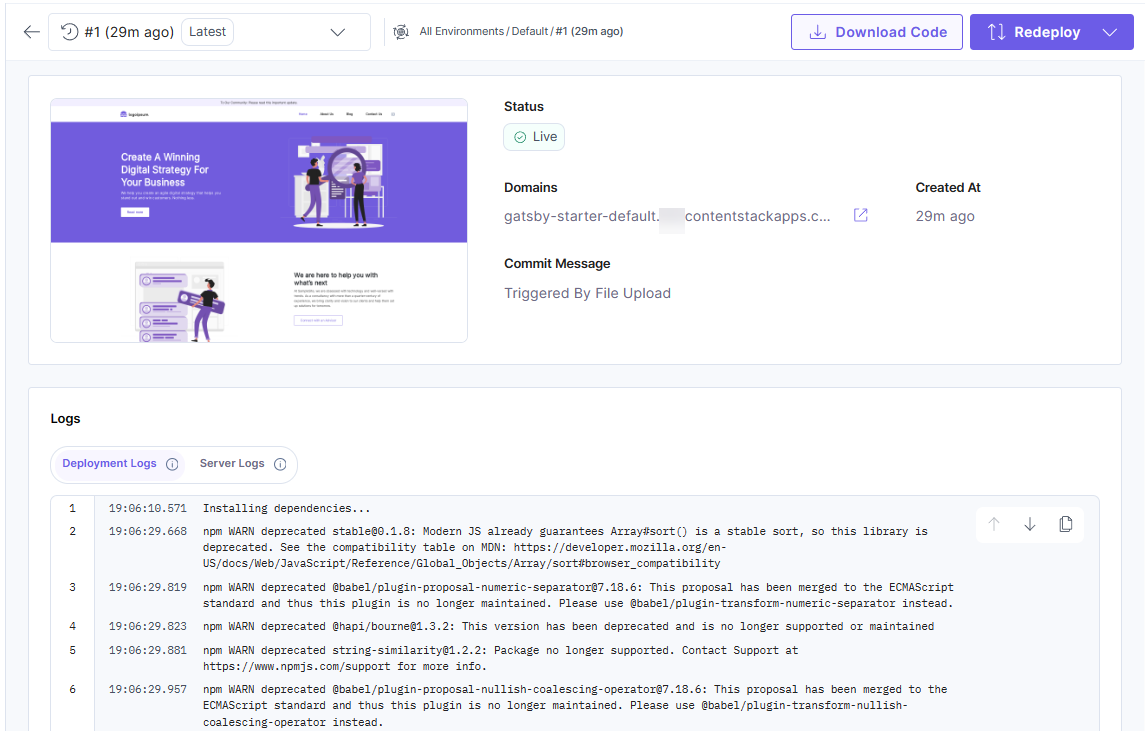
When you import a project by uploading a .zip file:
Deployment Information
The deployment information panel displays the details of your project deployment.
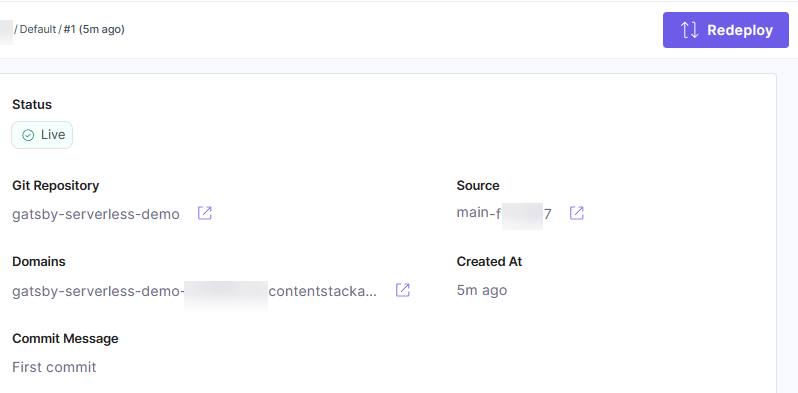
You can get the following information about your deployment from this panel if you created your project using a Git repository:
- Domains: Your project can be accessed at this URL once it is built.
- Source: Displays the Git repository branch and the commit Id against which the deployment was created for an environment.
- Git Repository: Displays the Git repository you chose to create your project.
- Created At: Displays the time when the deployment was created.
- Redeploy button: Allows you to redeploy your project.
- Commit Message: Displays the commit message corresponding to the commit against which the deployment was created.
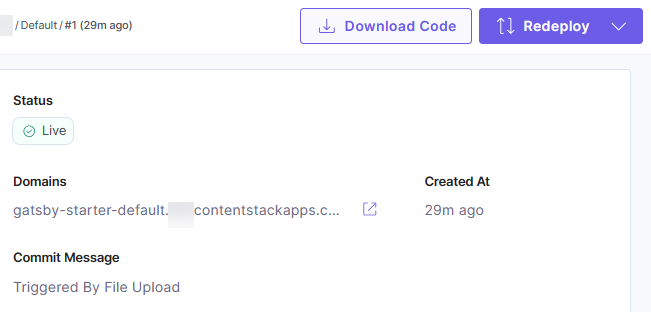
You can get the following information about your deployment from this panel if you created your project by uploading a file:
- Domains: Your project can be accessed at this URL once it has been built.
- Created At: Displays the time when the project build succeeded.
- Commit Message: Displays a commit message which indicates that deployment was triggered by file upload.
- Redeploy button: Allows you to redeploy your project.
- Download Code button: Allows you to download the code (.zip file) used for creating your project.
Note: The Download Code button appears only when the deployment goes to Live, Deployed, or Failed status.
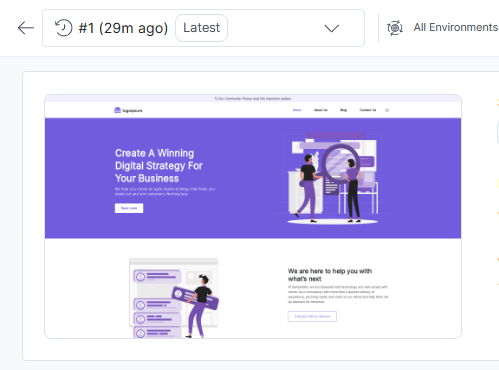
On successful deployment, Launch also generates a preview image of your site that can be viewed on the deployment information panel.
Deployment Statuses
Following are the different project deployment statuses available in Launch:
| Code | Status | What it means |
|---|---|---|
 | Live | Deployment is successful and is currently active. |
 | Deployed | Previous deployment which was successful. |
 | Failed | Deployment is unsuccessful. |
 | Deploying | Deployment is in progress. |
 | Canceled | Deployment is canceled due to deployment build hours limits. |
 | Queued | Deployment is queued due to an ongoing deployment in the environment, waiting for it to finish. |
 | Skipped | Already queued deployment is skipped to queue a new deployment. |
Deployment History
You can view the previous deployments of projects deployed using GitHub and File Upload methods. To do this, follow the below steps:
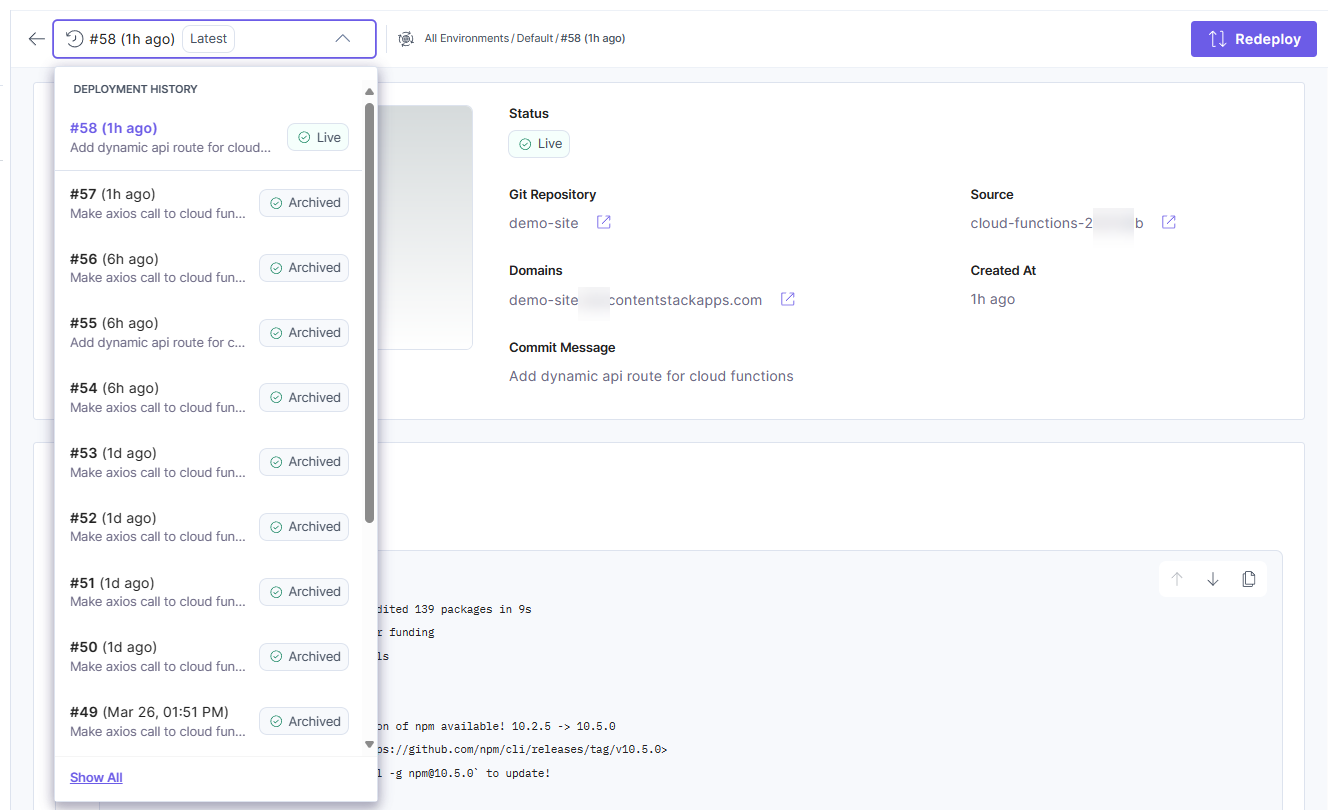
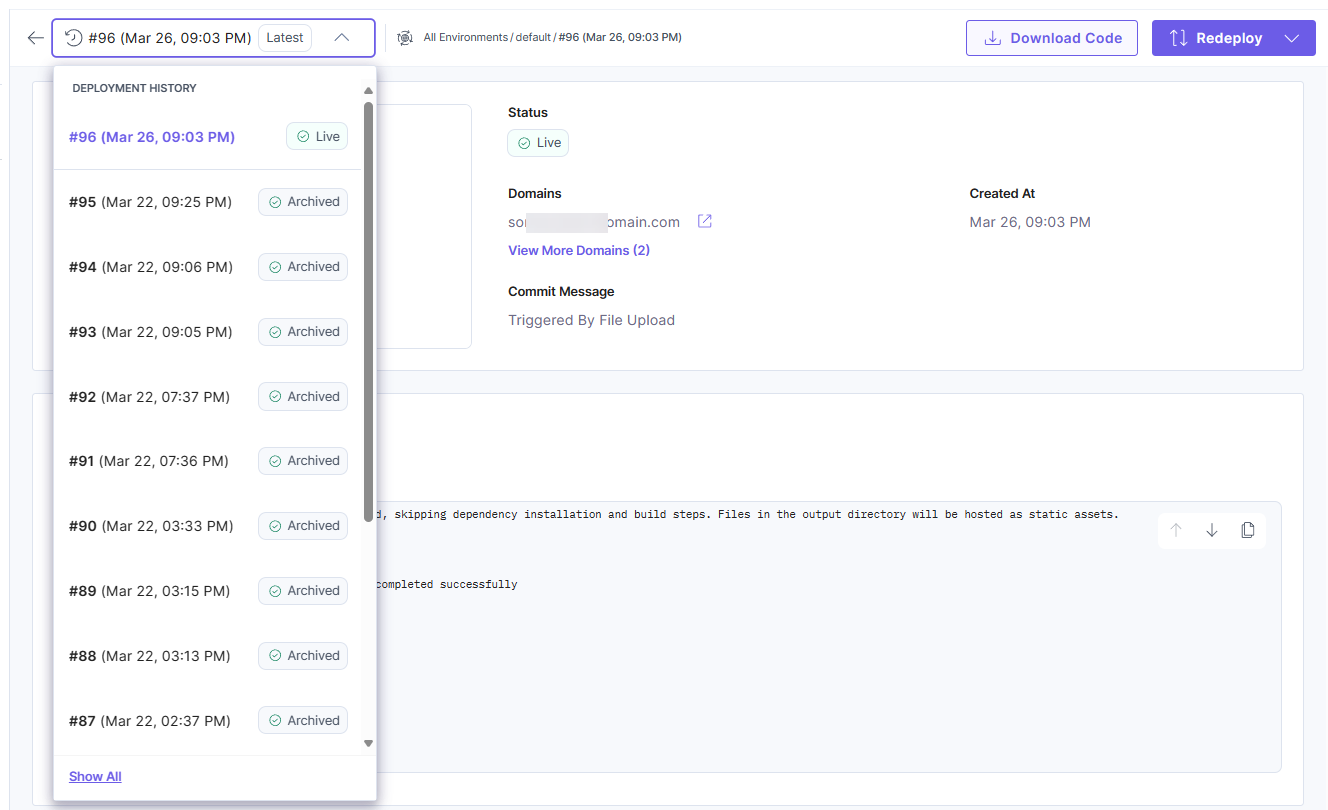
- Click the drop-down button in the Deployments page to view the latest 15 deployments as given below:
- Projects deployed using GitHub:
- Projects deployed using File Upload:
- Projects deployed using GitHub:
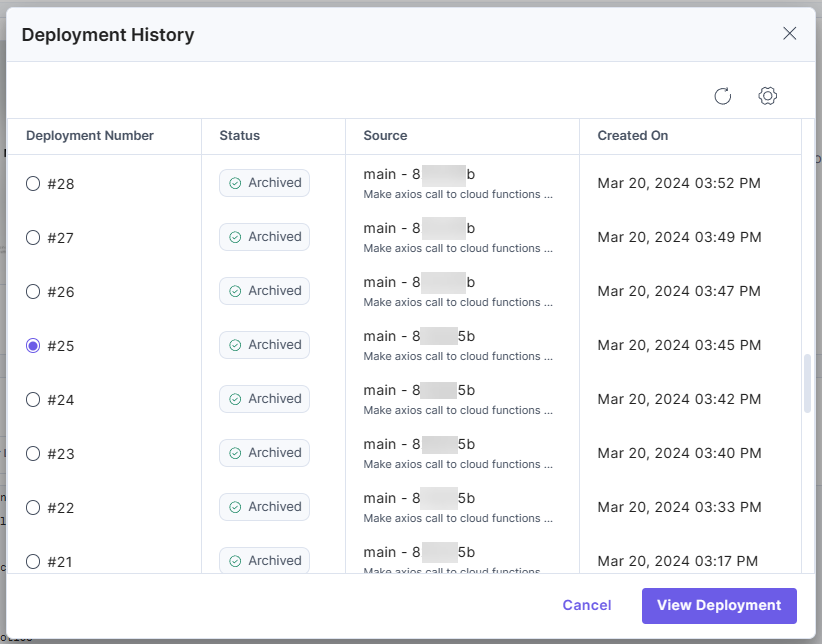
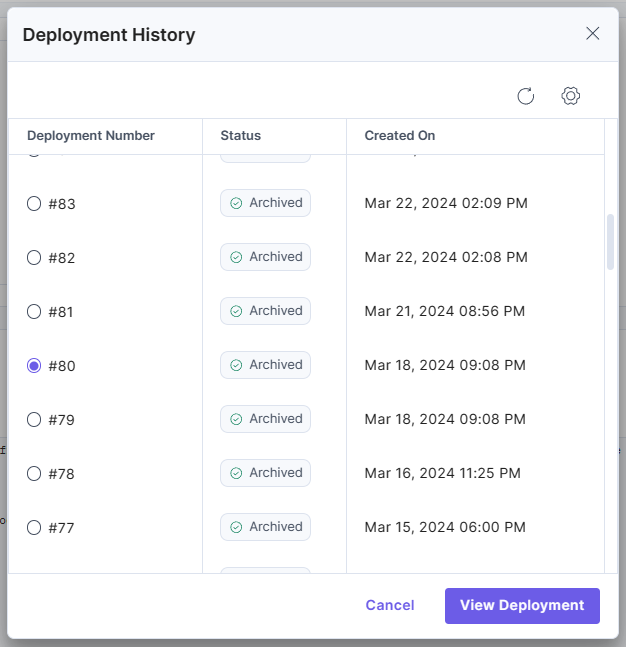
- Click the Show All button at the bottom of the drop-down to view all the deployments.
- Select a deployment of your choice and click View Deployment to view the selected deployment:
- Projects deployed using GitHub:
- Projects deployed using File Upload:
- Projects deployed using GitHub:
Cancel Deployment
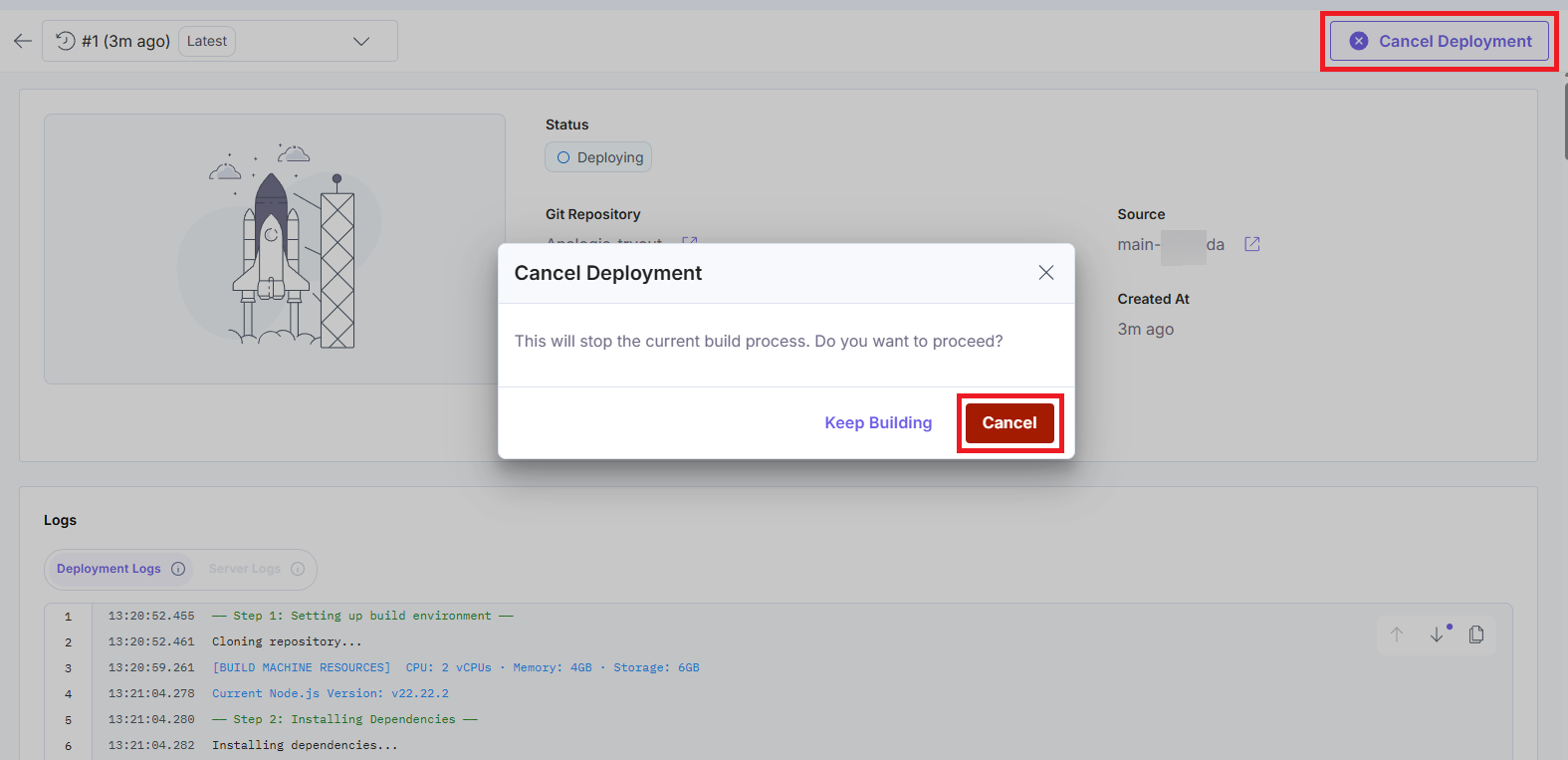
Launch lets you cancel an active deployment before it completes, preventing unintended updates from reaching your environment.
To cancel an ongoing deployment, click Cancel Deployment in the top panel, and then click Cancel in the modal that appears.
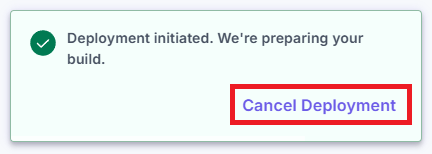
You can also cancel the deployment in the modal that appears when the deployment begins, by clicking Cancel Deployment.
Redeploys
You can redeploy your site any number of times to create new deployments. Redeployment can be done in one of the following ways-
- By pushing a commit to your environment's corresponding Git branch when auto-deploy is enabled for the environment.
- By calling a deploy hook generated on the environment.
- By clicking the Redeploy button on the deployment info page.
If you are redeploying from the deployment details page or using a deploy hook, you can use a commitId to redeploy, if you imported the project using GitHub.
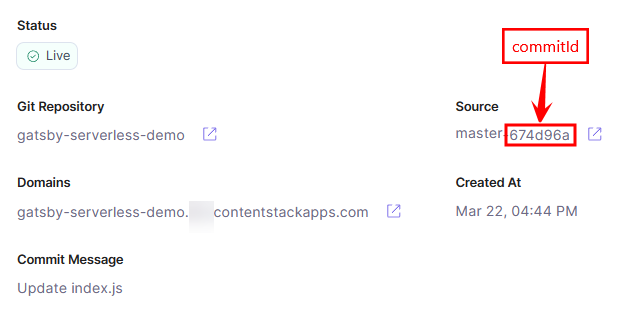
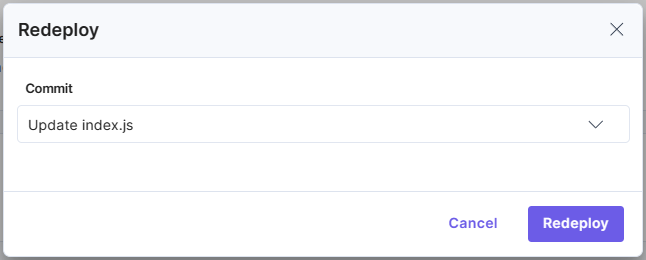
When you click the Redeploy button, you can choose a commit to redeploy.
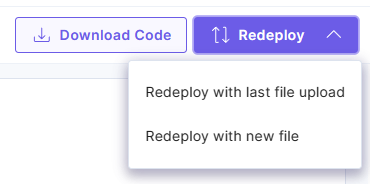
If you imported the project by uploading a zip file, you can redeploy without a commitId. You can then choose from one of the following options to redeploy:
- Redeploy with the previously uploaded file.
- Redeploy by uploading a new file.
Note: You cannot redeploy a site while a deployment is in progress.
Deployment Queuing Mechanism for an Environment
In Launch, you can redeploy your project multiple times. But when multiple subsequent deployments are triggered for a given environment, all intermediate deployments will be skipped and only the latest deployment will take effect.
Deployment Logs
You can find deployment logs in the Logs below Deployment Information. You can monitor the logs to get the details of the following deployment stages:
- Installing the dependencies
- Build creation
- Cloud Functions
- Success/failure of the deployment
You can also copy the log details by clicking the copy icon in the top-right corner of Logs.

More articles in "Launch Features"
