

Instant Rollbacks on Launch
Instant Rollbacks on Launch allow you to revert your application to a selected previous successful deployment without triggering a rebuild.
Use Instant Rollbacks to:
- Recover quickly from problematic releases
- Reduce downtime
- Maintain application stability
What You Will Learn
-
How instant rollbacks recover quickly from a problematic release.
-
How rollbacks reduce downtime and help maintain application stability.
-
Which deployments are eligible for rollback and how long they are retained.
-
How to perform a rollback and what happens during it.
How Instant Rollbacks Work
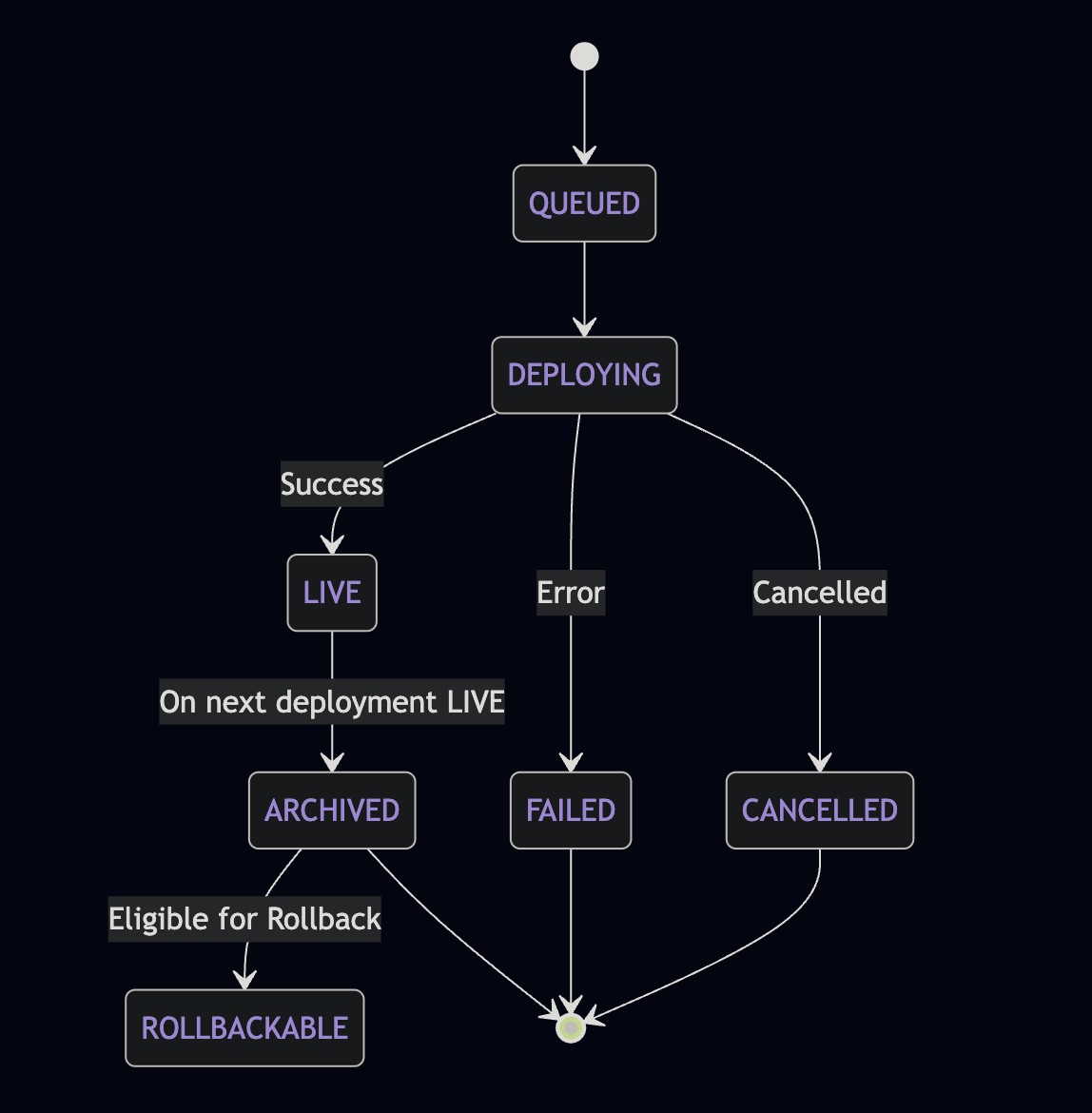
Every deployment on Launch goes through the following lifecycle:
- QUEUED → DEPLOYING → LIVE: Normal deployment flow.
- FAILED or CANCELLED: Deployment did not complete successfully and cannot be used for rollback.
- ARCHIVED: When a new deployment goes LIVE, the previous LIVE deployment becomes ARCHIVED. These ARCHIVED deployments are the only candidates for rollback.
When a new deployment goes LIVE:
- The previous LIVE deployment becomes ARCHIVED.
- A limited number of recent ARCHIVED deployments are available for rollback.
Rollback Eligibility
You can roll back only to deployments that meet all of the following conditions:
| Condition | Details |
|---|---|
| ARCHIVED state | Only previously LIVE deployments (now archived) can be used for rollback. |
| Within the retention window | Only a limited number of recent deployments are retained based on your plan. |
| Infrastructure is still available | The deployment's assets and resources must still exist. Older deployments may be cleaned up automatically. |
Retention Window
Launch retains a limited number of previous deployments for rollback. Only deployments within this window are available for rollback.
The following Rollback Retention window tiers are available on Launch:
| Rollback Tier | Retention Window Count |
|---|---|
| Free (Default) | 1 |
| Self-Serve | 3 |
| Enterprise | 5 |
The Retention window starts with Free Tier by default, but you can request an upgrade in the plan as per the use case.
To request a tier change, contact our Support team.
Note: After modifying the tier, the updated retention window takes effect starting from the next deployment. Contentstack does not retroactively adjust previously retained deployments.
Performing a Rollback
To perform a rollback, follow the steps below:
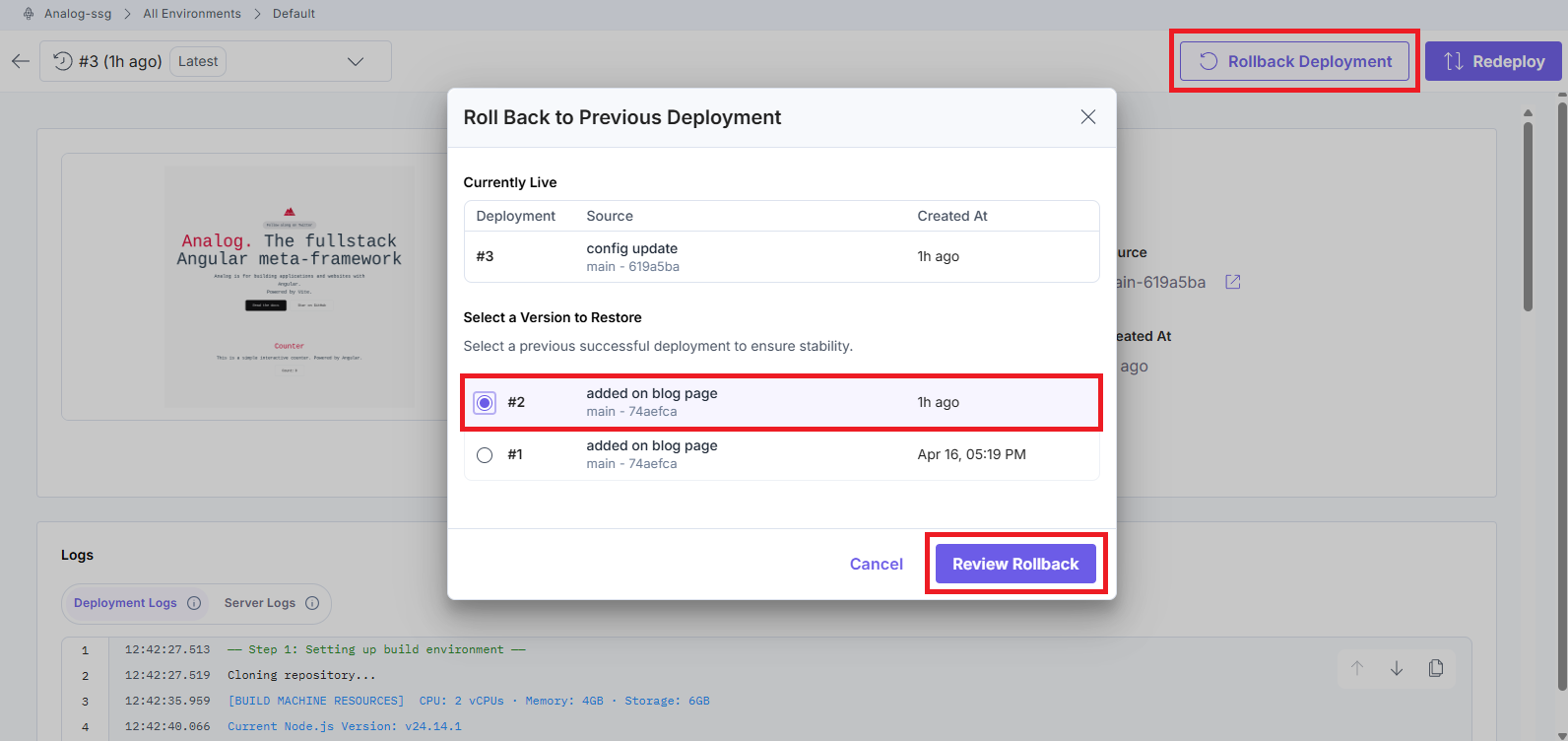
- On your Deployments screen, click Rollback Deployment.
- In the modal that appears, select an eligible previous deployment and click Review Rollback.
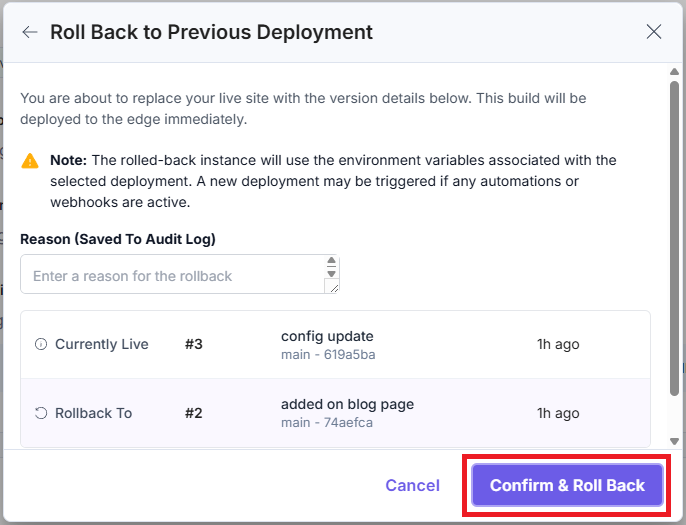
- You can enter the reason for rollback, if any. Then click Confirm & Roll Back to proceed with the rollback.
You can find the rollback details as shown below:
- Deployment History
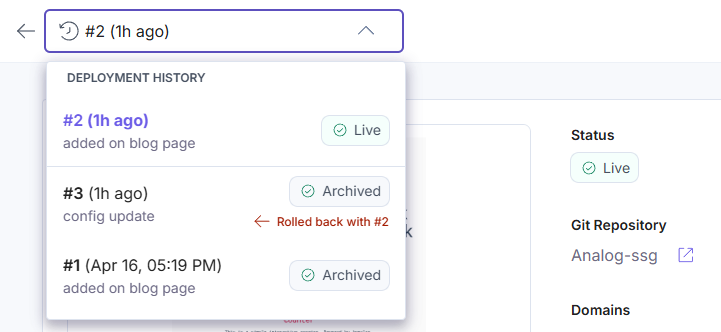
- Current Deployment
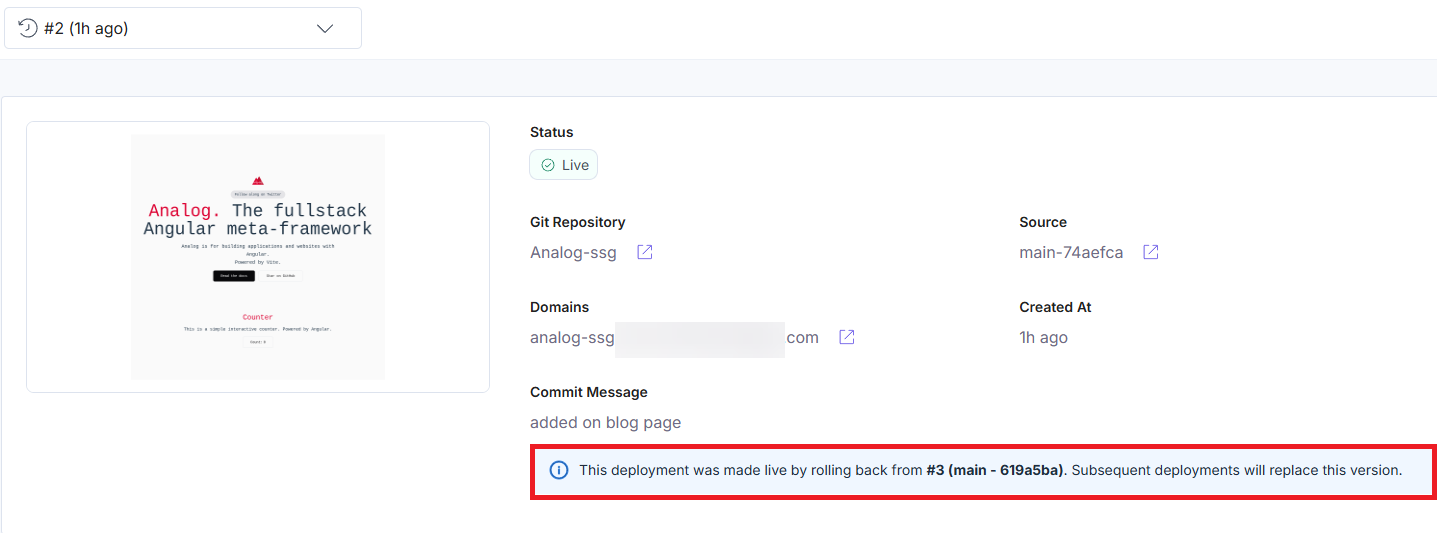
- Rolled Back Deployment
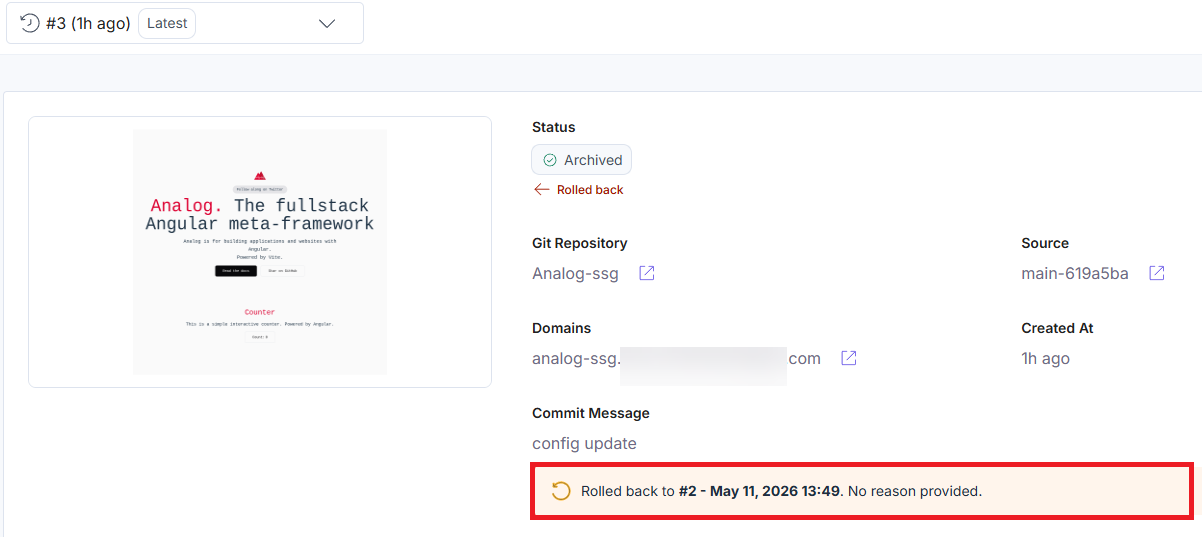
What Happens During Rollback
- Your application is restored to a previous working version: The selected deployment becomes the active version of your site.
- The current version is preserved: The version you were using is not lost and can be accessed again if needed.
- Traffic is redirected promptly: Users start seeing the restored version within seconds.
- Cached content is refreshed: Any cached content is updated to ensure users see the correct version.
Note: Auto-deployments triggered by commits, webhooks, or automations continue to run during a rollback. We recommend disabling them before you begin to avoid unintended deployments.
Failure Handling
The rollback process includes the following safeguards:
- If the selected deployment is not eligible, the rollback does not start:
This prevents switching to an invalid or incomplete version. - If something goes wrong during rollback, your site remains stable:
Launch ensures that your application continues serving a consistent version and avoids partial or broken states.
More articles in "Launch Features"
