

Show as Tab
Note: The Entry Tab is a plan-based feature and may not be accessible to all users. For more information or to request access, contact our support team.
The Show as Tab option allows you to organize entry fields into separate tabs within the entry editor. This feature helps simplify large content types with multiple fields by grouping related sections (such as SEO settings or metadata) into individual tabs. The tab layout improves focus and reduces the need to scroll through the entire entry.
Each tab includes the fields contained in the selected Group, Modular Block, or Global Field.
Note: The Show as Tab option is available only for root-level fields, that is, fields not nested inside another Group, Modular Block, or Global fields.
Enable Show as Tab
To enable the show as tab option, log in to your Contentstack account and perform the following steps:
- Navigate to your stack and open the content type where you want to enable this option.
- Hover over a Group, Modular Block, or Global Field, then click the Properties icon.
- Switch to the Advanced tab in the Field Properties modal, and enable the Show as Tab toggle.
- Click Save or Save and Close to update the content type.
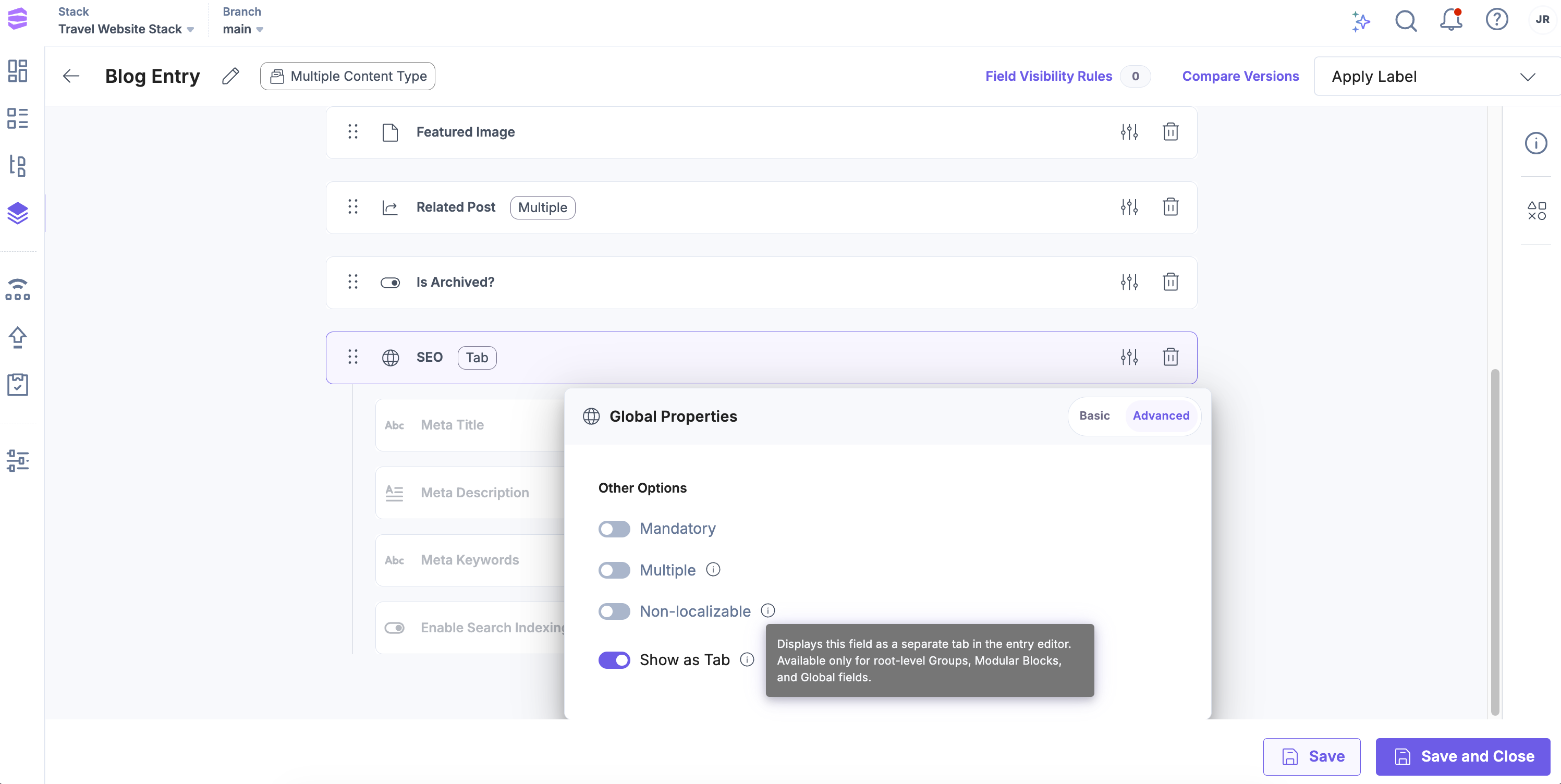
Once saved, this field appears as a tab in the entry editor.

Note: When you enable or disable Show as Tab, the change applies to all existing and new entries immediately. Entry data remains unaffected.
Example
Consider a content type that includes:
- A Group named SEO Settings
- A Modular Block named Media Content
- Several other standalone fields
If you enable Show as Tab for SEO Settings and Media Content, these two fields appear as individual tabs in the entry editor, and all remaining fields appear under the Default tab.
Behavior and Rules
The Show as Tab option follows specific display and functional rules in the entry editor. Understanding the behavior helps you predict how tabs appear, reorder, or update when the schema changes.
- Tabs appear in the same order as the fields in your content type schema. To reorder tabs, update the field order in the schema.
- You can mark multiple eligible fields as tabs.
- If a field that’s marked as a tab is later nested inside another field, its tab display is removed automatically.
- If the number of tabs exceeds the available space, you can scroll through tabs using navigation arrows.
- This change affects only the UI. All backend APIs and field data remain unchanged.
Best Practices
- Avoid marking too many fields as tabs; this can make navigation cluttered.
- Use tabs for logical grouping of fields (e.g., SEO Settings, Metadata, Author Details, Product Specifications).
- Arrange fields in the schema to reflect their importance or workflow order.
Using Show as Tab helps simplify complex content types by organizing related fields into clear, accessible sections. It not only speeds up entry loading but also allows editors to focus on the fields that matter most. When used thoughtfully, this option can make your entry editor cleaner, faster, and easier to navigate.
More articles in "Field Properties"
