

Project Sharing
By utilizing the Agent OS Project Sharing feature, organization owner, organization admins, and the respective project owner can invite various users to individual projects, facilitating collaboration. Previously, only owners/admins had the ability to access and modify all projects within Agent OS. However, with the Project Sharing feature, members can also participate as contributors in the specific project(s) they were invited to by the owner and admins of the organization.
To invite any user, perform the following steps:
- Log in to your Contentstack account.
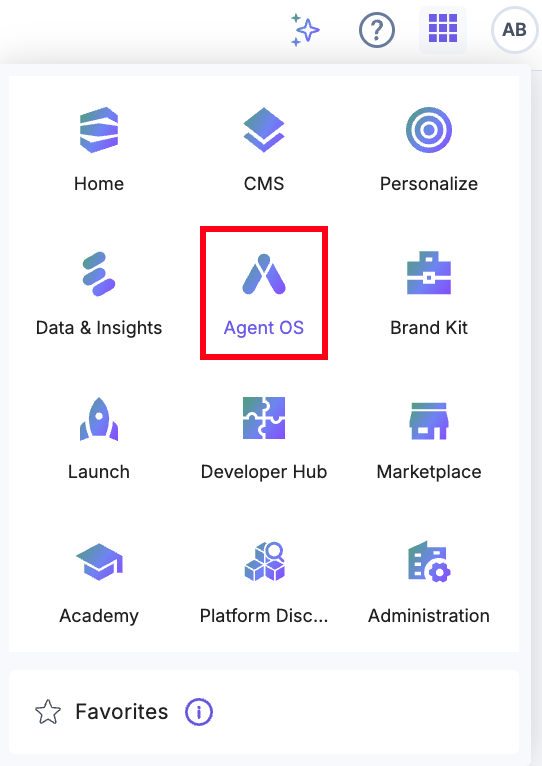
- After logging in, click the App Switcher icon, then select Agent OS from the list.
- Go to your Agent OS project or create a new one.
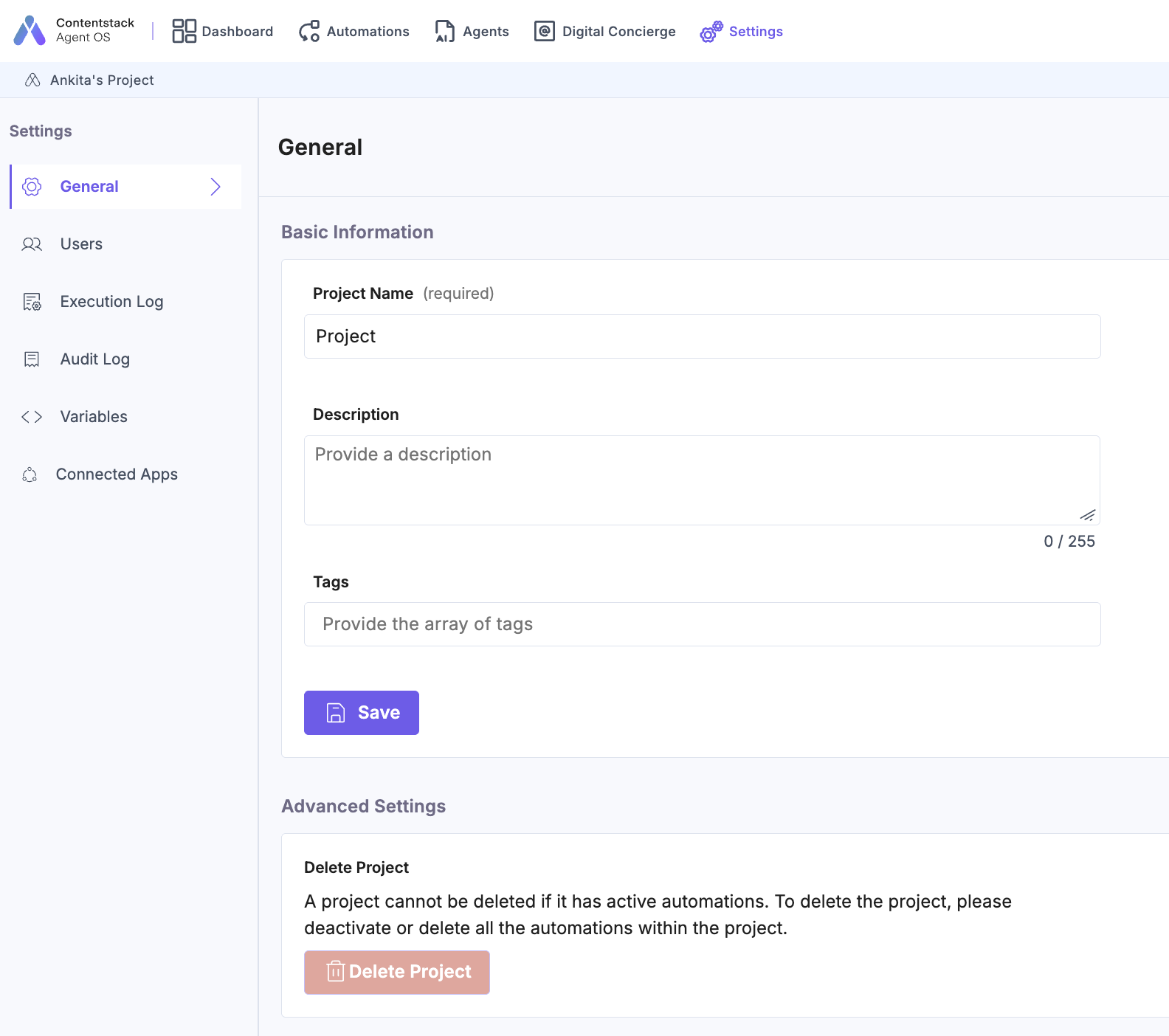
- From the top navigation panel, click Settings.
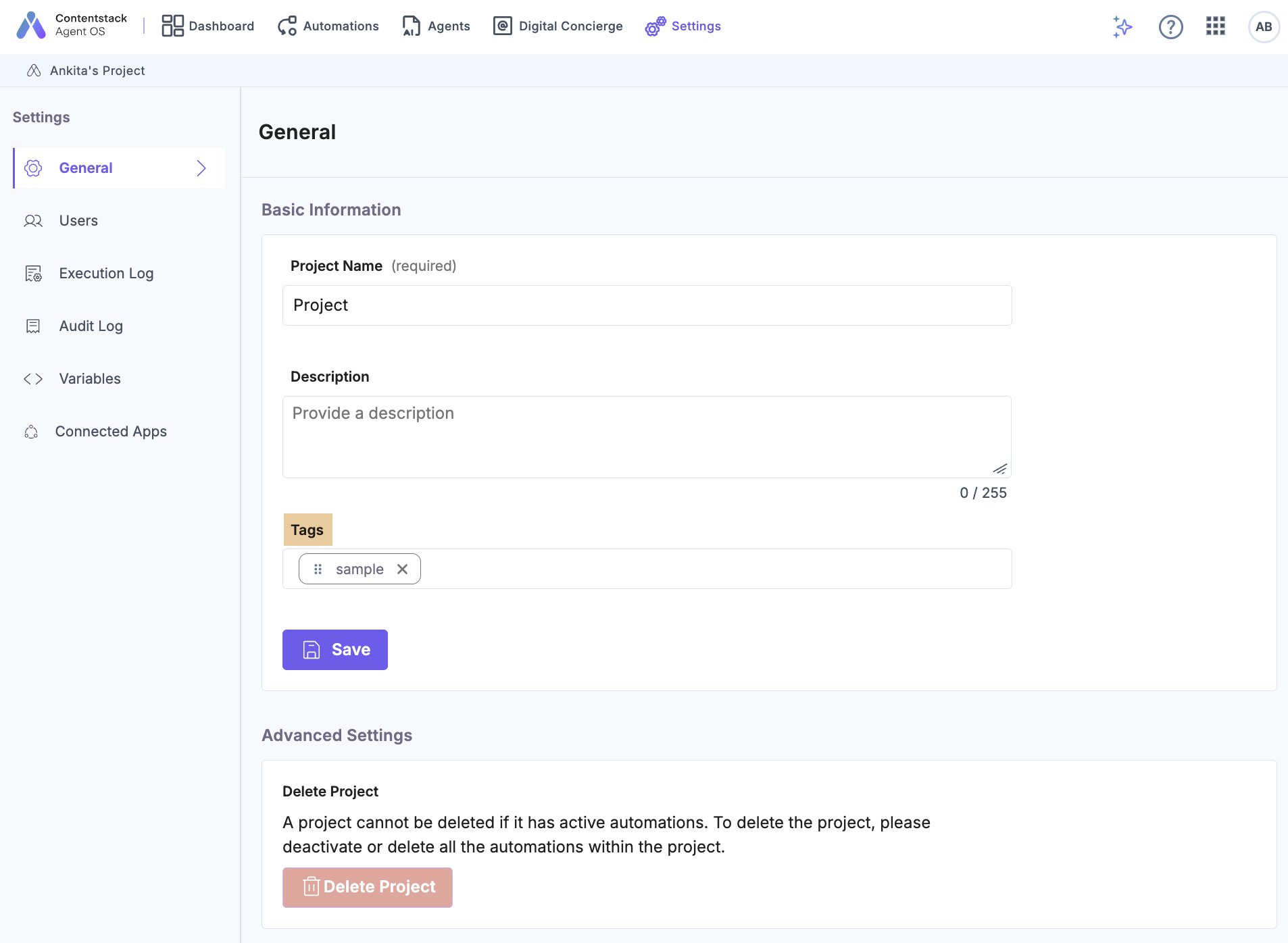
- In the General section, you can edit the Project Name and Description. You can also filter projects based on tags.
These tags can help you filter the projects in the Search. If you use both a tag filter and the Project Search, then it gives a consolidated list of projects based on the search and tags.
- Click the Save Changes button.
Tip: After a new member is added, they can edit the project details, such as Project Name and Description, and collaborate on the existing automations along with creating new automations. Shared users can also view Execution Log and Audit Log sections.
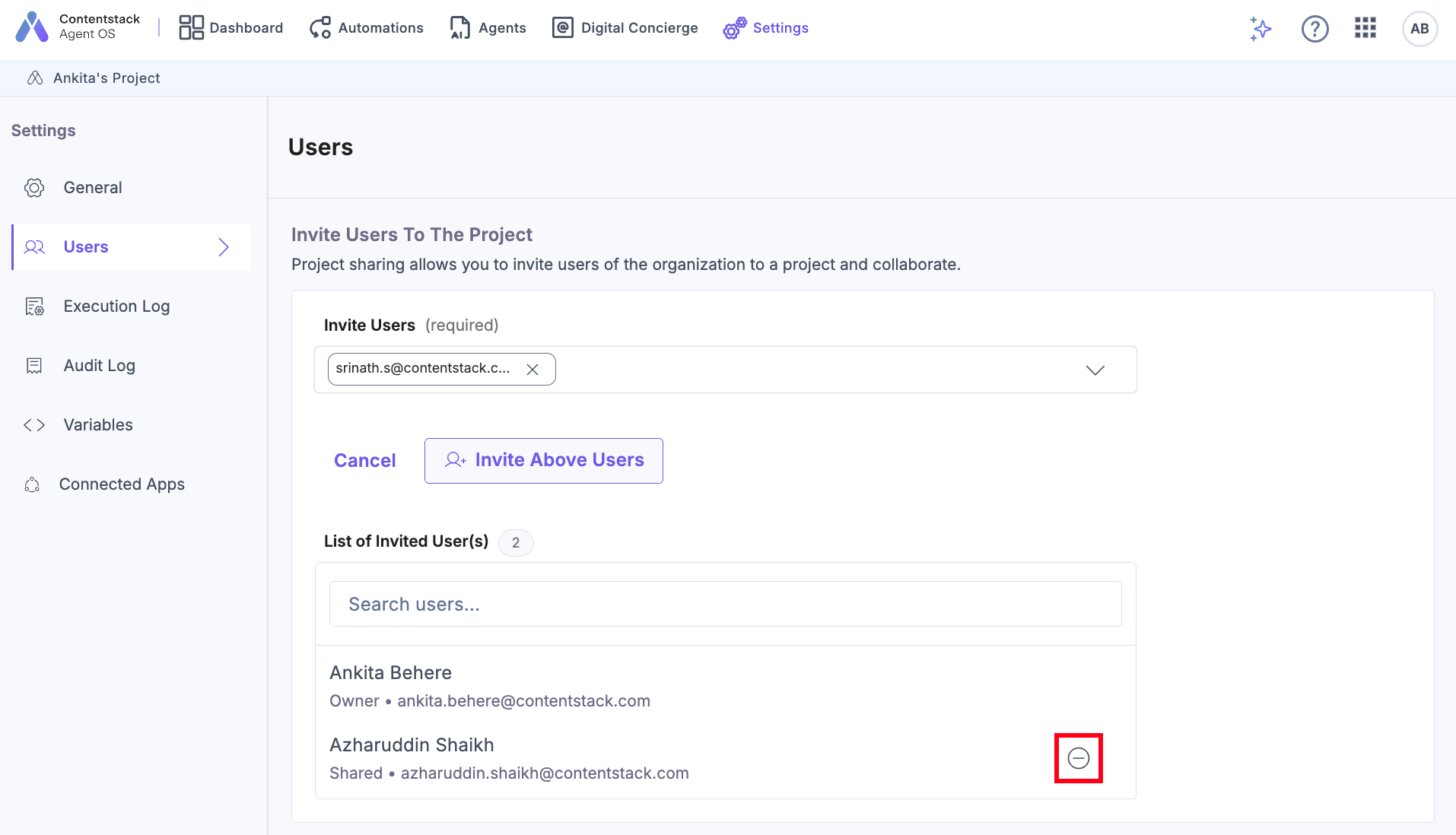
- Click Users in the left navigation panel. Select the email address of the user you want to invite for collaboration from the Invite Users drop-down. Click Invite Users.
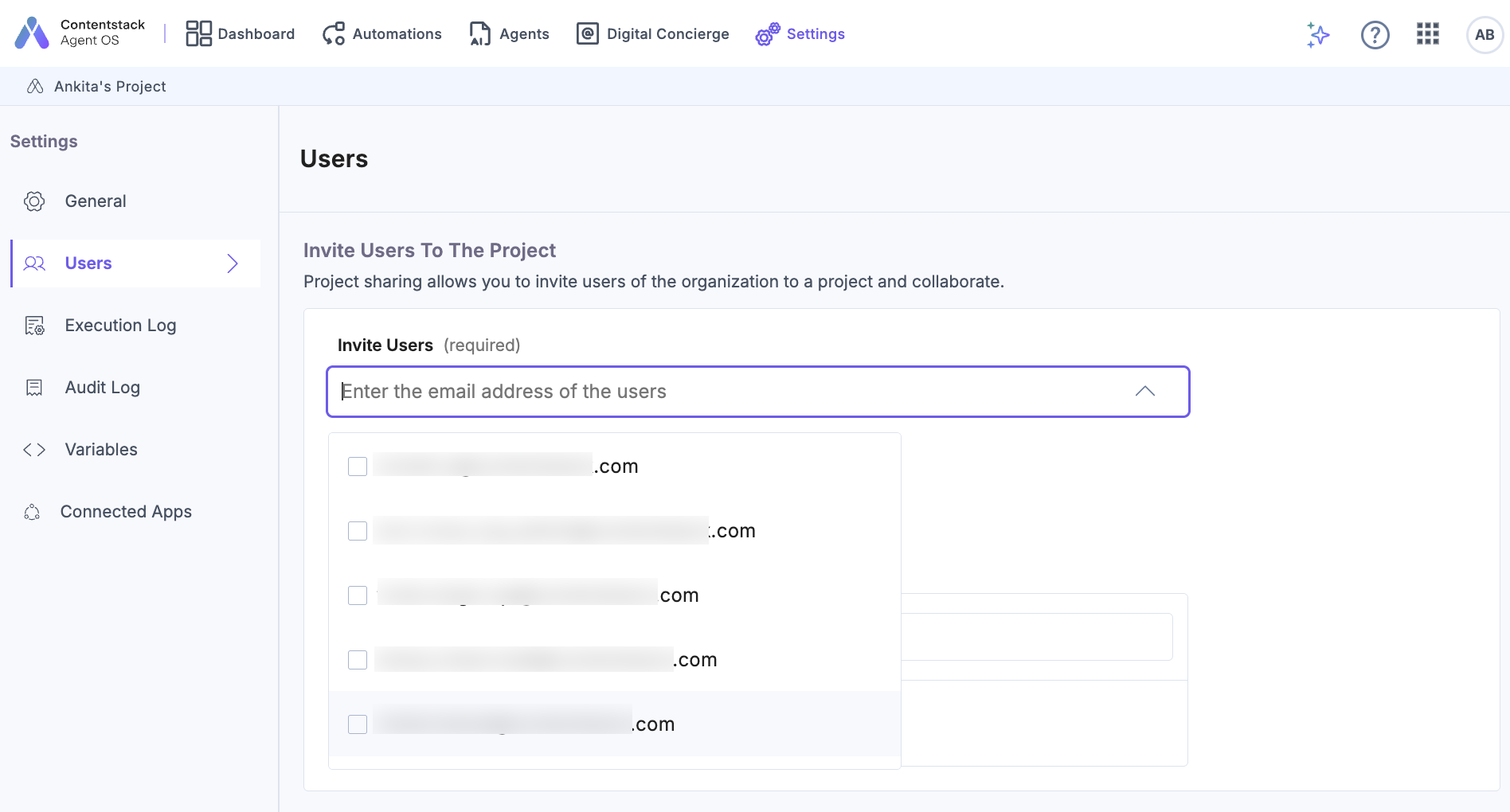
Tip: You can add multiple users by entering their email addresses.
- The invited user receives an email invitation to collaborate on the project. After the user accepts the invitation, they can access the project and perform actions in the project.
Tip: Invited members cannot delete any other user(s) in the project but can add other members in the project who are a part of that organization.
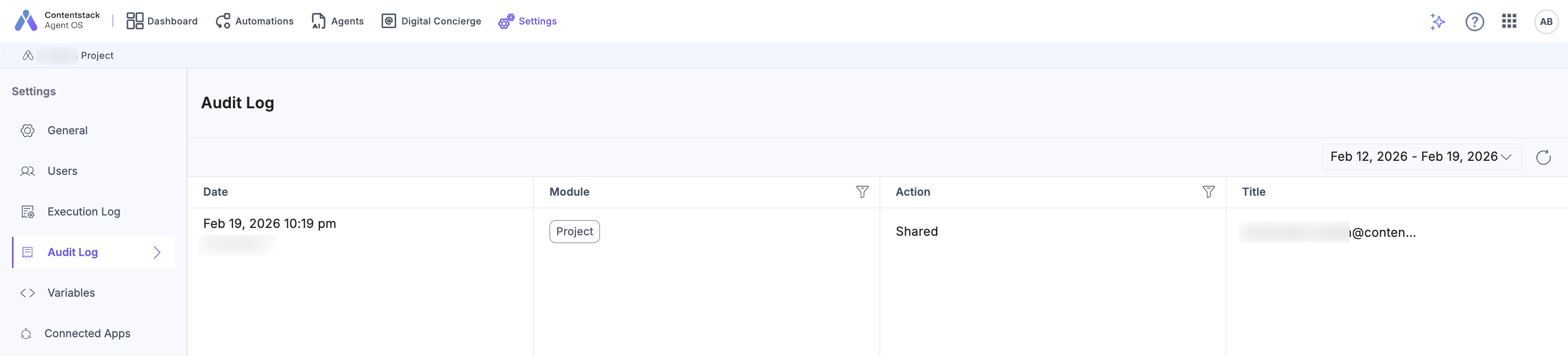
- In the left navigation panel, click Audit Log. You will see the Shared action for the newly added member.
- Organization owner, admins, and project owner can remove the shared user. Click the Delete icon to remove the shared user.
More articles in "More about Automate"
