

Monitor Agent OS Activities in Audit Log
The Audit Log section helps you monitor the activities performed in a particular project.
To access the Audit Log, follow the below steps:
- Log in to your Contentstack account.
- After logging in, click the App Switcher icon, then select Agent OS from the list.
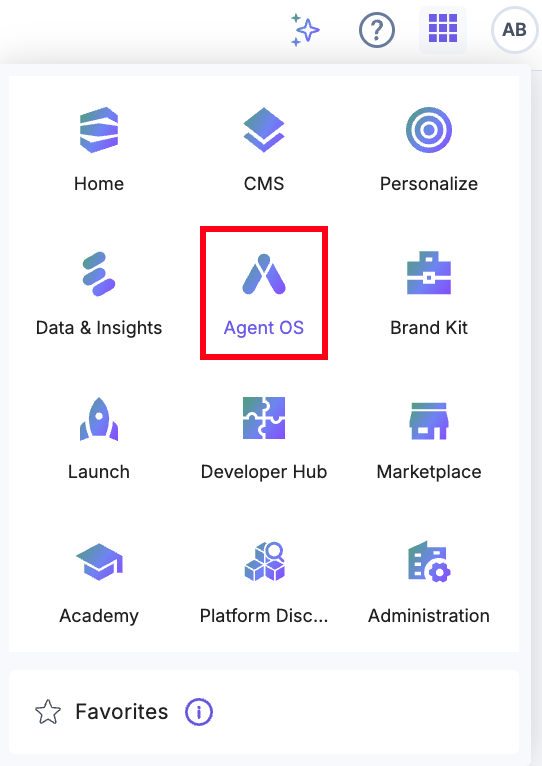
- Go to your project or create a new one.
- From the top navigation panel, click Settings. Click the Audit Log tab to see all the details of the project.
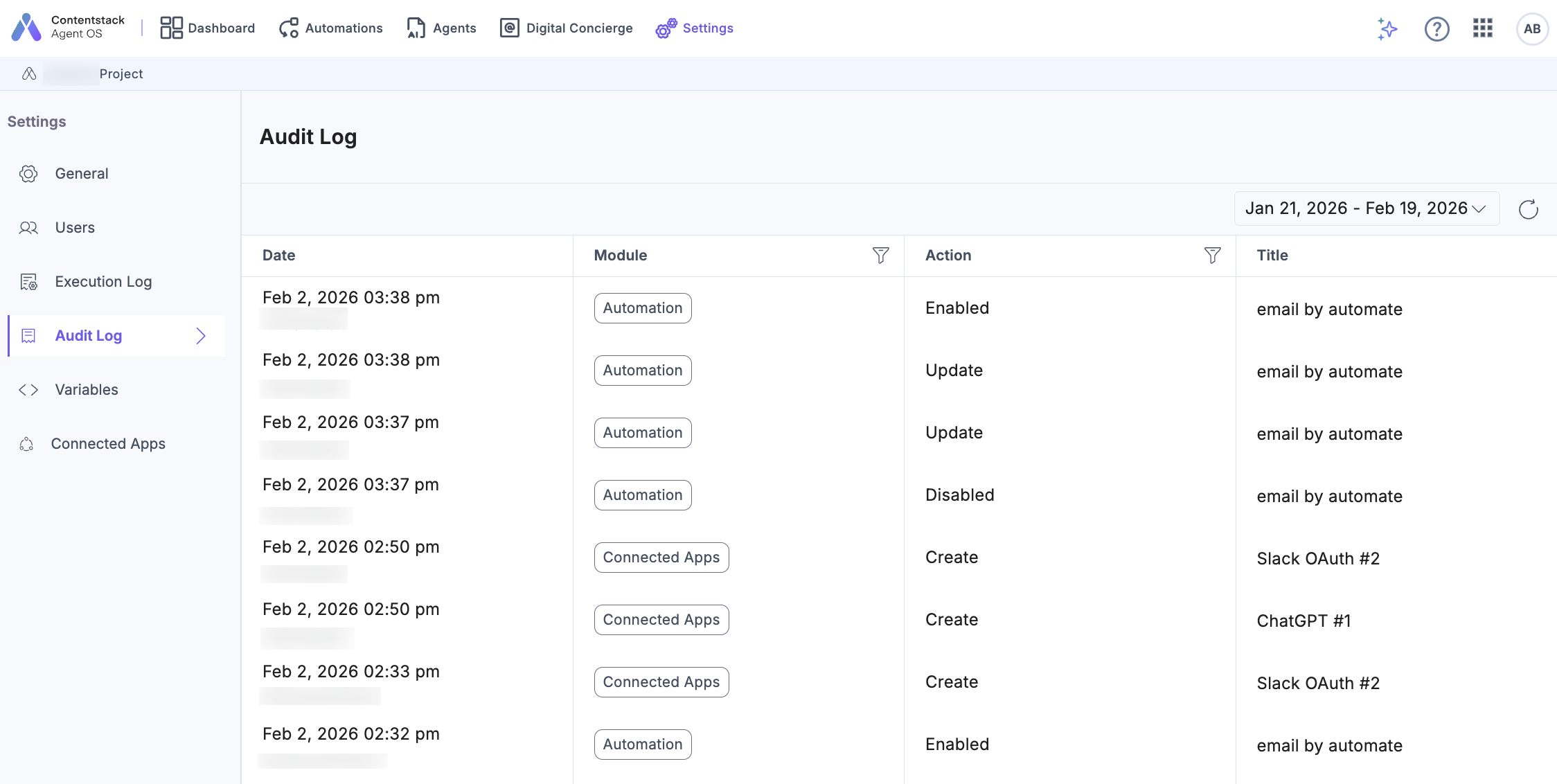
The following details are displayed under Audit Log when an event occurs:
- Date: Specifies the date when the event occurred. Additionally, it displays the user's name.
- Module: Specifies the components of Agent OS such as Agents, Projects, Automations, Connected Apps, and Project Variables on which the event was performed.
- Action: Specifies the type of action, such as create, update, delete, enable, and disable, etc.
- Title: Specifies the title of a particular module such as Automations, Connected Apps etc.
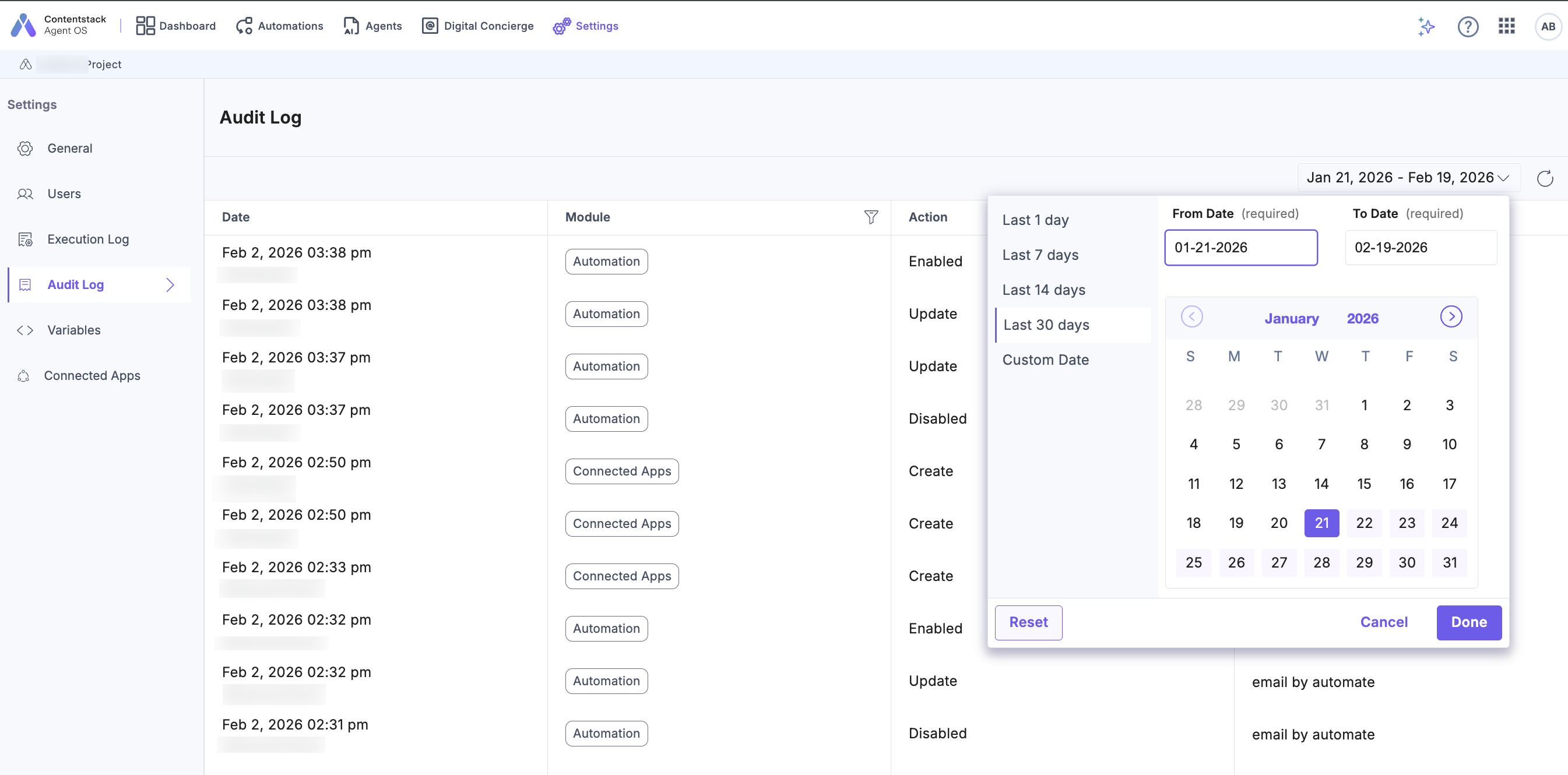
You can filter the audit log by date to view only specific logs.
Types of Audit Log Events
Audit Log tracks and displays actions or events performed in a particular project. For your reference, we have provided a comprehensive list of all the events.
The following table displays the various events visible in Audit Log:
| Modules | Events |
|---|---|
| Project | Project is edited Project is created |
| Agents | Created Deleted Enabled Disabled |
| Automation | Created Enabled Disabled Deleted Updated Import Export |
| Connected Apps | App is connected The App is edited/re-authorized The App is deleted |
| Project Variables | Delete Update |
Was this article helpful?
