Executions in Agent OS
Each time an automation or agent task is completed, regardless of whether it succeeds or fails, it counts as an execution. To run an automation, you must configure the trigger and action connector, then enable the automation. Even if the automation includes multiple steps, it is still counted as a single execution. For agent tasks, each operation initiated by the agent, such as data processing or a service request, also counts as one execution, regardless of the number of internal steps involved.
Additional Resource: In the Execution Log section, you will find details about each execution.
How are executions calculated?
The following event counts as an execution:
- Once the Automation is configured and invoked via an event.
The following events do not count as an execution:
- Testing of any individual trigger and action steps.
- Successful configuration of the trigger and action steps.
- If the trigger conditions are not met.
For example, consider automating a Slack message whenever a new entry is created in Contentstack. Each trigger of the automation will be counted as an execution.
The different statuses of an execution visible in the Execution Log are as follows:
- Success: When an automation or agent task completes successfully.
- Failed: When any step in an automation or agent task is unsuccessful.
- Pending: When the execution is yet to be picked up for processing, or when the throttle automation toggle is disabled.
- Running: When an execution is in progress.
- Rejected: When the execution exceeds the allocated time.
- Paused: When an execution is paused and resumed at a later stage.
- Partially Executed: When an execution is partially completed as it has reached the maximum limit of sending emails.
Use Cases for Automations
Retry Execution for Failed Automation
Certain API errors, or missing configuration of an action step in Automate can cause the entire automation to fail. If you encounter this issue, you can use the Retry Execution feature to troubleshoot the automation.
With this feature, you can retry the execution up to 2 times using the following steps:
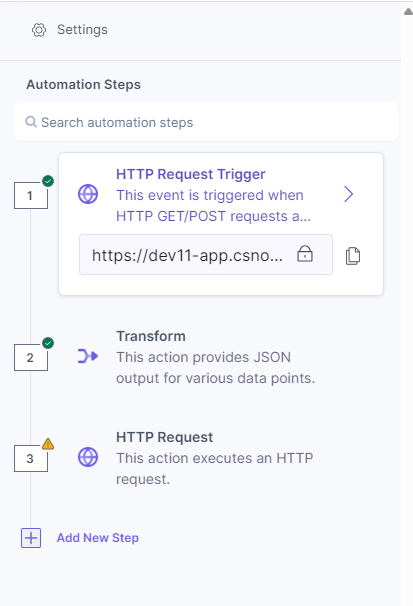
- Suppose you have an automation with an unconfigured action step, as shown below:
- Activate the automation and test the configured trigger. For example, test the HTTP trigger.
- Go to the Execution Log section. The status of the automation will show as Failed. An Info icon appears beside the Failed status. Click it to open a pop-up.

- Click the Retry Execution button to retry the execution.
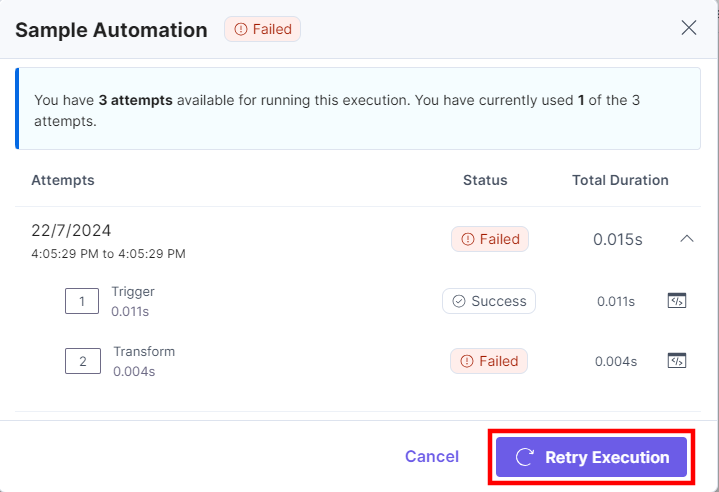
Note: The first attempt occurs when you activate and execute the automation. In the Retry Execution pop-up, you can retry the execution up to 2 more times.
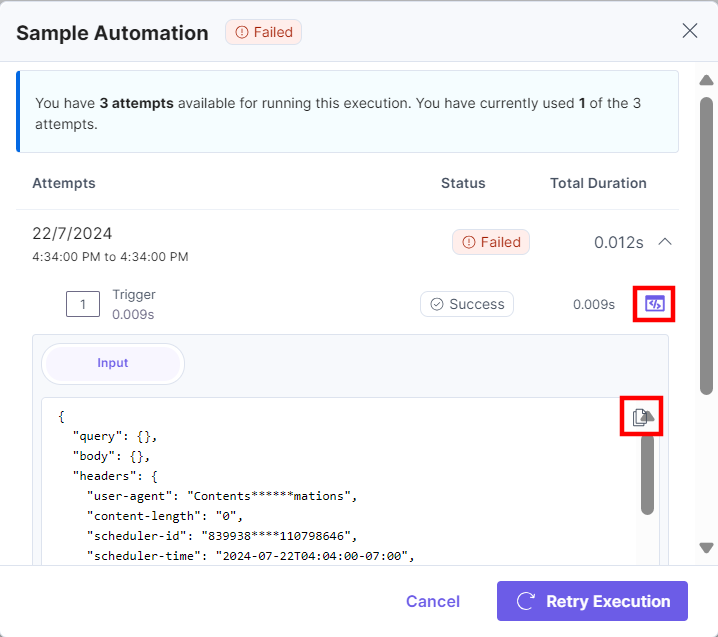
- Click the Code icon for the failed step to view the Input/Output payload for the action step. For a trigger, you can specifically view the Input option.
Additionally, you can click the Copy icon to copy and debug the code.
Let’s explore a few use cases to understand the Retry Execution feature better.
Use Case 1
If an automation fails in the first attempt due to any technical issue or server error at the exact time of execution, follow these steps:
- In the Failed Execution, click the Retry Execution button and close the window.

- In the Execution Log, you will see a Success status for that execution.

Use Case 2
If an automation fails even after retrying, follow these steps:
- Go to the automation and deactivate it.
- Reconfigure the failing step.
- Once successful, activate the automation again.
- Return to Execution Log and click the failed execution.
If the action step was previously configured with invalid or incorrect values, the execution will show a Failed status.
In the Retry Execution pop-up, you can retry the execution up to 2 times. You can debug the code by checking the payload. If the error is due to a third-party API or within Automate, please contact our support team for assistance.
Use Case 3
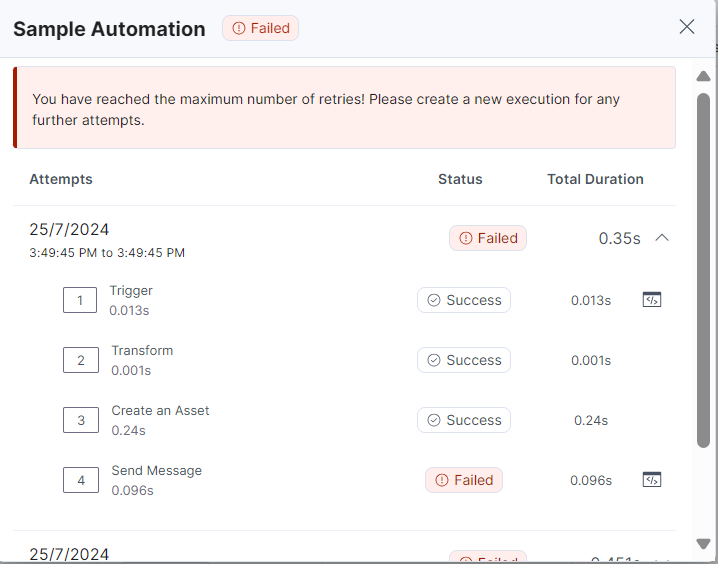
If an automation fails and you reconfigure a new trigger, retrying the same execution will result in an error message:
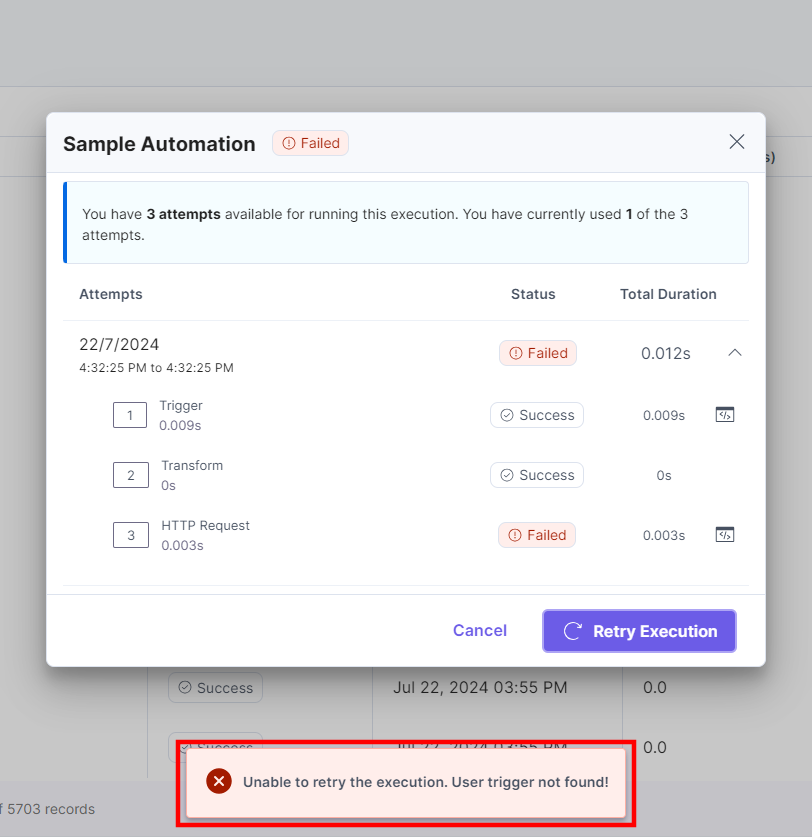
This happens because the execution still has the payload data for the previously configured trigger. You must initiate a new execution to validate the changes.
Use Case 4
If an automation runs successfully on the first attempt, you will see a success message as shown below:

Limitations
- If an automation has a Response connector, you will not be able to retry the execution for that automation.
- The Info icon disappears once the retry limit is exceeded. You must start a new execution.