

Streamline your Publishing Process with Nested Reference Publishing
When dealing with complex content structures, ensuring that all referenced entries are published in the correct state can be challenging. There are high chances of missing out on referenced items when publishing for an upcoming major release.
With Nested Reference Publishing, you can view and publish all referenced entries and/or assets related to a specific entry(ies) at the same time. It can give you a better understanding of what you are publishing.
Let’s look at how you can work efficiently with Nested Reference Publishing.
Publishing Nested References
To publish nested references, select the entry(ies) from the list page and click on Publish at the top or open an entry and click on Publish at the bottom of the page. Then, select the Environment(s) and Language(s) to which you want to publish your entry and click the Send button.
The Publish Reference(s) modal will appear showing a tree view of all the referenced entries. You can expand and view nested references up to five levels of depth, as well as check them for the different languages you selected. By clicking the Send with References button, you can publish all of these references along with their parent entry, all at once.
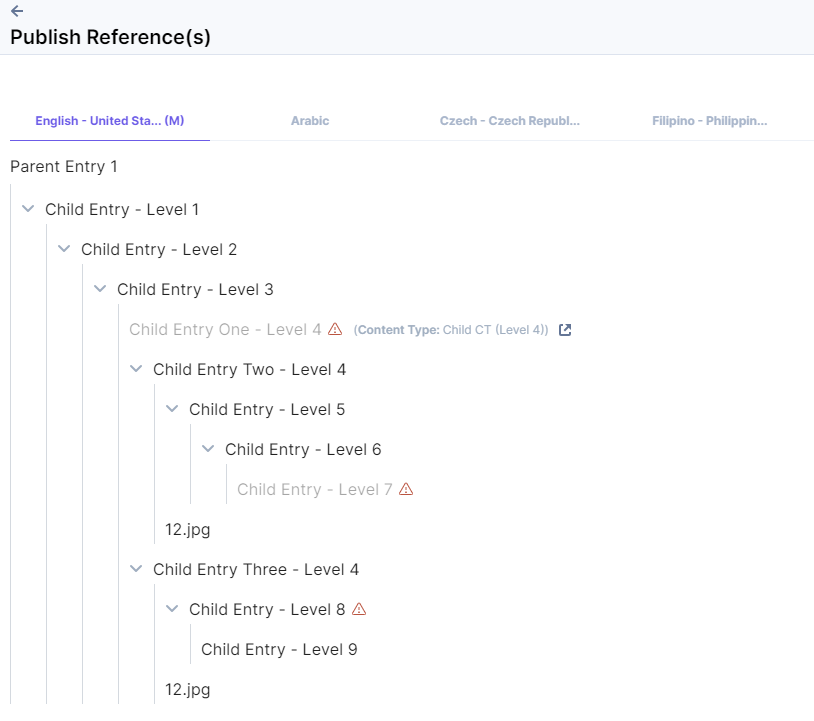
Cases when Reference Publishing could Fail
When dealing with simple nested structures, you can manage and check all of your entries quickly before publishing them. However, when working with a complex nested structure, this becomes challenging.
Within our Publish Reference(s) modal, we ensure that we alert you if any of the nested items fail to meet the publishing validation criteria.
While viewing nested references in the Publish Reference(s) modal, it is essential to check all levels of nesting. If any of the child entries/assets are not validated, you will see a warning sign for that particular nested item. Hover over the "warning" icon to view the warnings that appear if validations are not met. Here are some of the warning messages:
- Workflow stage error: This error occurs when you have a workflow set, and your entry has not moved to the completion stage.
- In-progress entry error: This error occurs when you have entries with missing data for fields that are marked as mandatory.
- Pending approvals: This warning occurs when you need approvals to publish entries of certain content types. In this case, when you send the parent entry for publishing, the approver(s) will be notified of your request.
Note: Once your publishing request is approved, you will need to republish those entries again.
- Publishing rights error: This error occurs when you have insufficient permissions to publish content.
The Publish Reference(s) modal not only allows you to view your child entries but also enables you to navigate to the respective entries to edit them. You can easily check and edit child entries by clicking the “Edit entry in new tab” icon, which opens the entry in a new tab. You can then make changes and save the entry, and the latest version of your entry will be sent for publishing along with the parent entry.
Note: Only the latest version of entries and assets are sent for publishing along with the parent entry.
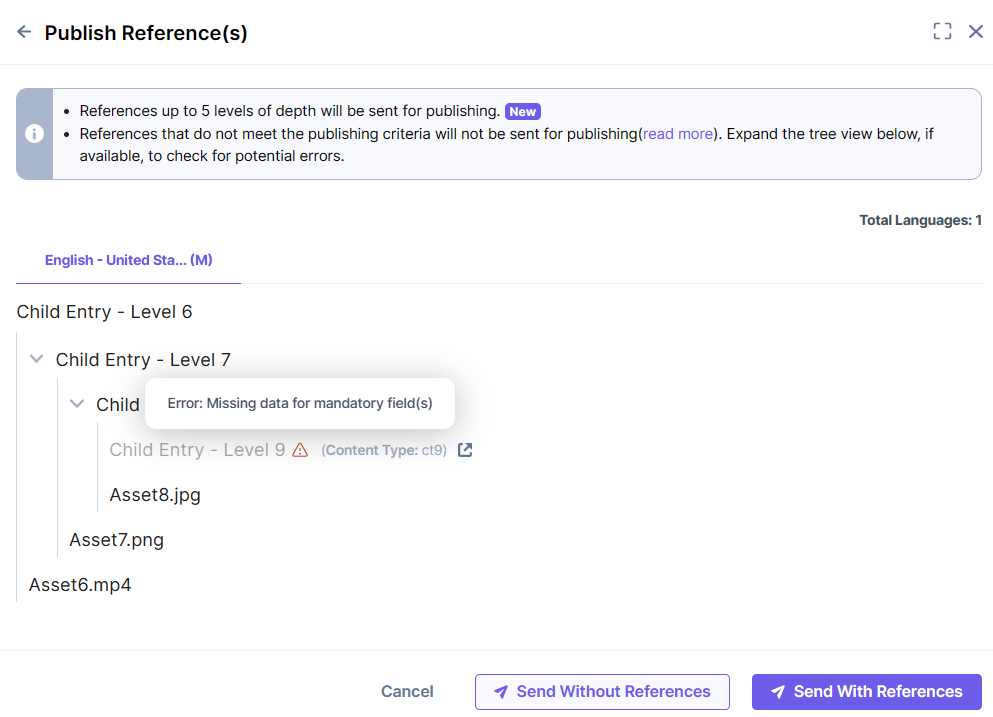
Note: If any of the nested referred entries have an error, the other nested entries at lower levels of depth will not be sent for publishing.
Monitoring the Status of Nested Reference Publishing Jobs in the Publish Queue
After you have published your parent entry along with all its nested references, you can navigate to the Publish Queue to view the status of your publish task. Since you are sending multiple child entries along with your parent entry, your publish event is shown as a bulk action in the publish queue.
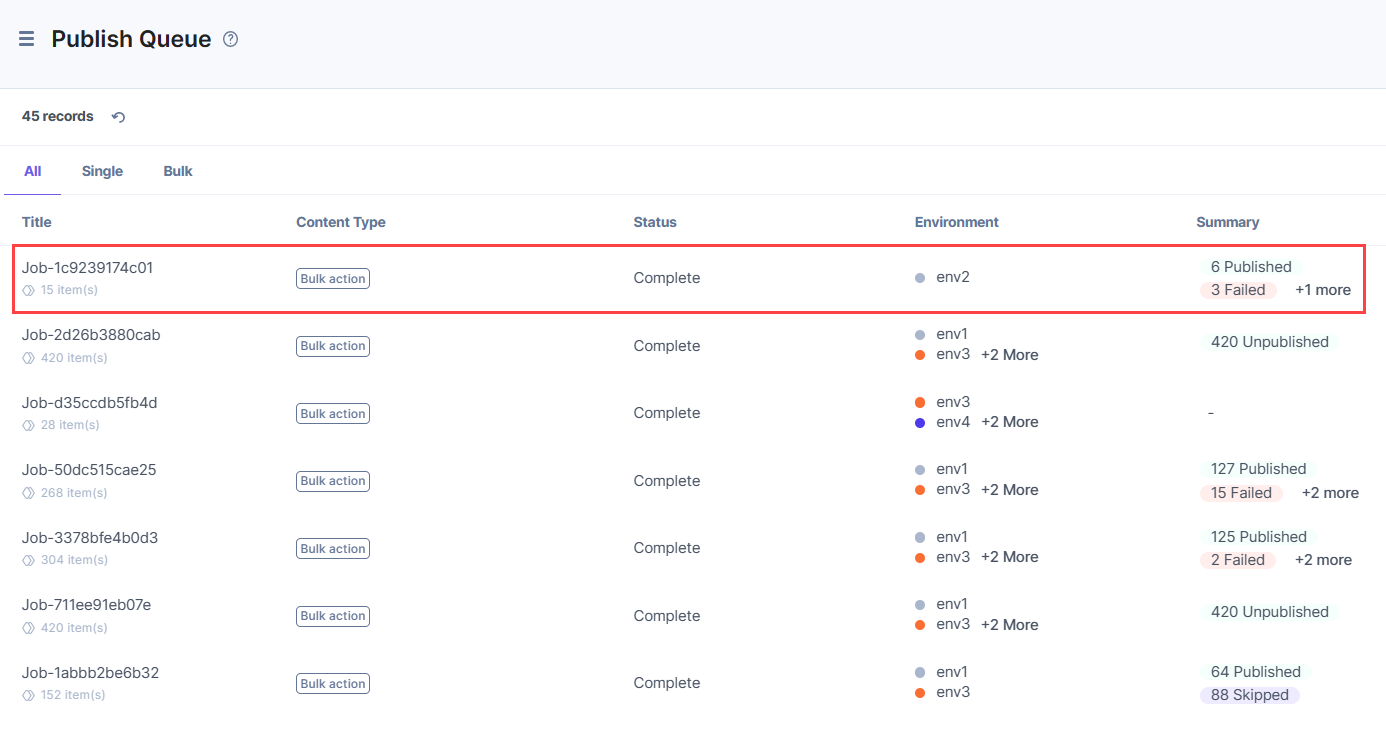
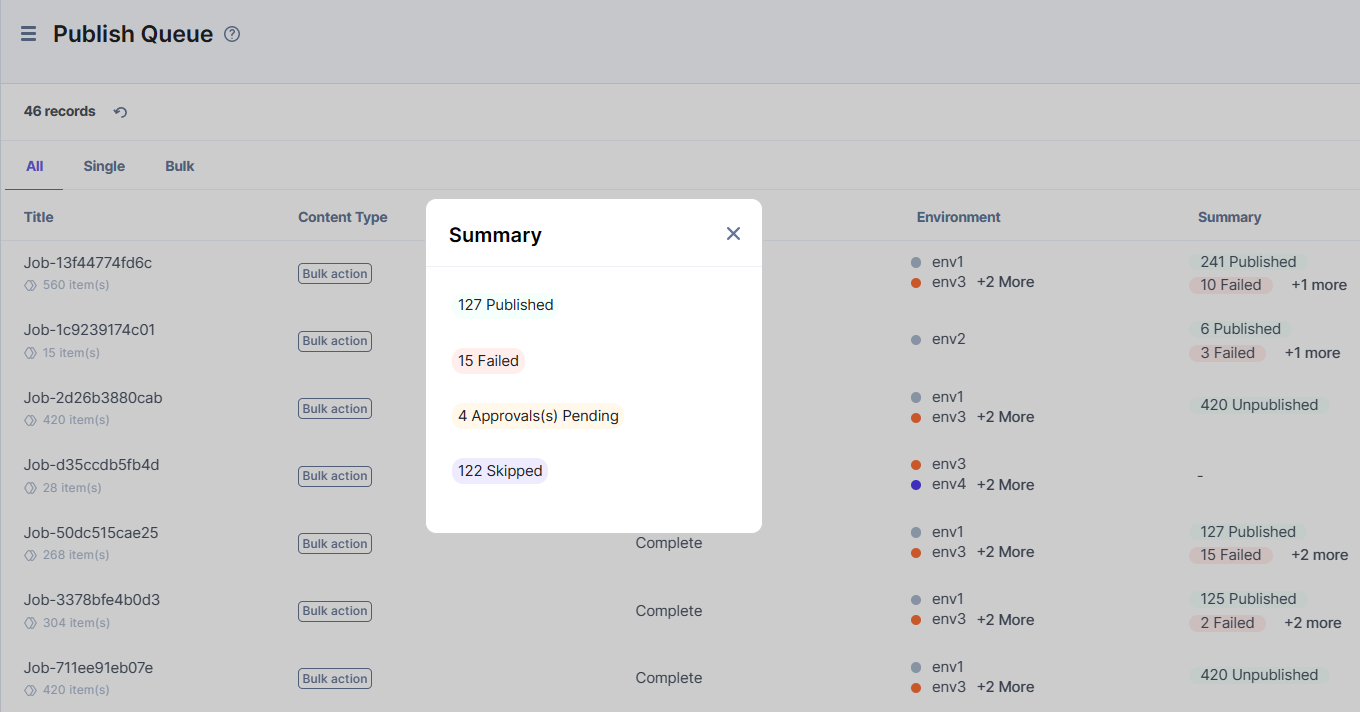
We have introduced a new Summary column in the Publish Queue, which provides a summary status of all the items within a publish job. This new feature allows you to quickly assess the overall status of your publish task at a glance.
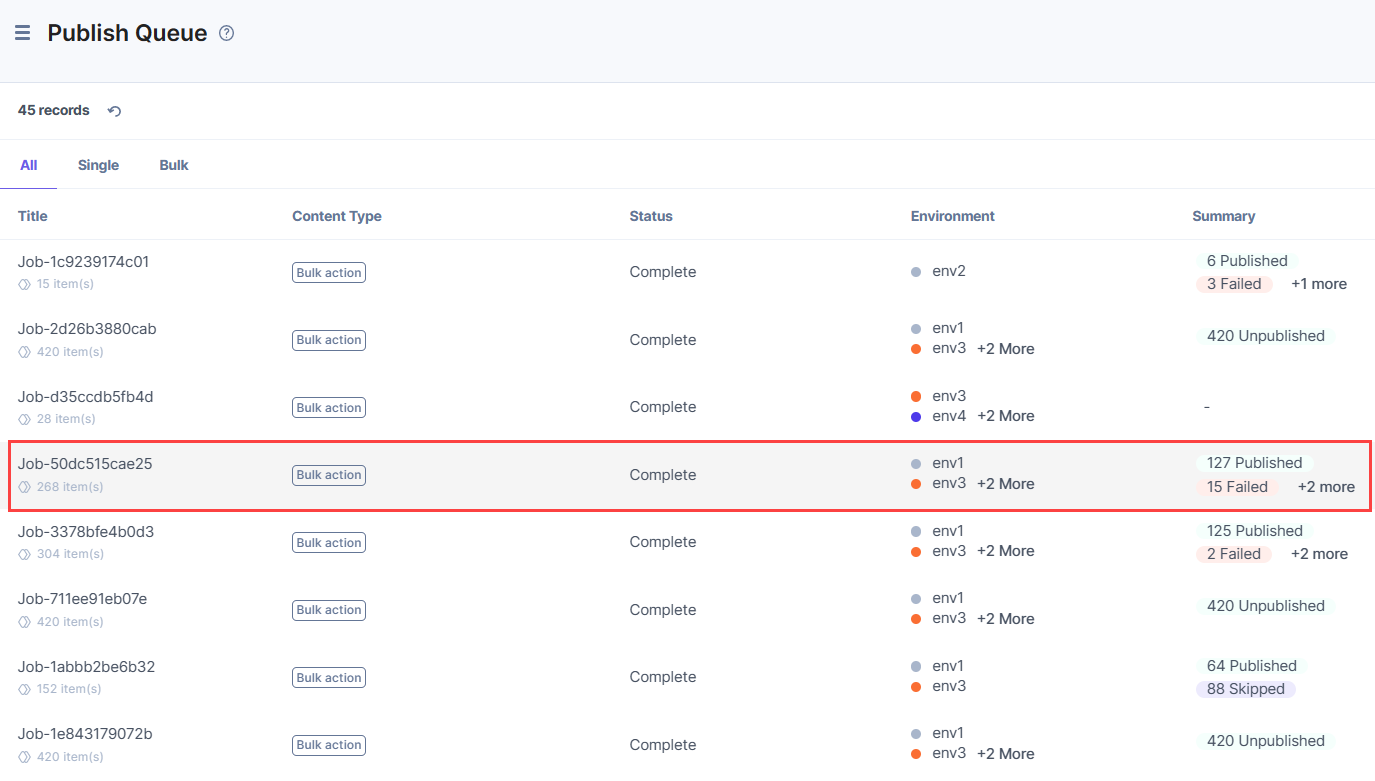
The Summary column in the Publish Queue displays several status indicators, including:
- Published: The number of items that have been successfully published in the bulk job.
- In Progress: The number of items that are currently being processed within the bulk job.
- Failed: The number of items that were not published due to errors in the bulk job.
- Approval(s) Pending: The number of items that require approval before they can be published.
- Skipped: The number of items that were not published because they were already published in the specified environments and locales.
To check the details of all the child entries sent for publishing with the parent entry, open the publish job. You can see the status of each nested reference item in the Status column.
The various statuses shown are as follows:
- Published: The item was successfully published.
- Failed: This error could appear for multiple reasons such as:
- The item sent for publishing is either invalid or does not exist.
- The entry sent for publishing is in-progress state and is missing data in mandatory fields.
- The locale(s) in which you want to publish the item is either invalid or do not exist.
- Skipped: The item skipped publishing since it was already published in the specified environments and locales.
- Approval(s) Pending: The item needs approval for publishing.
- Workflow Stage Incomplete: The item did not reach the required workflow stage needed for publishing.
- Authorization Denied: You did not have the required permissions to publish the item.
Benefits of Nested Reference Publishing in Content Management Systems
- Efficiency: Saves time by allowing you to publish multiple inter-linked entries and assets related to a specific entry all at once, instead of individually publishing each one.
- Accuracy: By viewing all related entries and assets, Nested Reference Publishing helps to ensure that everything is published in the correct state and no items are missed during the publishing process.
- Better understanding: The use of this feature can give you a better understanding of what you are publishing, including which entries and assets are related and how they are interconnected. This increased level of understanding can help you make more informed decisions about your publishing process.
- Streamlined workflow: Simplifies the publishing process by allowing you to manage all inter-linked entries and assets in one place, reducing the risk of errors or omissions.
- Improved collaboration: With Nested Reference Publishing, teams can collaborate more effectively by easily viewing and publishing all related entries and assets, ensuring everyone is on the same page.
Overall, the Nested Reference Publishing feature is packed with many benefits. However, we are still working to make it even better. Learn more about the Limitations of Nested Reference Publishing.
More articles in "Nested Reference Publishing"
