

Working with Entry Tabs
Note: The Entry Tab is a plan-based feature and may not be accessible to all users. For more information or to request access, contact our support team.
The Tabs layout in the entry editor helps you organize related fields into focused sections. When a field is configured with the Show as Tab option in the content type schema, it appears as a separate tab in the entry editor.
This layout improves performance and usability for entries with many fields, allowing editors to work efficiently without scrolling through lengthy forms. Tabs also make it easier to view, edit, and manage related fields together.
- If a tab is added, removed, or renamed in the content type schema while the entry is open, you need to refresh the page to see the updated layout.
- When you reopen an entry, it always opens to the Default tab, it does not remember your previously selected tab.
Each tab represents one of the following field types marked with Show as Tab:
- Group
- Modular Block
- Global Field
All other fields appear under the Default tab.
Note: Tabs work seamlessly with other features such as Workflows, Publishing Rules, and Entry References, without changing how content is saved or published.
Additional Resources: Learn how to enable the Show as Tab property in your content type schema.
How Tabs Appear in the Entry Editor
When you open an entry in the editor:
- The Default tab is selected by default.
- Each field configured with Show as Tab appears as an additional tab next to it.
- Tabs appear in the same order as the fields in your content type schema.
- If the number of tabs exceeds the available space, use the left and right arrows to scroll through the tab bar.

Editing Content in Tabs
You can update fields in any tab, and all changes are saved together when you save the entry.
To edit the contents of a tab:
- Open the entry you want to edit.
- Select a tab (e.g., SEO Settings or Media Block).
- Edit the fields within that tab.
- Click Save to apply your changes.
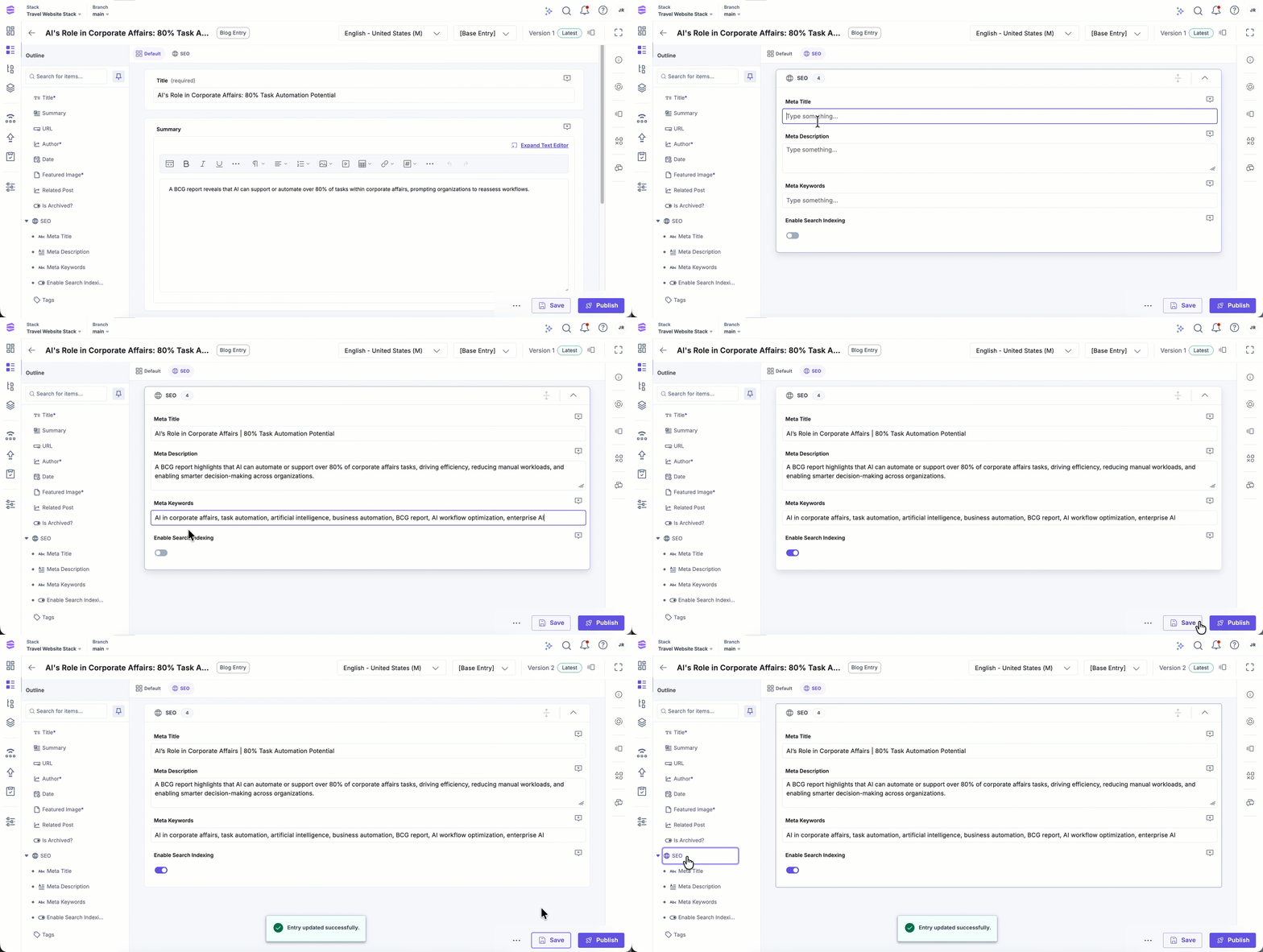
Note: Saving an entry applies changes across all tabs. You do not need to save each tab separately.
Navigation Between Tabs
Navigating between tabs in the entry editor is seamless and intuitive. You can move across different tabs to review or edit fields without losing unsaved changes.
- Features such as Comments, Entry Outline, Publishing, and Localization work seamlessly with the tabbed layout.
- When you navigate to a field (for example, from a comment or the outline) that exists in another tab, Contentstack automatically switches to that tab.
Default Tab Behavior
The Default tab contains:
- All fields that are not marked with Show as Tab.
- System fields such as Title, URL, and any other root-level fields.
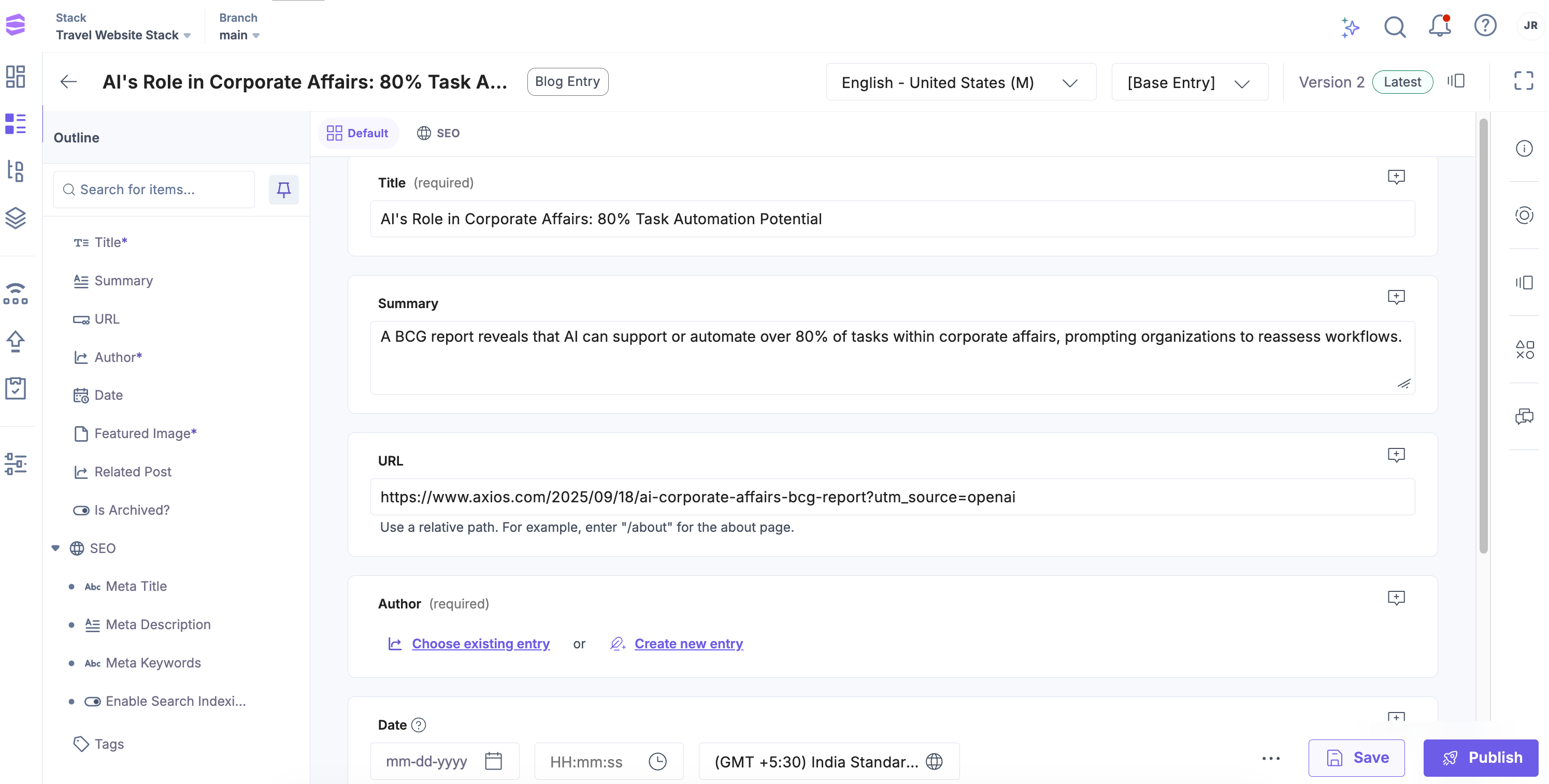
This ensures that even if you enable tabs for certain groups or blocks, all remaining fields remain easily accessible in one central location.
Managing Tabs
Managing tabs in the entry editor helps you control how fields are organized and displayed.
- Tab Order: Tabs follow the order of fields in the content type schema. To rearrange tabs, reorder fields in the schema.
- Removing Tabs: If a field marked as a tab is moved inside another parent field, it no longer appears as a tab.
- Multiple Tabs: You can enable tabs for multiple eligible fields in the same content type.
Tip: Use tabs for major content sections (e.g., Product Info, SEO Details, Author Metadata) to help editors focus and reduce scroll fatigue.
Limitations
Understanding these limitations helps you plan your content type schema effectively and avoid unexpected behavior when configuring fields.
- The Show as Tab option is available only for root-level Group, Modular Block, and Global Field types.
- Nested fields cannot be displayed as tabs.
- Tabs layout affects only the editor UI. The content structure and API behavior remain unchanged.
Using tabs in the entry editor creates a cleaner, more focused editing experience. By grouping related fields and reducing scrolling, tabs help content managers work faster and maintain clarity when managing complex entries.
More articles in "Create and Manage Content"
