

Entries List Overview
The Entries list page provides a centralized view of all entries within a stack. It offers an organized, easy-to-navigate table view complete with tools to filter, sort, and manage entries efficiently. Whether you’re creating new entries, updating existing ones, or filtering content, the Entries page streamlines your workflow with its robust features.
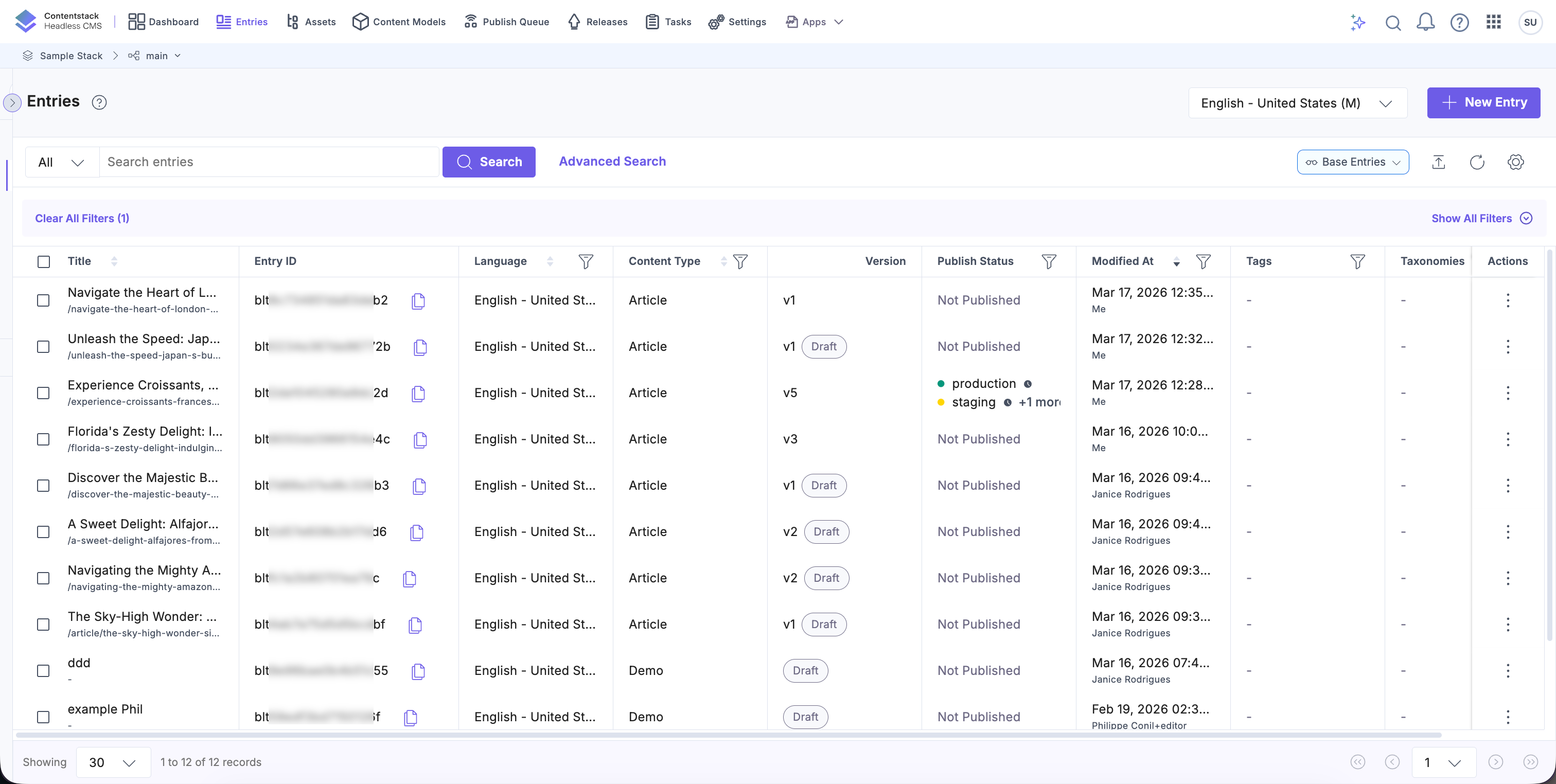
Key Features of the Entries List
The main functionalities and tools available in the Entries list that help you manage and organize content effectively.
Organized Table View
The Entries list displays content in a tabular format, providing key details at a glance, such as:
- Title: Name of the entry.
Entry UID: Unique identifier of the entry. Hover over the copy icon to copy it to your clipboard.
- Language: Locale of the content.
- Content Type: Associated content type.
- Variant(s): Name of the variant group.
- Version: Current version number. Entries that contain unsaved draft updates display the Draft status indicator in the list. This indicates that the entry includes changes that have not yet been saved as a new version.
- Publish Status: Environments where the entry is published (e.g., Development, Production).
- Workflow Stage: Current status of the entry, such as Draft, Review, or Published.
- Modified At: Date and time of the last modification.
- Created By: User who created the entry.
- Modified By: User who last modified the entry.
- Created At: Date and time of creation.
- Taxonomies: Linked taxonomies.
- Tags: Associated tags.
Actions on Entries
The Actions column provides quick access to key entry operations, enabling efficient management of individual entries. Click the vertical ellipsis next to any entry to access a dropdown menu with the following actions:
- Edit: Opens the entry editor for making changes or updates to its content.
- Edit in Visual Builder: Allows you to edit the entry in a visual, WYSIWYG (What You See Is What You Get) interface for easier design and layout adjustments.
- Preview: Displays a live preview of the entry, showing how it will appear in its published format.
- Copy: Creates a new copy of the entry with automatically updated titles and unique fields.
- Publish: Makes the entry available in the selected environments (e.g., Development, Production).
- Unpublish: Removes the entry from the selected environments, making it inaccessible to users.
- Export: Downloads the entry's content for external use or backup purposes.
- Add to Release: Adds entries to a release, allowing multiple entries and their references (such as assets and other entries) to be published together.
- Delete: Permanently removes the entry from the stack, with a confirmation prompt to prevent accidental deletion.
Navigating the Entries List
Understand how to move between entries and adjust the view to suit your content management needs.
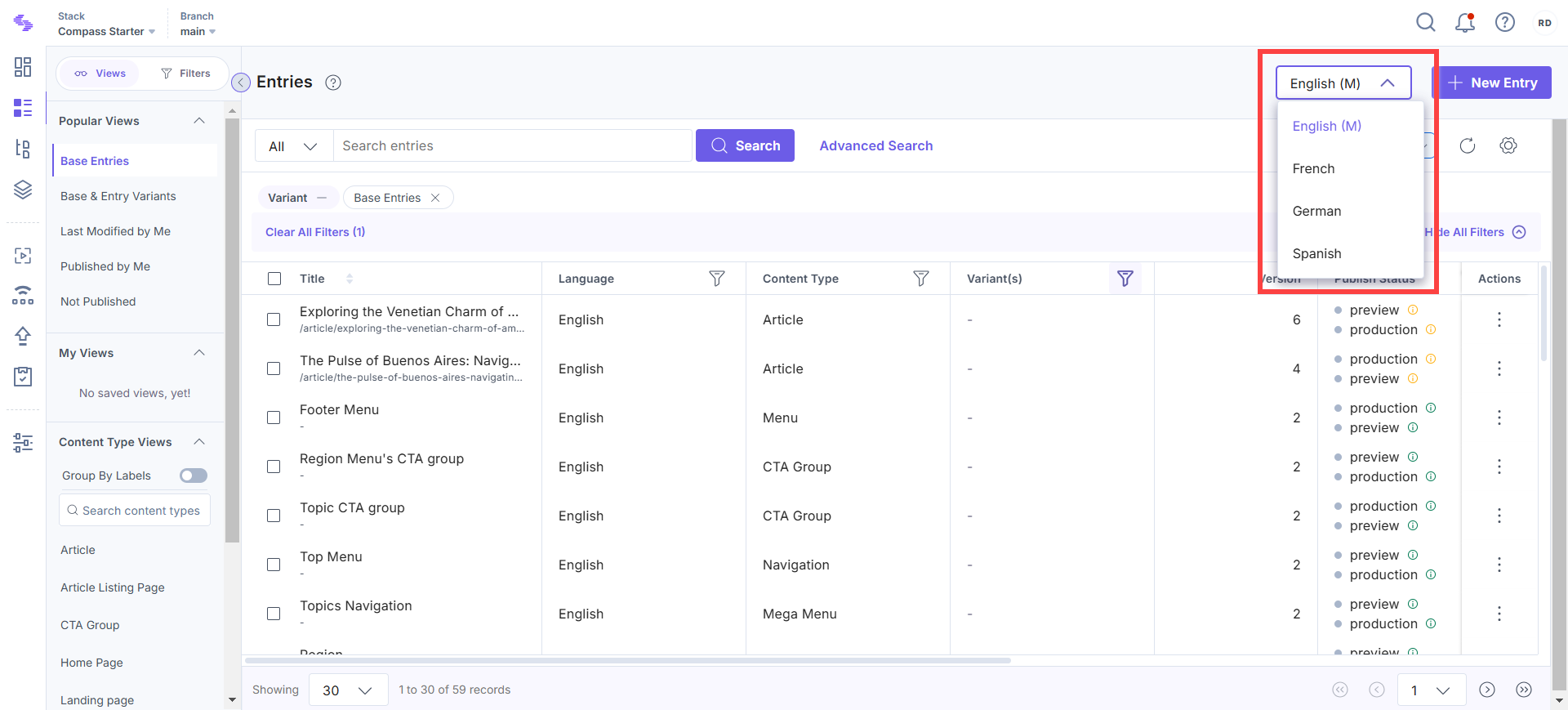
Locale Selection
Easily switch between locales using the language dropdown in the top-right corner. This feature simplifies localized content management. For example, if your content supports multiple languages, you can select a specific locale to view only the entries in that language.
Creating a New Entry
Start creating entries directly from the list page in just a few steps:
- Click the + New Entry button at the top-right corner.
- Choose the Content Type for your entry.
- Add content within the entry editor.
Note: If Drafts and Auto Save is enabled, clicking New Entry creates a draft entry immediately. You can begin editing and collaborating without manually saving the entry first.
Views for Quick Access
The Views feature streamlines your content management by letting you save and retrieve your current page views with ease.
- Popular Views: Access predefined views such as Base Entries, Base & Entry Variants, Last Modified by Me, or Not Published for frequently used entry groups.
- Saved Views: Create and save custom filters for regular access to specific entry types, such as drafts or content types.
- Content Type Views: Quickly locate entries by selecting a content type or grouping them by labels.
For more details, refer to our documentation on Views.
Filtering and Sorting Entries
Refine and organize your entry list using filters and sorting options.
Column Filters
Each column header includes a filter option for refining entries by specific criteria. These filters allow you to narrow down your list of entries and focus on the content you need. Below are the available filters and their purposes:
- Language: Filter entries based on the locale or language in which the content is written.
- Content Type: Display entries associated with a specific content type, such as articles, blogs, or product pages.
- Variant: Select specific entry variants, such as base entries or localized versions.
- Publish Status: Filter entries based on their publication status, such as Published, Unpublished, or Scheduled.
- Workflow Stage: View entries by their current workflow stage, such as Draft, Review, or Published.
- Modified At: Refine the list by the date and time an entry was last updated.
- Modified By: Filter entries based on the user who last made changes.
- Created By: Display entries created by a specific user.
- Created At: Narrow down entries by their creation date and time.
- Taxonomies: Filter entries associated with particular taxonomy terms, such as categories or hierarchical labels.
- Tags: Find entries based on custom tags applied for organizational purposes.
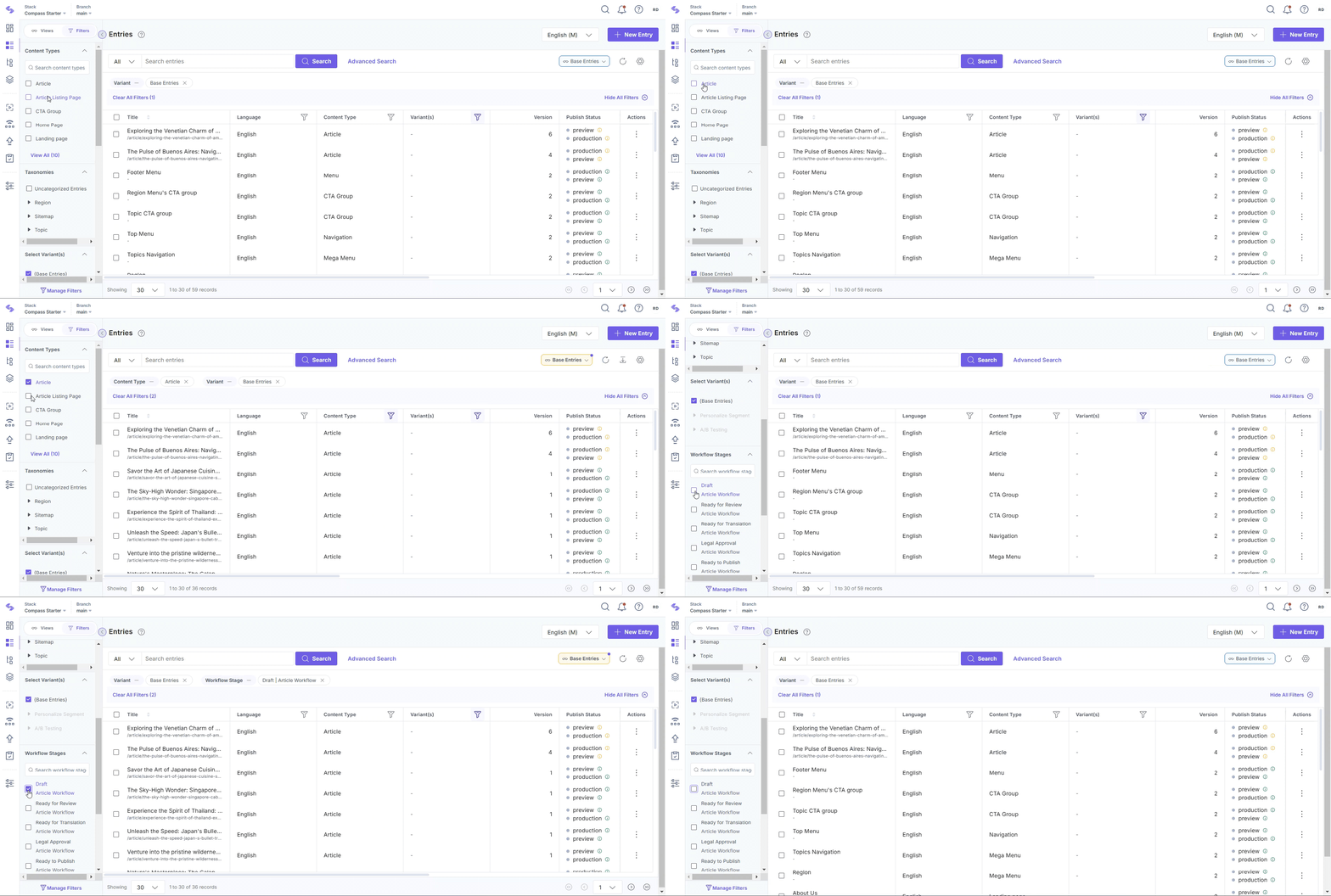
Filters Panel
Combine multiple filters for tailored entry lists. This is particularly useful when managing large volumes of content.
Sorting Options
The sorting feature in Contentstack allows you to efficiently organize and sort entries and assets using specific system-defined fields.
You can sort using the following system-defined fields:
| Field Name | Applies to |
| Title | Entries and Assets |
| Modified By | Entries and Assets |
| Created At | Entries and Assets |
| Created By | Entries and Assets |
| Modified At | Entries only |
| Last Modified | Assets only |
| Content Type | Entries only |
| Language | Entries only |
| Type | Assets only |
| Filename | Assets only |
Note: Sorting is not supported for user-defined fields or multi-valued system fields, such as Tags, Taxonomies, Workflow Stages, Publish Details, etc.
To sort entries or assets, log in to your Contentstack account and perform the following steps:
- Navigate to your stack and select either “Entries” or “Assets.” You can also use the shortcut key “E” for Entries or “A” for Assets on both Windows and macOS.
- Click the header of a supported column field:
- First click: Sorts in ascending order (0–9 / A–Z).
- Second click: Sorts in descending order (Z–A / 9–0).
- Third Click: Restores the default settings.
- For entries, the default sort order is descending by the Modified At timestamp.
- For assets, the default sort order is descending by the Title value.
Note: The Modified At and Title columns toggle only between ascending and descending order. They do not reset on the third click.
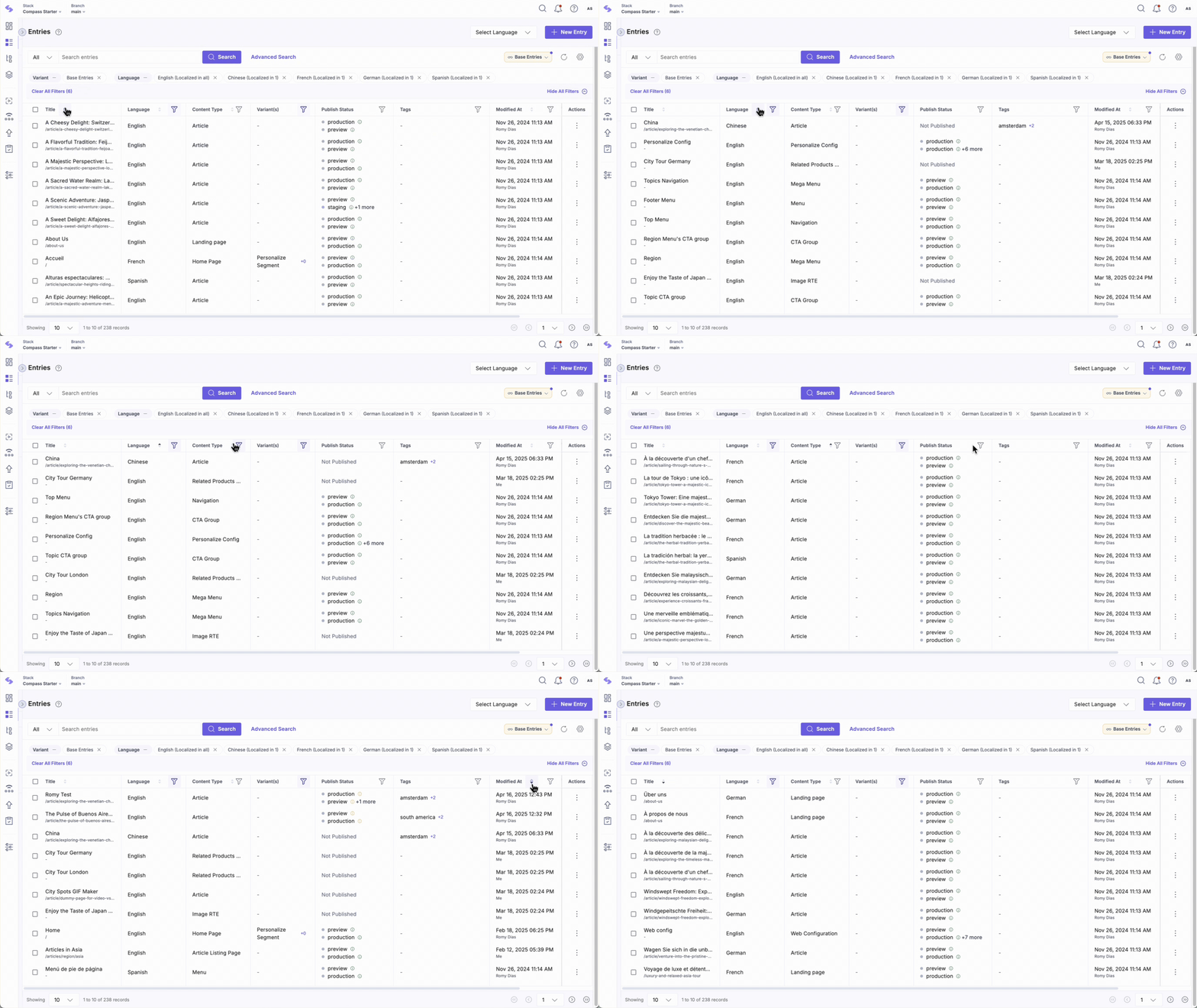
A sort icon appears next to the column header indicating the sort order.
Note:
- Sorting is case-insensitive. For example, “Alex” and “alex” are treated the same.
- Sorting by language applies only to Entries when multiple languages are selected.
The selected sort order persists, even when you switch modules or refresh the page.
Tip: After sorting entries or assets, use the "save as a new view" option to preserve the setup for future access.
Display Options and Pagination
Customize the Entries page display to suit your workflow and easily navigate through large content libraries.
Customize Display Settings
- Manage columns: Enable or disable specific columns to focus on the most relevant information:
- Click the settings cog.
- Select or deselect columns within the Manage columns menu.
- Drag and reposition columns as needed.
- Freeze up to 2 columns for easy reference.
- Row Density: Choose between comfortable or compact view options for better readability.
Navigate Easily
Use the pagination controls at the bottom of the page to browse entries efficiently. Adjust the number of entries displayed per page using the dropdown menu (options: 10, 30, 50, or 100).
The Entries page is a useful tool for organizing and managing your content. With intuitive features like filtering, sorting, and custom views, it simplifies complex workflows, enabling you to focus on delivering impactful digital experiences.
More articles in "Create and Manage Content"
