

Launch Quick Start Guide with Gatsby
The fastest way to get started with Launch is to clone and deploy a sample Gatsby Starter project. Launch allows you to create a project by importing the website code from GitHub.
Prerequisites
- Contentstack account
- Launch-enabled Organization with Owner or Admin permissions
- GitHub account
What You Will Learn
How to import a GitHub repository into Launch.
How to configure build and output settings for a Gatsby project.
How to add the environment variables the Gatsby Starter requires.
How to deploy the project and preview the live site.
Steps for Execution
Follow the steps given below to deploy your first Launch project using GitHub:
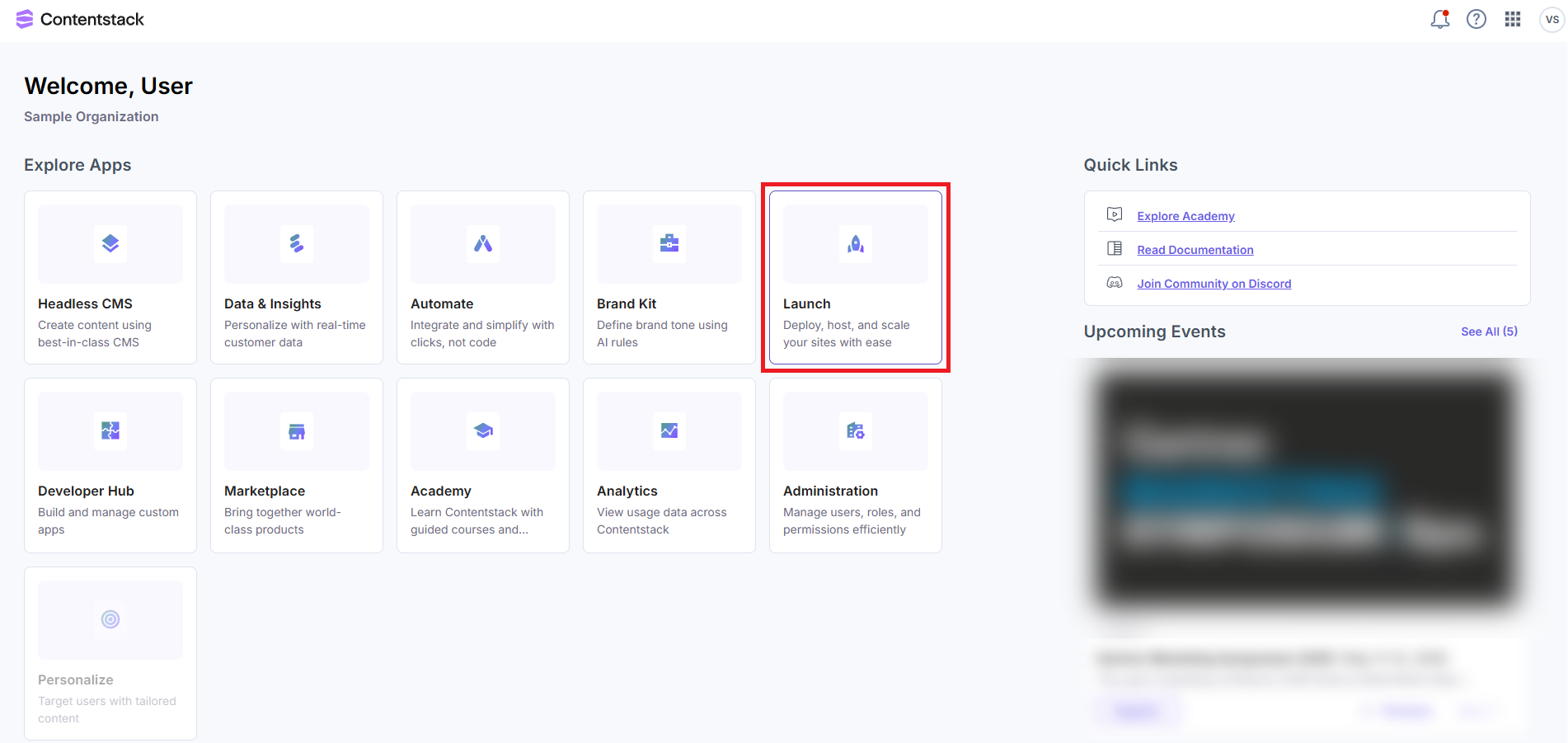
- Log in to Contentstack and click the Launch icon from the dashboard, as shown below:
Alternatively, go to the App Switcher in the top panel and click the Launch icon.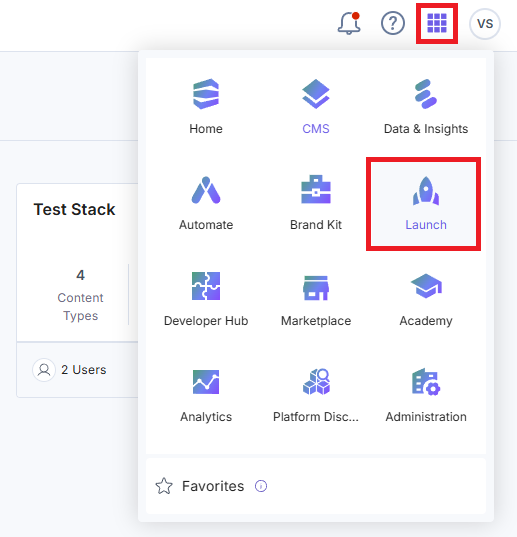
- Click the + New Project button to initiate the project creation process.

- From the Create New Project modal, click Import from a Git Repository.
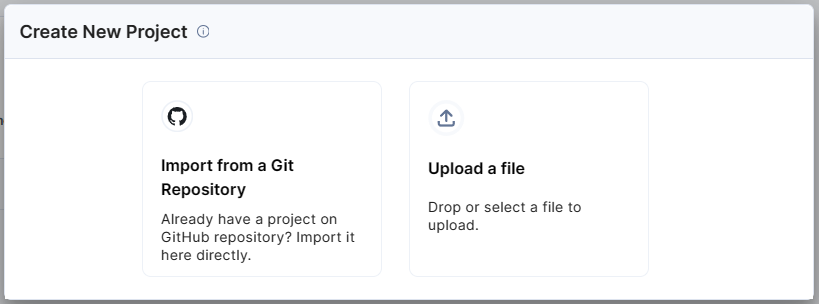
Note: You can also choose to upload a .zip file to import a project.
- Click GitHub.
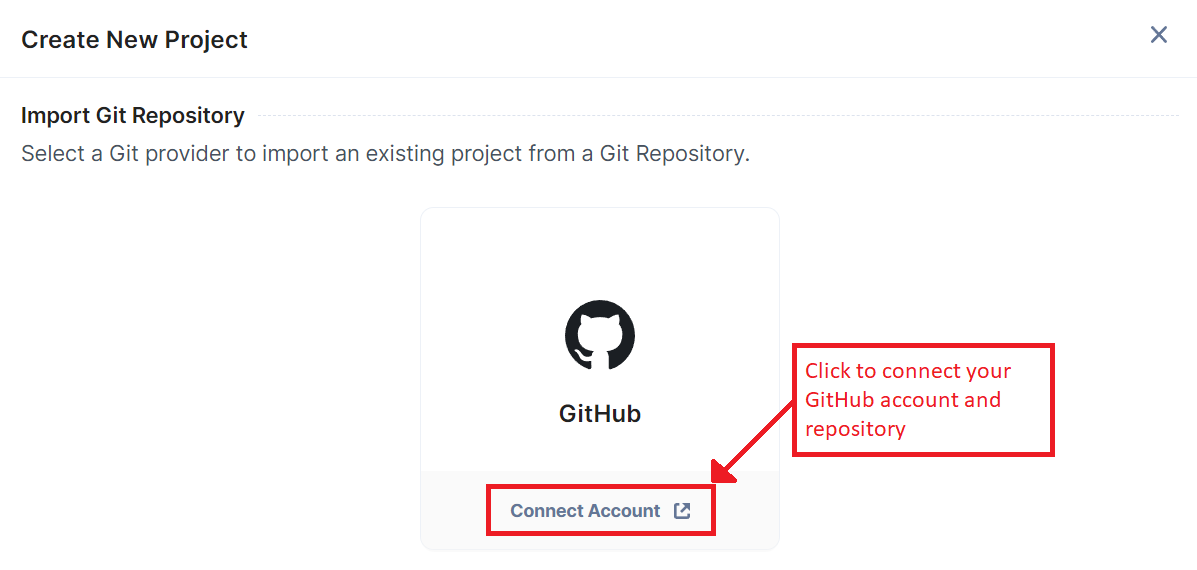
Additional Resource: You can also import a project using Bitbucket Cloud. Follow the steps in the Create a Project Using Bitbucket Cloud guide to proceed.
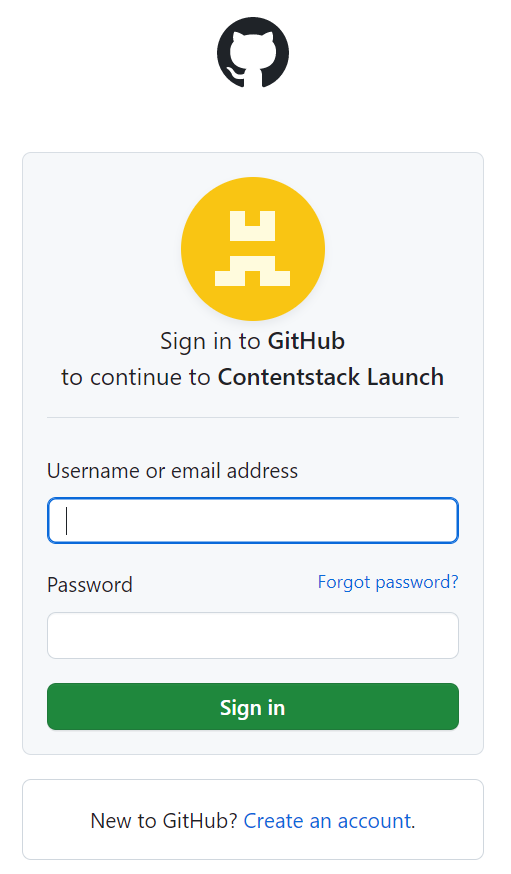
A new page opens. Sign in or create a new GitHub account.
- Enter your credentials and log in.
- In the Repository Access section, select All repositories.
Note: If you want to choose specific repositories, select the Only select repositories option and choose the required repository.
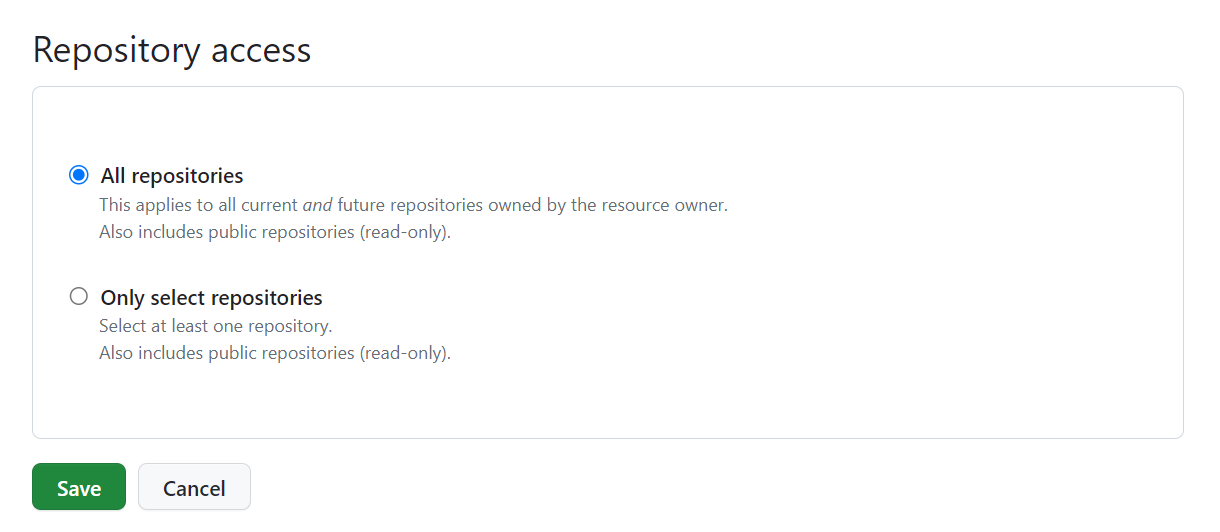
- Click the Save button.
Note: If you are accessing GitHub through Contentstack for the first time, you must authorize Contentstack by clicking the Install & Authorize button after selecting All repositories.
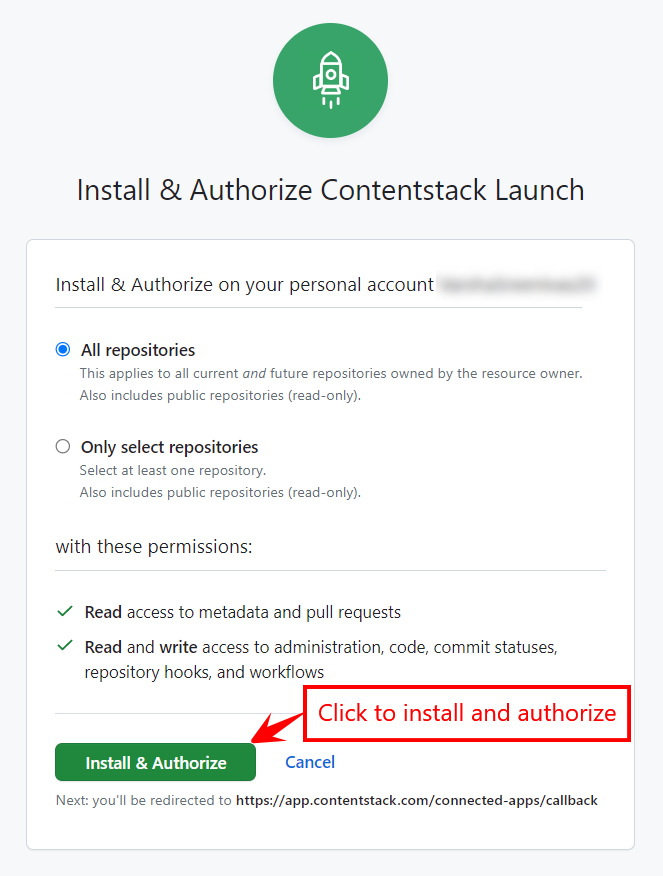
You will be redirected to the Launch app.
-
In the Create New Project modal, add the following details:
- Repository (Mandatory): Select your Git repository.
- Git Branch (Mandatory): By default, master or main is selected as the branch. You can choose another branch from the dropdown.
- Project Name (Mandatory): Gets auto-populated on selecting the repository. You can edit it as per your requirement.
- Environment Name (Mandatory): Enter the name of the environment.
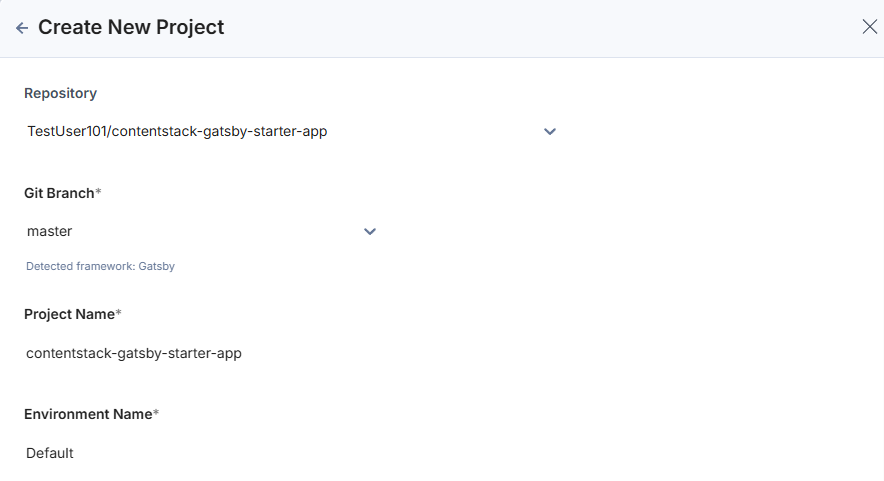
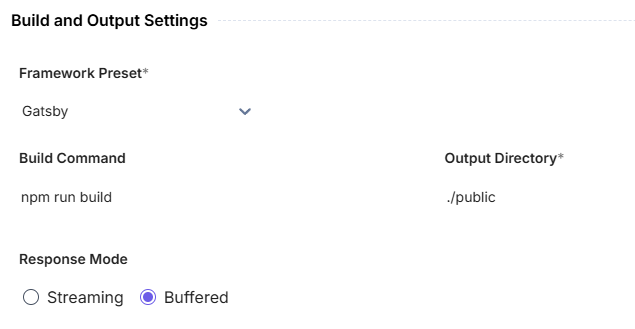
- Build and Output Settings (Mandatory): The fields in this section get auto-populated based on the detected framework.
Select a response mode:
- Streaming: Delivers response chunks in real time as they are generated.
- Buffered: Displays output only after the entire response has been generated.
Note: Buffered is selected by default.
- Environment Variables (Optional): Enter the key and value of one or more environment variables. For the Contentstack Gatsby Starter to work, we need to provide the following environment variables:
CONTENTSTACK_API_HOST=<api_host_value>
CONTENTSTACK_APP_HOST=<app_host_value>
CONTENTSTACK_API_KEY=<api_key_of_your_stack>
CONTENTSTACK_DELIVERY_TOKEN=<delivery_token_of_the_environment>
CONTENTSTACK_ENVIRONMENT=<environment_name>
CONTENTSTACK_REGION=<region>
CONTENTSTACK_BRANCH=<branch_name>
CONTENTSTACK_MANAGEMENT_TOKEN=<mgmt_token>
CONTENTSTACK_LIVE_PREVIEW=<true_or_false>
CONTENTSTACK_LIVE_EDIT_TAGS=<true_or_false>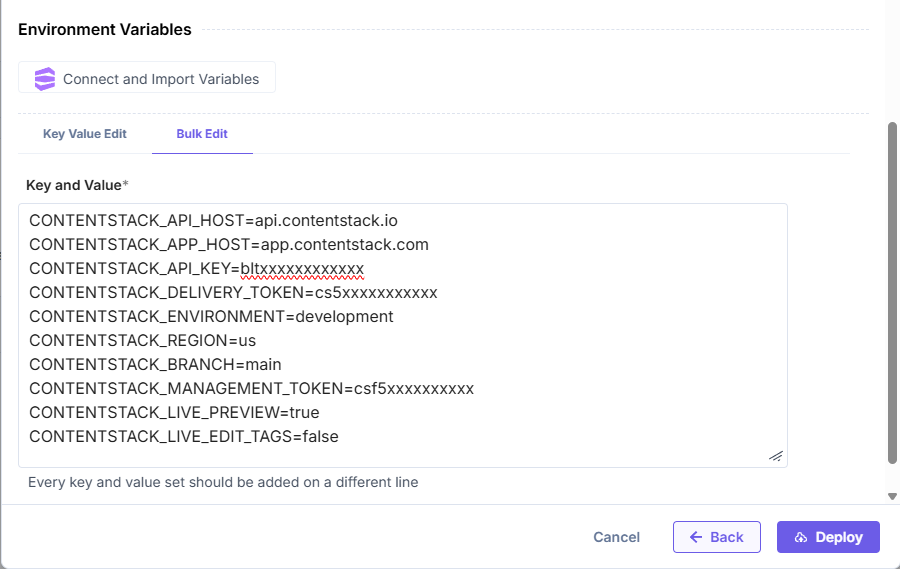
Note: Click Back to revert the changes and re-enter details.
- Once ready, click Deploy to save and deploy the project.
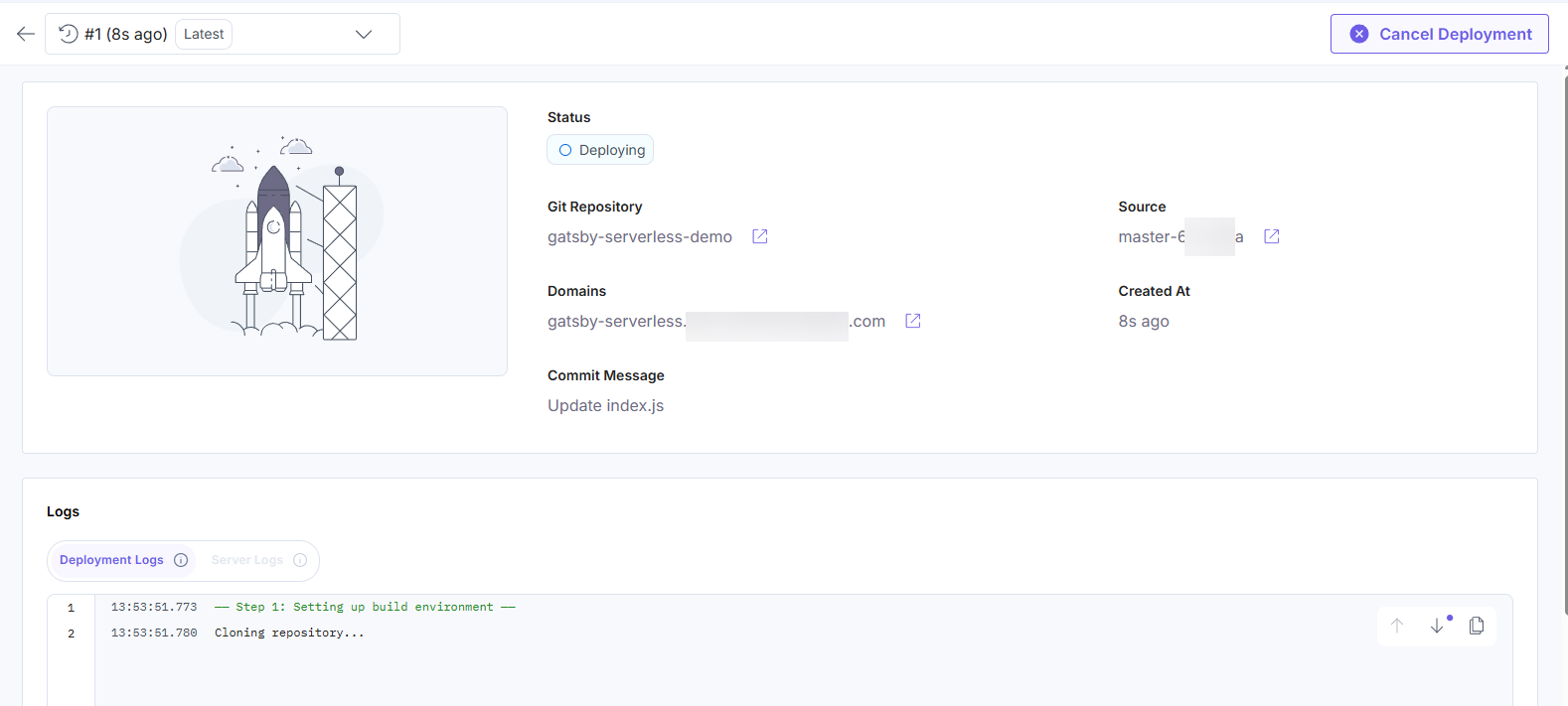
At first, the screen shows the Deploying status while the project deployment is in progress.
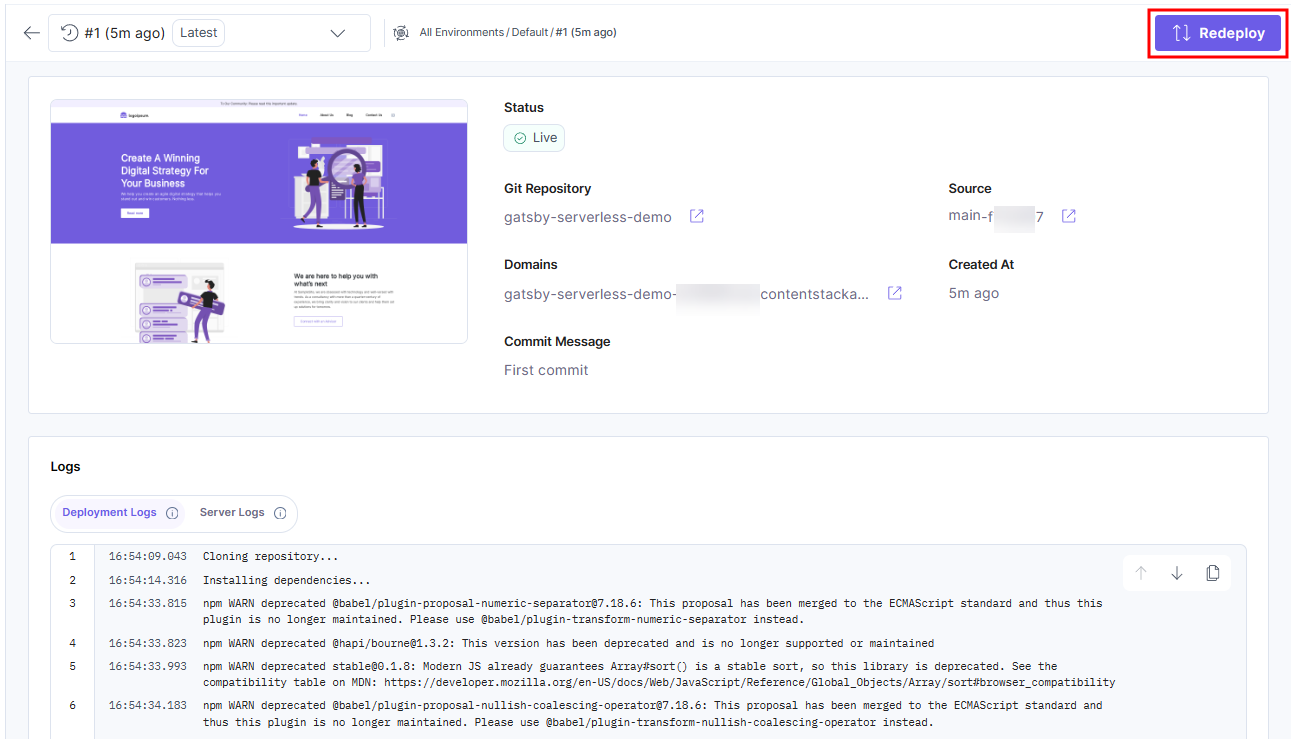
Upon successful deployment, you will see the following screen. You can preview the deployed website by clicking the icon next to the URL in the Domains section:
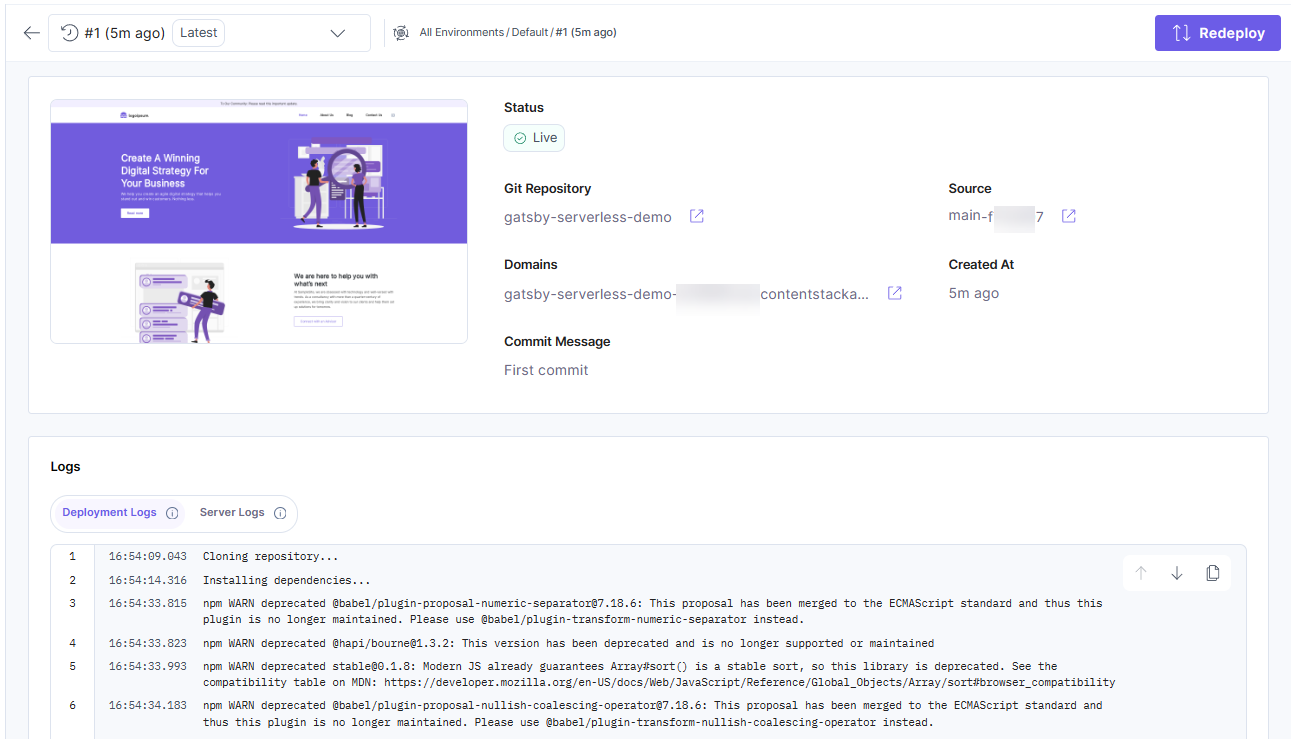
If you want to deploy the changes from any other commits, you can click the Redeploy button and choose the required commit.
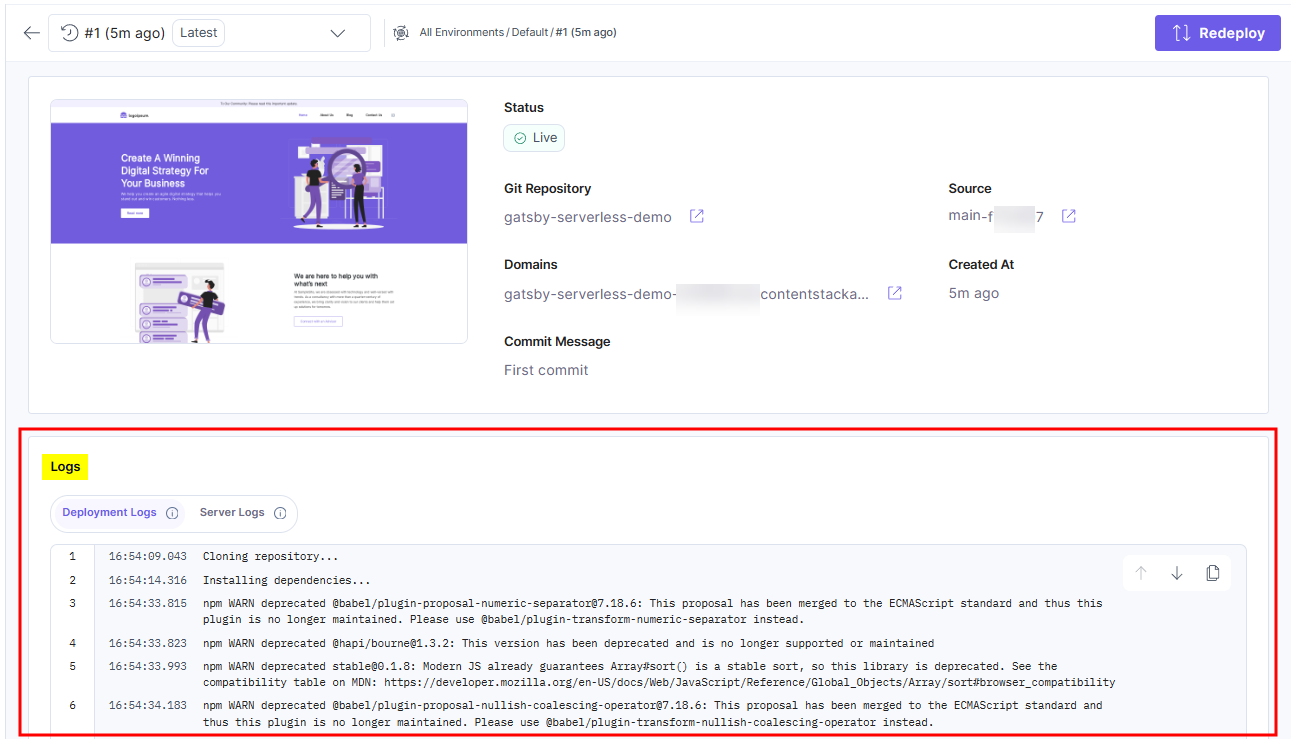
Note: The log details of the current deployment can be found under the Logs section.
More articles in "Launch Overview"
