

Launch Quick Start Guide with Astro
The fastest way to get started with Launch is to clone and deploy a sample Astro Starter project. With Launch, create a project by importing your website code from GitHub.
Prerequisites
- Contentstack account
- Launch-enabled Organization with Owner or Admin permissions
- GitHub account
What You Will Learn
-
How to import a GitHub repository into Launch.
-
How to configure build and output settings for an Astro project.
-
How to deploy Astro in server-side (SSR) or client-side (CSR) rendering mode.
-
How to deploy the project and preview the live site.
Steps for Execution
Follow the steps given below to deploy your first Launch project using GitHub:
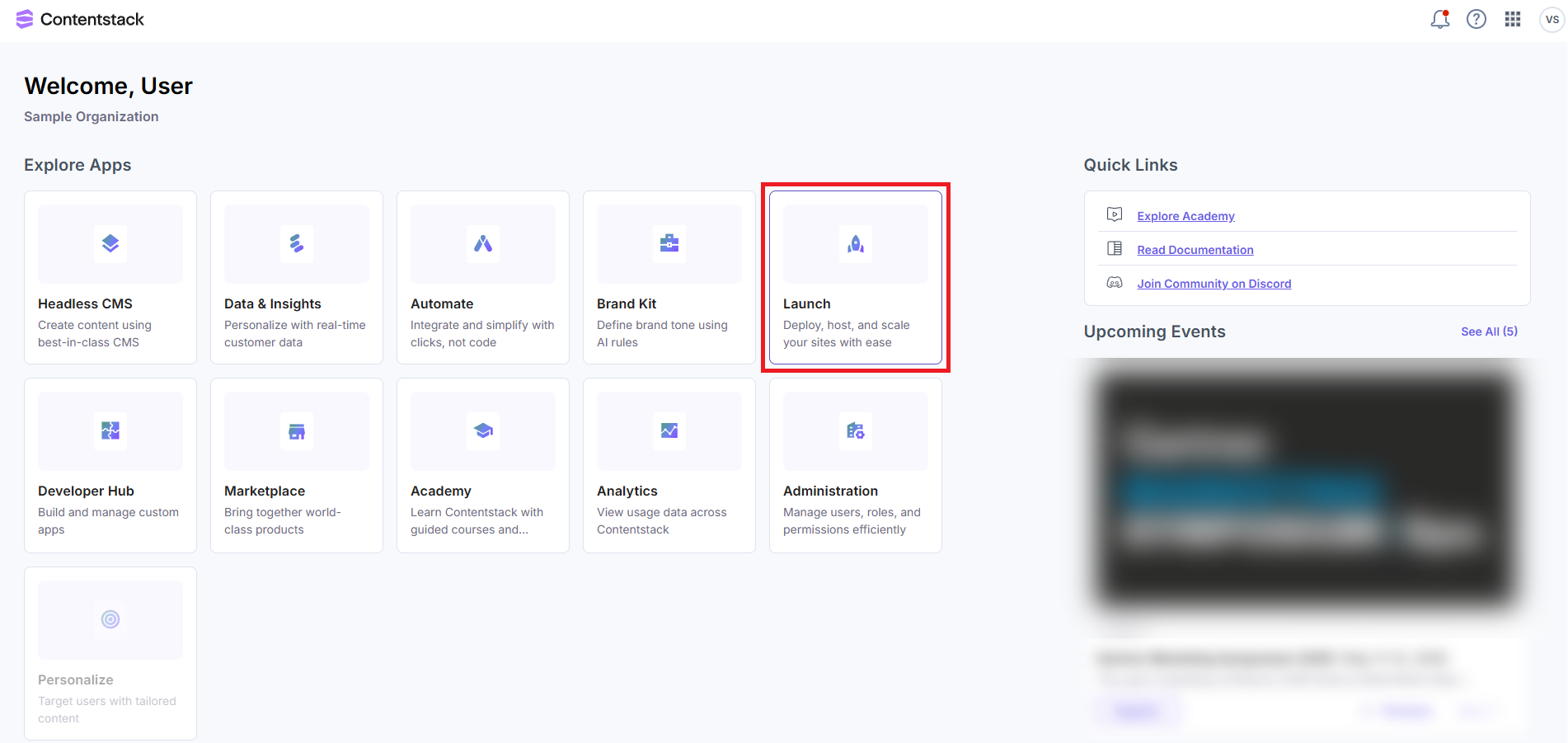
- Log in to Contentstack and click the Launch icon from the dashboard, as shown below:
Alternatively, go to the App Switcher in the top panel and click the Launch icon.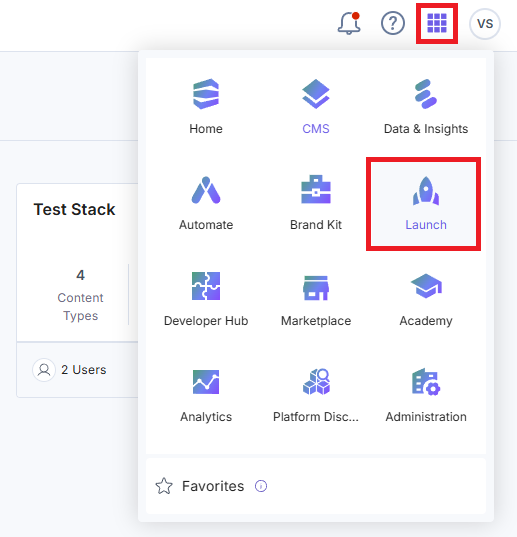
- On the Launch Projects screen, click the + New Project button to initiate the project creation process.

- From the Create New Project modal, click Import from a Git Repository.
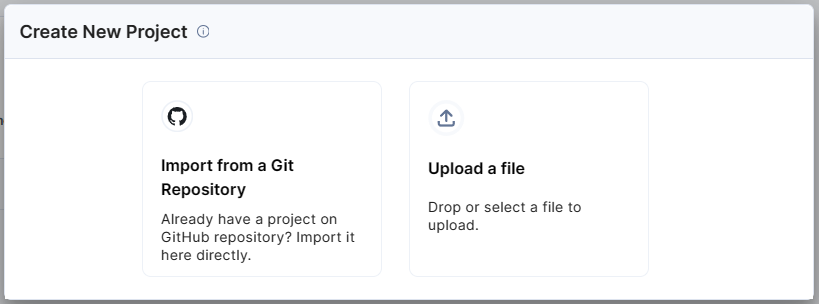
Note: You can also choose to upload a .zip file to import a project.
- Click GitHub.
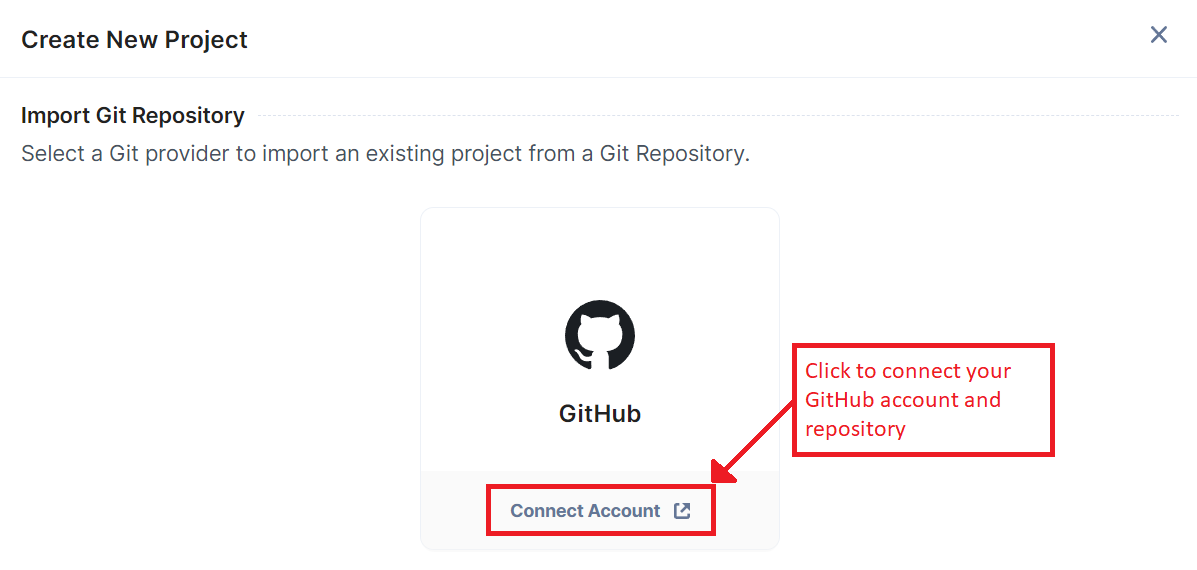
Additional Resource: You can also import a project using Bitbucket Cloud. Follow the steps in the Create a Project Using Bitbucket Cloud guide to proceed.
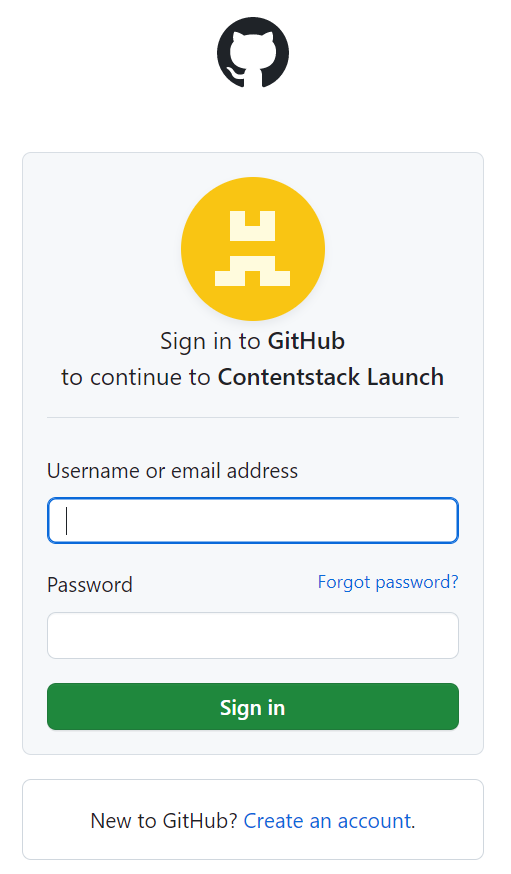
A Sign in to GitHub screen pops up. Enter your credentials and log in to your GitHub account.
Note: We have assumed that you have a GitHub account and your website code stored in the repository.
- Enter your credentials and log in.
- In the Repository access section, select All repositories.
Note: If you want to choose specific repositories, select the Only select repositories option and choose the required repository.
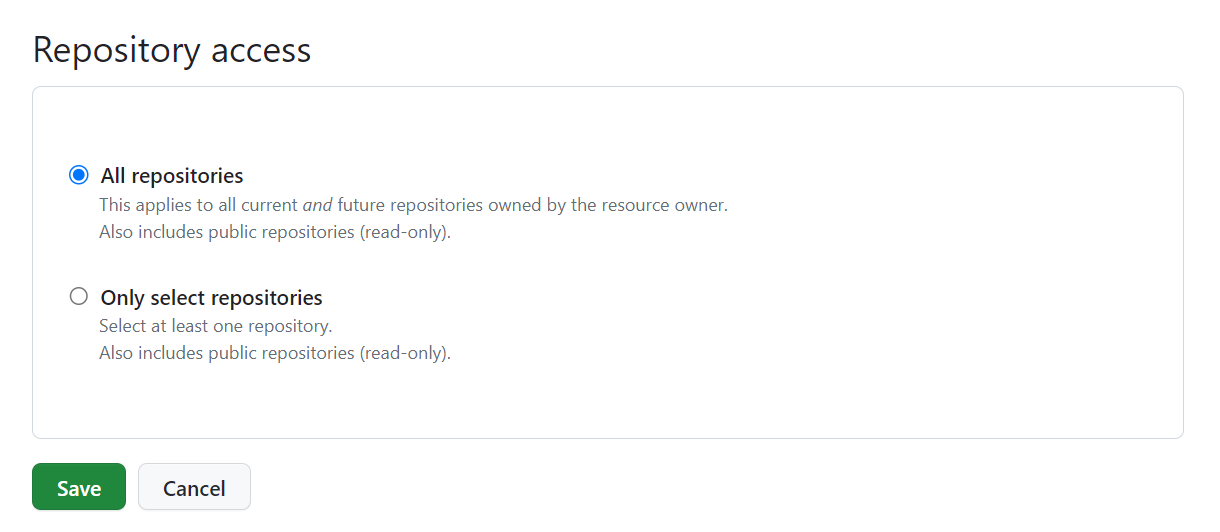
- Click the Save button.
Note: If you are accessing GitHub through Contentstack for the first time, you must authorize Contentstack by clicking the Install & Authorize button after selecting All repositories.
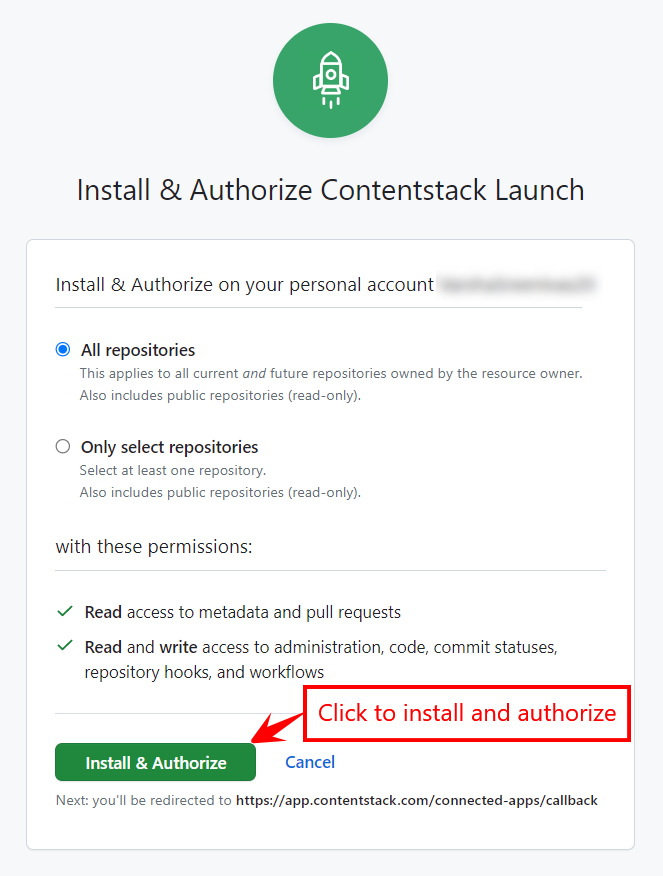
You will be redirected to the Launch app.
-
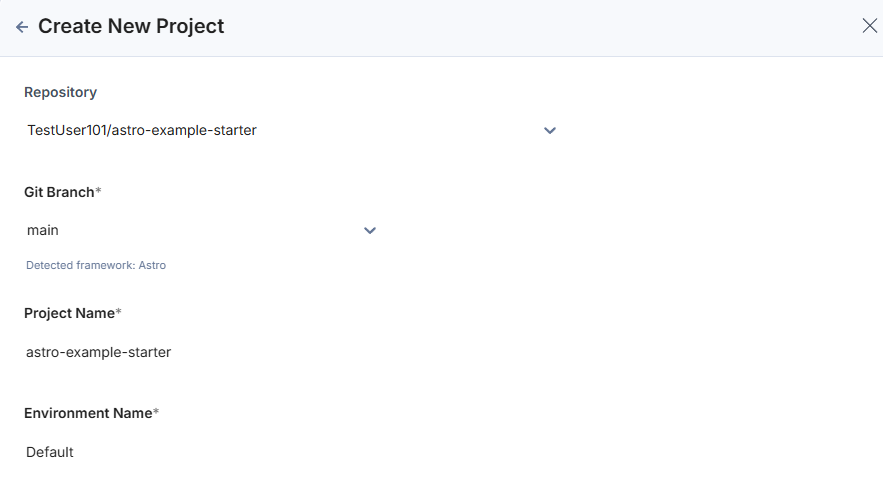
In the Create New Project modal, add the following details:
- Repository (Mandatory): Select the Git repository. In our example, we have selected the Astro project repository.
Note: When you select the repo, the Build and Output Settings section gets auto-populated.
- Git Branch (Mandatory): By default, master or main is selected as the branch. You can choose another branch from the dropdown.
- Project Name (Mandatory): Gets auto-populated on selecting the repository. You can edit it as per your requirement.
- Environment Name (Mandatory): Enter the name of the environment.
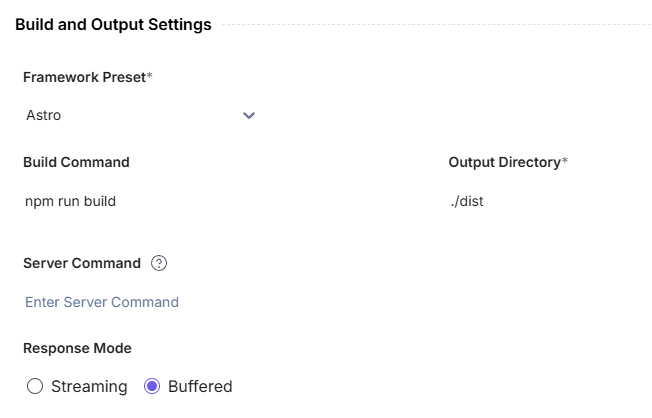
- Build and Output Settings (Mandatory): The fields in this section auto-populates based on the Astro framework, as discussed above. Update the Output Directory to ./dist
Select a response mode:
- Streaming: Delivers response chunks in real time as they are generated.
- Buffered: Displays output only after the entire response has been generated.
Note: Buffered is selected by default.
 Note:
Note:- In the Server Command field, enter npm run start to deploy Astro in server-side rendered (SSR) mode.
- Leaving the Server Command field blank will deploy the framework as CSR (Client-Side Rendered).
- Environment Variables (Optional):
- Enter the key and value of one or more environment variables.
- You can also add the key-value pairs in bulk in the Bulk Edit section.
ENVIRONMENT=Production
SAMPLE_KEY=SAMPLE_VALUE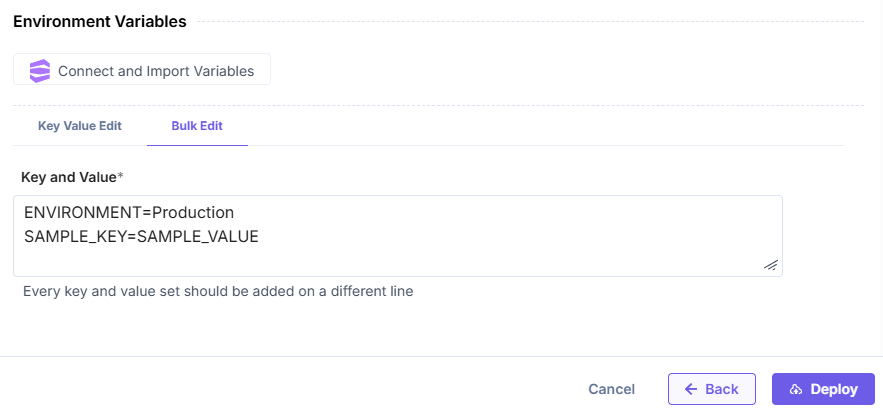
Note: Click Back to revert the changes and re-enter details.
- Repository (Mandatory): Select the Git repository. In our example, we have selected the Astro project repository.
- Once ready, click Deploy to save and deploy the project.
As soon as the deployment starts, the system displays the Deploying status as shown in the following screenshot:
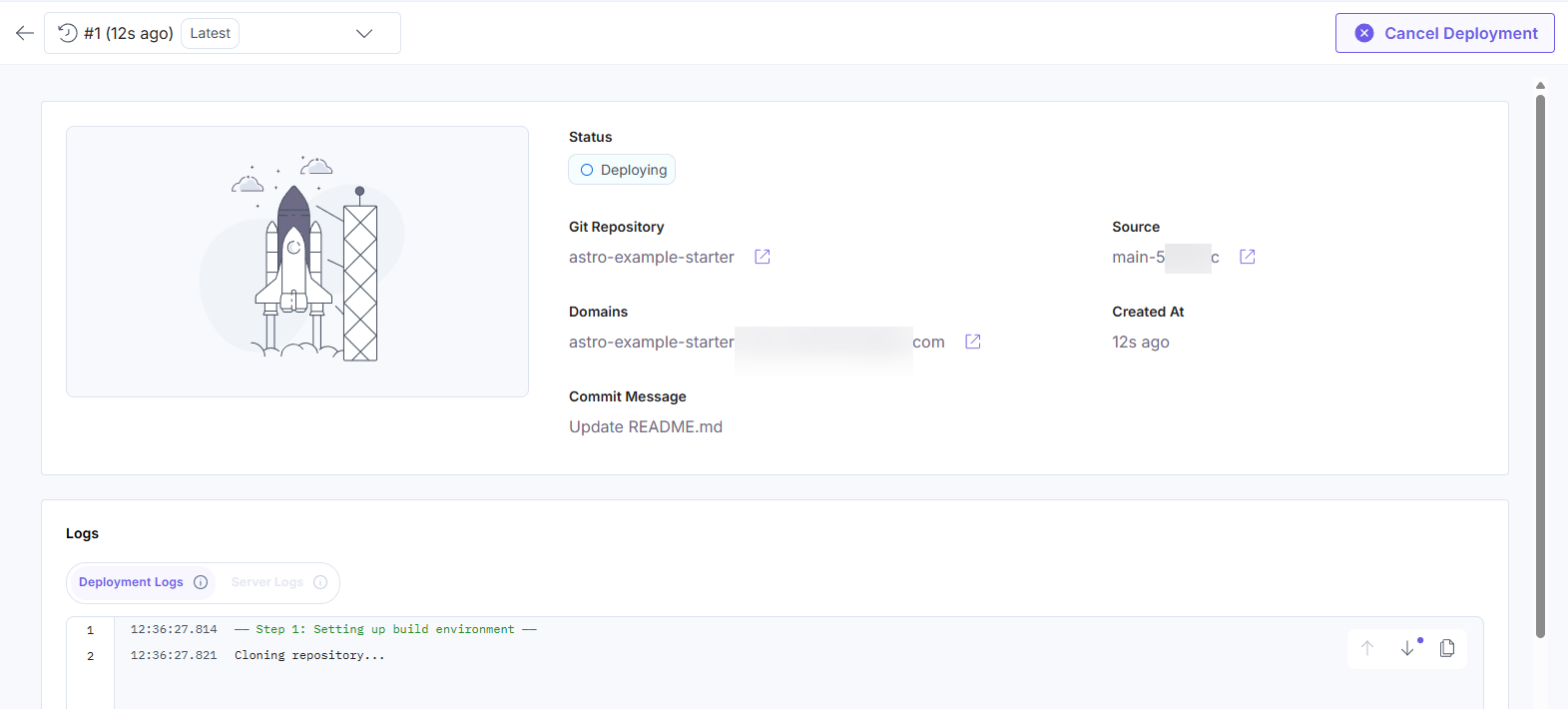
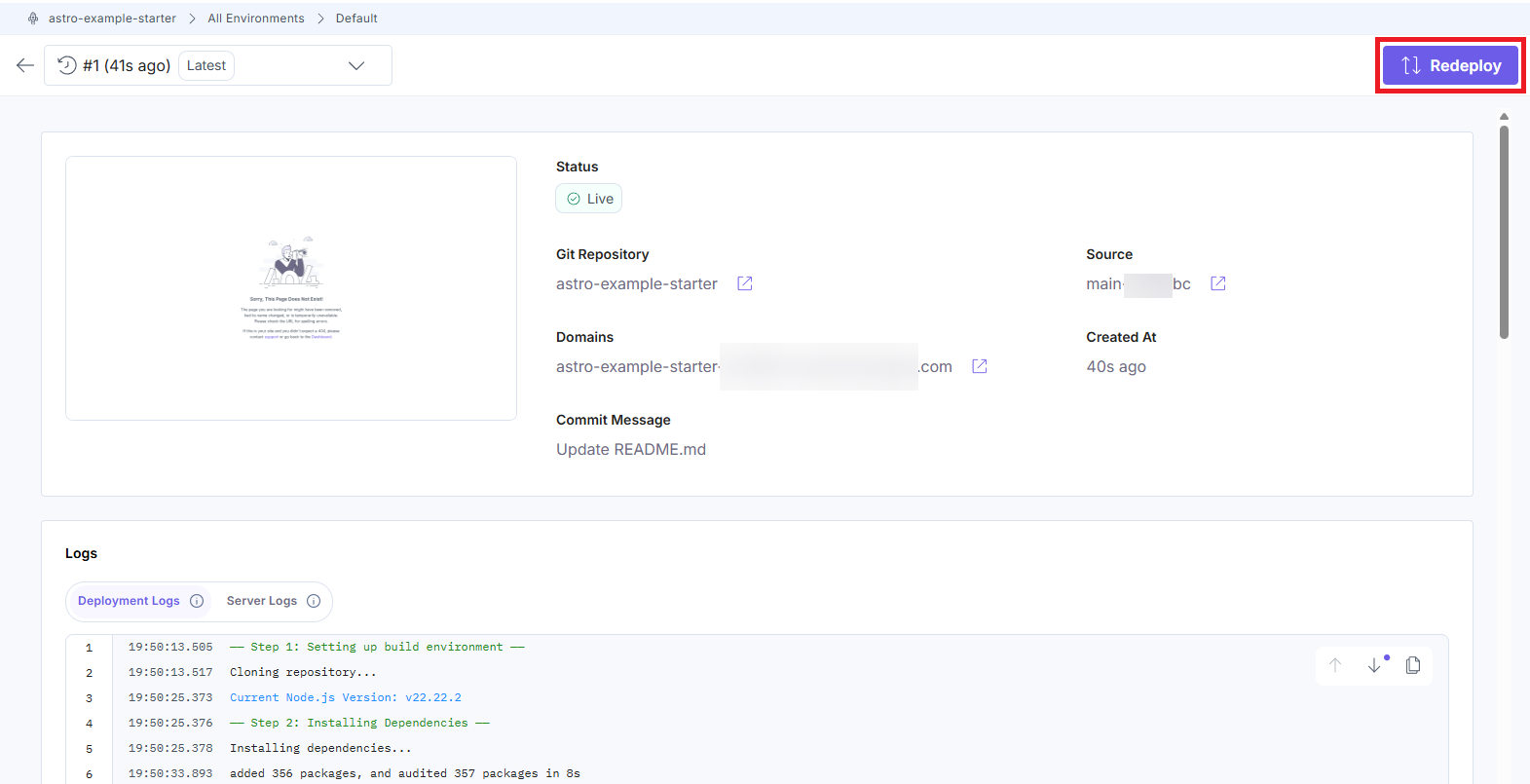
Upon successful deployment, you will see the following screen. You can preview the deployed website by clicking the icon next to the URL in the Domains section:
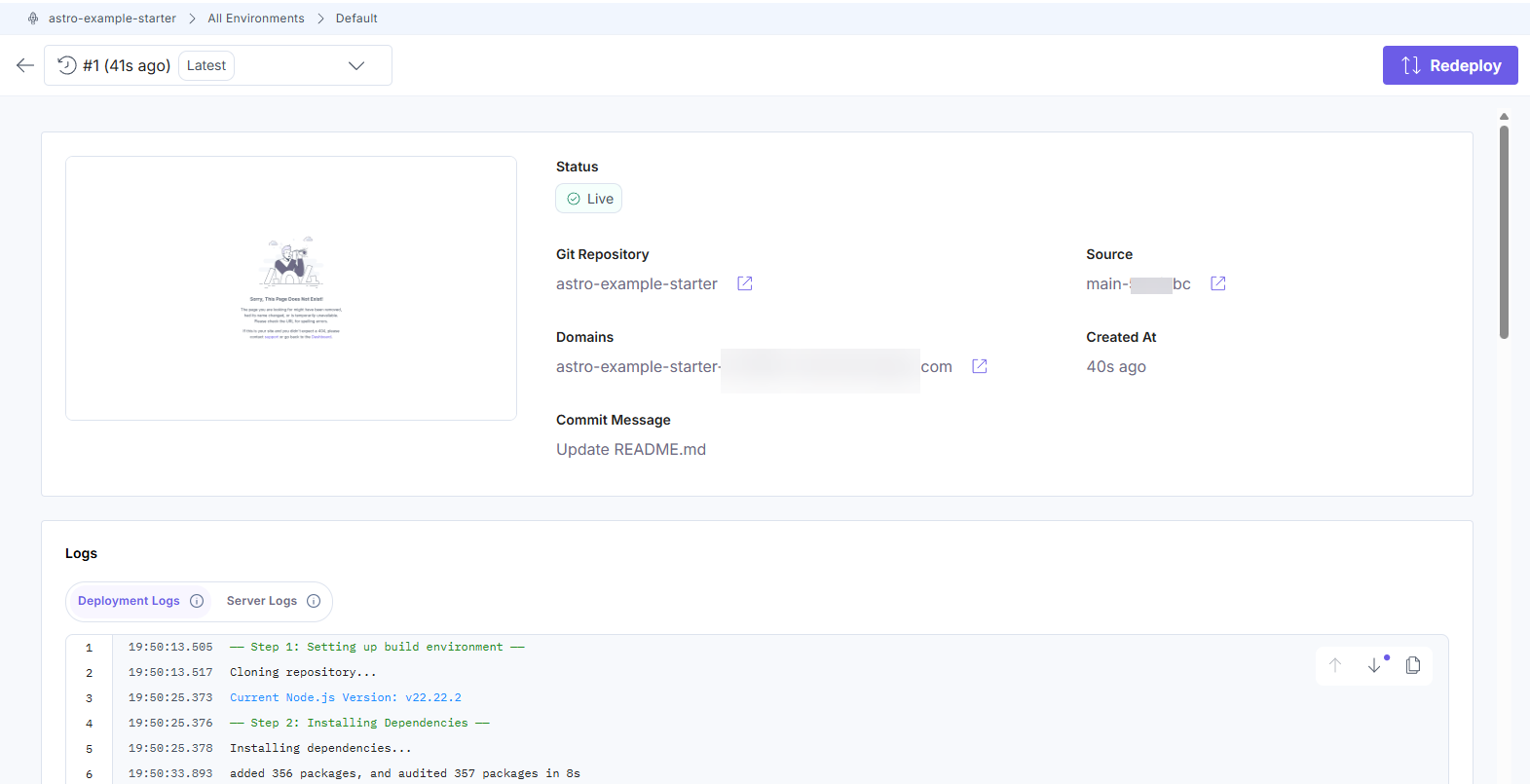
If you want to deploy the changes from any other commits, you can click the Redeploy button and choose the required commit.
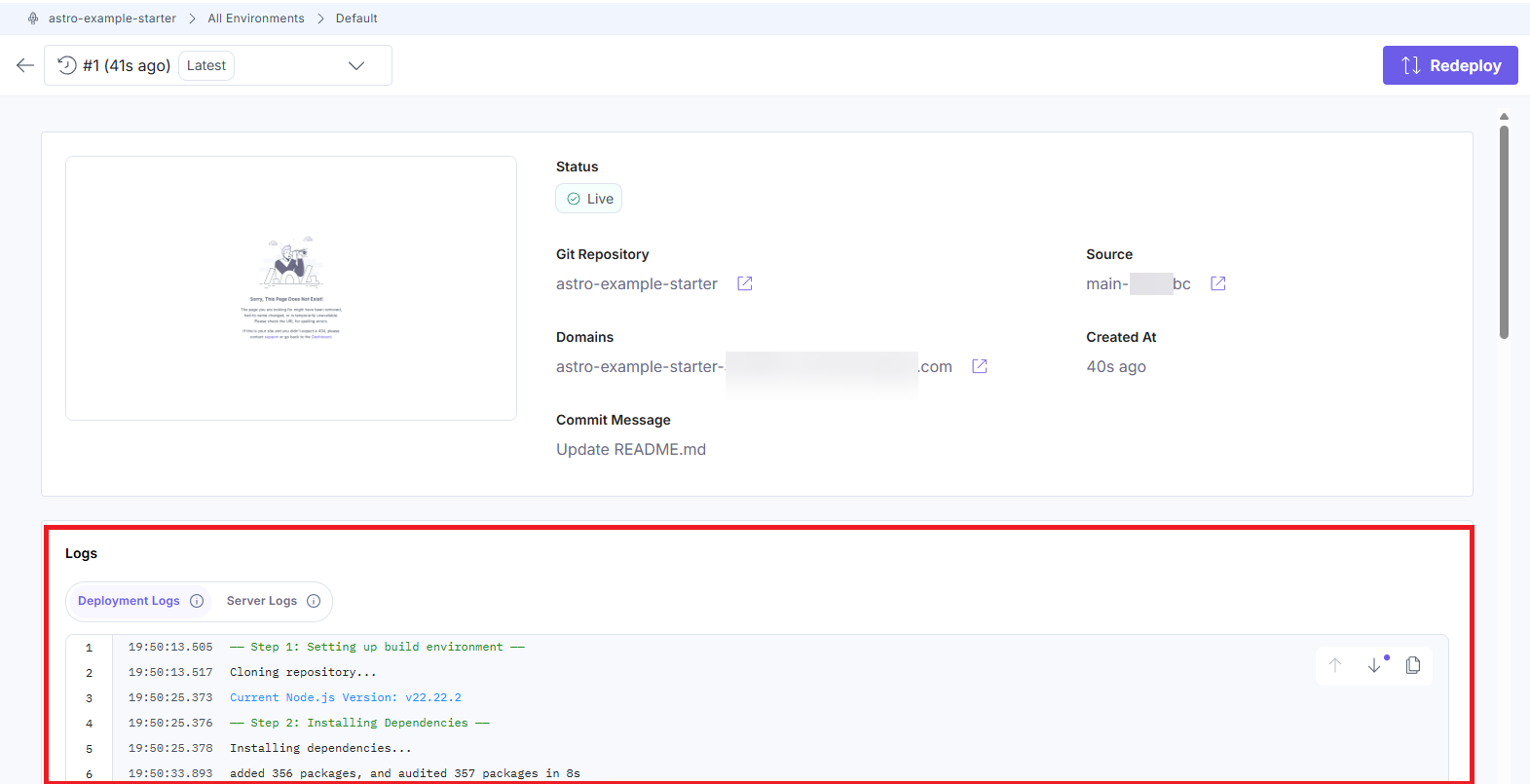
Note: View the log details of the current deployment in the Logs section.
More articles in "Launch Overview"
