

Set Up Content Migration Framework (Drupal)
The Contentstack Migration Tool enables users to seamlessly migrate content from a legacy Content Management System (CMS) to Contentstack. The tool simplifies the migration process with an intuitive interface and step-by-step workflow for importing content, mapping content types, and migrating data into a stack within Contentstack.
This guide outlines how to install the migration tool using Windows and macOS systems for Drupal migration.
Note: The tool supports Drupal versions 8, 9, 10, and 11. Drupal 7 is not supported. Drupal 7 reached end-of-life and is deprecated by the Drupal community.
Prerequisites
Before you begin the installation process, ensure the following requirements are met:
- Latest version of Bash for macOS/Linux or Git Bash or Windows Subsystem for Linux (WSL) for Windows
- An IDE of your choice, such as Visual Studio Code
- A MySQL database instance with the Drupal structured query language (SQL) dump loaded
- MySQL Workbench or an equivalent client to manage the database
- The host, port, database name, and username for the MySQL connection
- The asset directory path and base site URL of your Drupal site, if you plan to migrate assets
Installing the Migration Tool
Follow the steps below to install the migration tool on your system:
- Open a terminal and run the following command to clone the repository and install dependencies:
For macOS/Linux:
git clone https://github.com/contentstack/migration-v2.git && cd migration-v2 && chmod +x setup.sh && ./setup.shFor Windows:
git clone https://github.com/contentstack/migration-v2.git && cd migration-v2 && setup-nvm.bat - During setup, select Drupal as the legacy CMS.
Warning: Ensure you select the correct legacy CMS to avoid any errors during the migration.
- When prompted, enter the MySQL database connection details. Drupal-specific prompts appear only when you select Drupal in the previous step.
- Host (required): The host where the MySQL server runs. Use localhost if the server runs on the same machine, or enter the URL of the remote MySQL host.
- Database name (required): The database that contains the Drupal SQL dump.
- Username (required): The MySQL user with read access to the database.
- Port (optional): The MySQL port. Defaults to 3306 if left blank.
- Password (optional): The password for the MySQL user.
- Local path: Enter the string sql.
- When prompted, enter the asset configuration details. These values are required only if you plan to migrate assets along with the content.
- Base site URL: The URL where your Drupal site is hosted (for example, https://example.com).
- Public path: The directory path on the site where assets are stored (for example, /sites/default/files).
Note: To skip asset migration, leave both fields blank.
- Confirm the inputs. The script installs dependencies, writes the configuration, and starts the upload and migration API servers.
- Once the installation is complete, navigate to http://localhost:3000 to access the Contentstack Migration Tool.
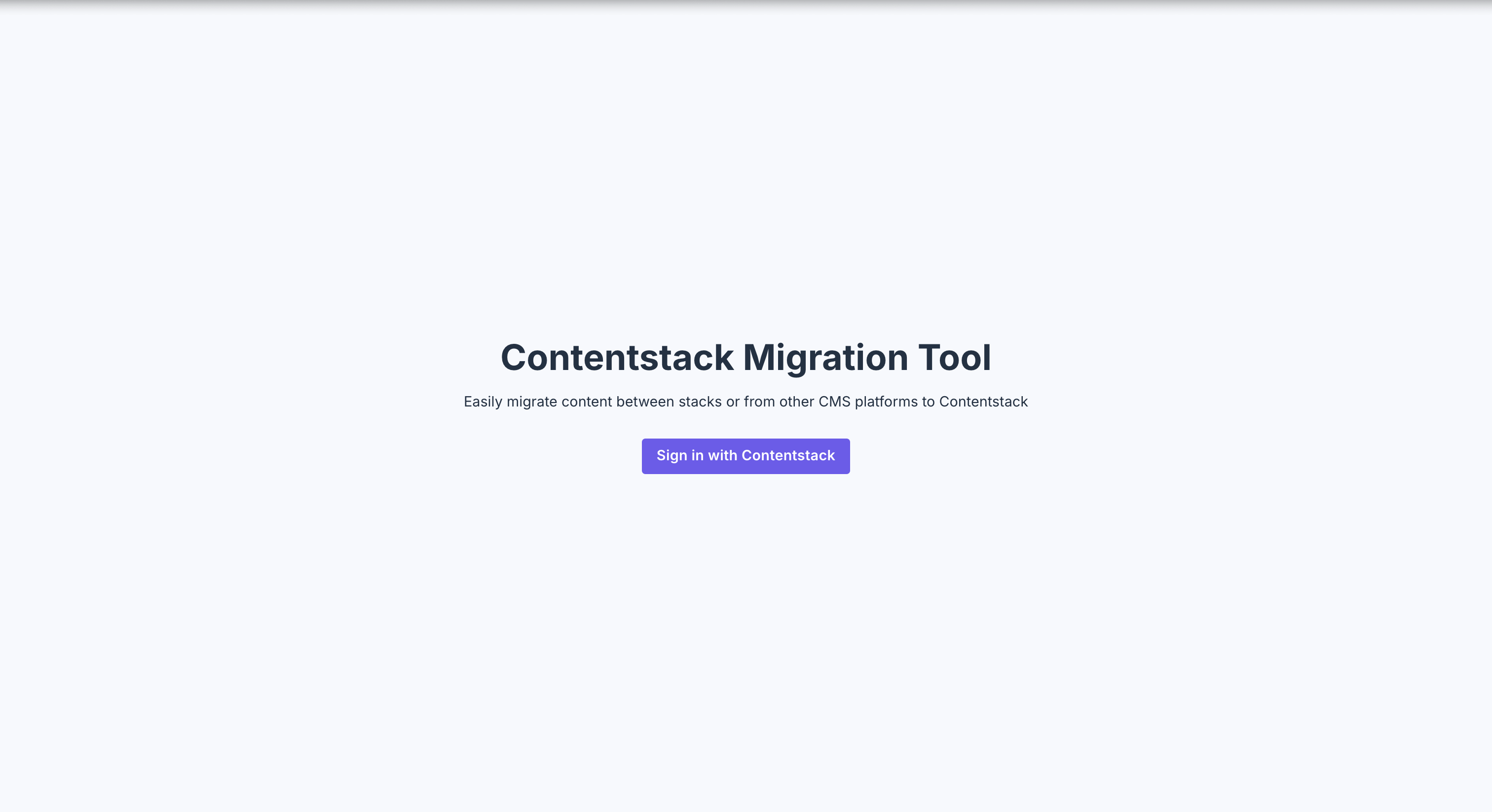
This completes the installation of Contentstack Migration Framework. Refer to the Perform Content Migration section for further steps.
More articles
