

IdP Role Mapping
IdP Role Mapping allows you to assign Contentstack roles to the users of a group or role in your identity provider (IdP). Users of such groups can then sign in directly to your SSO-enabled organization (without an invitation) with the assigned permissions.
Note: A user who already belongs to one organization and then signs in to a different organization that uses the same IdP must accept an invitation before gaining access to that organization. Contentstack generates this invitation automatically at login time.
This is an alternate way of managing the users and permissions of your SSO-enabled organization. The other way is invitation-based user and role management.
To use this feature, map your IdP roles to Contentstack roles while you configure SSO for your organization.
Note: After you enable IdP Role Mapping in Contentstack, the role management for the users of your IdP is handled from your IdP instead of Contentstack. Admins and owners remove users from an organization that has both SSO and IdP Role Mapping through the IdP, because a user who is removed from the organization but not from the IdP can still sign up again. Two SSO scenarios apply:
- Organization has SSO enabled but IdP Role Mapping not enabled: The admin or owner deletes the user from the user list directly within Contentstack.
- Organization has both SSO and IdP Role Mapping enabled: The user cannot be removed from within Contentstack, because role management is handled from the IdP. This avoids ambiguity and inconsistency in user actions.
Currently, IdP Role Mapping is supported only for Okta, OneLogin, and Microsoft Entra ID.
Note: Every newly created stack has unassigned roles and requires a manual mapping in the SSO section.
How a Role Mapping Assigns Roles by Product
Each role mapping links one IdP Role Identifier to the Contentstack roles you want its members to receive. You assign these roles per product, so a single mapping can grant different access across products, such as CMS, Personalize, Agent OS, and Administration.
To create a mapping, click Add Role Mapping, enter the IdP Role Identifier (the name or UID of the IdP group you are mapping), and then use Manage Roles on each product to select the roles for that product. A connection holds up to 200 role mappings.
IdP Role Mapping also requires a roles attribute in the SAML assertion from your IdP, and a Role Delimiter that matches the separator your IdP uses to list those roles.
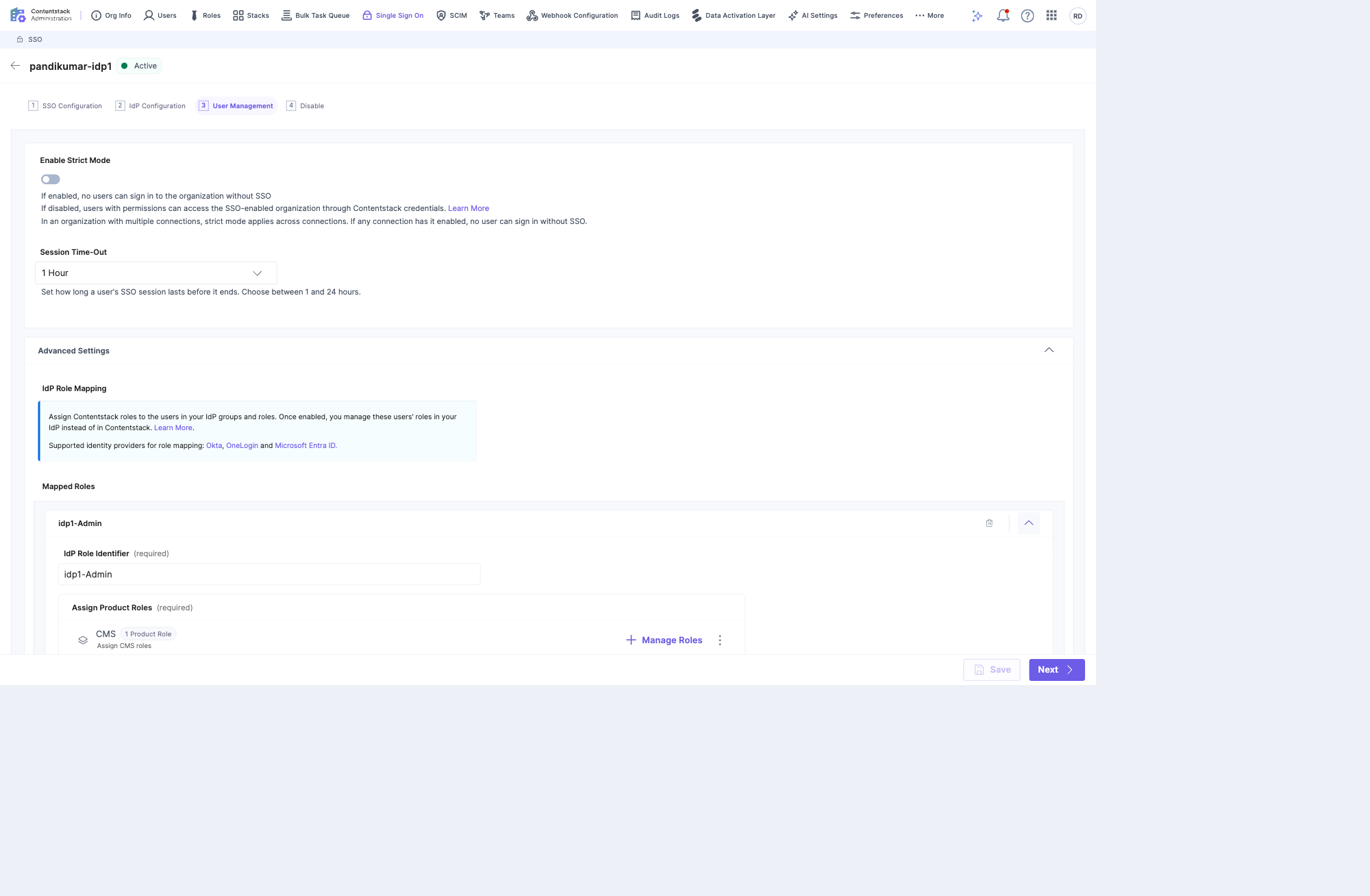
For the Administration product, at least one role is required. The Member role is selected by default, which grants read-only access to organization information. Change it only when the group needs elevated administrative access. The Administration roles include:
- Admin: Full administrative access across the organization, including users, roles, and settings.
- Security Manager: Manages organization security settings, single sign-on (SSO) and System for Cross-domain Identity Management (SCIM), user access, and related configuration.
- Product Analytics Viewer: Access to the Analytics application.
- Member: Read-only access to organization information.
Note: The available products and roles depend on your Contentstack plan and the applications enabled for your organization, so your list may differ from the examples above.
IdP Role Mapping in a Multi-IdP Organization
An organization can attach up to five SAML 2.0 IdPs, where each IdP is a separate connection with its own certificate, session policy, role mapping, and login URL. You configure IdP Role Mapping per connection, so each connection maintains its own set of IdP-role-to-Contentstack-role mappings.
The roles applied to a user come from the connection that the user signs in through. If a user is a member of groups across more than one IdP, the session reflects the role mapping of the connection used for that specific sign-in, not the combined mappings of every connection.
How Roles Are Evaluated at Sign-In
When IdP Role Mapping is enabled on the connection a user signs in through, Contentstack evaluates the mapped roles during login, and those roles take precedence over the user's existing roles for that session.
Warning: If the assertion carries no role that matches any mapping on that connection, the sign-in is denied. The user cannot access the organization through that connection until a matching mapping exists. Organization owners are exempt and are never stripped of their roles, so a successful test as the owner does not prove that other users can sign in. Before you enable IdP Role Mapping, confirm that every group you expect to sign in has a matching mapping, and that the Role Delimiter you set matches the separator your IdP uses in the roles claim.
For a user who belongs to more than one IdP connection, the behavior depends on whether role mapping is enabled:
- IdP Role Mapping disabled: The user keeps the role they were previously provisioned.
- IdP Role Mapping enabled: Contentstack evaluates the mapped roles during login, and they override the user's existing roles for that session.
Additional Resource: To attach and configure more than one IdP, refer to Configure Multiple Identity Providers and Manage SSO Connections.
IdP Role Mapping and SCIM Role Precedence
When a user is provisioned through System for Cross-domain Identity Management (SCIM) and also matches an IdP role mapping, IdP Role Mapping takes precedence while it is enabled.
Consider a user whom SCIM invites with Role A, while an IdP role mapping assigns Role B:
- The user is first invited with the SCIM-assigned Role A.
- Because IdP Role Mapping is enabled, the user is provisioned with Role B during sign-in, and Role B overrides Role A.
- If you disable IdP Role Mapping later, the user retains Role B. The role does not revert to the SCIM-assigned Role A, because the user has already been provisioned with Role B.
SCIM provisioning is organization-scoped, not connection-scoped, so every IdP in the organization shares the same SCIM provisioning context.
Warning: Avoid pushing SCIM groups with the same name from more than one IdP to the same organization. Duplicate group names can cause provisioning conflicts on both the IdP side and the Contentstack side.
Additional Resource: For details on SCIM provisioning and supported IdPs, refer to Supported Identity Providers for SCIM.
More articles in "How SSO Works"
