

Bynder App Installation Guide
Bynder is a cloud-based Digital Asset Management (DAM) platform that enables organizations to manage, share, and distribute their digital content from a centralized location.
With its user-friendly interface, the marketing team can create, find, and utilize digital assets such as images, videos, and documents efficiently.
By installing the Bynder app from the Contentstack Marketplace, you can use it within your stack to fetch and display digital assets from Bynder accounts within your entries.
Prerequisites
- Bynder account
- Contentstack account
- Access to the Contentstack Organization/Stack as the Owner/Admin
Follow this step-by-step guide to install and configure the Bynder app within your stack.
Steps for Execution
- Retrieve your Credentials from Bynder
- Install and Configure the Bynder App in Marketplace
- Use the Bynder App within your Stack
-
Retrieve your Credentials from Bynder
To configure the Bynder app, you first need to create an account in Bynder. To do that, follow the steps given below:
Get your Bynder Organization URL
- Go to https://www.bynder.com/en/ and create a new account. It is recommended to use the partnership account by purchasing the license. The free trial account will not work as expected.
- To get your Bynder organization URL, please refer to the Get a Personalized URL for your Bynder Portal document.
Get Client ID and Client Secret from Bynder
To retrieve the OAuth credentials (Client ID and Client Secret), follow the steps:
- Log in to your Bynder portal using the Bynder Organization URL, navigate to the “Settings” icon, and select Advanced settings > Portal settings.
- In the left navigation, under the General settings header, click OAuth Apps.
- Click the Add new app button to create a new app.
- In the Register new OAuth application page, provide the Application name and select the Integration type as Contentstack from the dropdown.
- You must Select grant type as Authorization Code + Refresh Token to ensure the app uses an app token rather than a user-specific token.
- In the Authorization Redirect URL section, set the static redirect URL as https://bynder.contentstackmarket.com/#/bynder/callback provided by Contentstack. This URL is necessary to generate the code required for fetching the app token.
- To configure scopes, check the required scopes in Select scopes to ensure the app functions correctly:
- asset:read
- asset.usage:read
- asset.usage:write
- collection:read
- Scroll down, and click the Register application button to save and register the app.
- Once registered, the app is created and you will get the Client ID and Client Secret.
- Copy these credentials to use during app configuration in step 2.
-
Install and Configure the Bynder App in Marketplace
To install the app in Contentstack, log in to your Contentstack account and follow the steps below:
- Navigate to the “App Switcher” icon in the top-right corner and click Marketplace.
- Click Apps from the left panel.
- Within the Marketplace, you can see all the available apps. Hover over the Bynder app and click Install.
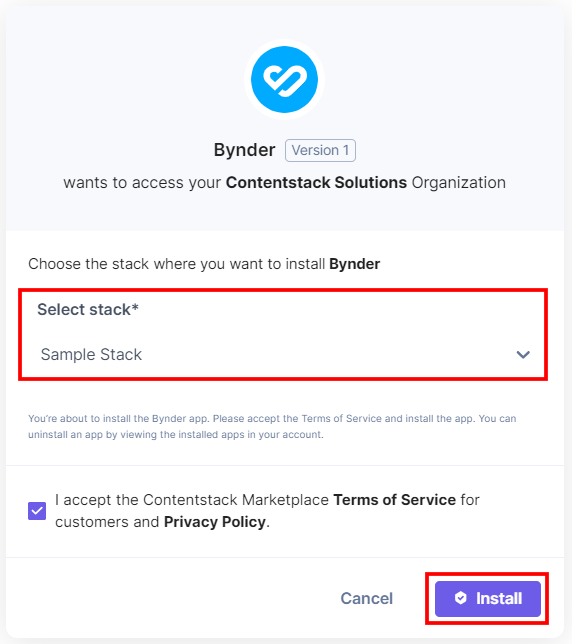
- In the pop-up window, select the stack where you want to install the Bynder app, accept the Terms of Service, and click the Install button.
- On the Configuration screen, you can add multiple configurations for Bynder. To do so, follow the steps given below:
- Click the + New Configuration button to add new configuration details.
- In the Add Configuration modal, enter the Configuration Name and click Add.
- After adding the configuration, enter the following details:
- Bynder Organization URL: Enter the Bynder Organization URL you retrieved from Bynder in step 1.
- Language: Select the language from the Language drop-down.
Note:
- By default, the Bynder app is set to English.
- The language selected here is not related to the locale in Bynder.
- Mode: Select a Mode.
- If you want to select multiple assets in your entry, select Multi Select.
- If you want to select a single asset in your entry, select Single Select.
- If you want to enable the Dynamic Asset Transformations (DAT) feature on a single asset, select Single Select File. In this case, only a single file can be selected.
Note: Multi Select is the default selected option.
- Advanced Settings (optional): Enable the toggle and enter the Client ID and Client Secret retrieved from your Bynder account in step 1, and click the Fetch Code and Validate button.
You may get the Bynder login screen or permission screen for Bynder app whose credentials (Client ID & Client Secret) you have added in the configuration.
Once validated, you can use the Login Bypass and Enable Asset Tracker features.
- Login Bypass: Enable the toggle button to use the token-based approach to bypass the standard login screen for the selector page while choosing assets from the custom field.
- Enable Asset Tracker: Enable the toggle button to track the asset usage within the Bynder portal.
- Set as Default: To set this configuration as the default, click this checkbox.
Alternatively, you can set a configuration as the default by clicking the three dots on the top-right side of the configuration section and then selecting Set as Default.
Note: At least one app configuration should be selected as the default.
Similarly, you can add multiple configurations by following the steps discussed above.
- To delete the configuration, click the three dots and select Delete Configuration.
In the Confirm Deletion modal, add the configuration name and click Delete.
- For an existing user, the credentials will be added as the default configuration, and named as legacy_config.
Warning:
- legacy_config is a reserved keyword and you cannot use it in adding new configurations.
- If you delete the legacy_config configuration, data loss may occur and you will not be able to access the products and categories from the related accounts.
- Choose the Bynder Keys to Save in Entry: Choose how to save the data fetched from the Bynder account in Contentstack entries.
- If you select the All Fields option, you can select only a limited number of videos in the entry.
- For Custom Fields, you can search and add specific Bynder fields you want to save in entries.
Note: When you change the settings from All Fields to Custom Fields, and vice versa, any existing and newly added assets in the entry will store the data according to the updated configuration settings.
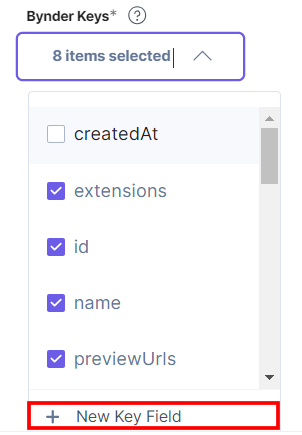
If you select Custom Fields, then the Bynder Keys drop-down appears. By default, extensions, id, name, previewUrls, type, files.webImage, databaseId, url, and additionalInfo options are already selected inside the dropdown. If you want to create a new key, click the + New Key Field option.
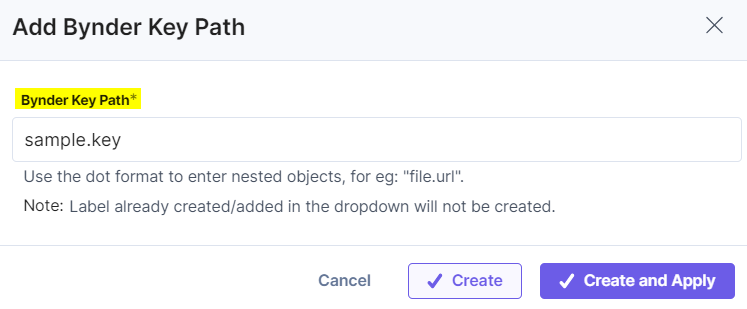
In the Add Bynder Key Path modal, enter the Bynder Key Path and click the Create or Create and Apply button to create a new key.
- After adding the configuration details, click the Save button.
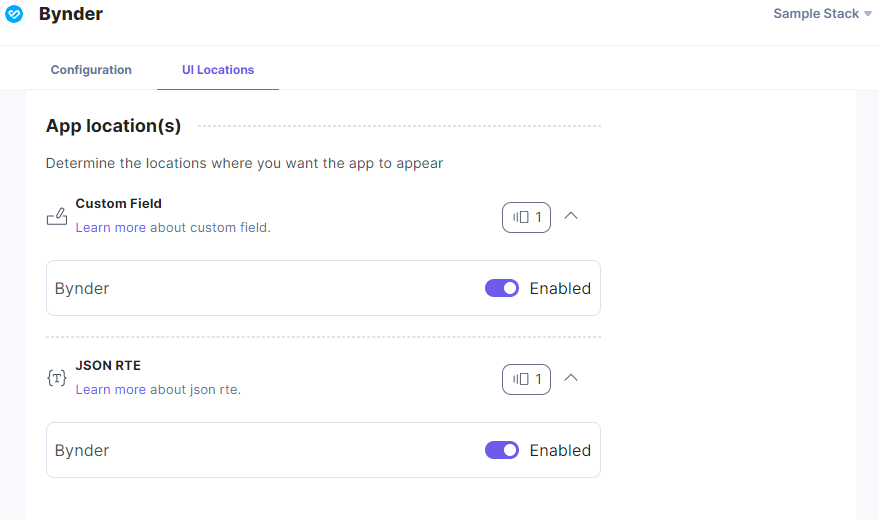
- On the UI Locations tab, you can see the predefined app locations. You can use the toggle button corresponding to each UI location to enable or disable it based on your requirements.
- If the webhook is enabled for your app, you can view the Webhook Logs under the Webhook tab.
Additional Resource: For more information on UI locations and webhooks, please refer to the Installed Apps guide.
- Click Open Stack to start using the Bynder application.
Use the Bynder App within your Stack
To use the Bynder app within an entry of your stack, follow the steps given below:
- Go to your stack, click the Content Models icon from the left navigation panel, and click the + New Content Type button.
- Create a content type by adding relevant details as displayed below:
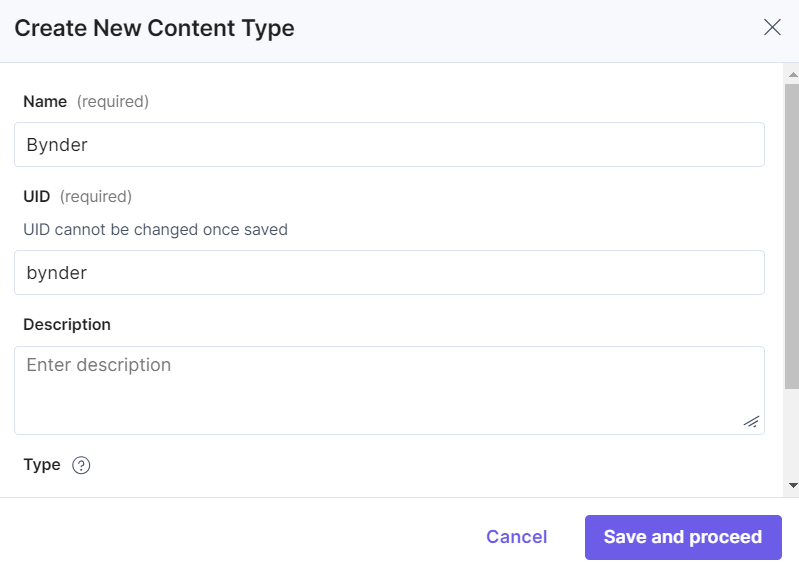
There are two ways to use the Bynder app in your entry:
Use the Bynder App as a Custom Field
- In the Content Type Builder page, add a Custom field in your content type by clicking the Insert a field link represented by a + sign.
- Under Select Extension or App, select Bynder and then click Proceed.
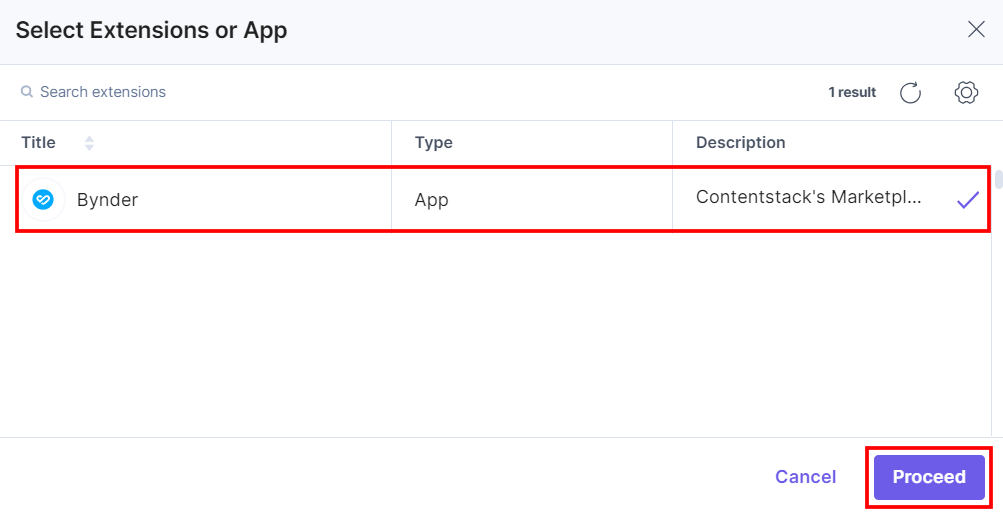
This adds Bynder in the custom field.
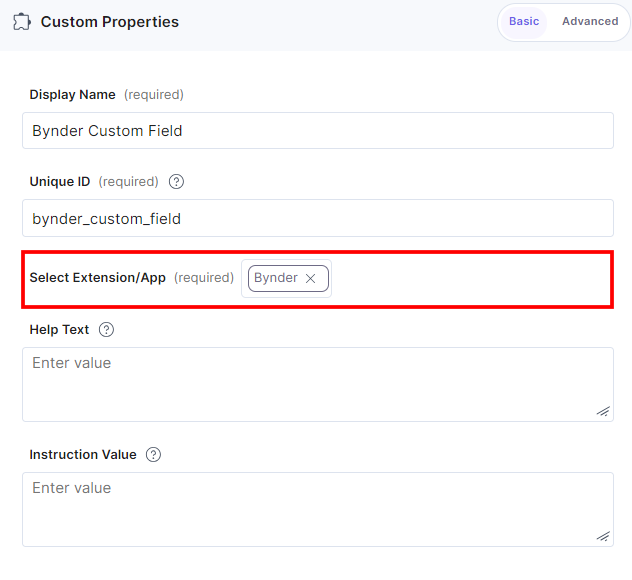
- After adding the app in a custom field, click Save or Save and Close to save your changes.
- Now to use the Bynder app, create an entry in this newly created content type. In the left navigation panel, navigate to the Entries page, click + New Entry to create a new entry for the above content type, and then click Proceed.
You can see the Bynder app’s custom fields on your entry page as shown below:
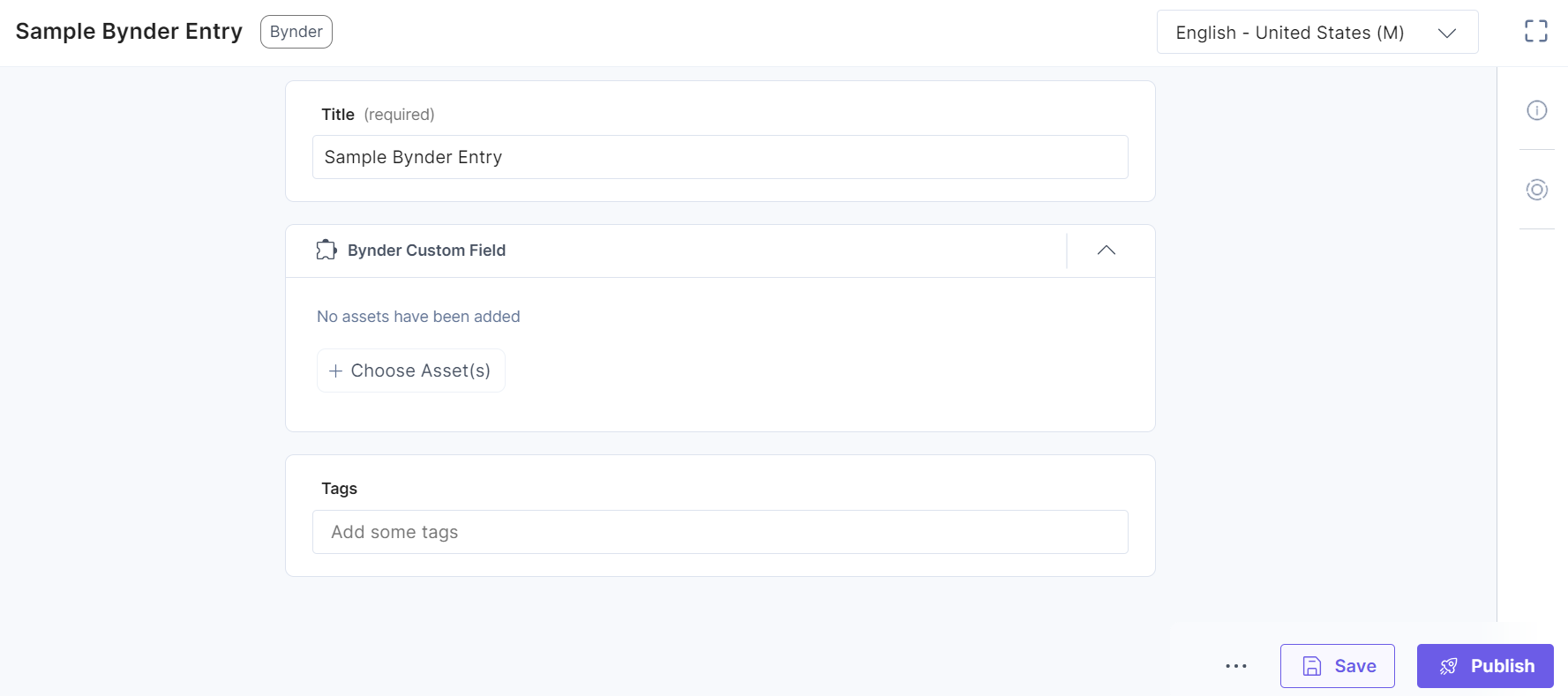
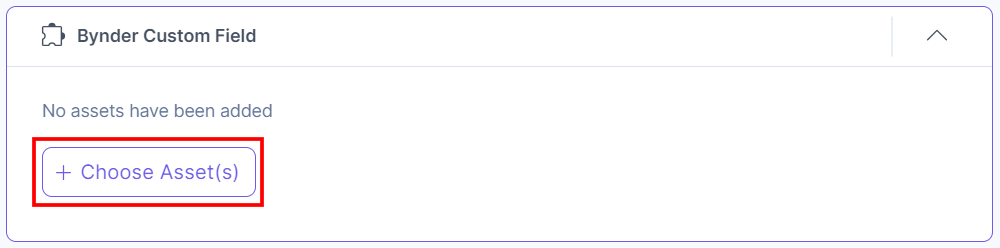
- Click + Choose Asset(s) to select assets from your Bynder account and add them to your entry.
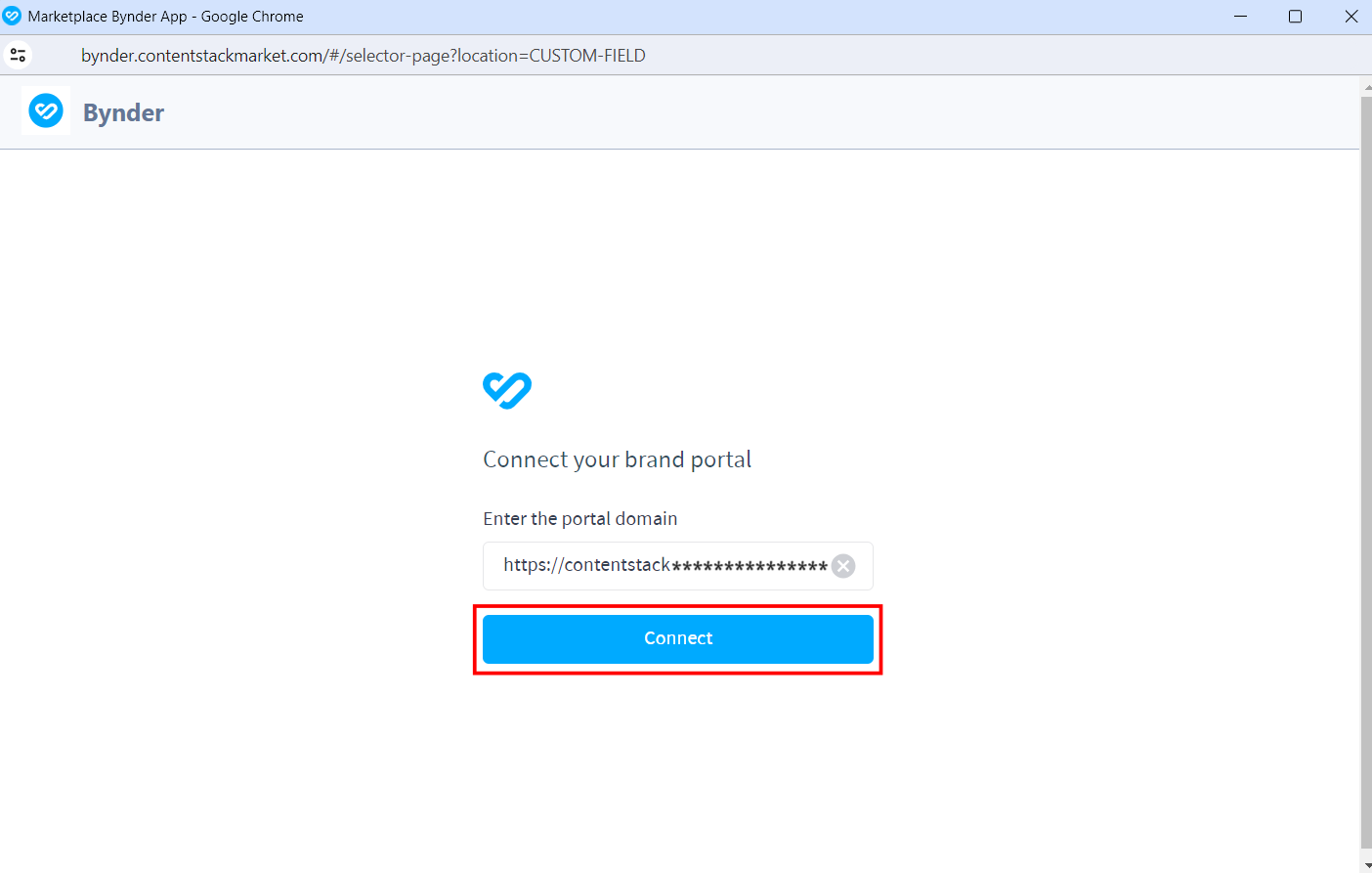
Note: If you are using the Bynder app for the first time, the app will redirect you to connect the app with the portal. Click the Connect button to connect and proceed towards the authentication screen.
Provide the username and password and login to the Bynder dashboard.
- Now, you can choose assets from the Bynder selector page:
- Single Select File or Single Select mode
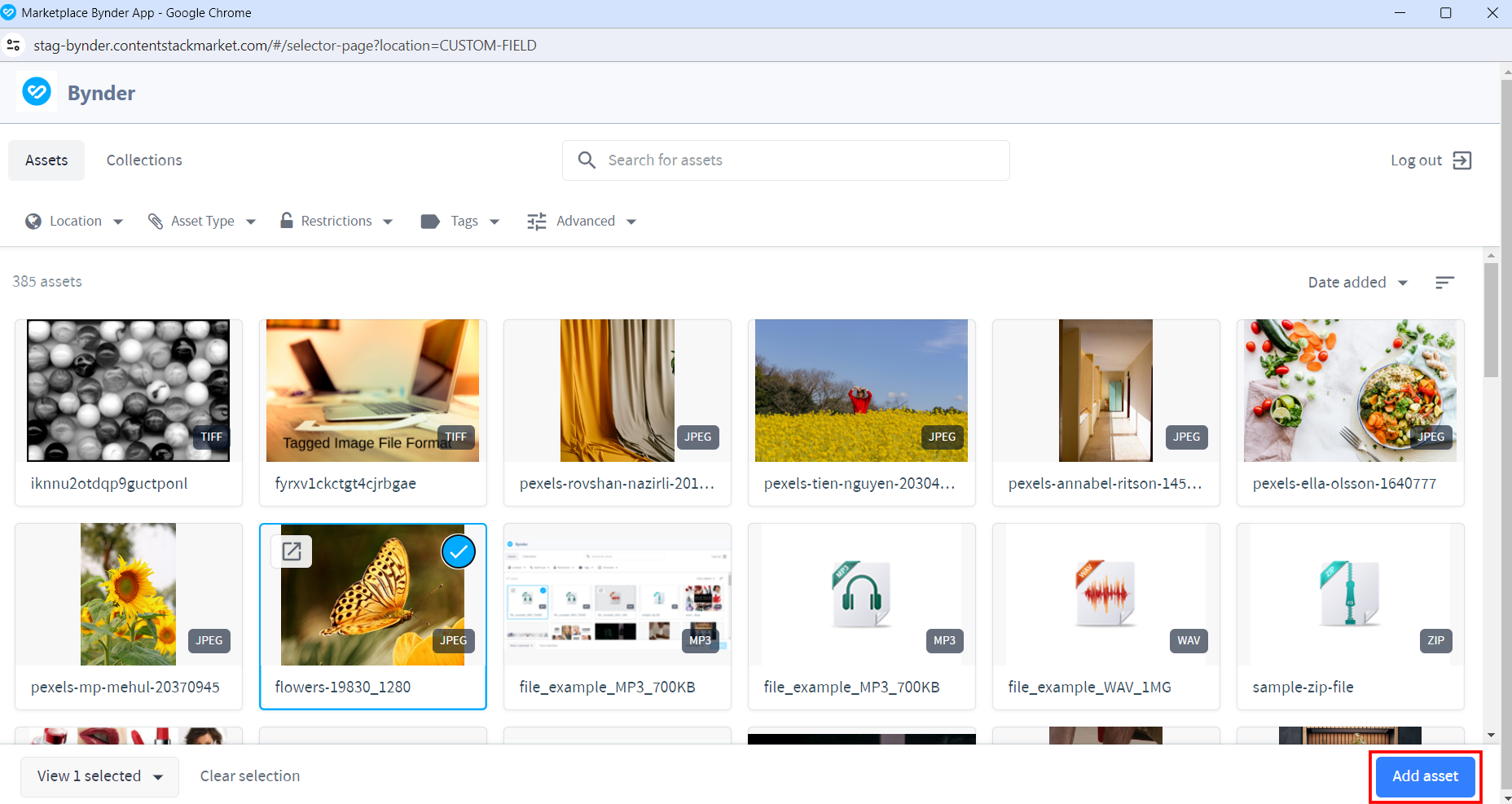
- Multi Select mode
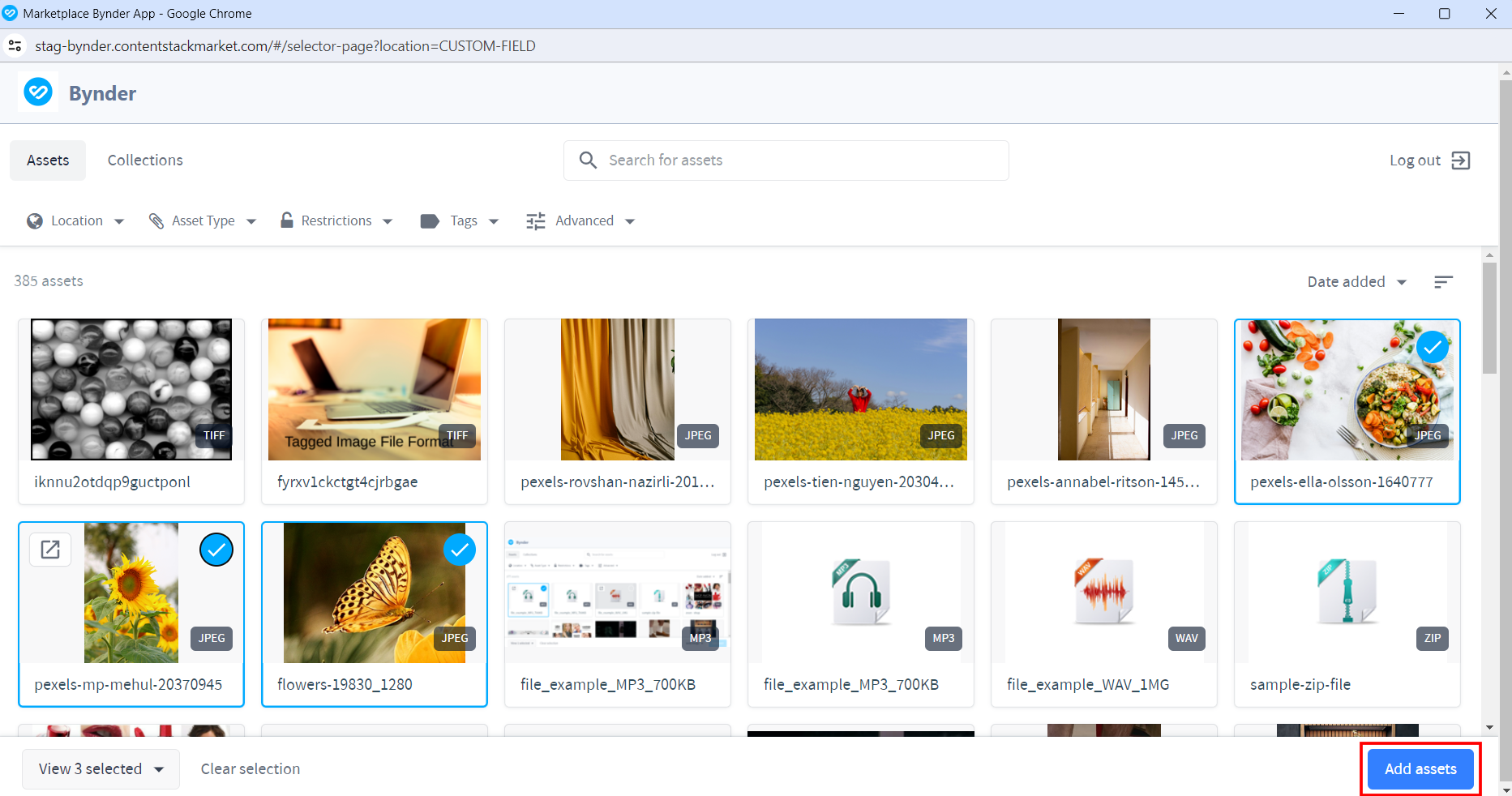
When the Advanced config is added for DAT, the Selector page drop-down for Multi-Select mode displays different transformations as options: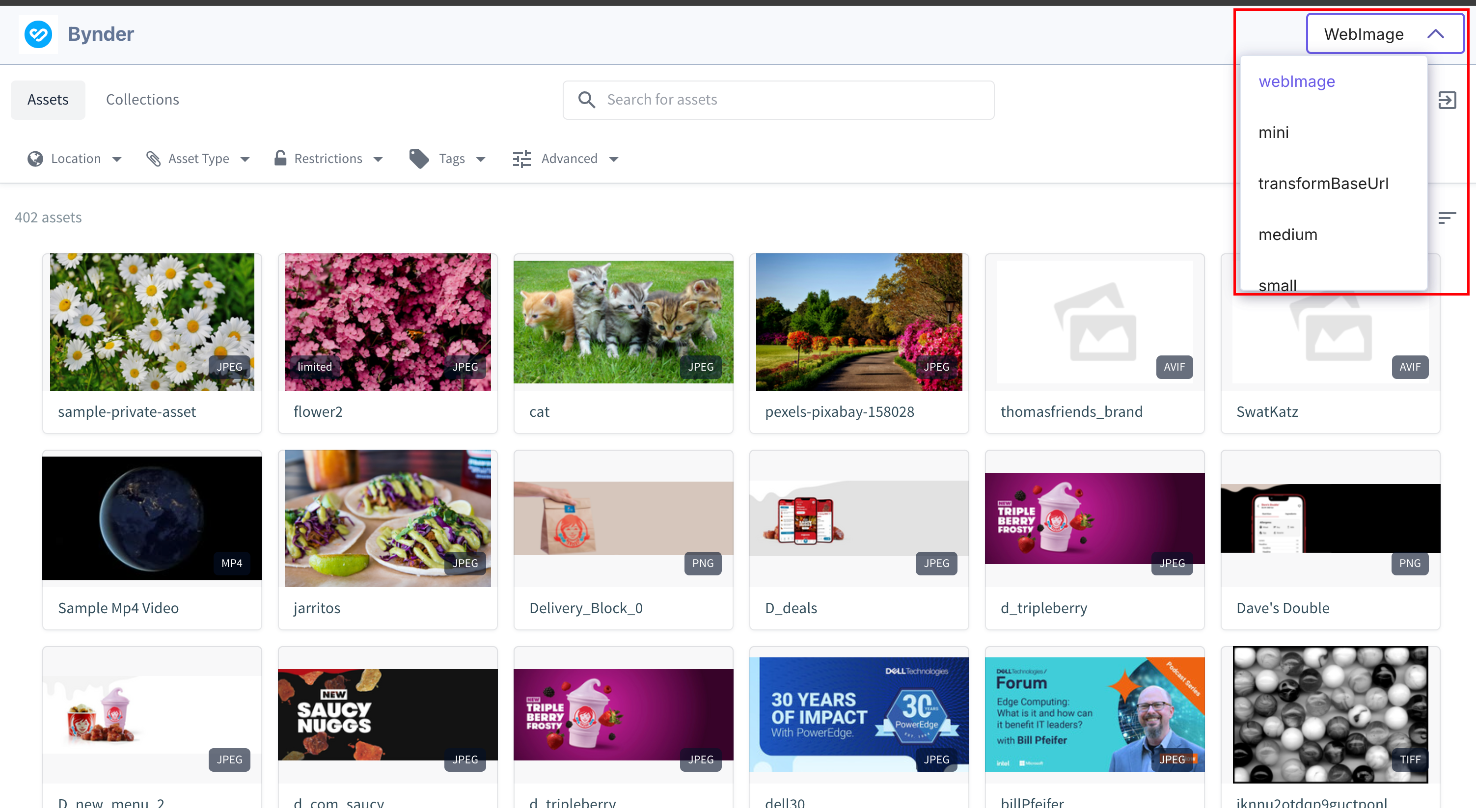
The selected transformation will be applied to all chosen assets.
Note:- In Single Select File and Multi Select mode, Bynder's DAT feature is enabled. This feature allows you to choose a derivative of the selected asset.
- Bynder DAT feature is not available for Single Select mode.
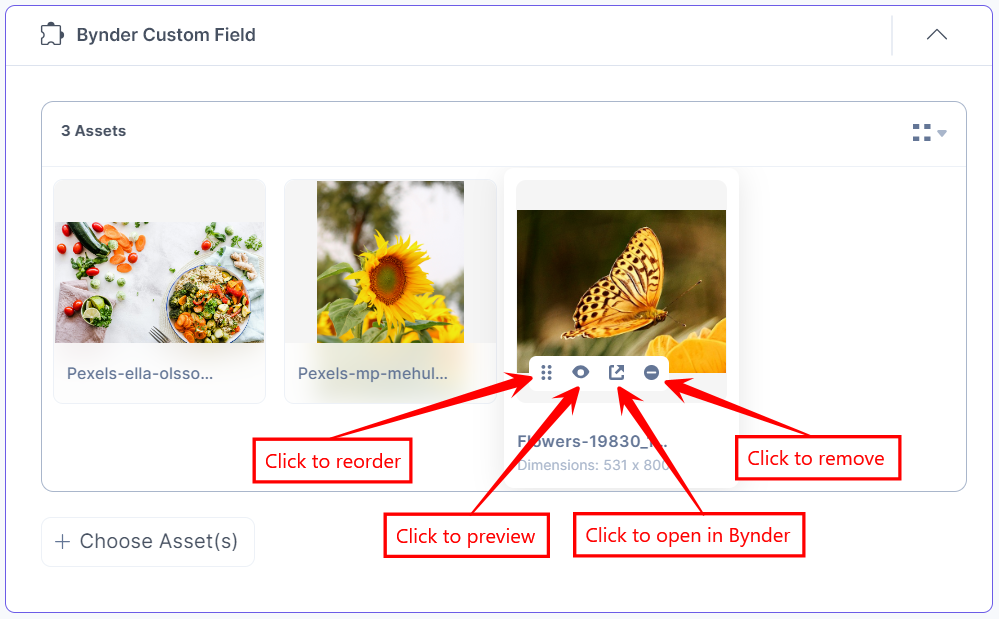
The assets you select get added to your entry in the thumbnail view.
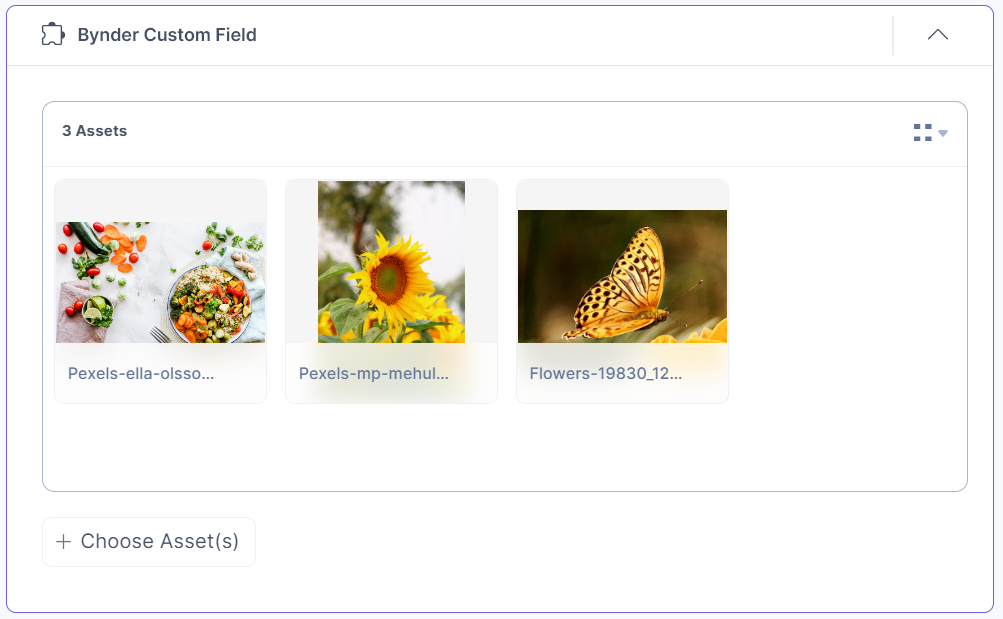
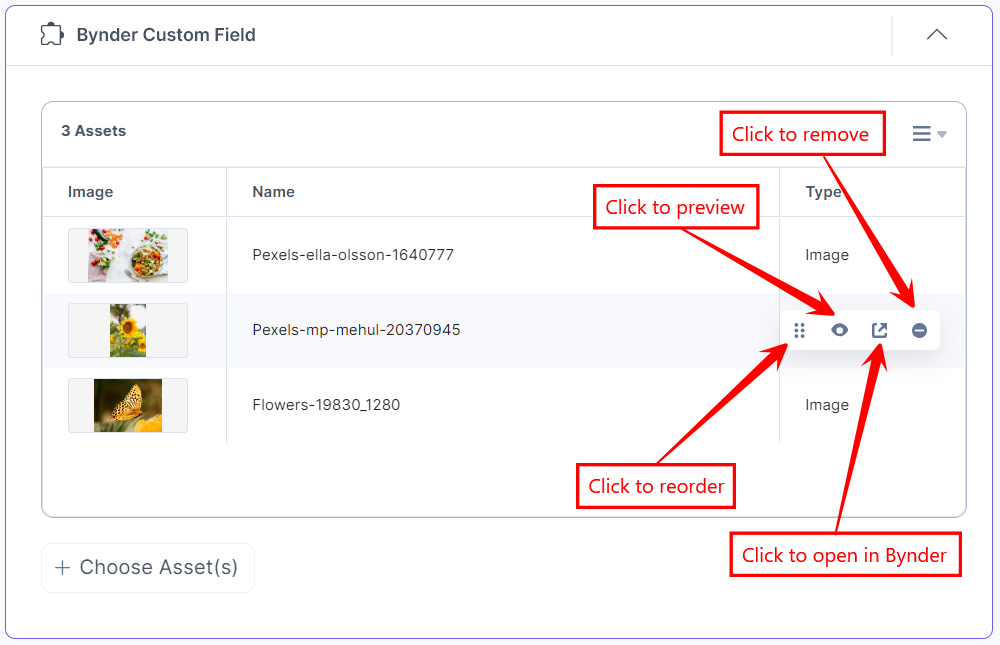
To view the assets in the list view, select the List view option from the dropdown.
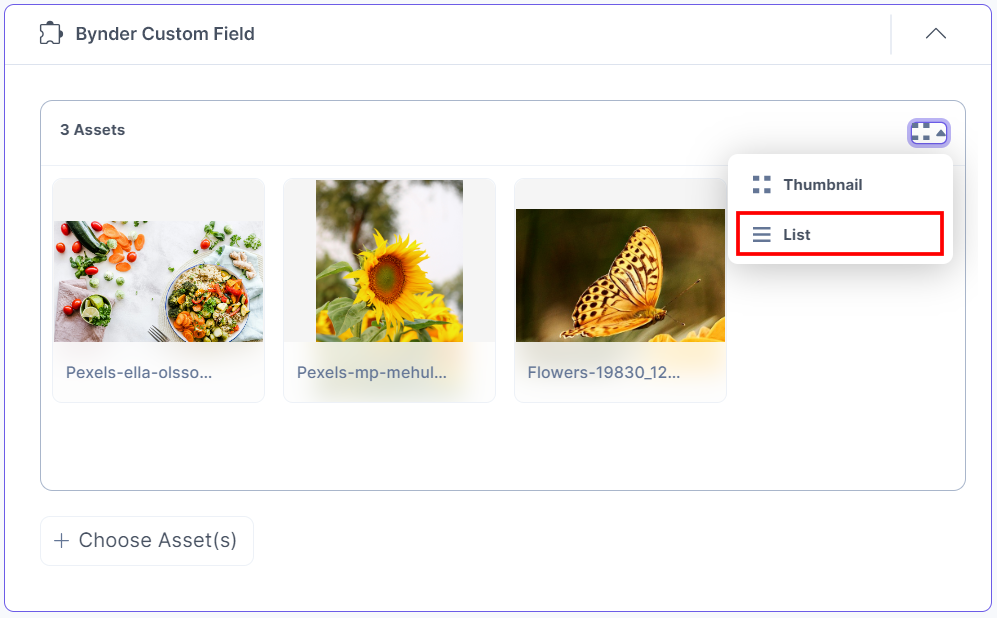
The assets you select get added to your entry in the list view.
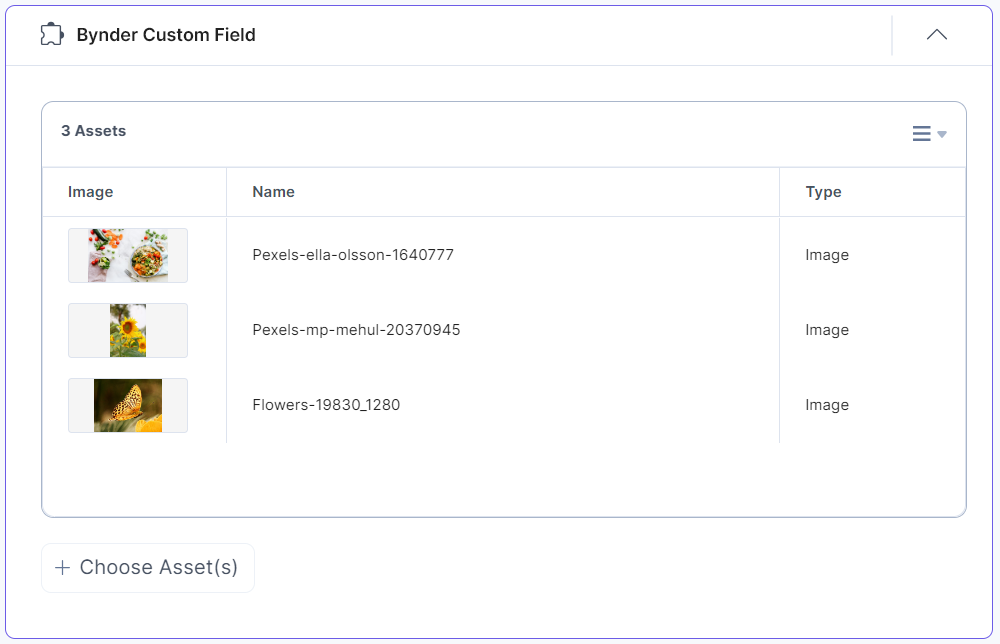
- Single Select File or Single Select mode
- To reorder, preview, open in Bynder, or remove the image, hover over the image to get the options available, then perform the following:
- Click the Reorder icon to drag and reorder the image.
- Click the Preview icon to view the image.
- Click the Open in Bynder icon to open the image in the Bynder app.
- Click the Remove icon to delete the selected image.
Thumbnail View
List View
- After adding the asset(s), Save and Publish your entry.
Use the Bynder App as a Custom Field
Set Advanced Config Object in Custom Field (Optional)
Under Advanced properties, you have the option to set the Config Parameter for all entries of a particular content type. If you do so, it overrides the default app configuration you set at the time of app installation on the Configuration screen.
The key:value passed in the configuration object overrides the default app configuration settings.
-
DAT Feature Support for Multi Select Mode (optional): For the multi-select DAT feature, you can apply predefined transformations ("thumbnail", "mini", "transformBaseUrl", "medium", "small", "large", "online") to assets by including them in the options list.
These transformations will only be applied if they are available for the selected assets. If a selected transformation is unavailable, the default transformation ("webImage") will be applied instead.
You can also apply custom transformations to assets through the transformation_options object by specifying a unique key name and providing the corresponding rule as its value.
{
  "custom_settings": {
    "dat_settings": {
      "options": [
        "webImage",
        "mini",
        "transformBaseUrl",
        "medium",
        "small",
        "large"
      ],
      "default": "webImage",
      "transformation_options": {
        "flip_rotate": "io=transform:flip&io=transform:rotate,angle:70",
        "crop": "io=transform:crop,height:400,width:300,path:square"
      }
    }
  }
}
Additional Resource: For more details on specifying rules for custom transformations, refer to the DAT documentation.
- Custom Settings (optional): In compact_view_options, predefinedAssetType, and predefinedTagNames can be used to display assets with specific asset types and tags on the Selector page:
{
  "custom_settings": {
    "compact_view_options": {
      "assetFilter": {
        "predefinedAssetType": ["IMAGE"],
        "predefinedTagNames": ["bottle_with_food"]
      }
    }
  }
}
Additional Resource: You can include optional parameters in the compact_view_options object, except for attributes containing a period (e.g., portal.url) or those with callback functions. For detailed description of these optional parameters, refer to the Bynder Compact View documentation.
- Max Limit (optional): You can set the maximum number of assets, in the Config Parameter, that can be added in the Custom field for all entries of a particular content type.
{
        "advanced": {
           "max_limit":5
        }
}
Use the Bynder App as a JSON RTE Plugin
- In the Content Type Builder page, add JSON Rich Text Editor in your content type by clicking the Insert a field link represented by a + sign.
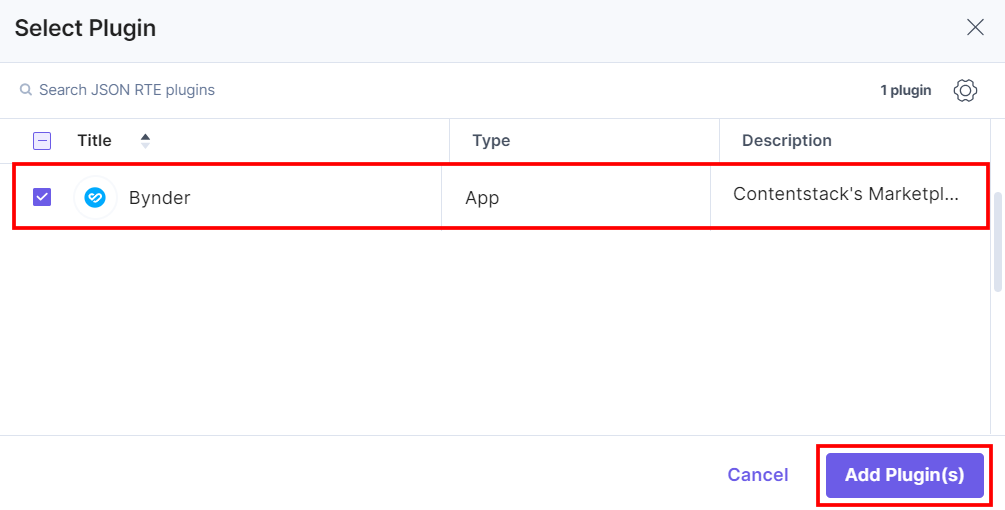
- Under Select Plugin, select Bynder, and then click Add Plugin(s).
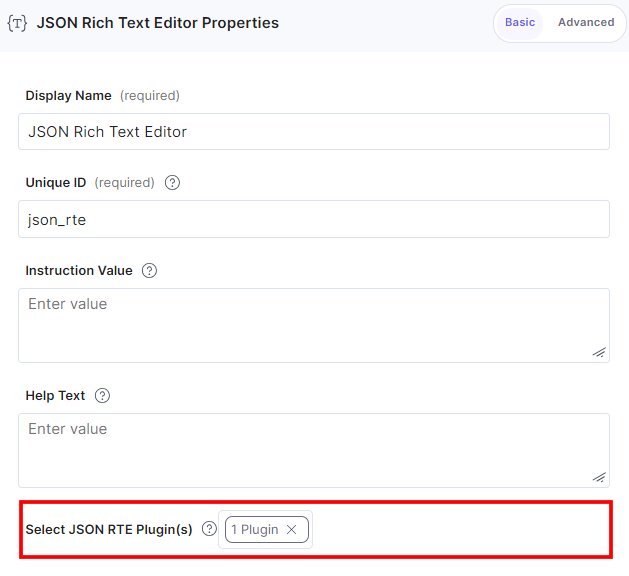
This adds Bynder in the JSON Rich Text Editor.
- After adding the plugin, click Save or Save and Close to save your changes.
- To use the Bynder app, create an entry for this content type by clicking Entries from the left navigation panel. Click + New Entry to create a new entry for the above content type, and then click Proceed.
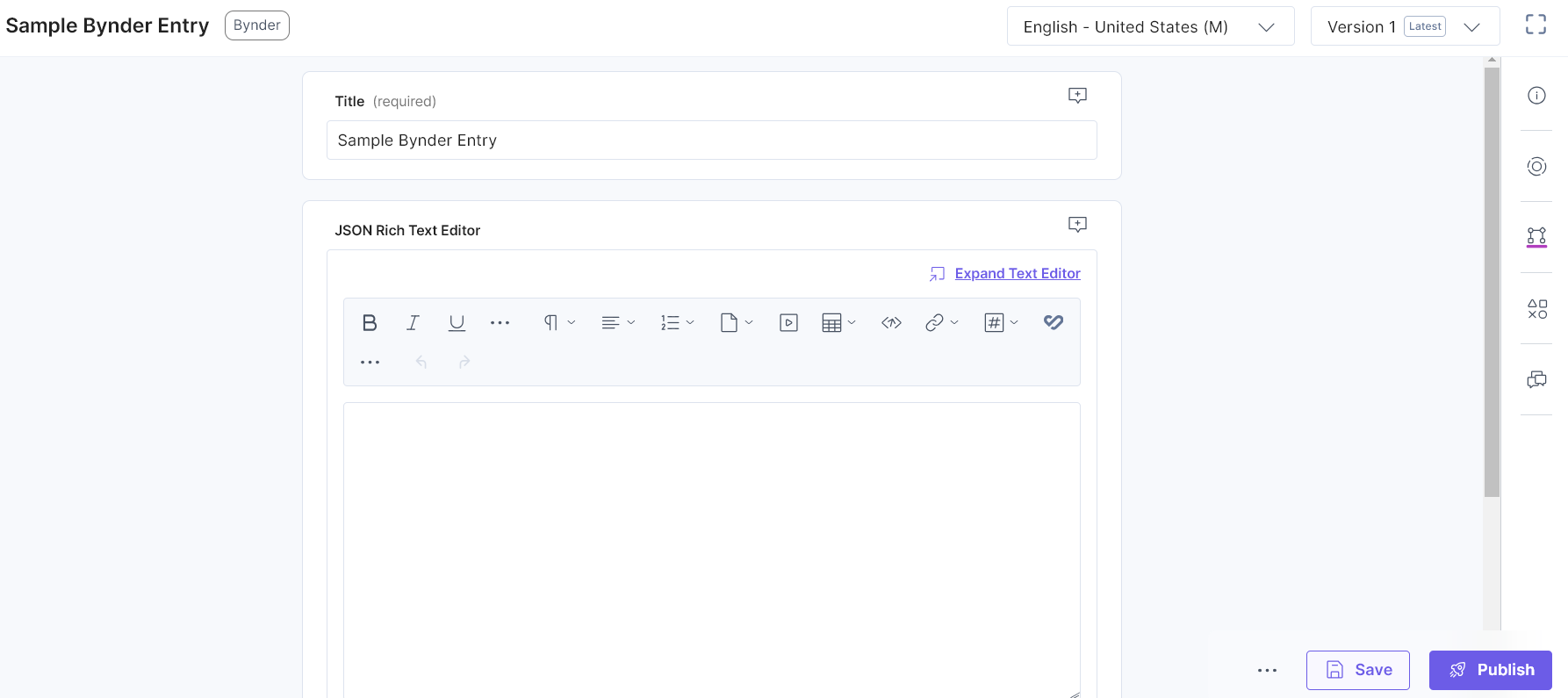
You can see the Bynder icon in the JSON Rich Text Editor field on your entry page as shown below:
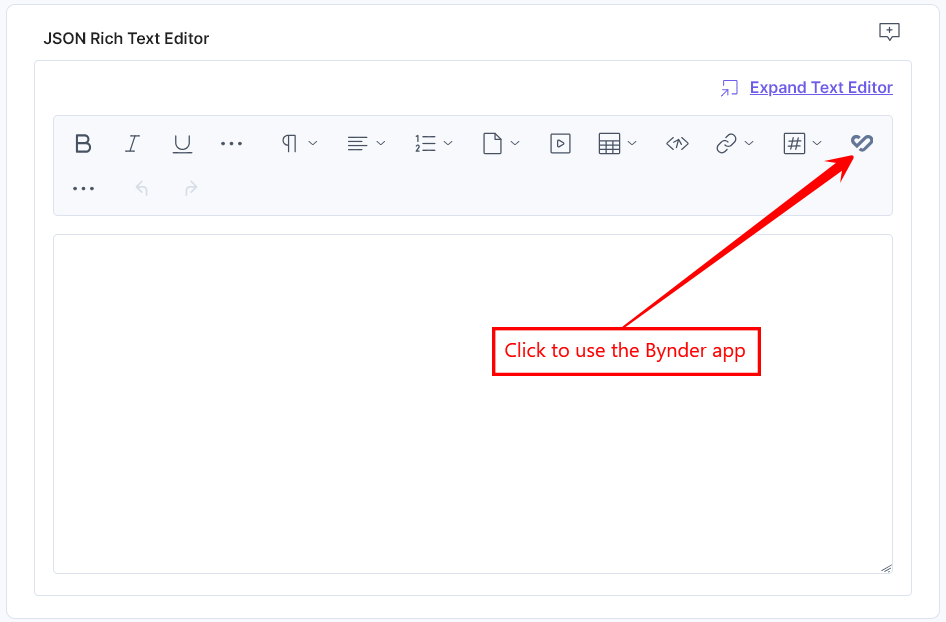
- Click the Bynder app icon.
Note: If you are using the Bynder app for the first time, the app will redirect you to connect the app with the portal. Click the Connect button to connect and proceed towards the authentication screen.
Provide the username and password and login to the Bynder dashboard.
- Now, you can choose assets from the Bynder selector page:
- Single Select File or Single Select mode
- Multi Select mode
When the Advanced config is added for DAT, the Selector page drop-down for Multi-Select mode displays different transformations as options:
The selected transformation will be applied to all chosen assets.
Note:- In Single Select File and Multi Select mode, Bynder's DAT feature is enabled. This feature allows you to choose a derivative of the selected asset.
- Bynder DAT feature is not available for Single Select mode.
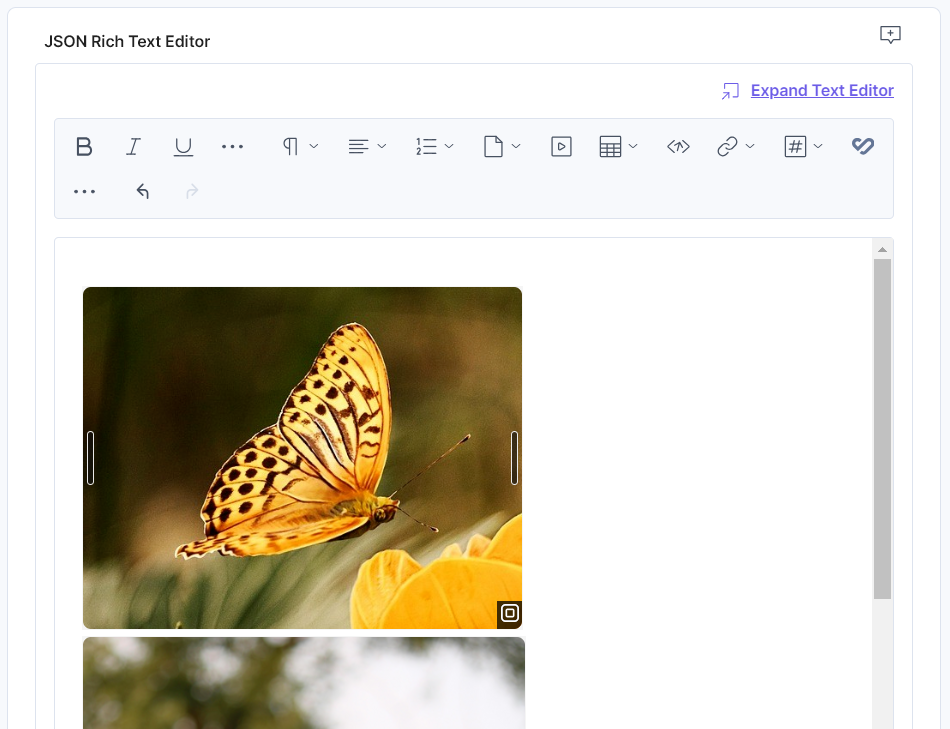
The assets you select get added to your entry.
- Single Select File or Single Select mode
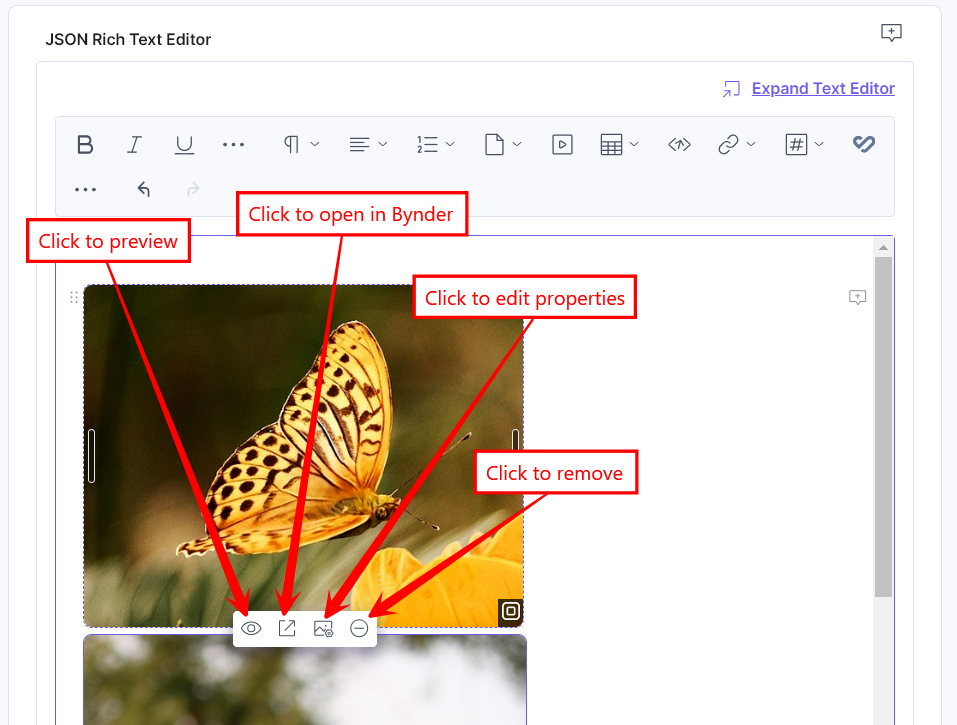
- To resize the image, drag the corner of the image and adjust the size as required. Hover over the image to view the options to preview, open in Bynder app, edit properties, and remove the asset.
Additional Resource: You can use alignment and inline asset features to edit the asset placement within the JSON Rich Text Editor field.
- After adding the asset(s), Save and Publish your entry.
Note: If you selected the Single Select File or Multi Select mode to add assets to your entry, you can view the information of the selected DAT derivative of the asset in their JSON object, in an additional parameter titled additionalInfo.
Set Advanced Config Object in JSON RTE Plugin (Optional)
View Asset Usage in Asset Tracker
More articles in "Digital Asset Management"
