

Launch Quick Start Guide with Angular
The fastest way to get started with Launch is to clone and deploy a sample Angular Starter project. With Launch, you can easily create a project by importing your website code from GitHub.
Prerequisites
- Contentstack account
- Access to Launch for your organization
- GitHub account
Steps for Execution
Follow the steps given below to deploy your first Launch project using GitHub:
Note: Only the Organization Admin/Owner has the right to create projects in a stack for Launch.
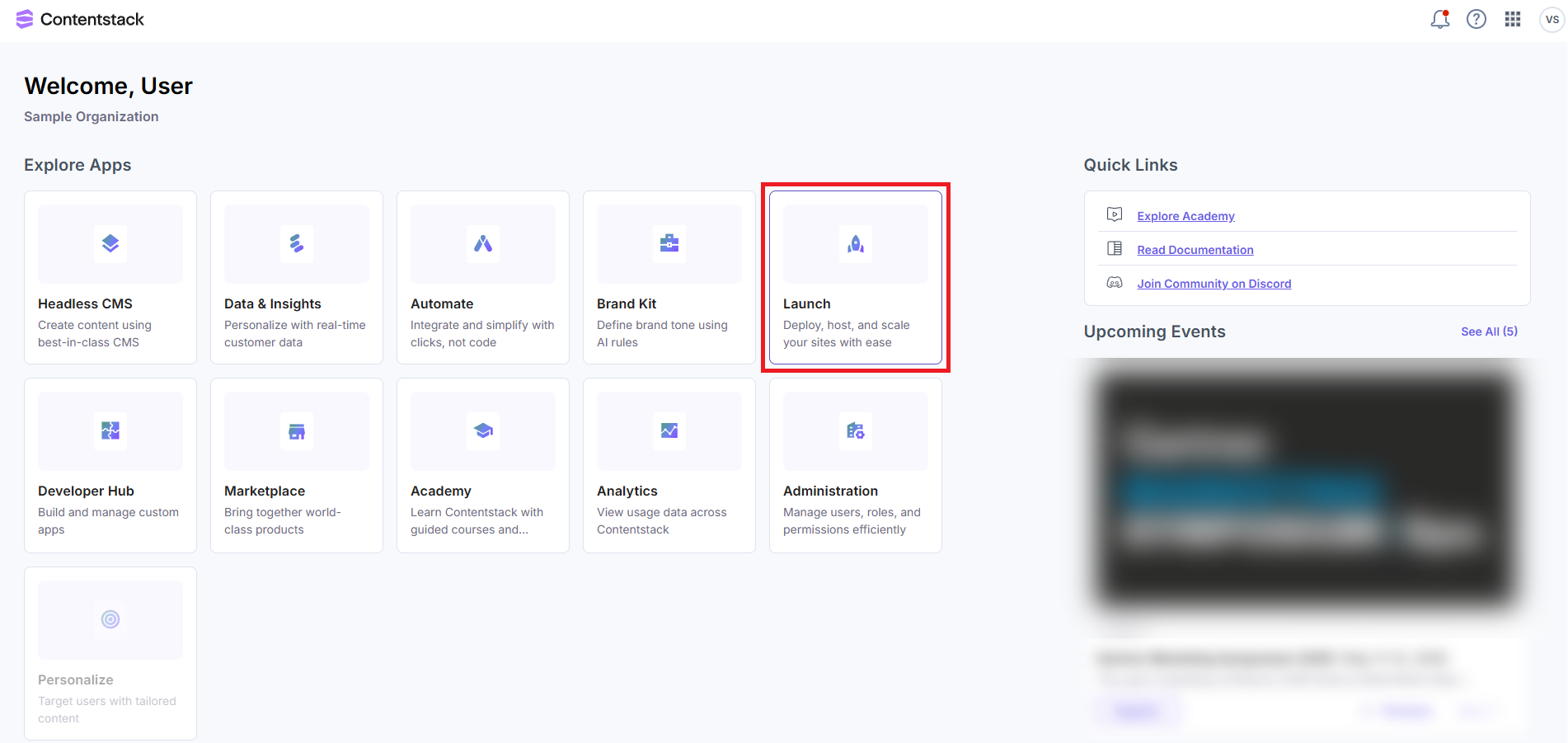
- Log in to Contentstack and click the Launch icon from the dashboard, as shown below:
- On the Launch Projects screen, click the + New Project button to initiate the project creation process.

- From the Create New Project modal, click Import from a Git Repository.
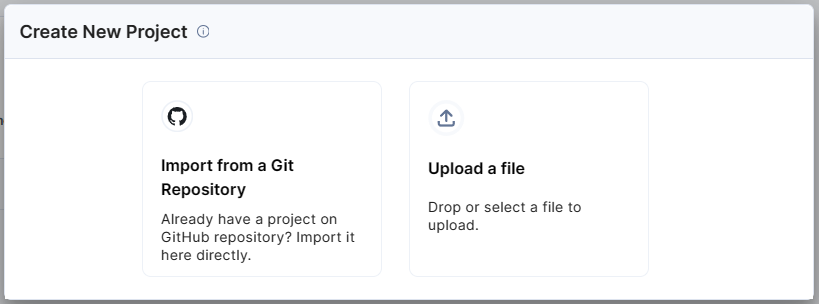
Note: You can also choose to upload a .zip file to import a project.
- Click GitHub.
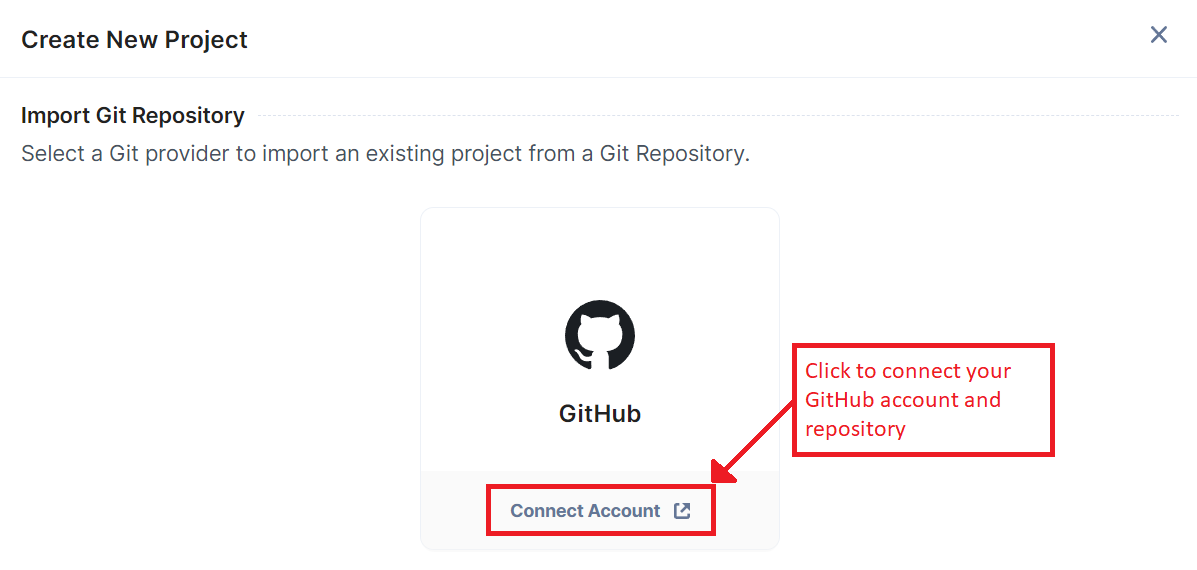
Additional Resource: You can also import a project using Bitbucket Cloud. Follow the steps in the Create a Project Using Bitbucket Cloud guide to proceed.
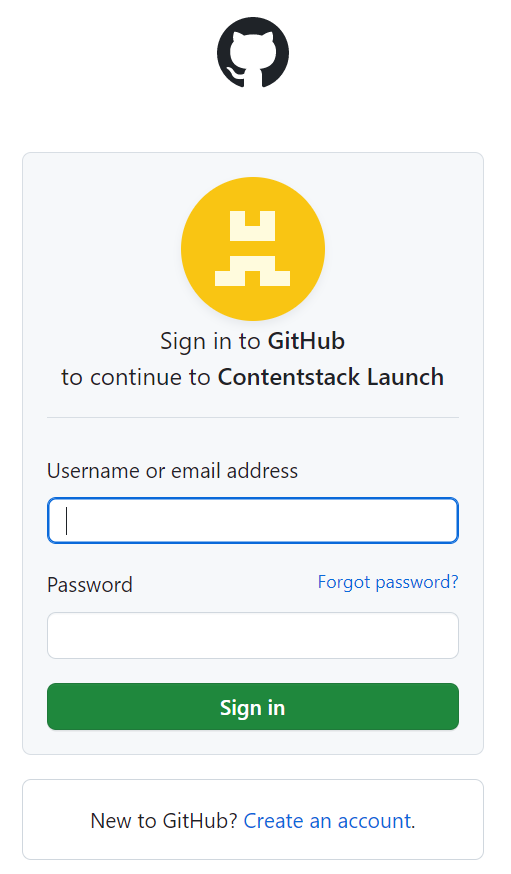
A Sign in to GitHub screen pops up. Enter your credentials and log in to your GitHub account.
Note: We have assumed that you have a GitHub account and your website code stored in the repository.
- Enter your credentials and log in.
- In the Repository access section, select All repositories.
Note: If you want to choose specific repositories, select the Only select repositories option and choose the required repository.
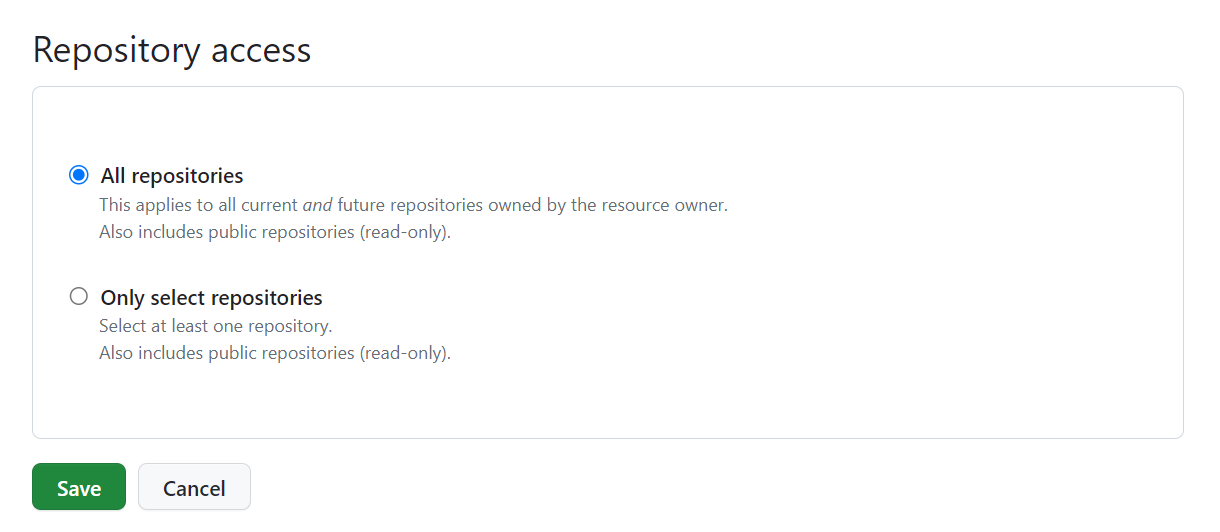
- Click the Save button.
Note: If you are accessing GitHub through Contentstack for the first time, you must authorize Contentstack by clicking the Install & Authorize button after selecting All repositories.
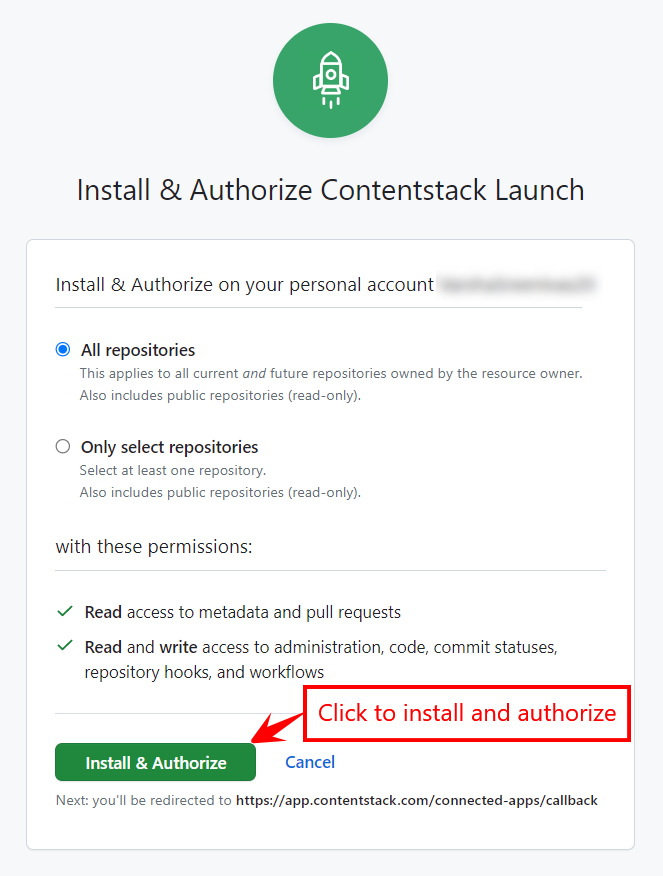
You will be redirected to the Launch app.
In the Create New Project modal, add the following details:
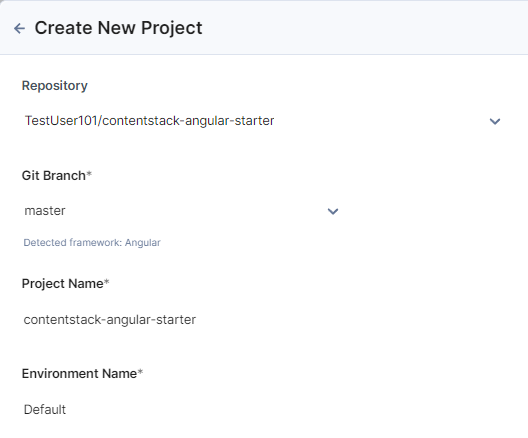
- Repository (Mandatory): Select the Git repository. In our example, we have selected the Angular Starter App repository.
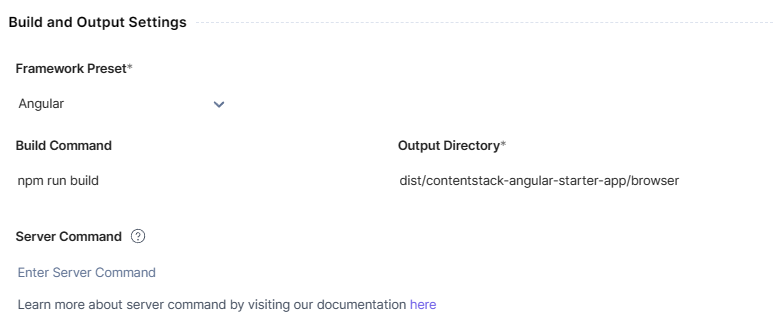
Note: When you select the repo, the Build and Output Settings section gets auto-populated.
- Git Branch (Mandatory): By default, master or main is selected as the branch. You can choose another branch from the dropdown.
- Project Name (Mandatory): Gets auto-populated on selecting the repository. You can edit it as per your requirement.
- Environment Name (Mandatory): Enter the name of the environment.
- Build and Output Settings (Mandatory): The fields in this section get auto-populated based on the Angular framework, as discussed above. Update the Output Directory to ./dist/contentstack-angular-starter-app
 Note:
Note:- The Server Command field allows you to deploy Angular as Server-Side Rendered.
- Leaving the Server Command field blank will deploy the framework as CSR (Client-Side Rendered).
- Environment Variables (Optional):
- Enter the key and value of one or more environment variables.
- You can also add the key-value pairs in bulk in the Bulk Edit section.
For the Contentstack Angular Starter to work, we need to provide the following environment variables:
CONTENTSTACK_LIVE_PREVIEW=<true_or_false>
CONTENTSTACK_MANAGEMENT_TOKEN=<mgmt_token>
CONTENTSTACK_DELIVERY_TOKEN=<delivery_token_of_the_environment>
CONTENTSTACK_API_HOST=<api_host_value>
CONTENTSTACK_REGION=<region>
CONTENTSTACK_APP_HOST=<app_host_value>
CONTENTSTACK_API_KEY=<api_key_of_your_stack>
CONTENTSTACK_ENVIRONMENT=<environment_name>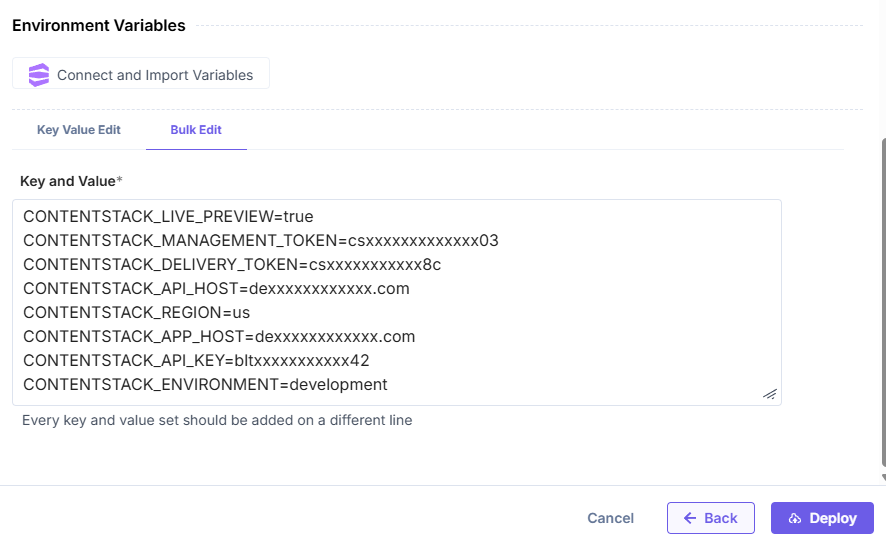
Note: Click Back to revert the changes and re-enter details.
- Repository (Mandatory): Select the Git repository. In our example, we have selected the Angular Starter App repository.
- Once ready, click Deploy to save and deploy the project.
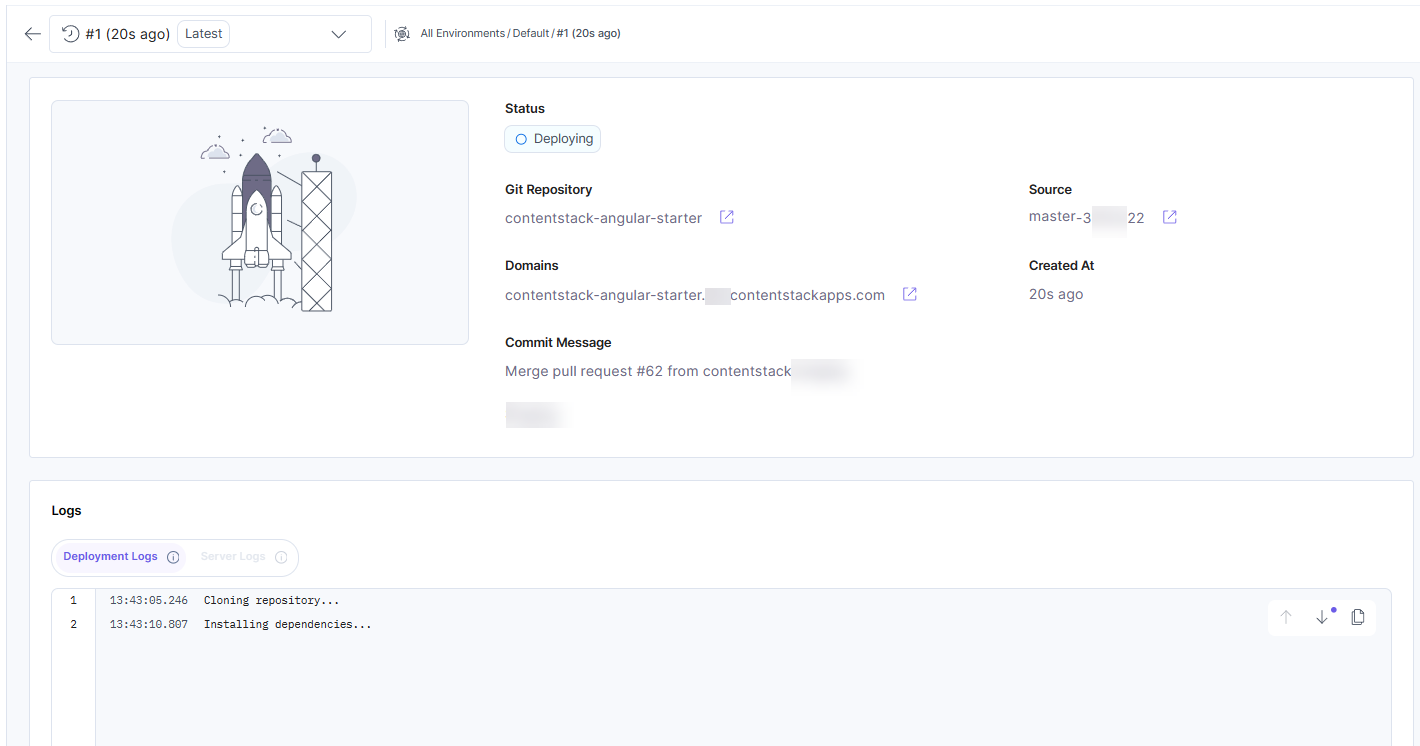
As soon as the deployment starts, you will see the Deploying status as shown in the following screenshot:
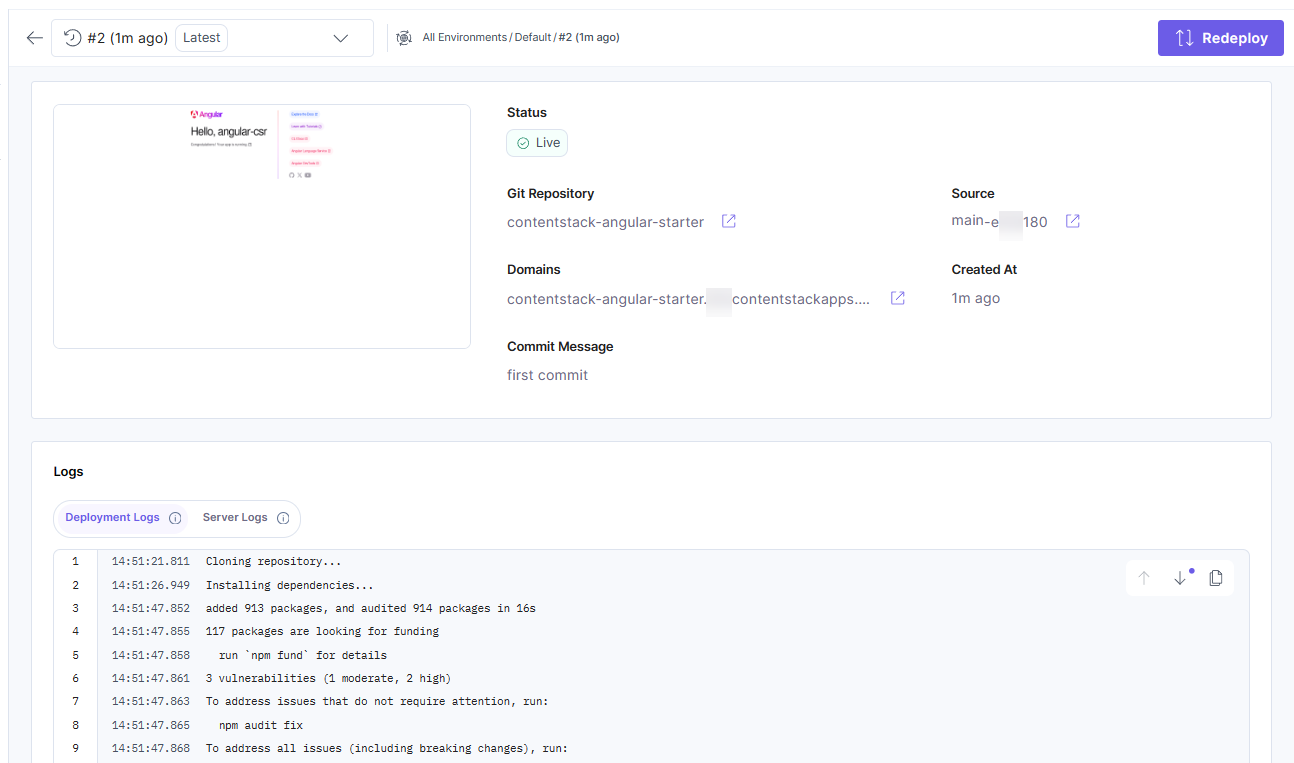
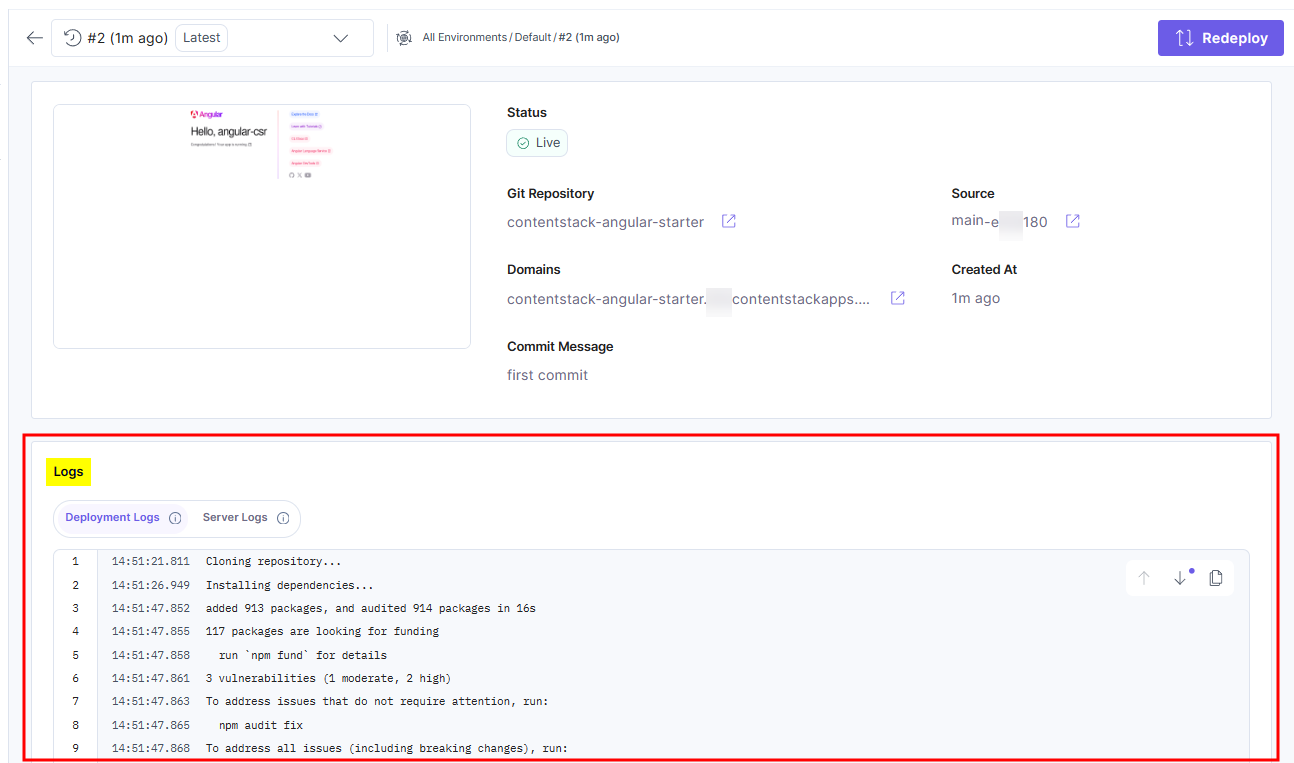
Upon successful deployment, you will see the following screen. You can preview the deployed website by clicking the icon next to the URL in the Domains section:
If you want to deploy the changes from any other commits, you can click the Redeploy button and choose the required commit.
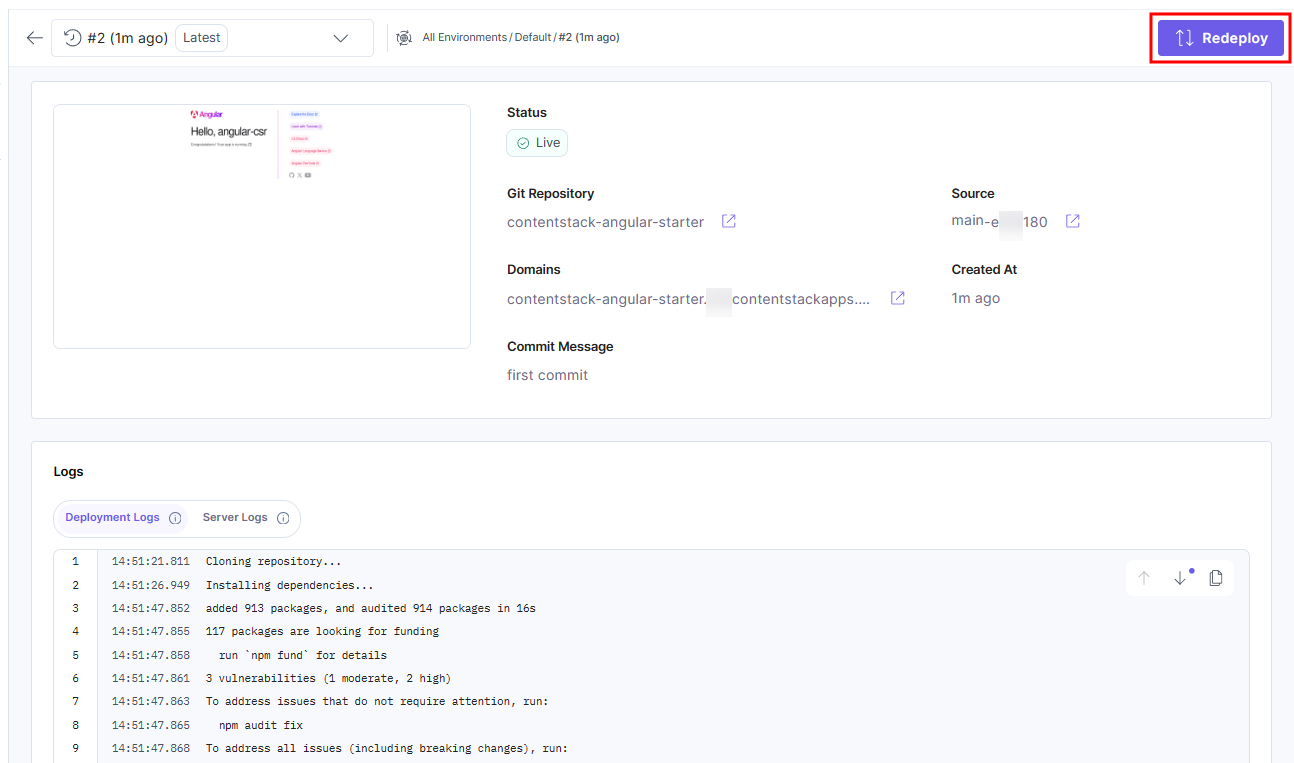
Note: The log details of the current deployment can be found under the Logs section.
Angular as an SSR-based Application
By default, Angular is deployed as a Single-Page Application (SPA). To deploy Angular as an SSR-based application, follow the steps below:
- On the left navigation panel, click the Settings icon and then Environments.
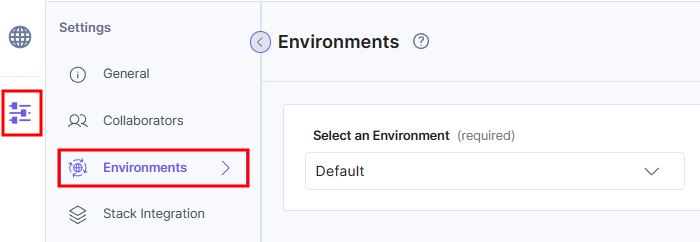
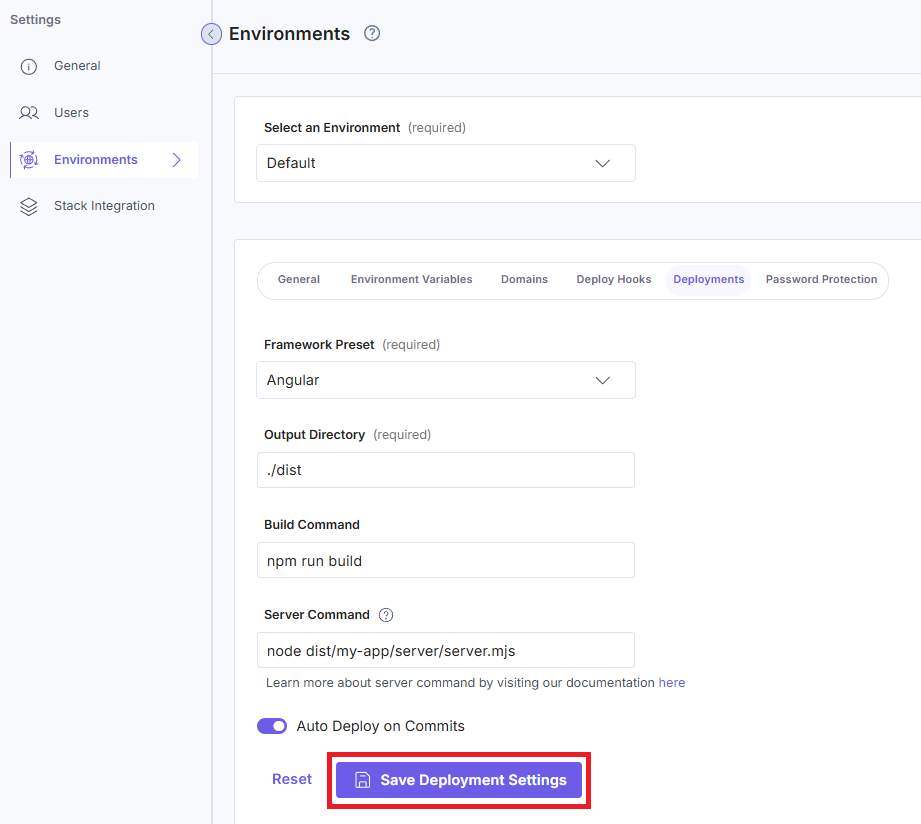
- Click the Deployments tab to navigate to the deployment settings screen.
- In the Server Command field, add the command present in the package.json file to run the SSR based build locally. For example:
node dist/my-app/server/server.mjsNote: The Server Command field will be displayed in the Deployments tab only if you choose Angular as the framework.
- Click the Save Deployment Settings button.
- To redeploy the environment with the latest updates, follow these steps:
- Click the Environments icon from the left panel and then click the environment where the updates are made.
- In the Deployments screen that appears, click the Redeploy button to redeploy on the environment.
Once deployed, your application will start rendering pages on the server. You can inspect and verify the application content for accuracy.
More articles in "Launch Overview"
