

Create New Entries Automatically Using AWS Lambda and Webhooks
Note: This page is no longer maintained, and the underlying code may be outdated or unsupported. It may be removed in a future release. To learn how to automate workflows in Contentstack, refer to the Connectors documentation.
In this document, we will learn how to create an entry automatically in a content type, whenever an entry is created or updated in some other content types.
In our example, we will assume that there are three content types named “Books,” “Videos,” and “All”. We will set up a system such that whenever an entry is created or updated, the webhook will invoke a Lambda function that will create or update the corresponding entry, respectively, in the “All” content type.
Having such a system in place immensely enhances search queries operations. So instead of performing different search queries on “Books” and “Videos,” you can simply perform such queries in a single REST API request in “All” content type.
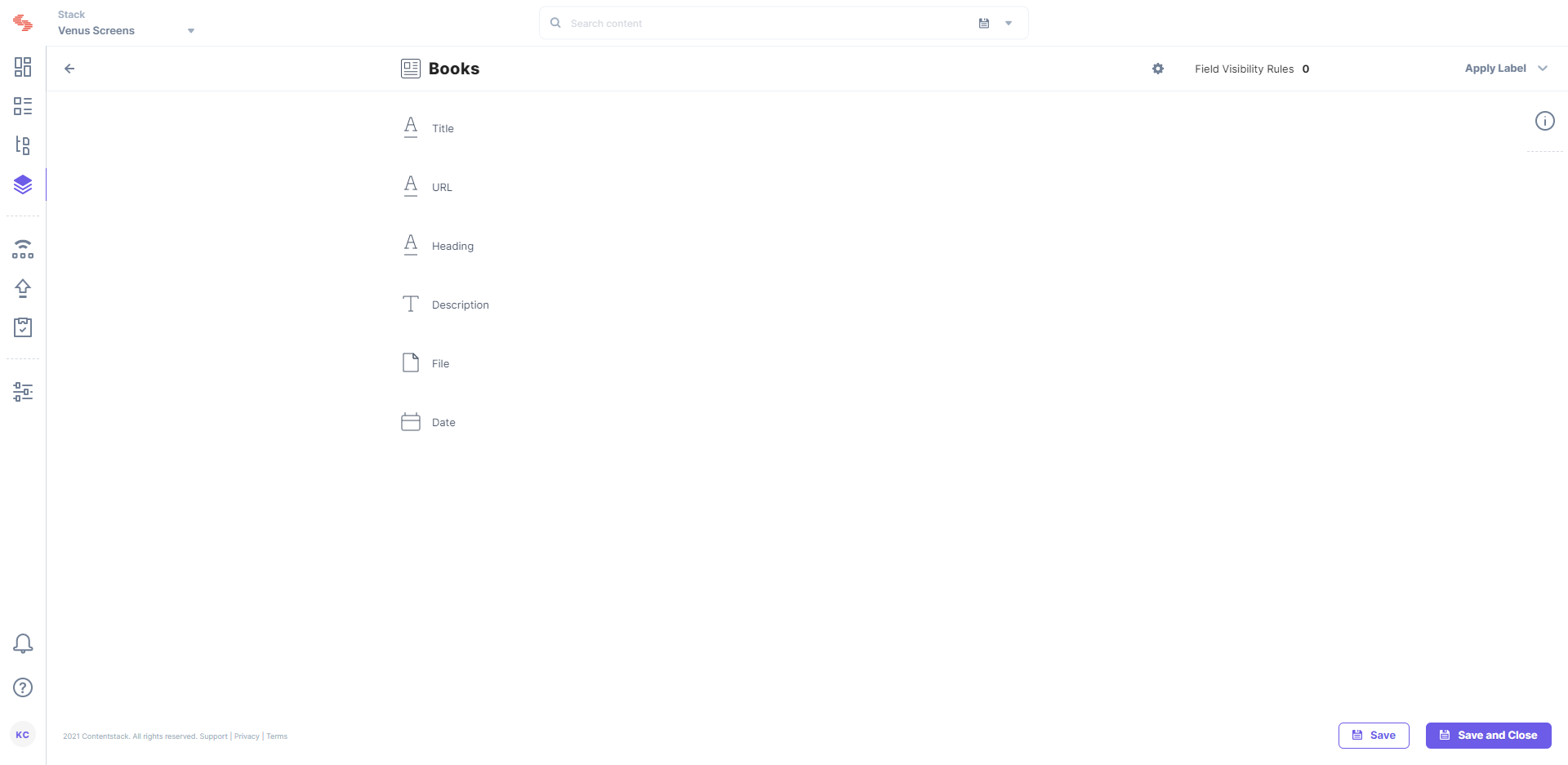
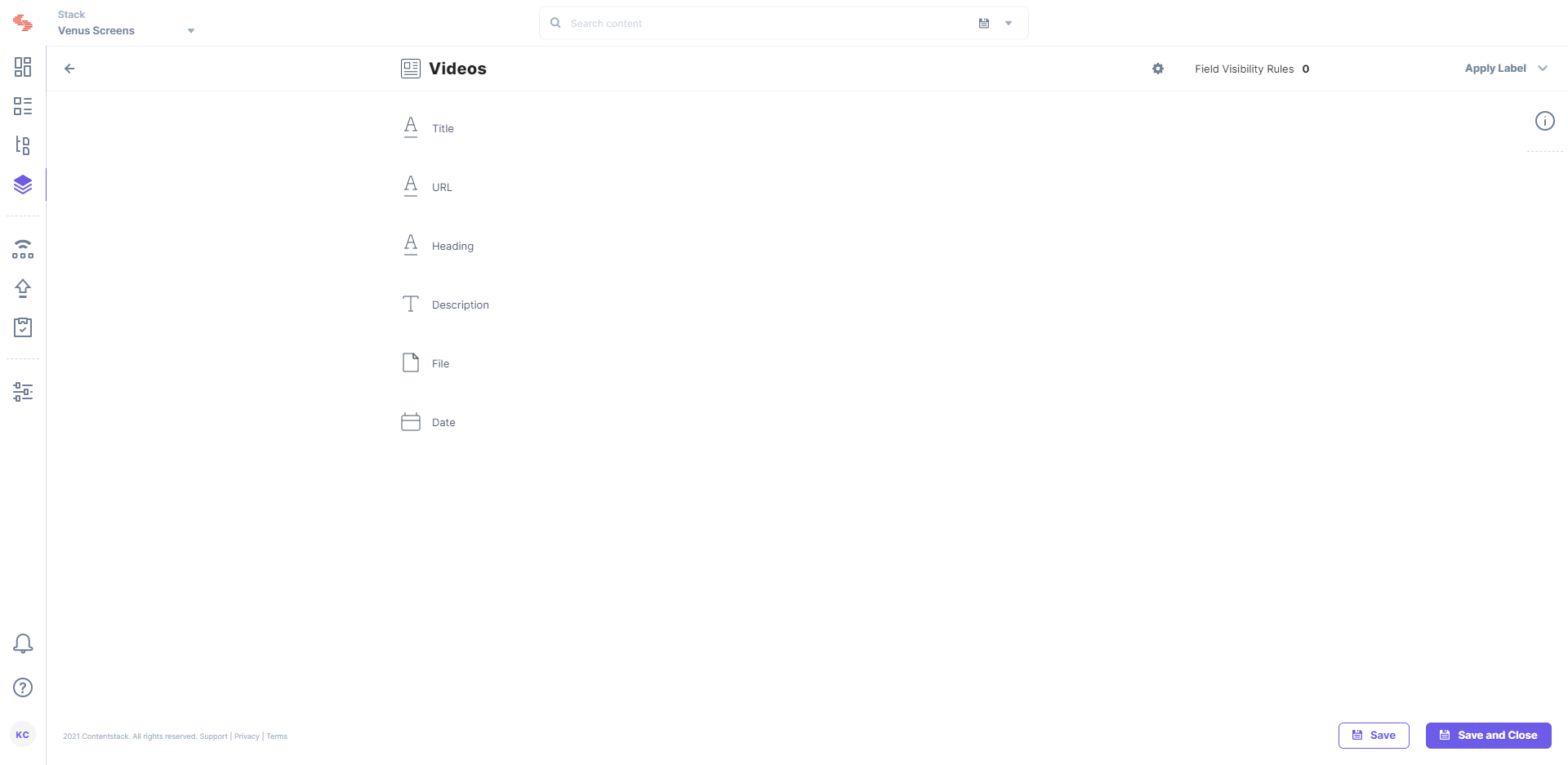
Note: The schema or the structure for the three content types (Books, Videos, and All) should be same. While creating the “All” content type, make sure to add an extra single line field and name it “Entry UID”. It will store the UID of the entries created in “Books” and “Videos” and the field should be “unique” to be set in the properties.
This is how the structure of the Books content type should like:
Below is the structure of the Videos content type:
And below is the structure of the All content type:
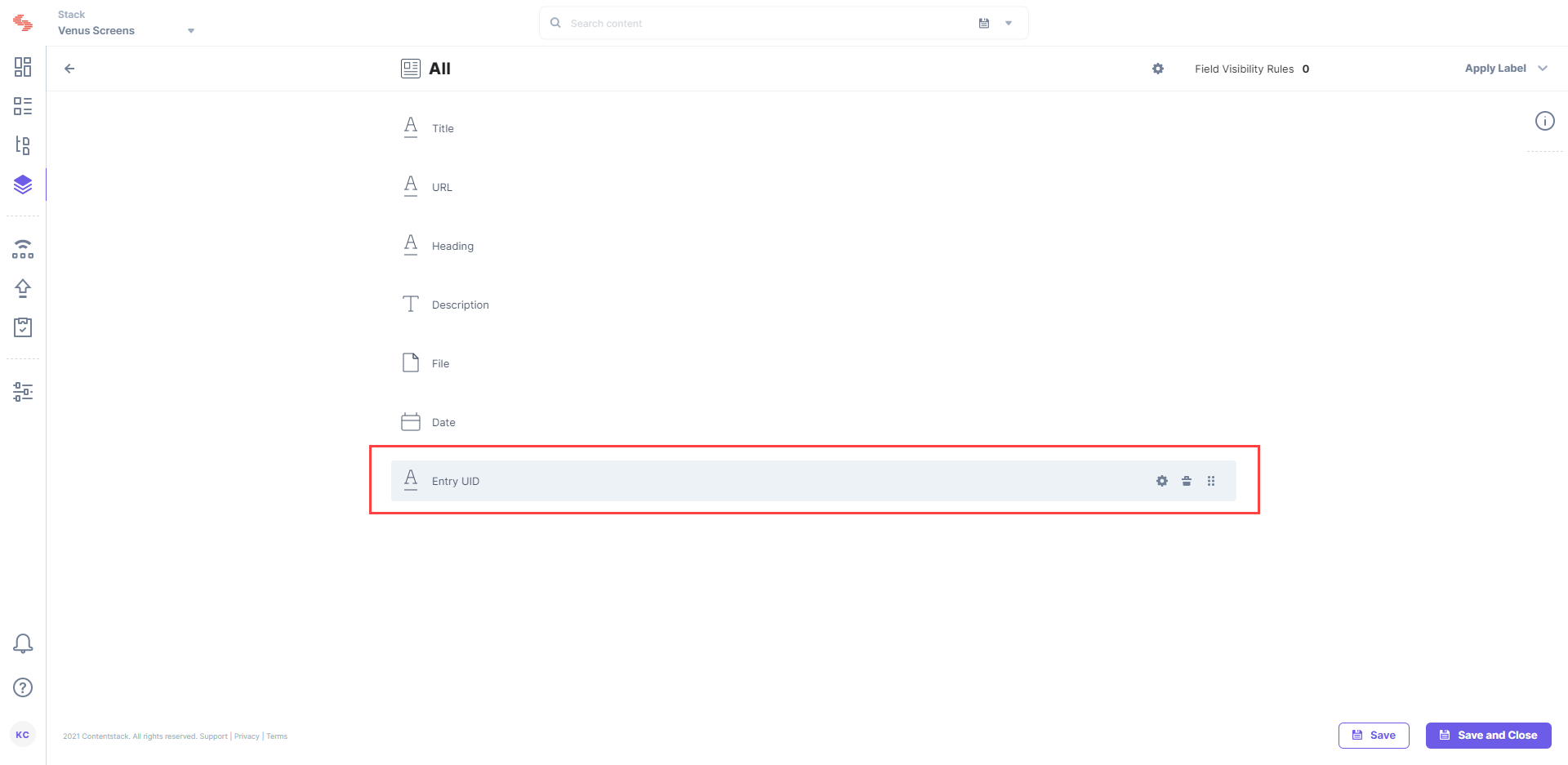
If you notice that in the All content type, we have added an extra single line field as discussed in the above note.
Prerequisites
- Basic knowledge of AWS Lambda
- Working knowledge of AWS API Gateways
- Access to the AWS environment
- Contentstack account
Set up Lambda Webhook Listener
Setting up an AWS Lambda Webhook Listener is a four-step procedure:
Create an AWS Lambda Function
To get notified when the event is triggered, you need to create the AWS Lambda function as shown below:
- Login to your AWS Management Console, select AWS Lambda Service from the service list.
- Click on the Create Function button, and then the Author from Scratch option.
- Configure you lambda based on your requirements. Choose Node.js as your run-time language.
Note: You can use any language instead of Node.js. You can also add triggers to your lambda to push an event when the lambda is invoked.
- AWS Lambda offers an inline code editor. Here, you will write the code for the task that we going to perform here. If Extensions are part of your plan, contact our Support team to get the code for the extension.
Note: You can either write your lambda code here. Another option is to write the lambda code on your machine and then load it in the code editor. The inline editor has the basic code written, you can replace it with your own code.
- In the Lambda function handler and role, keep the index.handler as Handler and for the Role, choose an existing role or create a new role from template(s).
- Review your setting and click on the Create Function option if everything you entered is correct.
- Once the lambda function is created, upload the index.zip file received from our support team by using the Actions toggle option.
- Add the following environment variables to your lambda function:
baseUrl : https://api.contentstack.io/Note: If your region is Europe, then the baseUrl is https://eu-api.contentstack.com/. Similarly, for Azure NA, the baseUrl is https://azure-na-api.contentstack.com/, and for Azure EU, the baseUrl is https://azure-eu-api.contentstack.com/.
managementToken : <Enter your stack management token here>
Now that you have configured your lambda, let's move on and configure the AWS API Gateways.
Set up API Gateway
For your Lambda to be accessible publicly through an HTTP POST, you need to configure the AWS API Gateway using your function as the backend for the API as shown below:
- Log in to AWS Management Console and select API Gateways from the services list.
- Click on the Getting started or Create API button (depending on whether you have already an API configured or not).
- From the available options, select New API. Enter the name and description of your API.
- Click on Actions in the Resources column, and select Create Method.
- From the resultant dropdown, Select POST and click on the checkmark.
- Select Lambda Function as the integration type for this endpoint. Ensure that the Use Lambda Proxy integration option is checked.
- Select the Lambda Region, and then type in the name of your lambda function in the Lambda Function field.
Note: The region into which your Lambda is deployed isn’t easily identifiable when you’re deploying your Lambda, so you might have to do a little hunting.
- Click on the Save button. You’ll get a notification that asks you to confirm that this API will be granted permission to invoke your Lambda function.
- Click OK to grant the permission.
Deploy Your API
To make your API ready to use, you need to deploy your API.
- From the Actions drop-down, select Deploy API.
- Select New Stage in the Deployment stage and enter prod (or anything you like to identify this stage) in the Stage name.
- Click on the Deploy button.
Your API is now deployed and you will get a URL, which you can use to invoke the APIs.
Configure a Webhook in Contentstack
Now to trigger the event on any update on the entry, you will have to set up a Webhook in Contentstack. To set up a Webhook, log in to your Contentstack account and perform the following steps:
- Click on the “Settings” icon (press “S”) on the left navigation panel.
- Click on webhooks (press “alt + W” for Windows OS, and “option + W” for Mac OS) and on + New Webhook.
- Enter the name for your Webhook, for example, AWS-Webhook Listener.
- In the URL to notify field, enter the URL to be notified when the event is triggered. This URL is the one that you generated when you deployed your APIs (as shown in the above section).
- Inside the Conditional View section, you need to create conditions for your Books and Videos content types as shown below:
For “Books”: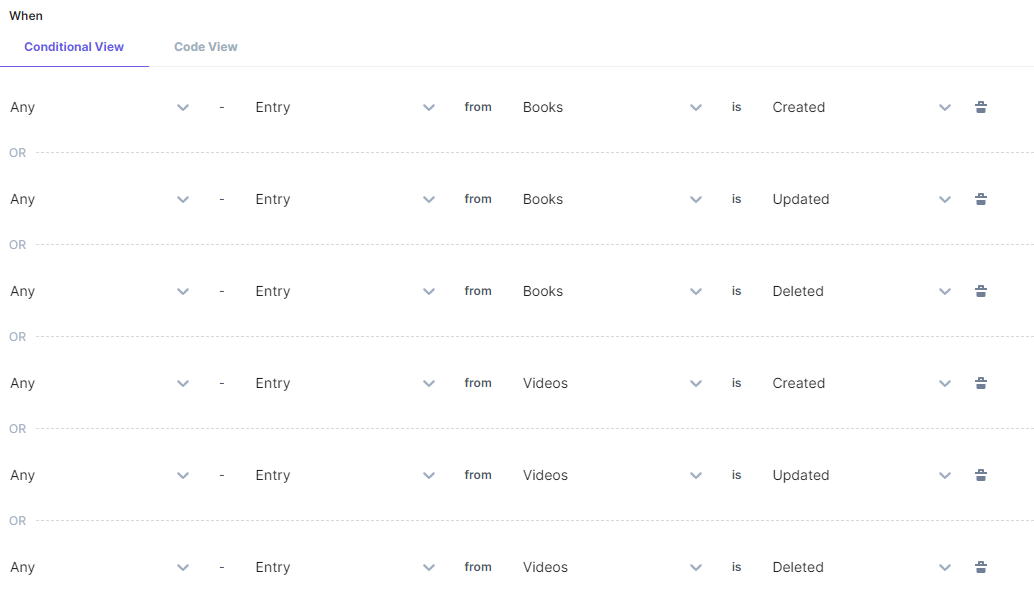
For “Videos”: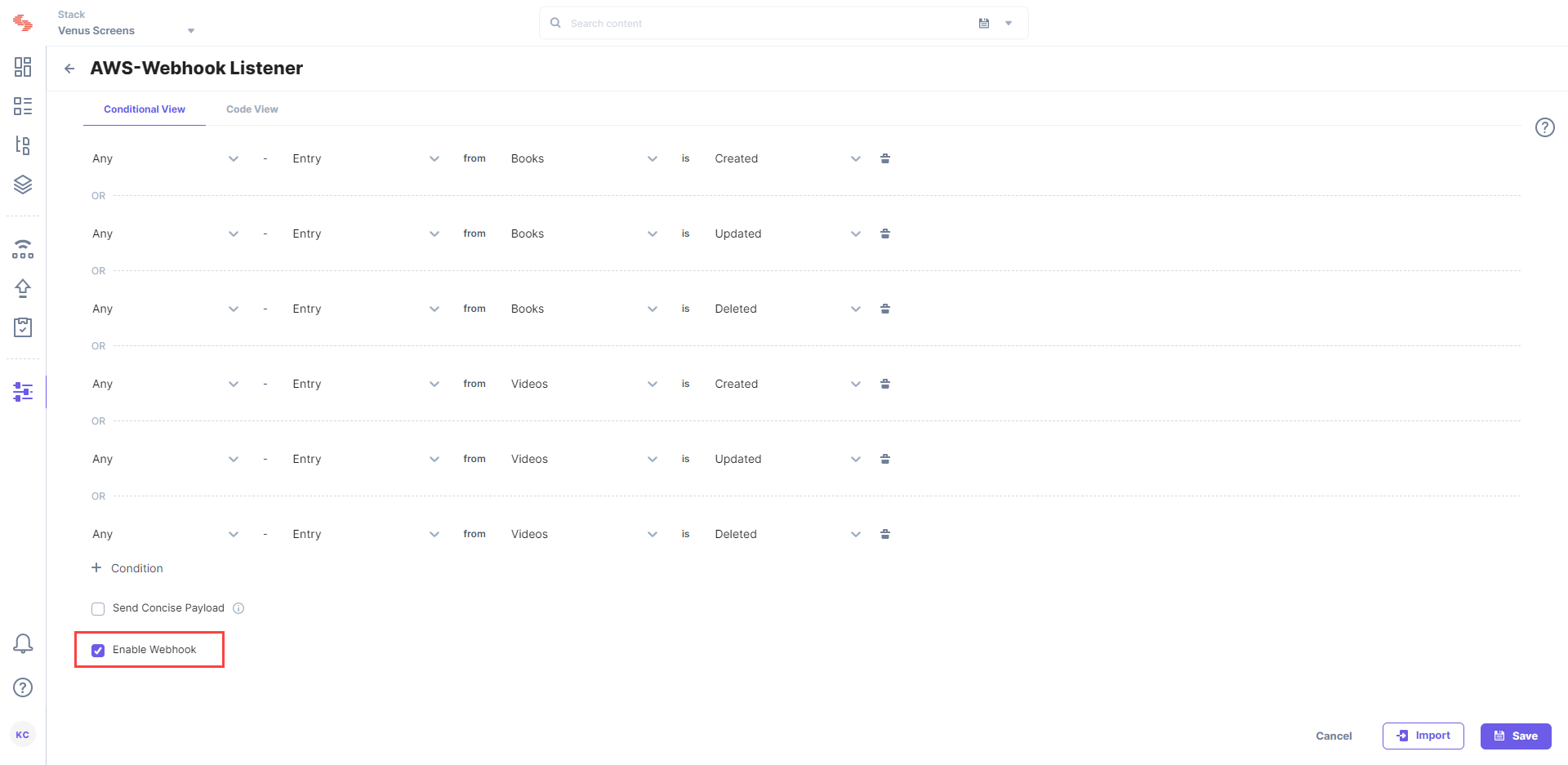
This implies that if any entry inside the Books and Videos content types is created, updated, or deleted, a webhook will be triggered to invoke the AWS Lambda function. - Select the Enable Webhook checkbox option, and click on the Save button to save your webhook settings.
Now try creating or updating an entry in Books or Videos content types. You should see the corresponding changes in the “All” content type.
Additional Resource: We have various guides that document how you can integrate webhooks with AWS Lambda. Refer our Webhook Integrations page for more details
More articles
