

Contentstack Shopify Integration Guide
The Contentstack Shopify Integration enables seamless two-way syncing of products and collections between your Shopify store and Contentstack CMS. This integration streamlines content management by allowing product data updates in one platform to reflect instantly across both, improving efficiency and ensuring consistency across all digital touchpoints.
Prerequisites
- Shopify account
- Shopify store
- Contentstack account
- Access to the Contentstack Organization and Stack as the Owner/Admin
Steps for Executions
-
Install the OAuth App
To authenticate the Shopify app with Contentstack (in step 2), follow the steps given below:
- Log in to your Contentstack account.
- Install the OAuth app in the stack that corresponds to your region using the following links:
-
Integrate Shopify with Contentstack
To integrate Shopify with Contentstack, log in to your Contentstack account and go to the Organization that you want to connect with Shopify. Then, perform the following steps:
- Log in to your Shopify account.
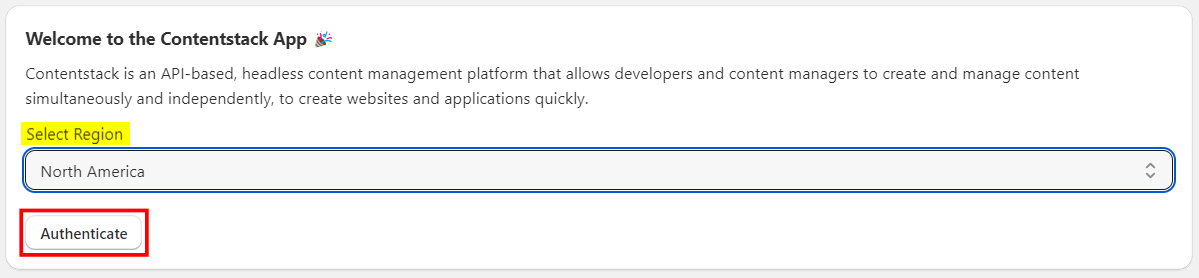
- On the admin interface, from the Select Region drop-down, select your desired region (North America, Europe, Azure Europe, Azure North America, GCP North America) and click the Authenticate button.
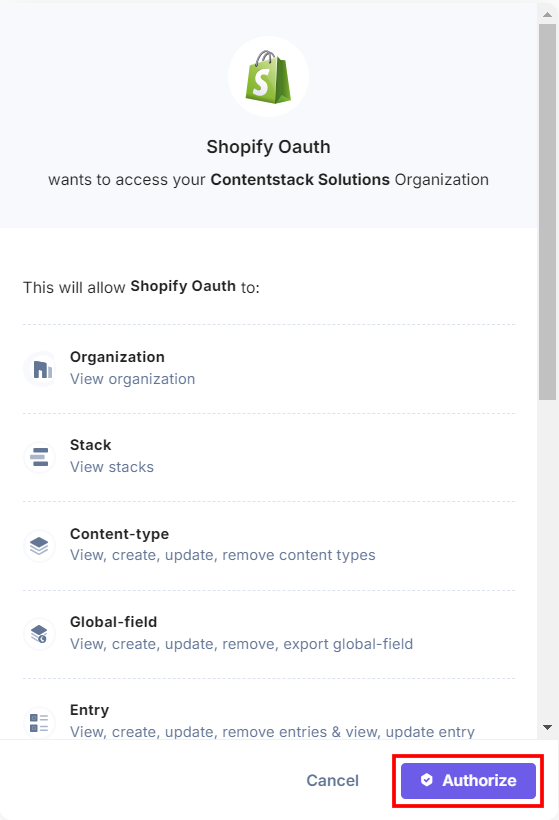
- A screen appears. To connect Shopify with Contentstack, scroll down, and click the Authorize button for successful authorization.
- Now, you are connected with the Contentstack organization.
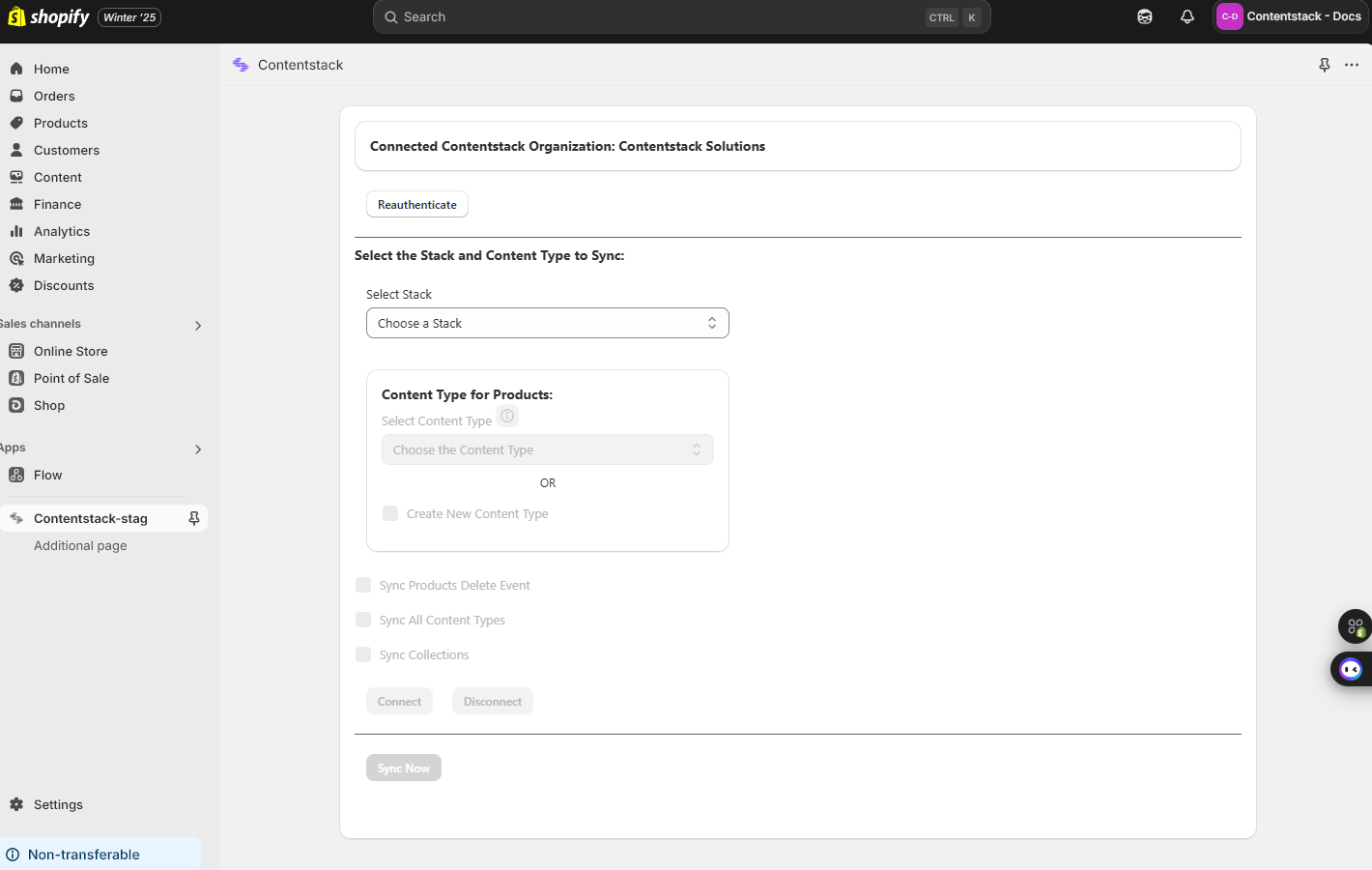
- If you want to change the Region or connect with any other Contentstack organization, click the Reauthenticate button.

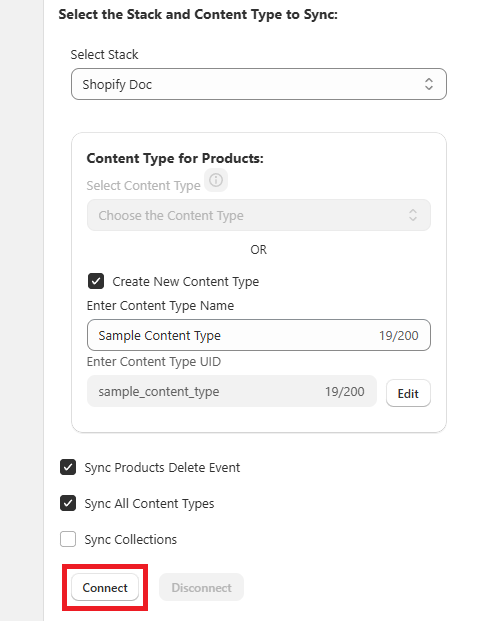
- Now to synchronize the Shopify data with Contentstack, select the Stack. After selecting a stack, you can select an existing Content Type or create a new Content Type for syncing the Content Type for Products.
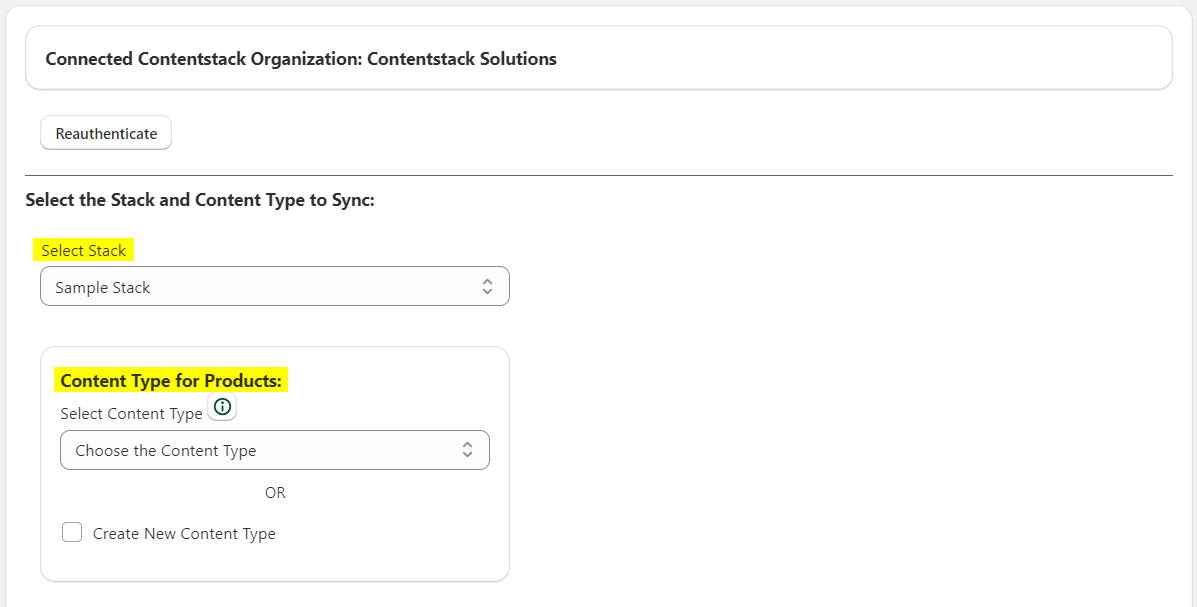
Note: Syncing Products is mandatory.
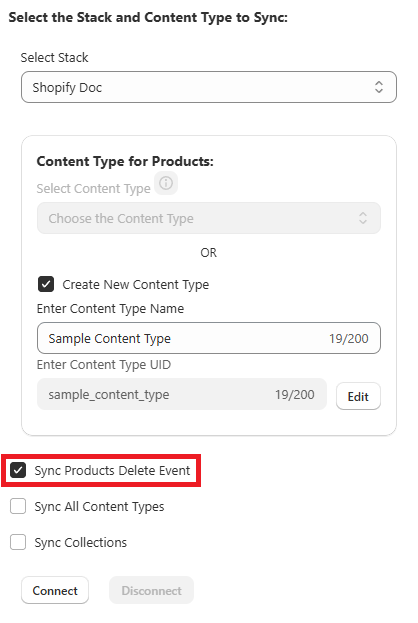
- Select Sync Products Delete Event checkbox to enable the deletion of products from Shopify when the corresponding entries are deleted in Contentstack.
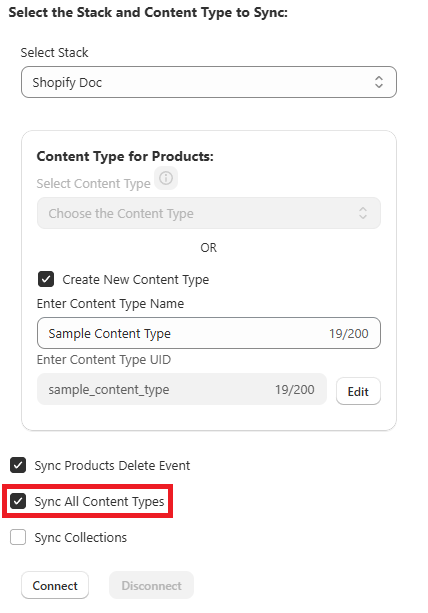
- You can also sync all available content types within the selected stack (as Meta Objects in Shopify) by clicking the Sync All Content Types checkbox.
- Click the Sync Collections checkbox if you want to synchronize the Shopify Collections in Contentstack. For syncing Content Type for Collections, you can create a new Content Type or select an existing Content type.
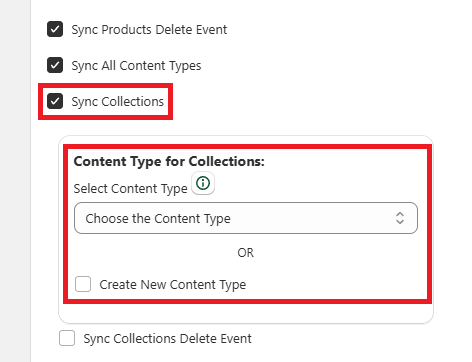
Note: Syncing Collections is optional.
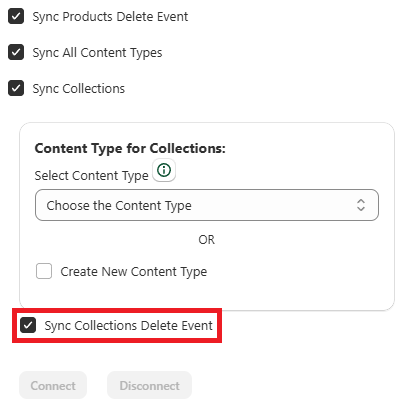
- Select Sync Collections Delete Event checkbox to enable the deletion of collections from Shopify when the corresponding entries are deleted in Contentstack.
- Click the Connect button to create a connection between Contentstack and Shopify and continue the syncing process. If there is any update in Contentstack, that will automatically be updated in Shopify and vice-versa.
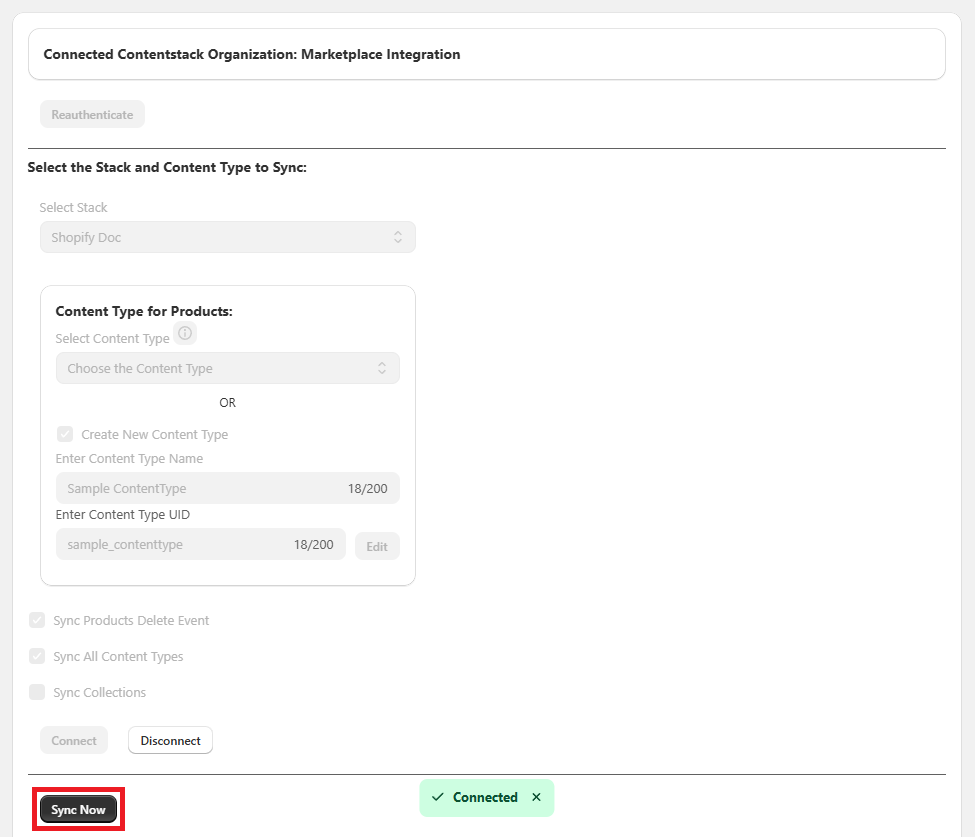
- Click the Sync Now button to initiate the syncing process between Contentstack and Shopify.
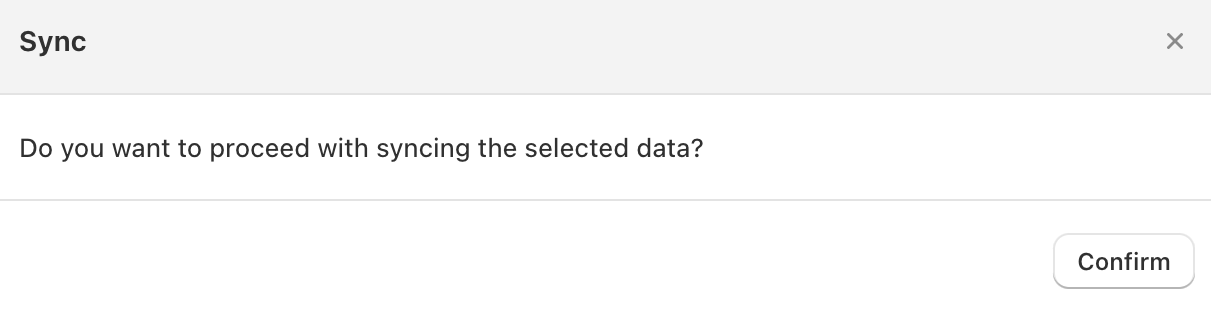
If some Products or Collections are available in Contentstack, but not in Shopify, they will be created in Shopify. Click Confirm to proceed with the syncing process.
Note: All Contentstack Fields support this transition from Contentstack to Shopify except Custom and Taxonomy fields.
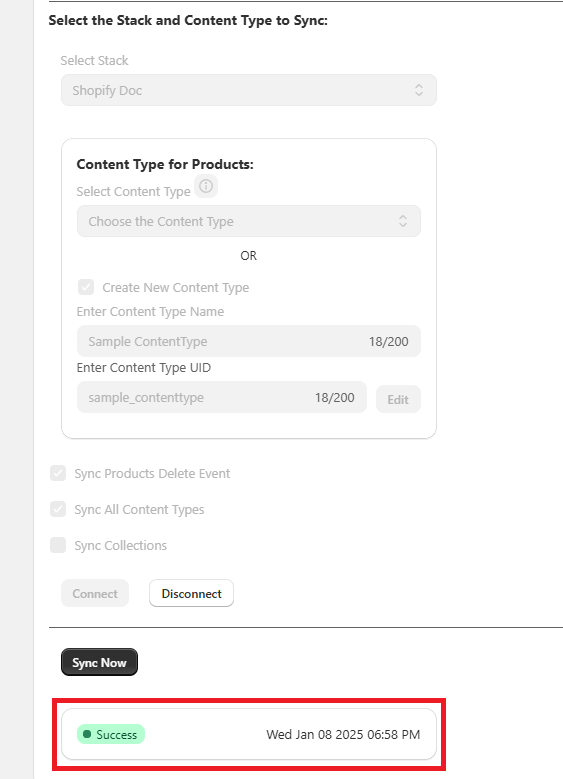
- After the syncing process is complete, it will show a Success status with the day, date, and time.
- Click the Disconnect button to stop the syncing process without updating the data in Shopify and Contentstack.
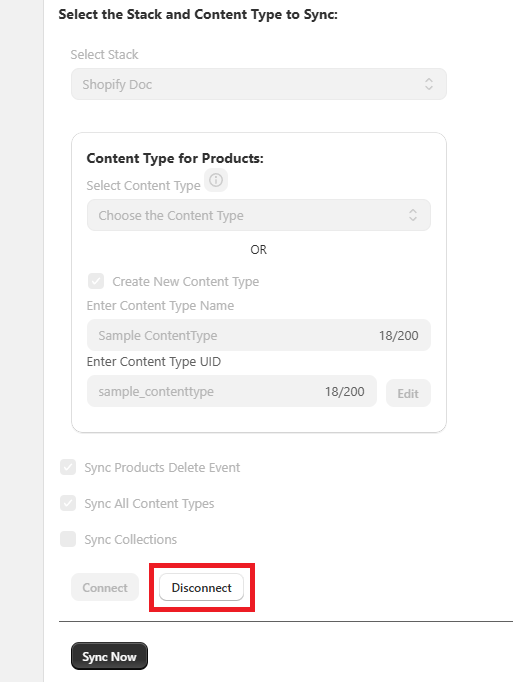
In the modal, click the Disconnect button again to stop the sync.
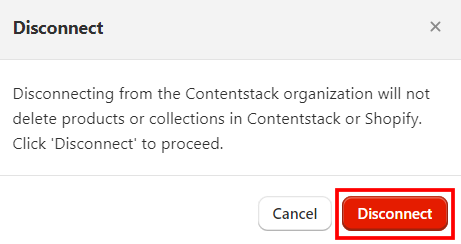
The connection is disconnected successfully.
Syncing Between Shopify and Contentstack
The two-way integration between Shopify and Contentstack ensures real-time synchronization of products and collections data across both platforms. Using the Contentstack Shopify Integration, updates in Contentstack automatically reflect in Shopify, while changes in Shopify can also sync back to Contentstack, ensuring data consistency and efficient content management.
Meta Fields in Shopify
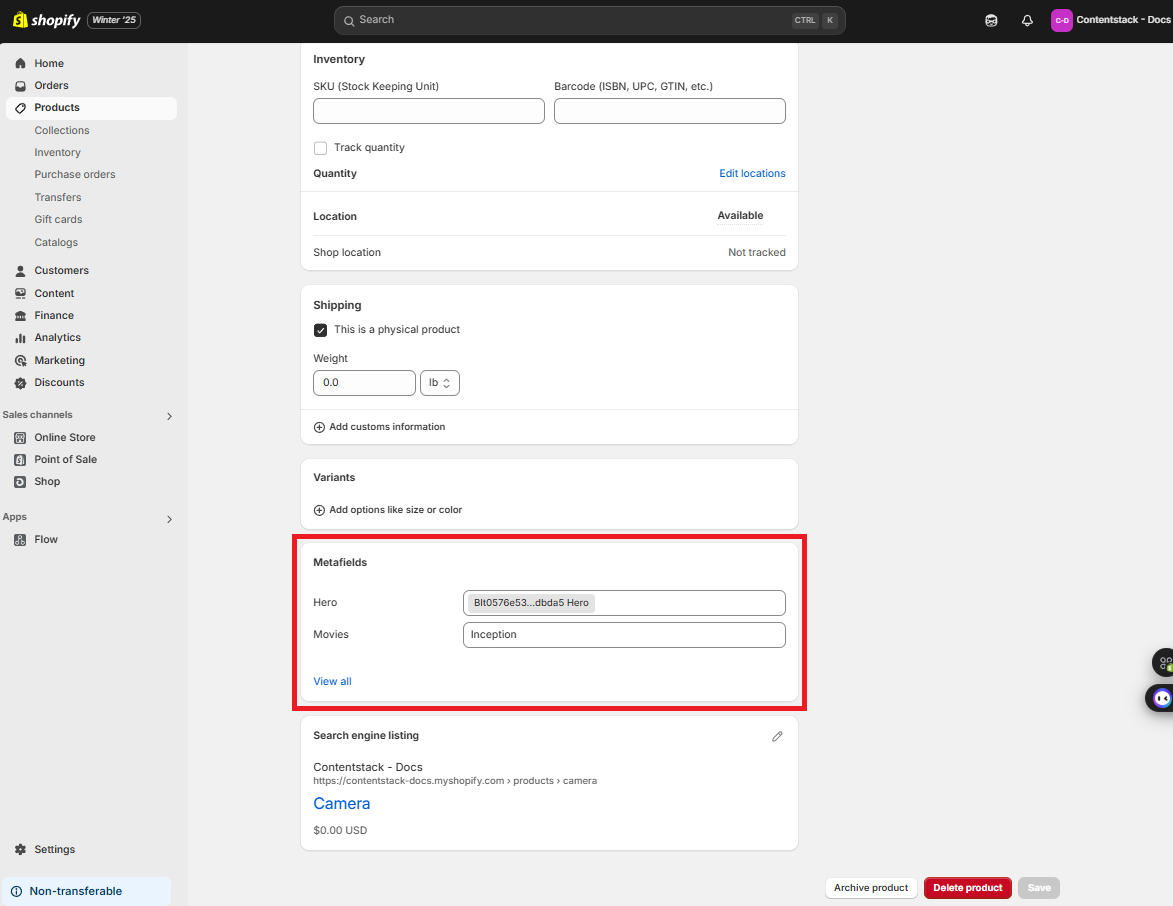
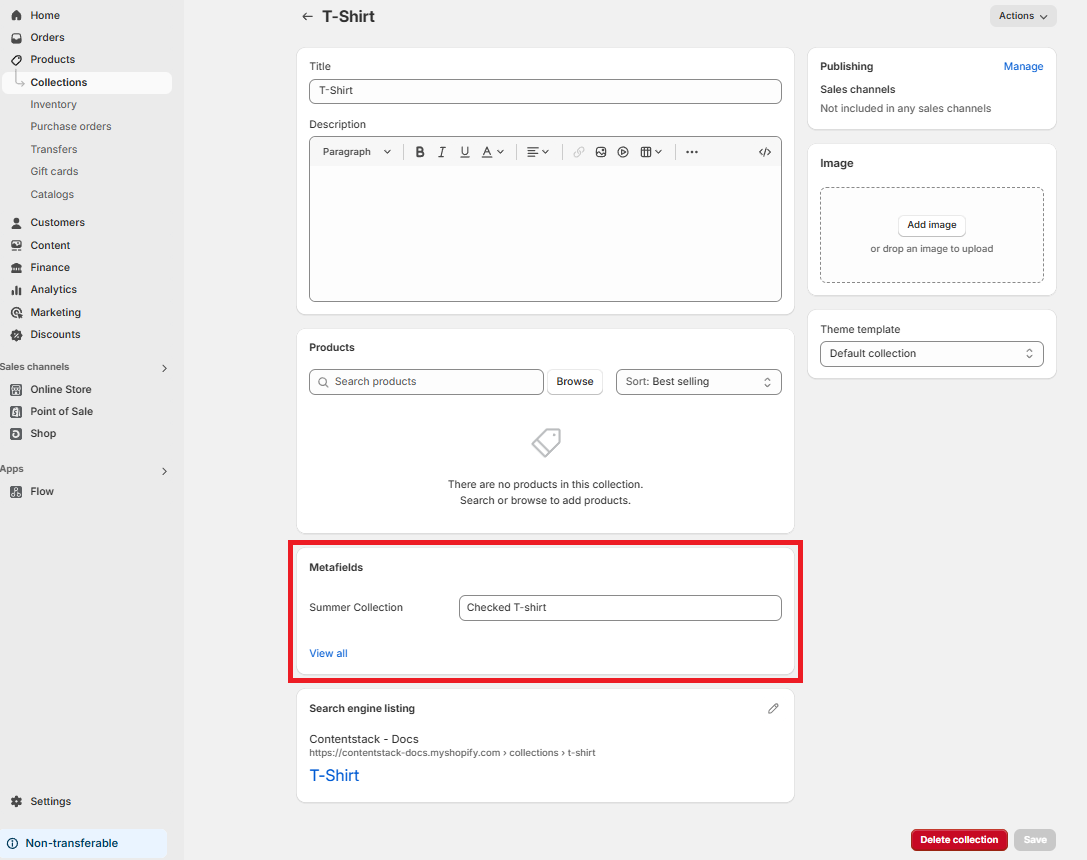
In Shopify, Meta Fields are custom data structures used to store additional information of products and collections beyond standard fields. When integrated with Contentstack, it can hold the details from additional fields, allowing for a seamless flow of content between Shopify and Contentstack’s CMS.
Note: The entry_uid metafield is used by the app to track the corresponding entry in Contentstack. You must not modify this field, as any changes may cause the app to malfunction.
Example for Meta fields in Products:
Example for Meta fields in Collections:
Meta Objects in Shopify
In Shopify, Meta Objects are custom data structures used to store additional information of complex fields of products and collections from Contentstack along with other content types. This allows for a seamless flow of content between Shopify and Contentstack’s CMS. Through the Shopify admin interface or API, these Meta Objects are attached to products, enabling additional content, like data from Contentstack, to enhance the overall customer experience.

Contentstack transfers data to Shopify's Meta Objects using Webhooks. These webhooks trigger automatically whenever content is updated or published in Contentstack, ensuring real-time synchronization within Shopify. In case of Webhooks failure, you can sync the data manually again by clicking the Sync Now button.
Additional Resource: For more information, refer to the Shopify Meta Objects documentation.
Naming Conventions
To handle smooth synchronization with Shopify, Contentstack defined naming conventions.
- Title: Shopify allows duplicate names in Product Titles, but Contentstack requires each entry Title to be unique. To address this in the Contentstack entry, the Product ID is appended to the Title, separated by a hyphen (-).
Example: SampleProduct becomes SampleProduct-1234567890123
- URL: If you enter an incorrect URL in the Contentstack entry, an error will occur during the sync with Shopify. The URL must start with “https:”, “http:”, “mailto:”, “sms:”, or “tel:”.
Example: https://www.contentstack.com
- Group: Group field can be used to hold and transfer grouped data, like product specifications or attributes, within Shopify’s meta objects.
Meta Objects Name Format for Group field:<content_type_uid>-<group_uid>
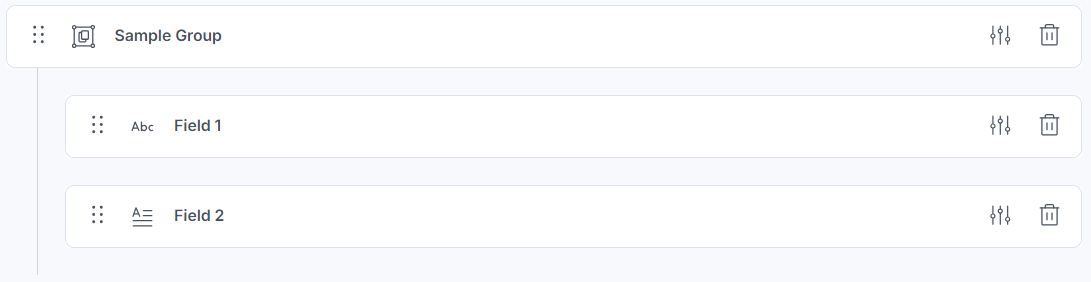
Example: sample_content_type-sample_group
For Nested Groups
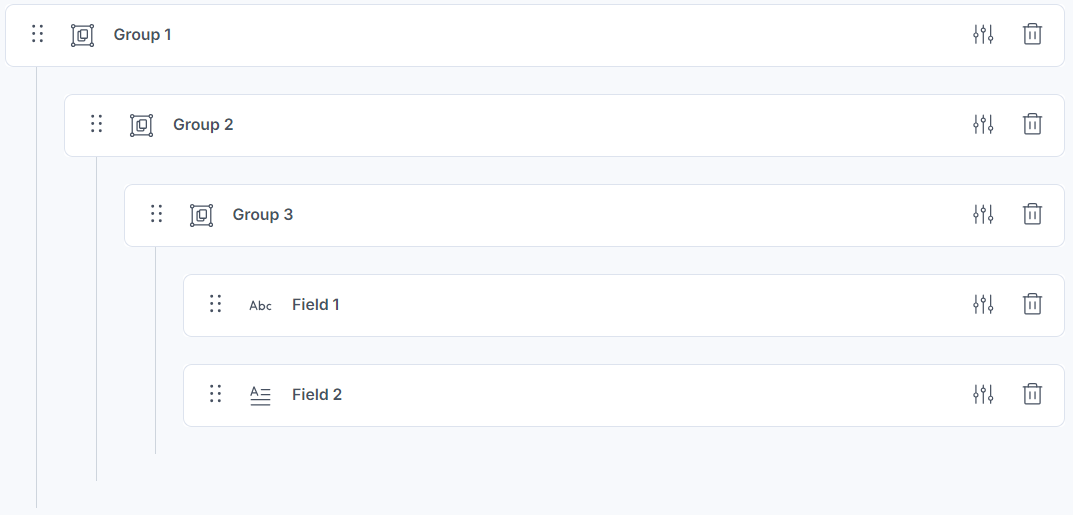
Meta Objects Field Name Example: sample_content_type-group_1-group_2-group_3.field_1
- Modular Block: Modular Block field can store and sync complex, multi-part content like product descriptions, specifications, promotional, or other details.
Meta Objects Name Format for Modular Block field:<content_type_uid>-<modular_block_uid>-<block_uid>
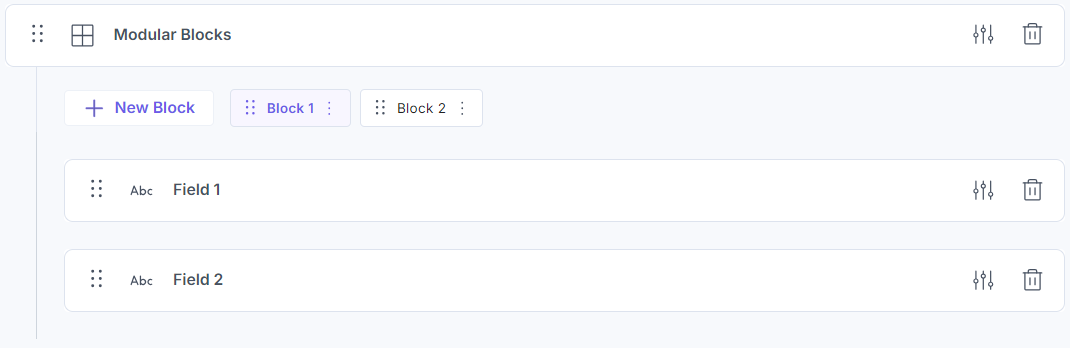
Example: sample_content_type-modular_blocks-block_1
- Global Field: Contentstack’s Global Field is similar to Shopify’s Global field. It can store common data applicable to multiple products or collections, such as brand information, pricing models, or universal tags.
These naming conventions help maintain consistency and readability across both Shopify and Contentstack platforms.
Note: If the Multiple property is enabled or selected under Advanced properties in the URL, Single Line Textbox, Multi Line Textbox, Rich Text Editor, JSON Rich Text Editor, Markdown, Select, Number, and Boolean fields, the sync will fail as Shopify does not support this functionality.
