

Clear Caches and Cookies in Different Browsers
Note: This page is no longer maintained, and the content may be outdated or unsupported. It may be removed in a future release.
Users need websites to load quickly, in a blink of an eye. Browsers play their part in speeding up the page loading process by caching files and content when you first visit a website and then serving from cache on subsequent visits.
However, there may be times when browsers continue to serve cache even if the actual page/content has been changed. As a result, you may encounter certain errors or continue to see older content. In such cases, clearing the cache and cookies of a browser can help.
This document discusses the steps required to clear the cache and cookies on different browsers.
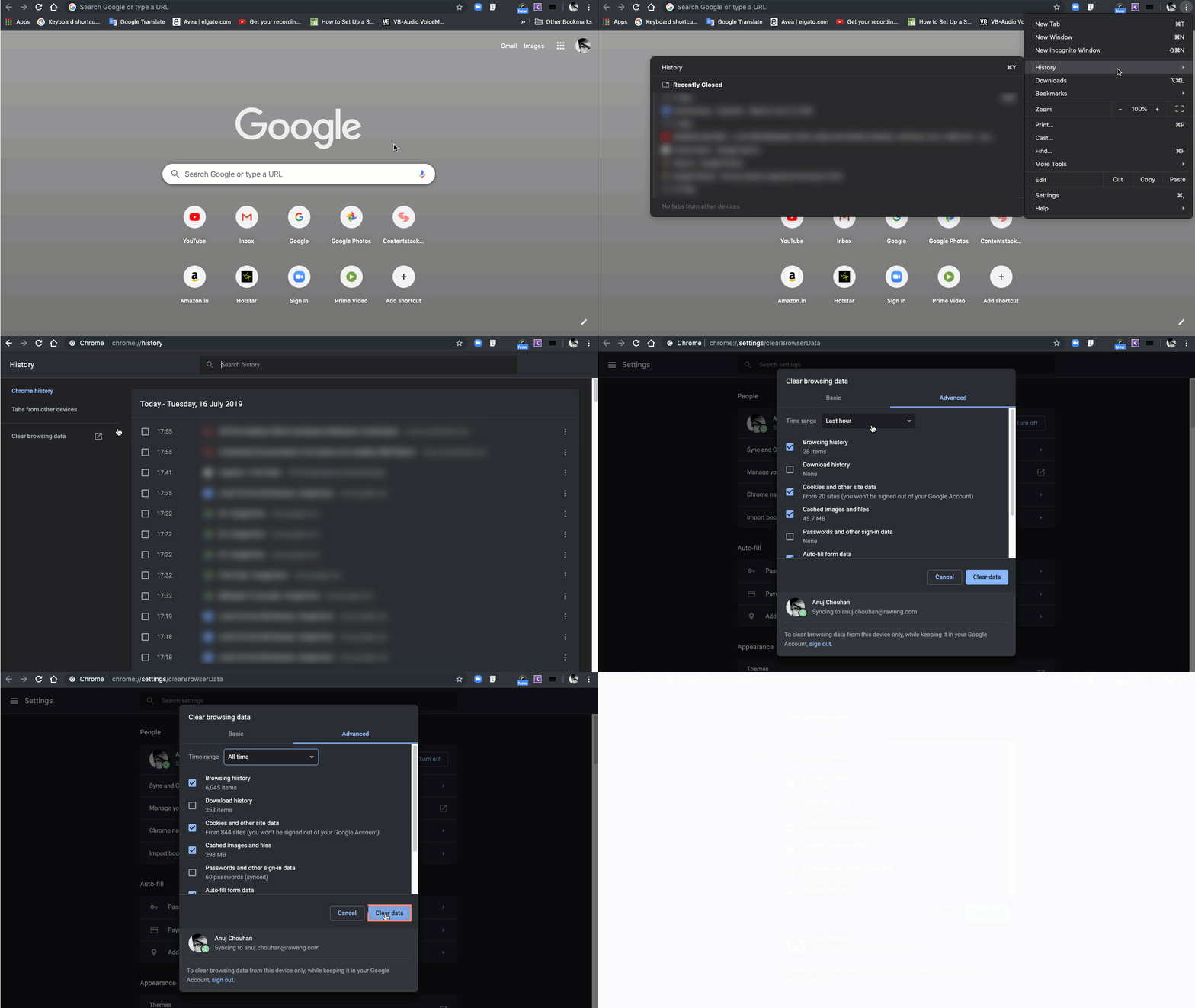
On Chrome
- Click the vertical ellipses on the top right corner.
- Click History.
- Click Clear browsing data on the left sidebar.
- In the popup that appears, select a “time range” and the options Cookies and other site data and Cached images and files.
- Click Clear data.
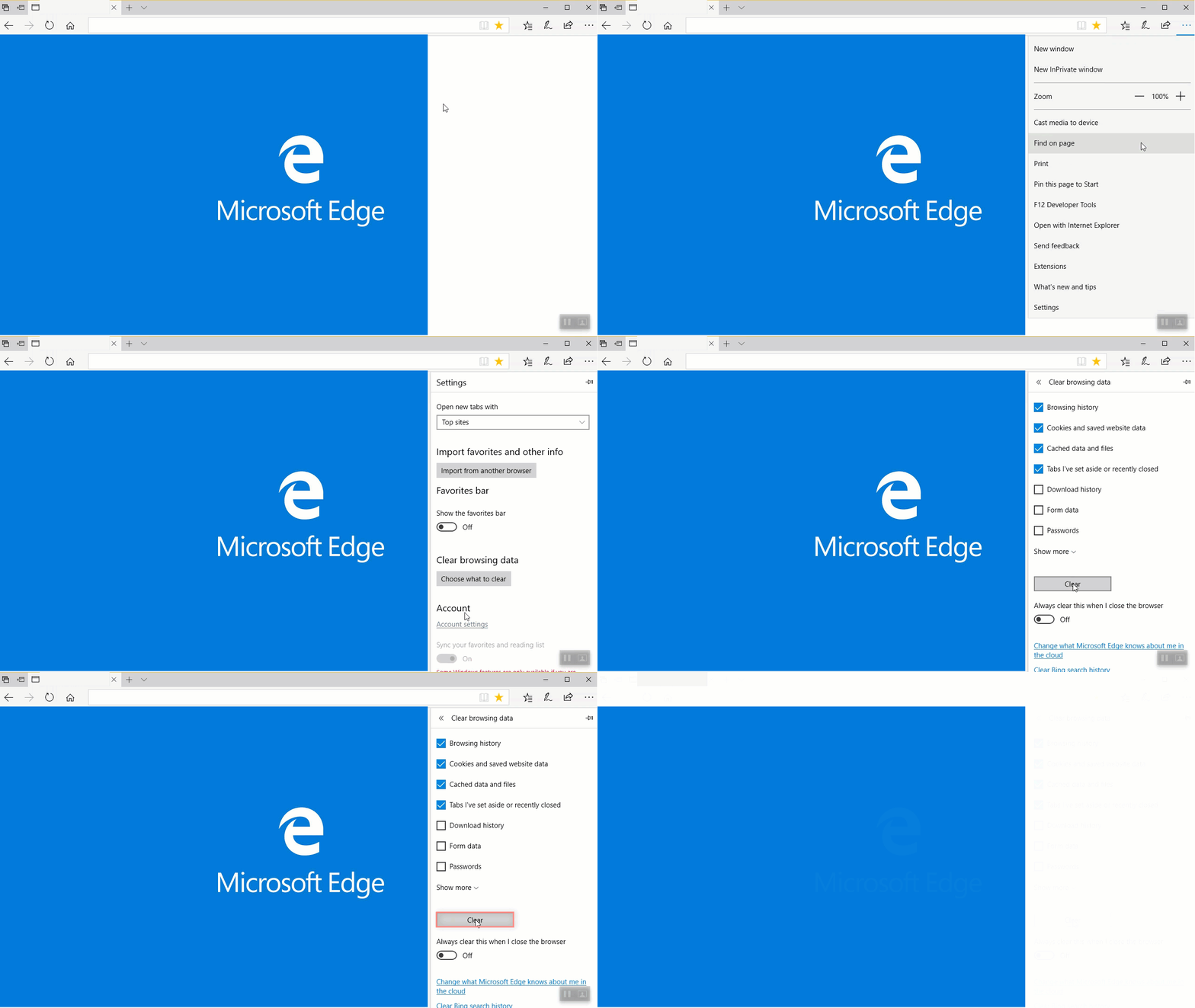
On Microsoft Edge
- Click the horizontal ellipses on the top right corner.
- Click Settings.
- Under the Clear browsing data option, click on Choose what to clear.
- Select the checkbox Cookies and saved website data and Cached data and files.
- Click the Clear button.
On Firefox
- Click the 3 vertical lines on the top right corner.
- Click History.
- Click Clear recent history.
- In the popup that appears, select a “time range” and the options Cookies, Cache, etc.
- Click Clear Now.
On Safari
- On the keyboard, press Command+Y.
- Click Clear browser history.
- In the popup that appears, select the time range and then click Clear History.
The keyboard shortcuts for the same are:
- For Windows, “Ctrl+Shift+R”.
- For Mac, “Command+Shift+E”.
Note: These steps apply to all apple devices with Safari browsers.
The above steps should clear your browser cache and cookies. However, if the issue still persists, please contact our support team.
Additional Resource: Check out our Contentstack CDN Cache Management doc for more information on how CDNs work, what's Cache Purging, what are the cache responses, and so on.
More articles in "General Guides"
