

About Content Types
A Content Type is the structure or blueprint of a page or a section that your web or mobile property will display. It lets you define the overall schema of this blueprint by adding fields and setting its properties.
Note: When working within specific branches, content types added or updated will be specific to that particular branch. Refer to our Branch-specific Modules document for more information.
In essence, creating a content type is like creating a mold or cast that lets you create several objects (entries) of the same nature and pattern. Content types, however, should be created after you model your content appropriately.
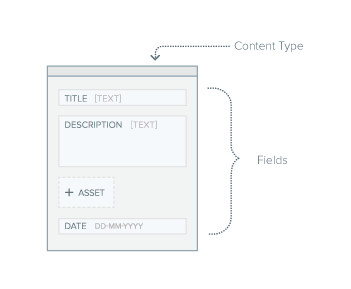
Here is the structure of a “News” Content Type that has a “title,” “description,” “asset,” and “date” fields. Once this content type is ready, you can create an entry for it.
Terminologies
- Entry: After you define a content type, you can add data to your content type by creating an entry.
- Asset: Any media file you want to upload in an entry.
- Fields: These are the building blocks/component of your structured content. You can control which data you want to add by configuring fields and their properties in a content type.
Examples
- If you want to create a simple blog page on your site, you will define a “Blog” content type that has “title,” “date,” “body,” and “author” fields.
- If you want to create the homepage of your site, you will define a “Homepage” content type that has “header,” “footer,” “banner-image,” “title,” and “body” fields.
Customizing a Content Type
Contentstack allows you to customize a content type to meet your requirements. You can create webpage(s), the pages of your mobile application, or the partials of your webpage (header, footer, or menu).
Using the Single and Multiple Content Types options, you can even set the number of entries for a particular content type.
This means that if you set “Blog” content type as multiple, you can create many entries of the same structure. And if you set “Homepage” content type as single, you can only make a single entry for this content type.
Additional Resource: If you wish to learn how to develop a content type with dynamic fields structure, refer to the Field Visibility Rules section. Additionally, for sorting content types, you can make use of Labels.
You can browse through the topics mentioned in the “More Articles” section to learn what actions you can perform on a Content Type.
More articles in "Get Started with Content Types"
