

Add a Field Visibility Rule
Field Visibility Rules in Contentstack allow authorized users to dynamically show or hide fields within an entry based on predefined conditions, improving content management and user experience. By setting up rules, users can control when fields appear, streamline data entry, and reduce clutter.
This guide outlines the steps to create and configure these rules, including defining conditions, setting actions, and managing multiple rules effectively.
When creating or editing a content type or a global field, you can define field visibility rules based on specific conditions in the respective builder page.
Note: Only users with permission to create or edit content types can configure the field visibility rules.
Set Up Field Visibility Rules for a Content Type
To set up field visibility rules, log in to your Contentstack account and perform the following steps:
- Go to your stack and click the "Content Models" icon.
- Click the title of a content type to open it. Alternatively, click the vertical ellipses in the Actions column next to the content type and select Edit.
Click Field Visibility Rules at the top of the page.
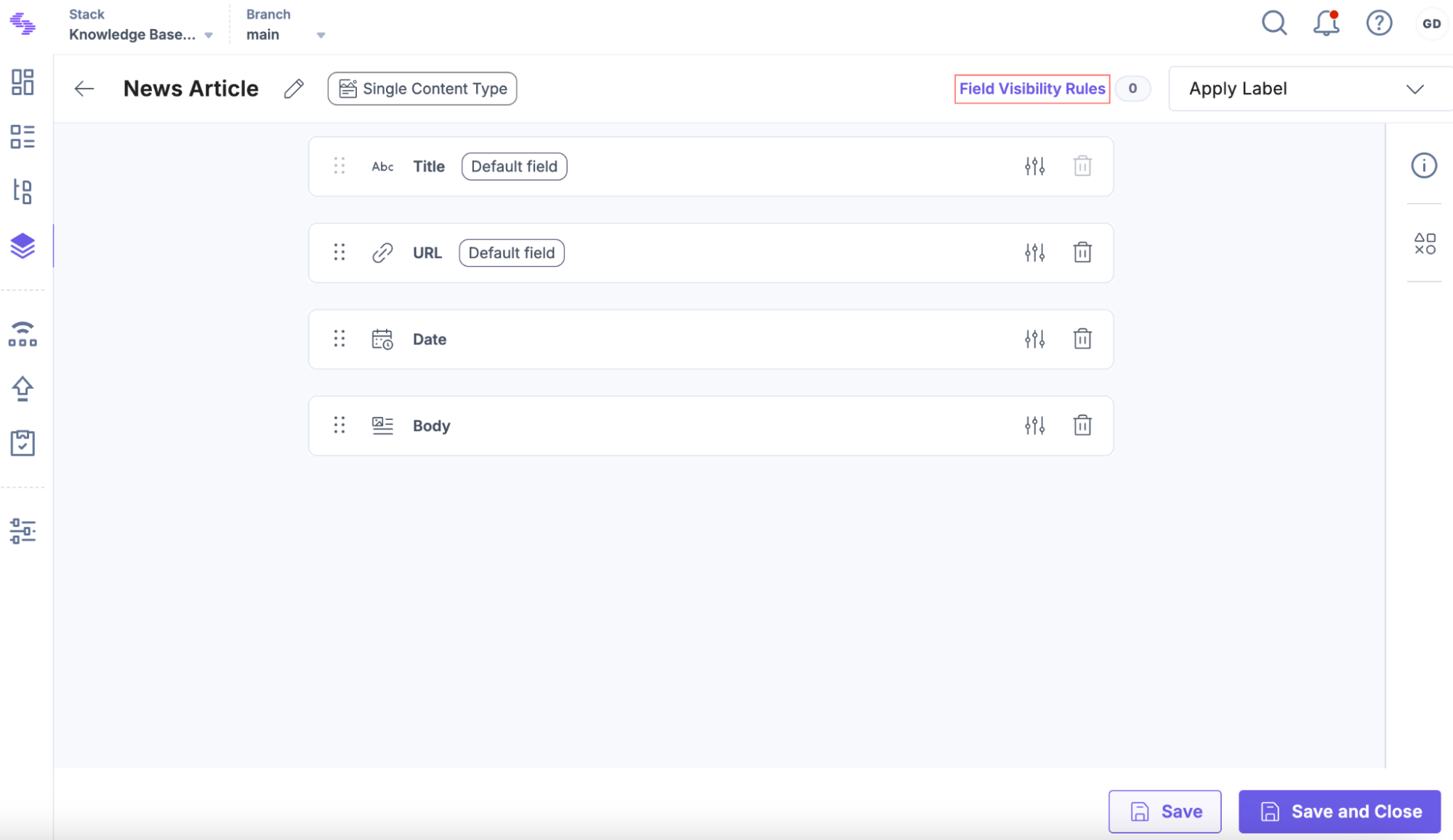
- In the resulting modal, click Create New Rule.
Under RULE 1, configure the rule as follows:
Select whether the rule should apply when All or Any of the specified conditions are met:
- All: The action triggers when all specified conditions are met.
- Any: The action triggers when at least one specified condition is met.
Specify the conditions:
- Select a Field from the dropdown. This is the operand to be evaluated.
Choose a Condition. This is an operator that defines the comparison.
Additional Resource: Refer to the Operand Fields and Supported Operators document for more details.
Enter an expected Value that triggers the condition.
Example Condition: If "Date" is Before "12-31-2024".
- Operand Field: Date
- Condition (operator): Before
- Expected Value: 12-31-2024
Tip: You can add more conditions to a rule by clicking + Add Condition or remove them by clicking the delete icon.
In the Perform the following actions section, define the actions triggered when the condition is met.
- Select Show or Hide action type from the dropdown.
- Choose a target Field to be shown or hidden based on the condition.
For example, if "Date" is Before "12-31-2024", Show the Archive Notification field and Hide the Body field.
Tip: You can add more actions to a condition by clicking + Add Action or remove an action by clicking the delete icon.
Note: Refer to the Limitations of Field Visibility Rules document to know more about the validations on the operand field and target field.
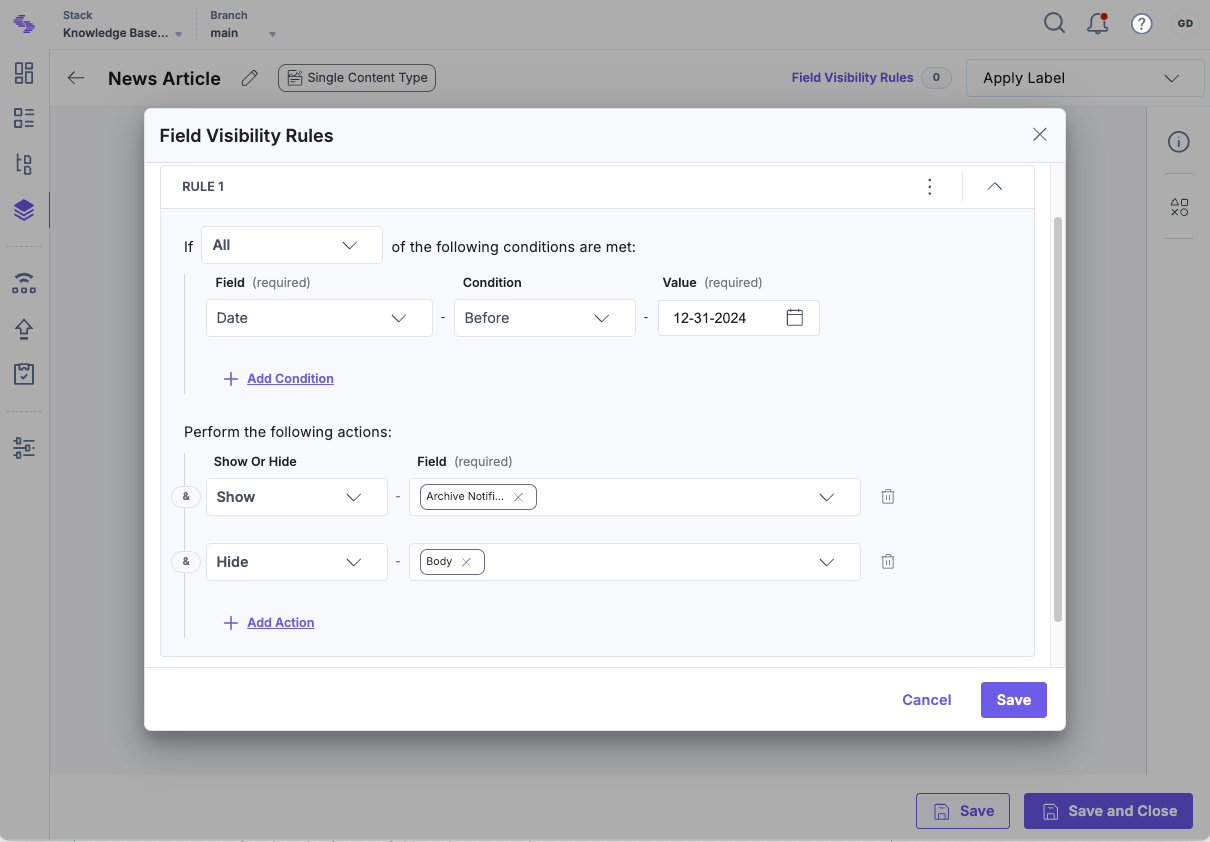
Tip: You can add multiple rules to a content type by clicking + Add Another Rule or remove a rule by clicking the Delete Rule option from the vertical ellipsis.
- Click Save to apply the rule(s).
- Click Save or Save and Close to apply changes to the content type.
Apply Field Visibility Rules to Group Fields
Suppose you have a Team Member group field marked as Multiple. Inside it, you add a select field named Has Social Links and text fields for LinkedIn URL and Twitter URL.
You want the LinkedIn and Twitter fields to appear only when Has Social Links is selected.
To create this rule, log in to your Contentstack account and perform the following steps:
- Go to your stack and click the "Content Models" icon.
- Click the title of a content type to open it. Alternatively, click the vertical ellipses in the Actions column next to the content type and select Edit.
- Click Field Visibility Rules at the top of the page.
- In the resulting modal, click Create New Rule.
- Under RULE 1, set the condition:
- Operand: Has Social Links
- Condition: is selected
- Under Actions, select Show for the LinkedIn URL and Twitter URL fields.
- Click Save to apply the rule.
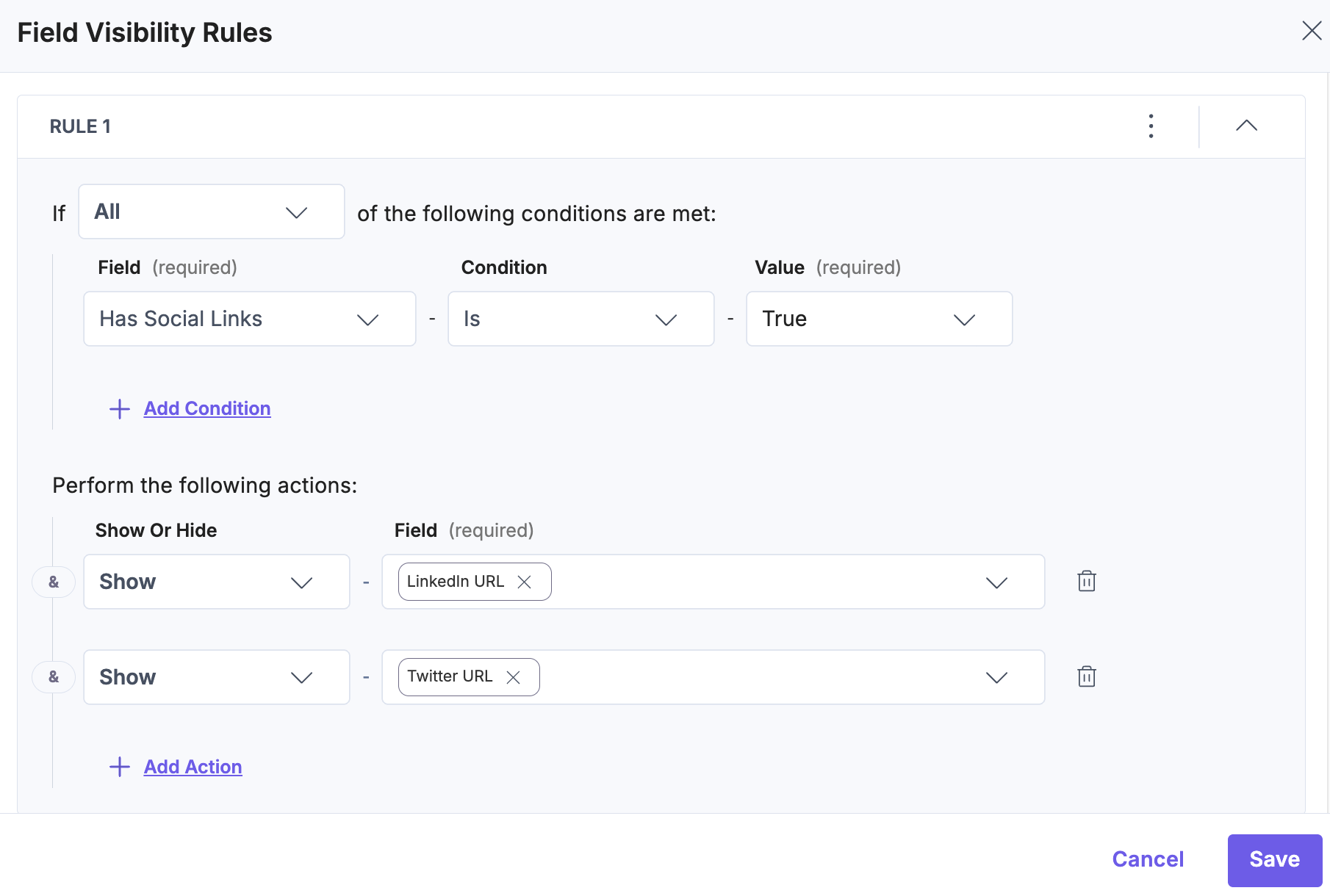
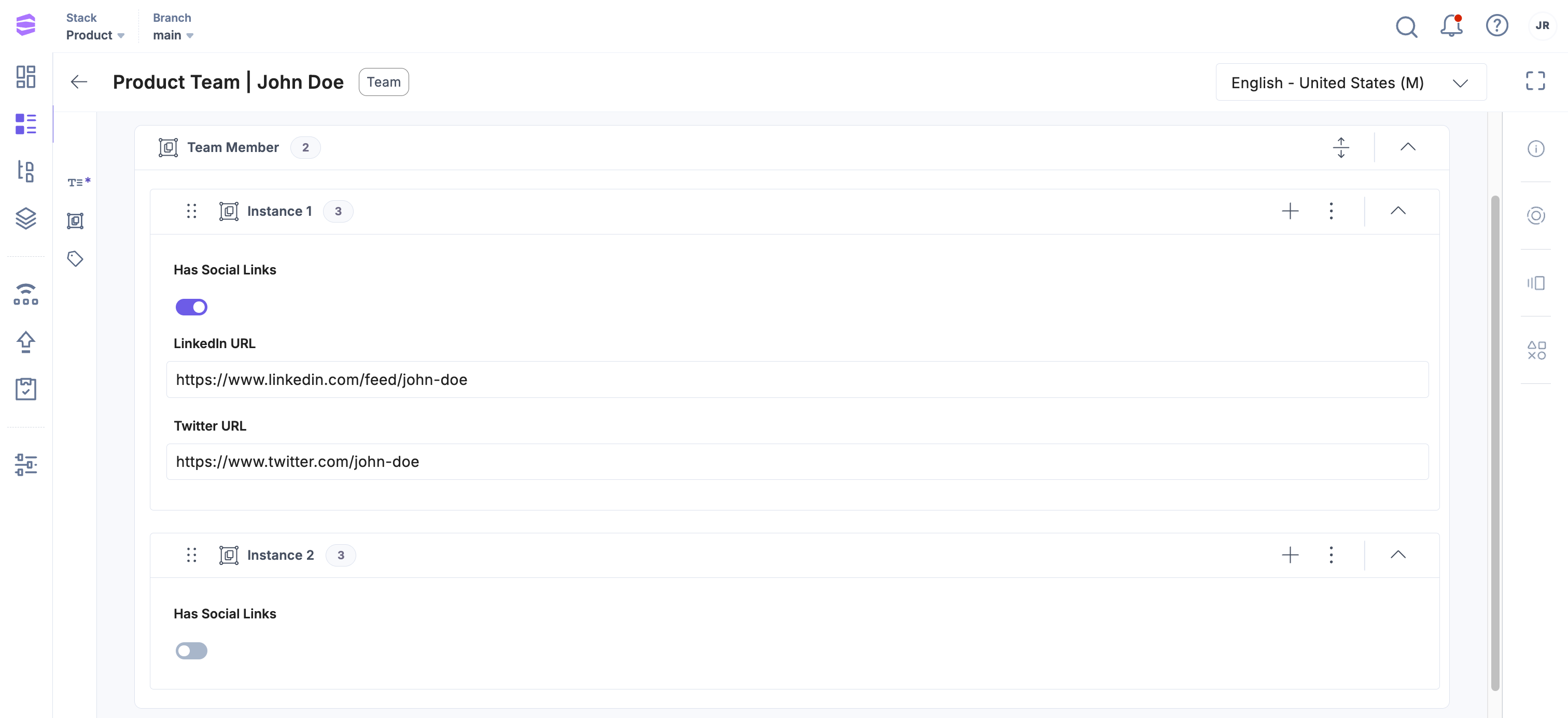
Note: The Field Visibility Rules apply per instance of the group, so each team member can independently show or hide their social link fields.
Now, when editors add a team member entry and check Has Social Links, the LinkedIn and Twitter fields will appear for that instance.
Apply Field Visibility Rules to Modular Block Fields
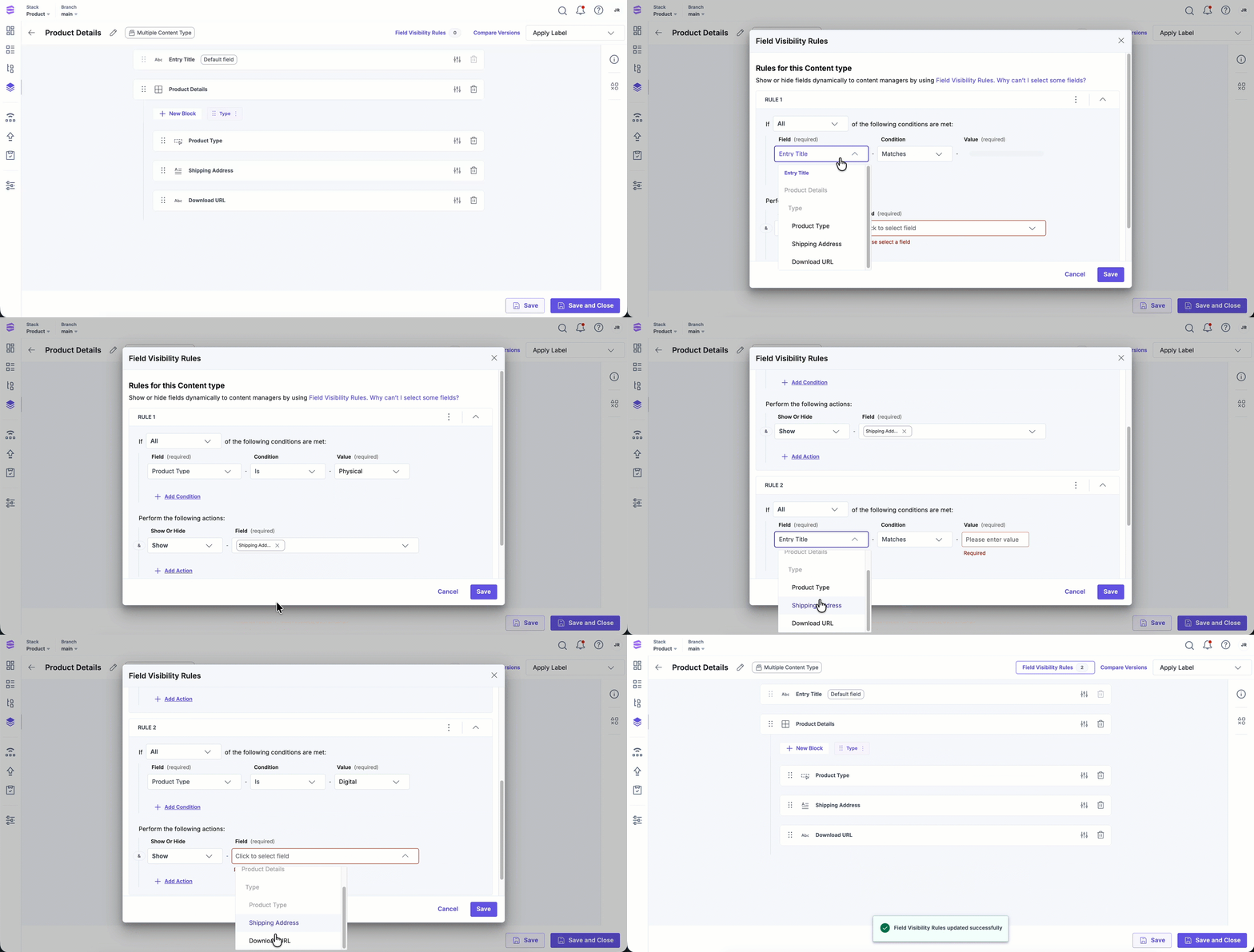
Suppose you have a Product Details modular block with a field called Product Type and fields for Shipping Address and Download URL.
If Product Type is Physical, show Shipping Address and if Product Type is Digital, show Download URL.
To create this rule, log in to your Contentstack account and perform the following steps:
- Go to your stack and click the "Content Models" icon.
- Click the title of a content type to open it. Alternatively, click the vertical ellipses in the Actions column next to the content type and select Edit.
- Click Field Visibility Rules at the top of the page.
- In the resulting modal, click Create New Rule.
- Configure RULE 1 as follows:
- Operand: Product Type
- Condition: Equals → Physical
- Action: Show → Shipping Address
- Add a second rule:
- Operand: Product Type
- Condition: Equals → Digital
- Action: Show → Download URL
- Click Save to apply the rules.
Note: Field Visibility Rules apply within the same block only. You cannot set the parent Modular Block or another block as an operand or target.
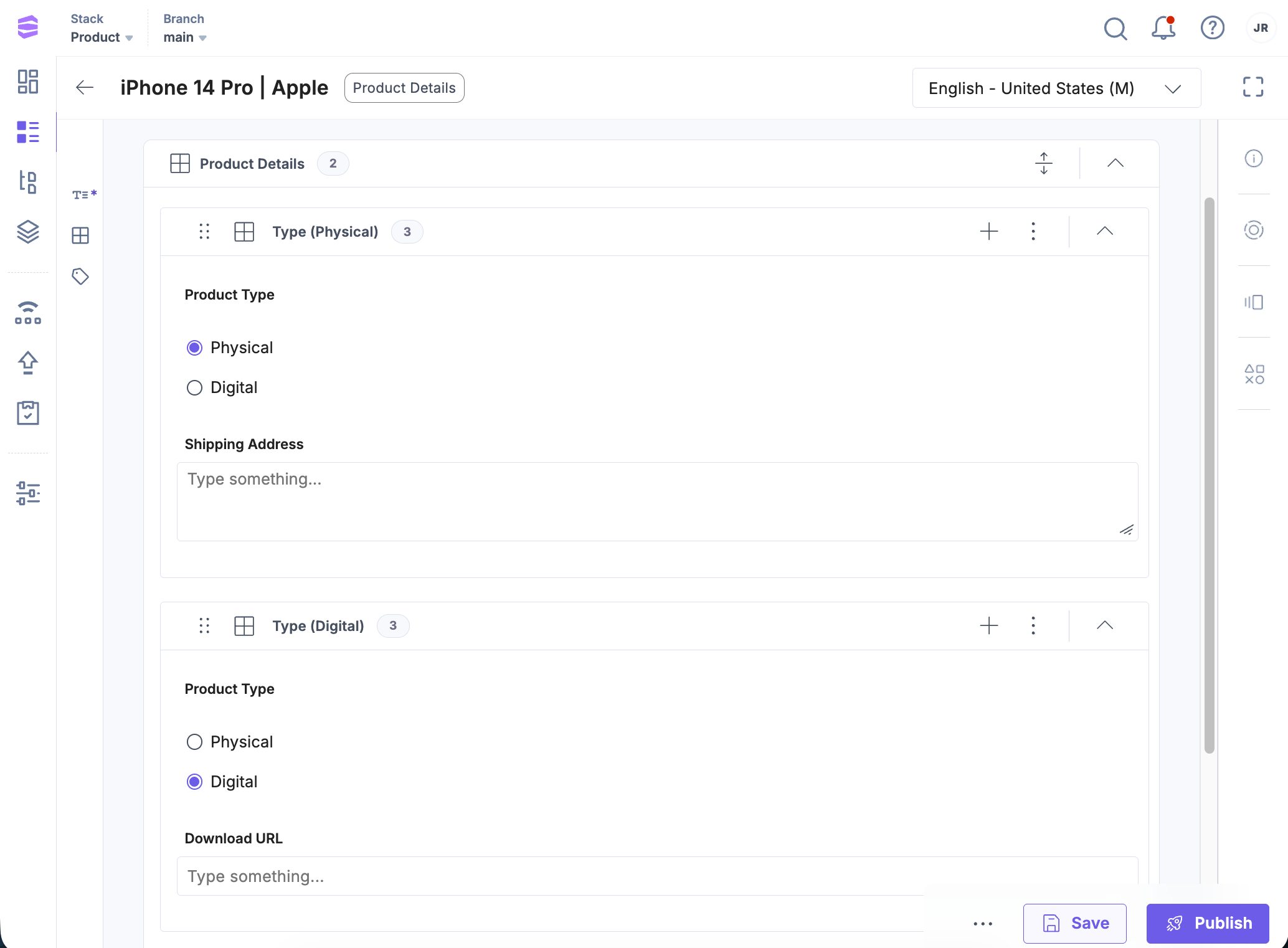
Now, when editors add a Product Details block and select Physical, the Shipping Address appears. Selecting Digital hides it and shows the Download URL instead.
Set Up Field Visibility Rules for a Global Field
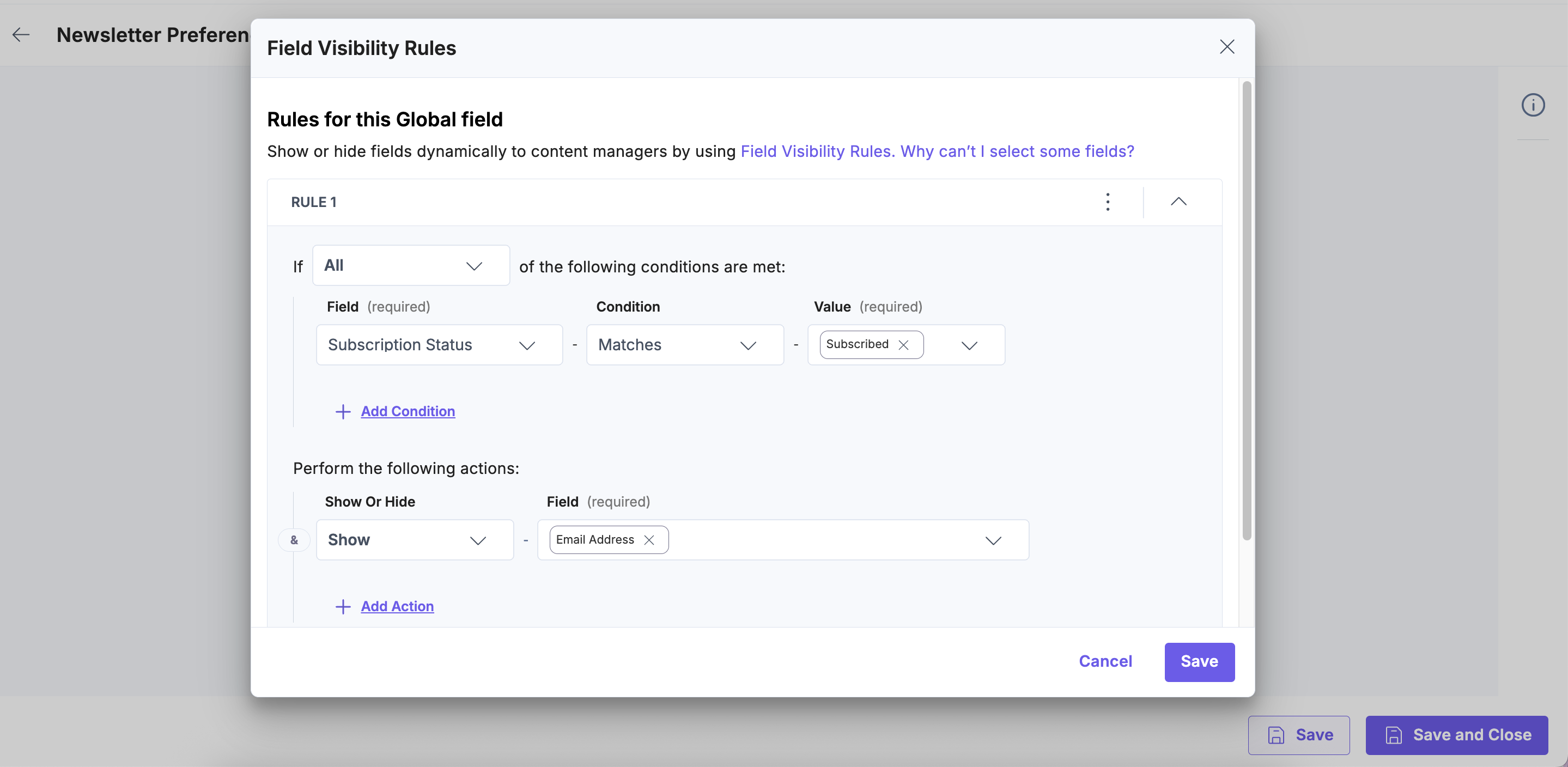
You can apple Field Visibility Rules to Global Fields, allowing you to control the visibility of fields inside a reusable component.
To set up field visibility rules for a global field, log in to your Contentstack account and perform the following steps:
- Go to your stack and click the Content Models icon.
- Select Global Fields from the left navigation panel.
- Click the title of a global field to open it.
- Click Field Visibility Rules at the top of the page.
- Create and configure rules using the same steps as for content types.
Note: Fields marked as multiple cannot be used in rules within a Global field.
- Click Save to apply the rule(s).
- Click Save or Save and Close to apply changes to the global field.
How Rules Work in Content Types
When a Global Field with visibility rules is referenced in a content type:
- The rules are inherited and shown in the Rules from Global Fields (Read-only) section in the Content Type builder.
- Inherited rules cannot be edited or deleted from the Content Type; you must edit them in the Global Field itself.
- Any rules created directly in the Content Type are independent and remain editable there.
Field Visibility Rules give you granular control over which fields appear to content managers, simplifying the entry view and improving usability. Using these rules effectively can improve data accuracy, streamline workflows, and make complex content models easier to work with, especially when managing reusable components through Global fields.
More articles in "Field Visibility Rules"
