

Export and Import an Automation
To streamline deployment and maintain consistency across projects, the Import and Export feature enables seamless migration and configuration management of automation workflows across different projects and organizations. For example, this feature can be used to migrate automations within the same environment for testing or to ensure consistent configurations across multiple projects within that environment. You can export and back up complete automation configurations as JSON files, including details such as trigger definitions, conditions, action sequences, and associated data.
Let’s see the steps to Export and Import an automation.
Export an Automation
To export an automation, perform the steps given below:
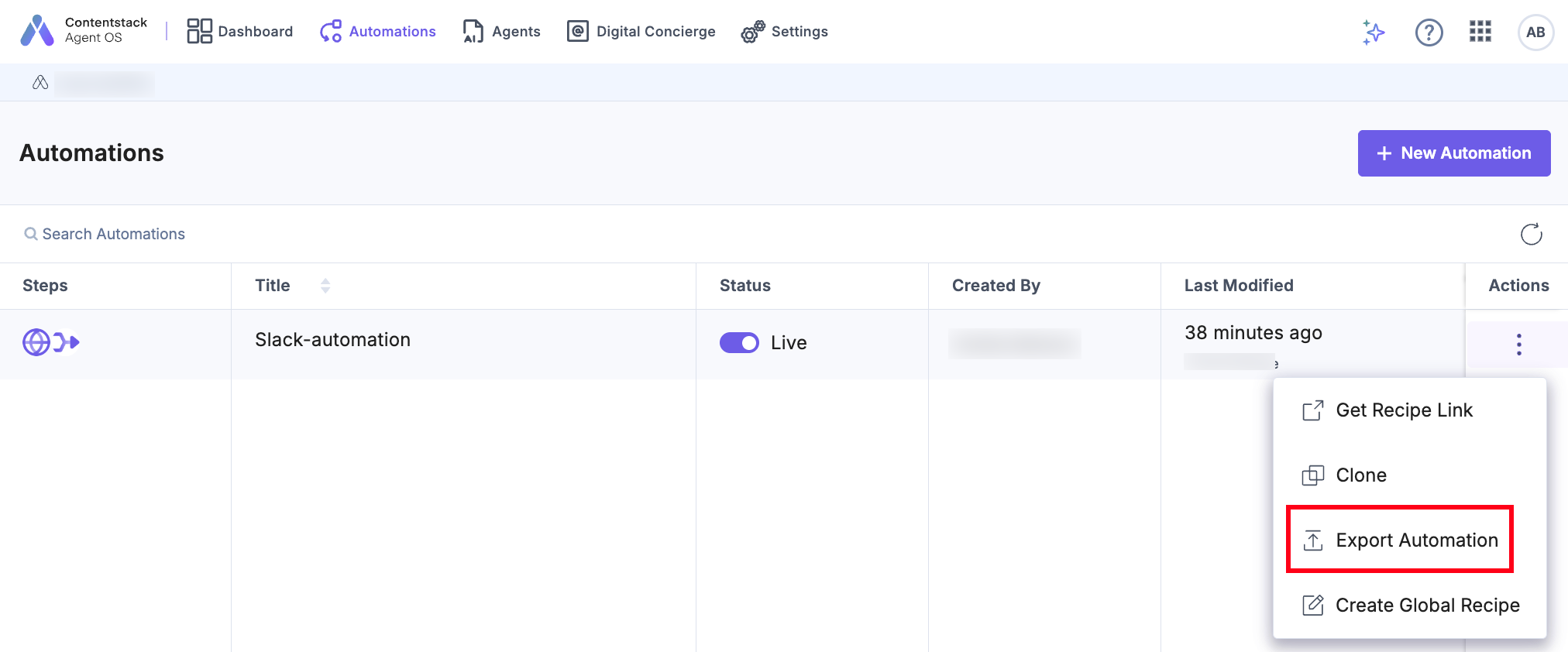
- On the Automations listing page, in the Actions column, click the vertical three dots.
- Select the Export Automation option. A JSON file is downloaded in your local system.
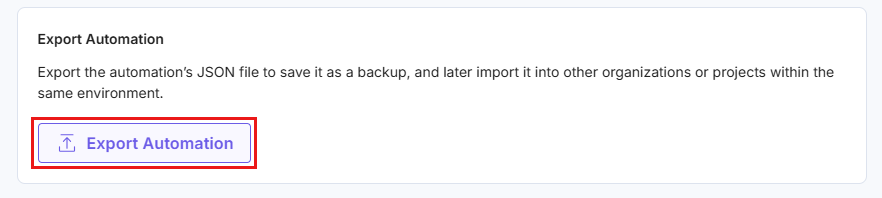
You can also export the automation by navigating to the Settings page inside your automation and then clicking the Export Automation button as shown below:
Import an Automation
To import an automation, perform the steps given below:
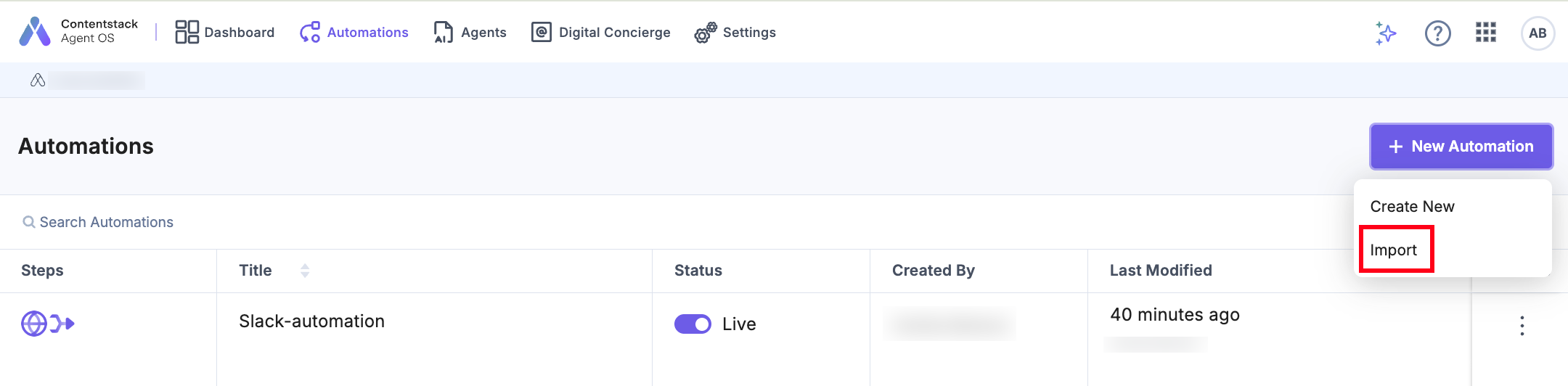
- On the Automations listing page, click the + New Automation button. From the dropdown, select the Import option.
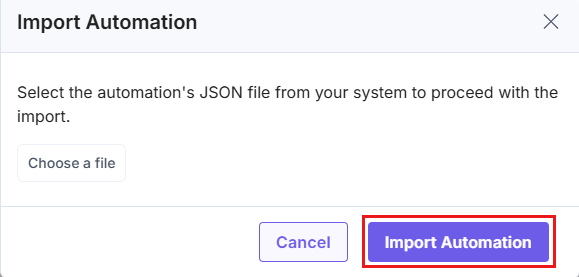
- In the Import Automation modal, choose the automation’s JSON file you want to import.
- Click the Import Automation button.
 Note:
Note:- You can import automation only into the Projects and Organizations you have access to. Importing into different environments is not supported.
- The JSON file must include all the required fields present in the automation. Missing fields or data types will trigger an error message, preventing the automation from being imported.
More articles in "Working with Automate"
