

Clone an Automation
You can duplicate an automation from the automations listing page. A copy of the existing automation and all the current configurations is created, i.e., trigger(s) and action(s). Since the original and the cloned automation are in the same project, they can share important attributes, such as invited users and connected apps.
Creating a duplicate version of an automation can be useful for a number of reasons:
- You can create a backup of a working automation in case you need to revert to a previous version.
- You can duplicate a live automation to make changes and test them in duplicate. Once the updates are tested, you can replace the original with the updated version. This way, you do not have to change a live automation.
- Suppose you need to create an automation similar to another one. In that case, you can create a clone of the similar automation and have a nice starting point from which to begin building your steps.
To clone an automation, perform the steps given below:
- On the Automations listing page, click the clone icon.
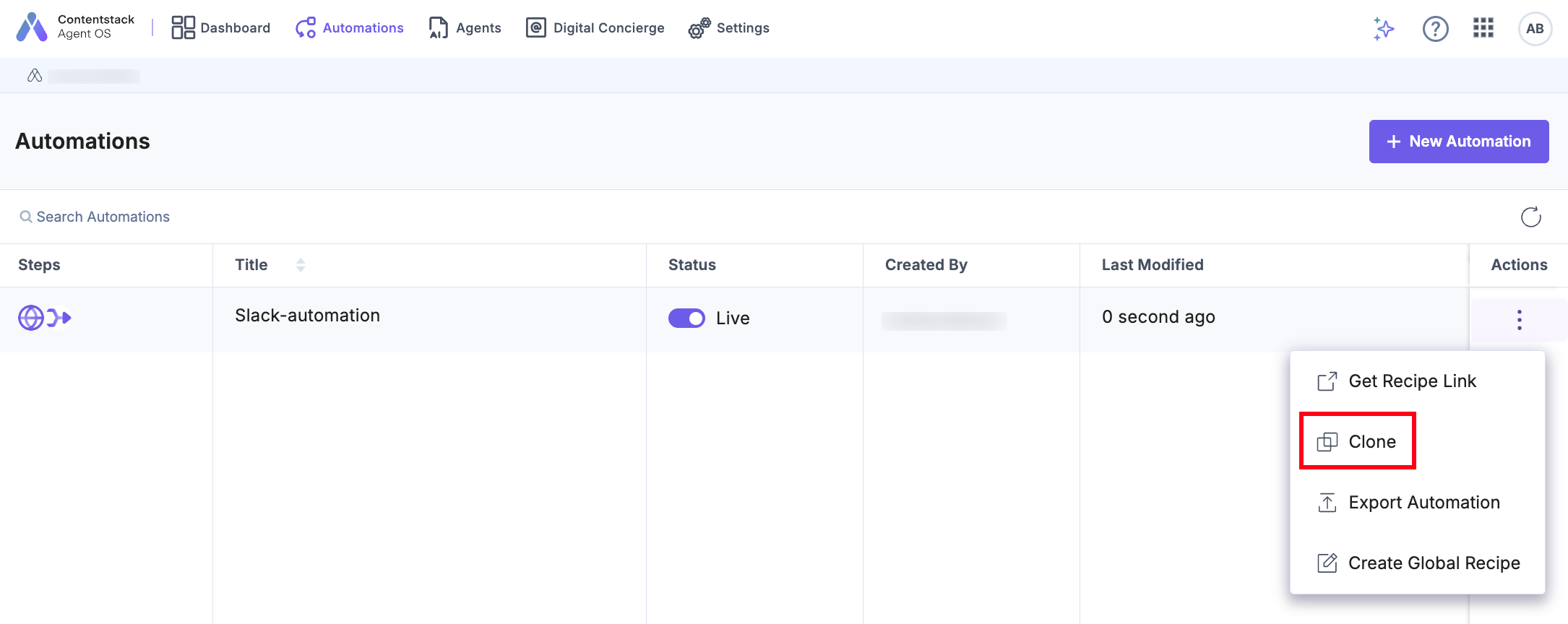
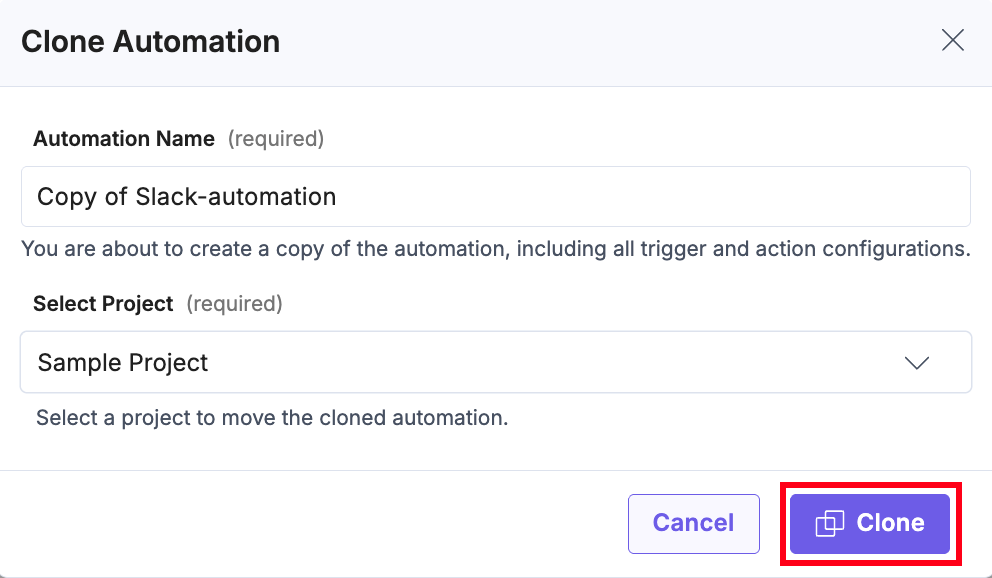
- On the Clone Automation modal, provide the Automation Name and Select Project from the dropdown to clone the automation to the selected project.
- Once you have updated the details, click Clone.
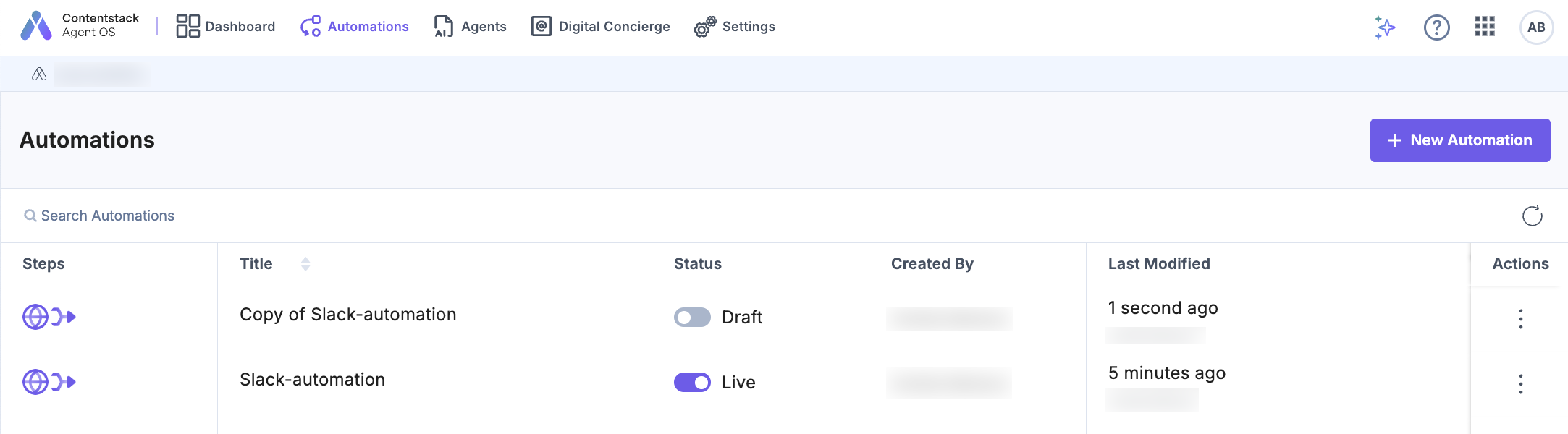
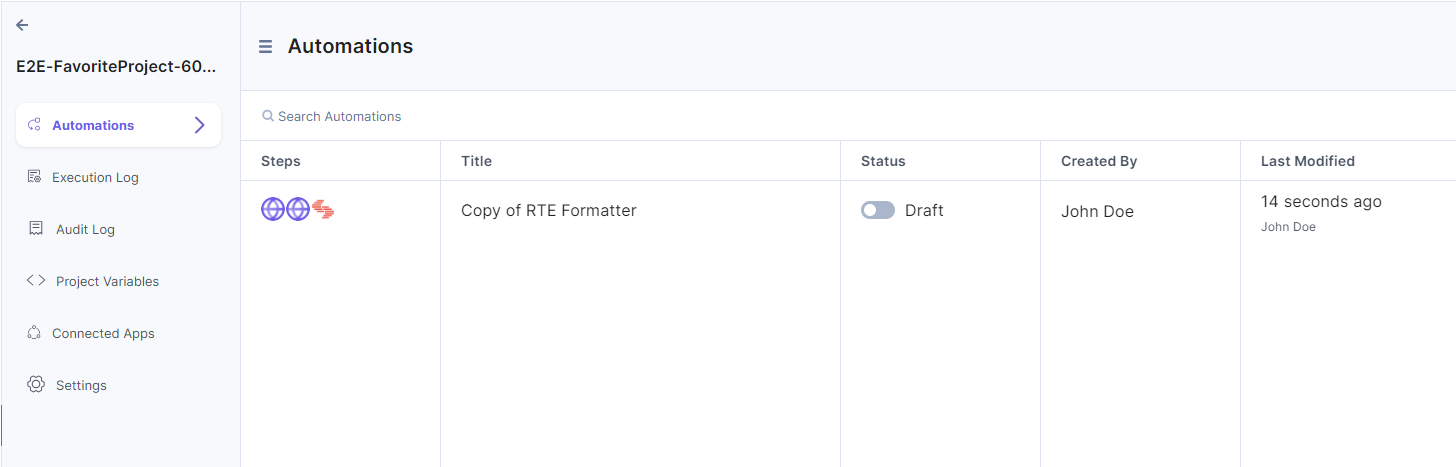
- You can see the clone created for the automation in the selected project.
- Alternatively, go to the automation Settings page and click Clone Automation to duplicate the automation.
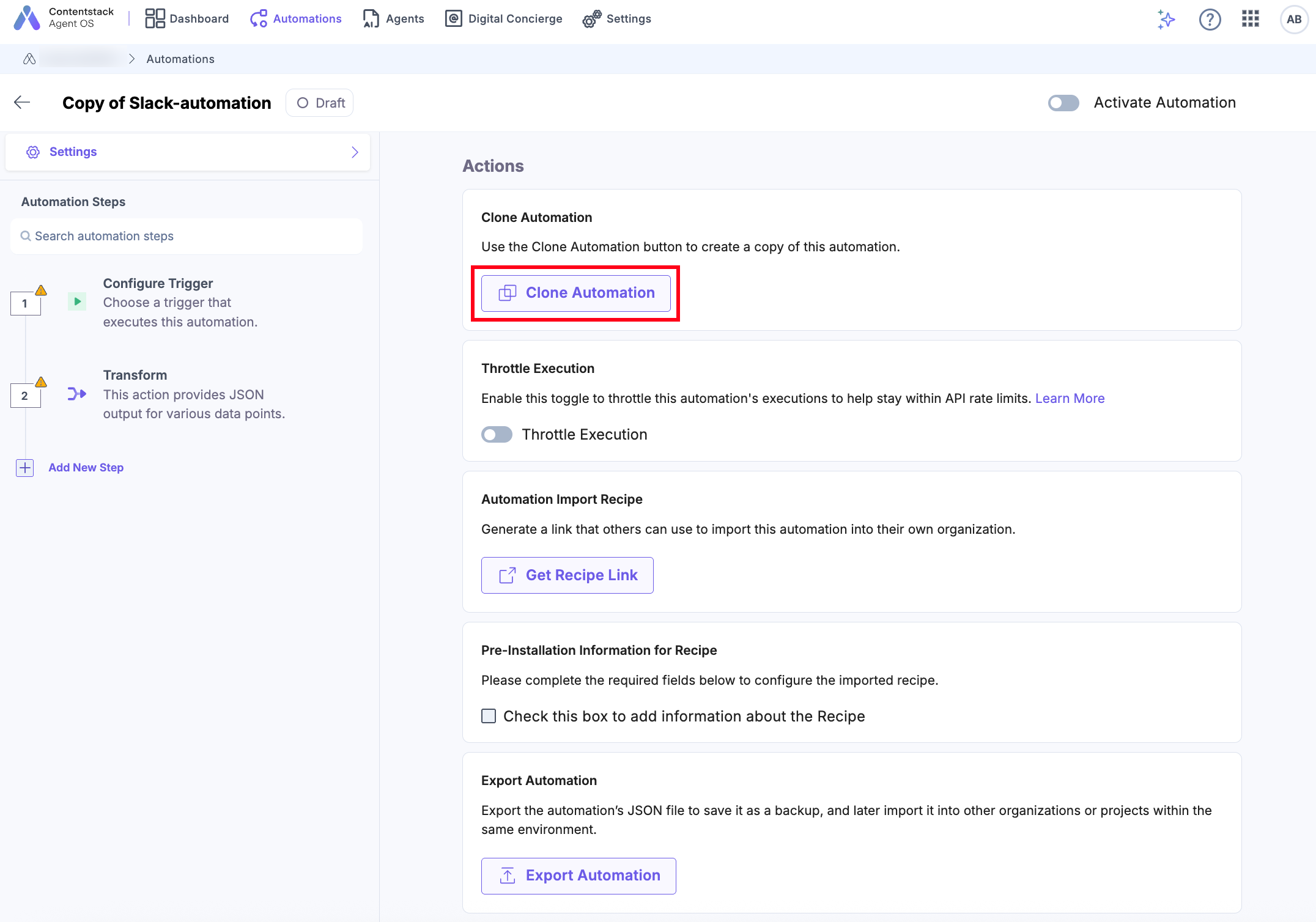
Note: You can now throttle the execution for your automations to avoid rate limit. For more information, refer to the Throttle Execution document.
If the automation is cloned in the same project, some steps may appear as tested and untested. If any action has a dependency on the previous step and that step remains untested, then all the subsequent steps become untested.
You can find the dependency by checking the automation step number in the active action step. If the current step fetches value from the untested step, it becomes dependent on the previous step to testify as tested.
Note: If a user clones an automation to a different project, all the automation steps become untested and the user needs to configure connected apps to activate the automation.
What if you have Project Variables defined in your project?
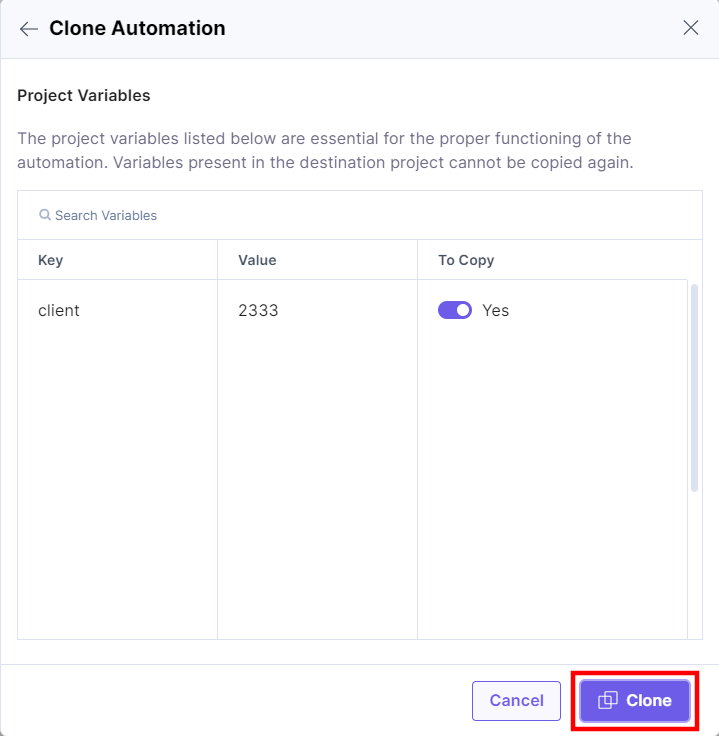
If you have defined project variables in your project and used them in your automation, then you can copy the project variables to the destination project for the cloned automation to work properly.
- In the Clone Automation modal, provide the Automation Name and Select Project from the dropdown to clone the automation to the selected project.
- Click Next Step to view and copy the project variables in the destination project.
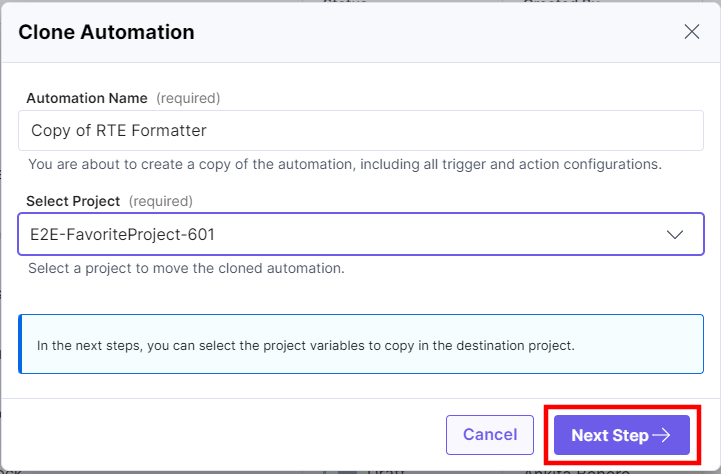
Note: Project Variables are defined at project level.
- Enable the toggle to copy the variables.
- Click Clone to clone the automation.
- You will see the cloned automation along with the project variables in the destination project.
More articles in "Working with Automate"
