

Use Filters
Contentstack offers filters that can be used to further refine search results. The availability of these filters changes depending on whether it is an entry-specific or asset-specific search. You can customize the filters shown on the left panel to match your needs, providing quick access to the most relevant filters and helping you find what you're looking for more efficiently.
Let us understand these search filters.
Search Filters for Entries
On the Entries list page, you will see the Filters tab in the left panel.
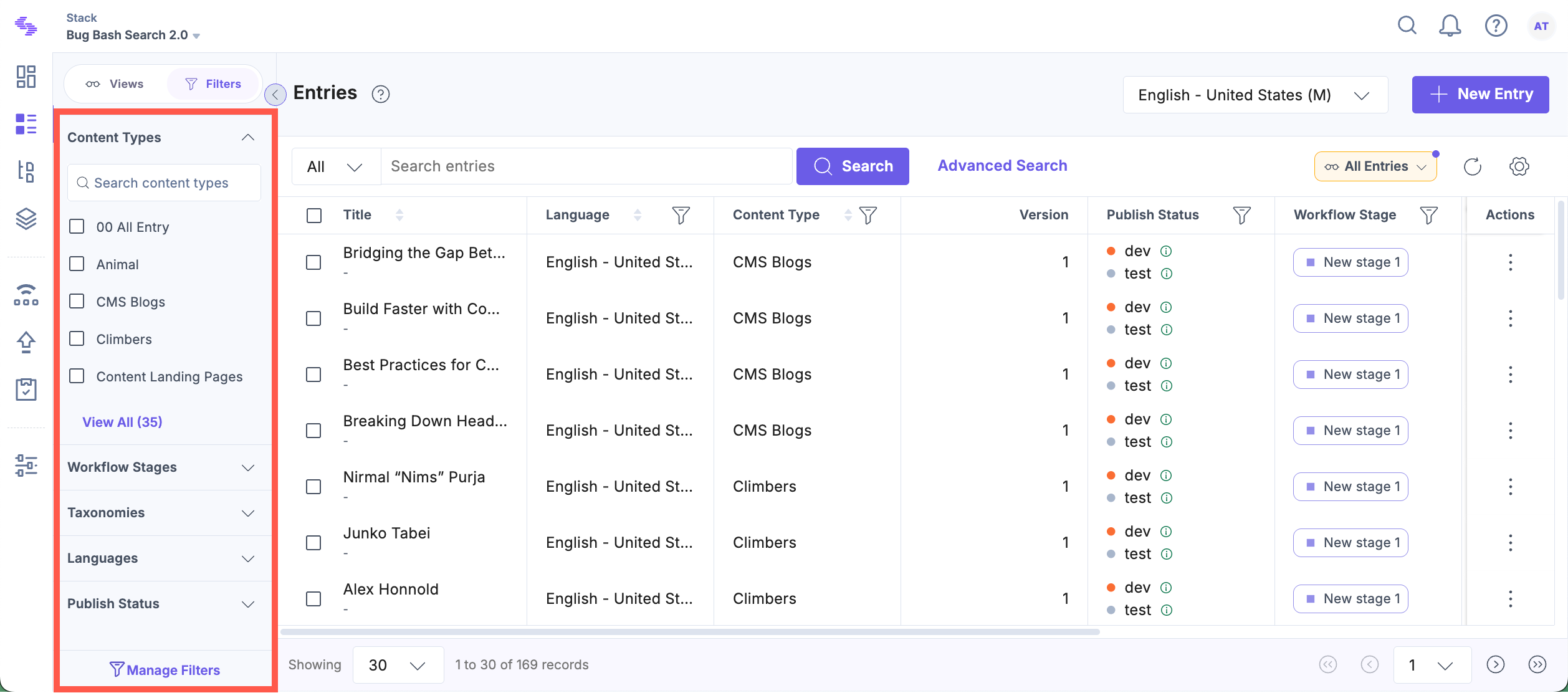
You will see some predefined filters that you can use. These filters are multi-select checkboxes that allow you to select multiple values. Once you select a value from the given filters, you will see a filter pill or tag on the entries list table. It lets you see what filters you have applied.
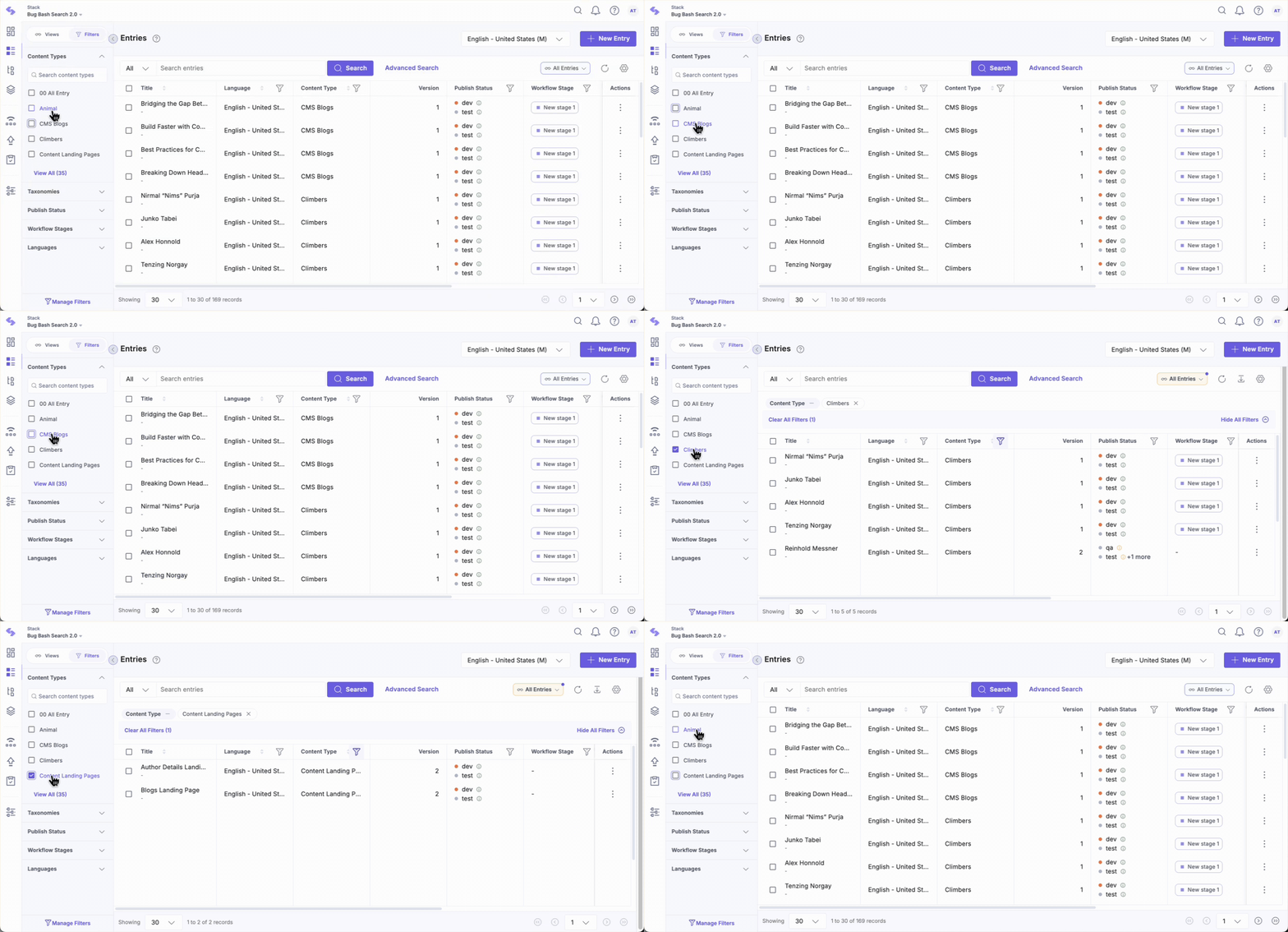
The predefined filters include:
- Content Types: Lists all content types in the stack.
- Taxonomies: Displays all taxonomies and terms.
- Select Variant(s): Filters content based on specific content variants or localizations.
- Publish Status: Lists environments where entries are published, including unpublished entries.
- Published At: Select entries published on specific dates or within a date range.
- Published By: Filters entries published by specific users.
- Languages: Filters entries available in specific languages.
- Modified At: Select entries modified on specific dates or within a date range.
- Last Modified By: Filters entries modified by specific users.
- Created At: Select entries created on specific dates or within a date range.
- Created By: Filters entries created by specific users.
- Workflow Stages: Lists all workflow stages to filter entries in specified stages.
- Tags: Lists all tags added to entries.
Click the filter icon from the column headers to instantly refine your search results.
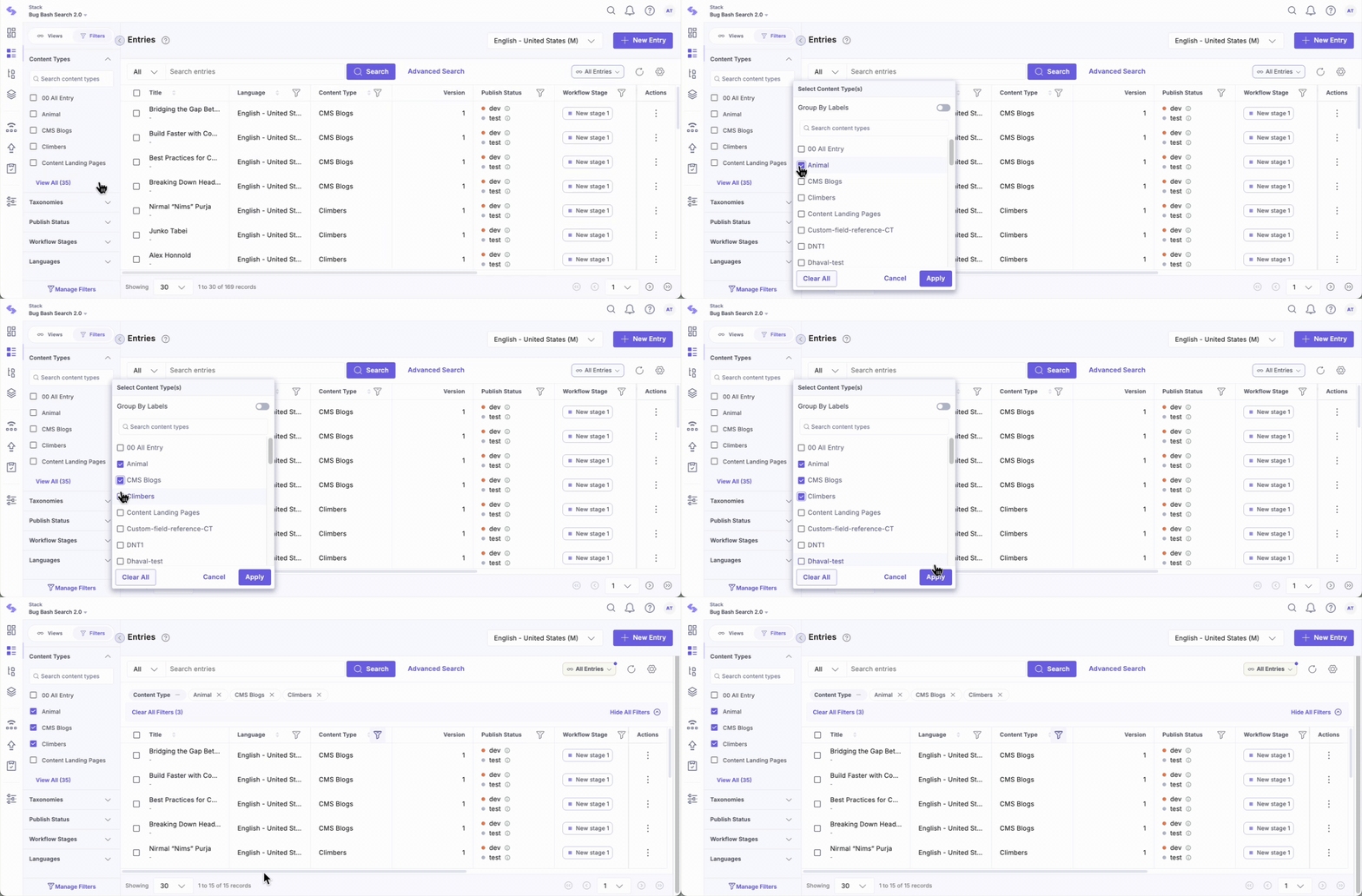
For filter categories with more than five values, click View All below the respective filter section to see all values in a separate dialog. Select the required values and click Apply to update the results. You can also group content types by labels using the toggle at top in this dialog.
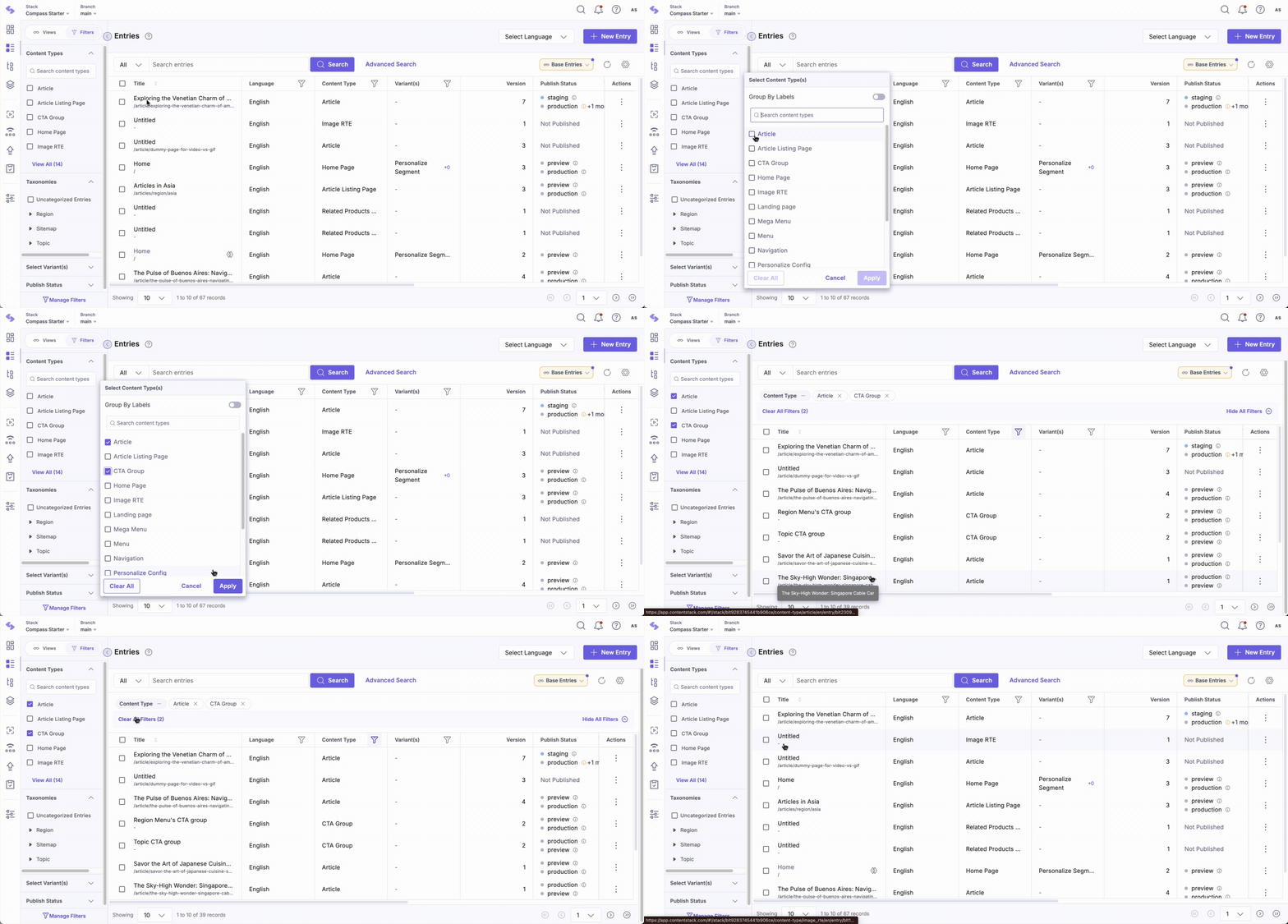
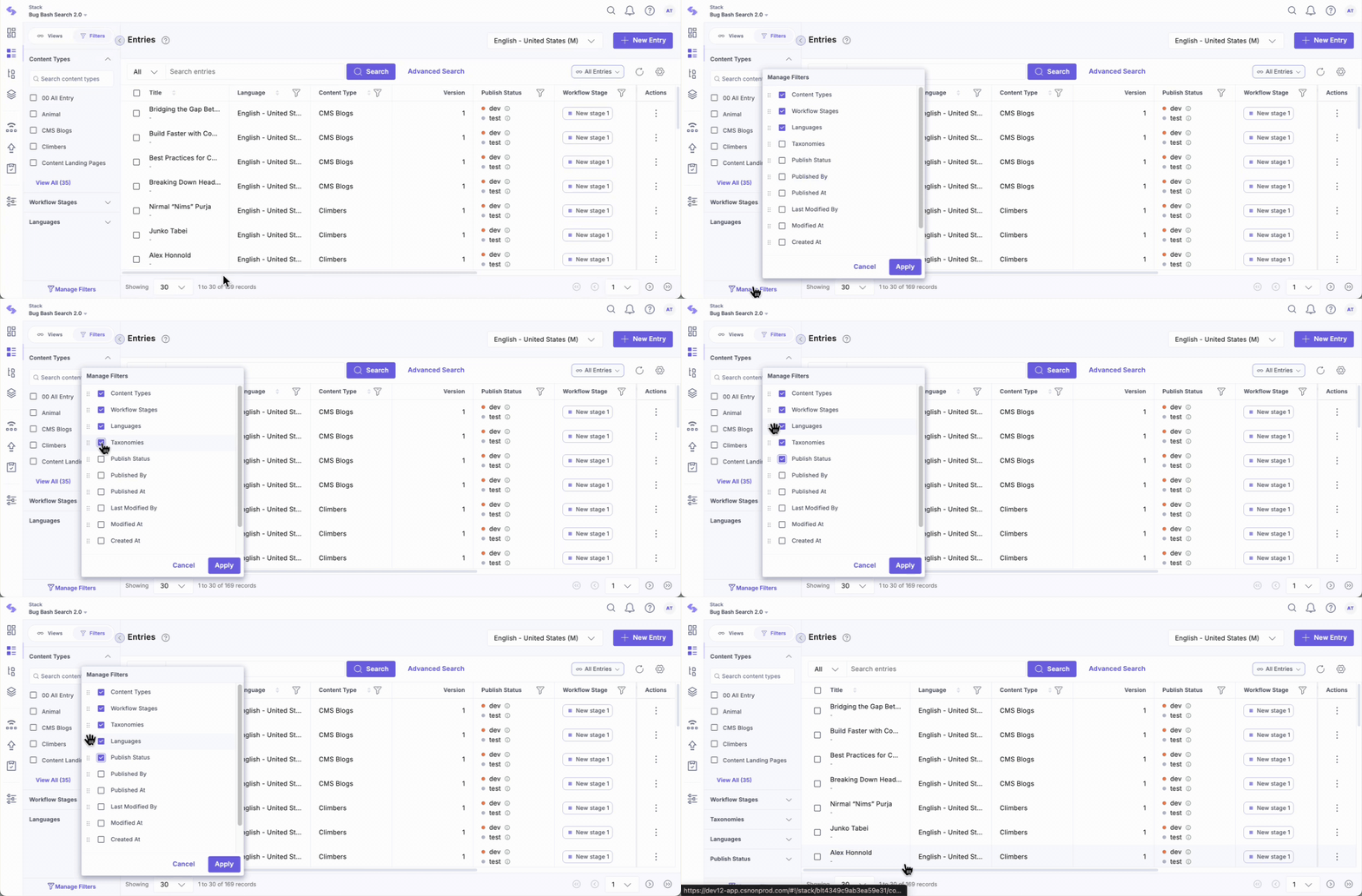
To customize the visibility of filters on the left panel, click the Manage Filters button at the bottom of the panel. From here, you can select which filters to display and rearrange them to suit your preferences. Apply multiple filters simultaneously, and all applied filters will appear on the results page. To clear all filters, click Clear All Filters.
Search Filters for Assets
To access the search filters for assets, navigate to your stack and select the Assets module. Then, click the Filters tab in the left panel. Here’s what you’ll find:
- Asset Folders: Lists all available asset folders in the stack.
- Asset Types: Provides a list of asset types for filtering assets by type.
- Publish Status: Displays environments where assets are published, including those not published.
- Published At: Allows selection of assets published on specific dates or within a date range.
- Published By: Lists stack users who published specific assets.
- Modified At: Select assets modified on specific dates or within a date range.
- Last Modified By: Lists stack users who modified specific assets.
- Created At: Select assets created on specific dates or within a date range.
- Created By: Lists stack users who created specific assets.
- Tags: Provides a list of tags added to assets.
Use Filters with Advanced Search
Apply filters to an Advanced Search query to efficiently narrow down the search results, or apply filters and use Advanced Search to refine your search results further. Use the Filters tab or apply filters from the column headers to refine the results.
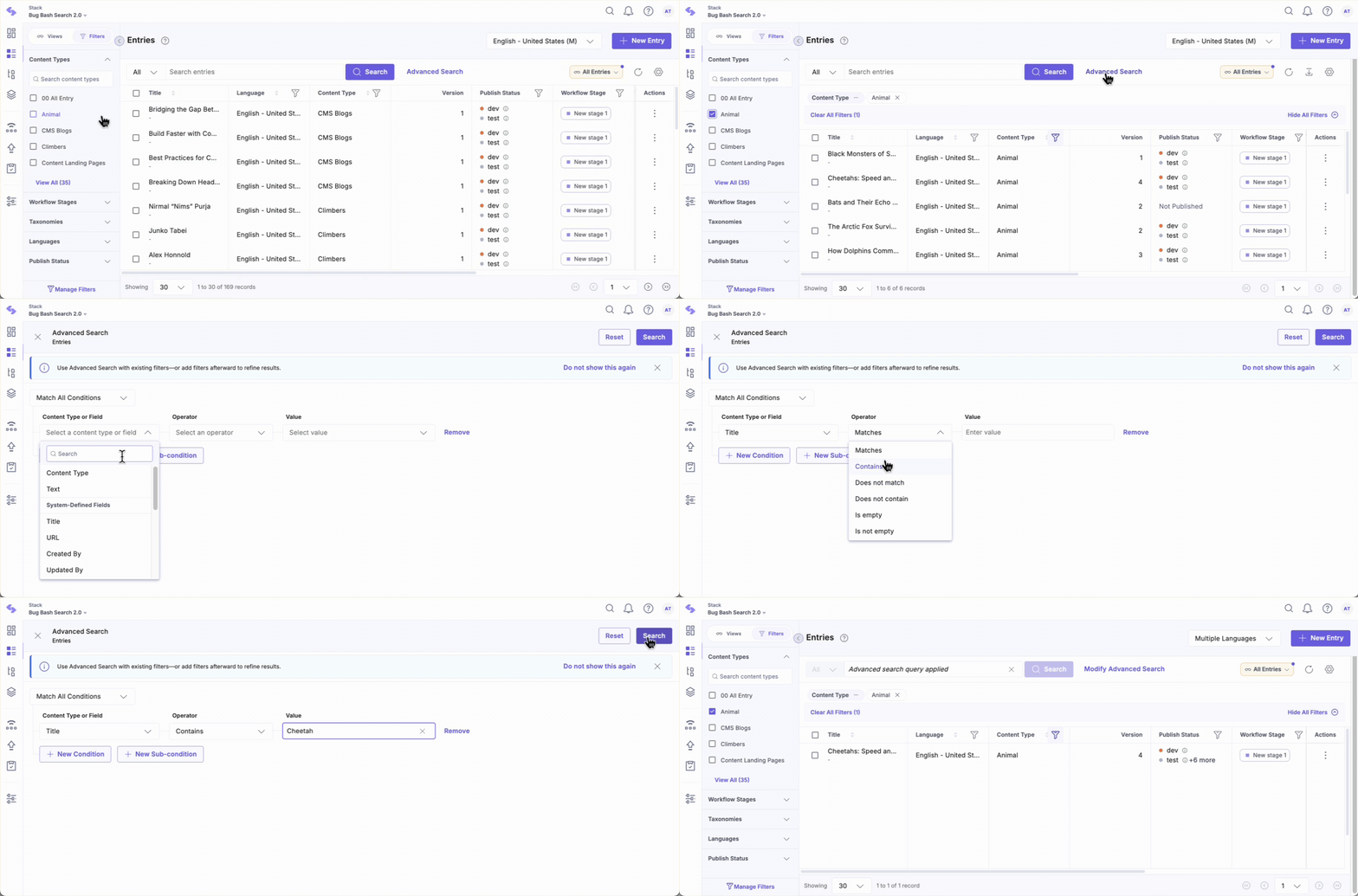
All selected filters are displayed as pills above the results table, and you can remove them individually or click the Clear All Filters button to remove them all at once. This functionality streamlines search refinement and reduces the need to manually re-run or edit advanced queries.
Note: Applied filters and Advanced Search queries will be reset if any default, saved, or content type view is selected.
Using filters effectively helps you manage and locate your entries and assets with precision. By customizing the filters, you can streamline your search process, making it faster and more efficient to find the specific items you need.
More articles in "Working with Search"
