

View Publish Status of Entries/Assets in Publish Queue
When a Content Manager publishes an entry or asset, the system adds the action to the Publish Queue. Items in this queue are published or unpublished one at a time, almost instantaneously. This process removes the need to wait for one item to finish publishing before initiating the next. You can continue publishing items while Contentstack manages the queue automatically.
Note: When working in a specific branch, you can view the published details of entries and assets relevant to that branch. For example, if you’re in the development branch, the queue displays publishing details only for the development branch. See Branch-specific Modules documentation for more information.
To view publishing details of entries or assets, log in to your Contentstack account, and perform the following steps:
- Go to your stack and click the Publish Queue icon or use the shortcut key Alt + P (Windows) or Option + P (Mac).
- The queue displays information such as date, title, content type, version, language, summary, environment, and status.
- Use filters to narrow results by status, environments, users, languages, content types, or date range.
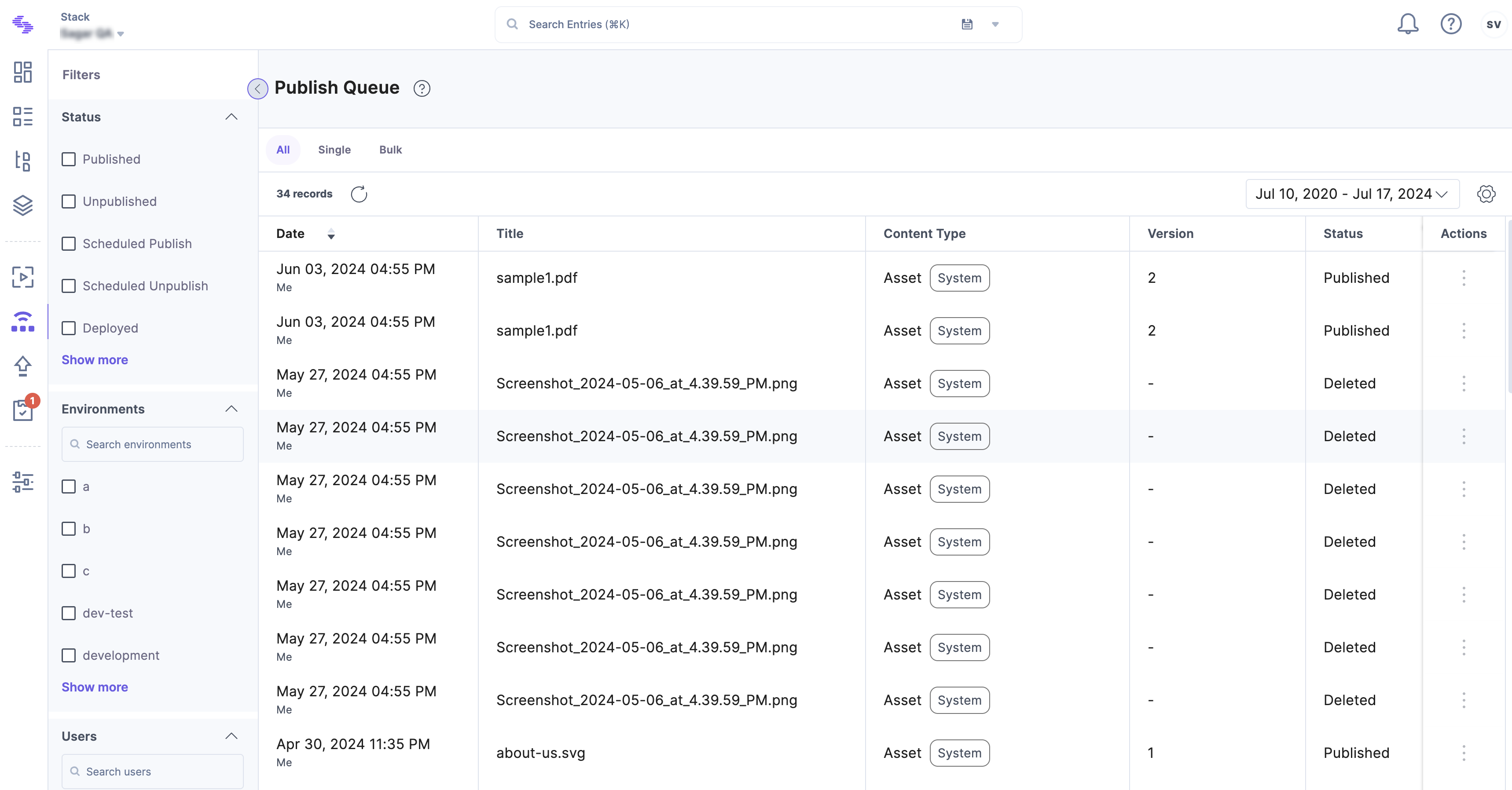
Note: The queue retains publish logs for up to 30 days.
Publishing and Deployment Statuses
The following statuses appear in the Publish Queue to reflect publishing or deployment states:
- Complete: The action has finished successfully for all items in the job.
- Failed: An item failed to publish or unpublish.
- In Progress: The system is currently publishing or unpublishing the item(s).
- Cancelled: The scheduled action has been canceled.
- In Queue: The job is waiting to be processed.
- Scheduled Publish: Publishing is set for a future time.
- Scheduled Unpublish: Unpublishing is scheduled for a future time.
- Scheduled Deployed: Deployment is scheduled for a future time.
- Deployed: The release has been deployed to the live environment.
- Deleted: The item has been permanently removed.
- Unpublished: The item or job is no longer live.
- Published: The item or job is live and viewable.
- Pending: The job awaits approval or action before proceeding.
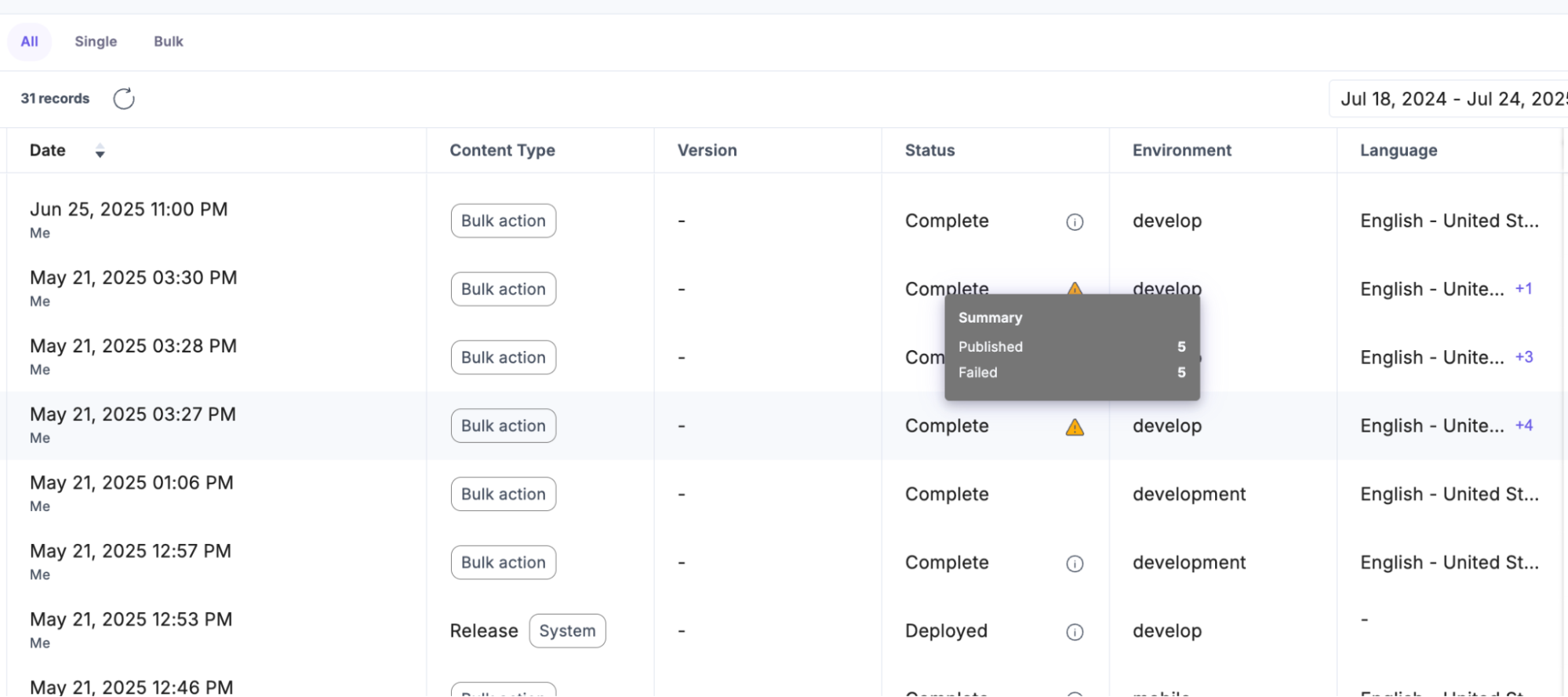
The Status column in the Publish Queue provides more detailed feedback for bulk actions.
Even if a bulk publish job is marked as Complete, the system highlights partial failures with visual indicators and tooltips. This lets you quickly spot and investigate errors without navigating away from the main list.
For example, if one or more entries in a bulk job fail, a warning icon appears next to the status. Hovering over the icon reveals a breakdown of failures, skipped items, or pending approvals, enabling faster resolution.
Roll Back a Bulk Publish from the Publish Queue
The Publish Queue lists publish and unpublish actions, including bulk publishes. You can roll back a bulk publish action from the queue to revert its items. To roll back a publish from the queue, perform the steps below:
- Go to your stack and open the Publish Queue.
- Locate the publish action you want to roll back.
- Select the Rollback Publish option for that job from the Actions column.
- Select the environment(s) where you want to roll back.
- Click Rollback to confirm. Contentstack reverts each item to its previously published version, or unpublishes items that had no previous version.
Publish Status for Nested Reference Publishing
When you bulk-publish entries with Nested Reference Publishing, the Publish Queue displays a summary of each item’s status in the Summary column.
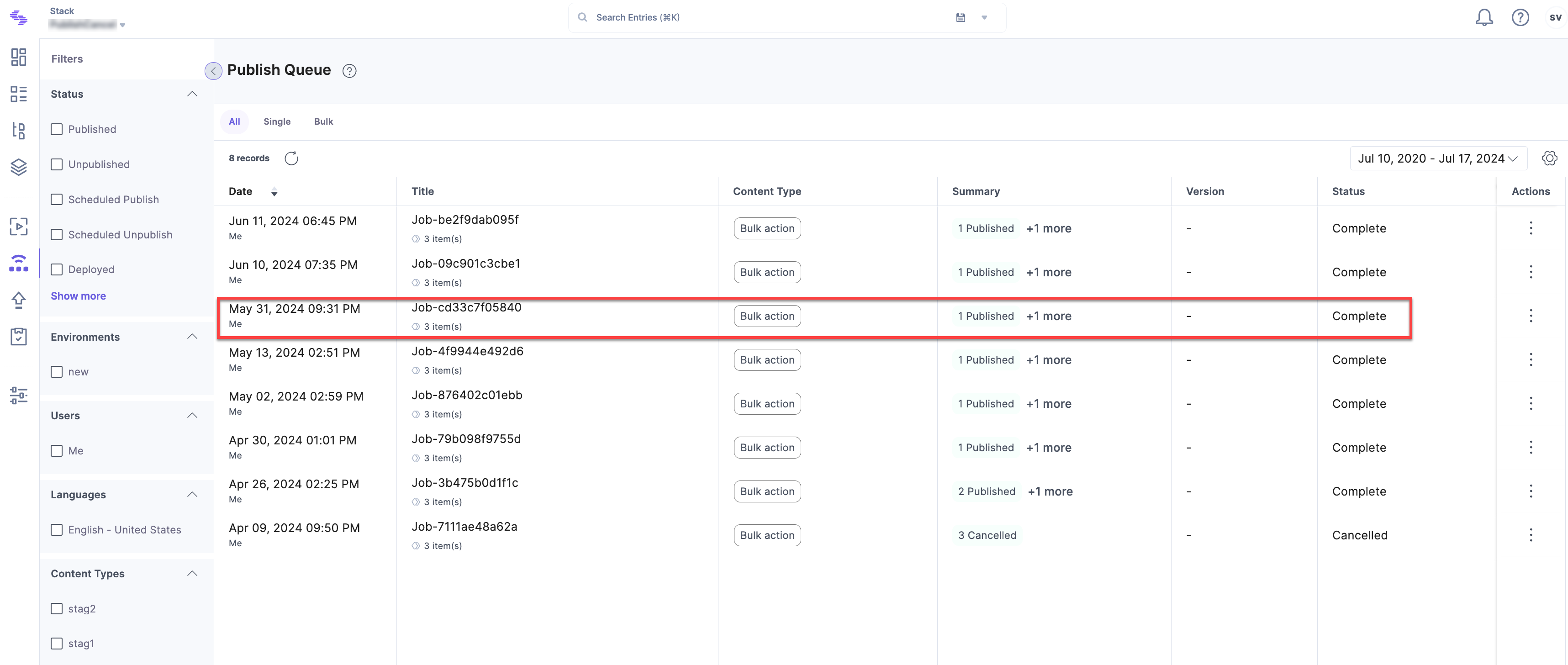
The following statuses may appear:
- Published: Items successfully published in the bulk job.
- Failed: Items that failed to publish.
- Approval(s) Pending: Items awaiting approval.
- Skipped: Items already published in the selected environment and locale.
Cancelled: Items that were manually canceled before publishing.
- Deployed: Items successfully deployed to the target environment.
When an entry references a taxonomy that is not localized in the locale being published, the publish job will show a Failed status for the taxonomy, and the taxonomy is not published for that locale. Any terms belonging to that taxonomy that are localized in the locale still publish successfully.
- You cannot cancel individual items within a scheduled publish job. You can only cancel the entire job.
Publish Status Icons
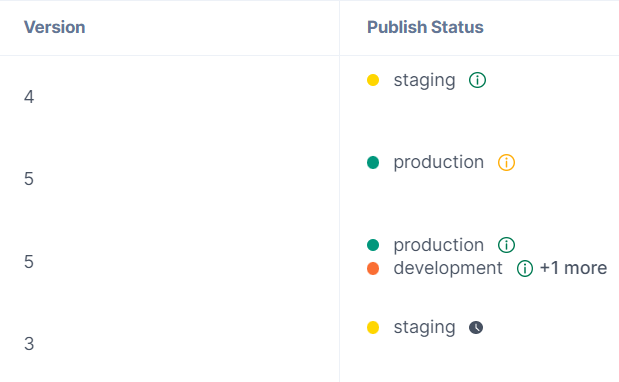
On the entries list page, Contentstack displays a publish status icon next to each item’s publishing environment.
These icons provide quick visual cues:
- Green “i” icon: The latest version is published to the environment.
Orange “i” icon: An older version is published to the environment.
Gray clock icon: The item is scheduled for future publishing.
Additional Resource: Learn how to cancel scheduled publishing or unpublishing for entries or assets from the Publish Queue.
More articles in "Publish Content"
