

Working with Drafts and Auto Save
Note: Drafts and Auto Save is currently part of an Early Access Program and may not be available to all users. Contact the Contentstack support team for more information.
Drafts and Auto Save automatically save your changes while you edit entries in Contentstack. This reduces the risk of lost work and supports safe collaboration when multiple users work on the same entry.
Instead of manually saving every update, Contentstack maintains a draft in the background. Your changes automatically save and sync with other active users viewing the same entry, while field-level locking prevents conflicting edits.
Drafts and Auto Save provide:
- Automatic draft updates during editing
- Real-time collaboration across users
- Field-level locking to prevent overwrites
- Draft comparison before saving or publishing
- Clear save-status indicators in the editor
How Drafts and Auto Save Works
Drafts and Auto Save creates and updates drafts based on your editing activity.
Draft Creation Triggers
A draft is created or updated when you perform actions such as:
- Editing a field by entering, updating, or removing content
- Confirming changes in a reference or file selection modal
- Interacting with a custom field (iframe-based)
Contentstack uses a debounce mechanism, which means the system waits briefly after editing activity pauses before saving changes. This prevents excessive background save requests while ensuring your updates are captured.
Draft Lifecycle
The draft lifecycle follows this sequence:
- You begin editing an entry.
- Contentstack creates or updates a draft automatically.
- Changes sync continuously while you edit.
At any time, you can:
- Continue editing
- Discard the draft
- Save or publish to create a new version
Draft changes remain available even if you refresh the page or close the browser tab.
Draft vs Version
Understanding the difference between drafts and versions helps you manage content more effectively.
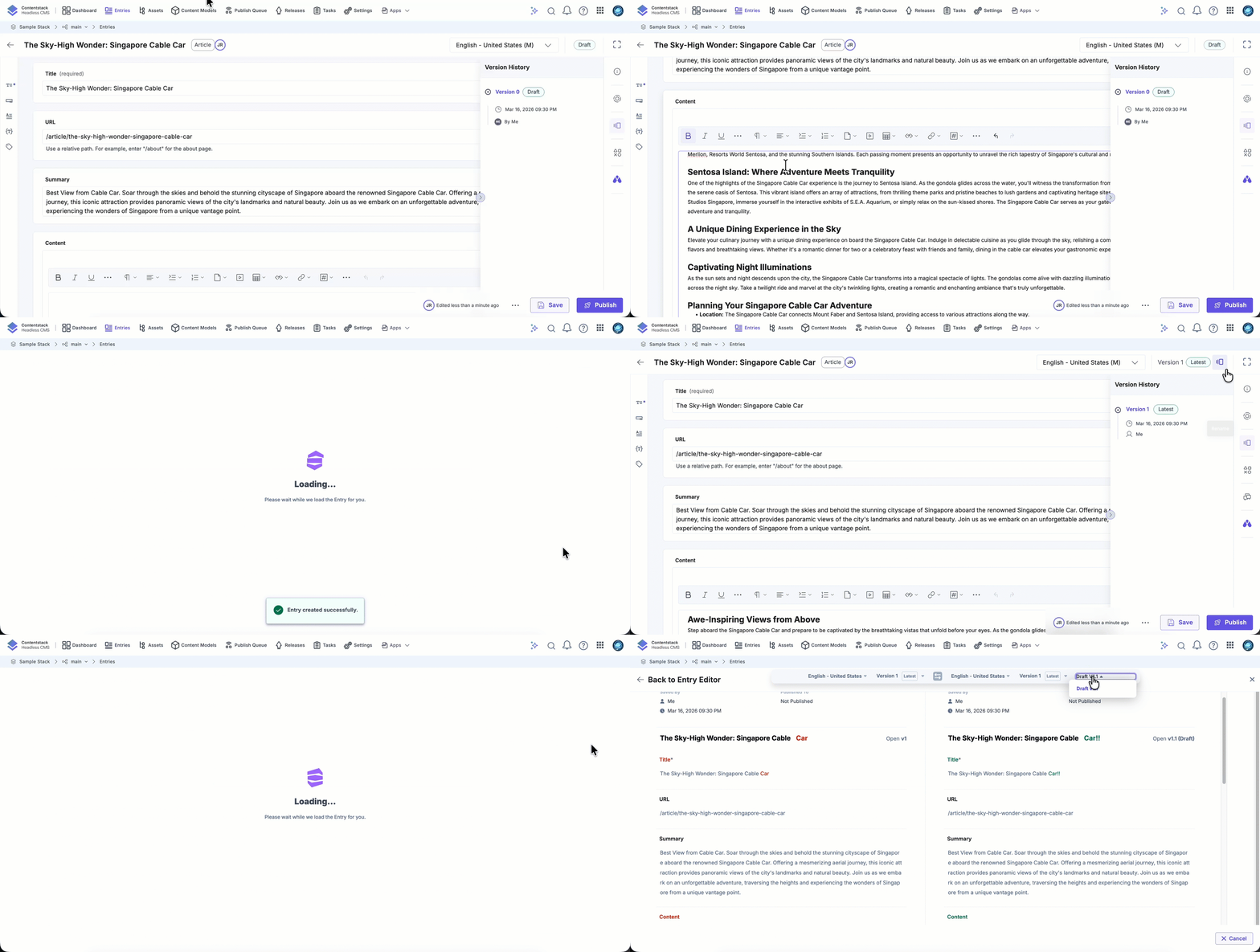
Draft
- Represents in-progress changes
- Updates automatically
- Does not create a new major version
- May include multiple minor updates within a major version
Note:
- Offline editing is not supported. If the network disconnects, the editor becomes temporarily read-only until reconnection.
- For new entries that have not yet been saved (Version 0 drafts), certain actions are unavailable until the entry is saved. For example, changing the locale, publishing, workflows, and releases require the entry to have at least one saved version.
Version
- Created when you click Save or Publish
- Appears in version history as a major version
- Represents a stable snapshot of the entry
Minor draft updates are grouped into a major version once you save.
Draft Retention
Auto Save maintains minor draft versions only for the most recent major versions of an entry.
Draft versions are retained for the latest five major versions. When a new major version is created, draft versions associated with older major versions are automatically removed.
This helps maintain a clean version history while still allowing teams to review recent draft changes.
Save Indicators
The entry editor displays real-time status indicators to confirm draft activity.
You may see:
- Syncing changes: Appears while your recent edits are being synchronized and saved as draft updates.
- Saved: Draft is up to date
- Edited just now: Indicates that the draft was saved moments ago.
- Edited a few minutes ago / Edited about 2 hours ago: Indicates the time elapsed since the most recent auto-save. This value updates dynamically as time passes.
These relative time indicators reflect the most recent draft update and help collaborators understand how recently the entry was modified.
Entry List Indicators
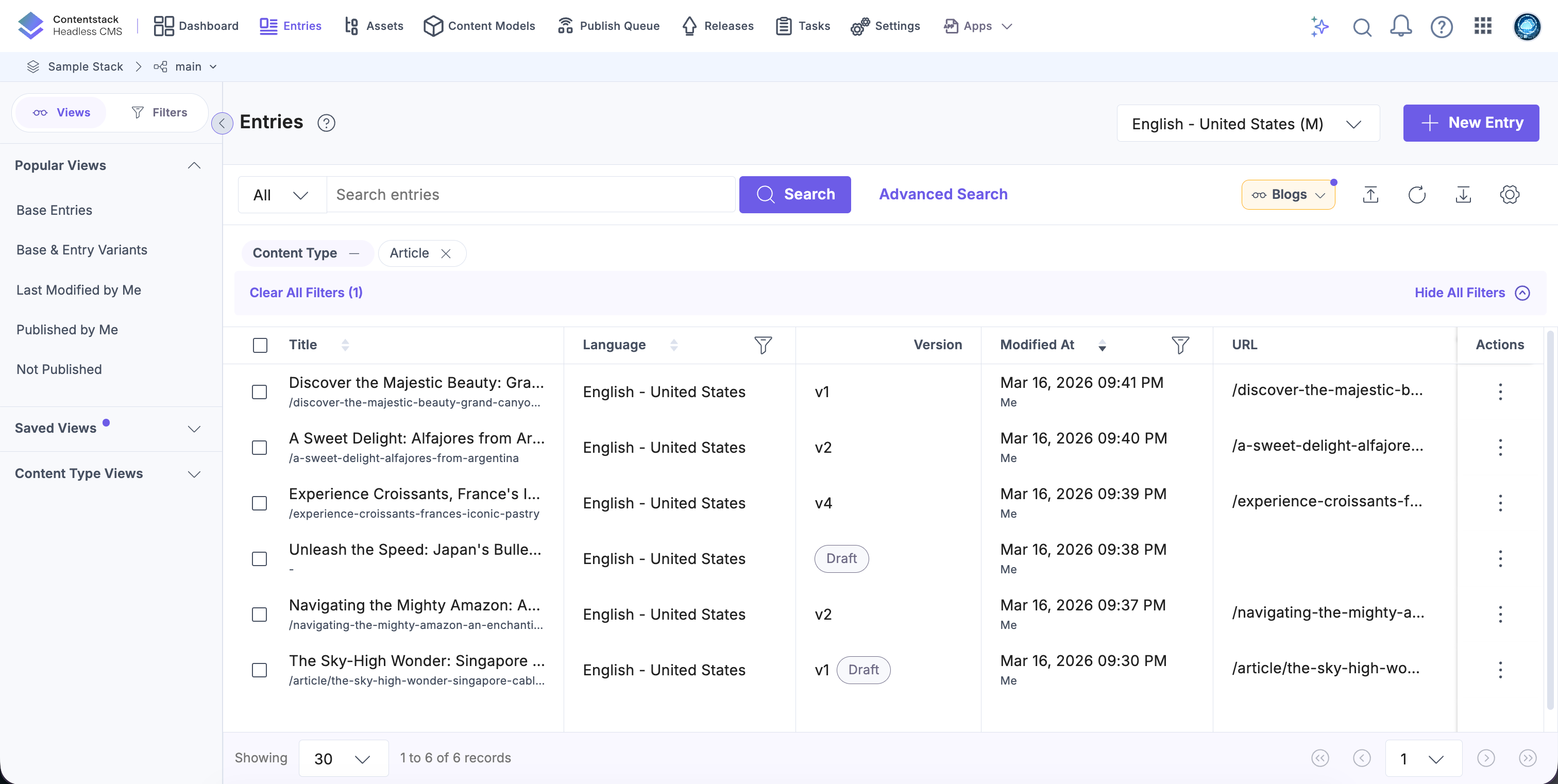
The Entry Listing page visually reflects the draft status of entries.
- Entries with draft changes display a Draft status indicator.
- Entries that have not yet been published also display the status Draft.
- Advanced Search includes a filter for entries with draft changes.
These indicators help users quickly identify entries that are still in progress.
Creating New Entries with Auto Draft
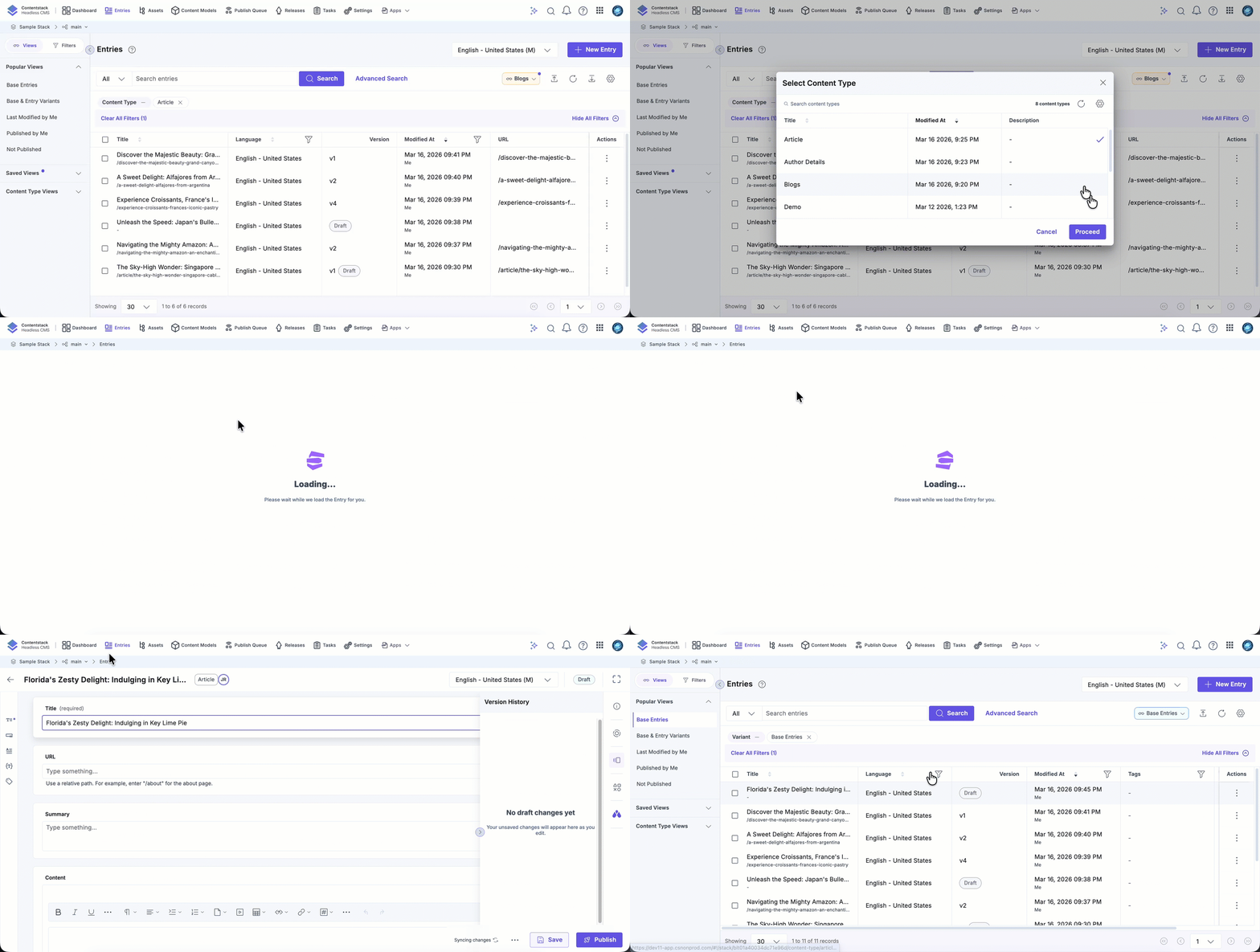
When Drafts and Auto Save is enabled, clicking New Entry on the entry listing page immediately creates a draft entry. You can begin editing and collaborating without manually saving the entry first.
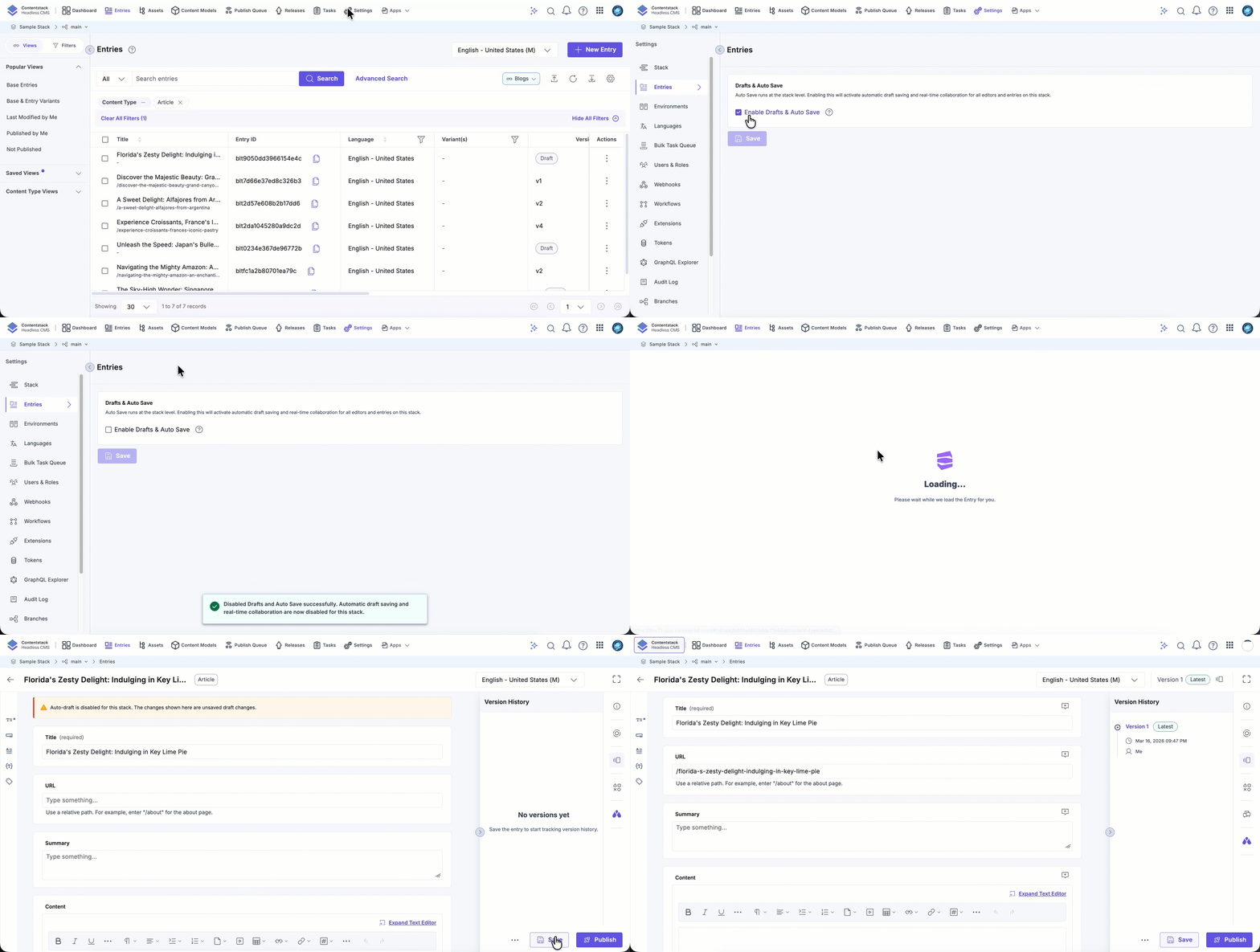
When Drafts and Auto Save is disabled, you must click New Entry and then click Save in the entry editor to create the initial version of the entry.
Collaboration and Conflict Handling
Drafts and Auto Save support controlled multi-user editing.
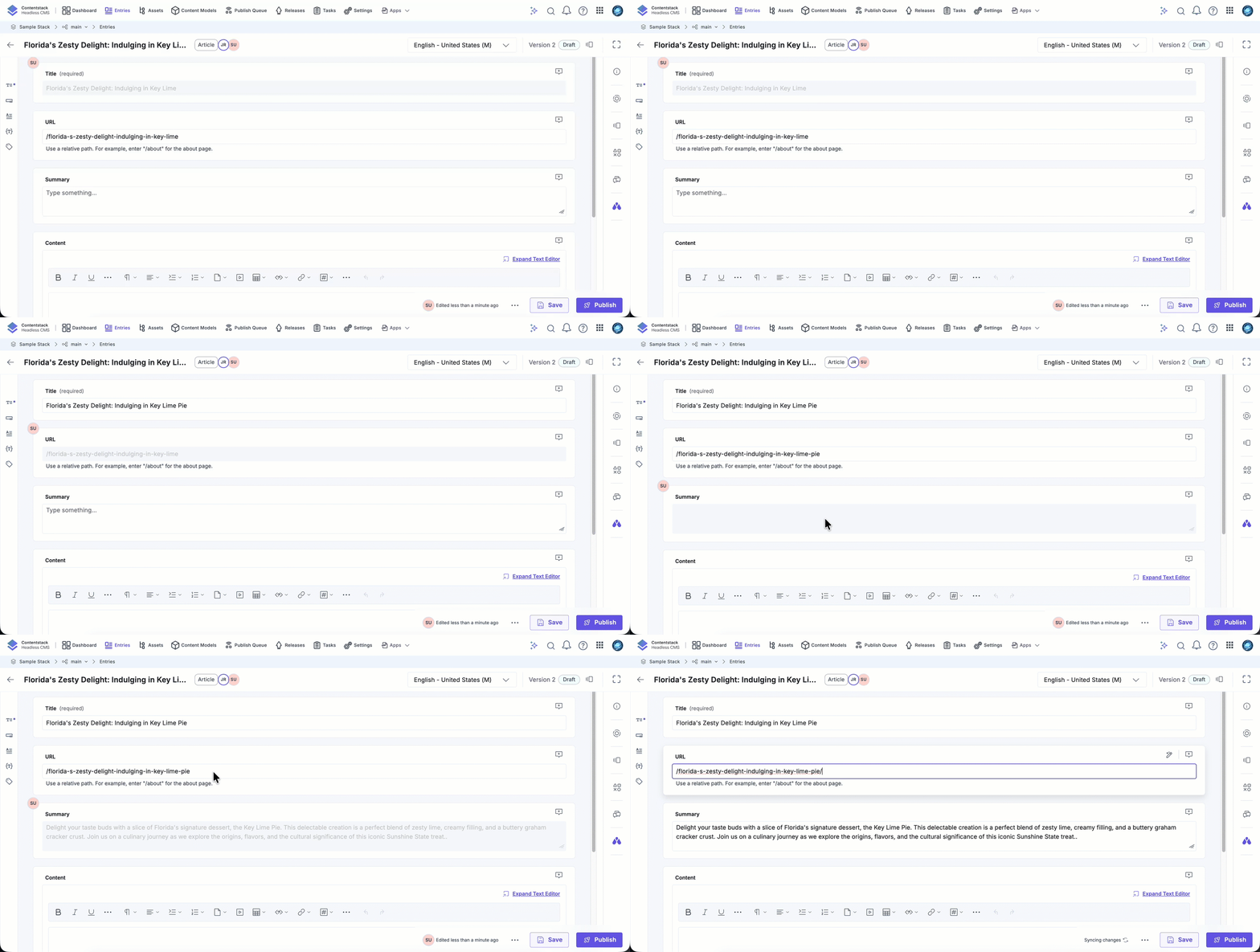
Field-Level Locking
When one user edits a field:
- That field becomes temporarily locked for other users
- Other users can still edit unlocked fields
- Updates appear shortly after they are saved
Locked fields prevent accidental overwrites.
Locking Behavior by Field Type
Locking behavior varies by field type:
- Input fields: Lock when typing begins
- Reference and file fields: Lock when the selection modal opens
- Container fields (Group and Modular Blocks):
- Individual nested fields lock separately
- Structural actions (add, delete, reorder blocks) are restricted if a nested field is locked
- Custom fields: Lock when users interact within the iframe
This approach enables parallel editing while maintaining content integrity.
Use Cases
Drafts and Auto Save are particularly useful when:
- Multiple editors update the same entry
- Long-form content requires extended editing sessions
- Teams collaborate across time zones
- Users frequently switch tabs
- When network stability is a concern
- Managers need visibility into in-progress work
Best Practices for Working with Drafts
Follow these best practices to ensure smooth collaboration and accurate version control when working with Drafts and Auto Save.
- Monitor the save indicators to confirm synchronization status
- Avoid editing fields that are currently locked
- Use draft comparison before saving major updates
- Discard drafts carefully if you want to revert to the last saved version
- Communicate with collaborators before making structural changes
Drafts and Auto Save protects your in-progress changes, supports safe collaboration, and maintains structured version control. By automatically saving edits and preventing overlapping updates, the feature allows teams to work confidently without losing progress or creating unnecessary versions.
More articles in "Drafts and Auto Save"
