

Contentstack Management - Content Types Actions
A Content Type serves as the framework or blueprint for a page or section within your web or mobile platform. It allows you to establish the fundamental structure of this blueprint by incorporating fields and configuring their attributes. By using the Contentstack Management Content Types action, you can fetch all content types from a selected stack.
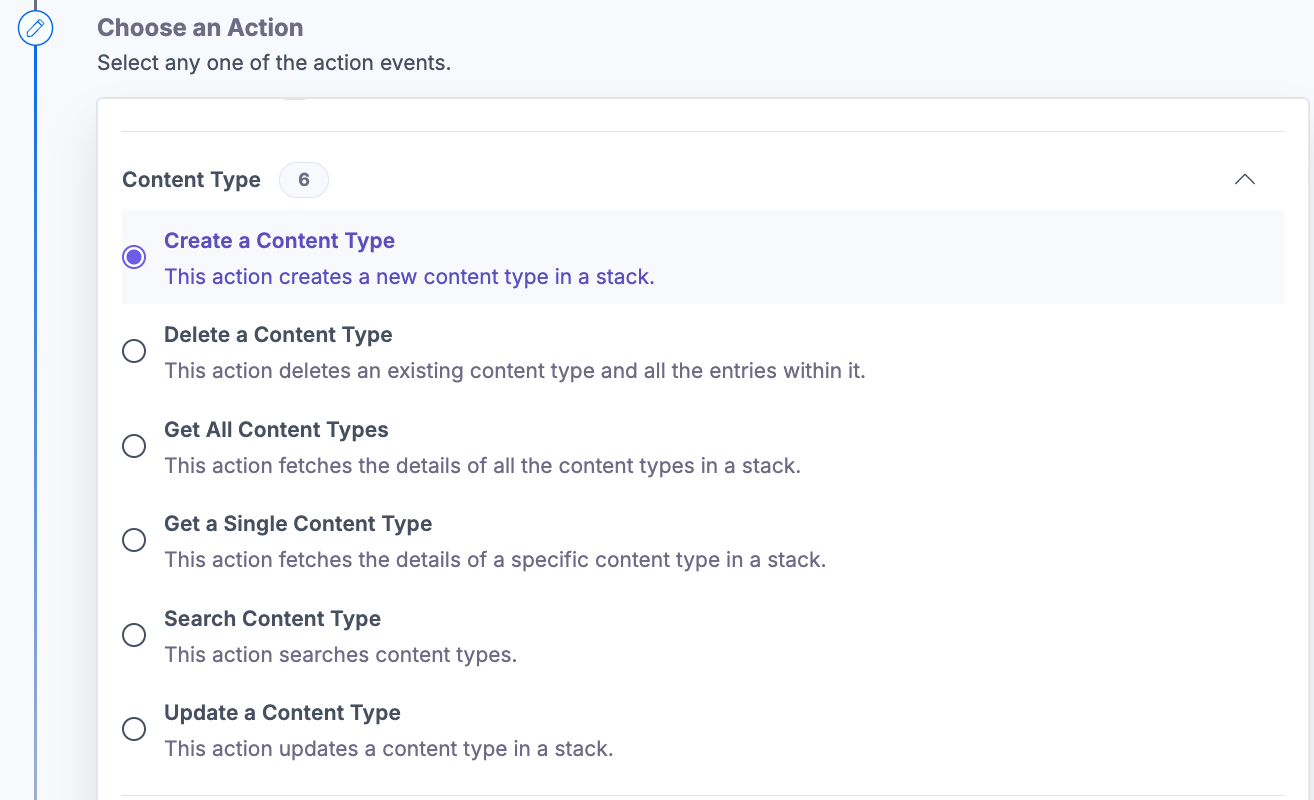
Let’s look at the action in detail.
Create a Content Type
This action creates a new content type in a stack.
- Under the Choose an Action tab, select the Create a Content Type action.
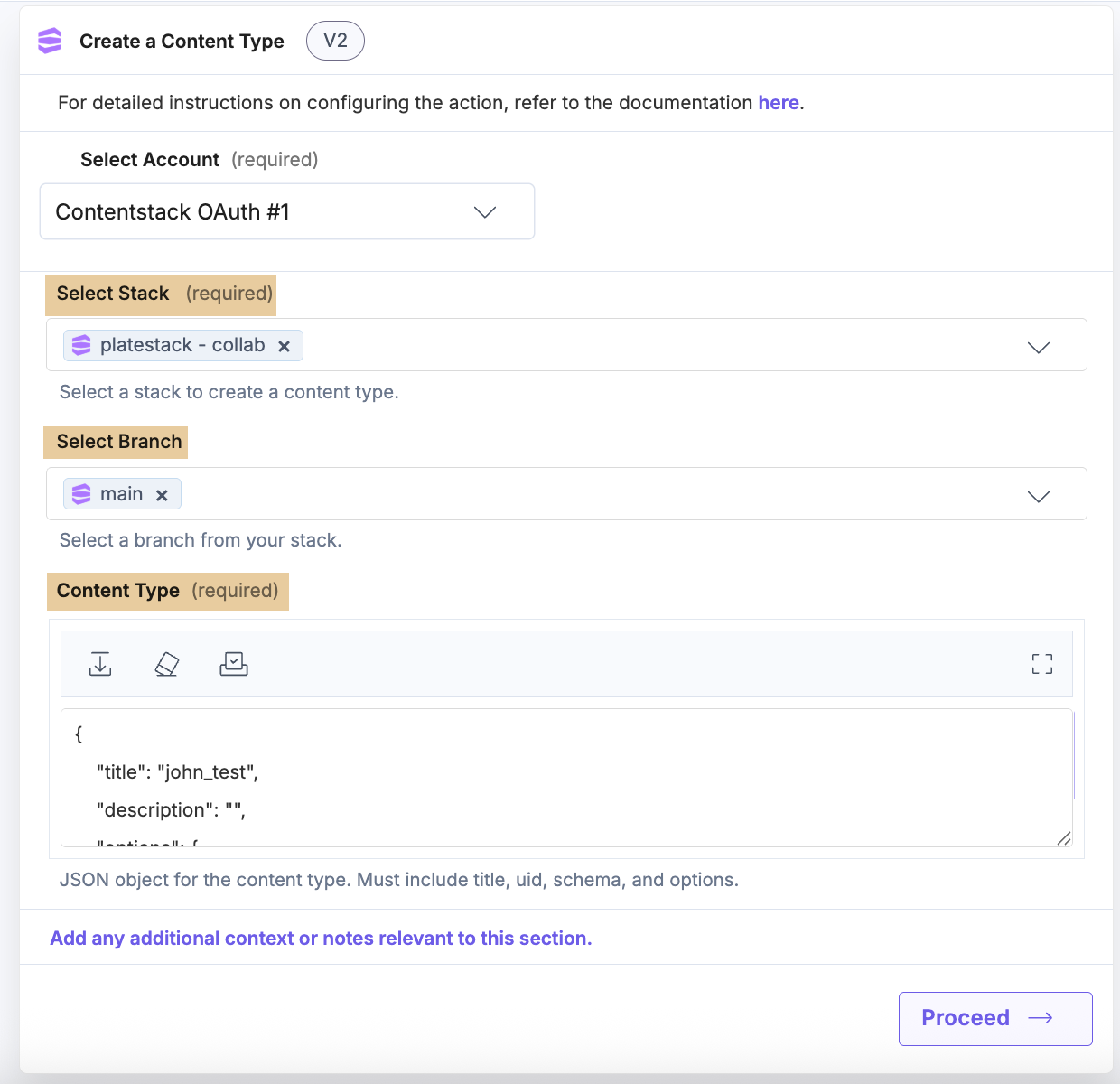
- On the Create a Content Type Configure Action page, enter the details given below:
- Click + Add New Account button to connect your Contentstack account as shown in the Connect your Contentstack Account to Automate step.
- Select a Stack and a Branch from the Lookup list.
Note: By default, the main branch is selected (even if the Branch field is empty).
- Provide the Content Type Schema as a JSON payload. The JSON object must include:
- Title (Required): Must be unique within the stack; also used to derive the content type's display name.
- uid (Required): Must be unique within the stack (unlike title, this is strictly enforced).
- schema (Required): The array of field definitions (e.g., text, number, reference fields) that make up the content type's structure.
- Options (Required): Configuration for the content type, including whether it is Single or Multiple.
- Click the Proceed button.
- Click Test Action to test the configured action.
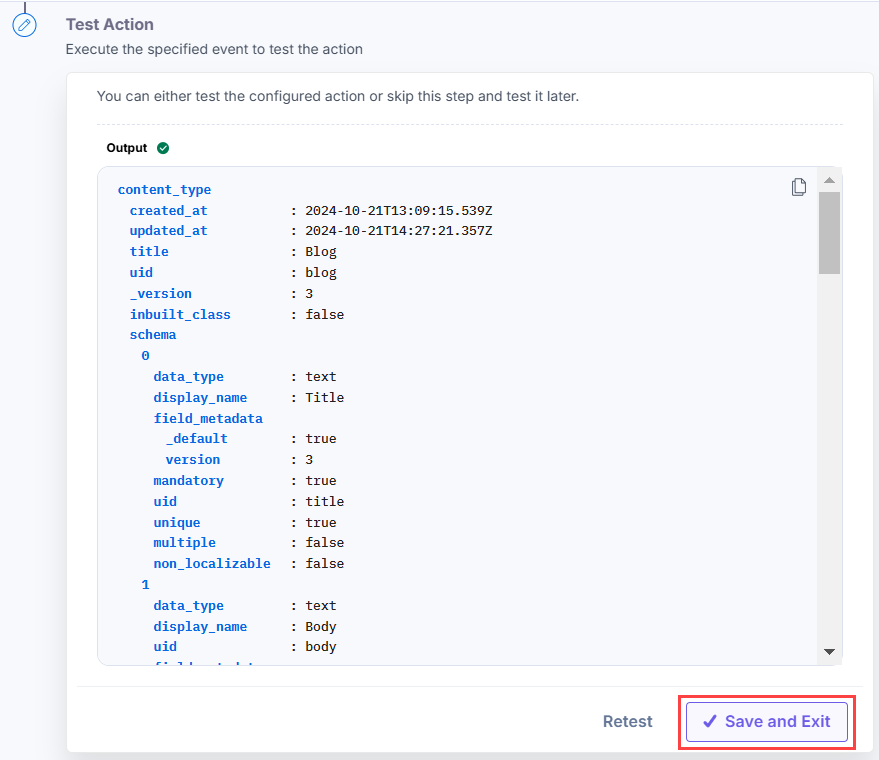
- The output will be shown as follows. Click the Save and Exit button.
Delete a Content Type
This action permanently deletes an existing content type from a stack.
Warning: Deleting a content type also permanently deletes all entries within that content type. This action cannot be undone.
- Under the Choose an Action tab, select the Get a Single Content Type action.
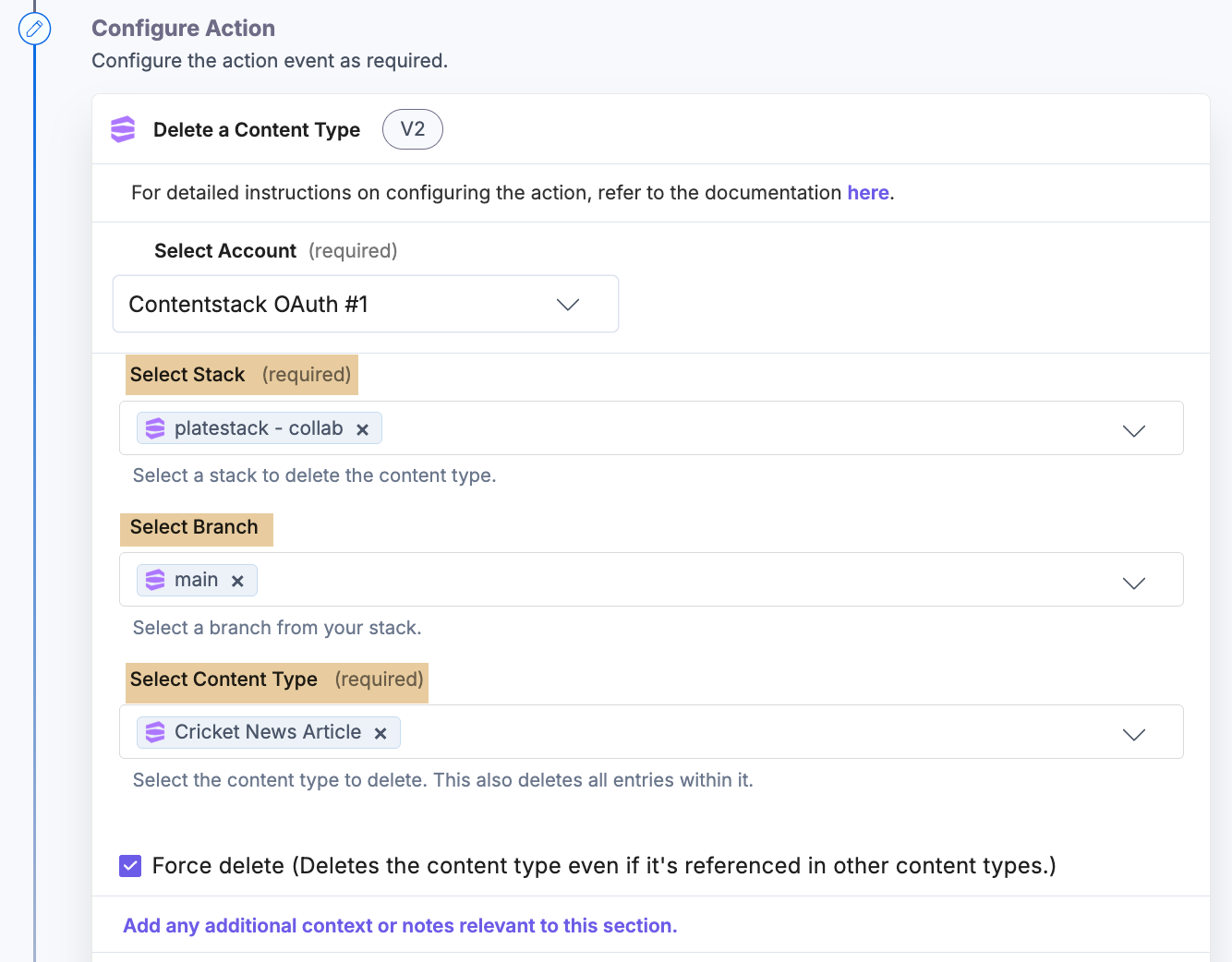
- On the Get a Single Content Type Configure Action page, enter the details given below:
- Click + Add New Account button to connect your Contentstack account as shown in the Connect your Contentstack Account to Automate step.
- Select a Stack, Branch, and a Content Type from the Lookup drop-down.
Note: By default, the main branch is selected (even if the Branch field is empty).
- Optionally, enable the Show Optional Fields toggle button to display the optional fields. You can check the Force delete box to delete the content type:
- Unchecked (default): If the content type is referenced by another content type (i.e., it is used as a child content type elsewhere), the delete call fails with a reference error.
- Checked: The content type is deleted even if it is referenced by another content type.
Note: Deleting a parent content type does not delete its child content types, only the selected content type (and its entries) is removed.
- Click the Proceed button.
- Click Test Action to test the configured action.
- The output will be shown as follows. Click the Save and Exit button.
Update a Content Type
This action updates the name, description, or JSON schema (including fields and other configuration) of an existing content type in a stack.
- Under the Choose an Action tab, select the Update a Content Type action.
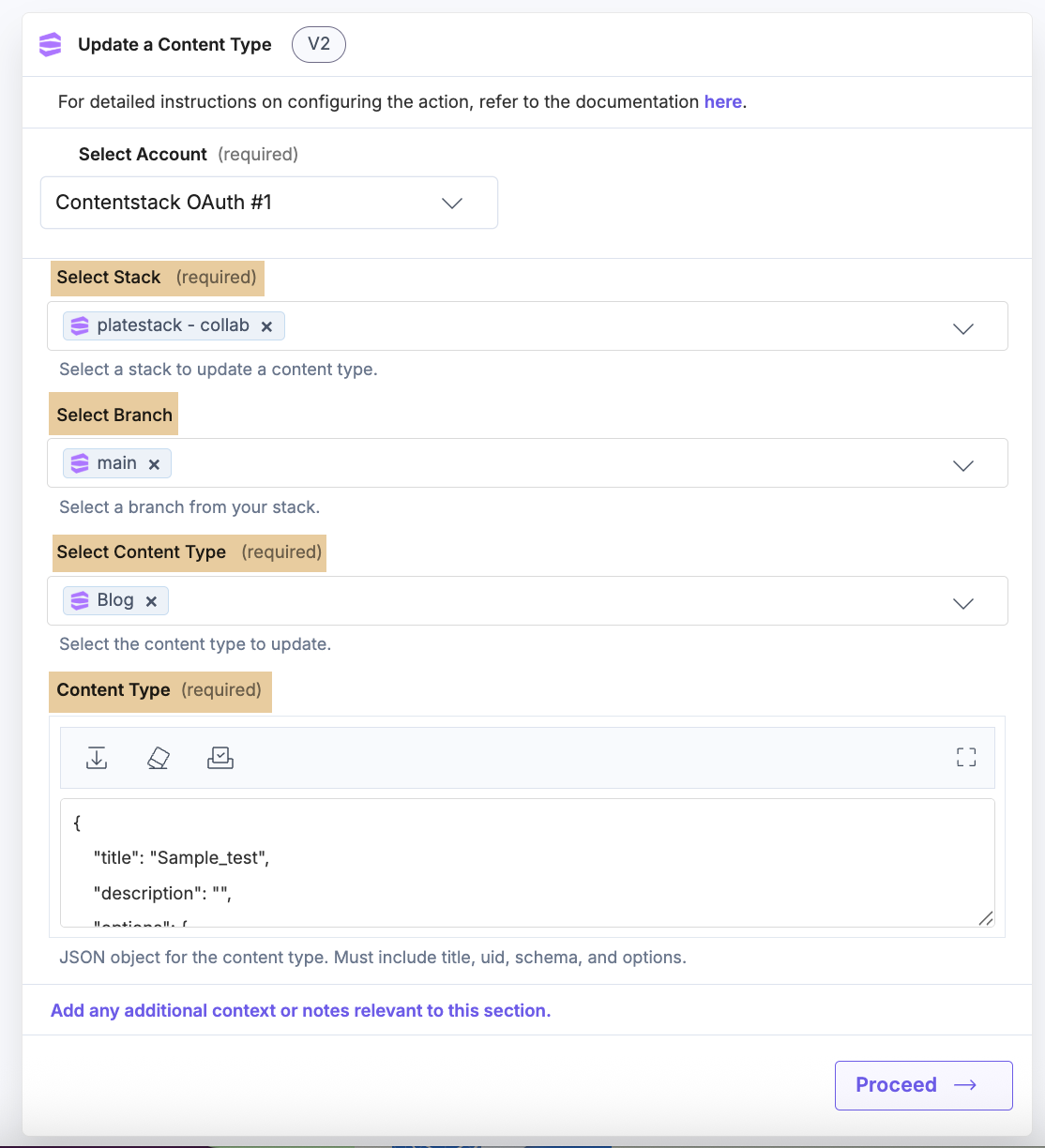
- On the Update a Content Type Configure Action page, enter the details given below:
- Click + Add New Account button to connect your Contentstack account as shown in the Connect your Contentstack Account to Automate step.
- Select a Stack, Branch, and a Content Type from the Lookup drop-down.
Note: By default, the main branch is selected (even if the Branch field is empty).
- Provide the updated Content Type Schema as a JSON payload, including any changed values (e.g., updated title/display name, added or modified fields).
- Click the Proceed button.
- Click Test Action to test the configured action.
- The output will be shown as follows. Click the Save and Exit button.
Get All Content Types
This action fetches all the content types present in a stack.
- Under the Choose an Action tab, select the Get All Content Types action.
- On the Get All Content Types Configure Action page, enter the details given below:
- Click + Add New Account button to connect your Contentstack account as shown in the Connect your Contentstack Account step.
- Select a Stack, and Branch from the Lookup list.
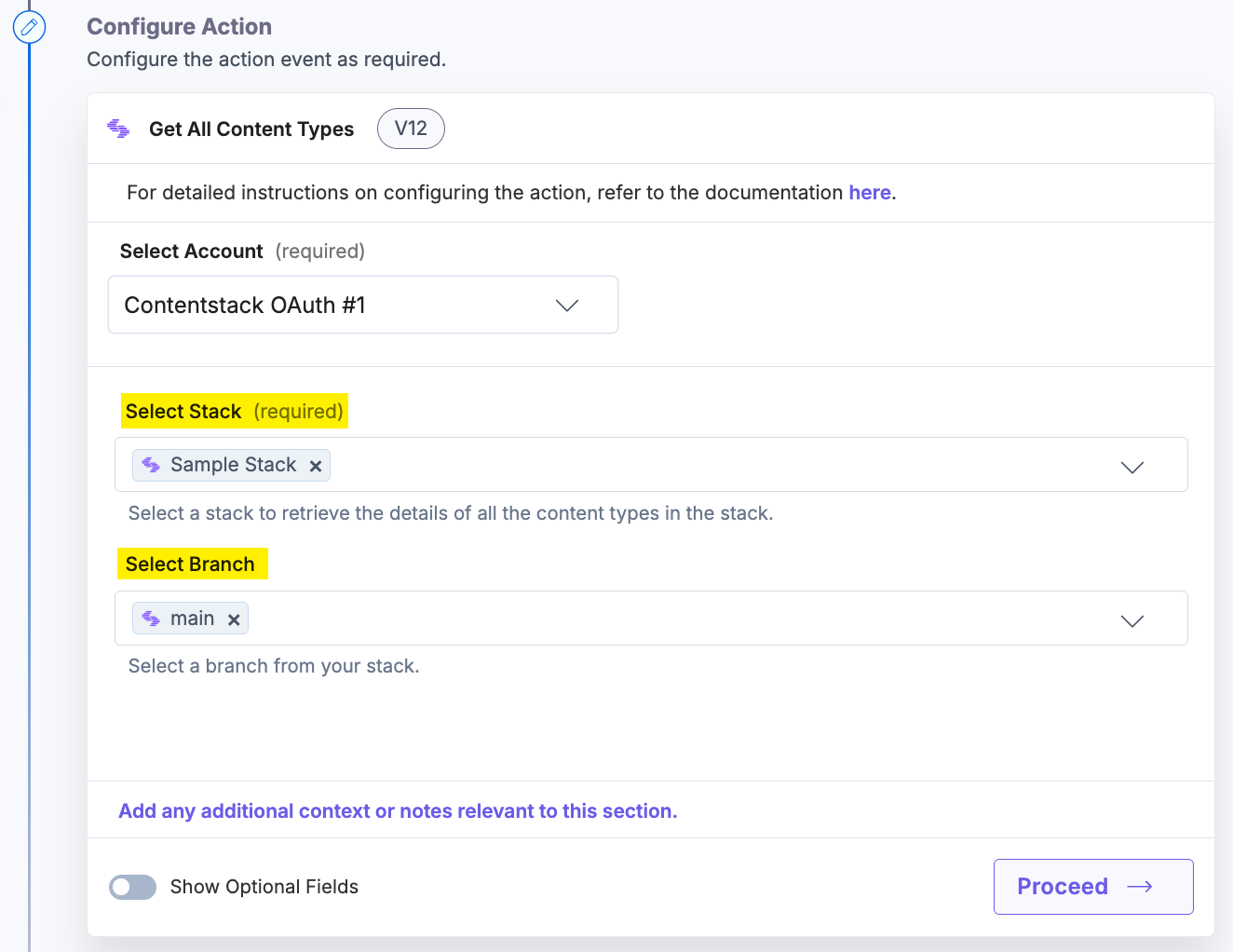
Note: By default, the main branch is selected (even if the Branch field is empty).
- [Optional] Enable the Show Optional Fields toggle button to display the Content Type Limit, Customized Data (query), and Skip Content Type (Pagination) fields.
- Provide your data in the Customized Data (query) field to filter the retrieval of content types. Enter your data in the Key, and Value fields.
- You can also include the total count of the content types, global field schema, and the branch details by clicking the respective checkboxes.
Additional Resource: Refer to the Content Delivery API Docs for more information on Queries.
Note: The Customized Data (query) field acts as a filter to fetch the content types that fulfill the specifications provided in the Key-Value fields.
- Once done, click Proceed.
- Click Test Action to test the configured action.
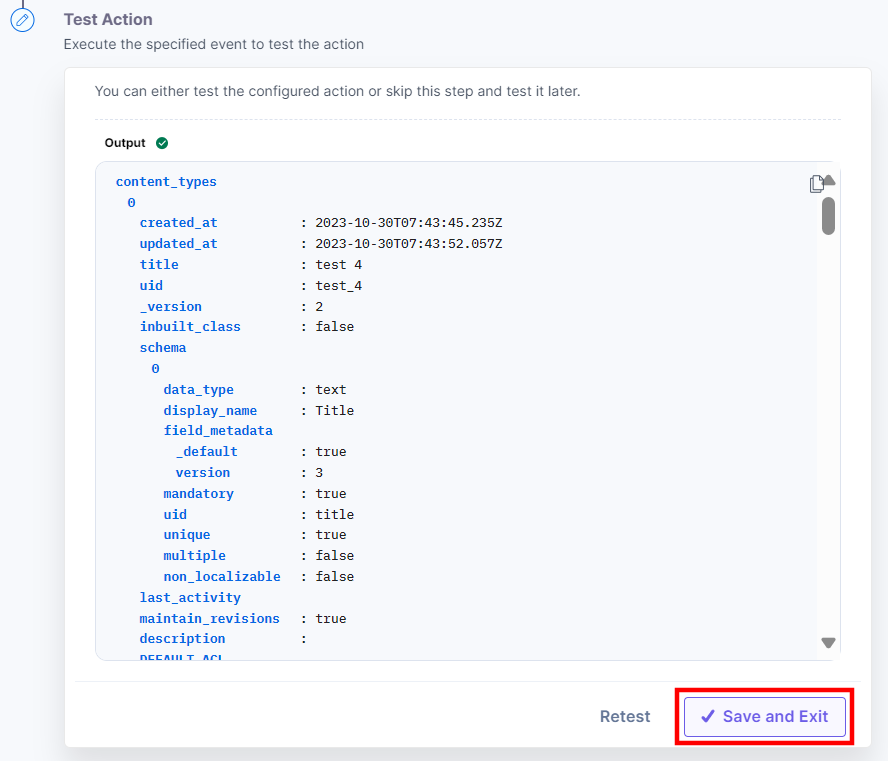
- The output will be shown as follows. Click the Save and Exit button.
Get a Single Content Type
This action fetches the details of a specific content type in a stack.
- Under the Choose an Action tab, select the Get a Single Content Type action.
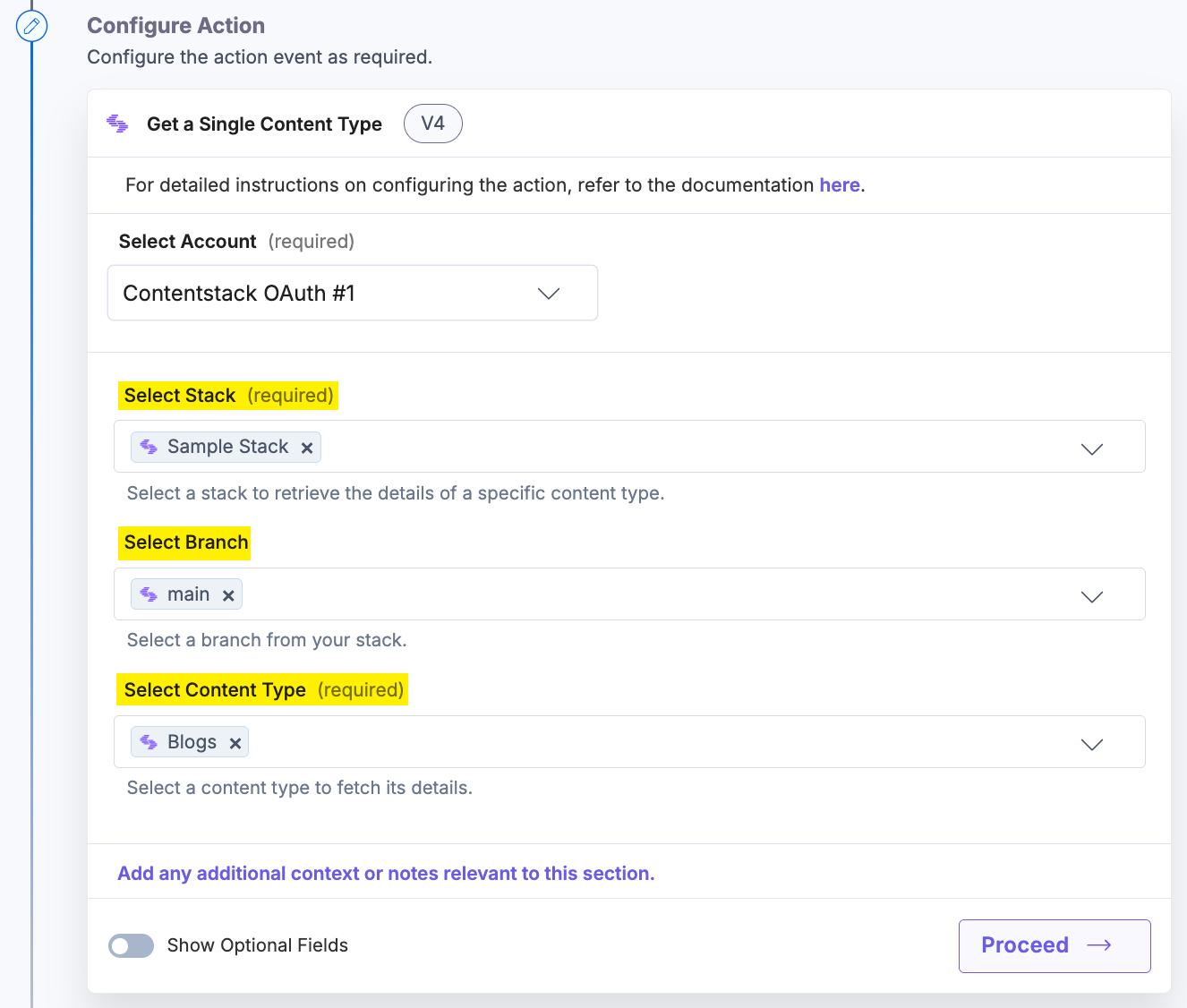
- On the Get a Single Content Type Configure Action page, enter the details given below:
- Click + Add New Account button to connect your Contentstack account as shown in the Connect your Contentstack Account step.
- Select a Stack, Branch, and a Content Type from the Lookup list.
Note: By default, the main branch is selected (even if the Branch field is empty).
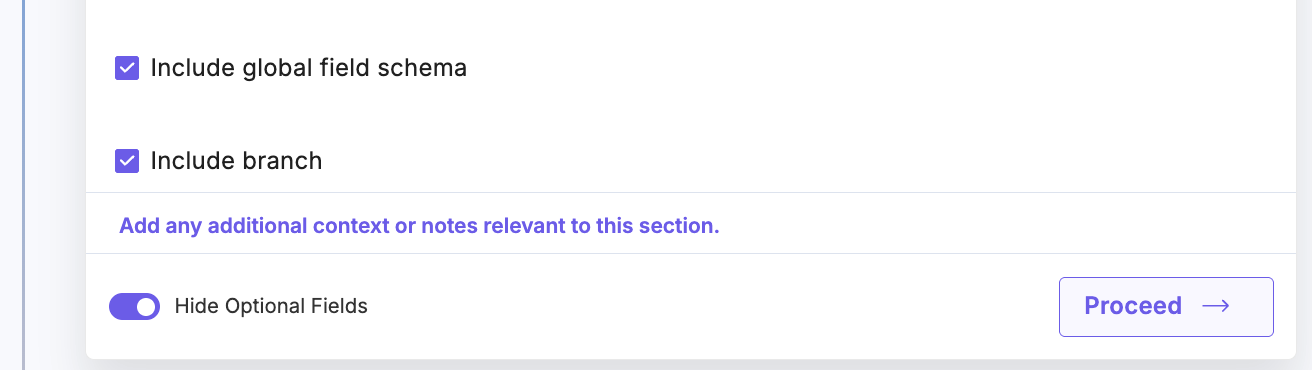
- Optionally, enable the Show Optional Fields toggle button to display the optional fields. You can check the Include global field schema and Include branch boxes to include the details of the branch and the global field(s).
- Once done, click Proceed.
- Click Test Action to test the configured action.
- The output will be shown as follows. Click the Save and Exit button.
More articles in "Contentstack Management"
