

Set Up SCIM Provisioning with Okta
Warning: This set up guide is deprecated. Please visit our documentation on Set Up SCIM Provisioning with Okta Native App.
You can configure Contentstack as a provisioning app in Okta. This allows you to use Okta to provision or deprovision users automatically with Contentstack.
Note: Before proceeding with this guide, ensure that SCIM enabled for your Contentstack organization. If you do not see SCIM settings within Administration, reach out to our support team to get it enabled for your organization.
Here’s a step-by-step guide that explains how you can do this.
- Enable SCIM in Contentstack
- Install the Okta Generic SCIM App from Contentstack Marketplace
- Add the Contentstack App to Okta
- Configure Provisioning in Okta
- Assign Users and Groups to Your Application
- Create Group Mapping in Contentstack
Prerequisite
- Okta tenant that has permission to configure provisioning
- Contentstack account
-
Enable SCIM in Contentstack
Note: Only the Owner, Admin, or Security Manager users of an organization in Contentstack can perform this step.
To allow provisioning of users in Contentstack’s organization through Okta, you need to enable SCIM in Contentstack by performing the following steps:
- Log in to your Contentstack account, then navigate to Administration through the App Switcher.
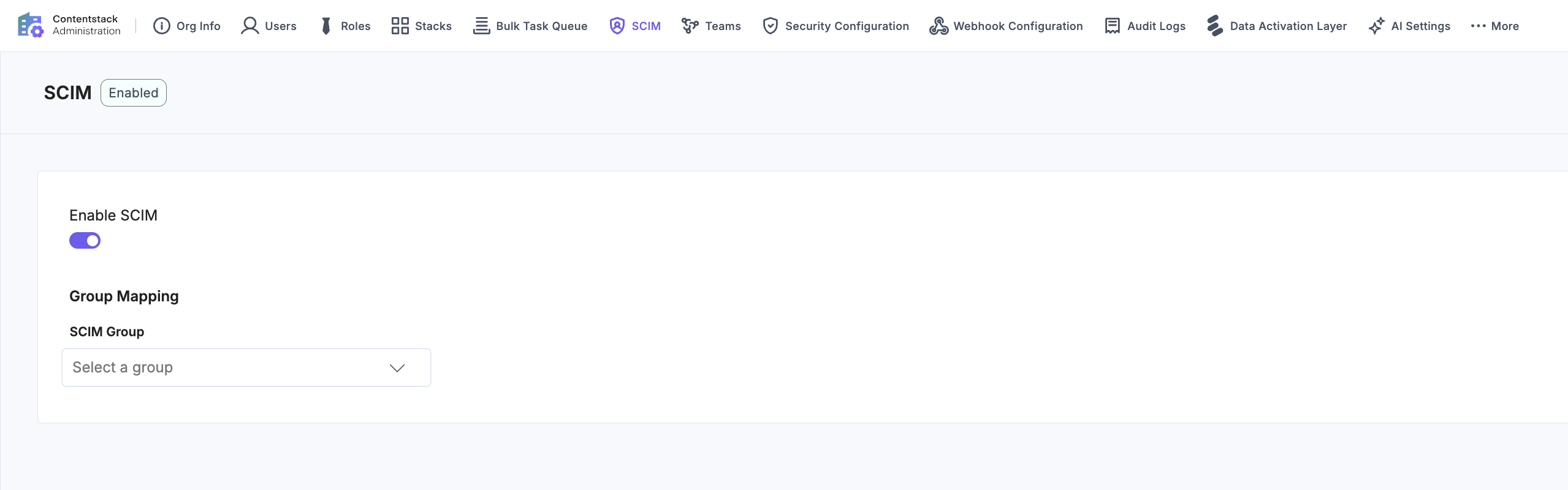
- Open the SCIM settings and select the Enable SCIM option.
- On the resulting Enable SCIM modal, click Enable.
-
Install the Okta Generic SCIM App from Contentstack Marketplace
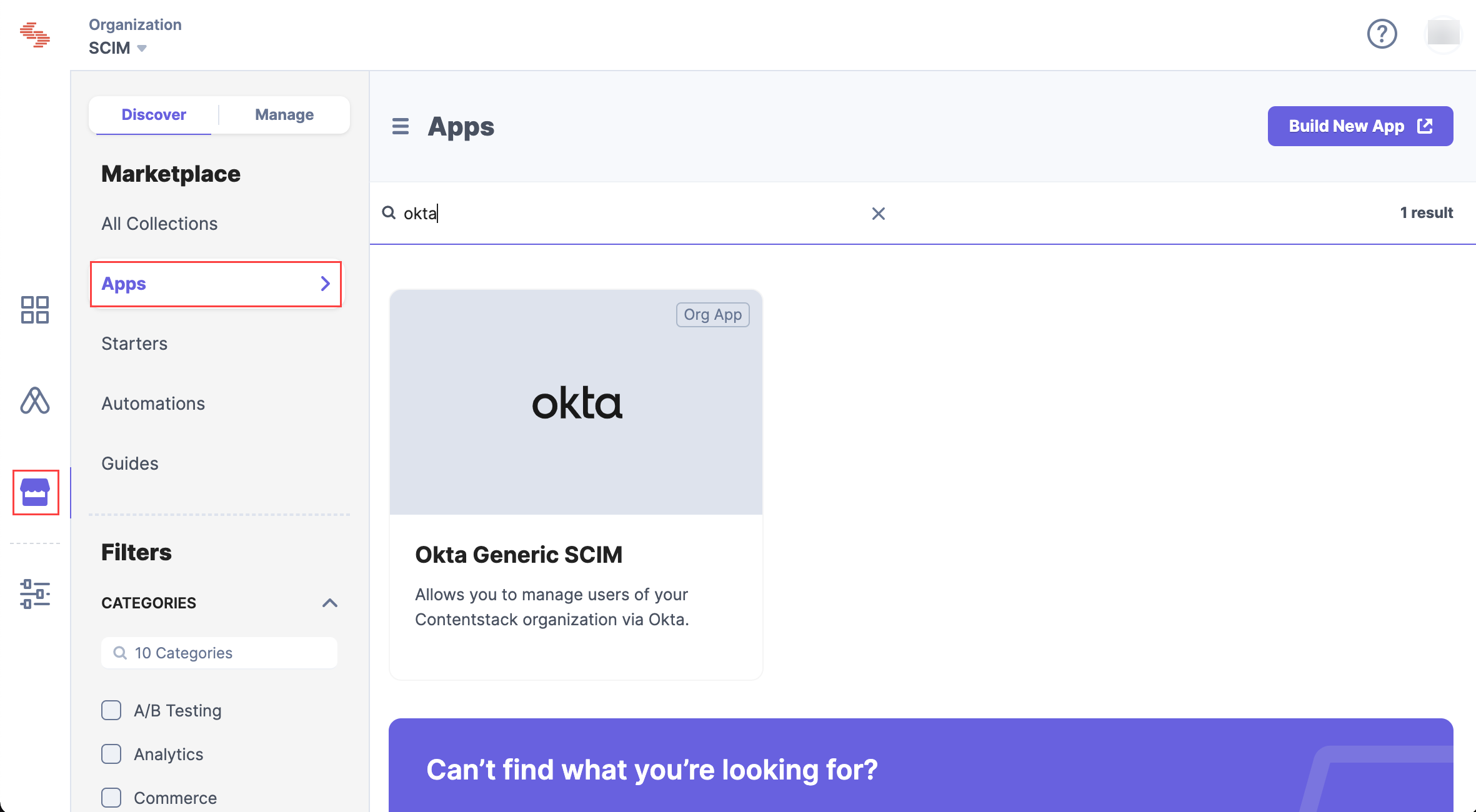
- On the left navigation panel, click the "Marketplace" icon and then Apps. Type out “Okta” in the search bar as follows:
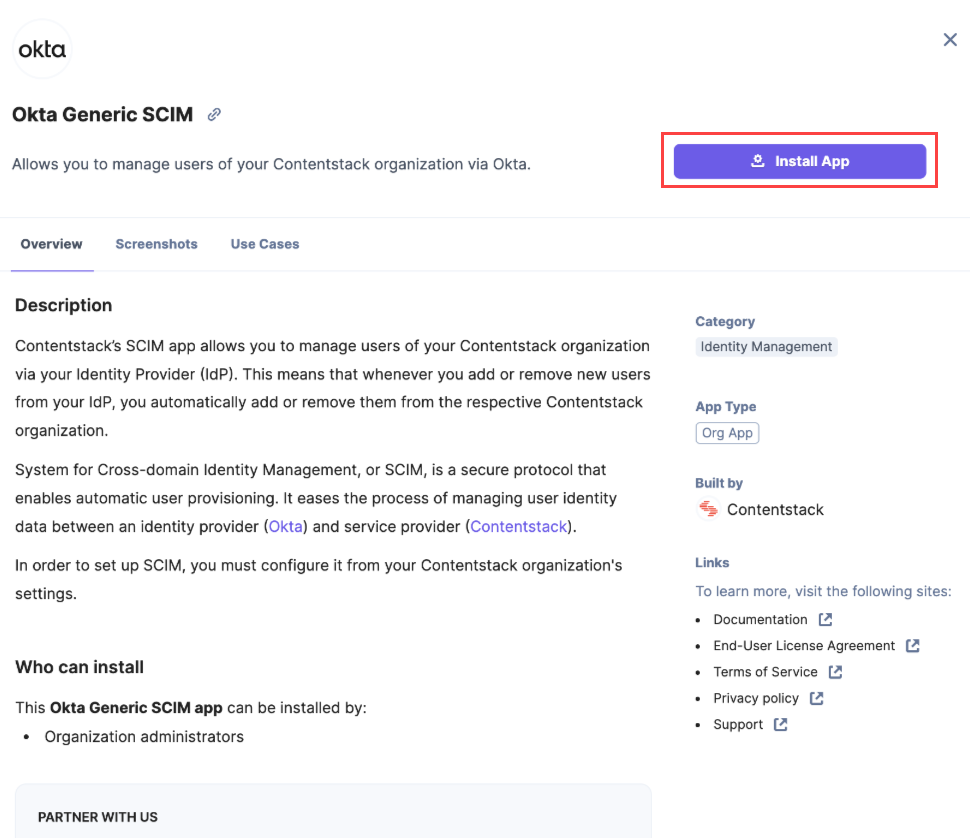
- Click the Okta Generic SCIM card and click Install App.
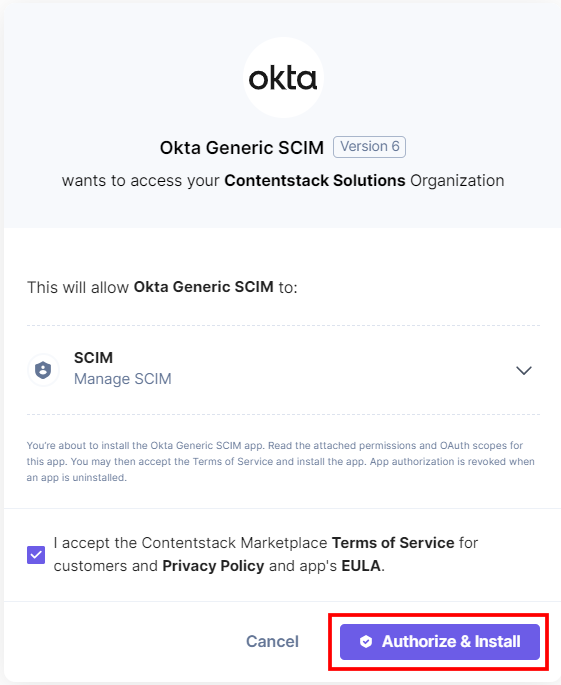
- In the resulting authorization window, click the Authorize & Install button.
- A SCIM URL and a Secret Token are generated on the successful installation of the app. Copy them both for future reference.
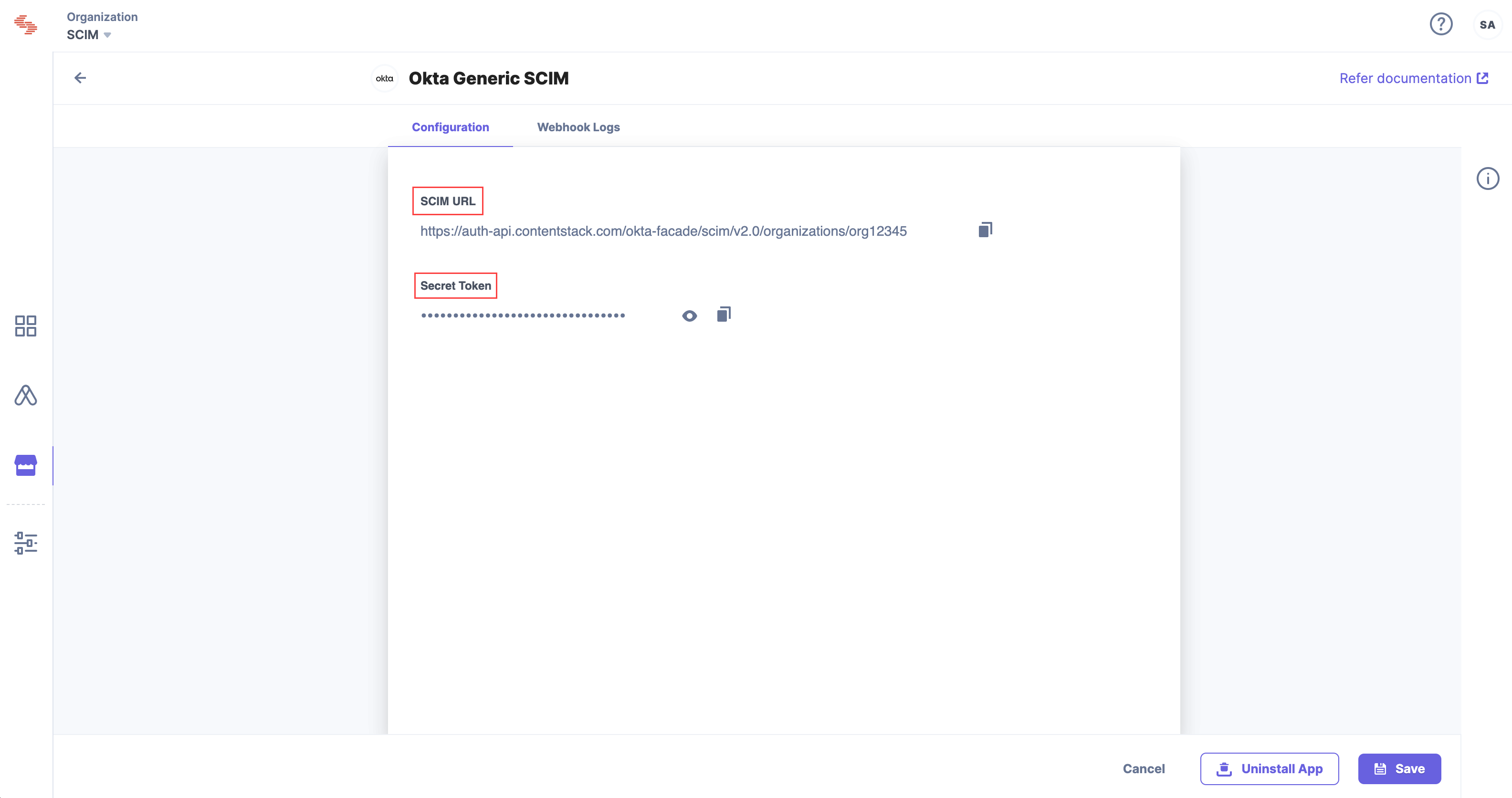
- On the left navigation panel, click the "Marketplace" icon and then Apps. Type out “Okta” in the search bar as follows:
-
Add the Contentstack App to Okta
Note: In order to add Contentstack to the Okta application integration, you must be an administrator. To set up an app for Contentstack to use single sign-on (SSO), refer to our Configure Contentstack App in Okta. If you've already created an app for Contentstack, you can skip this step.
-
Configure Provisioning in Okta
To enable your app to use the provisioning feature, before adding or removing a user from the Contentstack organization, you need to perform the following steps:
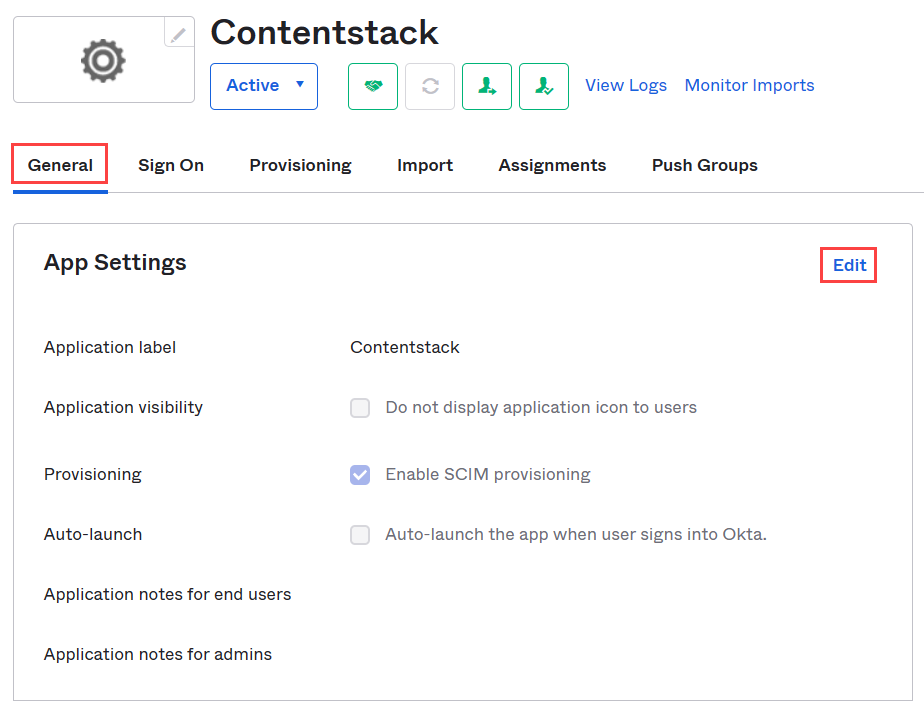
- Navigate to the General tab and click Edit.
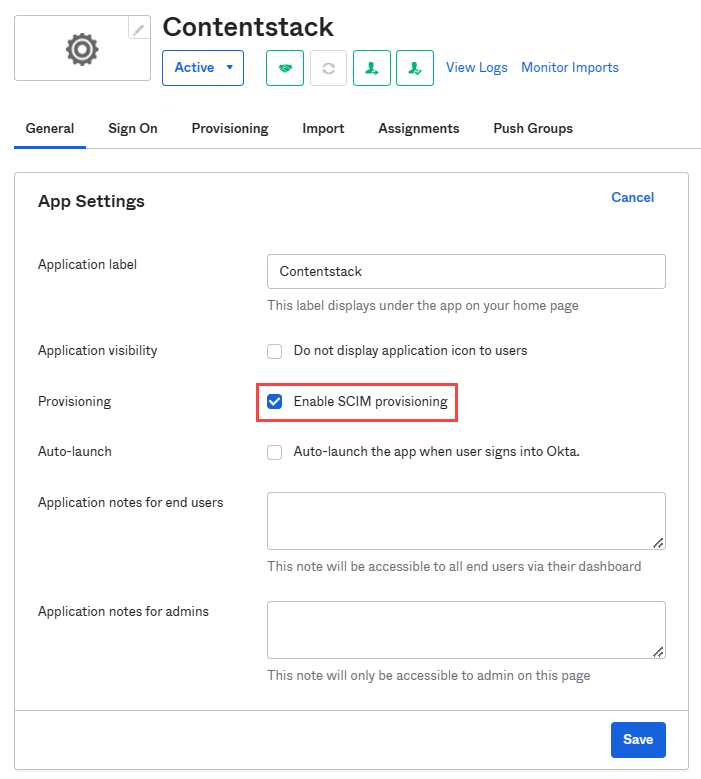
- Within your Contentstack app in Okta, check the Enable SCIM provisioning checkbox and click Save.
- Go to the Provisioning tab, and click Edit. Provide the following credentials in the SCIM Connection window:
- SCIM connector base URL: Contentstack’s SCIM URL is used as SCIM connector base URL. Enter the SCIM URL generated in step 2.4 while installing the Okta Generic SCIM app.
- Unique identifier field for users: Enter a unique username.
- Supported provisioning actions: Under this section, enable Push New Users, Push Profile Updates, and Push Groups.
- Authentication mode: Select HTTP Header from the drop down.
- HTTP Header: Add the Secret Token generated in step 2.4 as the Bearer token for the Authorization field.
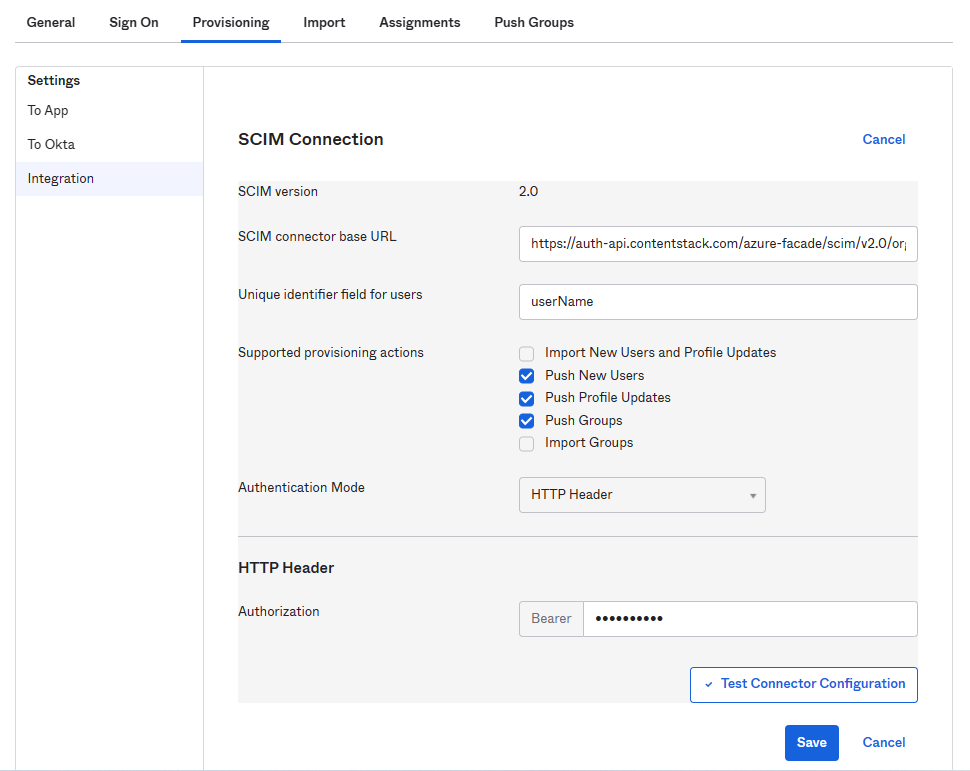
- Click Test Connector Configuration (see above screenshot) to ensure the connection between the Okta and the Contentstack app is successful.
Click Save to save the app provisioning configurations.
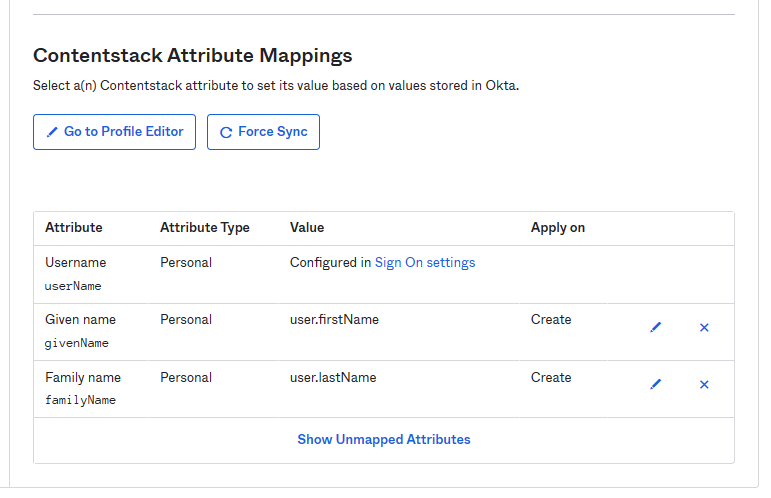
- Navigate to the Settings > To App > Contentstack Attribute Mappings section to map user attributes such as userName, givenName, and familyName.
- Navigate back to the Settings > To App section and click Edit.
- Enable Create Users for provisioning, and Deactivate Users for deprovisioning.
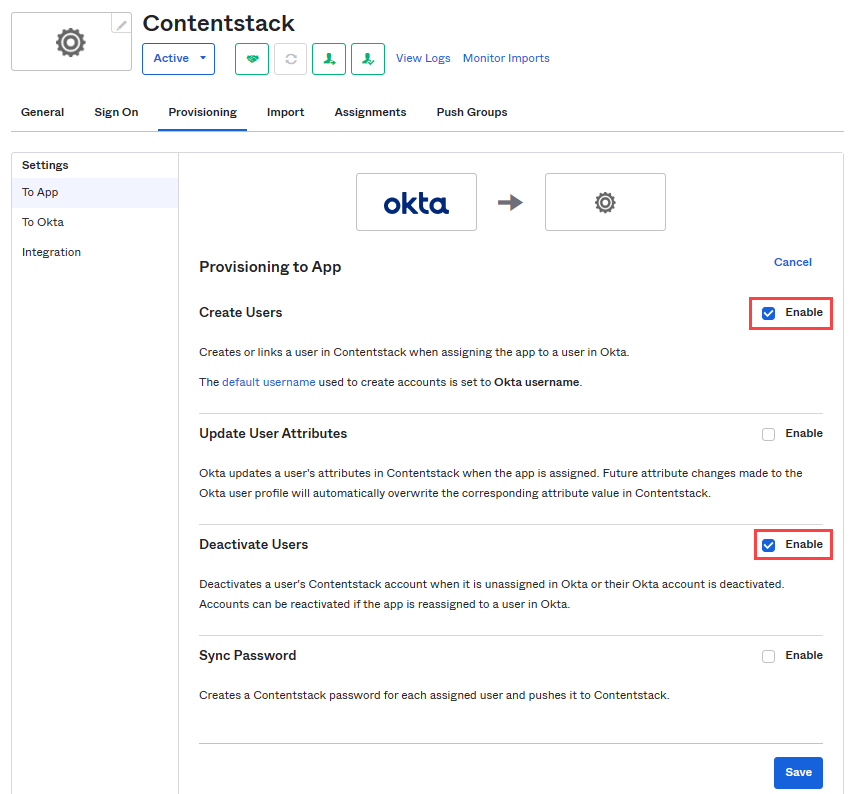
- Click Save to save the provisioning settings.
- Navigate to the General tab and click Edit.
-
Assign Users and Groups to Your Application
After configuring the provisioning settings, you need to assign either users or groups (of users) to your app. Let’s see how to do them both.
-
Assign People to Your Application
To assign people to your application, perform the following steps:
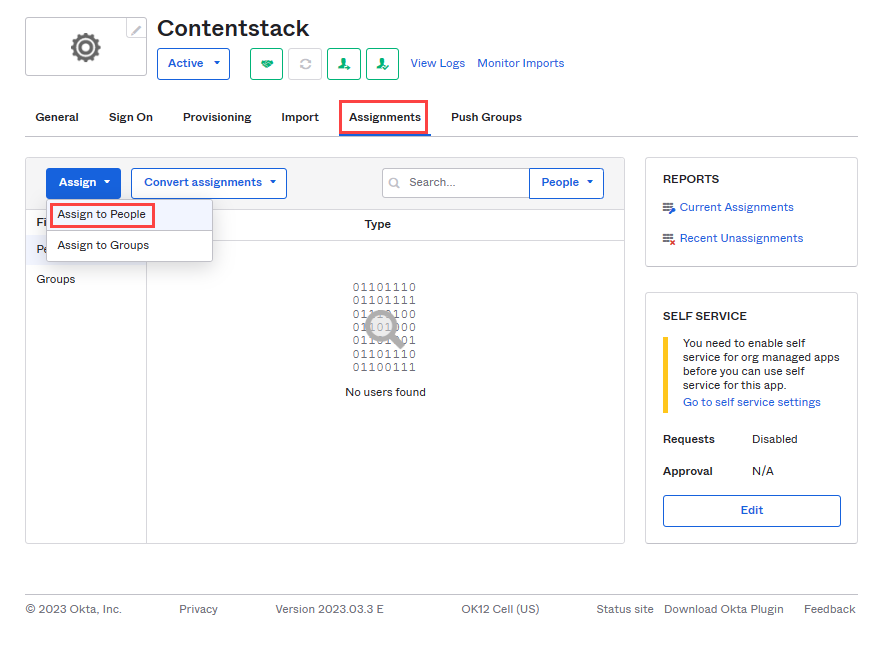
- Navigate to the Assignments tab. Click the Assign dropdown and select the Assign to People option.
- You need to provide the individual's email address and click Assign.
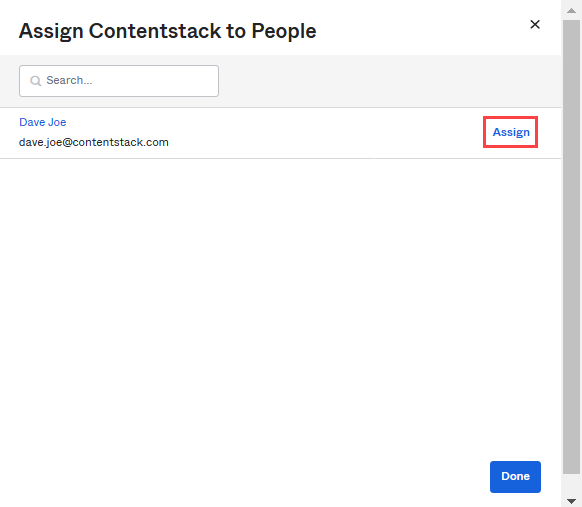
- In the resulting people assignment modal, click Save and Go Back.
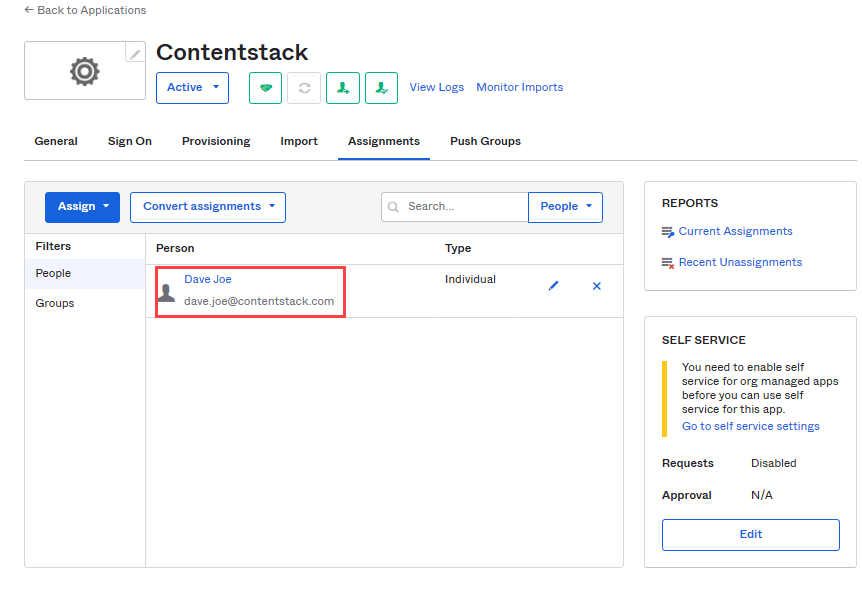
- Click Done to save the assignment. The people assignments are listed as shown below:
- Navigate to the Assignments tab. Click the Assign dropdown and select the Assign to People option.
-
Assign Groups to Your Application
To assign groups to your application, perform the following steps:
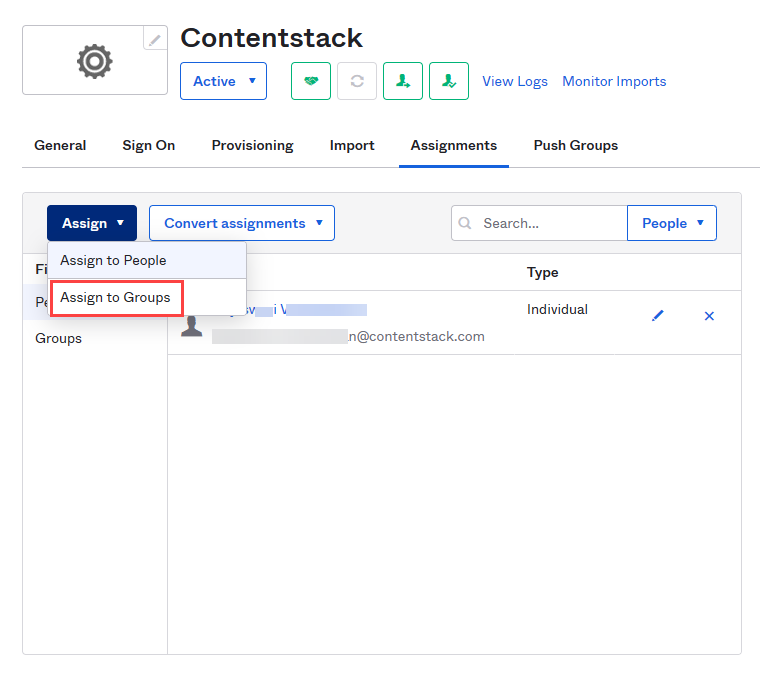
- Navigate to the Assignments tab. Click the Assign dropdown and select the Assign to Groups option.
- Click Assign against the group for assigning the group to your app.
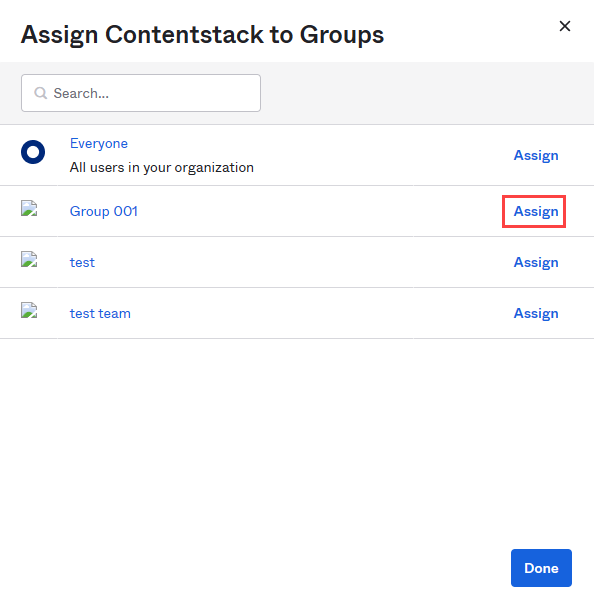
- In the resulting Assign Contentstack to Groups modal, provide the required information and click Save and Go Back. Then, click Done.
- Navigate to the Assignments tab. Click the Assign dropdown and select the Assign to Groups option.
-
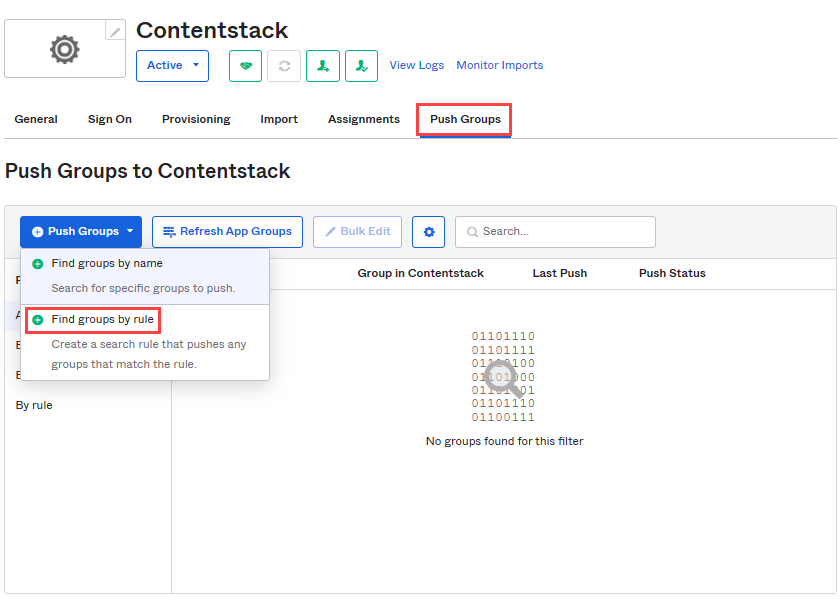
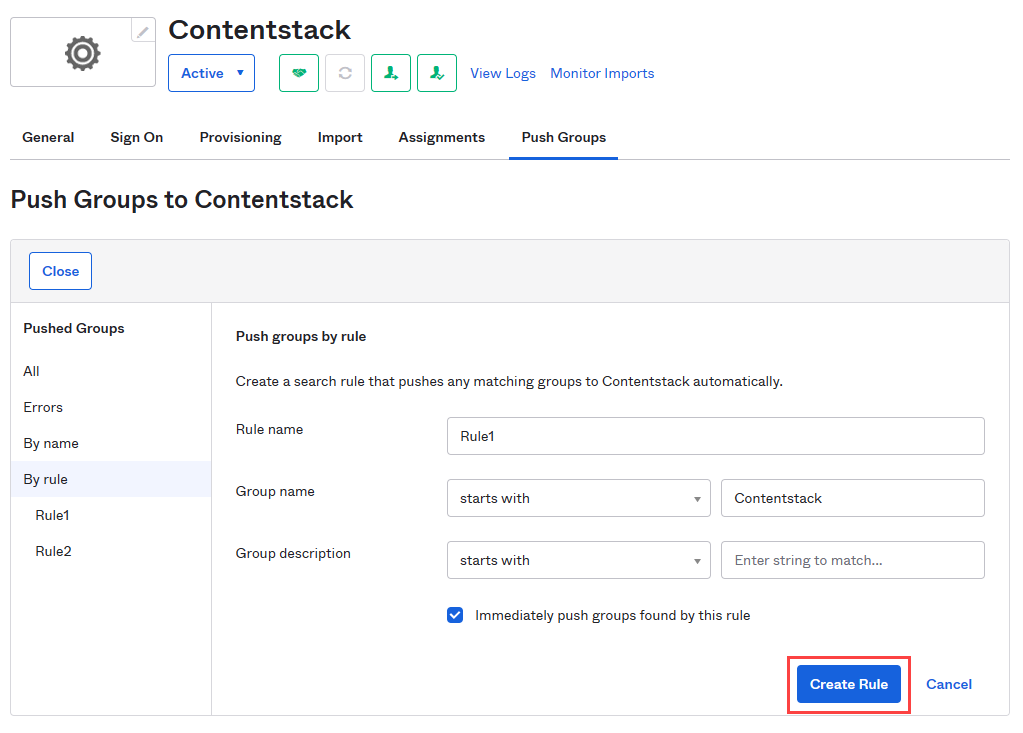
Another way to assign groups to your application is via the Push Groups method where you add rules and all groups that meet the rules will be added to the Contentstack app. Here’s how to do it:
- Navigate to the Push Groups tab. Click the Push Groups dropdown and select Find groups by rule.
- In the resulting window, add some rules for the group and click Create Rule.
- Navigate to the Push Groups tab. Click the Push Groups dropdown and select Find groups by rule.
- Create a rule that matches with the groups to be pushed to Contentstack. For example, the rule created in the above screenshot will push all groups with a name that starts with “Contentstack” to your app (Contentstack).
-
-
Create Group Mapping in Contentstack
Group mapping assigns roles to SCIM groups across your organization and its products in Contentstack. The roles you set for a group apply to all the users added to that group.
To perform group mapping, perform the following steps:
- Navigate to Administration through the App Switcher, then open the SCIM settings.
- From the SCIM Group dropdown, select the group for which you want to set permissions.
- Assign one or more organization-level Administration roles and product roles for the group.
- Assign project-level roles for the group across stacks, spaces, or AgentOS projects. For example, if you set the “Developer” role for the “Developer stack” stack, users within the selected group will have a “Developer” role on that stack.
- Finally, click Update to update the changes in the group mappings.
This process sets up the SCIM Provisioning for your Contenstack account with the Okta.
More articles in "SCIM Guides"
