

Organization Information (Security Dashboard)
The Org Info section provides a centralized view of your organization’s details and security posture in Contentstack.
Depending on your role, this page displays different levels of information:
- Member roles see basic organization details such as name and ID.
- Admin, Owner, Security Manager, and custom roles with relevant permissions can see the Security Dashboard, which includes advanced security insights, activity tracking, and recommendations
To access the Org Info (Security Dashboard) page:
- Log in to your Contentstack account.
- Navigate to Administration through “App Switcher”.
- By default, the Org Info tab is selected.
Basic Organization Info
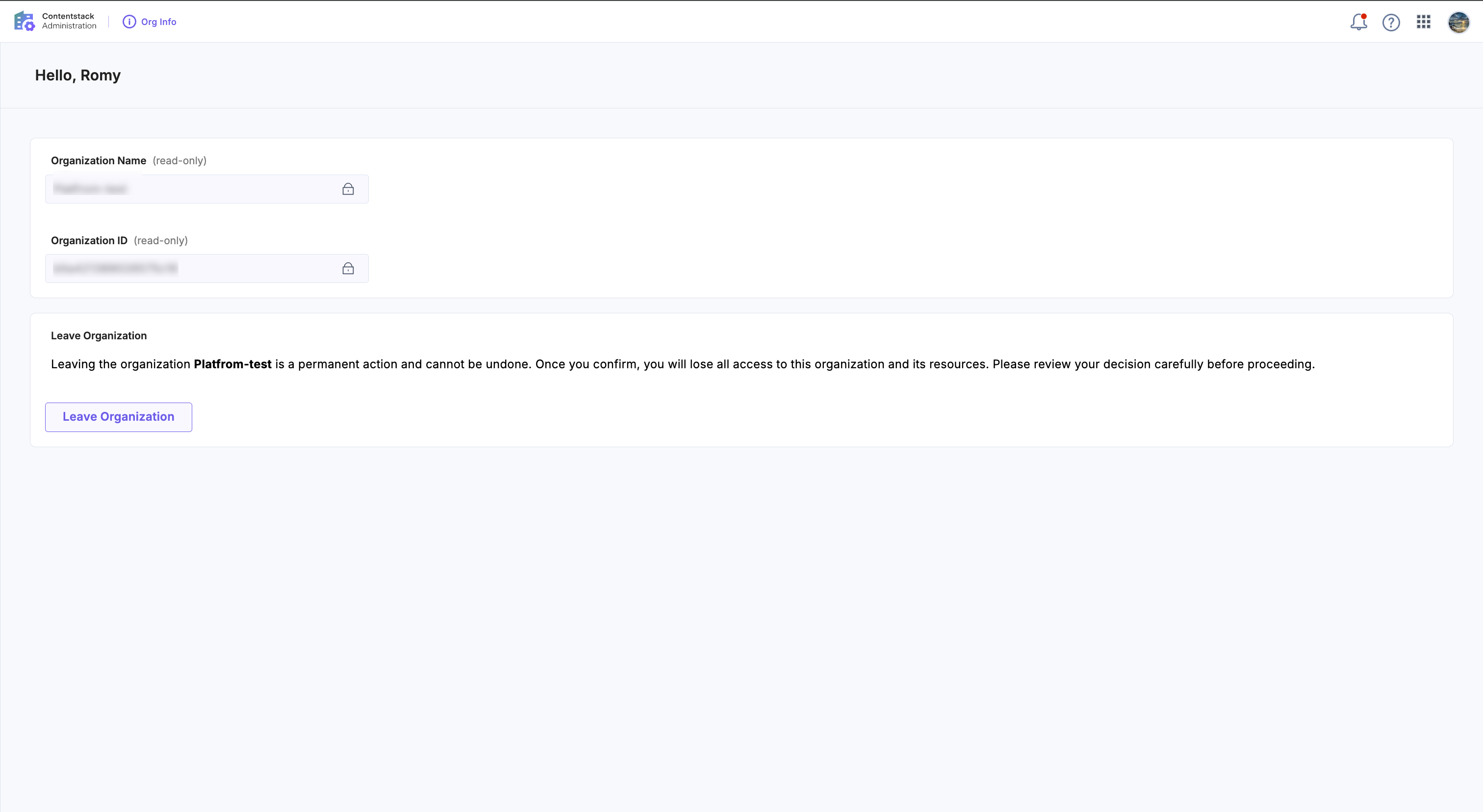
If you have member-level permissions, the Org Info section displays:
- Organization name
- Organization ID
- Option to leave organization
Security Dashboard
If you have elevated permissions (Admin, Owner, Security Manager, or custom roles), the Security Dashboard replaces the basic Organization Info view.
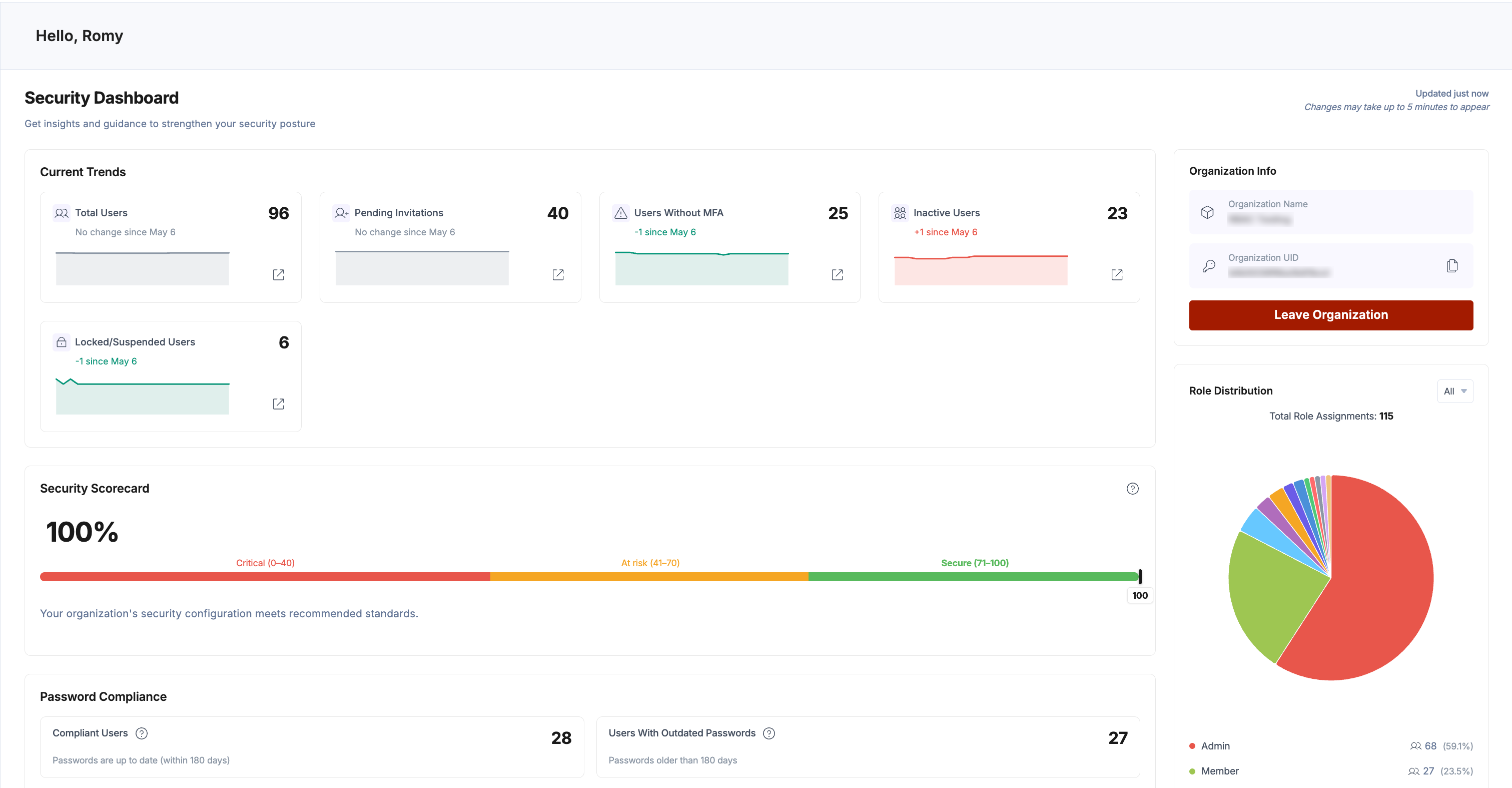
This dashboard helps you monitor security risks, user activity, and compliance metrics in one place.
Key Sections of the Security Dashboard
The Security Dashboard presents a consolidated view of key security controls, risks, and organization activity to help you monitor and improve your security posture.
The following sections help you monitor trends, identify risks, and take corrective actions.
Current Trends
The Current Trends section provides a high-level snapshot of key organization metrics. It helps you quickly assess changes in user activity and identify potential risks.
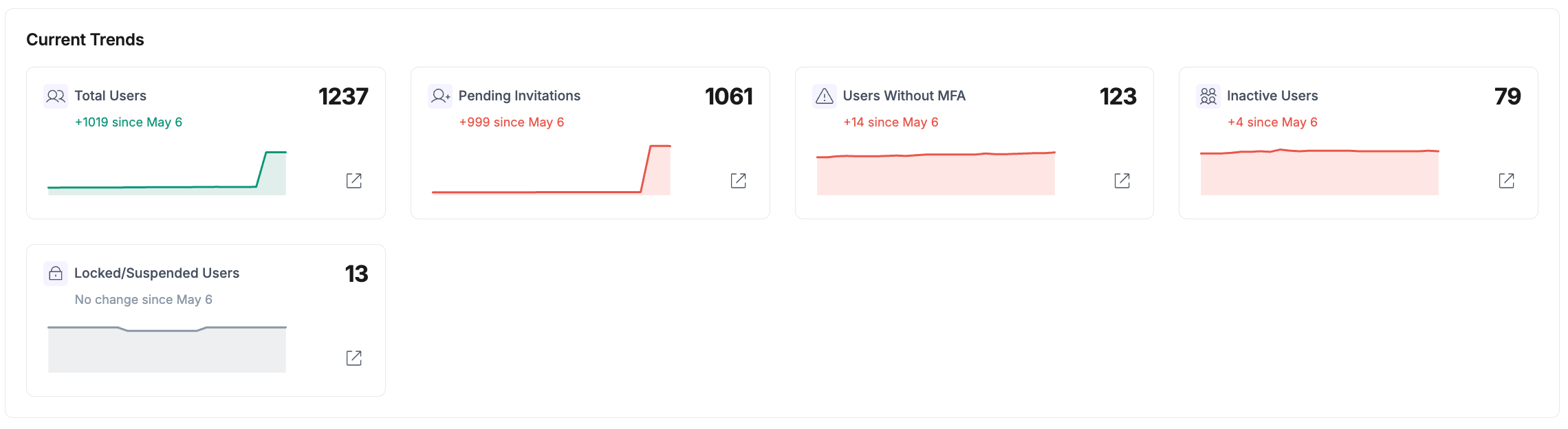
This section includes:
- Total Users
- Pending Invitations
- Users Without MFA (Multi-Factor Authentication)
- Inactive Users (Users who have not logged in for more than 90 days)
- Locked/Suspended Users
Use these metrics to identify gaps, such as users without MFA or an increasing number of inactive accounts.
Security Scorecard
The Security Scorecard summarizes your organization’s overall security posture using a numerical score.
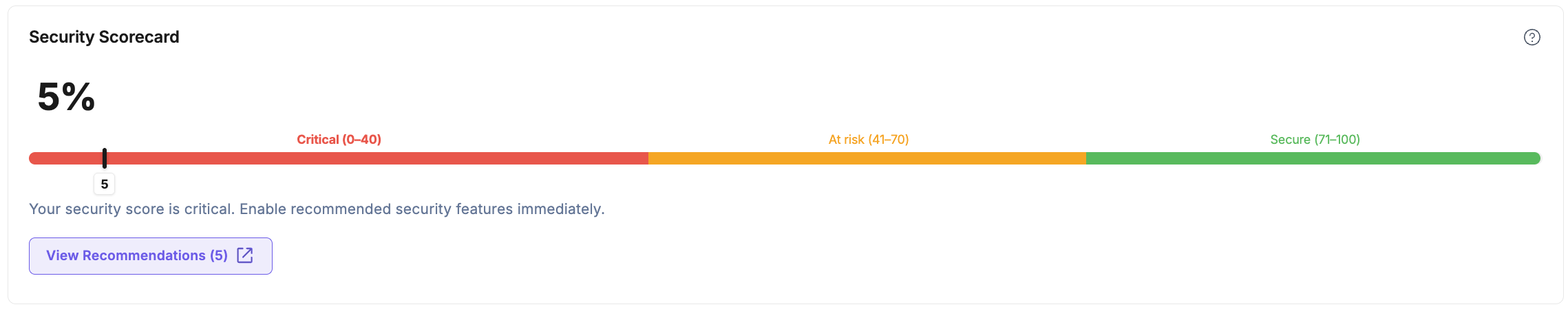
It categorizes your security level as follows:
- 0–40 (Critical): Immediate action required
- 41–70 (At risk): Improvements recommended
- 71–100 (Secure): Strong security posture
This score helps you understand where your organization stands and what actions you can take to improve security.
How Security Scorecard Works
The security score is calculated using a weighted scoring model. Each security control is assigned a weight based on its importance.
- Each security control has a defined weight
- Your score improves as controls are enabled or configured correctly
- Issues are prioritized by impact level (for example, Critical, High) to guide what to fix first
Different security controls are included in your Security Score based on your organization’s authentication setup (Password-based authentication, SSO, or Strict SSO-only). This ensures your Security Score reflects only the controls relevant to your organization’s security configuration.
Tip: Focus on resolving Critical and High-impact recommendations first to quickly improve your security score.
Organization Info
The Organization Info section provides quick access to essential organization details alongside security insights.
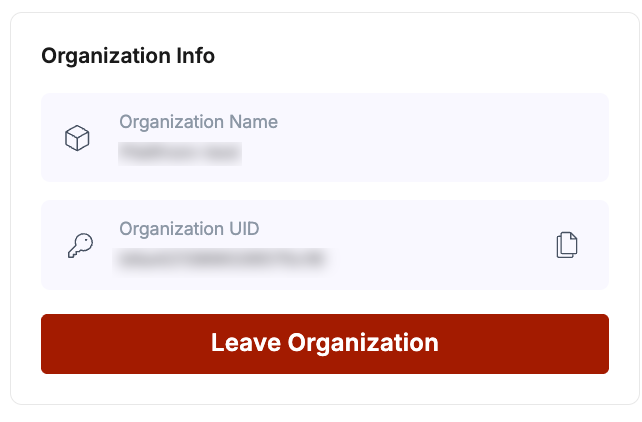
In this section, you can view:
- Organization name
- Organization UID
- Leave organization or transfer ownership (visible only to the organization owner)
Note: Organization Name and Organization UID are system-generated and cannot be modified. Contact support if updates are required.
This ensures that critical organization details remain accessible without leaving the dashboard.
The Transfer Ownership option lets you assign ownership to another user:
- Click Transfer Ownership.
- Enter the email address of the target user.
- Send the ownership invitation.
Once the user accepts the request:
- They become the Organization Owner
- Your role changes to Member
Warning: After ownership transfer, you lose elevated access and retain only member-level permissions.
Role Distribution
The Role Distribution section visualizes how roles are assigned across your organization
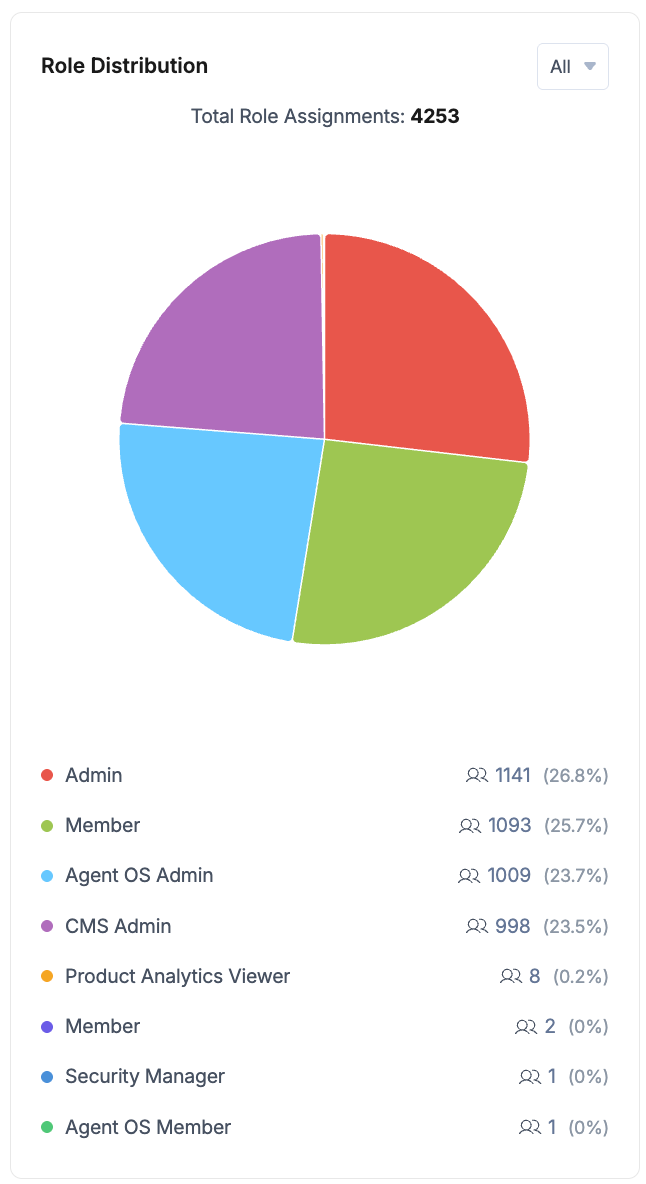
This helps you understand how access is distributed and whether privileged roles are over-assigned. Monitoring this section supports better role-based access control and reduces security risks.
Password Compliance
The Password Compliance section shows how recently users have updated their passwords.
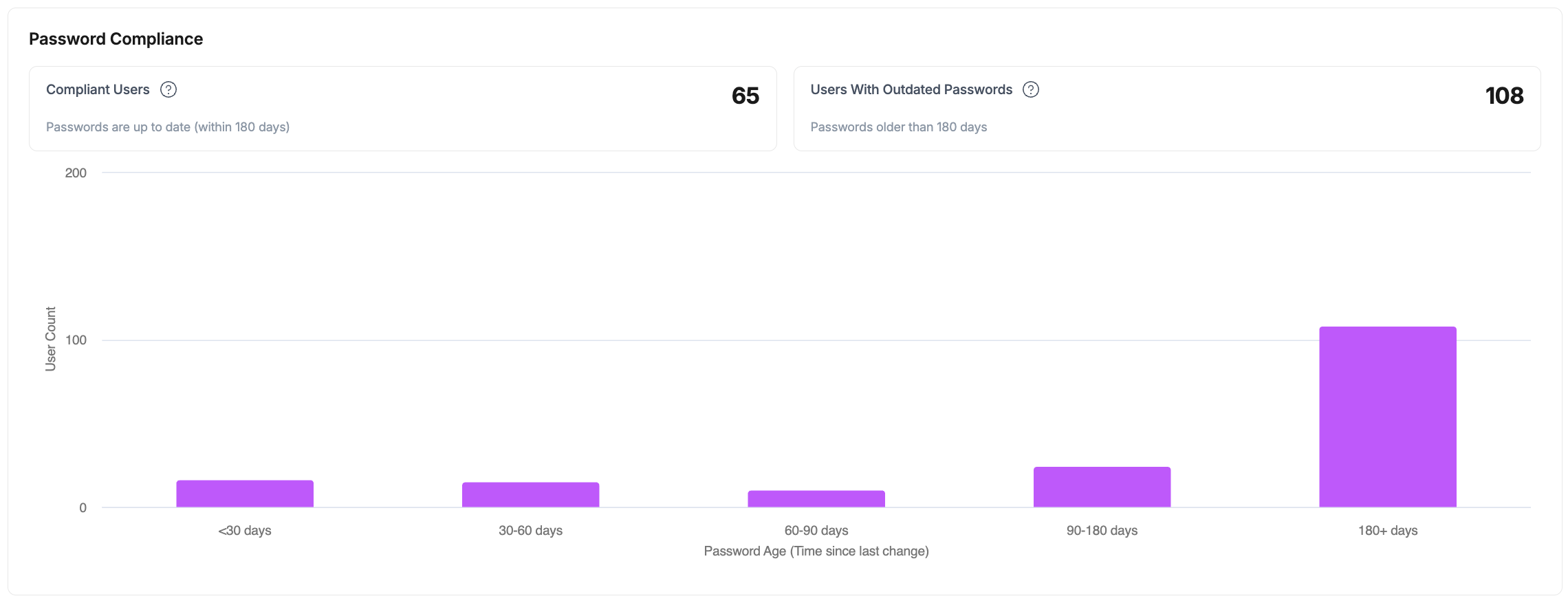
It groups users into categories such as:
- Less than 30 days
- 30–60 days
- 60–90 days
- 90–180 days
- More than 180 days
This helps you identify users with outdated passwords and enforce password policies effectively.
User Session Insights
The User Session Insights section tracks how long users remain logged in.
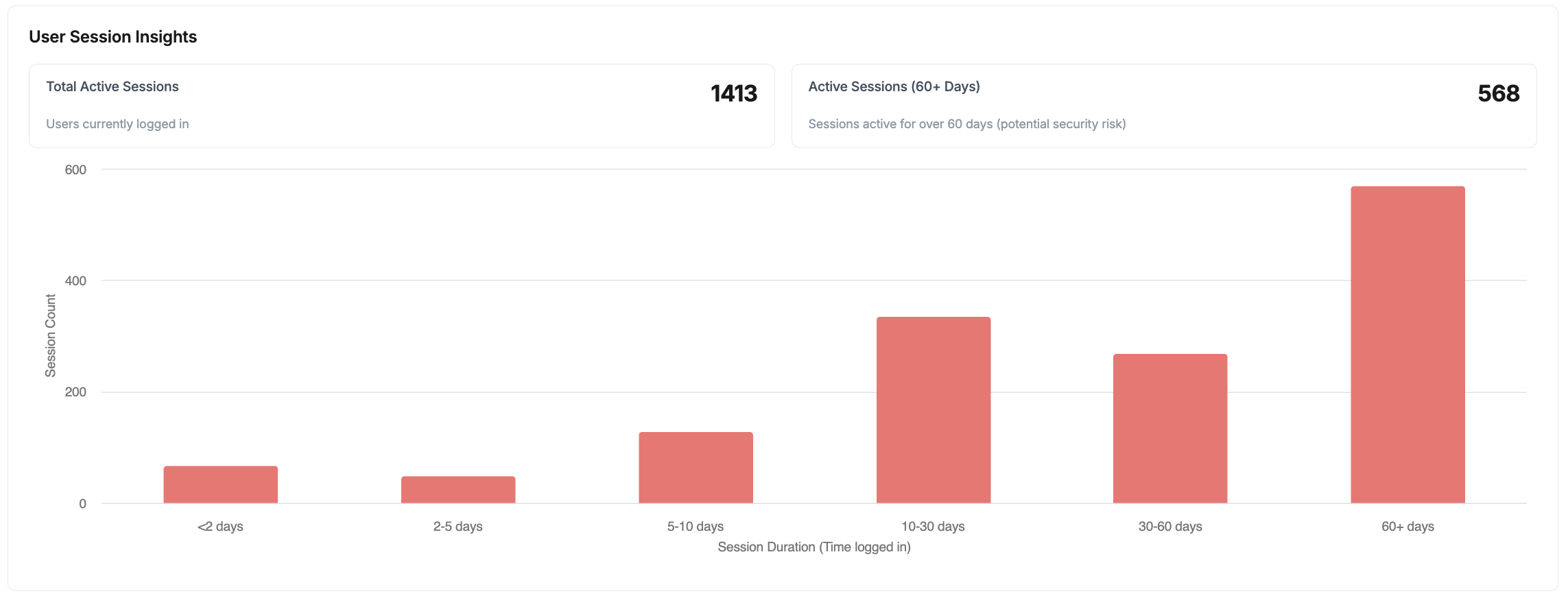
It includes:
- Total Active Sessions
- Active Sessions (60+ Days)
Active sessions for more than 60+ days may pose security risks, especially if sessions are not actively monitored or revoked.
Recent Activity
The Recent Activity section displays the most recent security-related events within your organization. It provides visibility into important actions and changes, helping you audit activity and detect anomalies.
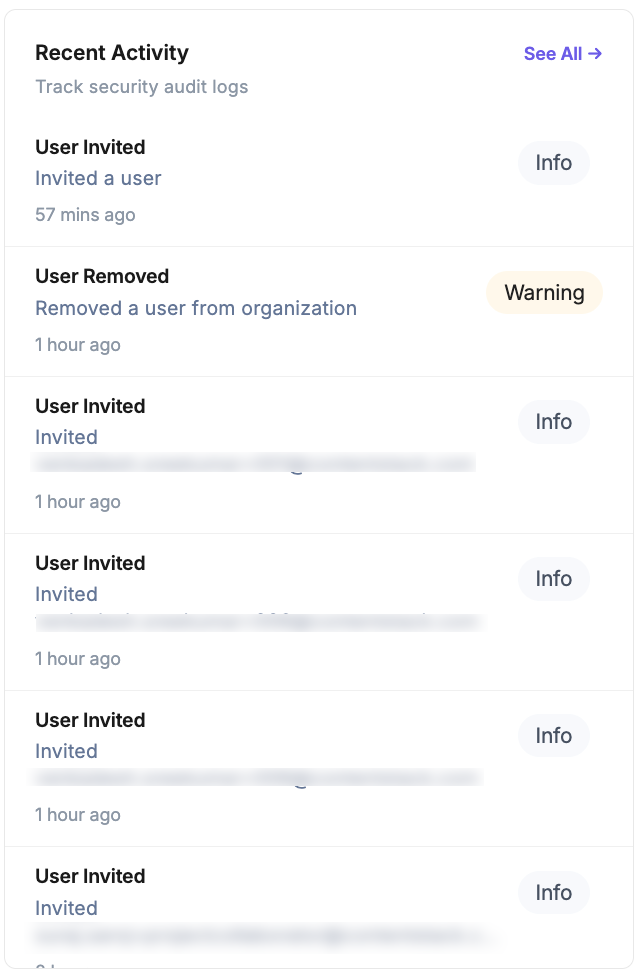
Below are some of the key events displayed:
| Event | What it means | Severity |
|---|---|---|
| Account Unlocked | A locked account was restored | Warning |
| User Invited | A new user was invited | Info |
| User Removed | A user was removed | Warning |
| Role Updated | User permissions changed | Info |
| Forced Password Reset | Admin enforced password reset | Warning |
| MFA Reset | MFA settings were reset | Warning |
| Team Created | New team created | Info |
| Team Updated | Team details modified | Info |
| Security Configuration Changed | Security settings updated | Critical |
This section helps you audit activity and detect potential security issues.
Best Practices
Security recommendations and best practices shown in the dashboard are designed to improve overall security hygiene by guiding administrators toward commonly accepted configurations and controls:
- Enable MFA for all users
- Review inactive users regularly
- Monitor long-lived sessions
- Limit admin and owner roles
- Act on critical security alerts immediately
The Security Dashboard continuously updates based on organization activity and configuration changes, ensuring that security insights and metrics reflect the most recent state of your organization.
More articles in "Organization Settings"
