

Change Organization Role of Existing Users
Contentstack uses role-based access control (RBAC) to manage access across your organization and its products. This page shows you how to update the roles of an existing organization user. For an existing user, you can update:
- Administration roles: Organization-level roles, such as Owner, Admin, Security Manager, Product Analytics Viewer, and Member, that control organization-wide capabilities.
- Product roles: Organization-level roles for each product, such as the CMS, Assets, and AgentOS, that control product-wide access.
- Project-level roles: Roles applied to individual stacks, spaces, or AgentOS projects within a product.
A user can hold more than one role at the same time. For example, a user can be both a Member and a Product Analytics Viewer.
Prerequisites
- Contentstack account
- Organization Owner or Admin permissions
What You Will Learn
How to edit an existing user's Administration, product, and project-level roles.
Which role rules apply when updating a user, such as the required Administration role.
Change a User's Roles
To change the roles of a user, log in to your Contentstack account and perform the steps given below:
- Navigate to Administration through the App Switcher, then click the Users tab to view organization users.
- Click the vertical ellipsis next to the user and select Edit.
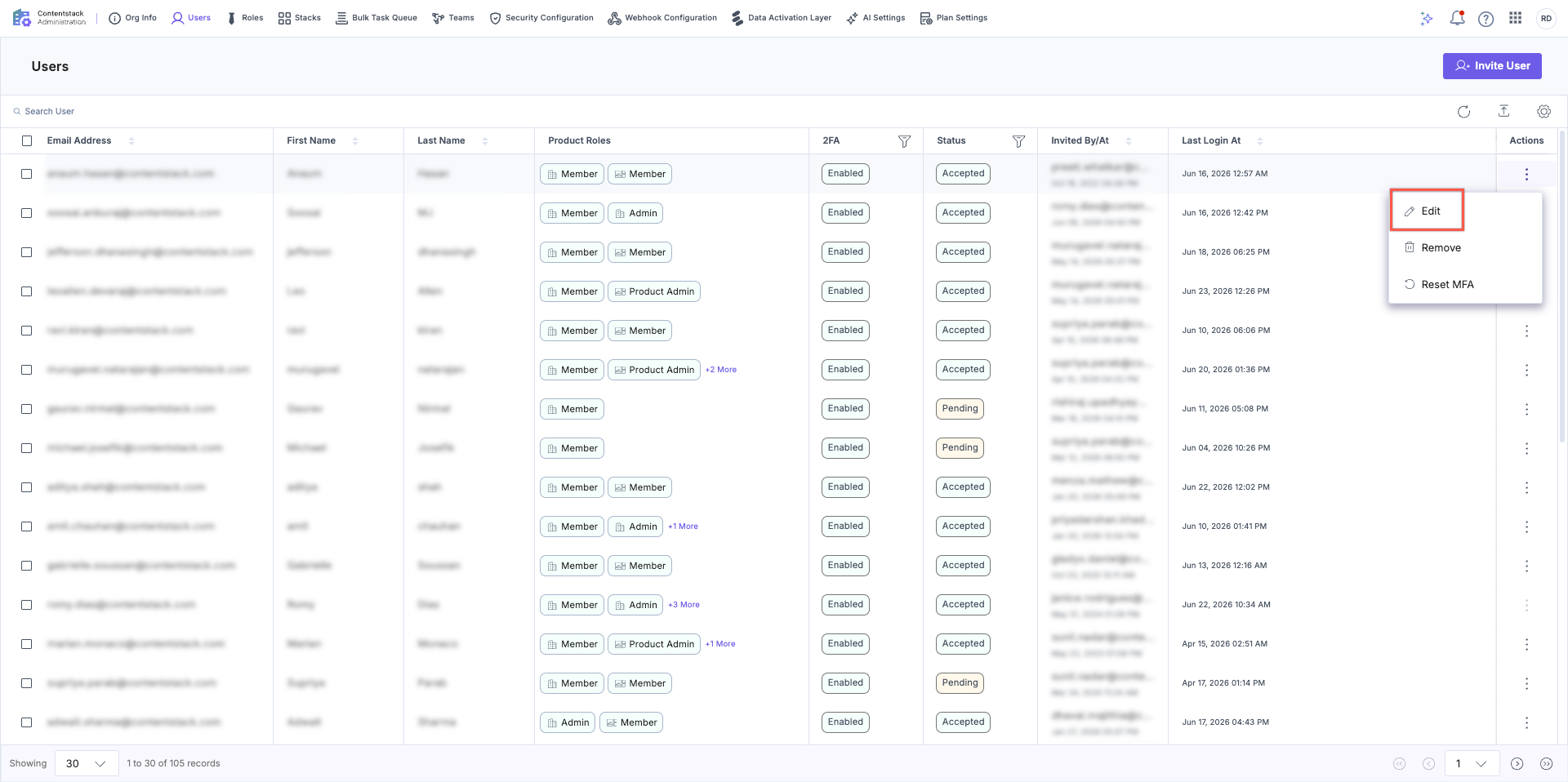
- On the Edit User screen, update the following as required:
- The organization-level Administration roles.
- The product roles for each product, such as the CMS, Assets, and AgentOS.
- The assigned stacks, spaces, or AgentOS projects, and the project-level roles for each.
- Click Update to save your changes.
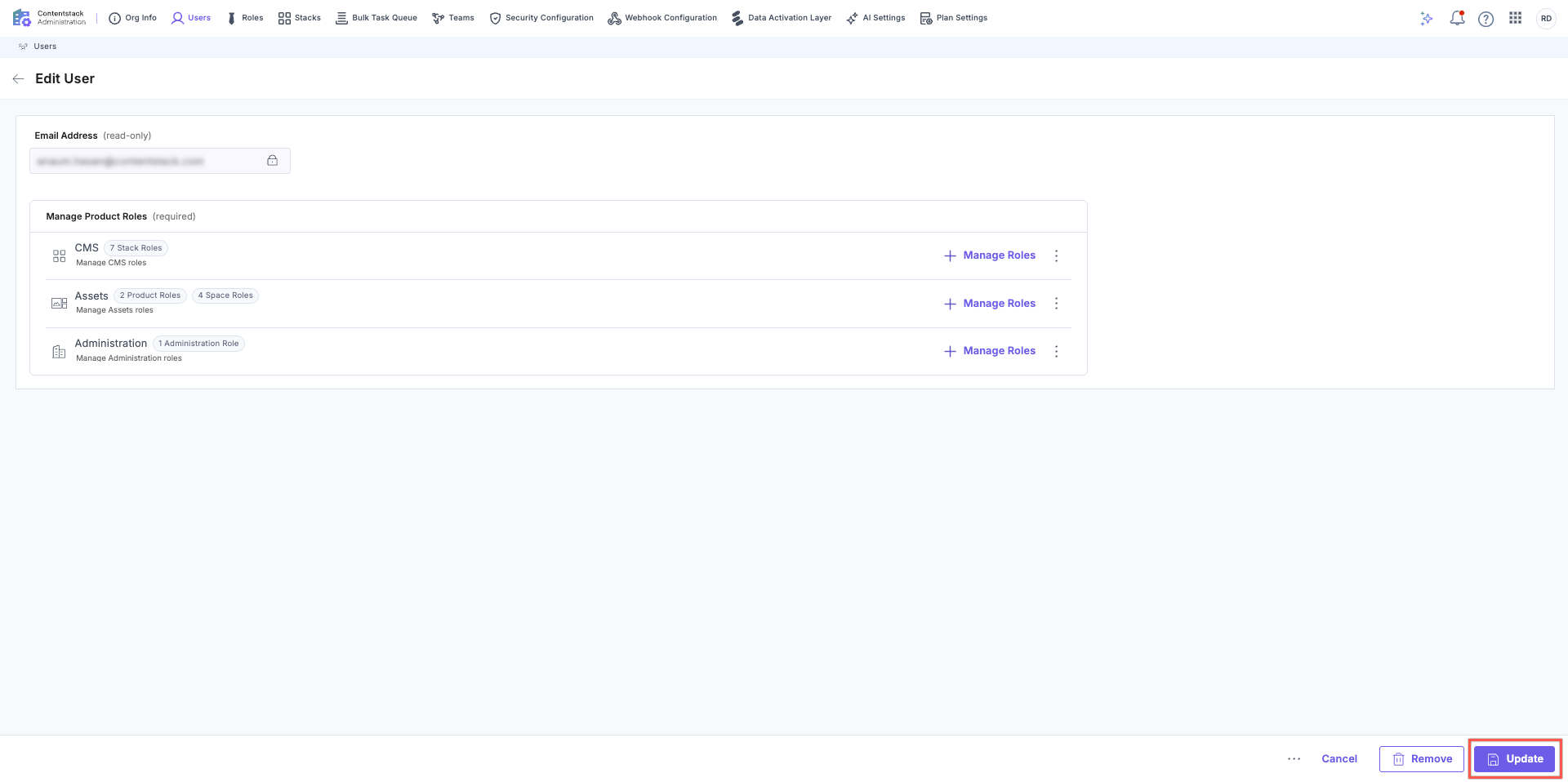
Changes take effect immediately.
Note:
- At least one Administration role must always remain assigned. By default, the Member role is selected.
- Organization-level (product-level) custom roles created in Administration are available for selection here. Project-level custom roles, such as custom stack, space, or AgentOS project roles, must be created from the respective project or its per-product settings page before they can be assigned.
Additional Resource:
- To learn about the organization-level Administration roles, refer to the About Administration Roles documentation.
- To learn about the default roles available for each product, refer to the About Product Roles documentation.
Related Resource
Was this article helpful?
More articles in "Work with Organizations"
