How to upload CSV files for bulk operations using Automate



Overview
Many organizations and content teams prefer to use spreadsheets of CSV files for content authoring purposes. Manually performing bulk upload tasks is time-consuming, but following the Contentstack way, we can leverage Automate to handle these operations for us.
Why Use Bulk Operations for CSV Content Updates in Contentstack?
Large organizations often need to manage and update large amounts of content. Bulk operations through CSV file uploads combined with Automate in Contentstack provide a great way to scale your content management and can offer benefits including:
- Time and Resource Efficiency: Instead of manually updating hundreds or thousands of entries individually, bulk operations allow content teams to make multiple changes simultaneously, significantly reducing the time and effort required.
- Error Prevention: Using structured CSV files for updates helps maintain data consistency and reduces the risk of human error that could occur with manual entry.
- Process Automation: Organizations can automate regular content updates by integrating CSV uploads into their workflow, making it easier to maintain large content repositories.
- Scalability: As content volumes grow, bulk operations become increasingly valuable, allowing organizations to scale their content management processes without proportionally increasing their workforce.
- Cross-Functional Collaboration: Different departments can prepare content updates in familiar spreadsheet formats, making it easier for non-technical teams to contribute to content management.
When implemented correctly, bulk operations through CSV uploads can transform how large organizations handle content updates, making the process more efficient, reliable, and scalable. In this guide, we will walk through how to automate bulk uploading of CSV files to Contentstack.
Prerequisites:
Contentstack account with an existing or new stack
Table App installed from the Marketplace
Workflow setup (Trigger Bulk operation stage)
Automate (Automation)
To use this guide, you need to have experience working with Contentstack.
Step 1: Configuring your stack and app
Before we can upload CSV files, we need configure our stack and Table app.
Creating a content type
Create a Content Type with the following fields or import Content Type JSON file.
- Field Name: Title | Field Type: Single Line Textbox
- Field Name: Link text | Field Type: Single Line Textbox
- Field Name: Title | Field Type: MultilineTextbox
Configuring Entry for CSV import (with Table Marketplace App)
- On the left navigation panel, click the Marketplace icon.
- In Apps search for ‘Table App’ and Install it to the Stack you want to use.
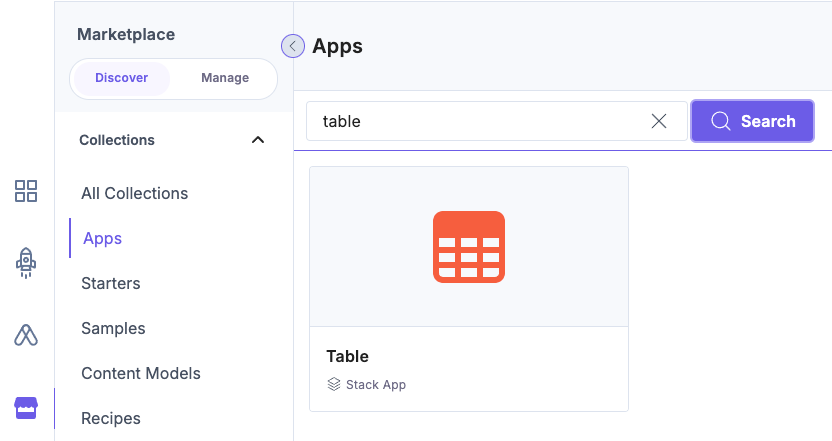
Next, Create A Config Content-Type and you can ‘Bulk CSV Uploader’ or import Content Type JSON file.
- Field Name: Title | Field Type: Single Line Textbox
- Field Name: Custom | Field Type: Custom Field (generated from Marketplace Table app)
Creating Config Entry and Import
Create a Config Entry in the ‘Bulk CSV Uploader’ Content type
Import CSV file in the Table custom field (sample CSV with Entries file)
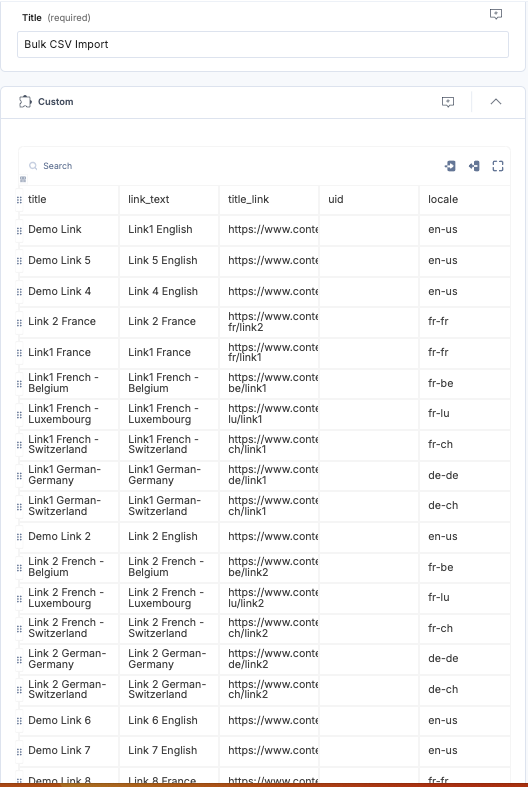
Building a Workflow
Contentstack's Workflow feature provides organizations with a structured approach to content management and approval processes. Workflows enable teams to define clear stages for content creation as well as maintaining content quality through systematic review processes while establishing clear lines of accountability in the content lifecycle. By automating content routing through an approval process, teams can significantly reduce bottlenecks and increase content velocity. Let's create a workflow for our Bulk CSV Uploader.
Step 2: Creating a Workflow
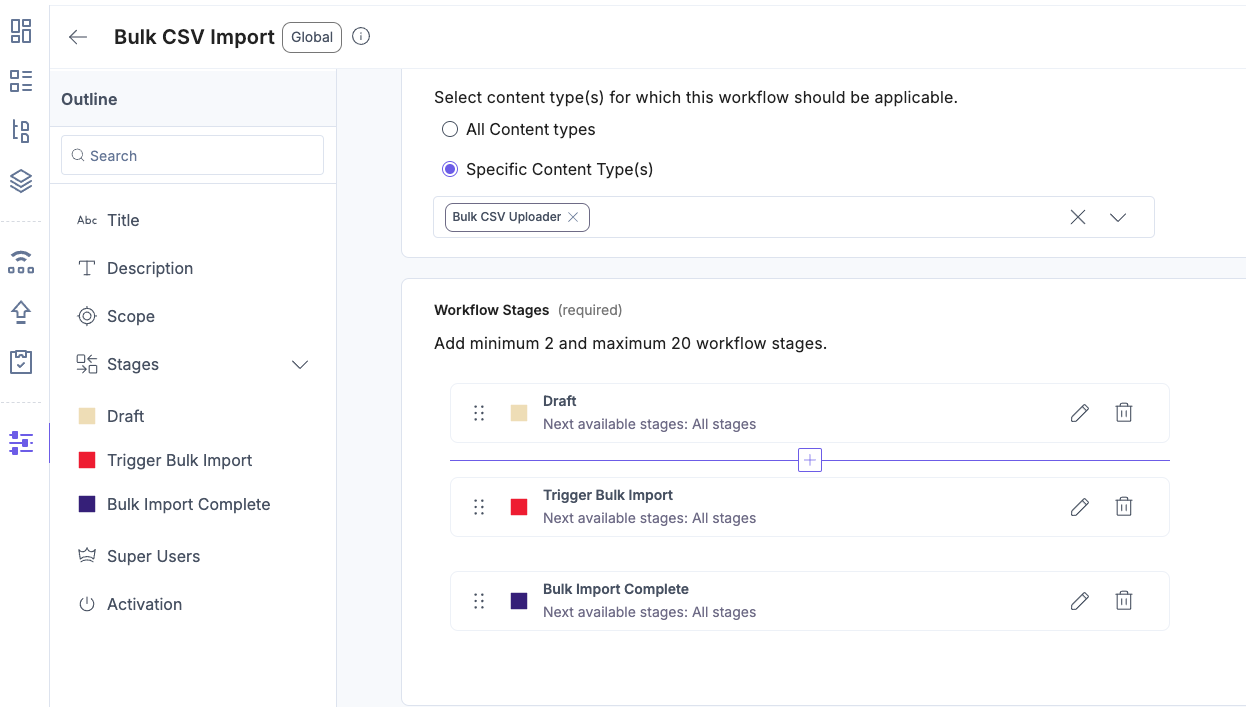
Create a Workflow with the below stages against this ‘Bulk CSV Uploader’ content type. For more information, check out the>workflow guide
in our documentation.Workflow stages
- Draft
- Trigger Bulk Import
- Bulk Import Complete
Step 3: Adding an automation
Contentstack Automate enables teams to create sophisticated automation workflows that handle repetitive tasks, content transformations, and complex business processes without manual intervention. Using Automate, teams can streamline their workflows by automating routine tasks like content categorization and asset optimization, freeing up valuable time for strategic initiatives. Let's create an automation to go with our workflow.
To create an Automation, navigate to the left menu on the Contentstack main dashboard and click the Automate icon.
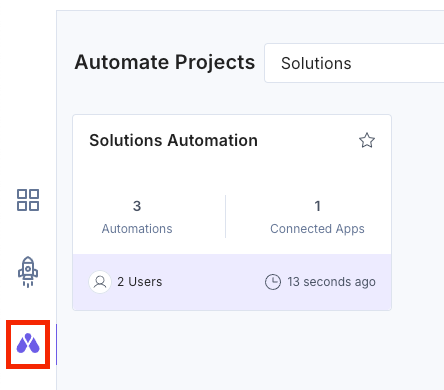
To create a new Automate Project, click the + New Project button
To create a new Automate in Project, click the + New Automation
In the New Automation setup under Configure Trigger, choose Contentstack Management and choose Workflow Triggerto set the trigger to Bulk CSV import stage
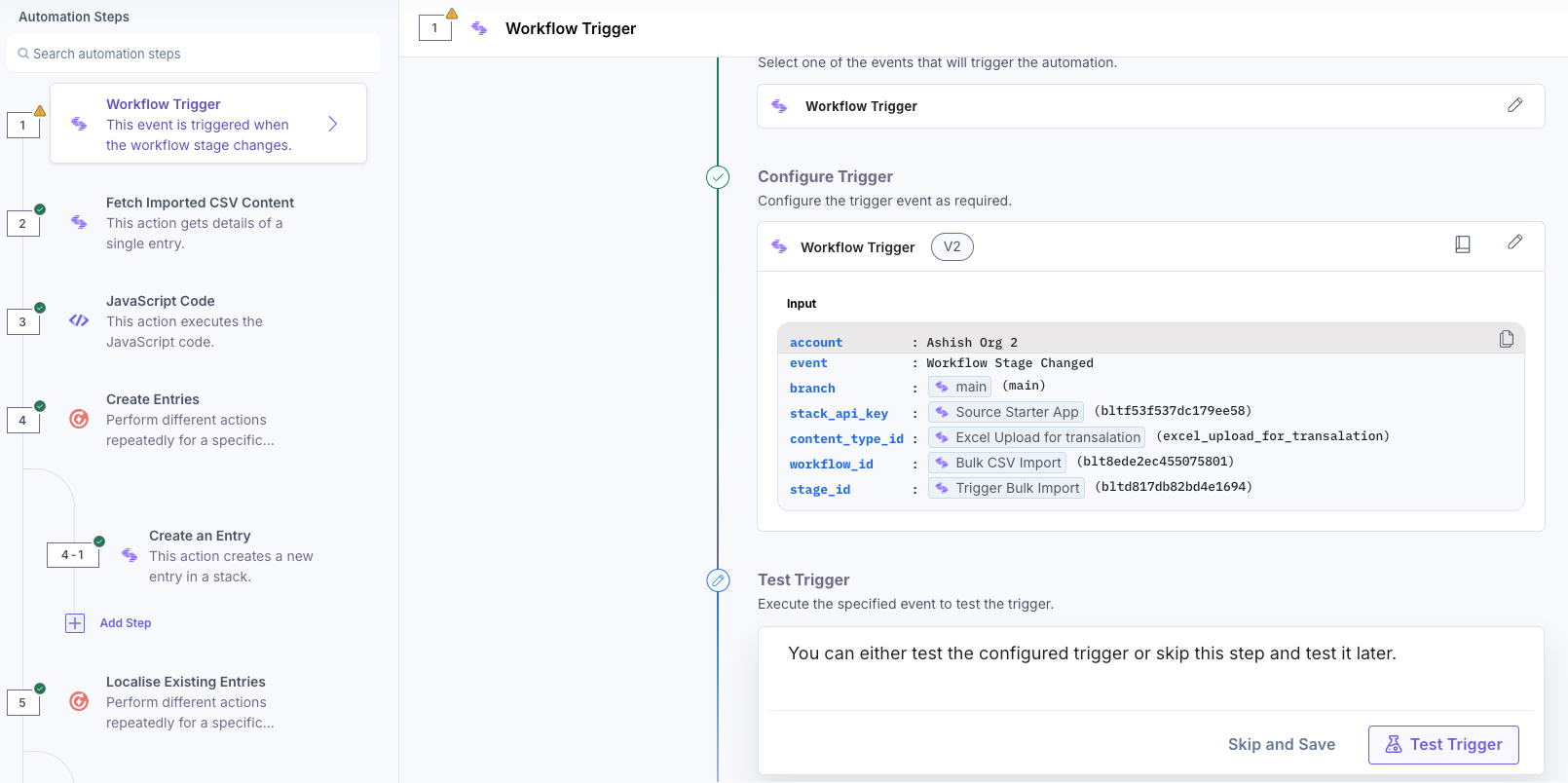
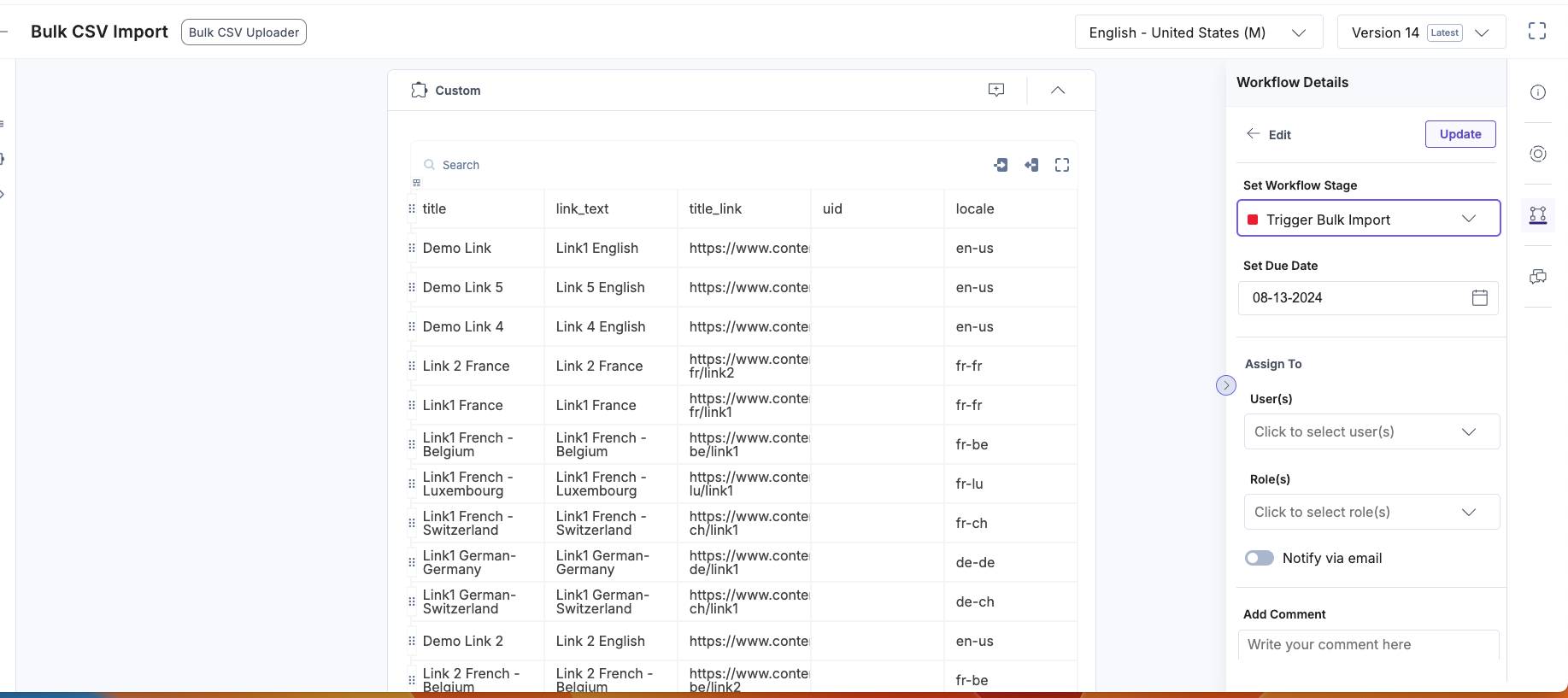
Next, get the triggered CSV entry Payload and move the Bulk uploader CSV entry to Tigger Bulk Import stage.
Now, that we have completed the above steps, it is time to go back and test the trigger to make sure we are receiving the entry payload by following the below steps:
Go back to Automate and Click on test trigger to get the entry payload then save this step 1 of Workflow trigger.
To get full Entry data setup step 2 action with contentstack management get Single Entry Action and pass stack and entry details based on the previous step output.
Now setup a Codeblock action with input name csvTable, an input value for CSV field value, and add the below Javascript code to format the received CSV data to Entry JSON for Create and Localize/update entries
Add the following Javascript code to the codeblock:
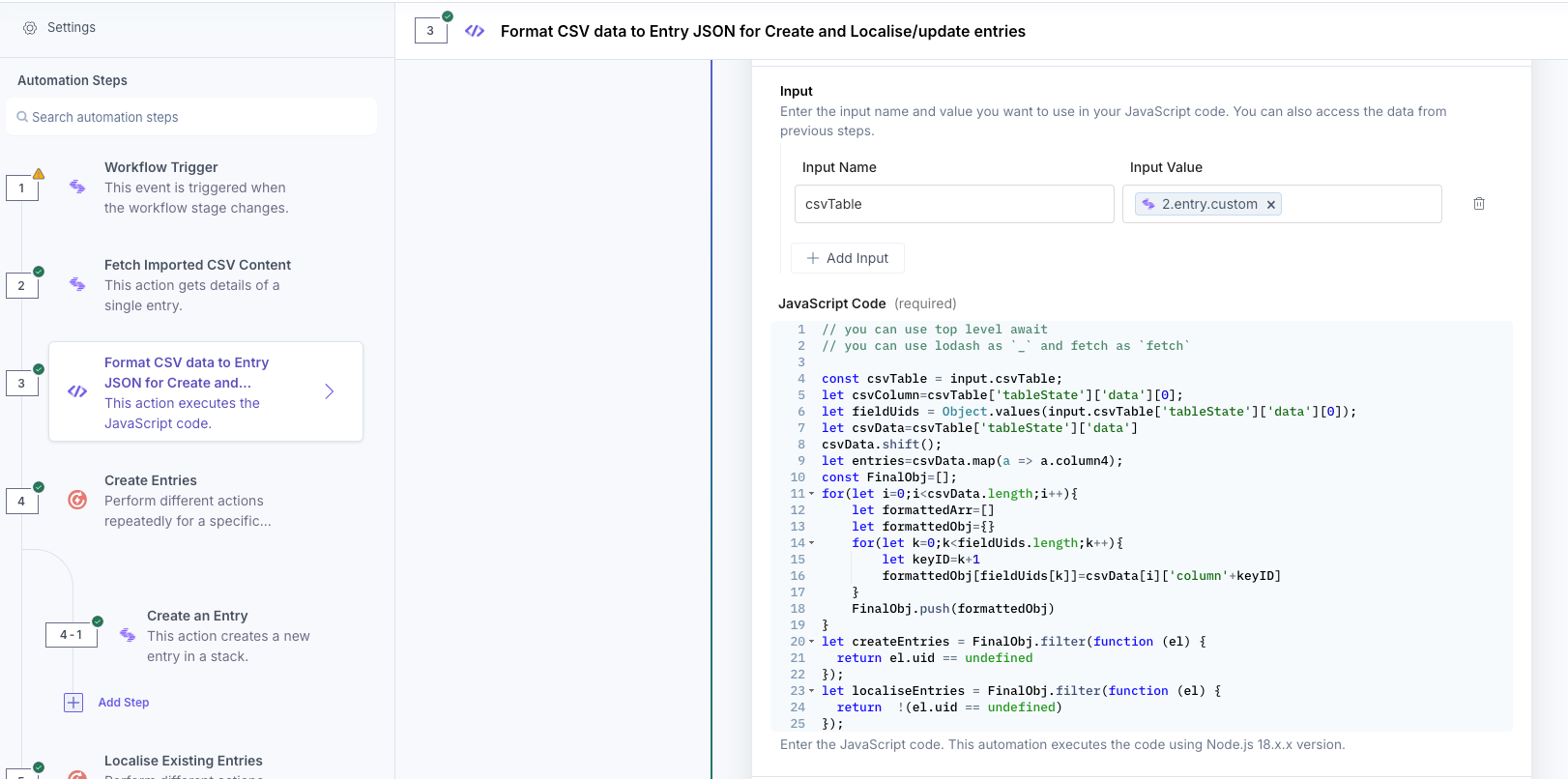
We will receive two separate entry arrays for create entries and localized entries. Let's setup the first repeat path for createEntries Array for Creation of entries received from the CSV file.
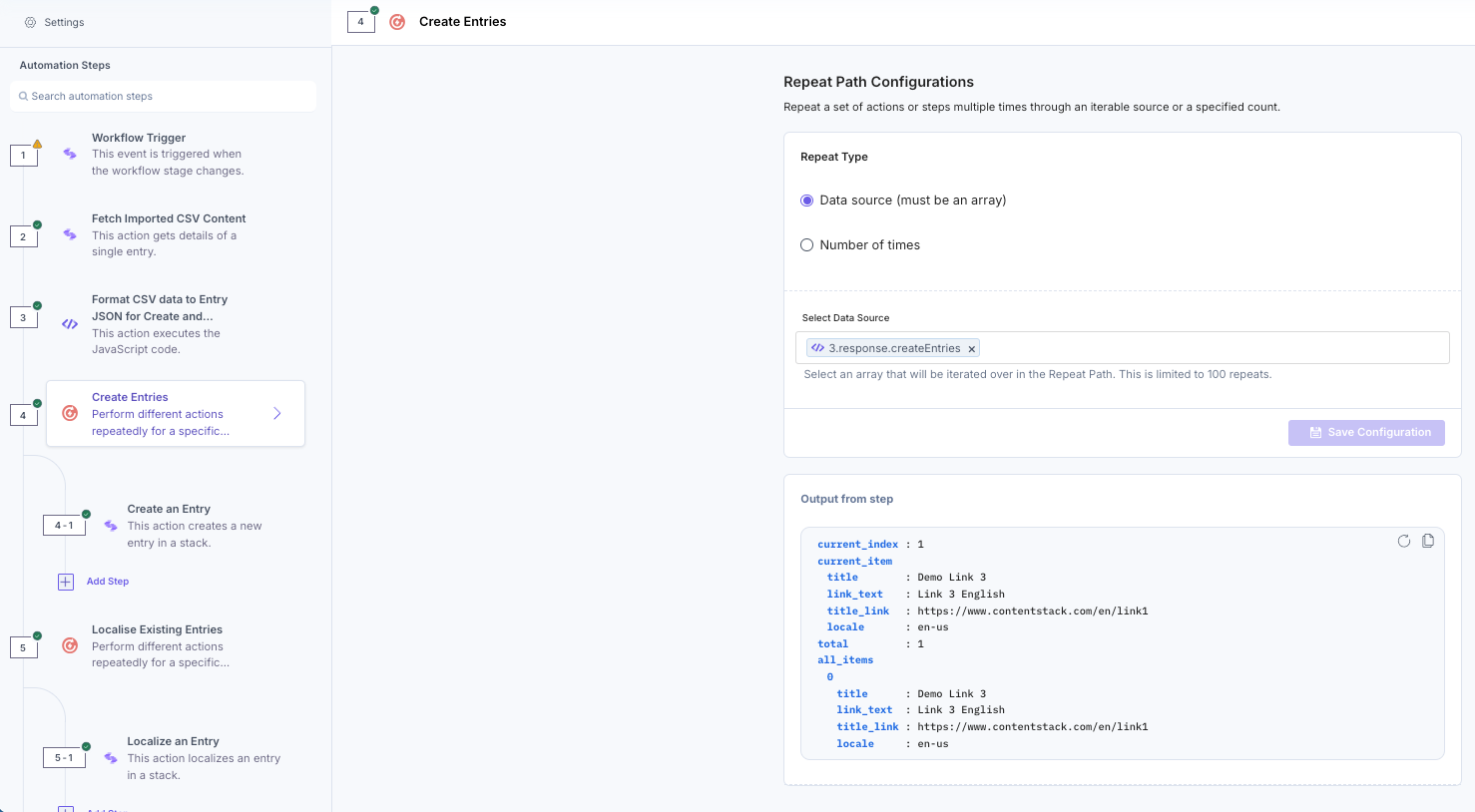
Set up a Create Entry Action for looped entry objects against current item of repeat loop
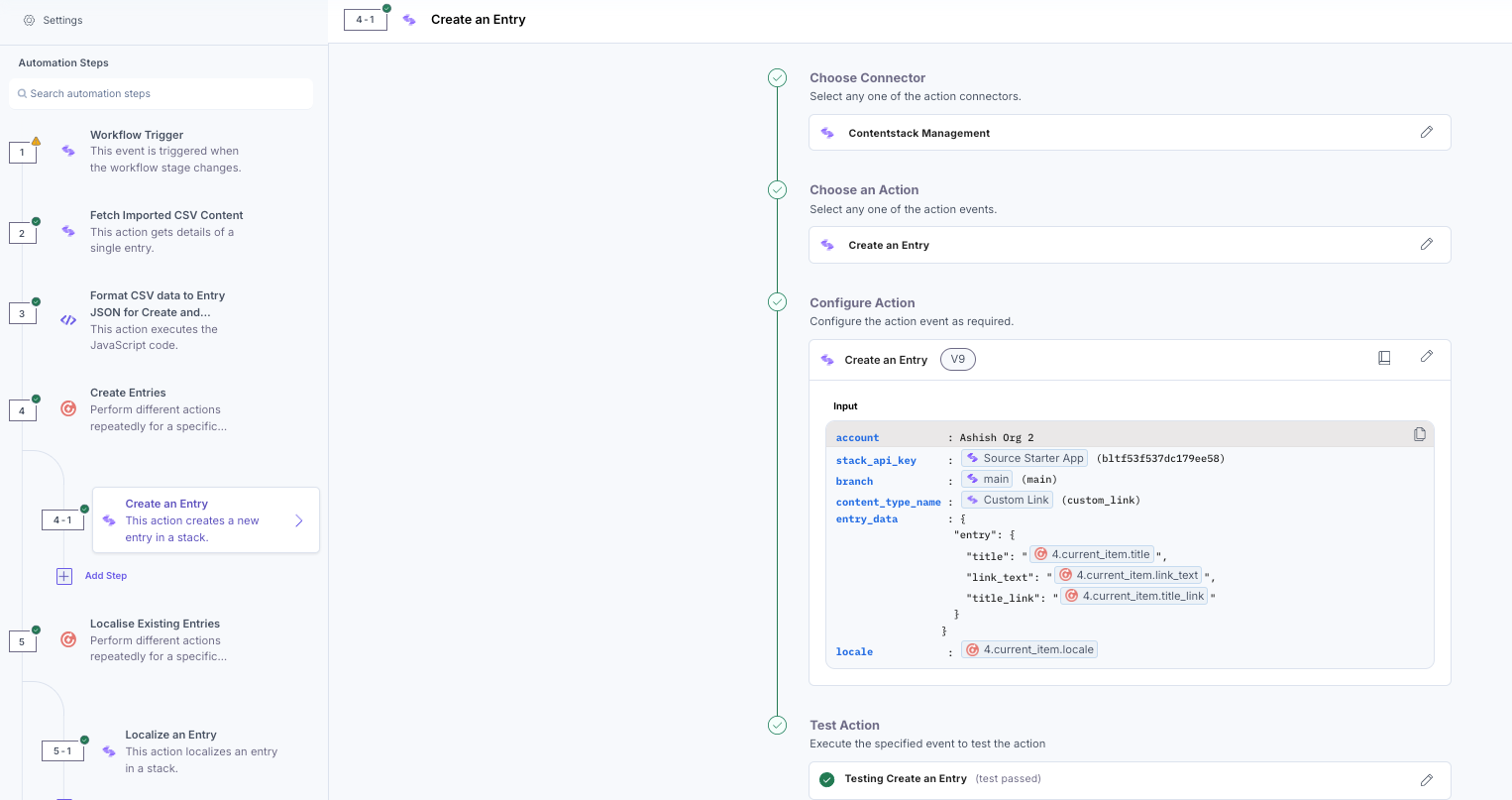
On the right of the automation steps window, ensure that "Contentstack Management" is the connector and "Create an Entry" is the action. Last, test the trigger and save the action.
Set up a Localize Entry Action for looped entry objects against current item of repeat loop
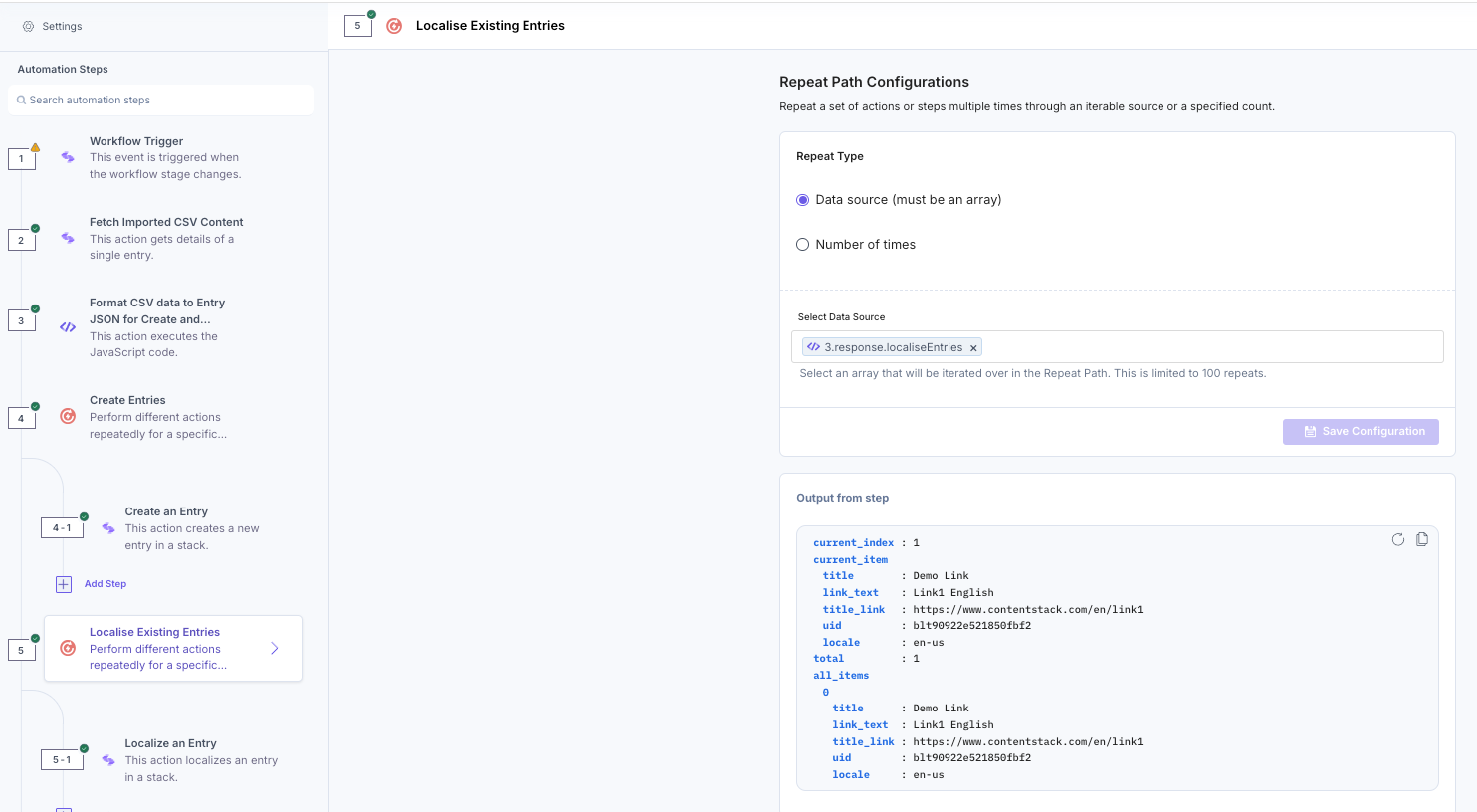
Ensure that "Data source" is selected as the repeat type and that the LocalizedEntry is the data source. On the right of the automation steps window, ensure that "Contentstack Management" is the connector and "Localize an Entry" is the action.
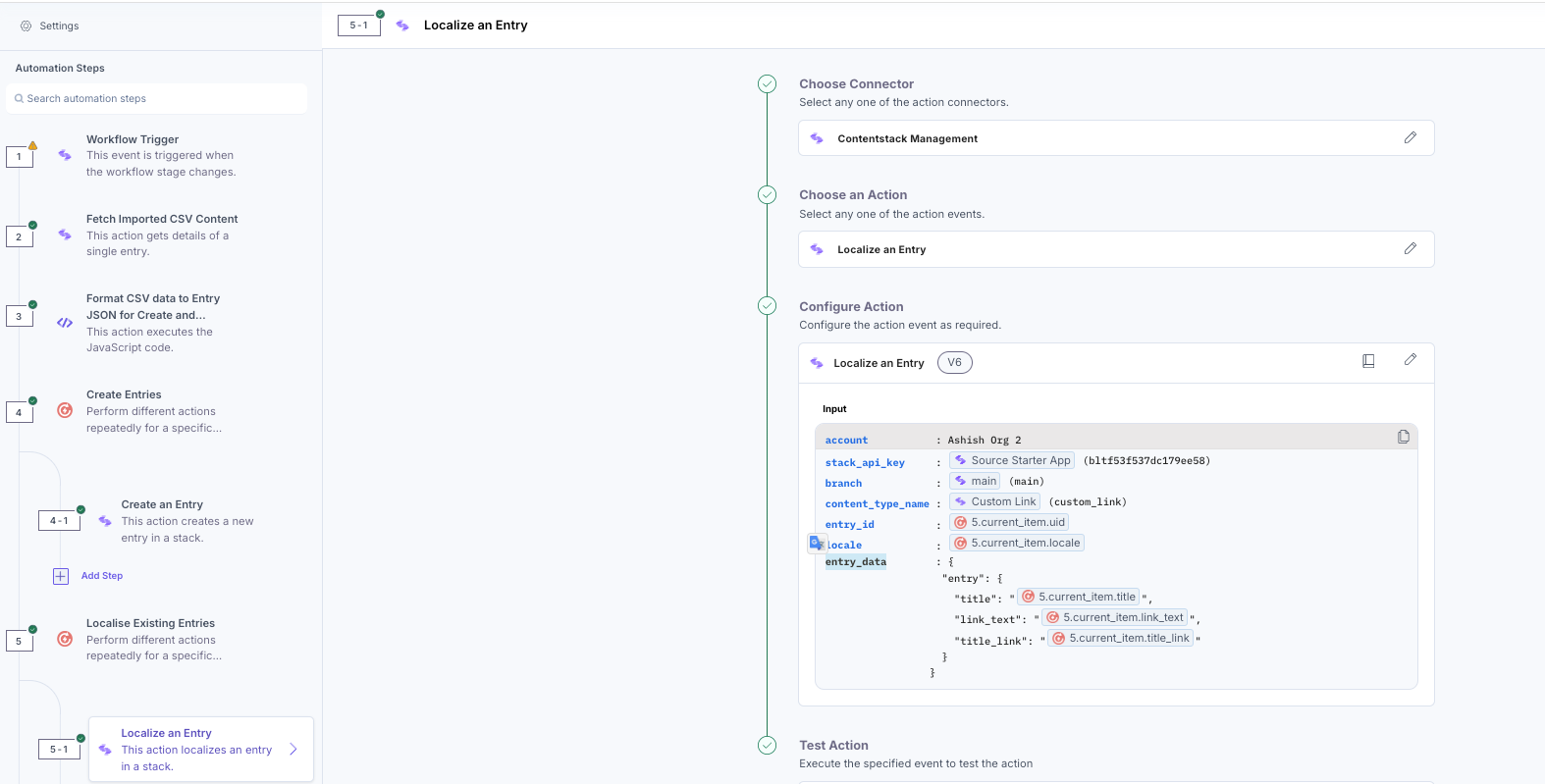
Next, set up the Entry UID and Locales against proper Content type, and then set the Entry data. Last, test the trigger and save the action.
Step 4: Moving the CSV entry to the Bulk Import Complete Workflow
To move the Bulk uploader CSV entry to Bulk Import Complete workflow stage, we will use the Set Entry Workflow Action.
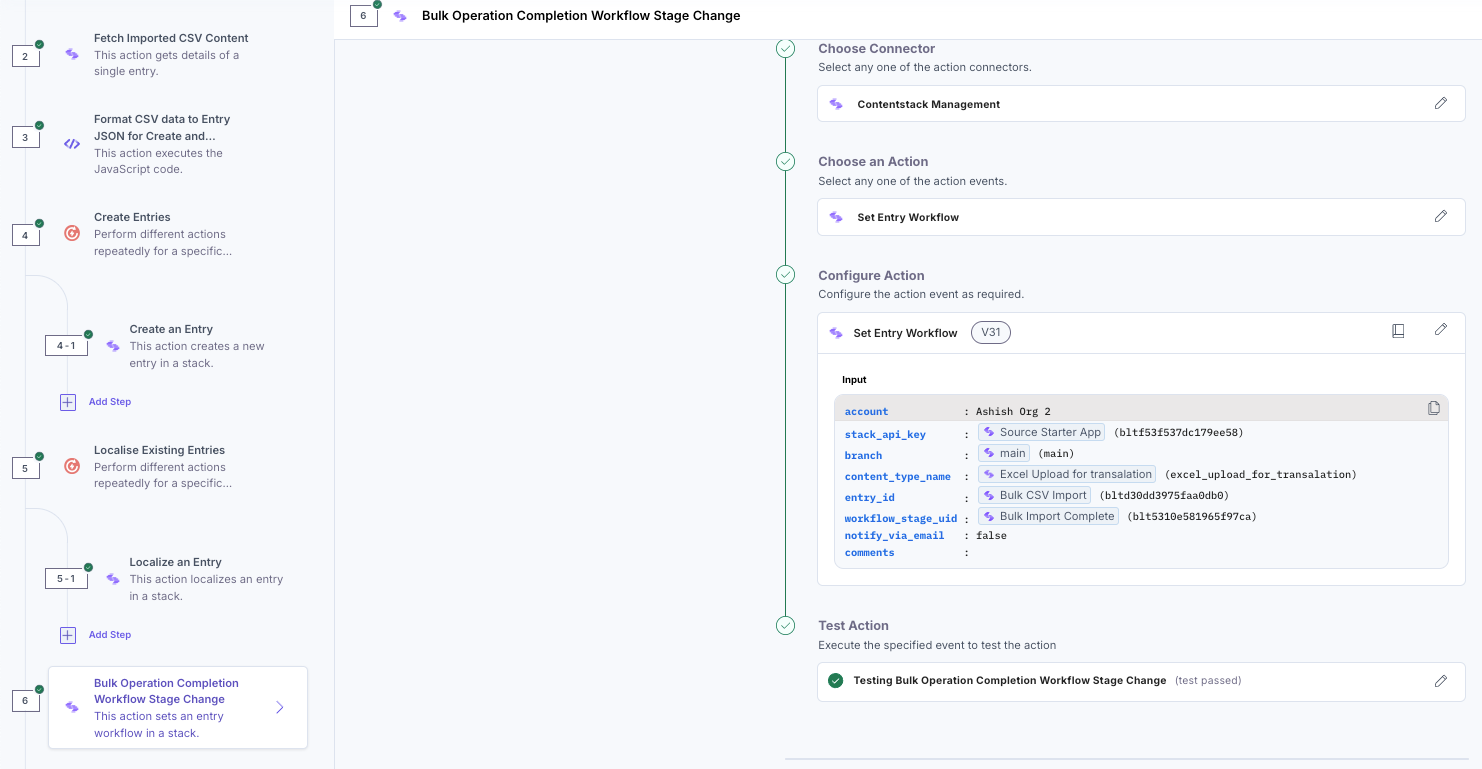
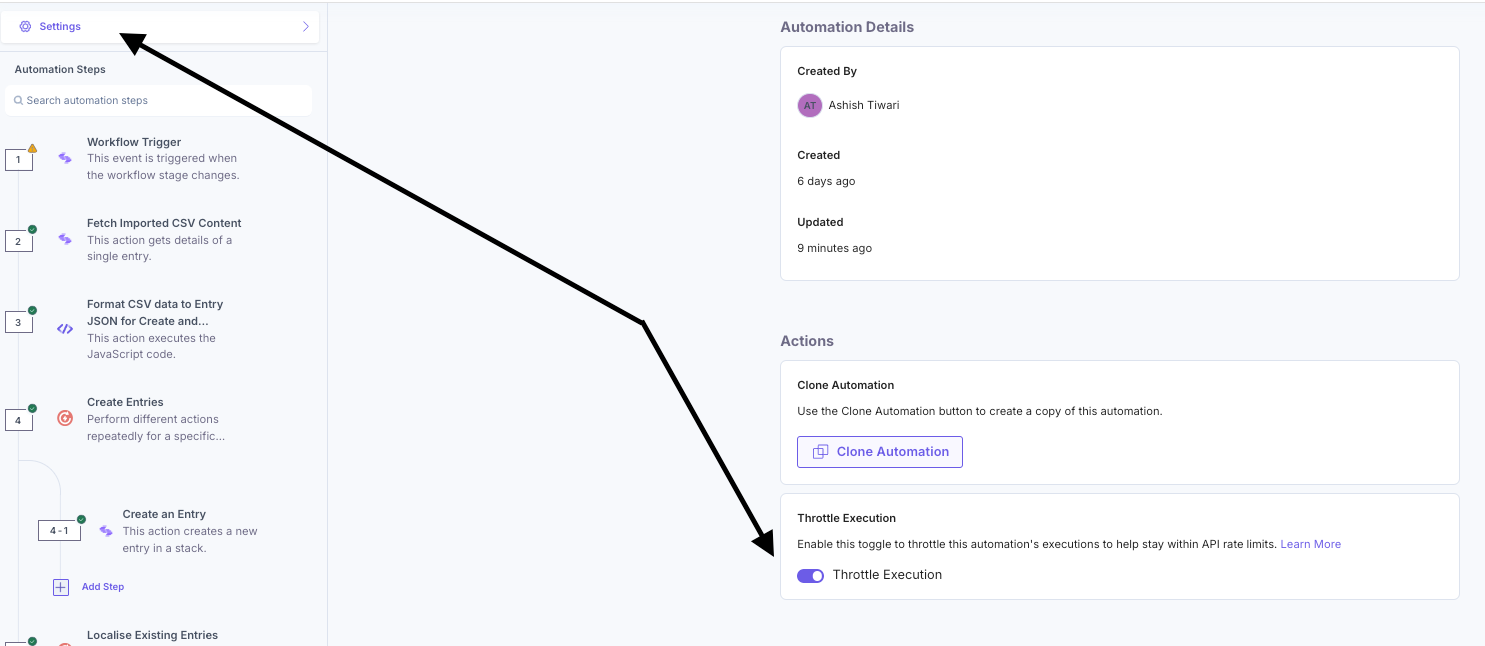
Next, enable Throttle for Automate Executionunder "Settings" in the automation steps window to avoid rate Limit errors in case of large bulk import operations.
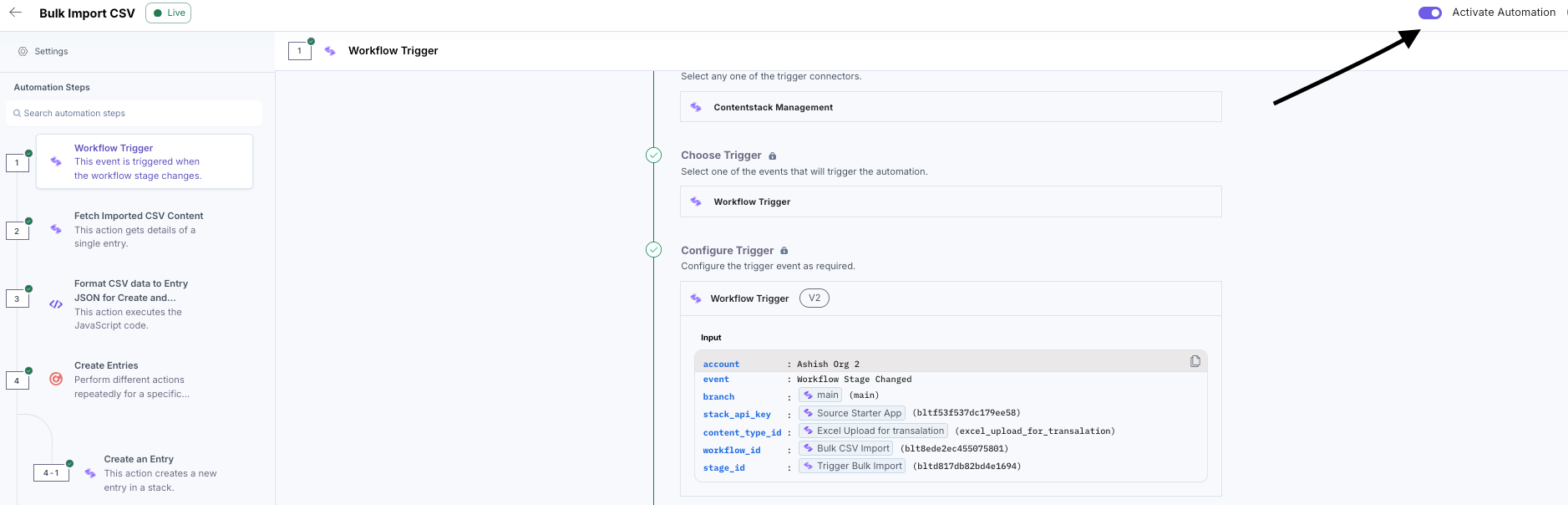
Our automation is ready to the start listening for triggers, enable the "Activate Automation" trigger.
Now that our automation is listening for triggers, let's import the CSV data in the custom table field. Alternatively, you can update the imported table data in Bulk import Entry by expanding the table view to full screen and then move it to the Trigger Bulk Import Workflow stage. Our automation will now start execution and you can see logs in the Execution Queue!
Taking it a step further
Extend this workflow and automation further to support all different content types by setting up CSV file as per the Field Schema of content types and customizing Formatter code to convert CSV data into Entry JSON.
Create a workflow for each entry and useOn Demand automateto localize entries in all languages based on master entry fields data.
Rollback for performed Bulk operation , As we are using Entry to track Entry which is used for CSV import, its easy to go back to previous entry version and trigger Bulk import Automation by ‘Trigger Bulk import’ workflow stage change which will revert last bulk operation.
- Set up Accessibility for such large bulk operation by creating custom role who can have access to this Bulk import Entry by setting upEntry Level Permissionsin Custom role Or Setup Workflow Stage change permissionto allow specific role/user to move Bulk import Entry to ‘Trigger Bulk import’ workflow stage.
About Contentstack
The Contentstack team comprises highly skilled professionals specializing in product marketing, customer acquisition and retention, and digital marketing strategy. With extensive experience holding senior positions in notable technology companies across various sectors, they bring diverse backgrounds and deep industry knowledge to deliver impactful solutions.
Contentstack stands out in the composable DXP and Headless CMS markets with an impressive track record of 87 G2 user awards, 6 analyst recognitions, and 3 industry accolades, showcasing its robust market presence and user satisfaction.
Check out our case studies to see why industry-leading companies trust Contentstack.
Experience the power of Contentstack's award-winning platform by scheduling a demo, starting a free trial, or joining a small group demo today.
Follow Contentstack on Linkedin

Recommended posts